Edit a screening configuration

Last updated: November 4, 2026

There are two ways to change screening configurations:

  1. Update name and description of a screening configuration.

  2. Edit the source collections within it.

Update name and description of a screening configuration

  1. Select the screening configuration you want to edit from Settings > Screening configurations.

    Screening configurations page in Settings, listing each configuration with its last modified date, editor and status
  2. Click the three dots in the upper right corner.

    Screening configuration details page with the three dots menu button highlighted in the upper right corner
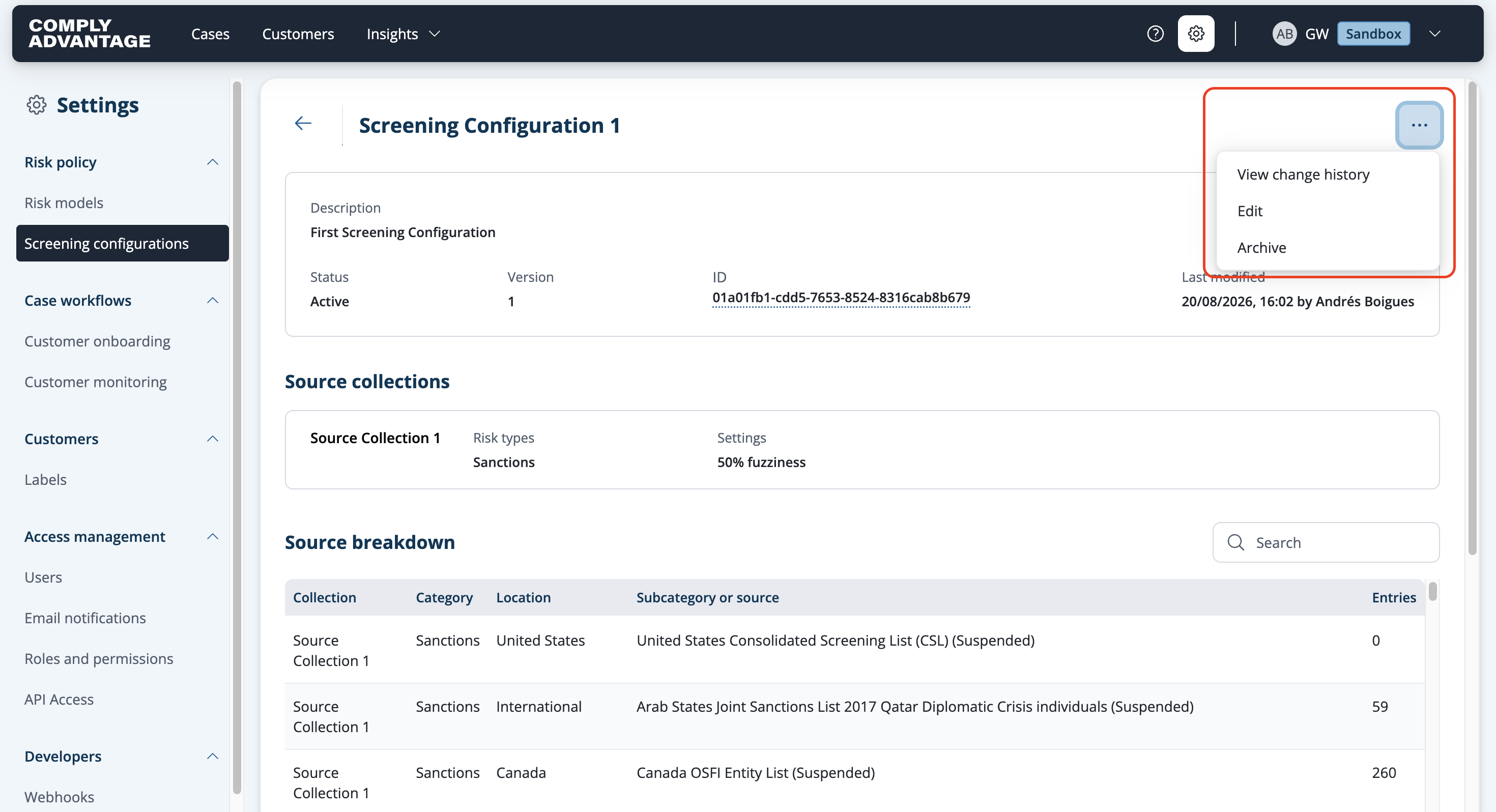
  3. Select Edit from the dropdown.

Screening configuration details page with the three dots menu open, showing View change history, Edit and Archive

  1. Select the pencil icon at the top to edit the name and description of the configuration.
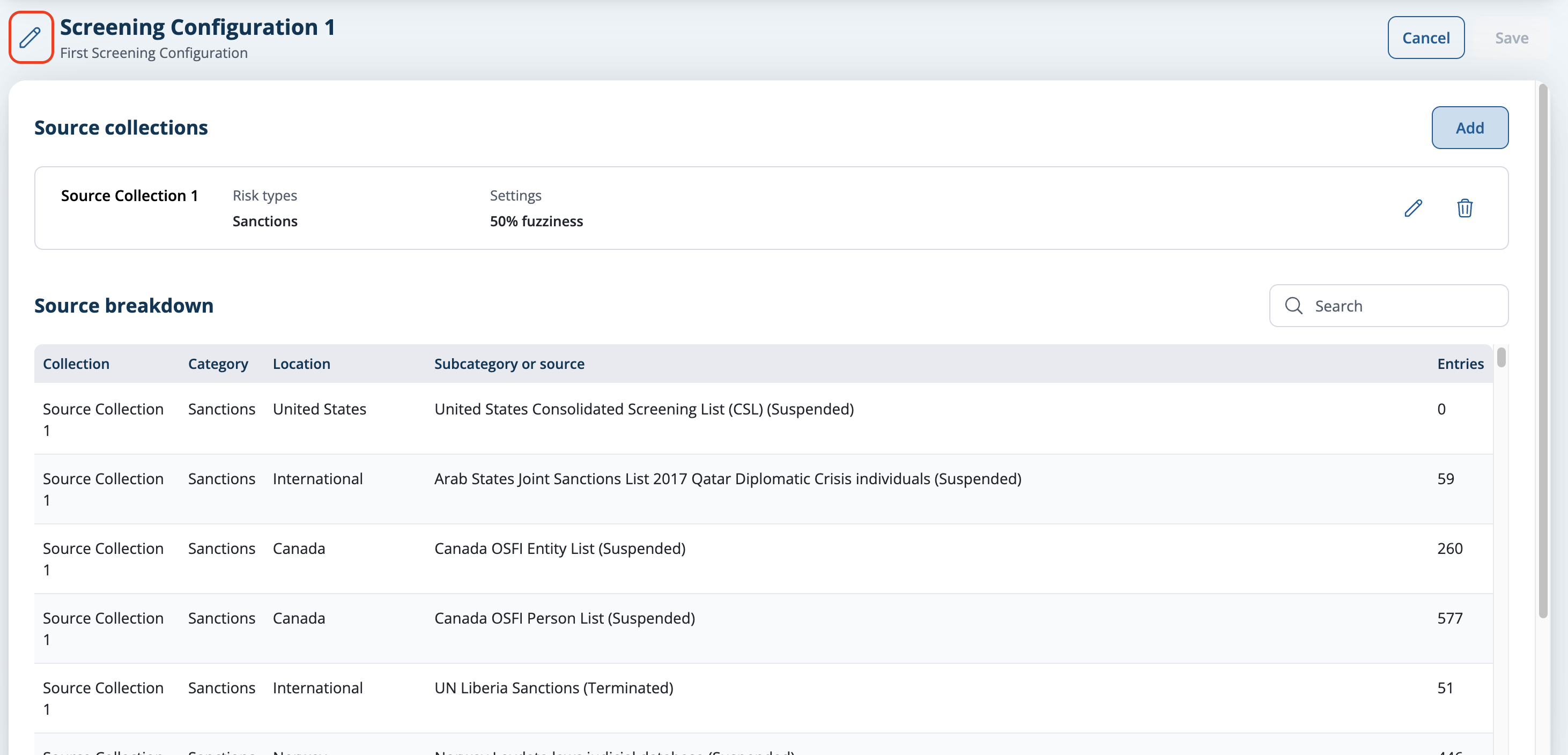
Screening configuration in edit mode with the pencil button next to the configuration name highlighted

  1. Make the required changes in the pop-up.

Edit screening configuration dialog with a new name and description entered in the Name and Description fields

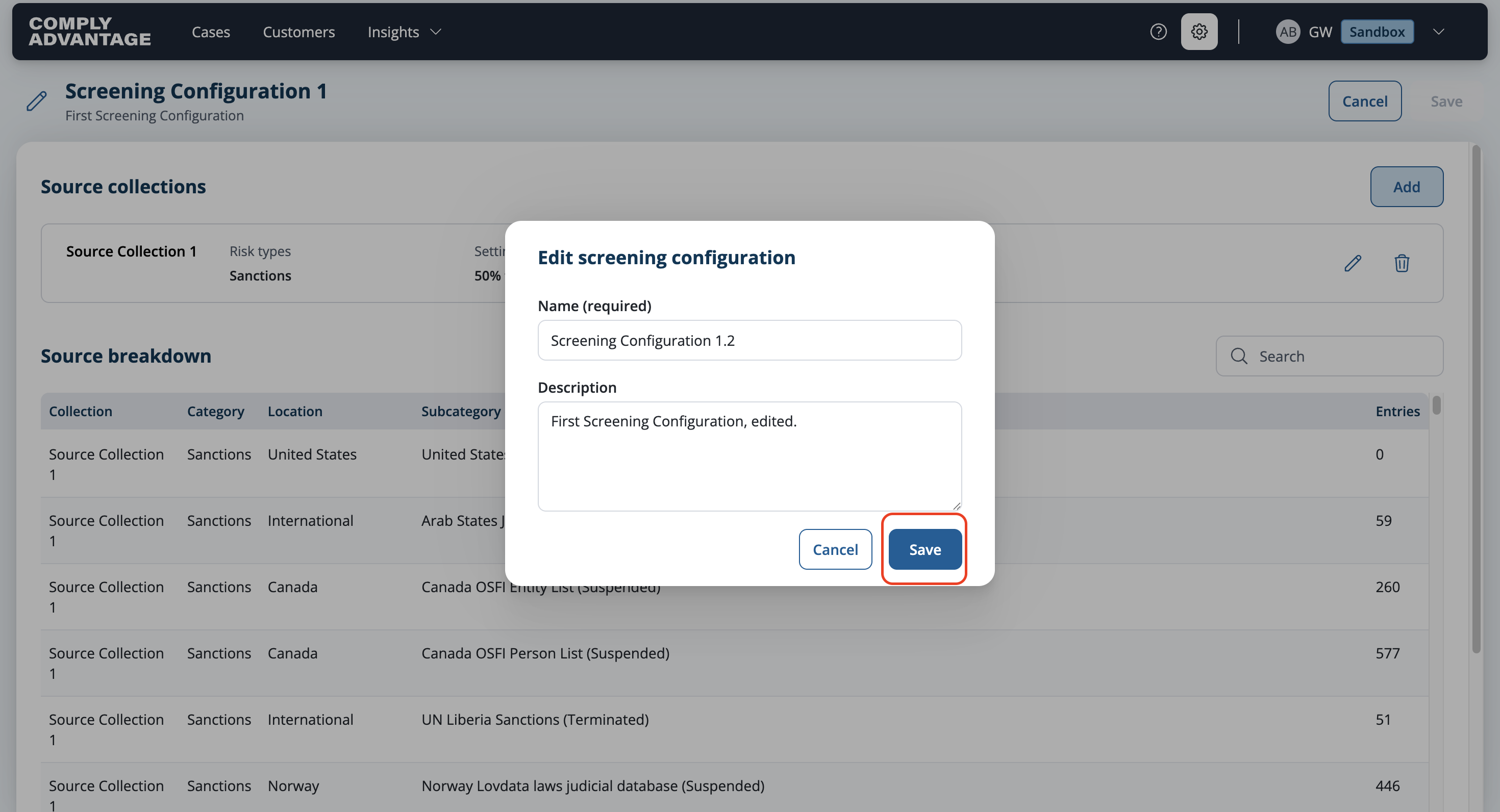
  1. Click Save.

Edit screening configuration dialog with the updated name and description, and the Save button highlighted

The screen will reflect the update name and description. 

Screening configuration page with the updated name and description highlighted at the top

Edit a source collection

  1. Select the screening configuration you want to edit from Settings > Screening configurations.

    Screening configurations page in Settings, listing each configuration with its last modified date, editor and status
  2. Click the three dots in the upper right corner.
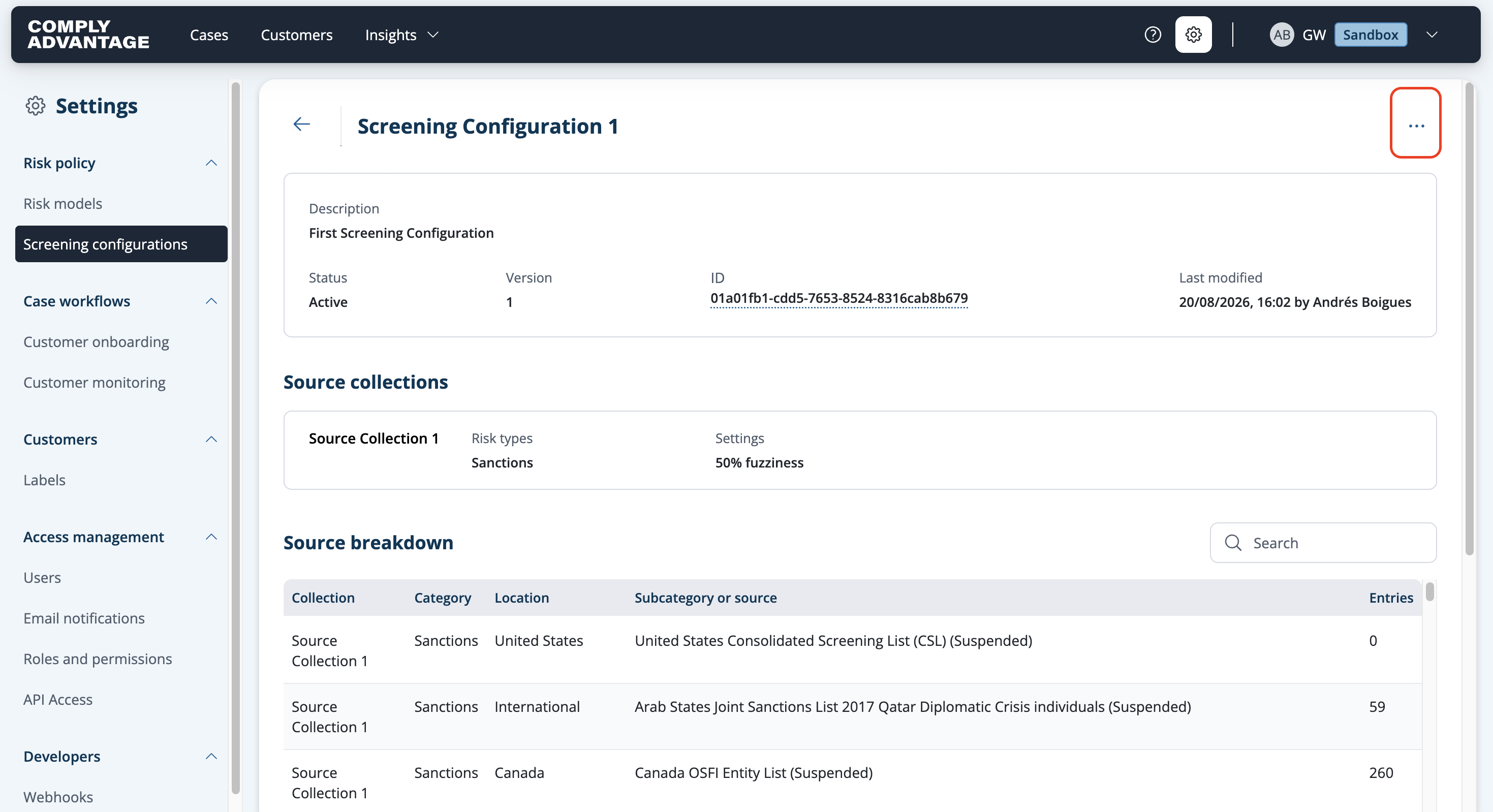
    Screening configuration details page with the three dots menu button highlighted in the upper right corner
  3. Select Edit from the dropdown.

    Screening configuration details page with the three dots menu open, showing View change history, Edit and Archive
  4. Click the pencil button in the box for the source collection you want to edit.
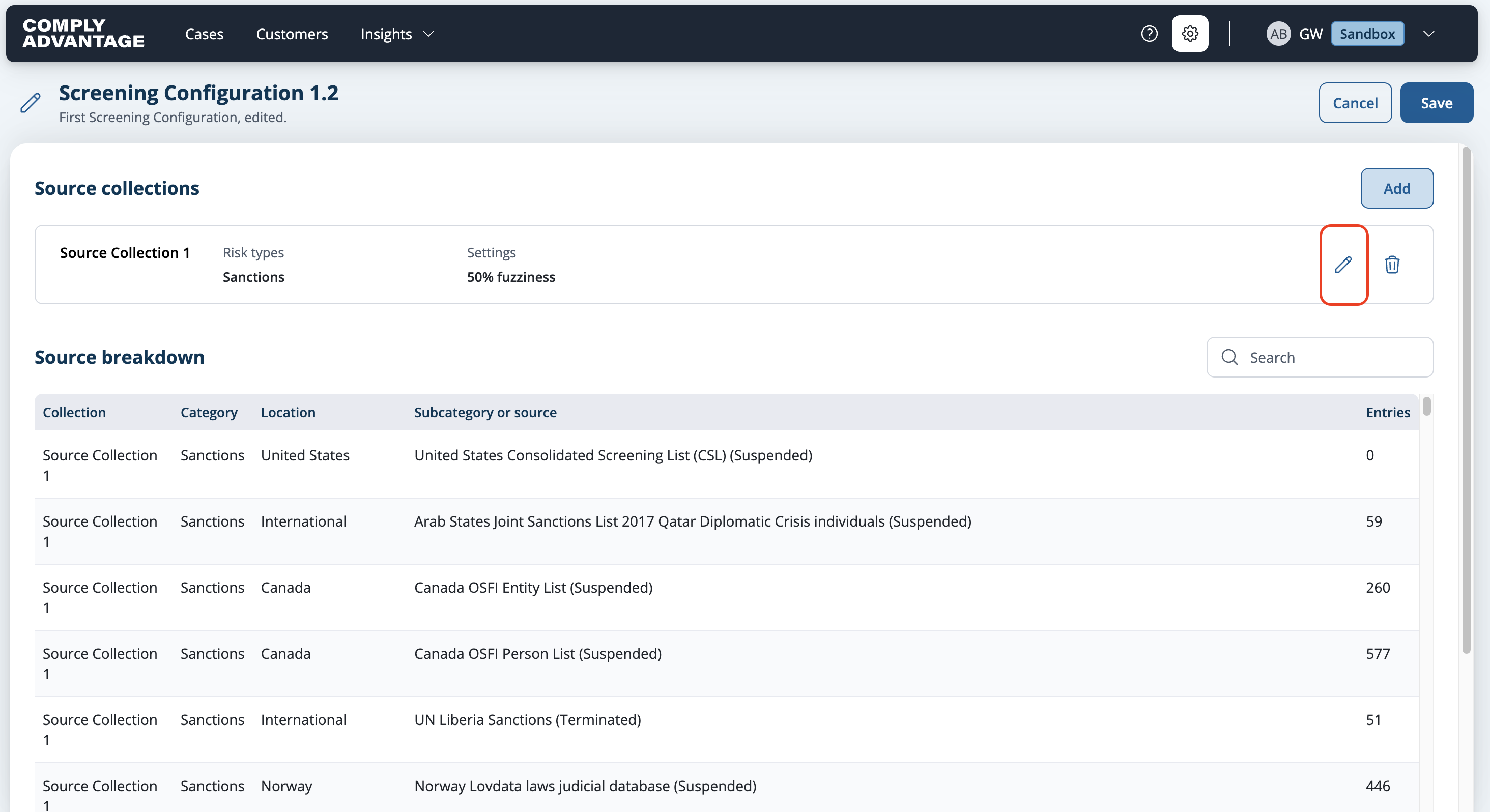
Screening configuration in edit mode with the pencil button highlighted in the box for a source collection

You can make changes in the following ways:

  • Fuzziness

  • Add more sources

  • Remove sources

5. Select Add in the upper right corner to add the changes to the configuration.
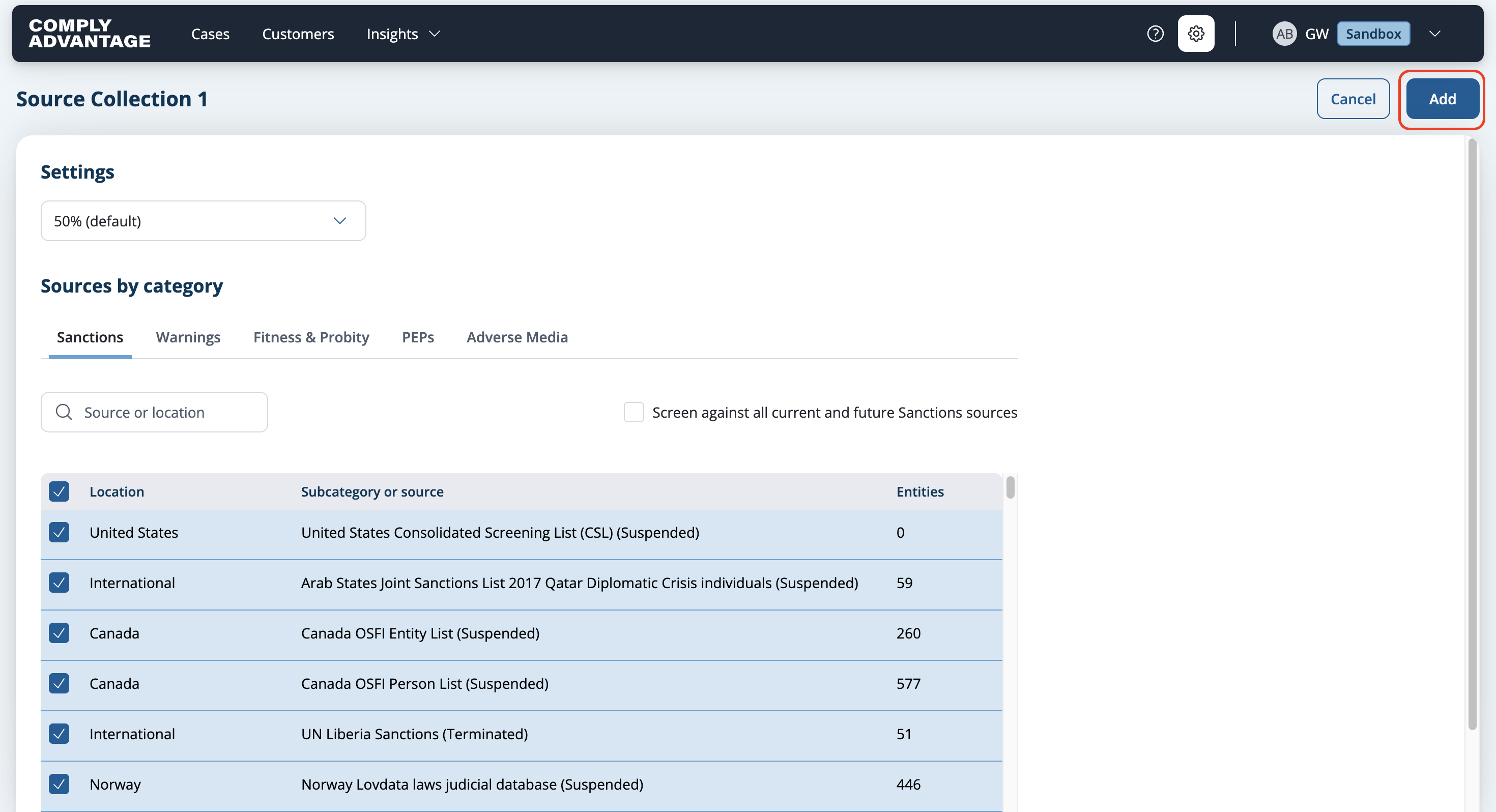
Source collection page with the fuzziness setting and sources by category, and the Add button highlighted in the upper right

6. Once you have made all your changes to the source collections within a configuration select Save from Screening configuration page to apply the changes. 
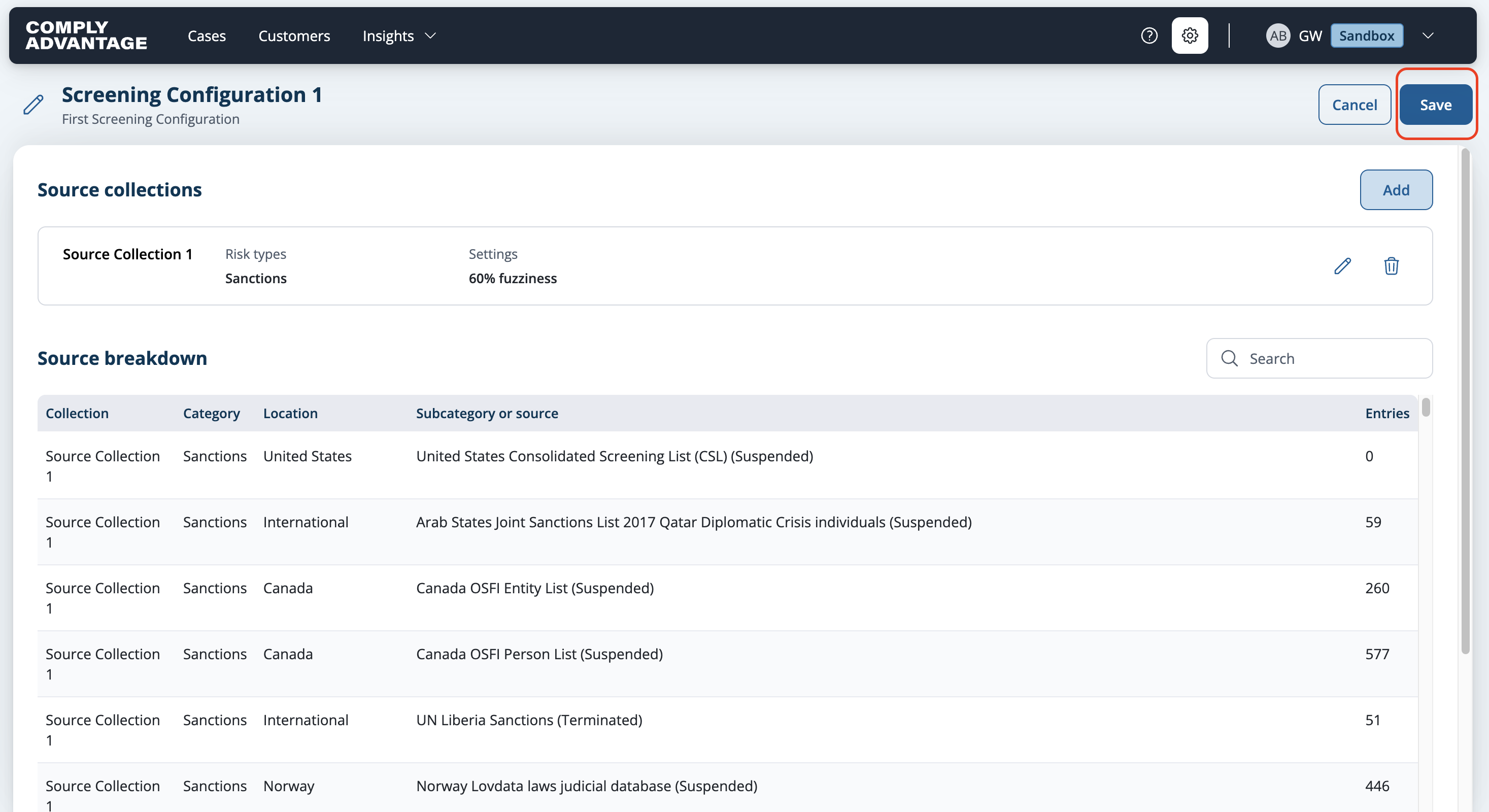
Screening configuration in edit mode with the changed source collection and the Save button highlighted in the upper right