Video: How to create a Screening Configuration with Source Collections
Last updated: October 13, 2026
In this guide, you will learn how to create a screening configuration with source collections in Mesh.
When logging in to your account, please ensure you select the correct region, which will be one of the following:
Australia: https://au.mesh.complyadvantage.com/
You can find the link to your region in the onboarding email you received (look for the "Welcome to ComplyAdvantage" email).
If you can’t find the email, don't worry! You can always contact our support team at [email protected].
Step-By-Step Guide
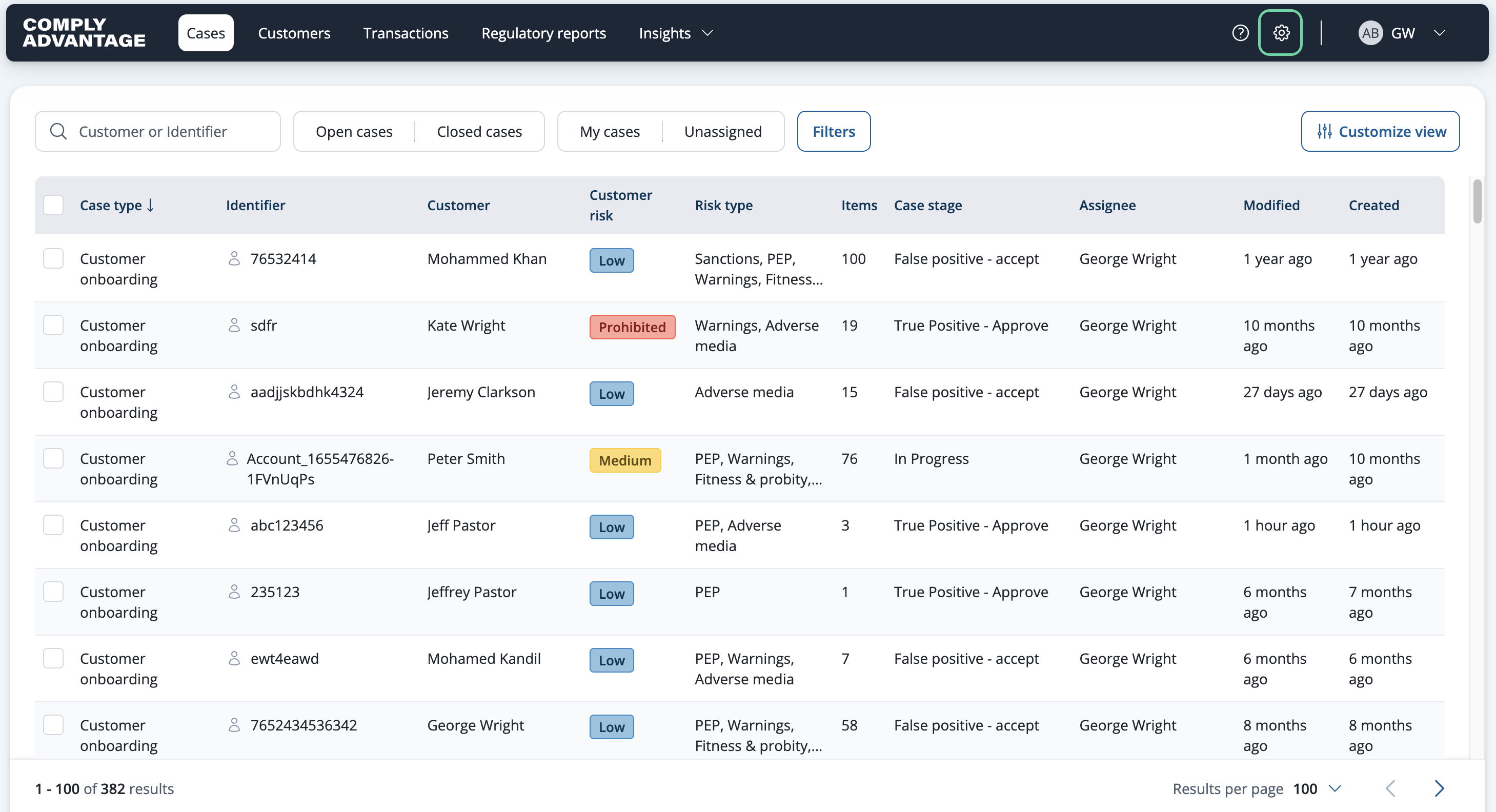
1. Click on the "Settings" icon
To begin, click on the settings icon on the top right of your Mesh pannel.
2. Click "Screening configurations"
Navigate to the Screening Configurations tab on the left-hand side.
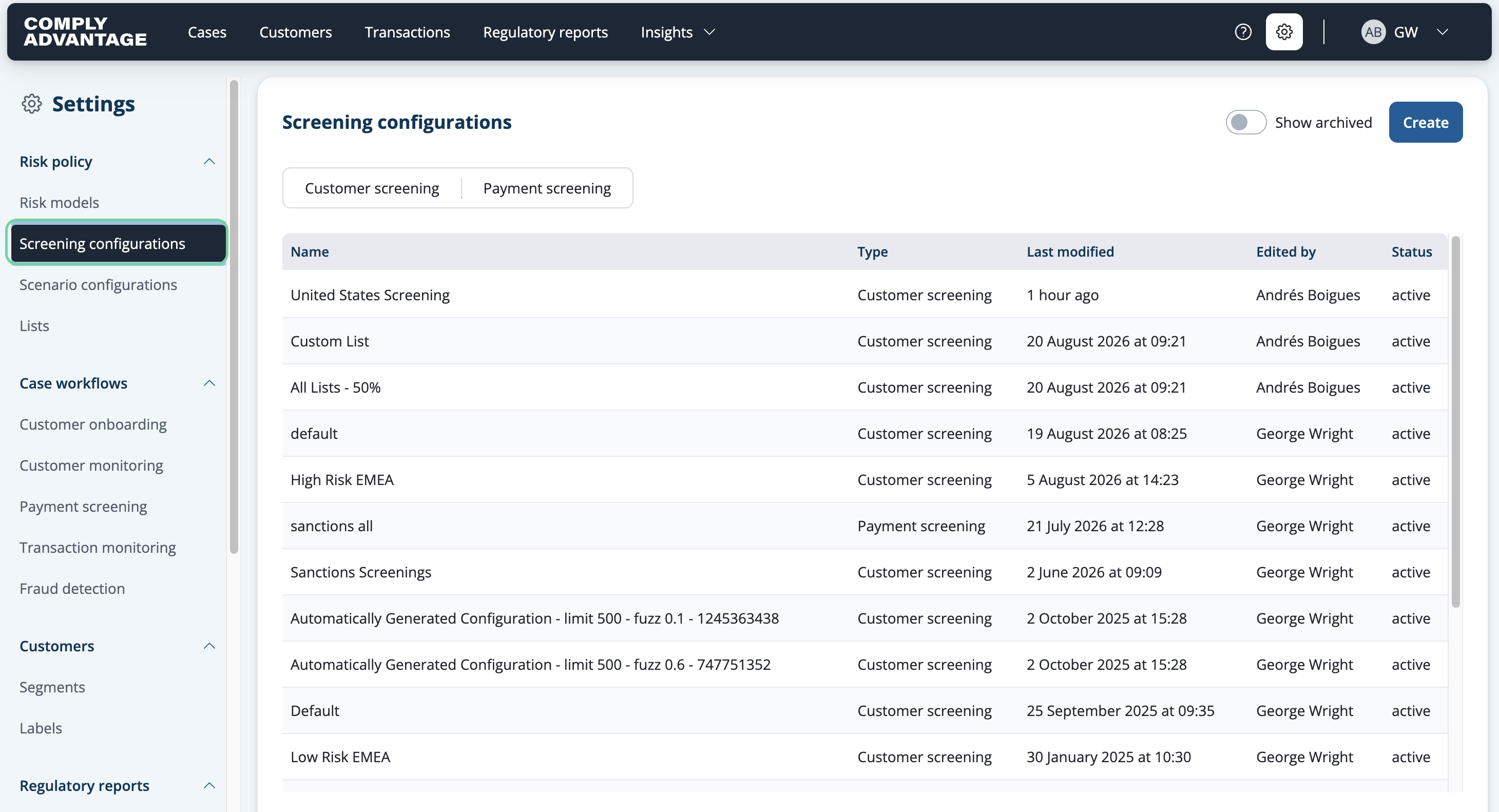
3. Click "Create"
Click "Create" on the right.

4. Enter a name
Next, enter the name of your screening configuration.
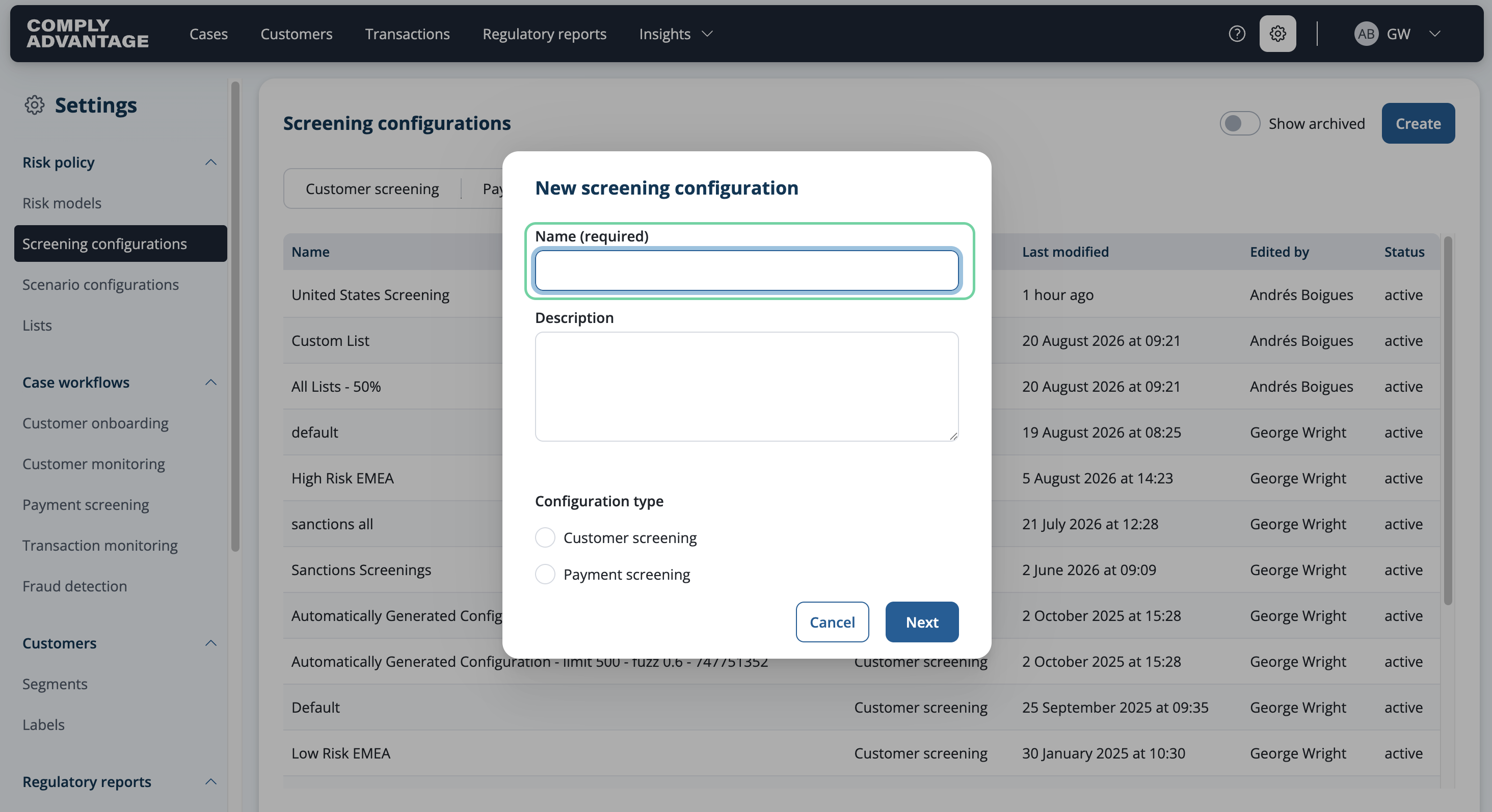
5. Name must be Specific and Unique
For this example, I will name this "United States Screening" to signify that I want to use this configuration to screen my US customers.
You can create your configurations based on jurisdiction, as I've done here, risk level, product type.. other use cases include:
Different fuzziness levels for the same type of Source: In this case you would have a Screening configuration just for Sanctions, but need different fuzziness levels for different types of sanctions lists.
Different yearly risk policies: You can also create a different Screening configuration for each year, reflecting the changes of your Risk policy YoY.
The possibilities are endless.
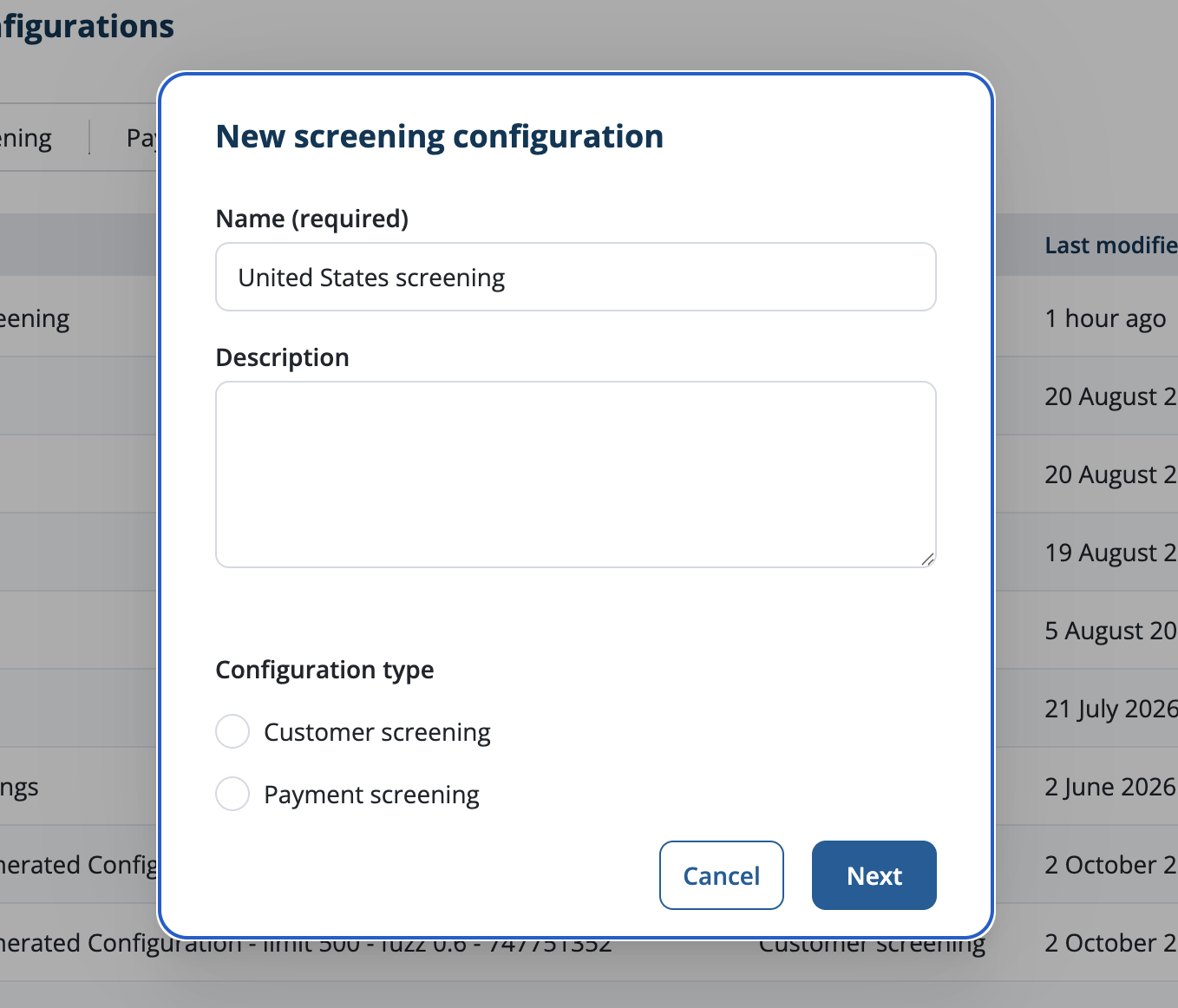
6. Add a description
Your description should explain the purpose of your screening configuration. This helps to clarify its intended use to anyone who might find it and use it.

7. Select wether it's Customer or Payment Screening Configuration.
In this example, the Screening configuration we're creating is meant to be used for screening Customers, so we should select "Customer Screening"
If you want to Create one for Screening Payments, please select "Payment Screening".
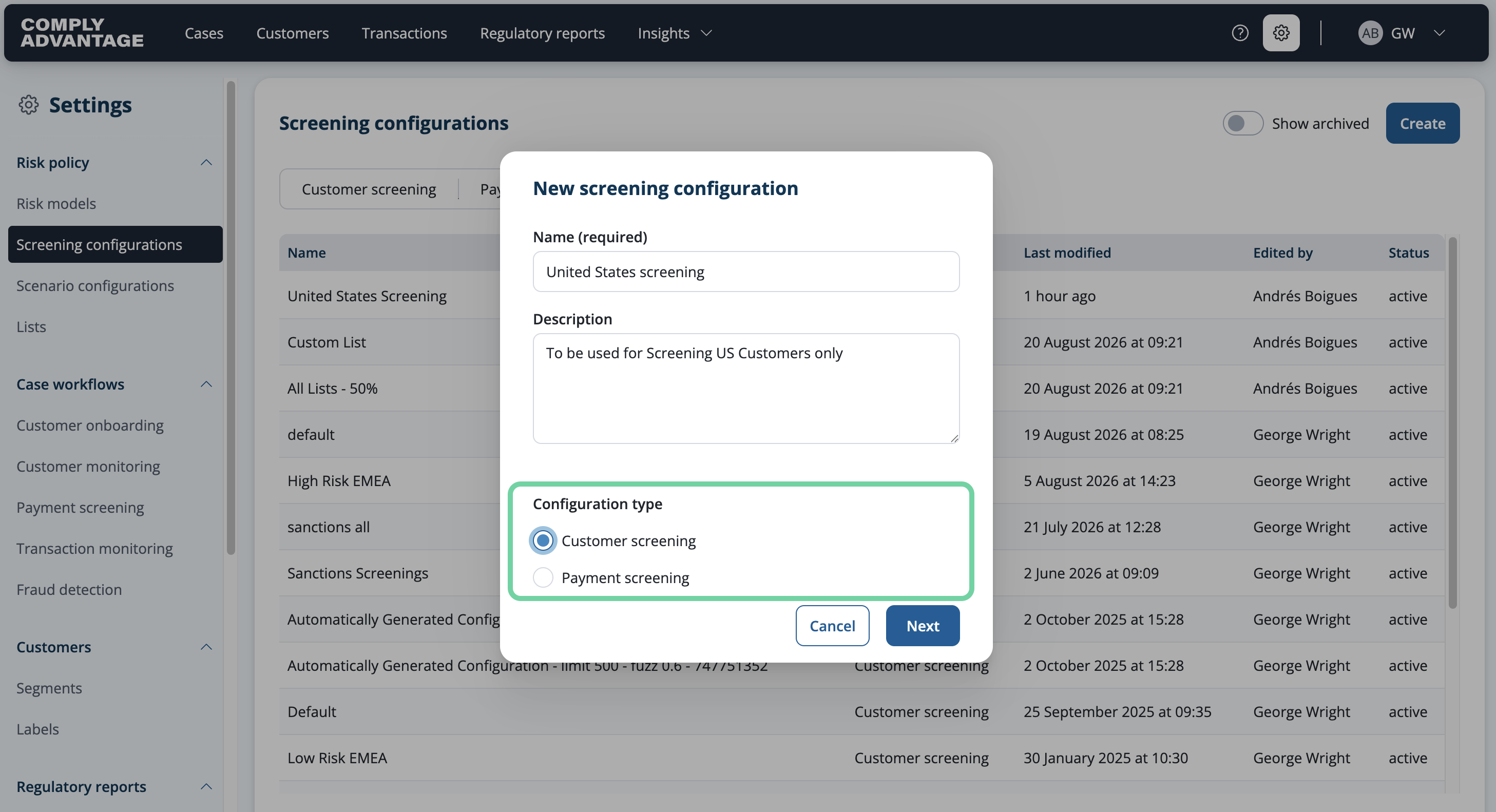
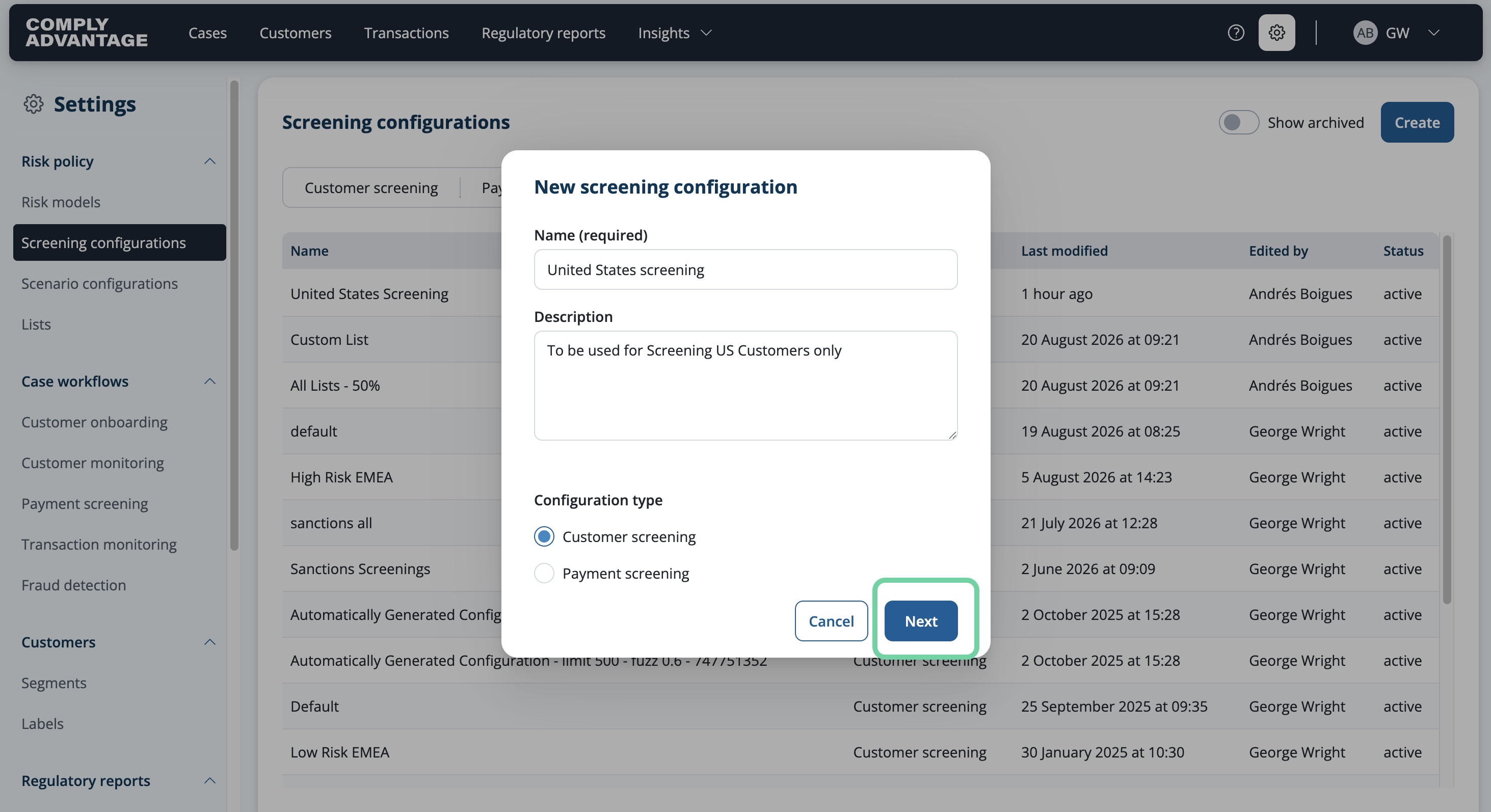
8. Click "Next"
Proceed to the next step, which will take us inside the individual Screening Configuration and how we can tune it to our organization's risk policy.
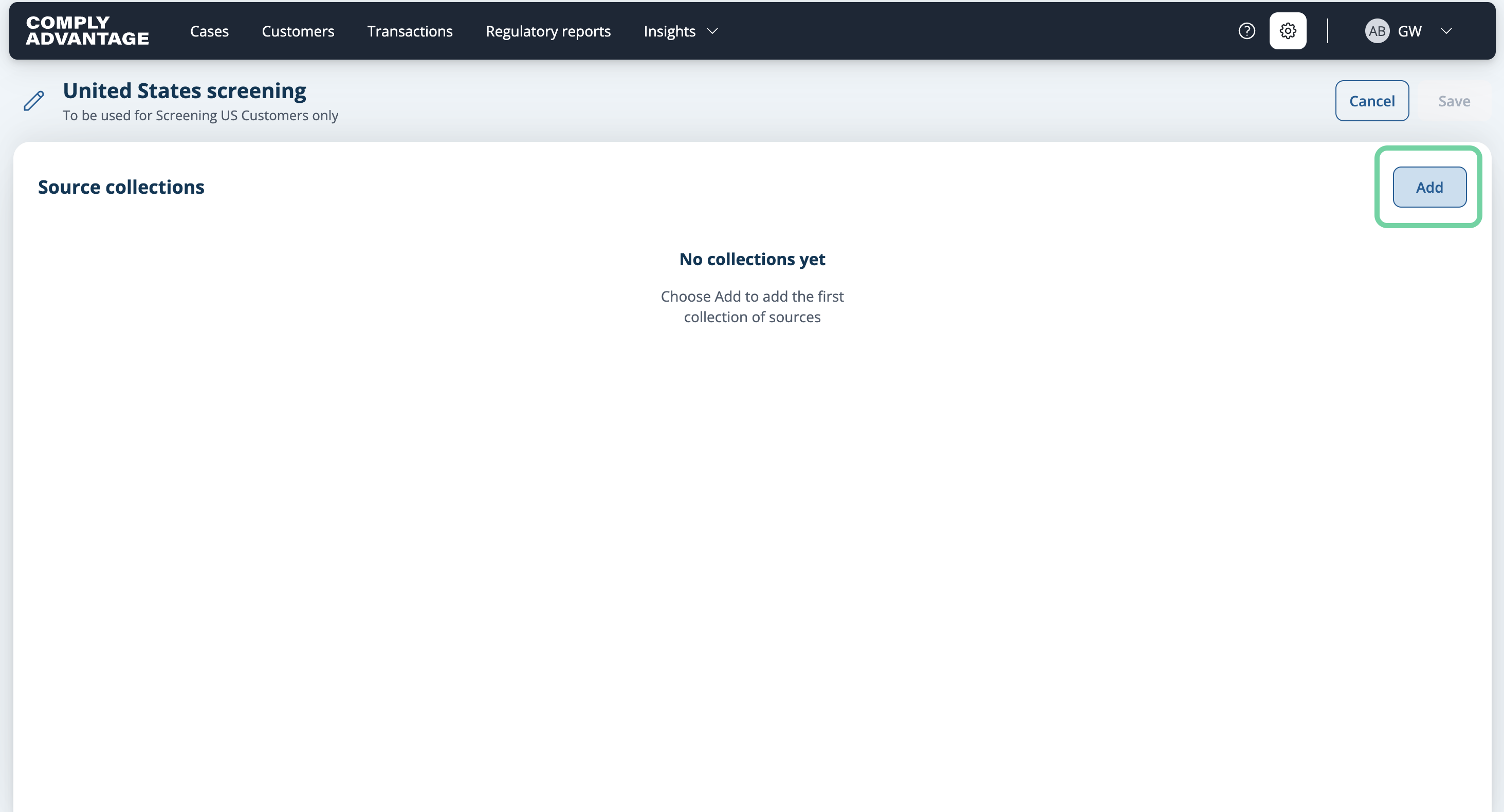
9. Click "Add"
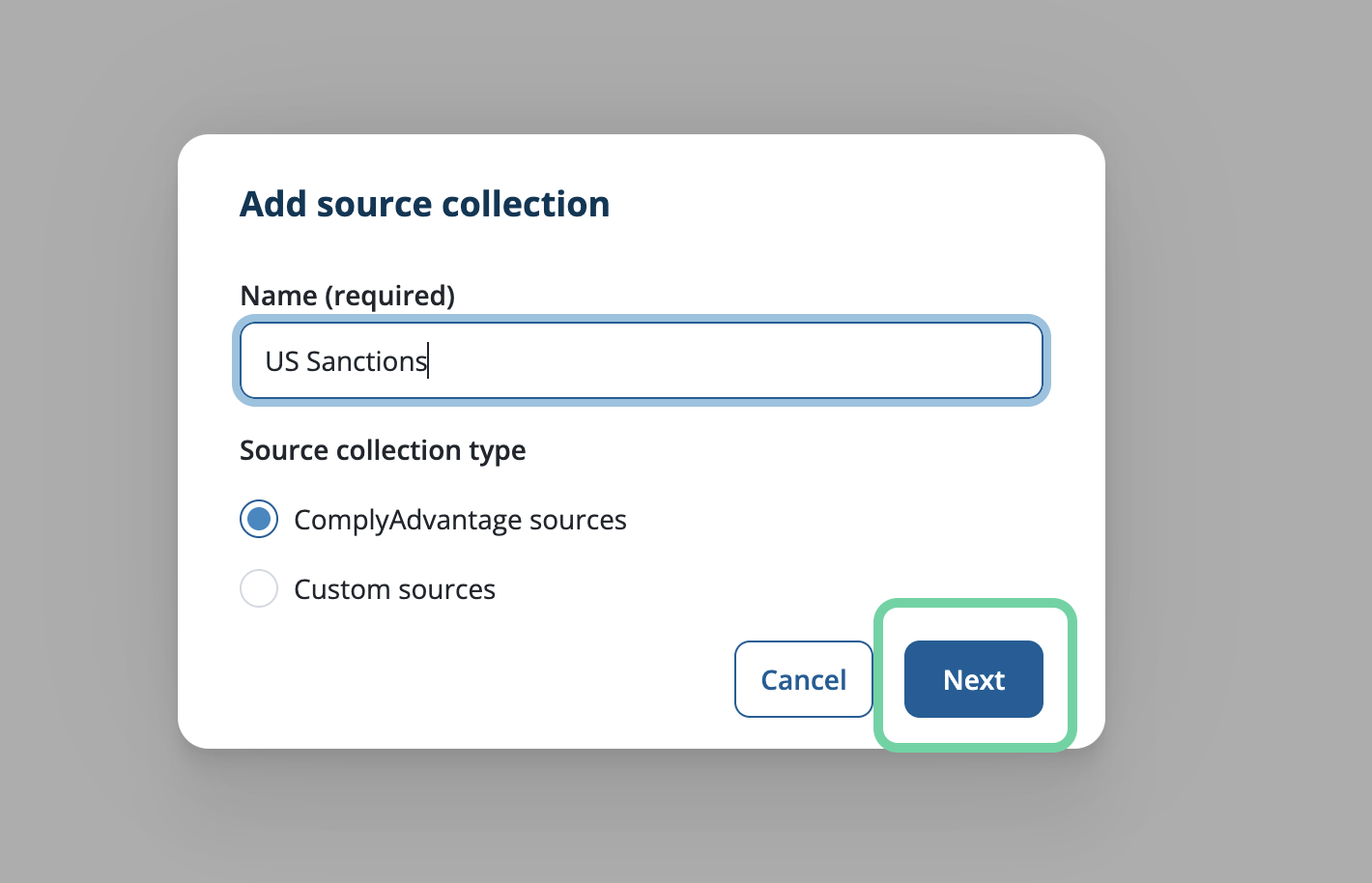
Click 'Add' to create your first Source Collection. You can add between one (1) and four (4) source collections per Screening Configuration. Source collections allow you to select groups of risk data sources by category, providing more tailored screening within the Screening Configuration. Specifically, you can set the fuzziness level for each set of sources.
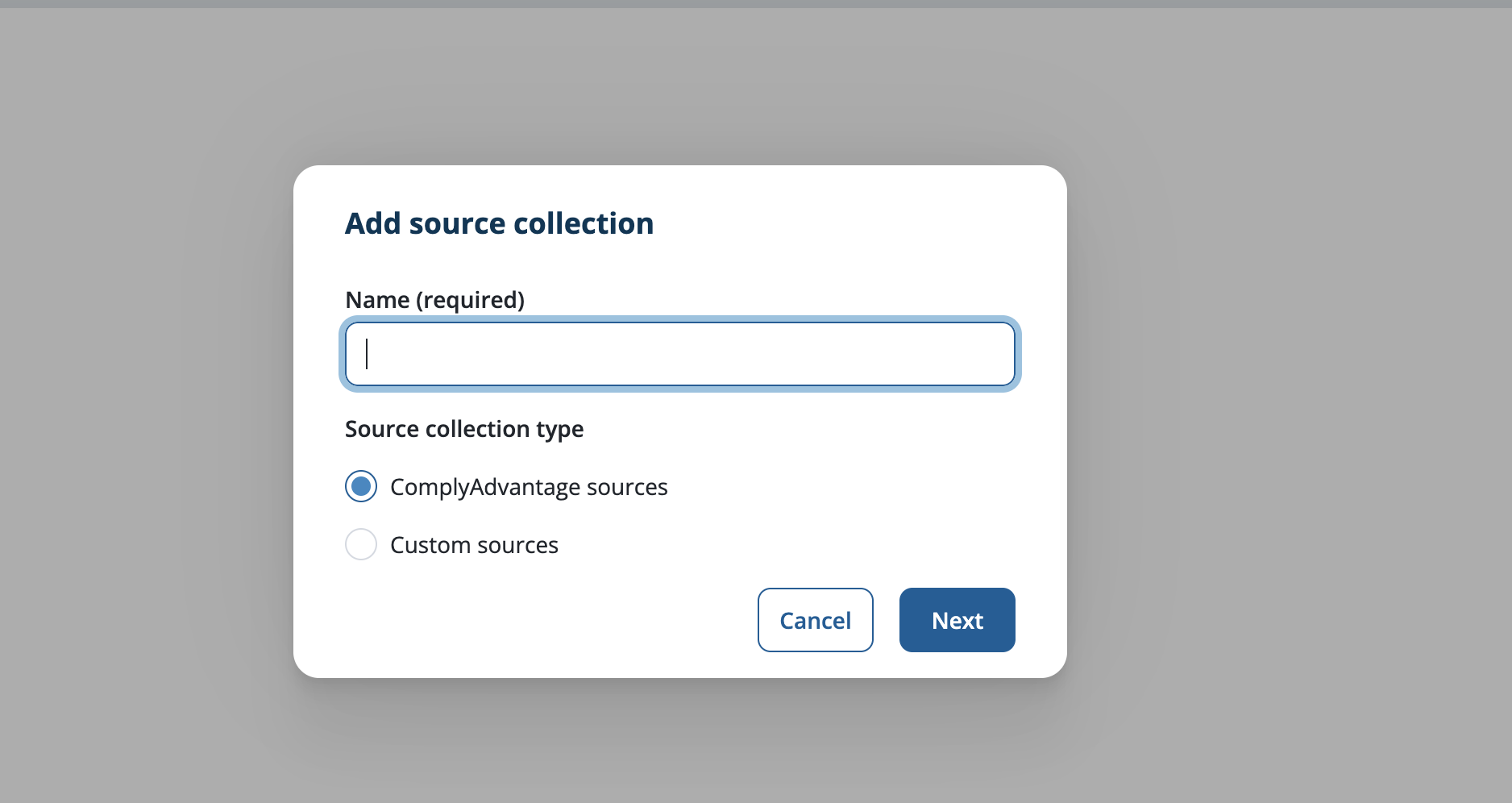
10. Fill in the name of your first Source Collection.
You can also select between Comply Advantage Official sources or your own Custom sources.
For this screening configuration, I will add (4) source collections from ComplyAdvantage's official sources, one per dataset I wish to incorporate (Sanctions, Warnings, PEPs & Adverse Media).
Let's start with Sanctions.
11. Click "Next"
Click "Next to proceed to the Source Collection configuration.
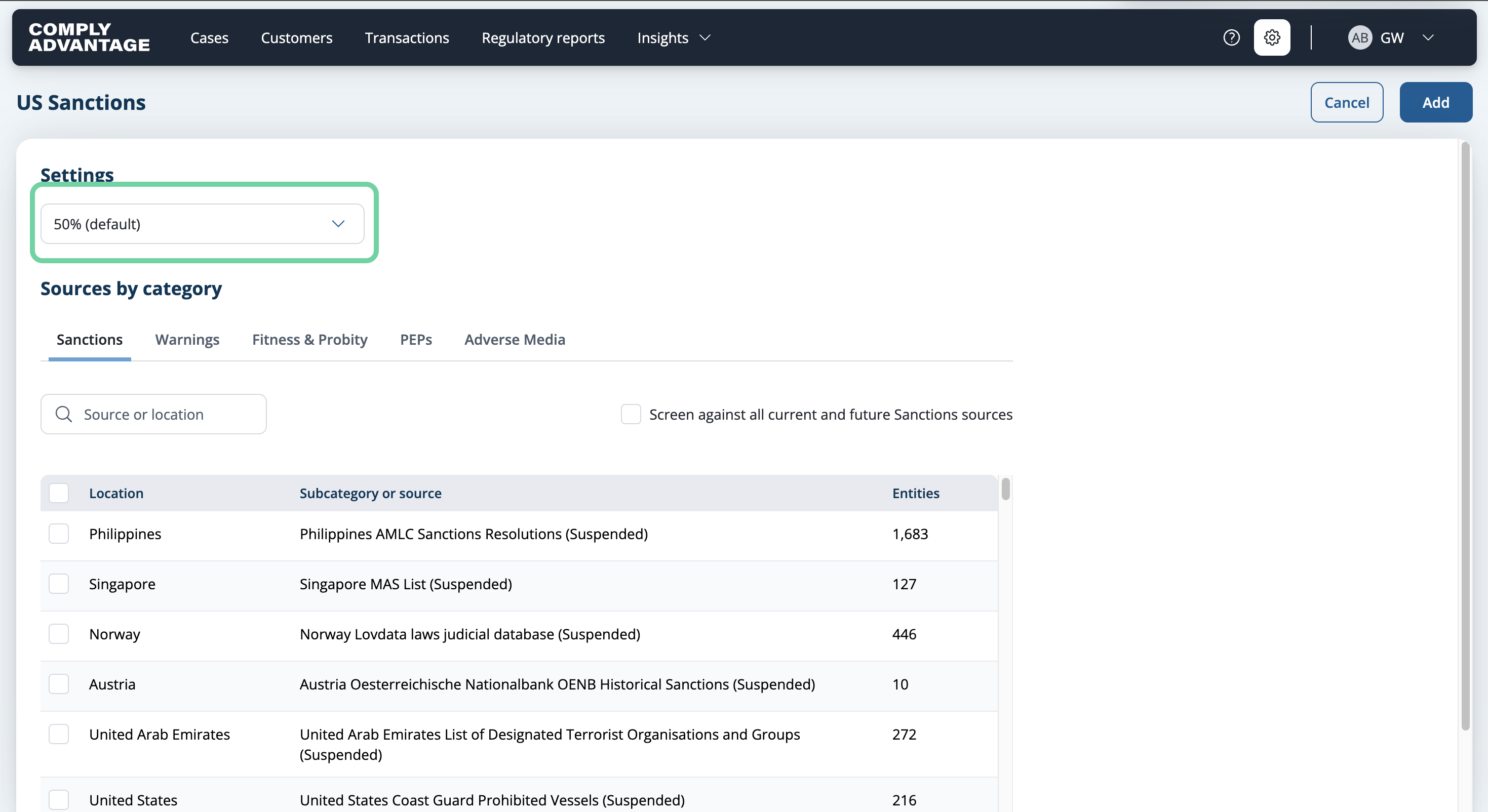
12. Select your fuzziness level
Select the fuzziness level that best aligns with your risk-based approach. A higher fuzziness percentage broadens your approach, while a lower percentage makes it more restrictive. For this example, I’ll leave the fuzziness set to the default of 50%.
See our article about fuzziness in Mesh to out more.

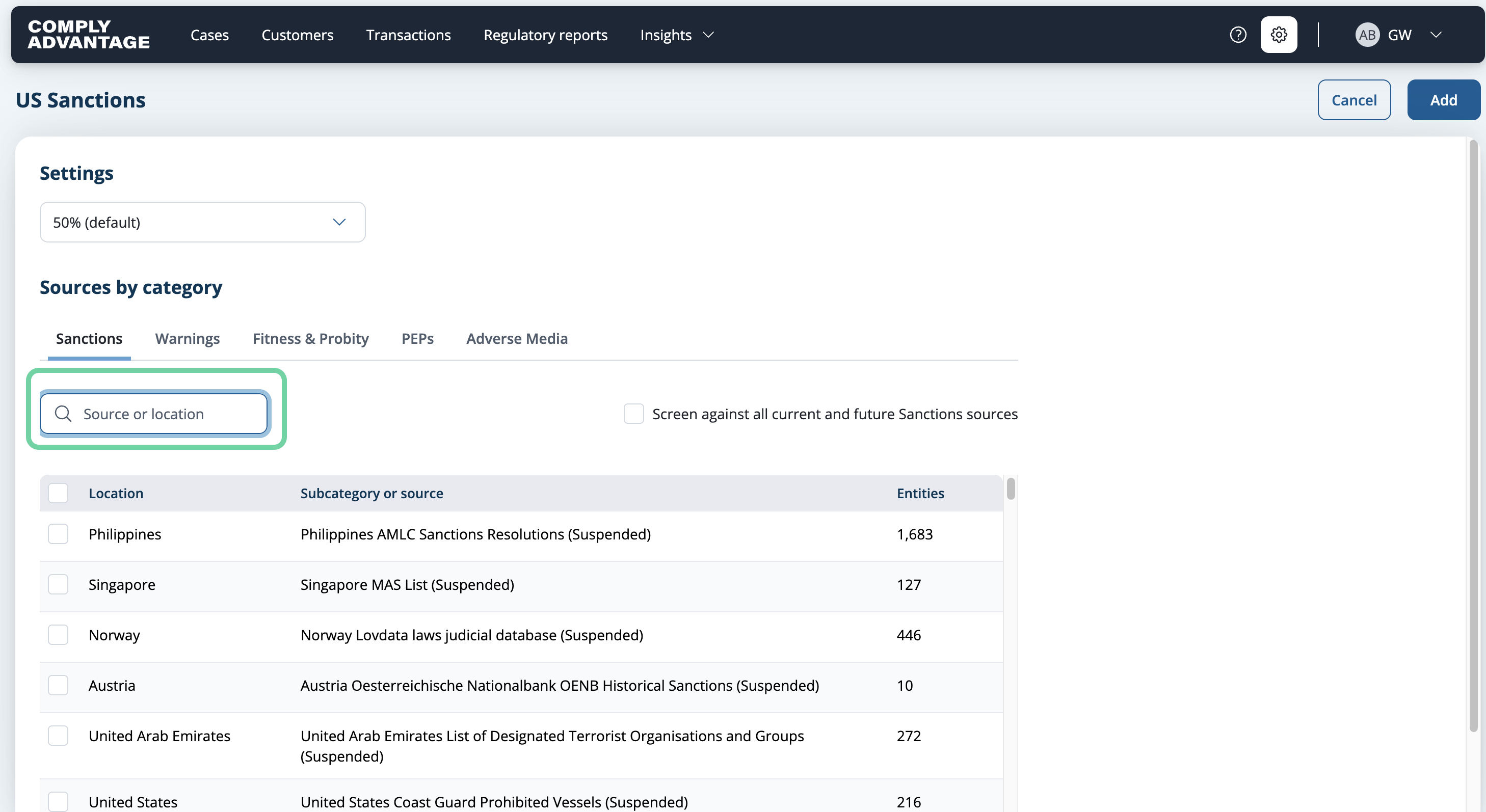
13. Click "Source or location"
You will now see a list of available sources to choose from. By default, you'll be prompted to select from the Sanctions lists first. To find the source(s) you're looking for, type the source name or its location in the search box.
14. Fill in the source or location of the source(s) you'd like to add
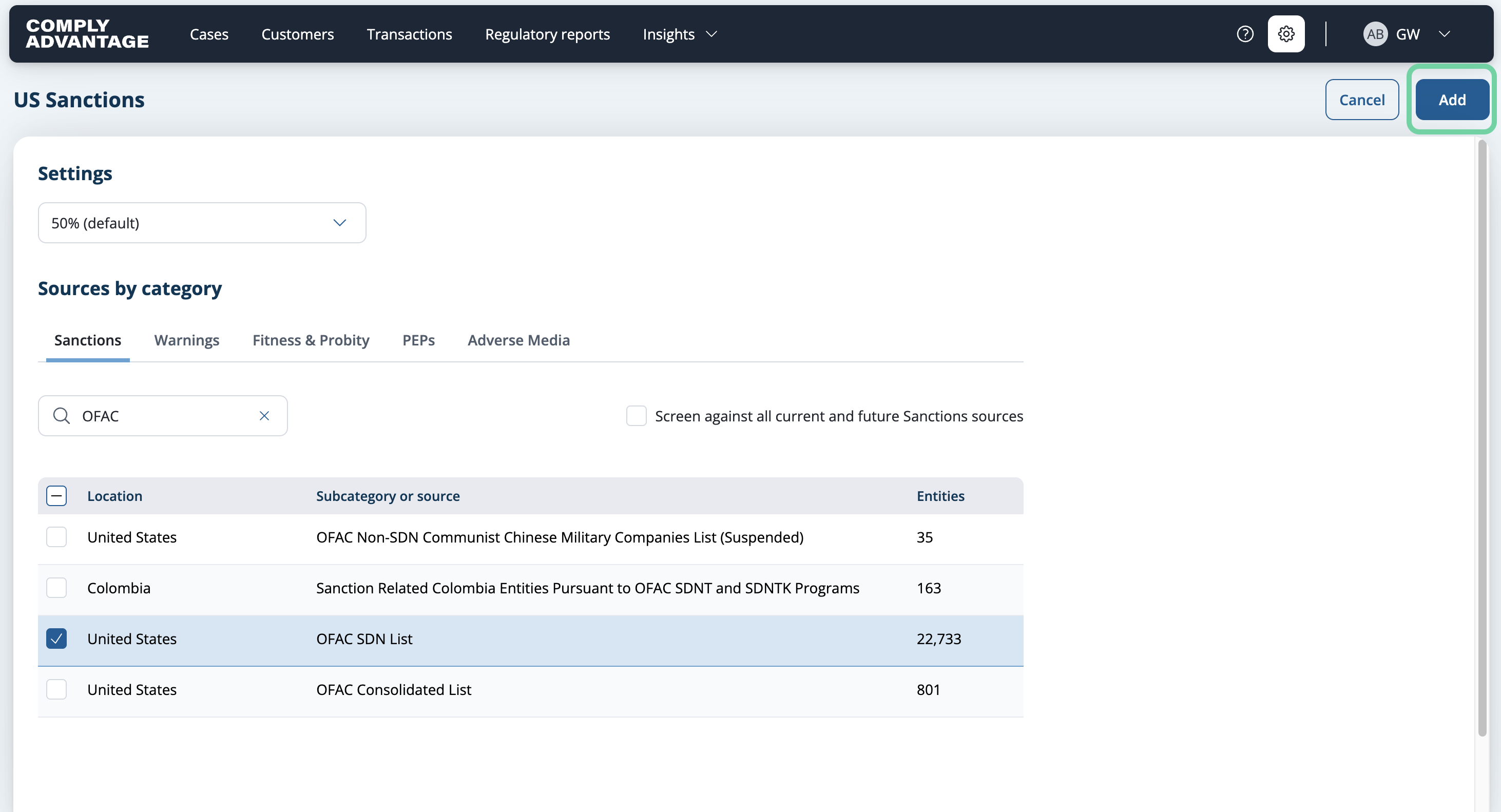
First, I'd like to add the Office of Foreign Assets Control (OFAC) list.
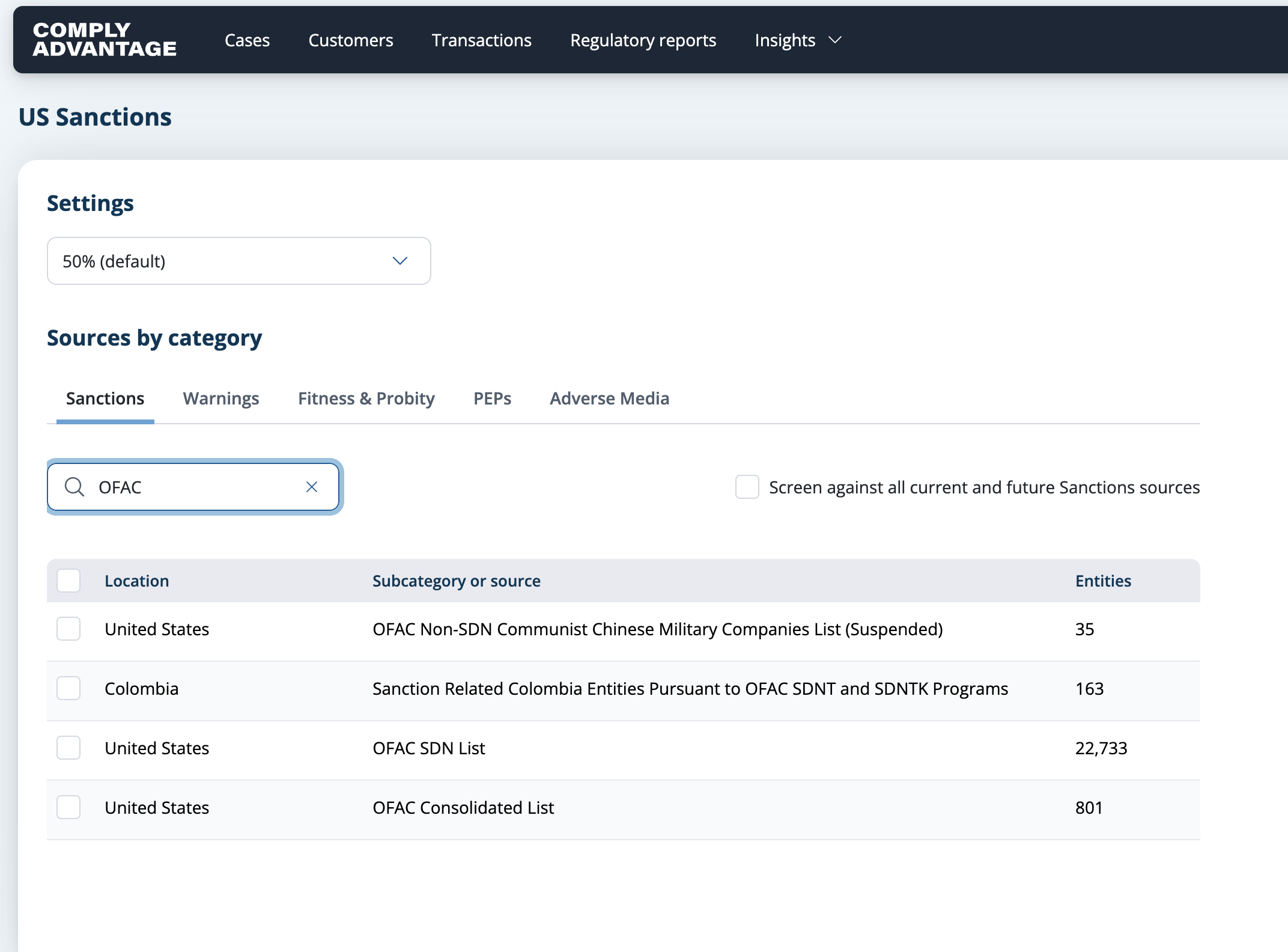
15. Click the desired sanctions list
Click on the desired source. For this example, I am only adding this sanctions list to my screening configuration. You should select the appropriate sanctions lists per your risk-based approach.

16. Click "Add"
Click "Add" once you select your lists for your first source collection.
17. Add your second Source Collection.
Here, you will see your first source collection and the list(s) that you've added so far under "Source breakdown." Once you're ready to create your second source collection, click "Add."
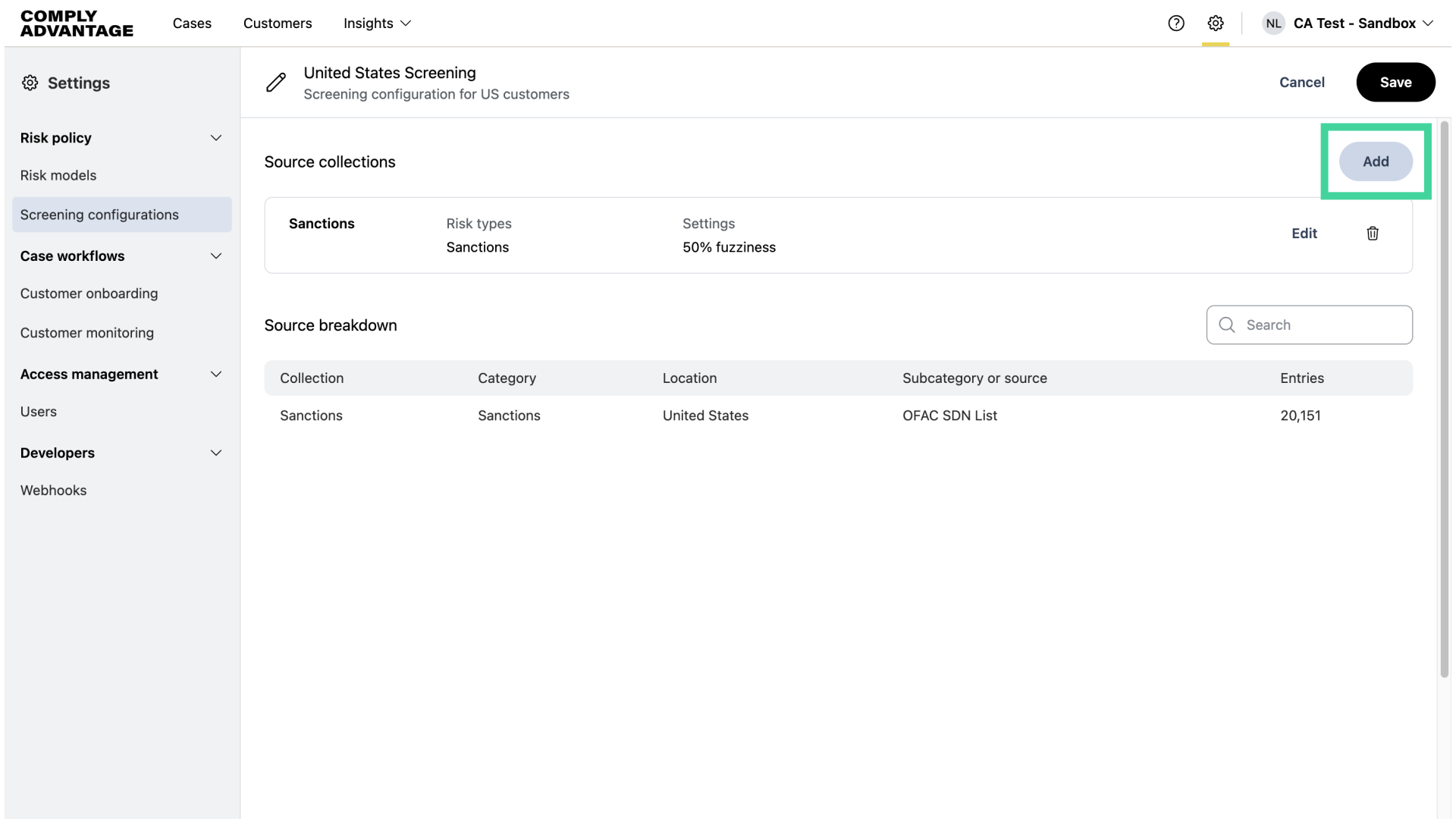
18. Name your second Screening Configuration
Enter the name of your second source collection. For this example, I’ll name it "Warnings."

19. Click "Next"
Click "Next."

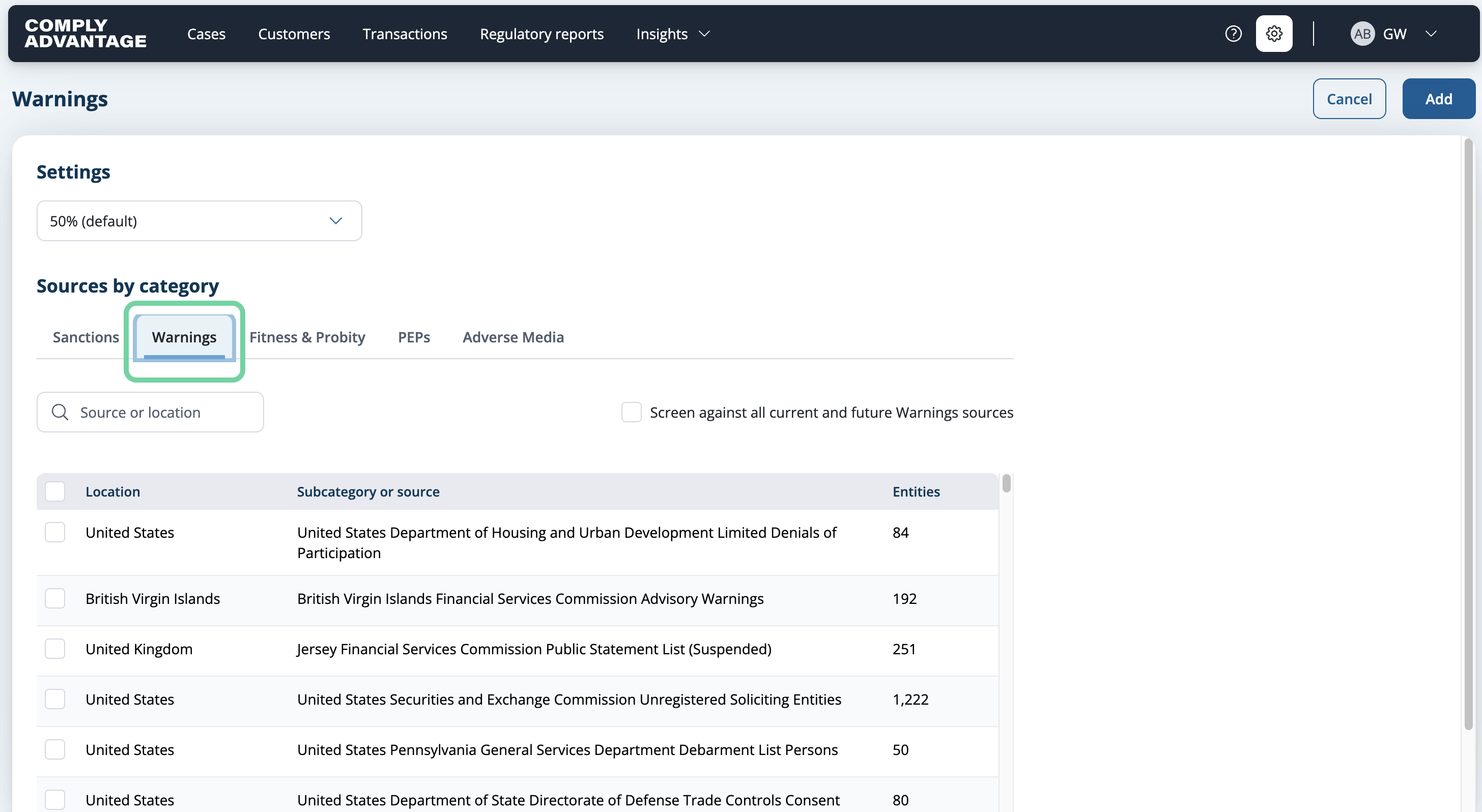
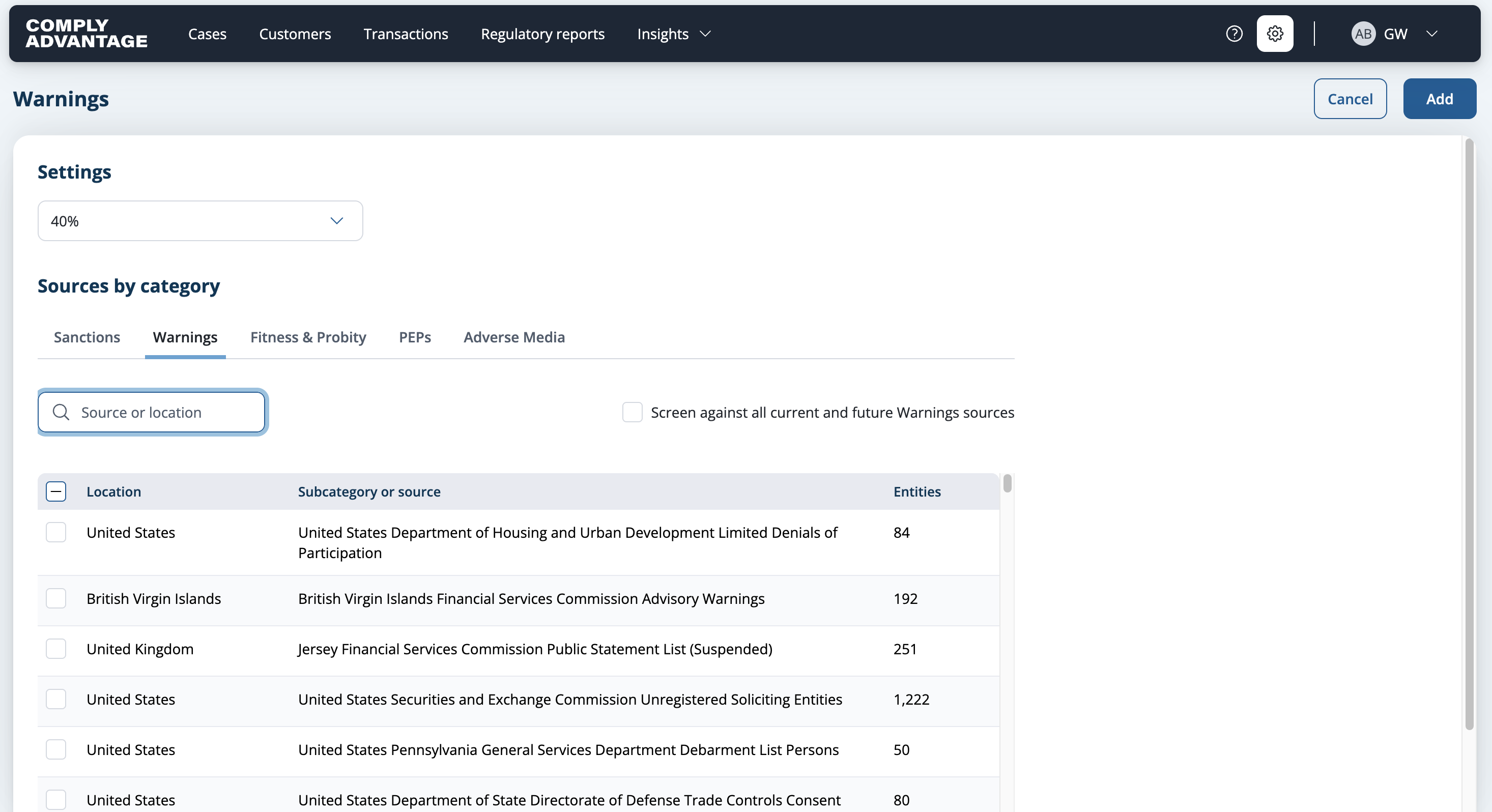
20. Click "Warnings"
Click on the "Warnings" category.
21. Select desired fuzziness
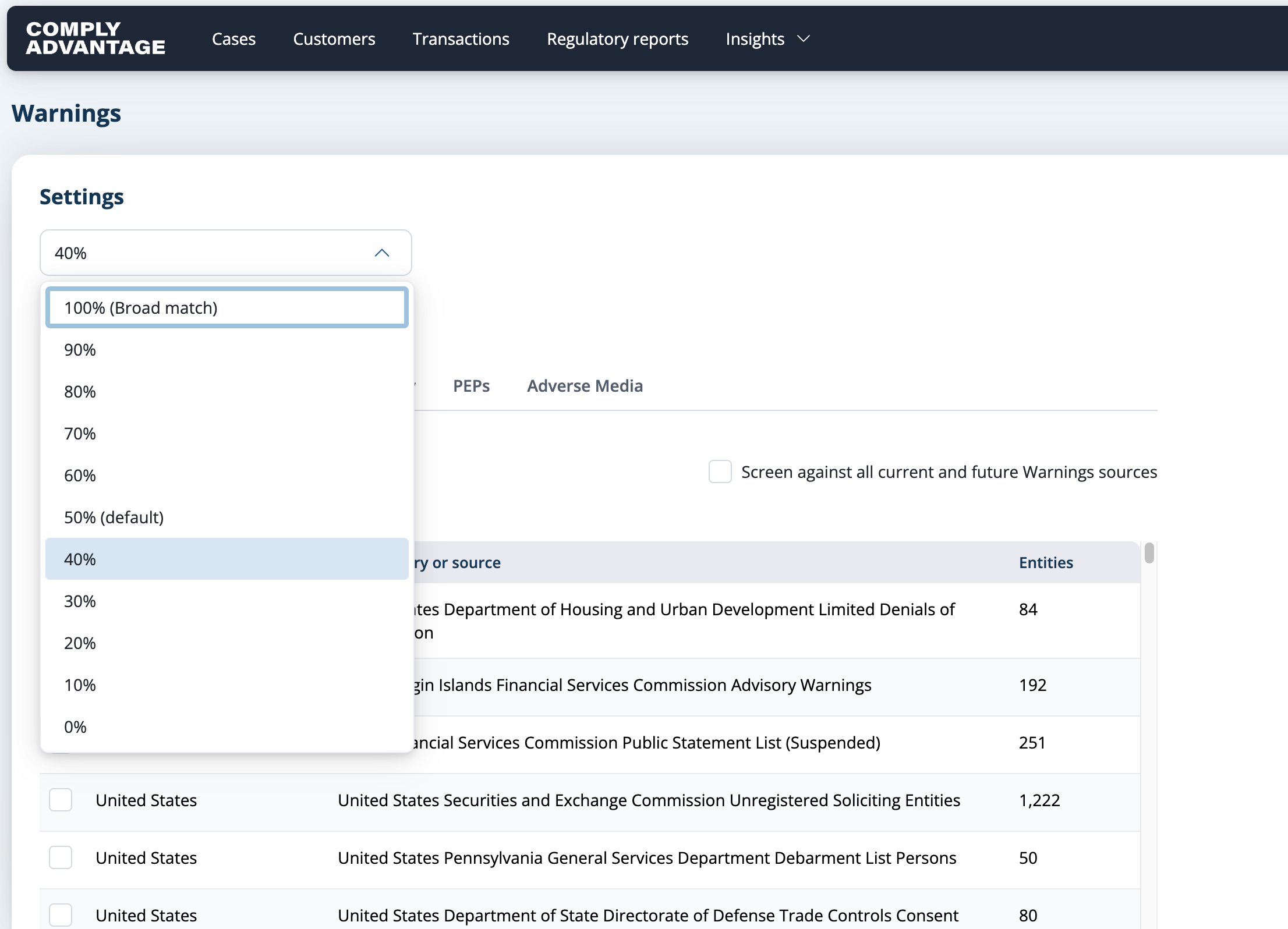
Select the desired fuzziness level. I'll set this to 40%, as my risk tolerance allows for a tighter fuzziness level for the Warnings dataset.
22. Enter the source or location name
Enter the desired source or location name. For this example, I’ve typed 'FBI' to find the FBI Most Wanted list.

23. Select other lists
Select any other lists you wish to add to this Source Collection.
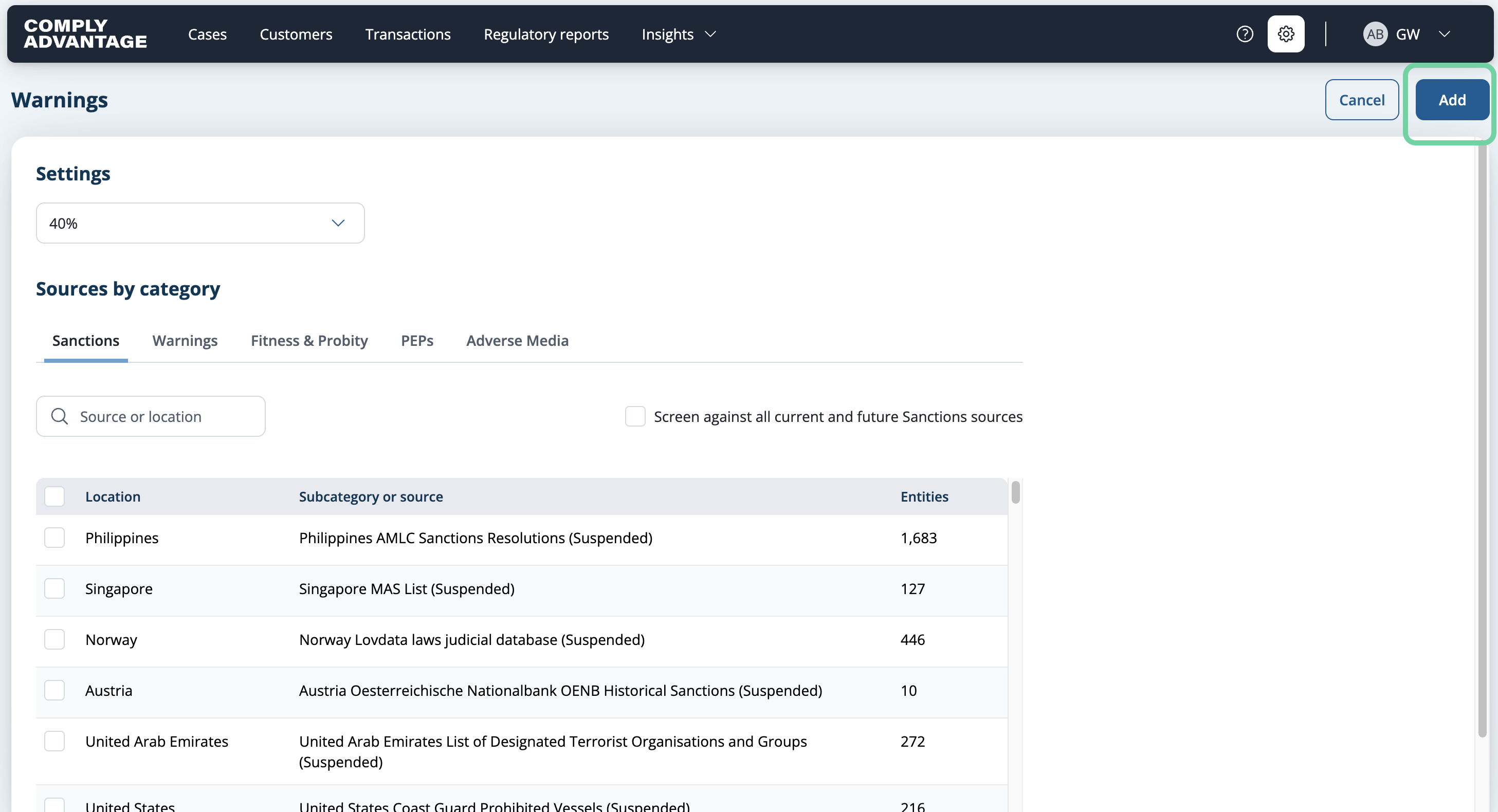
24. Click "Add"
Once you've selected all lists for this source collection, click "Add."
25. Click "Add"
Once again, you will see your new source collection has been created.
Click "Add" to create your third source collection.

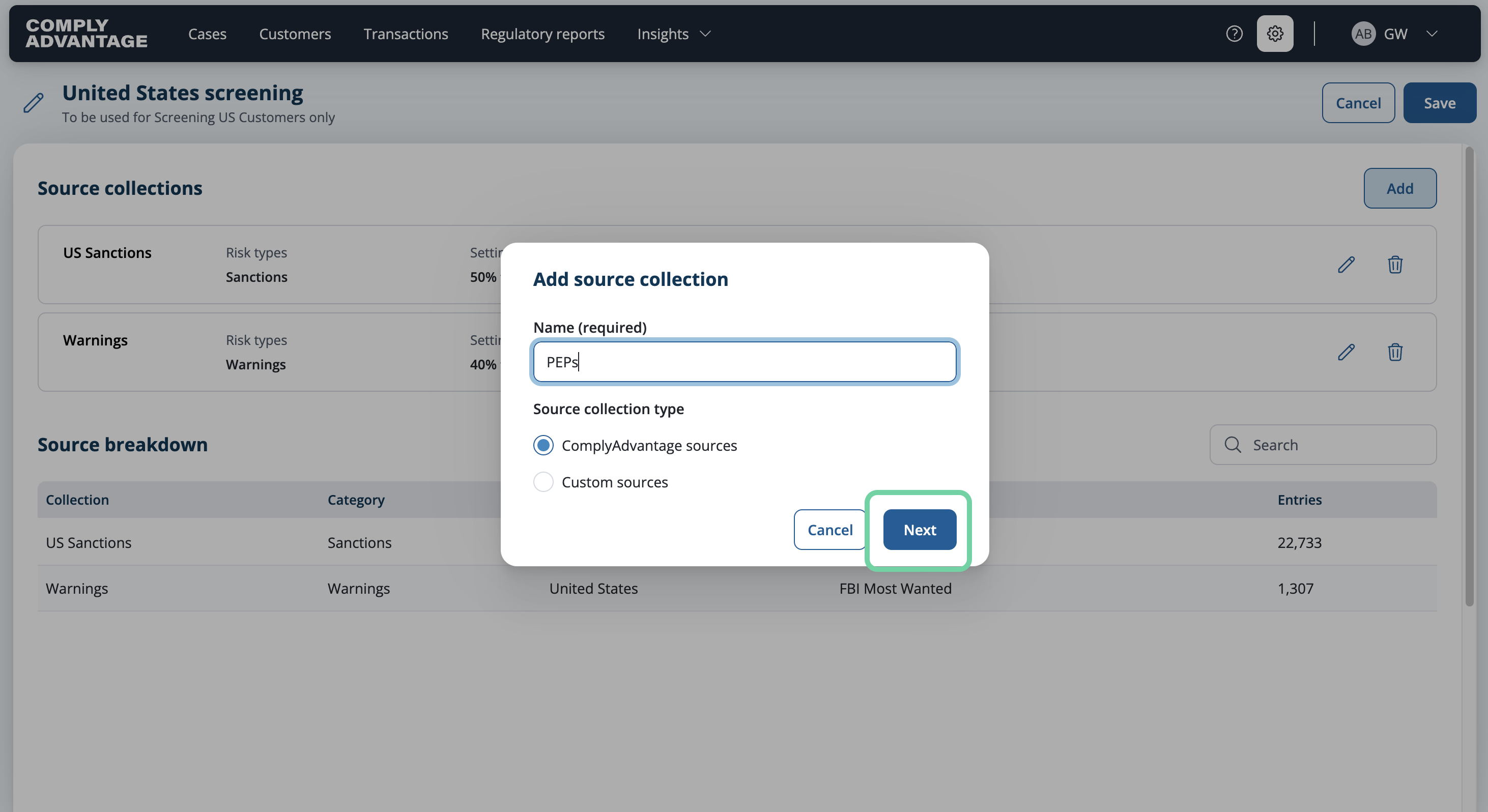
26. Fill in the name of your third screening configuration
I’ll name this one "PEPs."
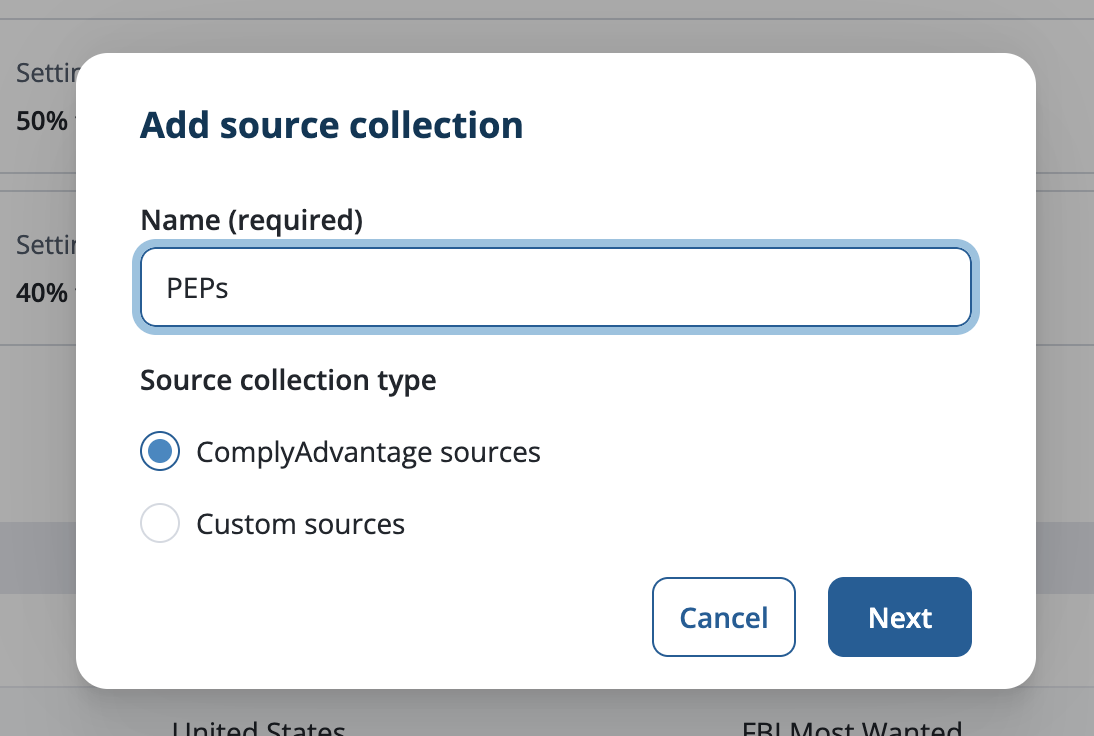
27. Click "Next"
Click "Next."
28. Select desired fuzziness
Here, I’ll set fuzziness to 20%, as my risk tolerance allows for a tighter fuzziness level for PEPs.

29. Click "PEPs"
Navigate to the "PEPs" section.
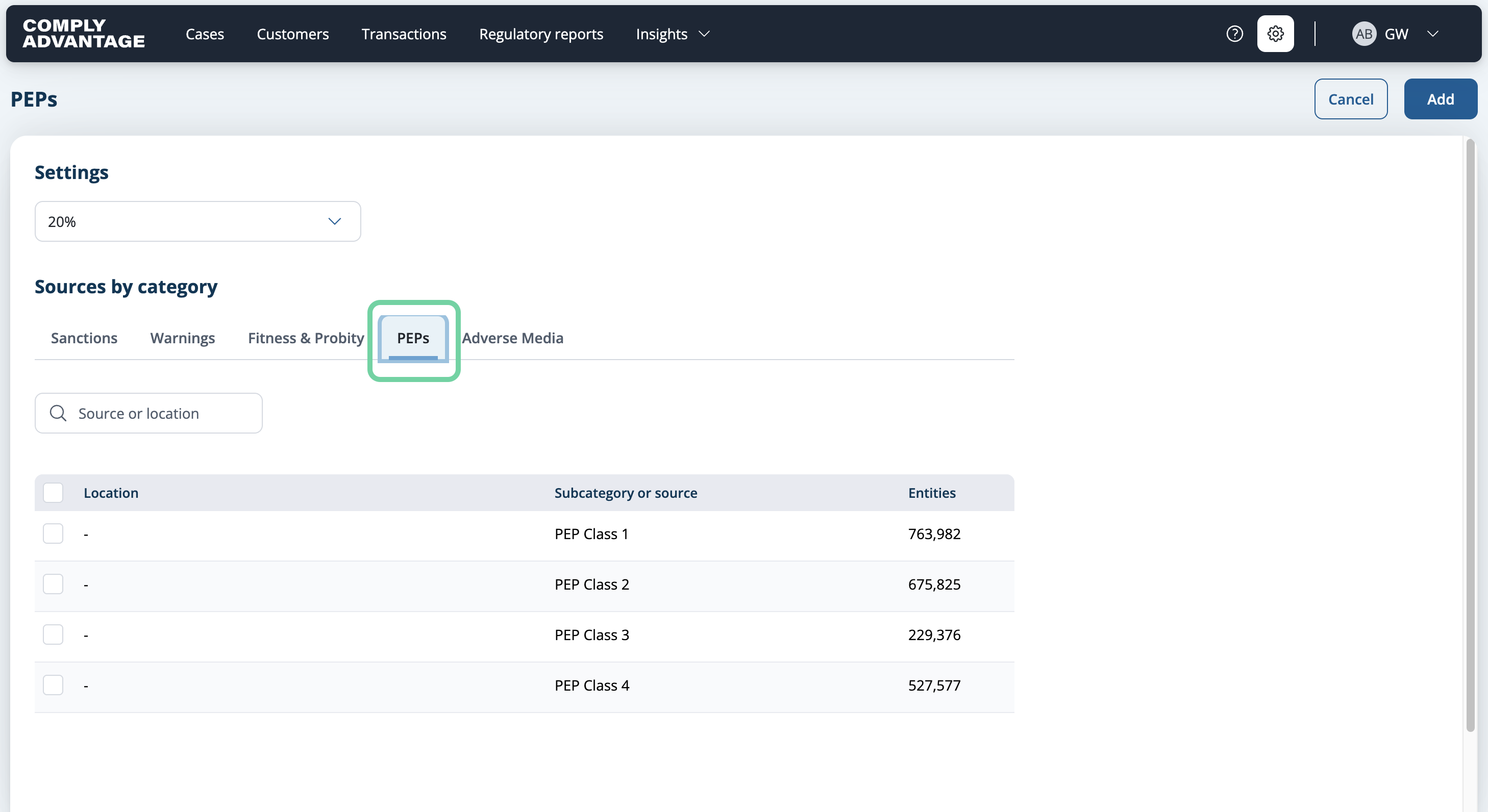
30. Select subcategories
Select the desired PEP classes.
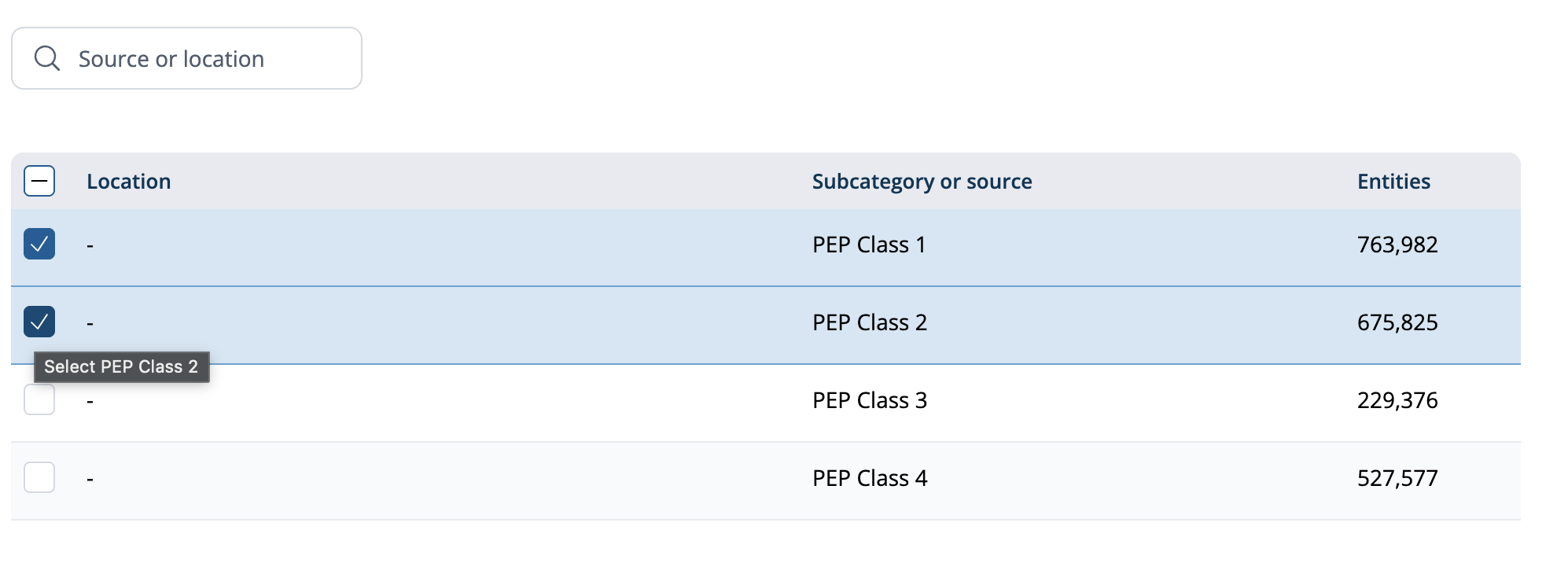
31. Click "Add"
Once you selected your subcategories, click "Add."

32. Click "Add"
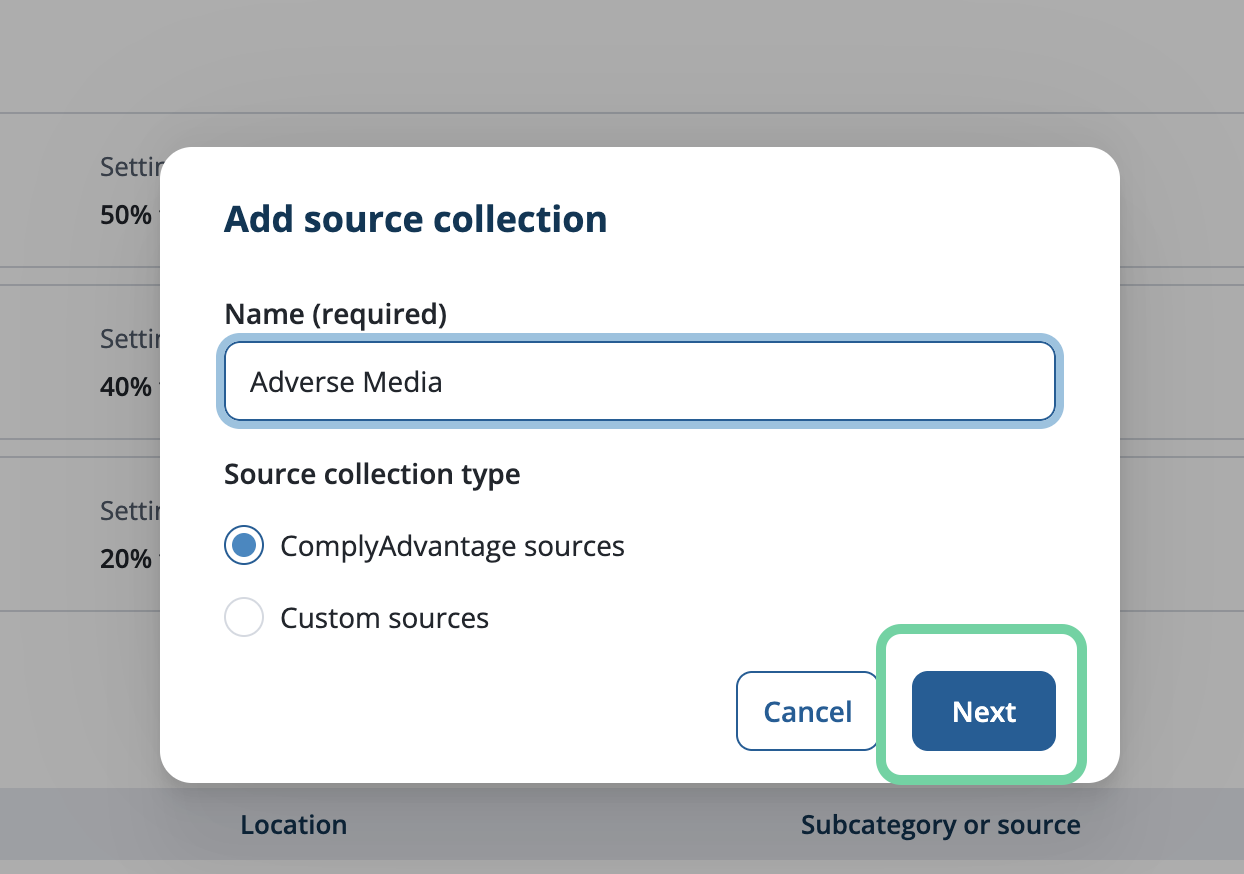
Now, let's create our last source collection for Adverse Media.
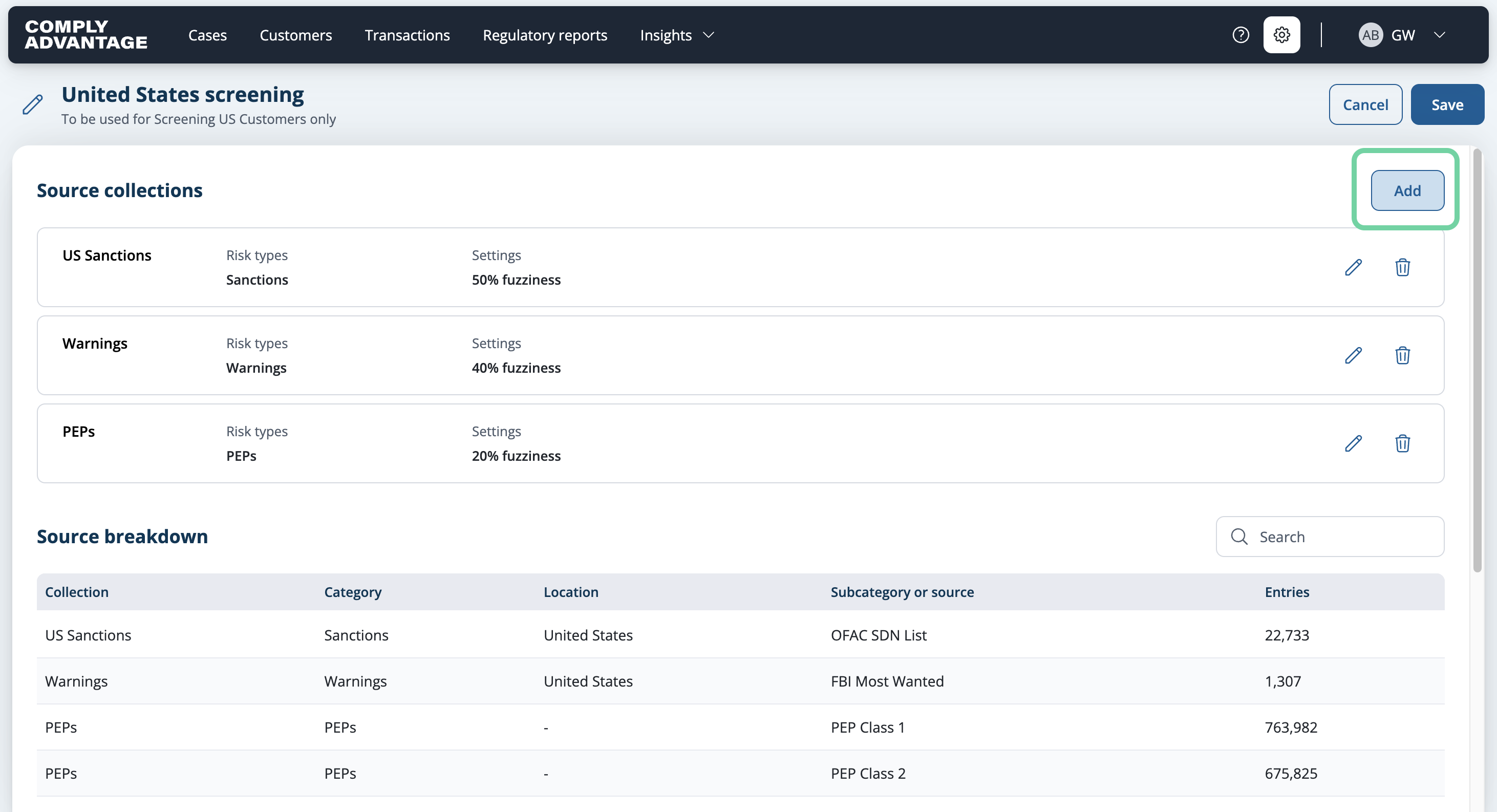
33. Click "Next"
Once you've typed in the name, click "Next."
34. Select desired fuzziness
I’ll set this fuzziness level to 10%, as my risk tolerance allows for a tighter setting and Adverse Media tends to have more Noise than other Source lists.

35. Click "Adverse Media"
Click on the "Adverse Media" category.

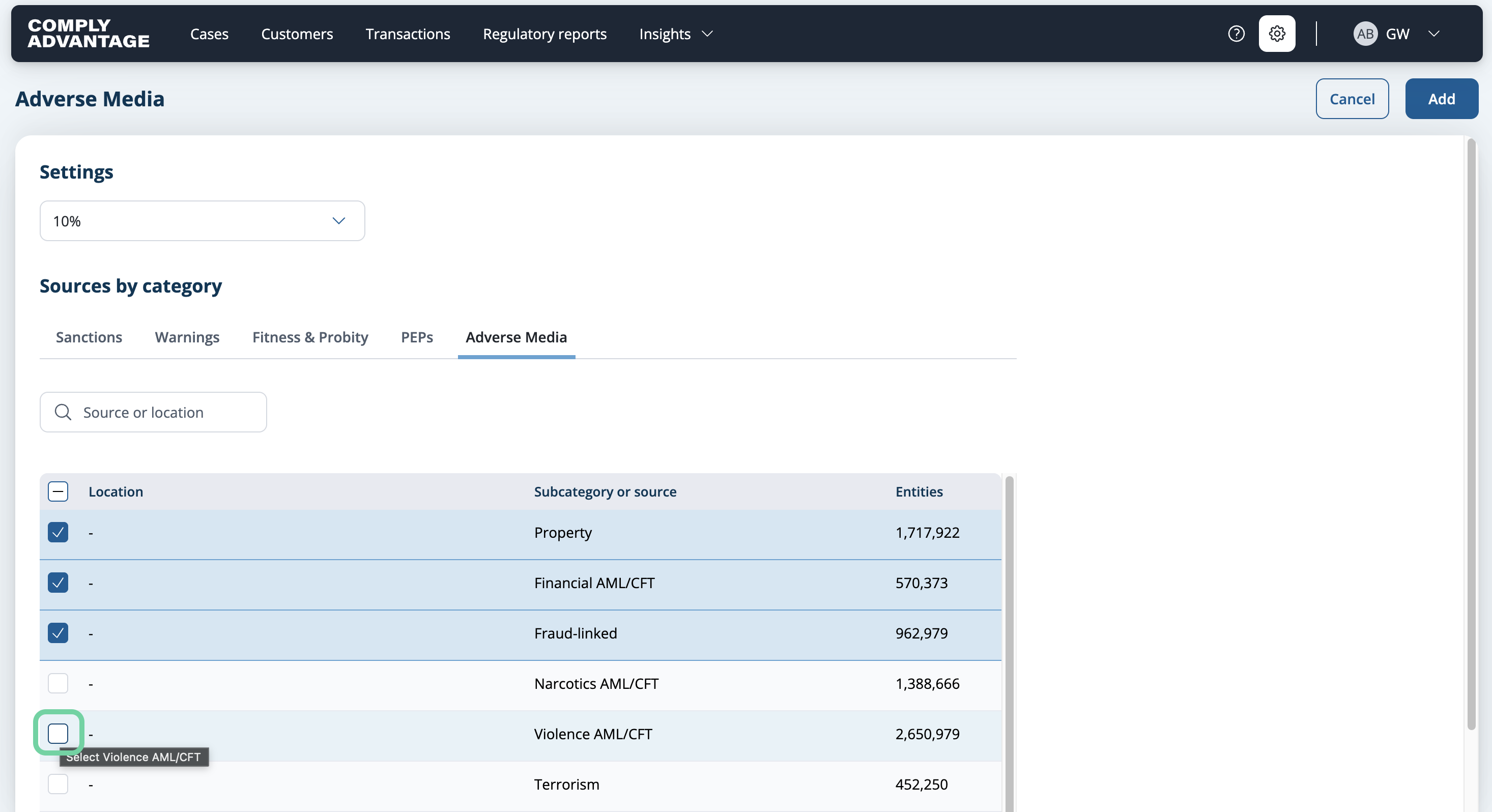
36. Select desired categories
Select the categories you'd like to include.
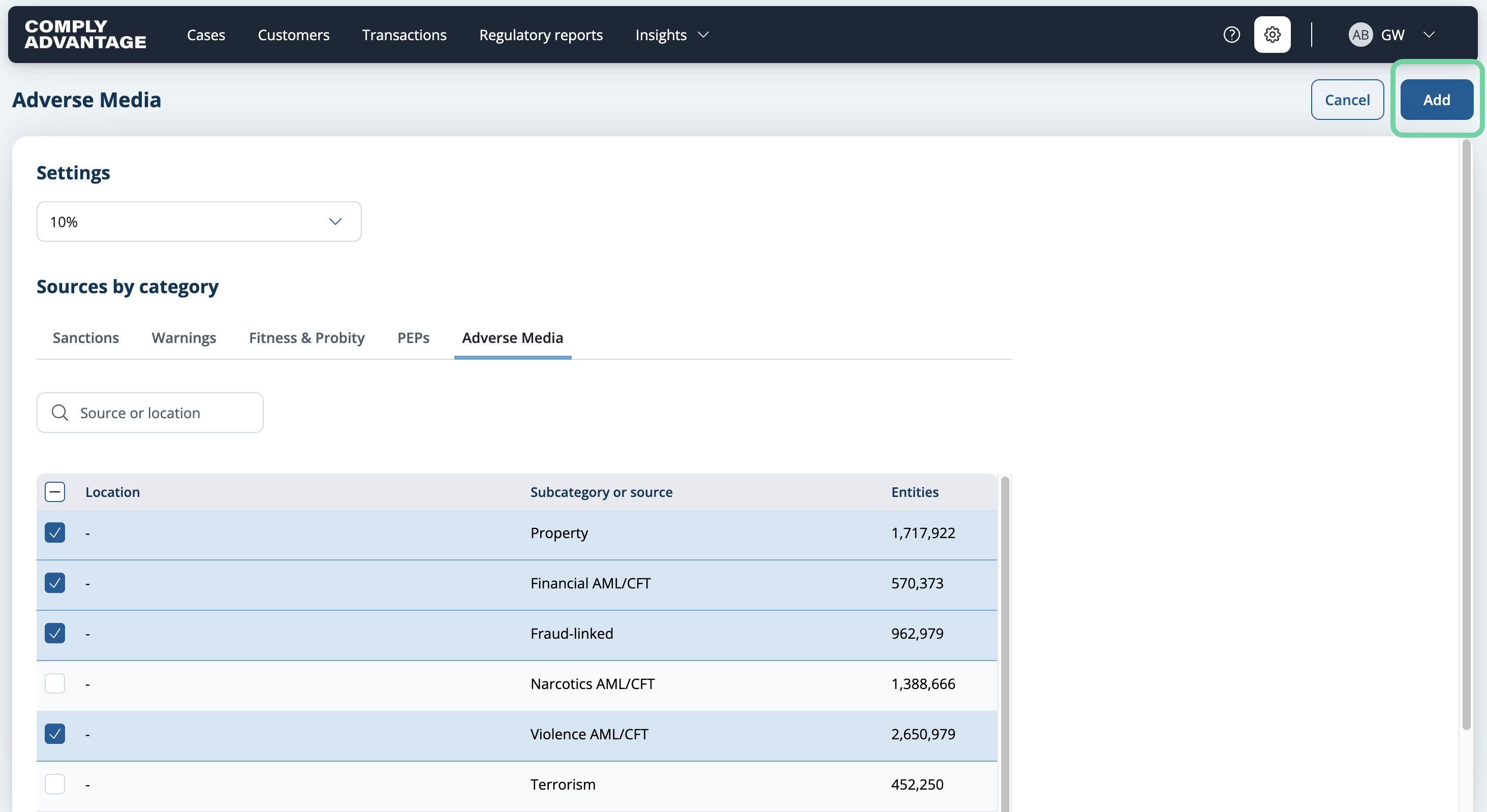
37. Click "Add"
Click "Add" to save this source collection.
38. Click "Save"
Finally, click "Save" as the final step in creating your screening configuration.

We hope this guide helped you learn how to create a screening configuration with source collections in Mesh to streamline your customer onboarding.