Video: View customer screening insights
Last updated: October 13, 2026
In this guide, you will learn how to view and analyze customer screening insights in Mesh.
When logging in to your account, please ensure you select the correct region, which will be one of the following:
Australia: https://au.mesh.complyadvantage.com/
You can find the link to your region in the onboarding email you received (look for the "Welcome to ComplyAdvantage" email).
If you can’t find the email, don't worry! You can always contact our support team at [email protected].
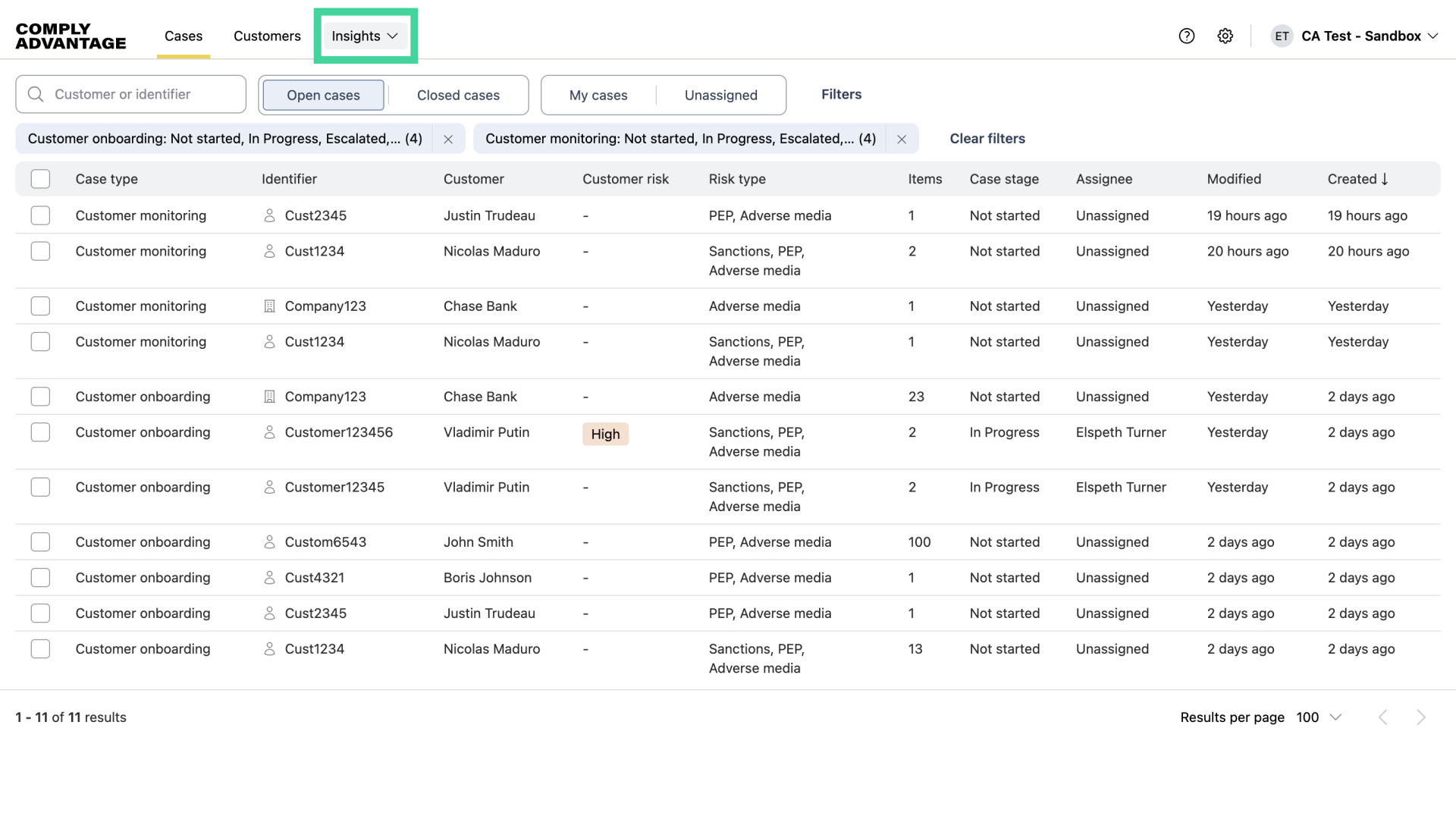
1. Click "Insights"
First, click "Insights."
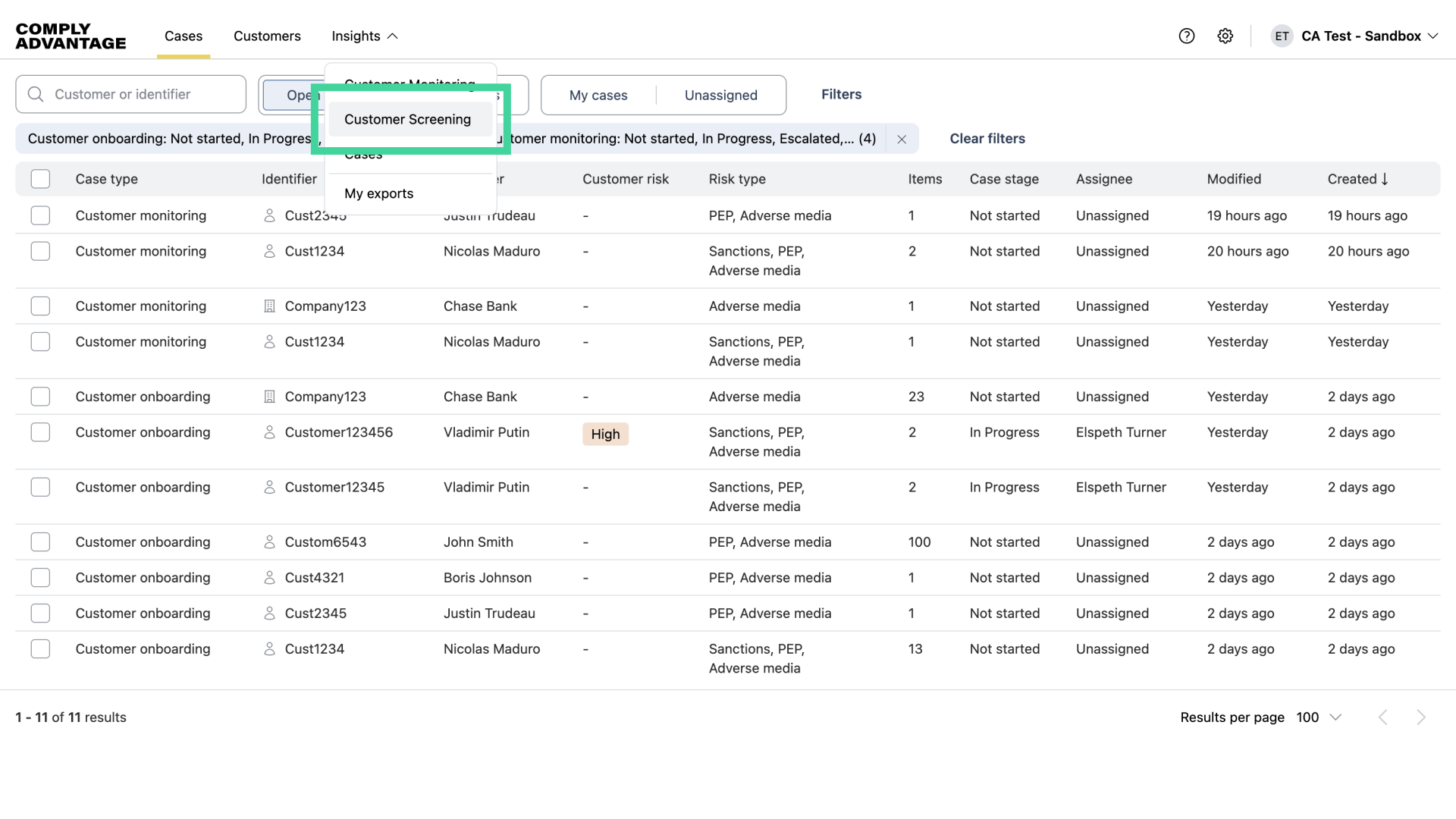
2. Click "Customer Screening"
Then, navigate to the Customer Screening section.
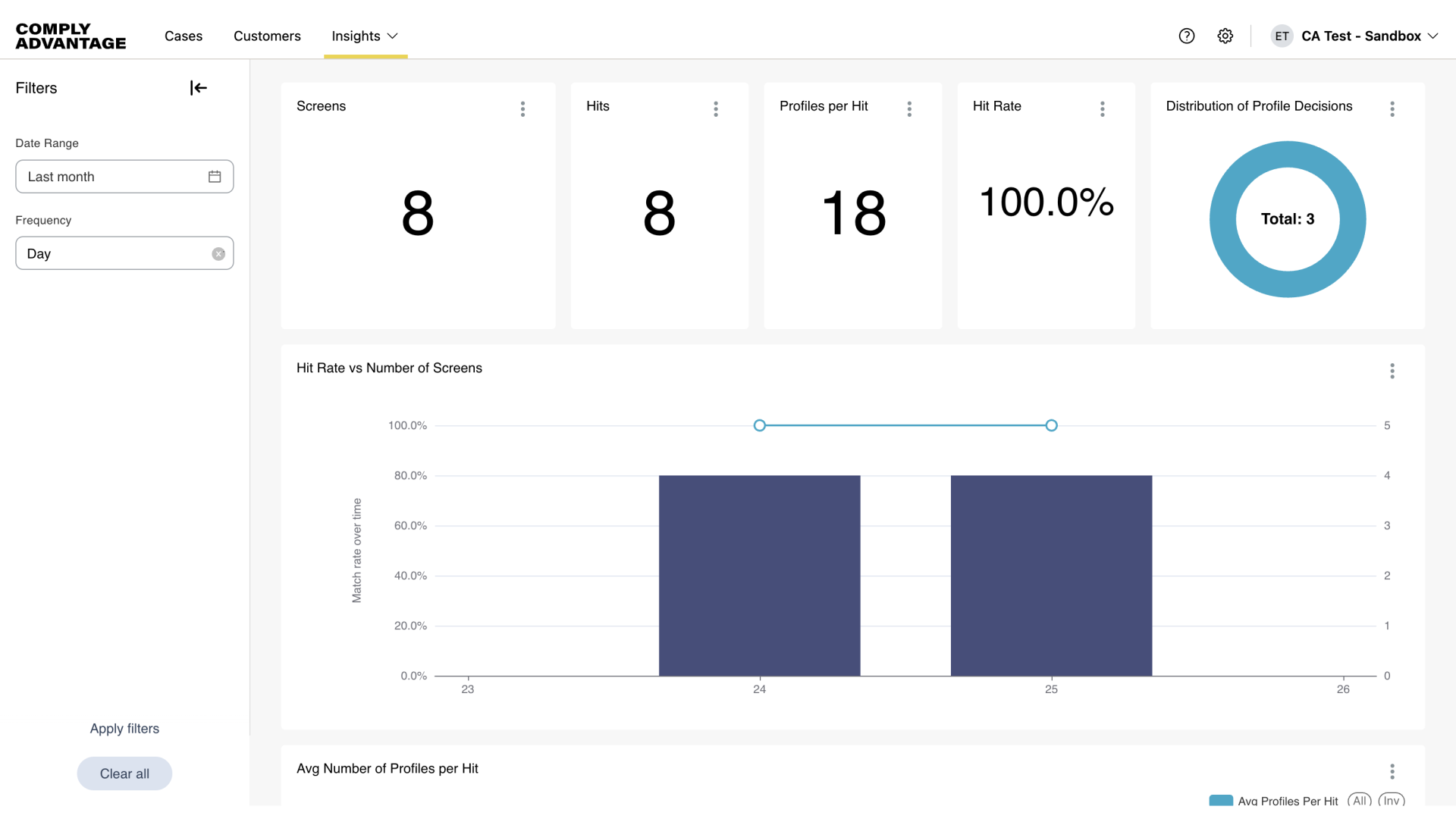
3. Screening Dashboard
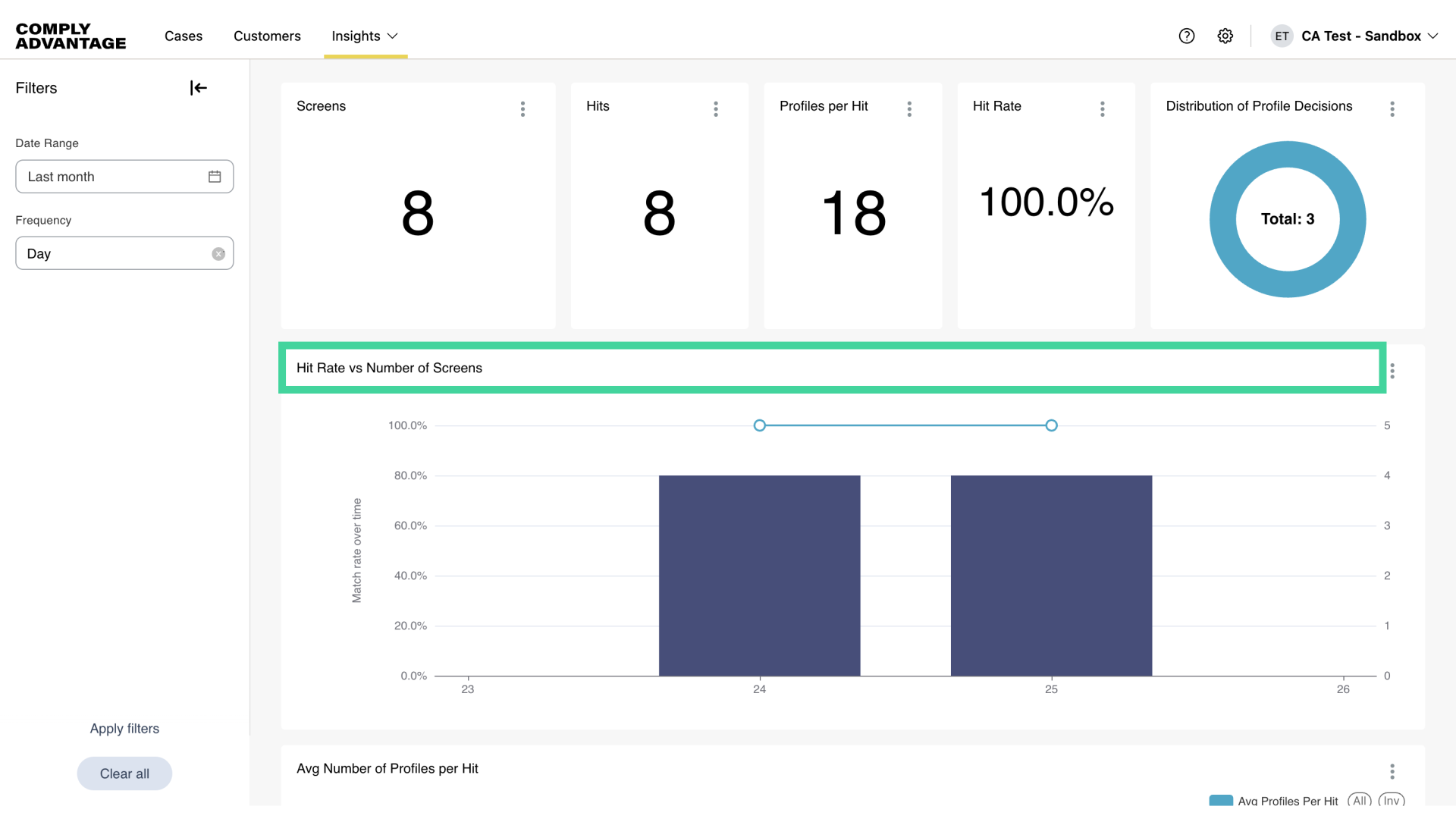
The top of the Customer screening dashboard highlights key data points for a default date range of the last 30 days. The headline metrics include the following:
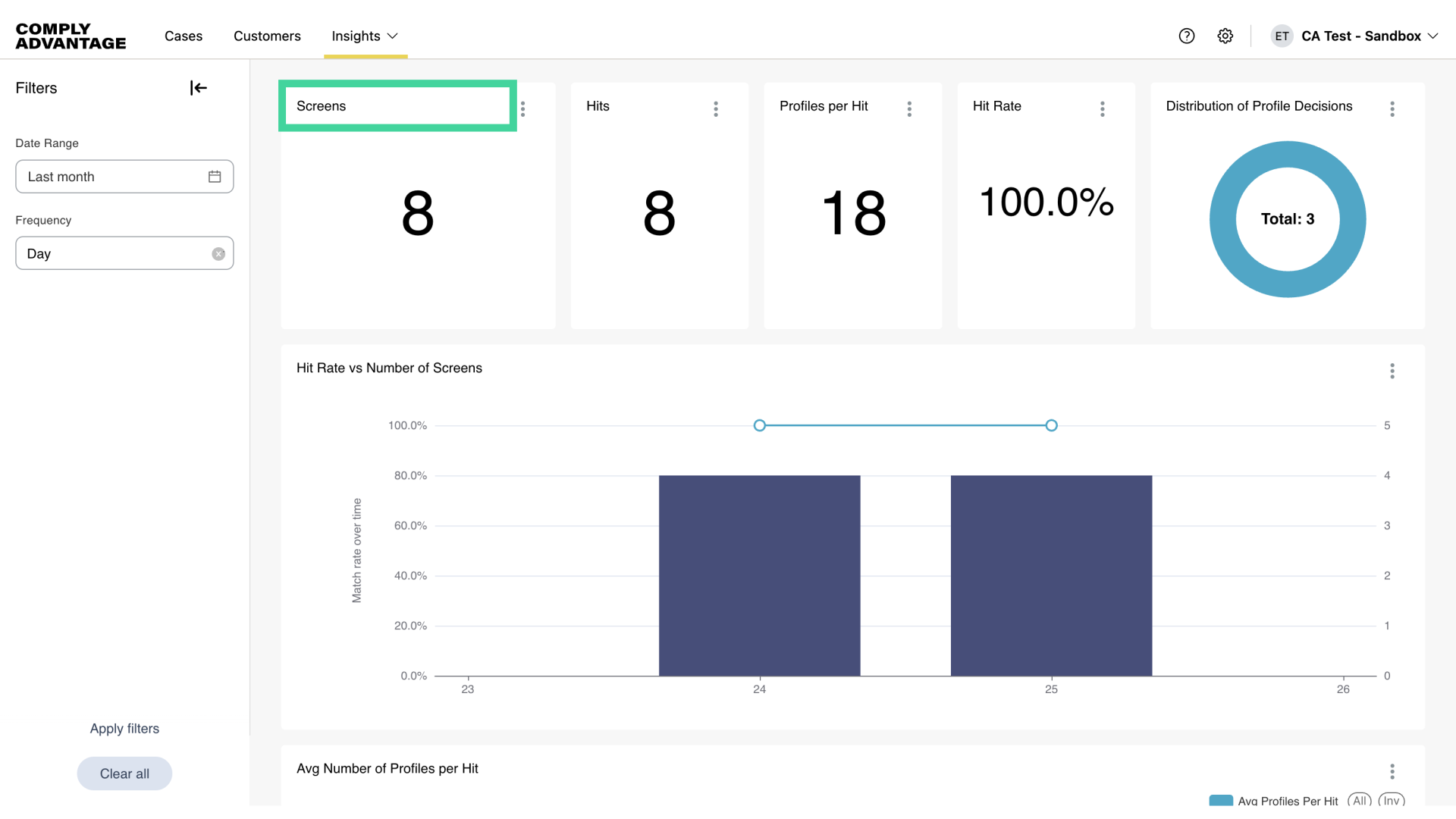
4. Screens
Screens which represents how many customers were screened in the selected period.
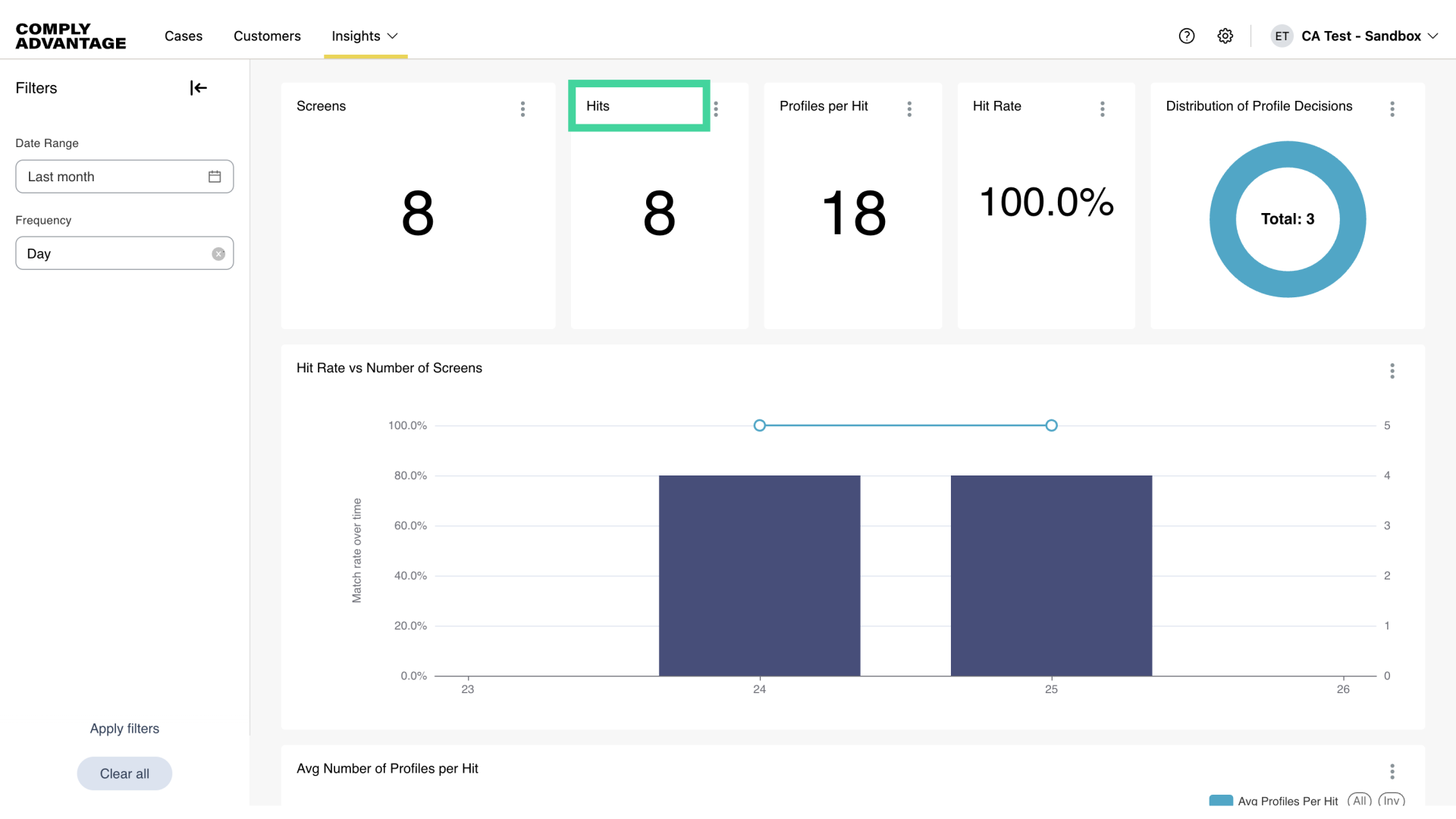
5. Hits
Hits which show the number of hits. A hit occurs when a profile matches your screening criteria, with any matching profiles being returned for you to review.
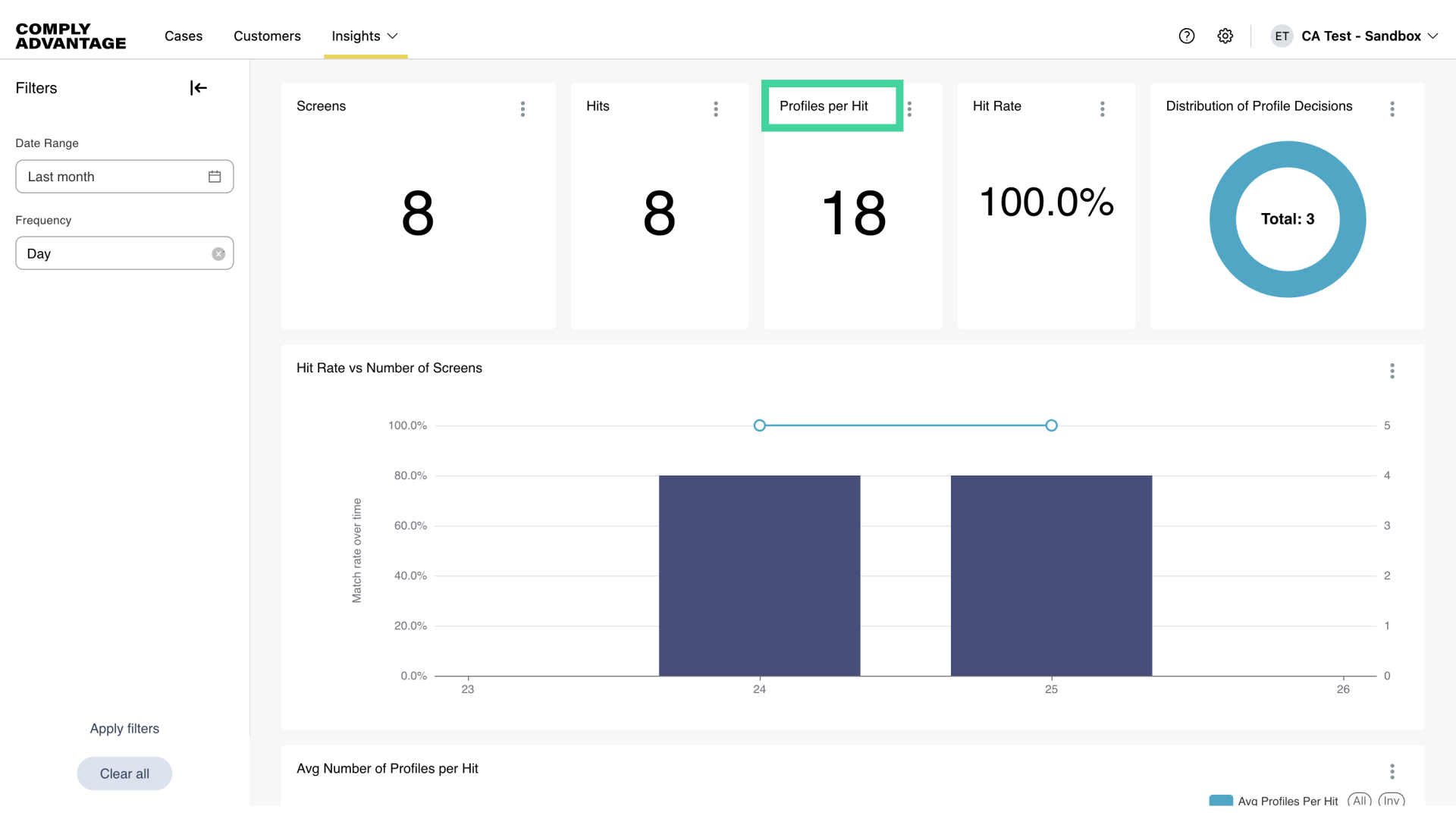
6. Profiles per Hit
Profiles per hit gives an average of the number of profiles per hit. A profile is an individual screening search result.
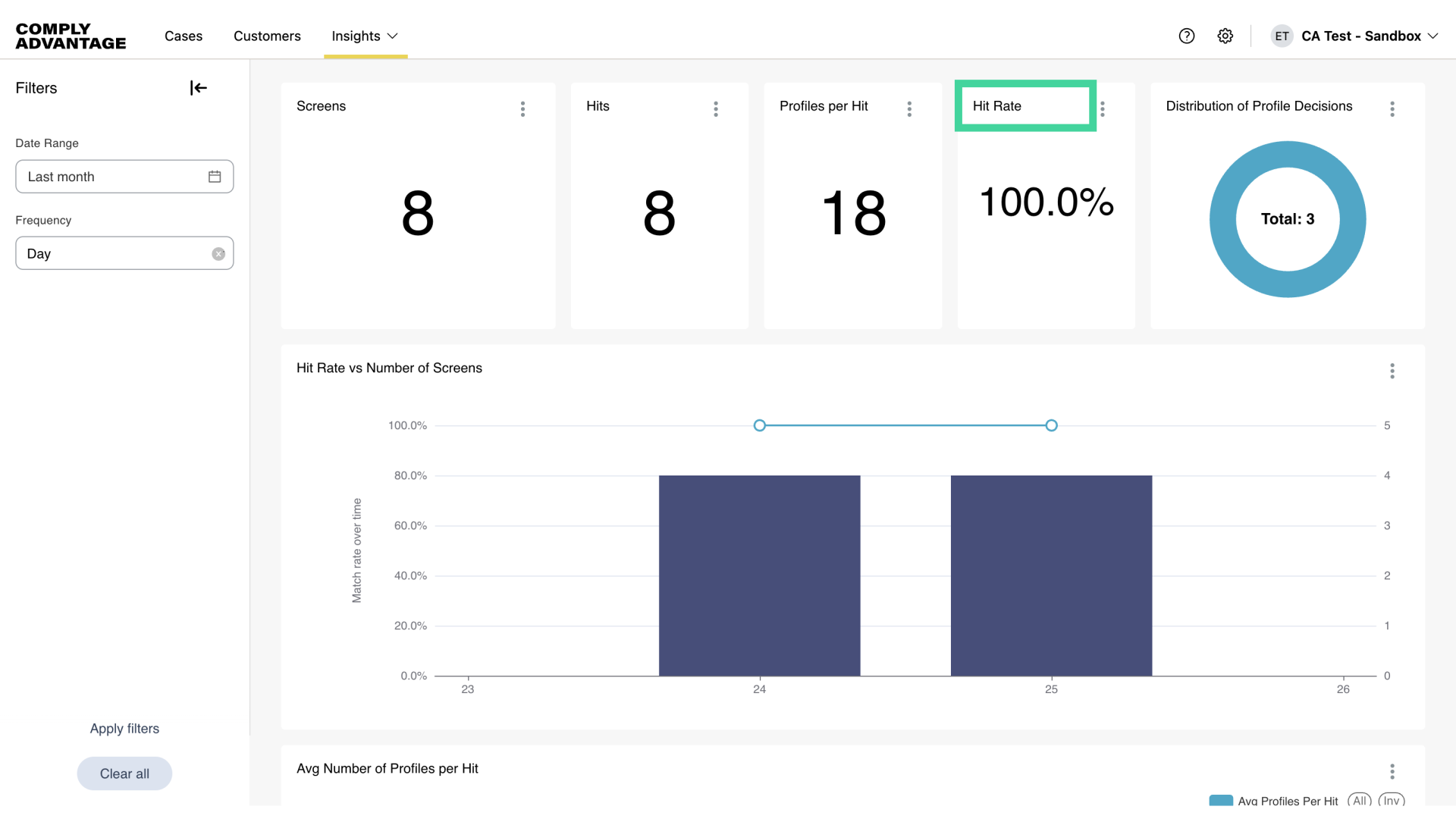
7. Hit Rate
Hit rate which refers to the number of hits as a percentage of the number of screens.
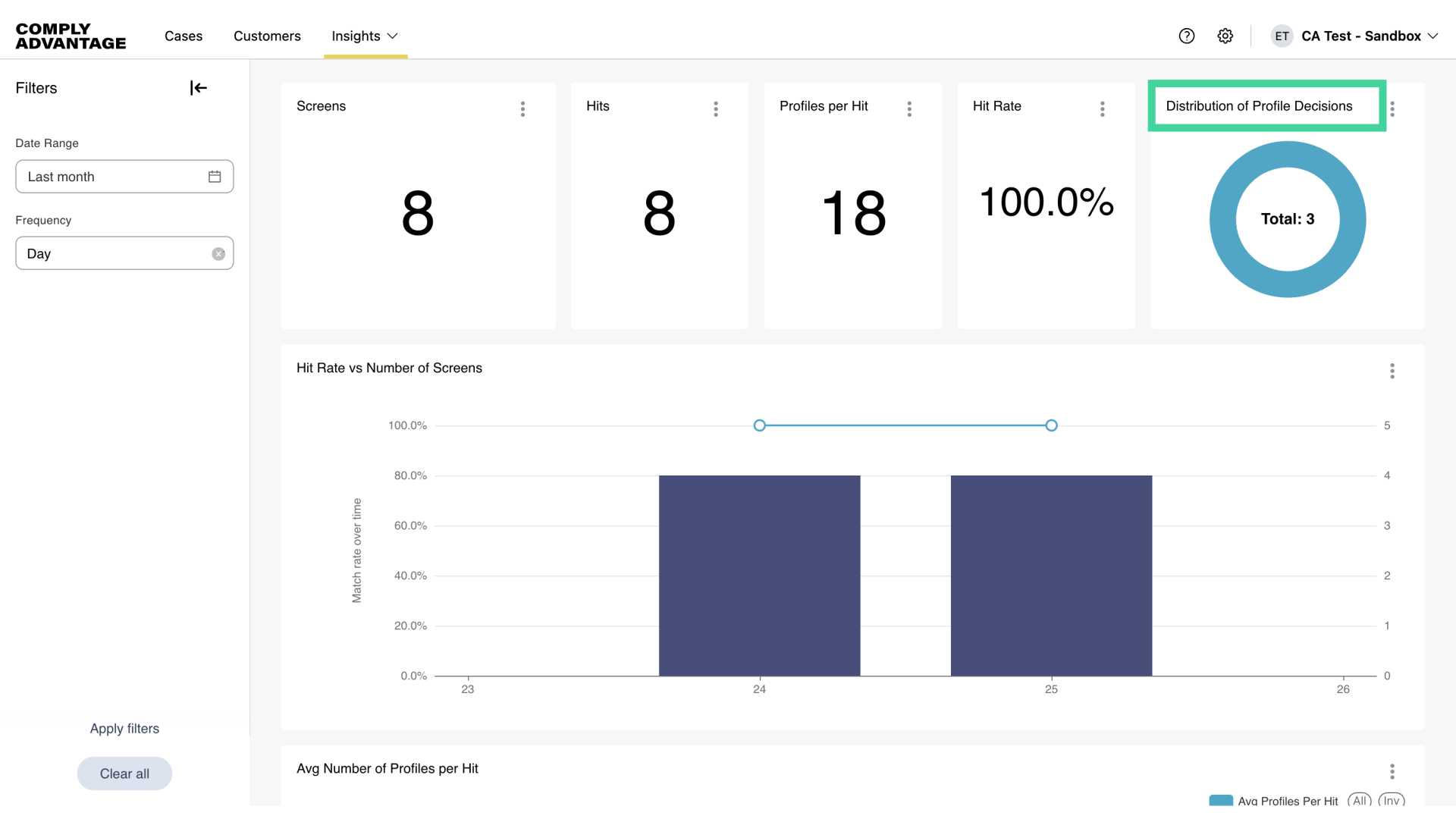
8. Distribution of Profile Decisions
And distribution of profile decisions shows the true positive versus false positive profiles.
9. Hit Rate vs Number of Screens
Moving onto the charts section, we have the Hit rate vs. Number of screens. This chart shows the number of customers screened for a given period (as bars) and the average hit rate across all the screens (as points).
10. Average Number of Profiles per Hit
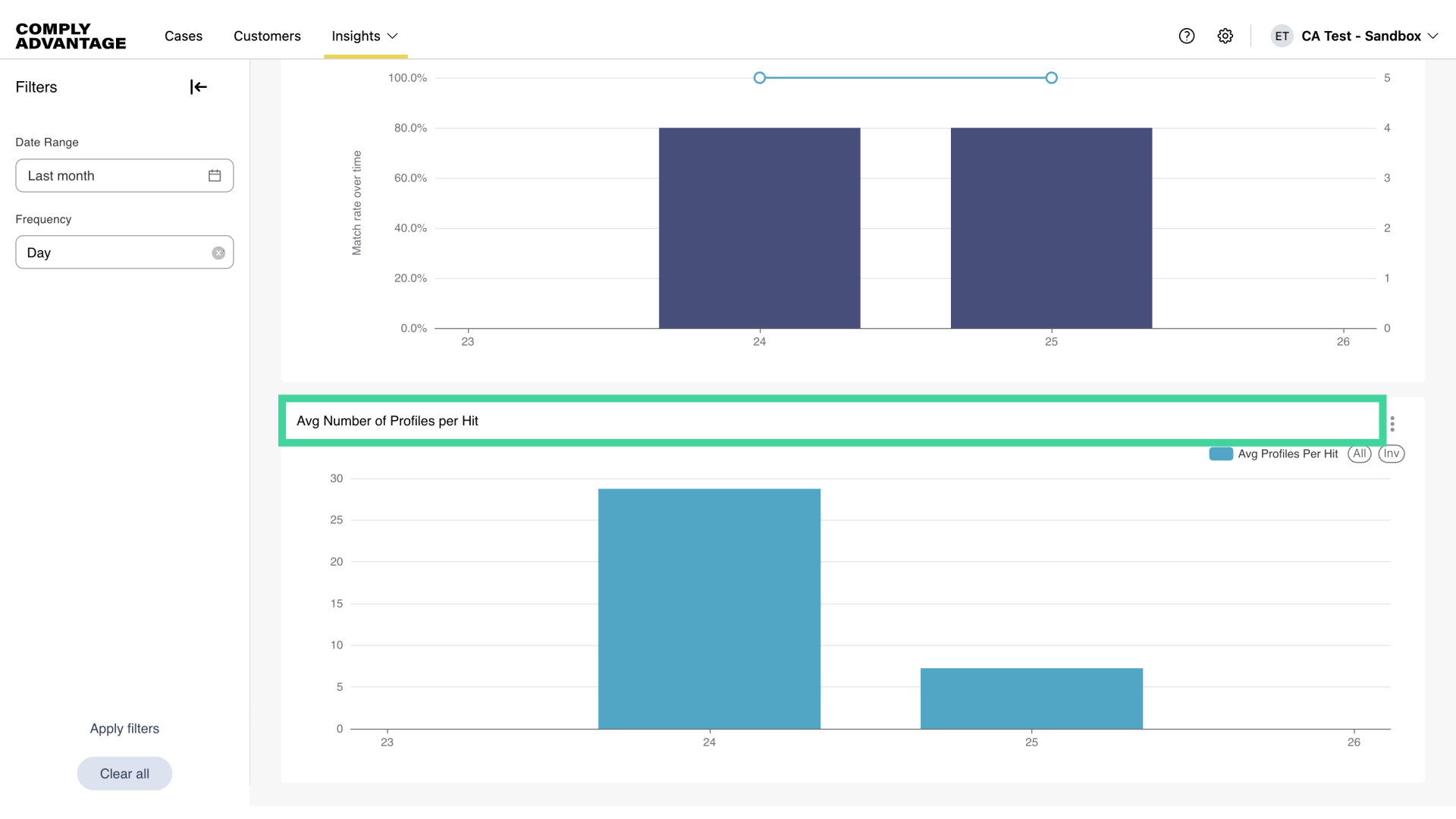
The next chart shows the average number of profiles being returned per hit within a given time period. This helps you to see if you’re getting too many or too few profiles returned each time there is a hit, and if any adjustments are needed to the screening settings.
11. Filters
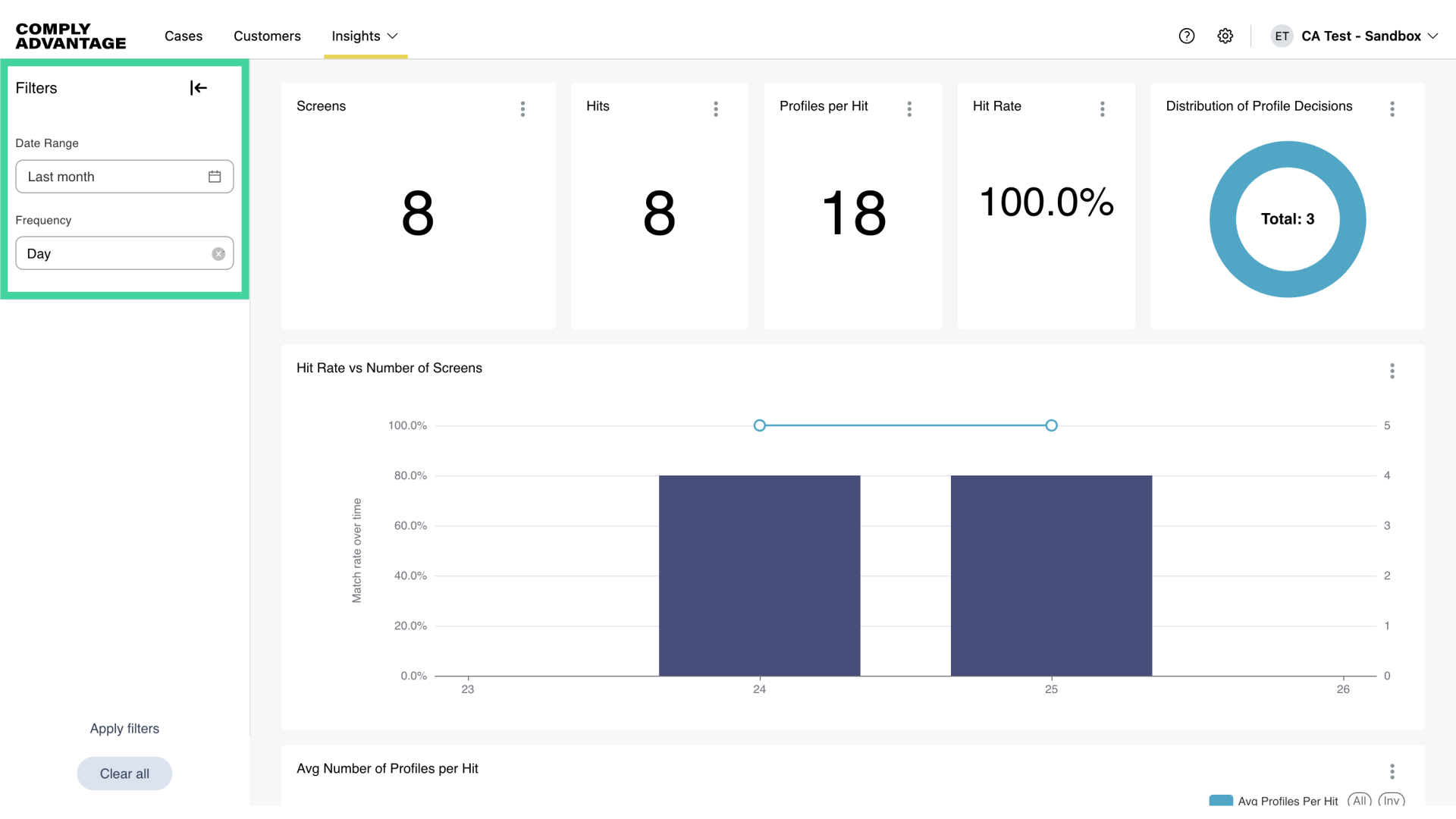
The default date range is the last 30 days, and the default frequency is daily. However, you can change the date range to filter the data to focus on your preferred time frame.
12. Click here
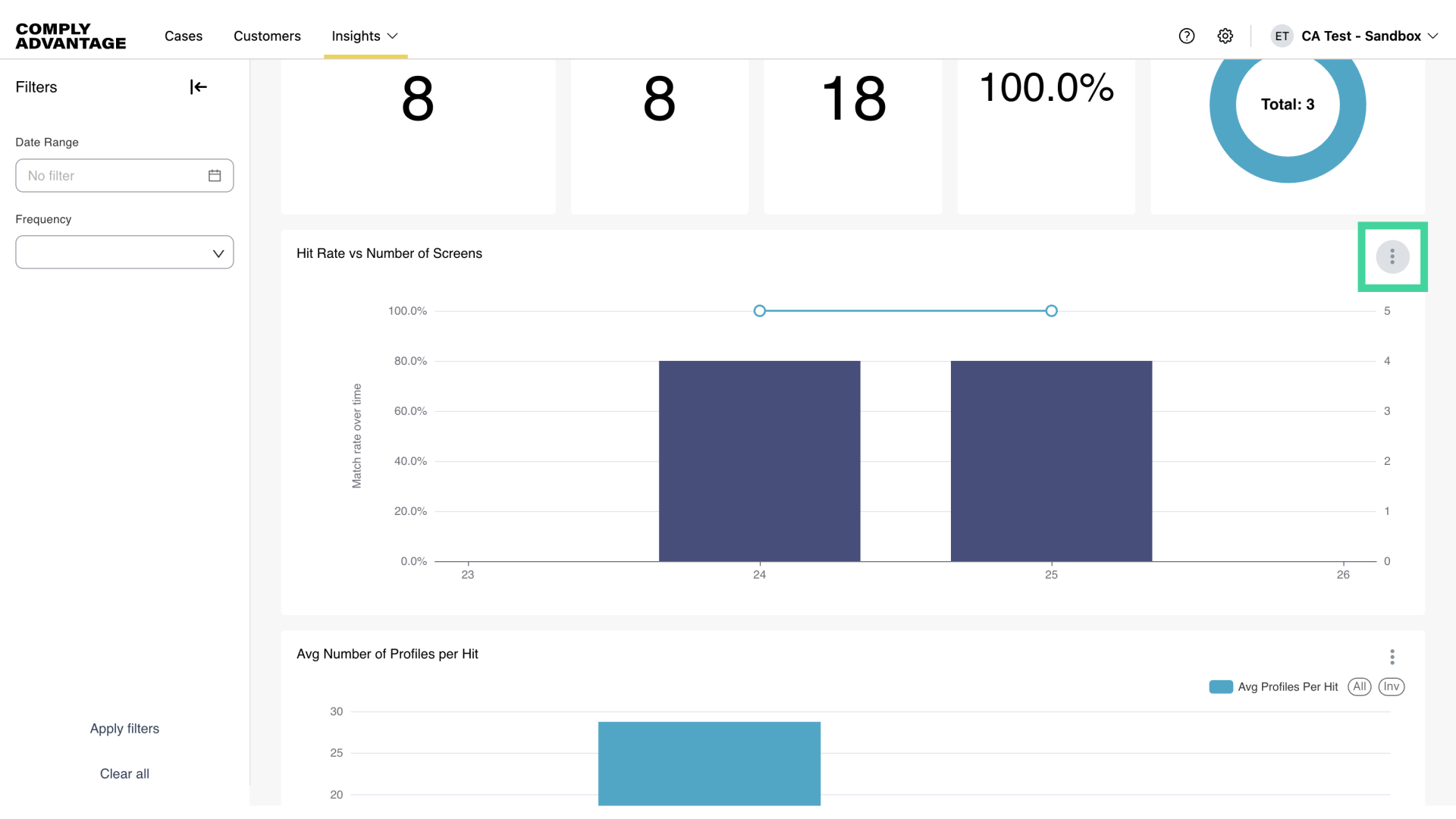
You also have the option to view the charts in a larger format for better visibility.
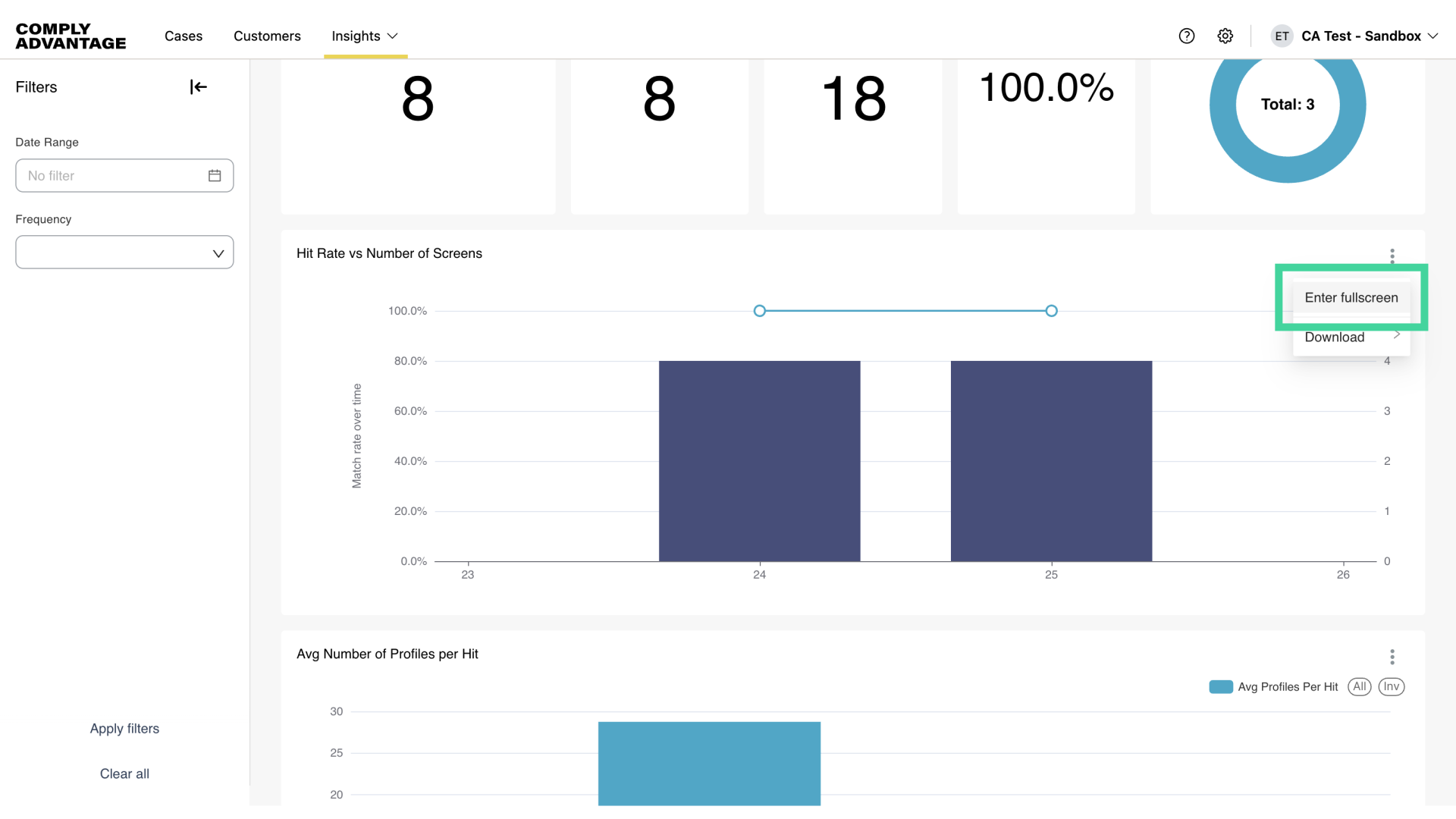
13. Click "Enter fullscreen"
Click here to "Enter fullscreen" mode.
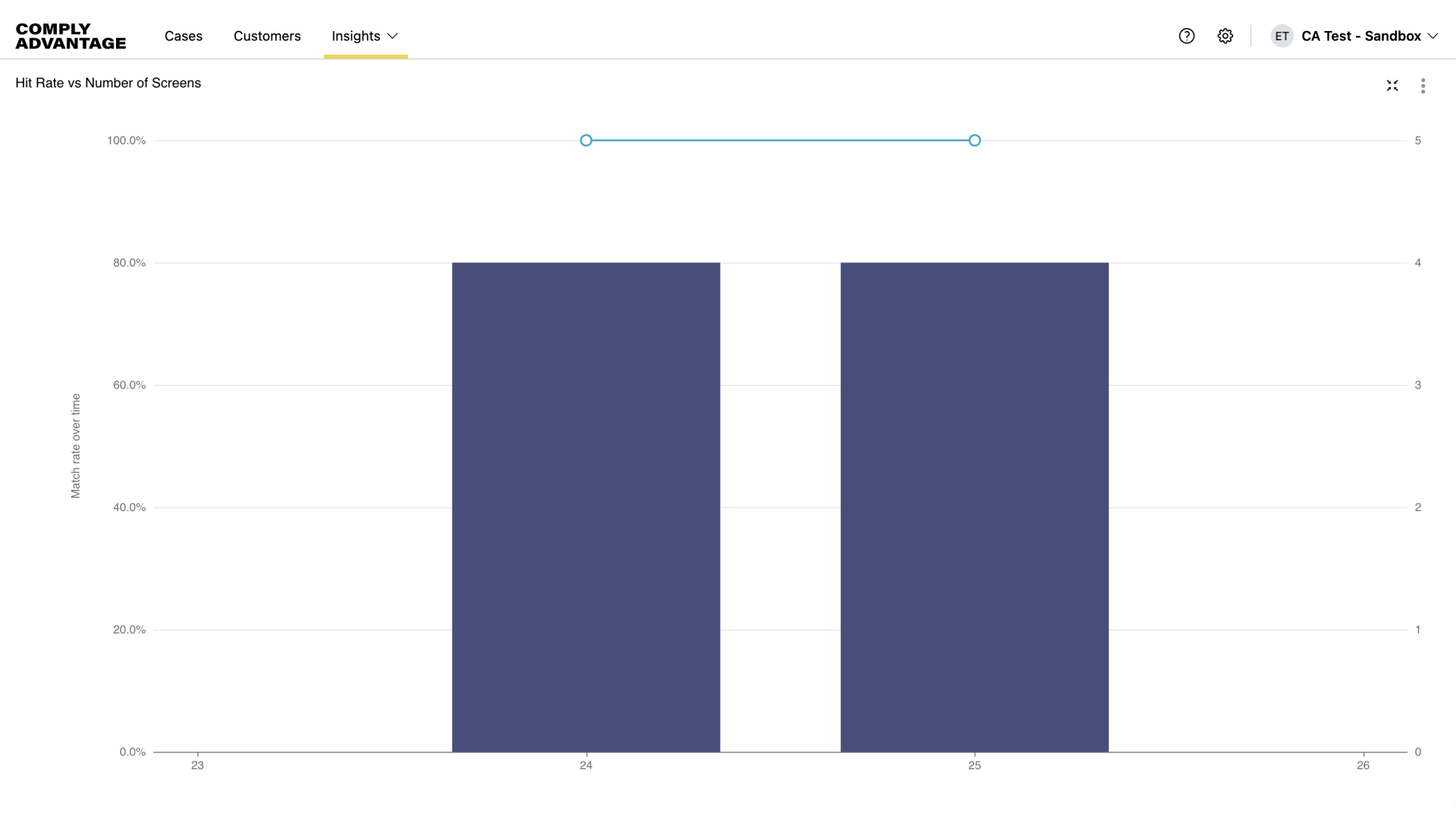
14. Full screen
You can now view the charts in an expanded format.
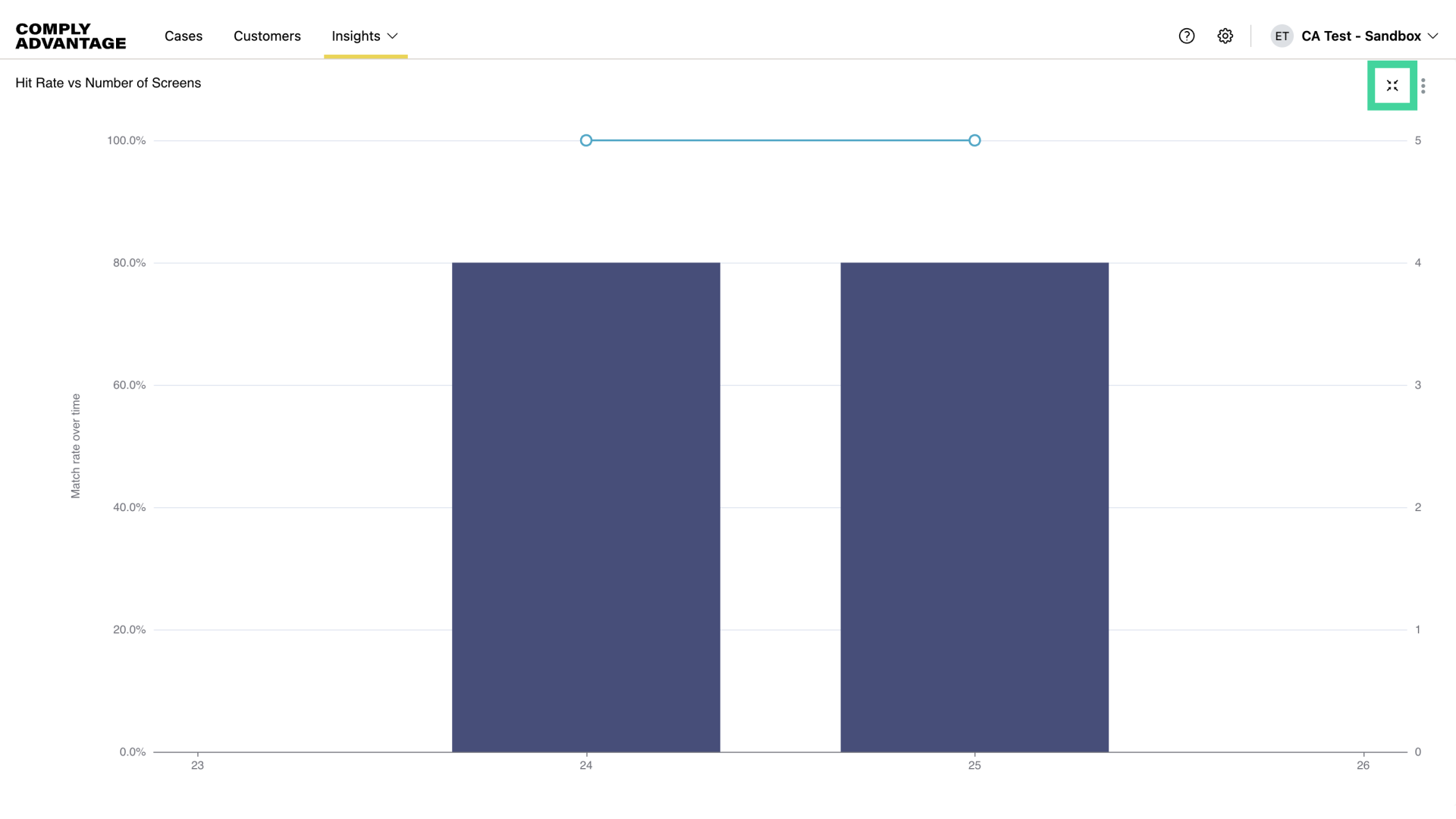
15. Exit full screen
To exit full-screen, click here.
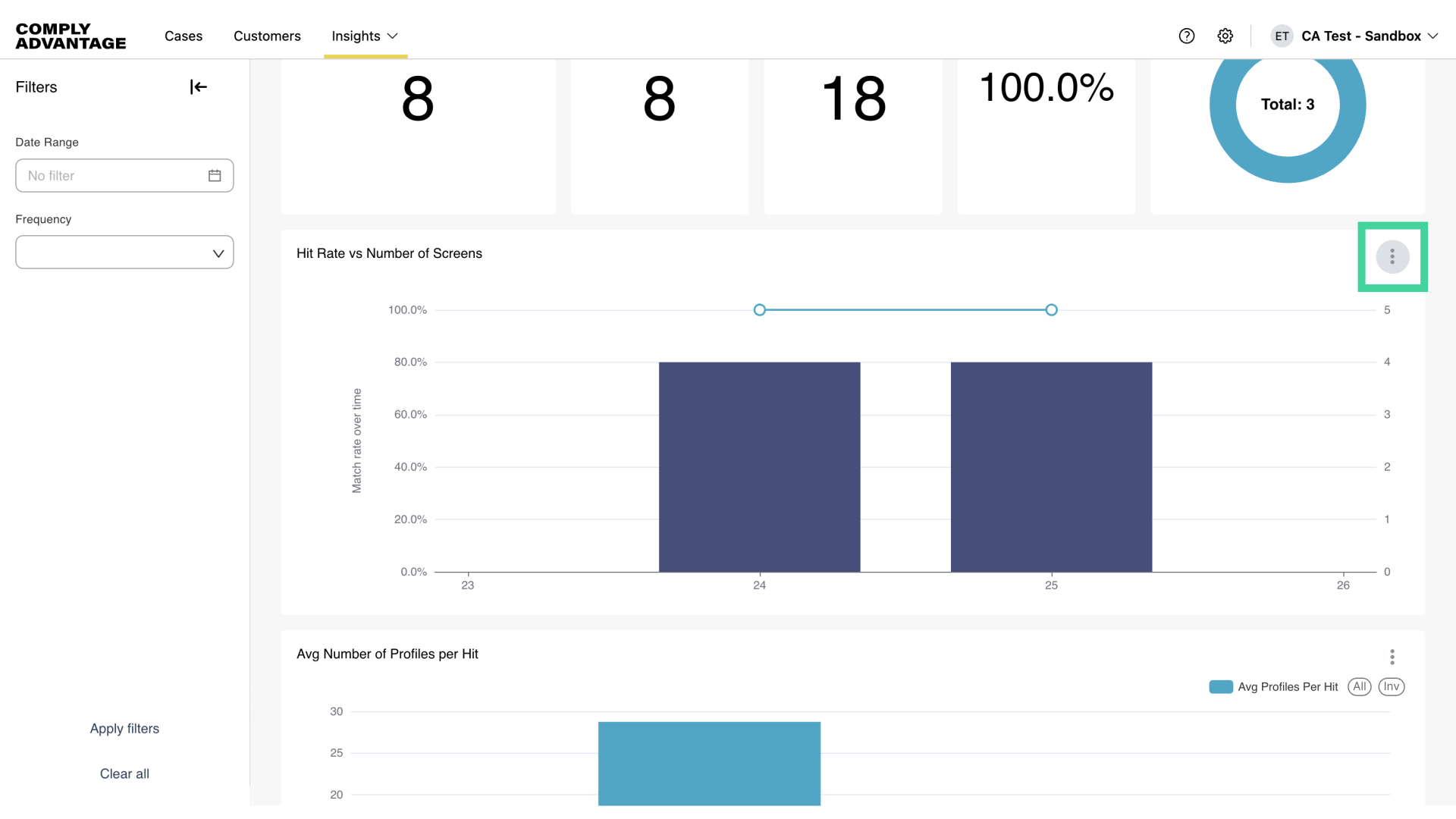
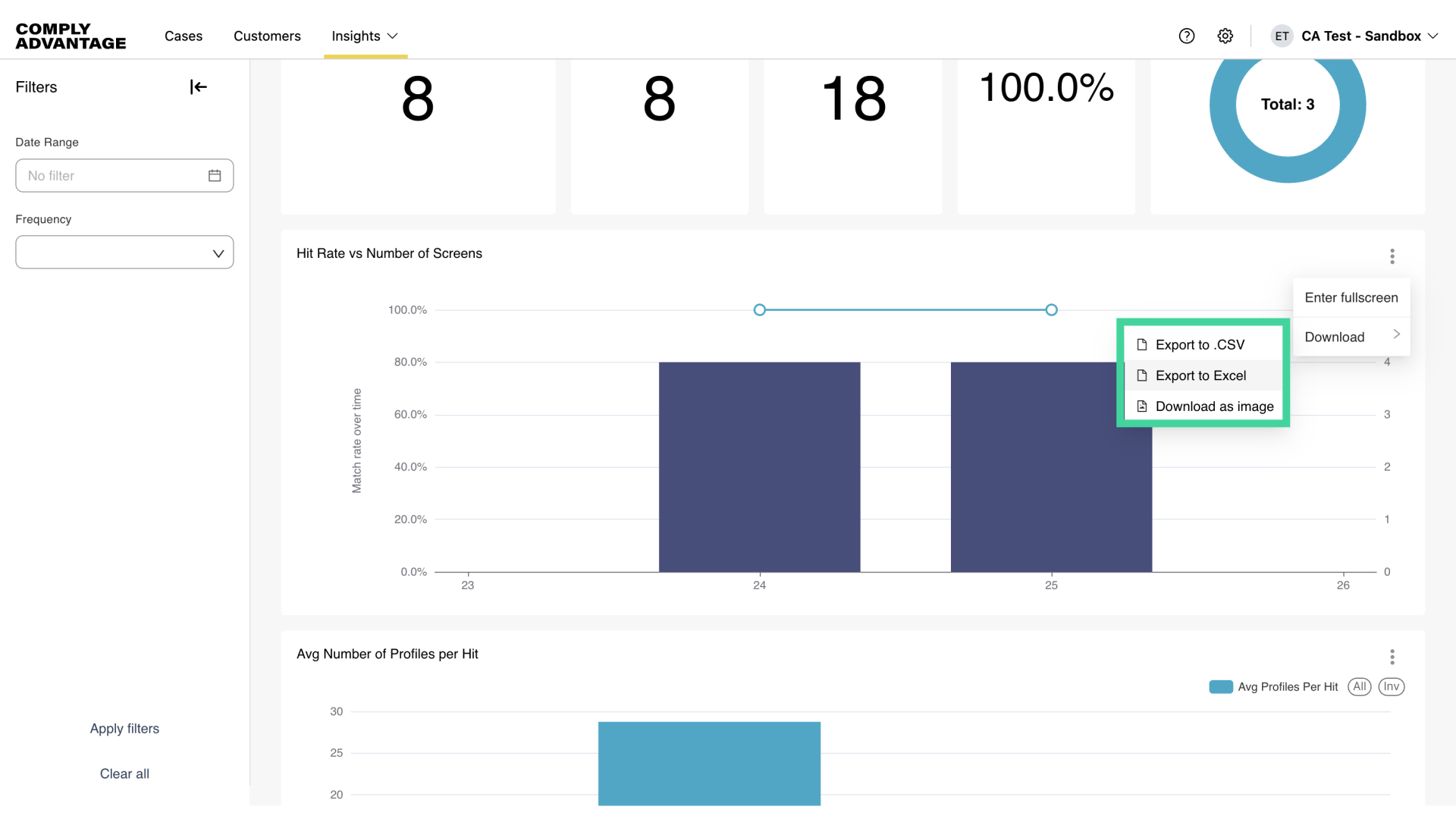
16. Download insights
You can download insights data and images for a chart to use outside of Mesh. First, click these three vertical dots.
17. Select the relevant download option
Then, click download and export using the appropriate option.
We hope this guide helped you learn to apply filters, export data, and navigate onboarding screens effectively for enhanced reporting capabilities.