Video: How to archive and unarchive a Screening Configuration and view change history
Last updated: October 13, 2026
In this guide, you will learn how to archive and unarchive screening configurations and access change history in Mesh.
When logging in to your account, please ensure you select the correct region, which will be one of the following:
Australia: https://au.mesh.complyadvantage.com/
You can find the link to your region in the onboarding email you received (look for the "Welcome to ComplyAdvantage" email).
If you can’t find the email, don't worry! You can always contact our support team at [email protected].
Archive/Unarchive Screening Configuration
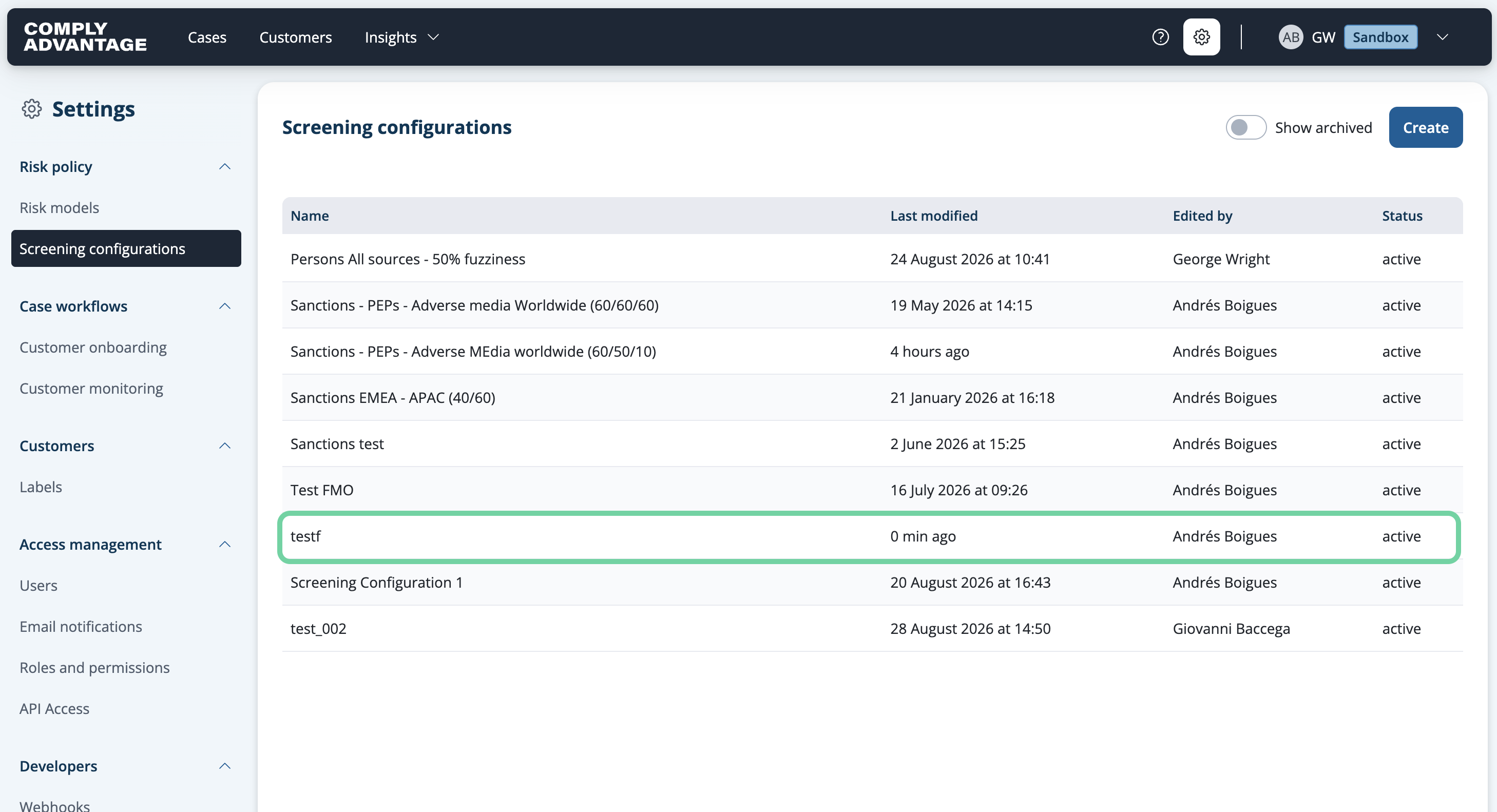
1. Select the Screening Configuration
Select the screening configuration you want to archive.
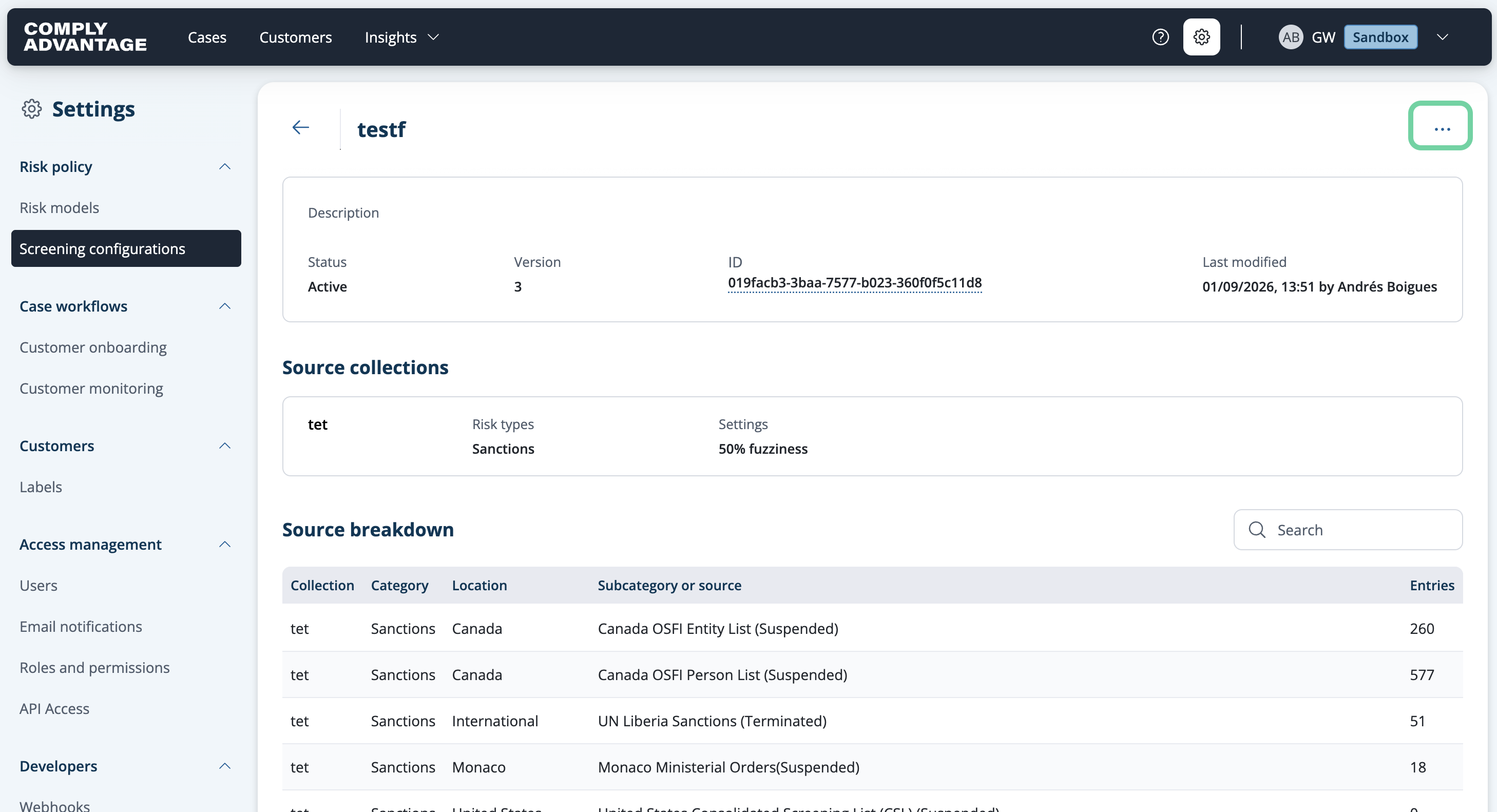
2. Click here
Click the three dots in the upper right corner.
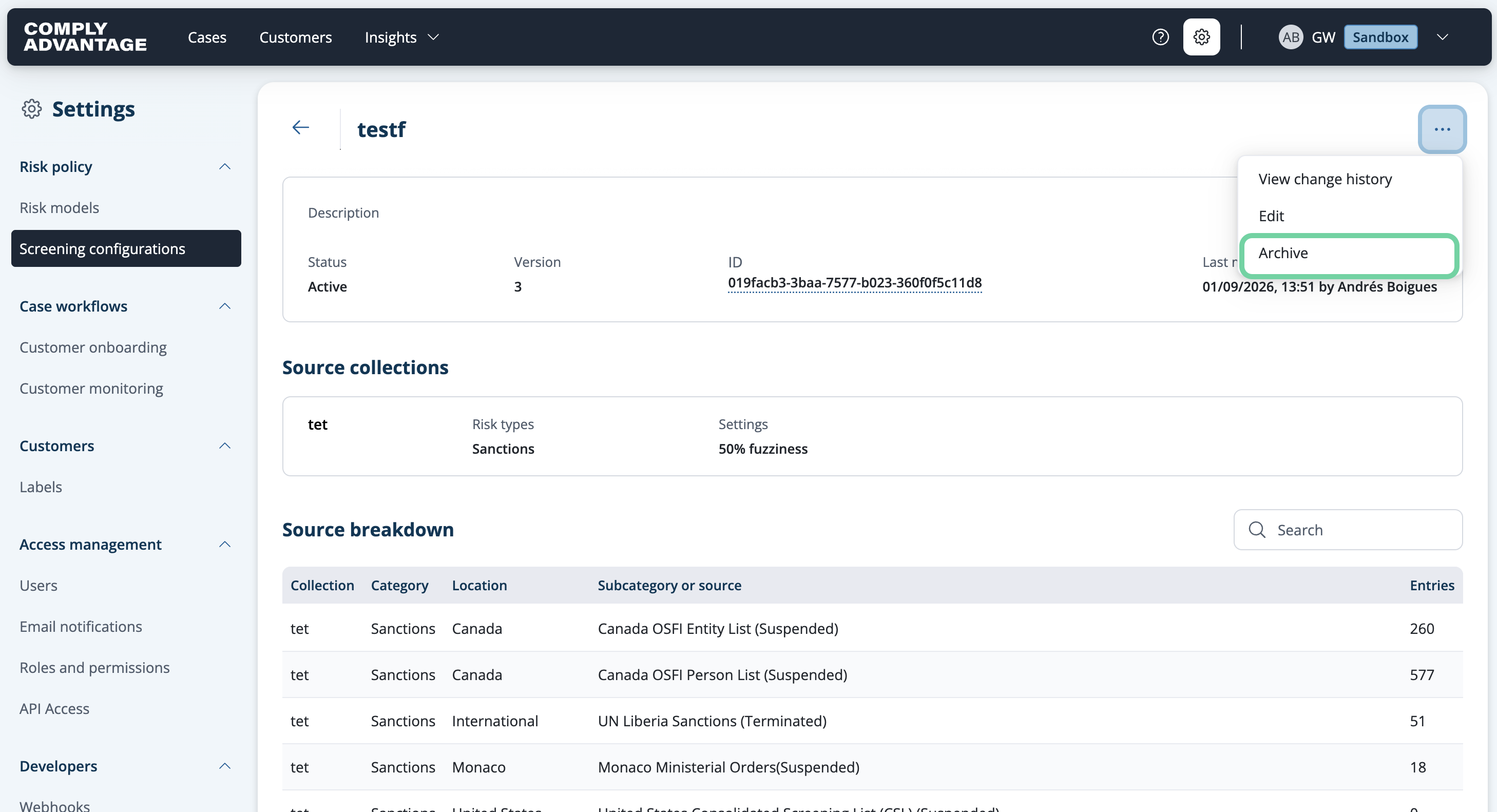
3. Click "Archive"
Navigate to "Archive."
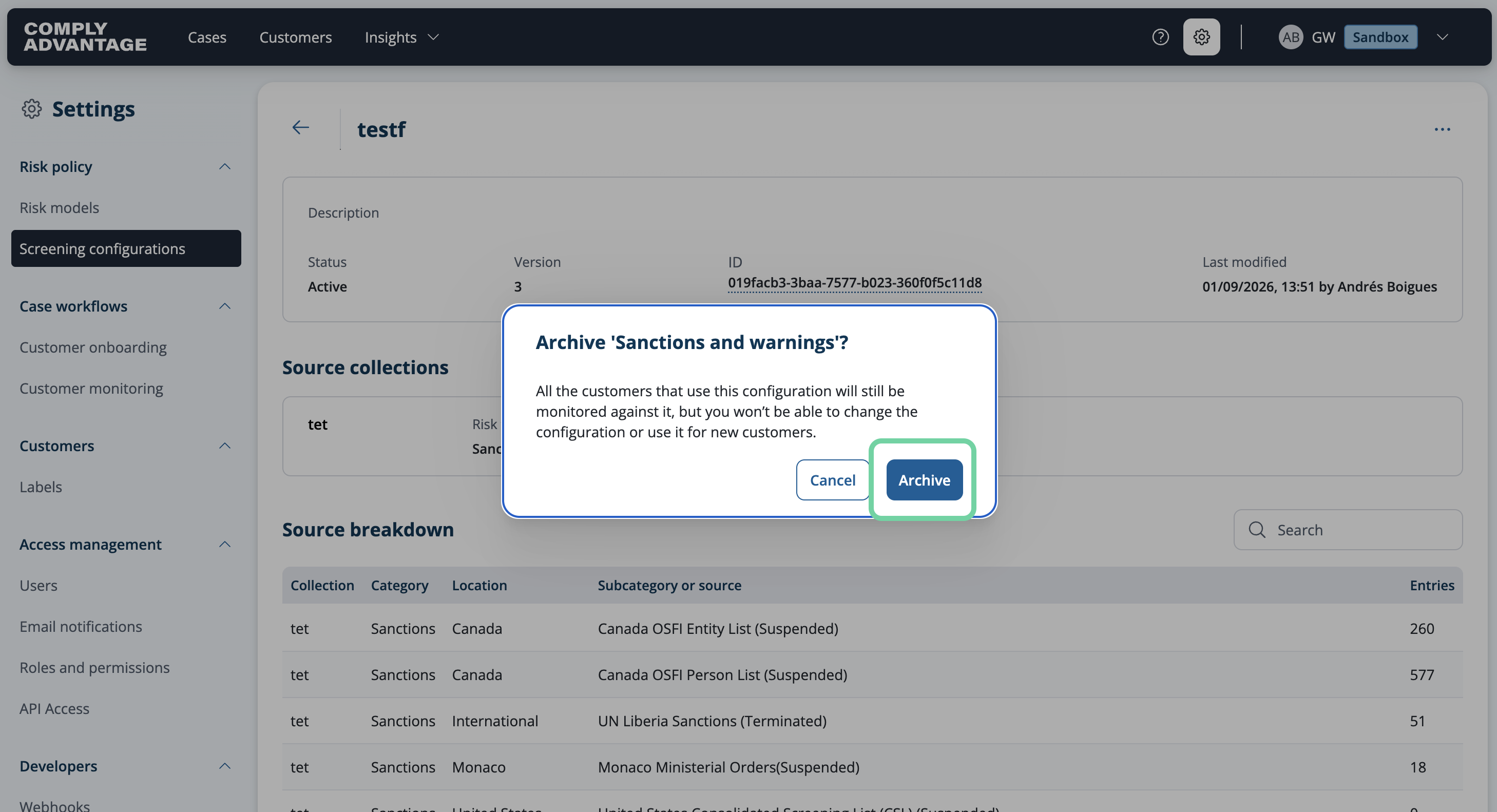
4. Click "Archive"
A pop-up will be displayed asking you to confirm. Click "Archive."
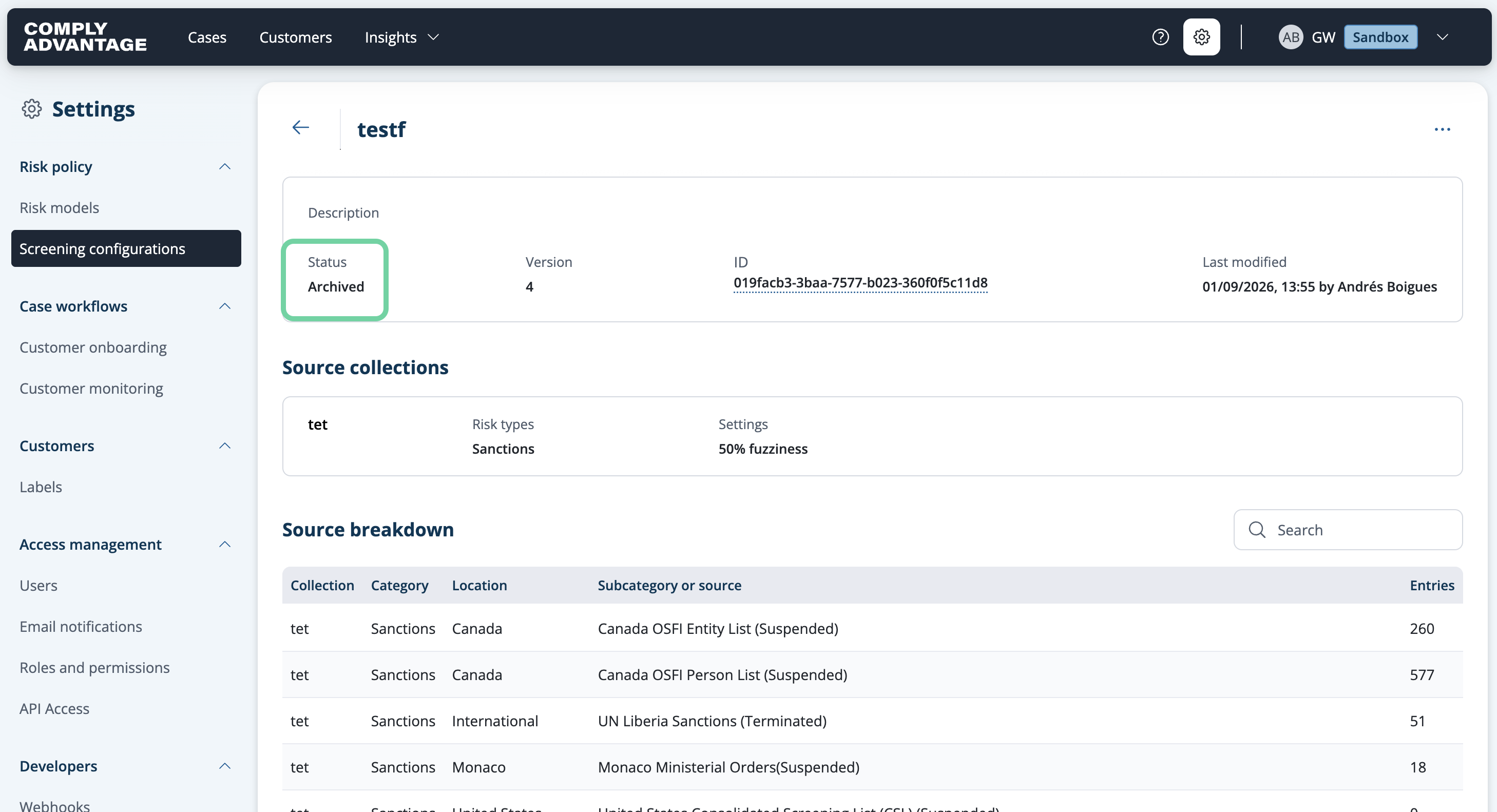
5. Status updated
You will see the status has been updated to "Archived."
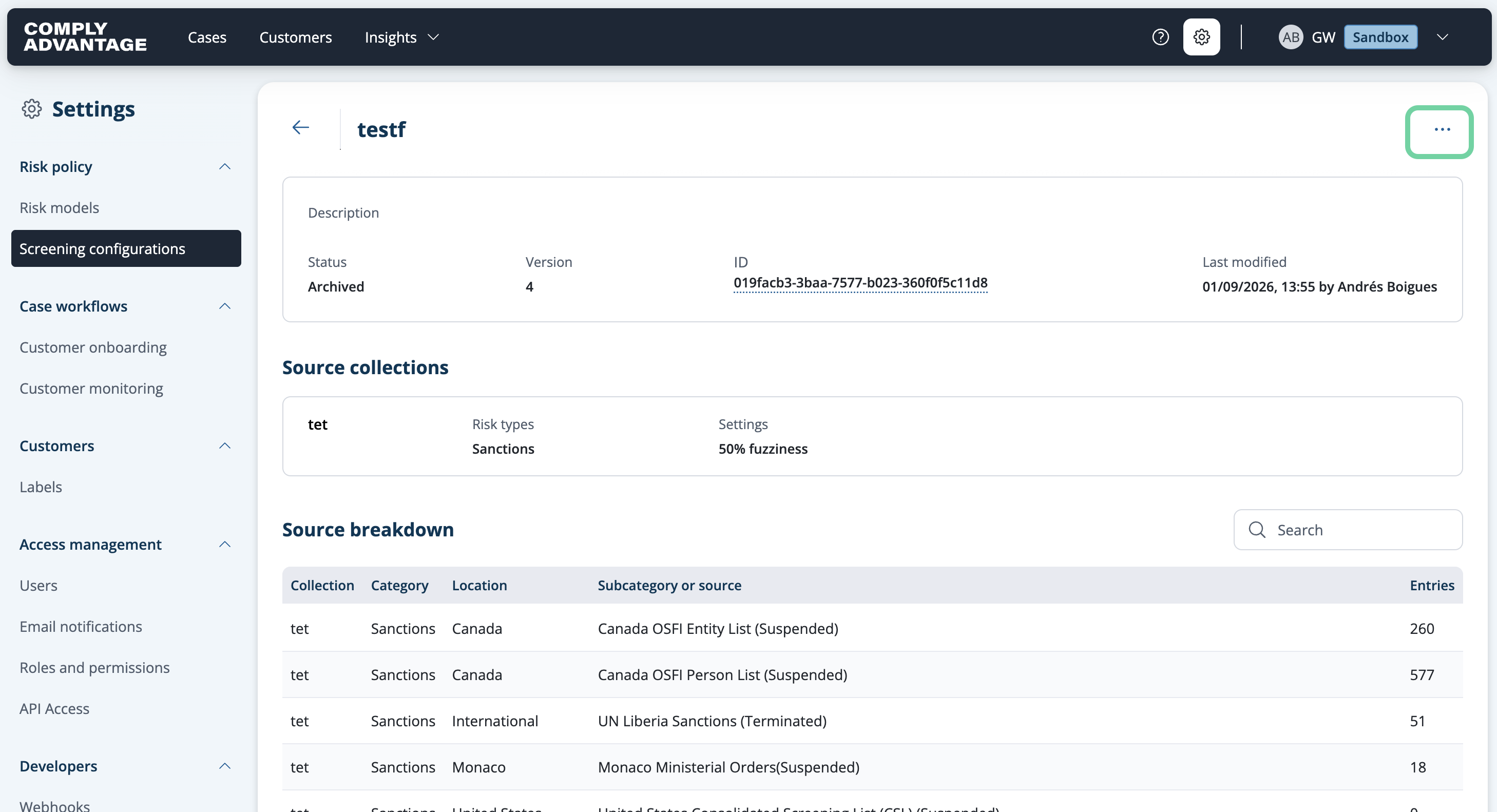
6. Click here
To unarchive, click these three vertical dots.
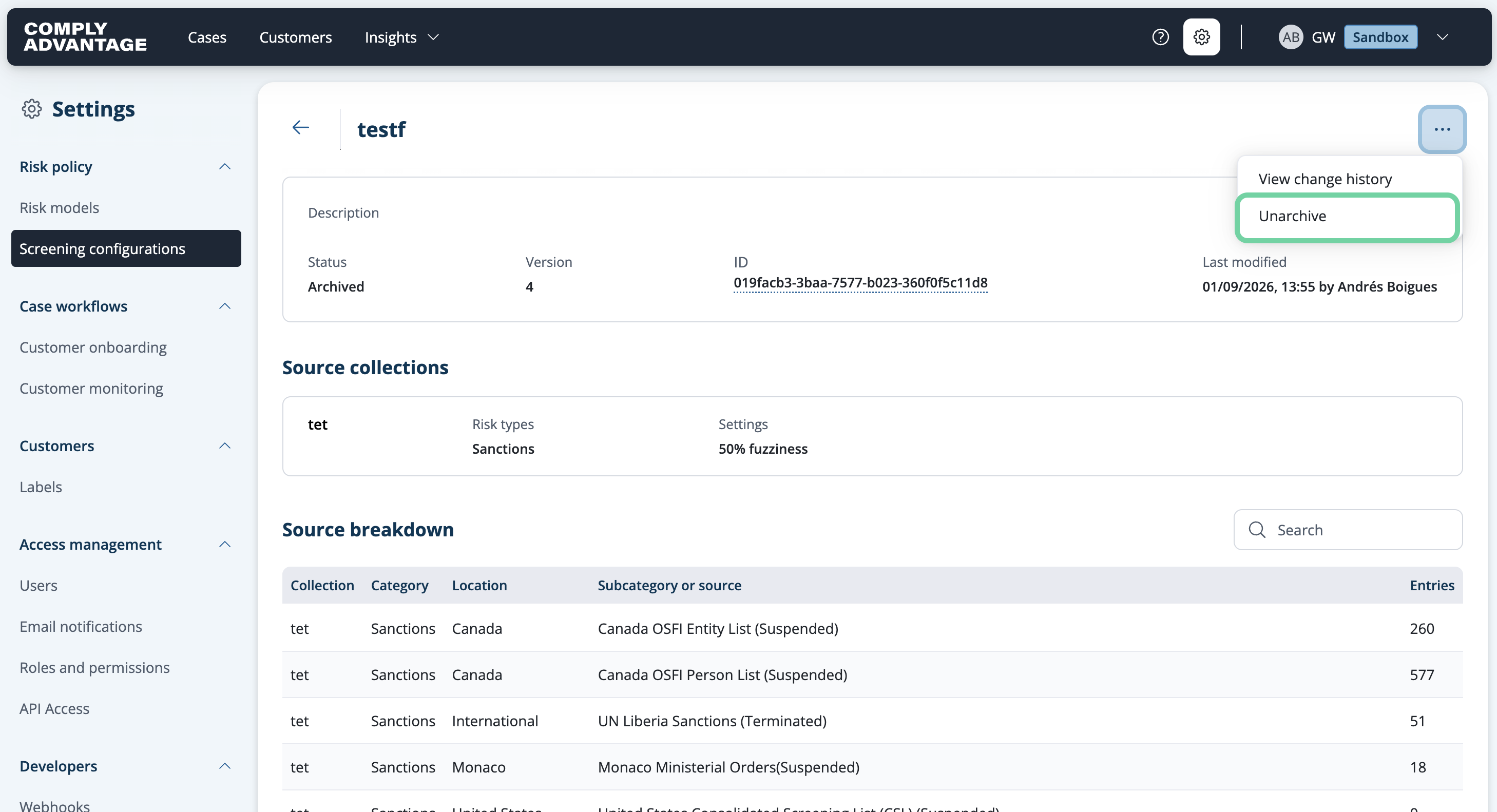
7. Click "Unarchive"
Select "Unarchive" from the dropdown.
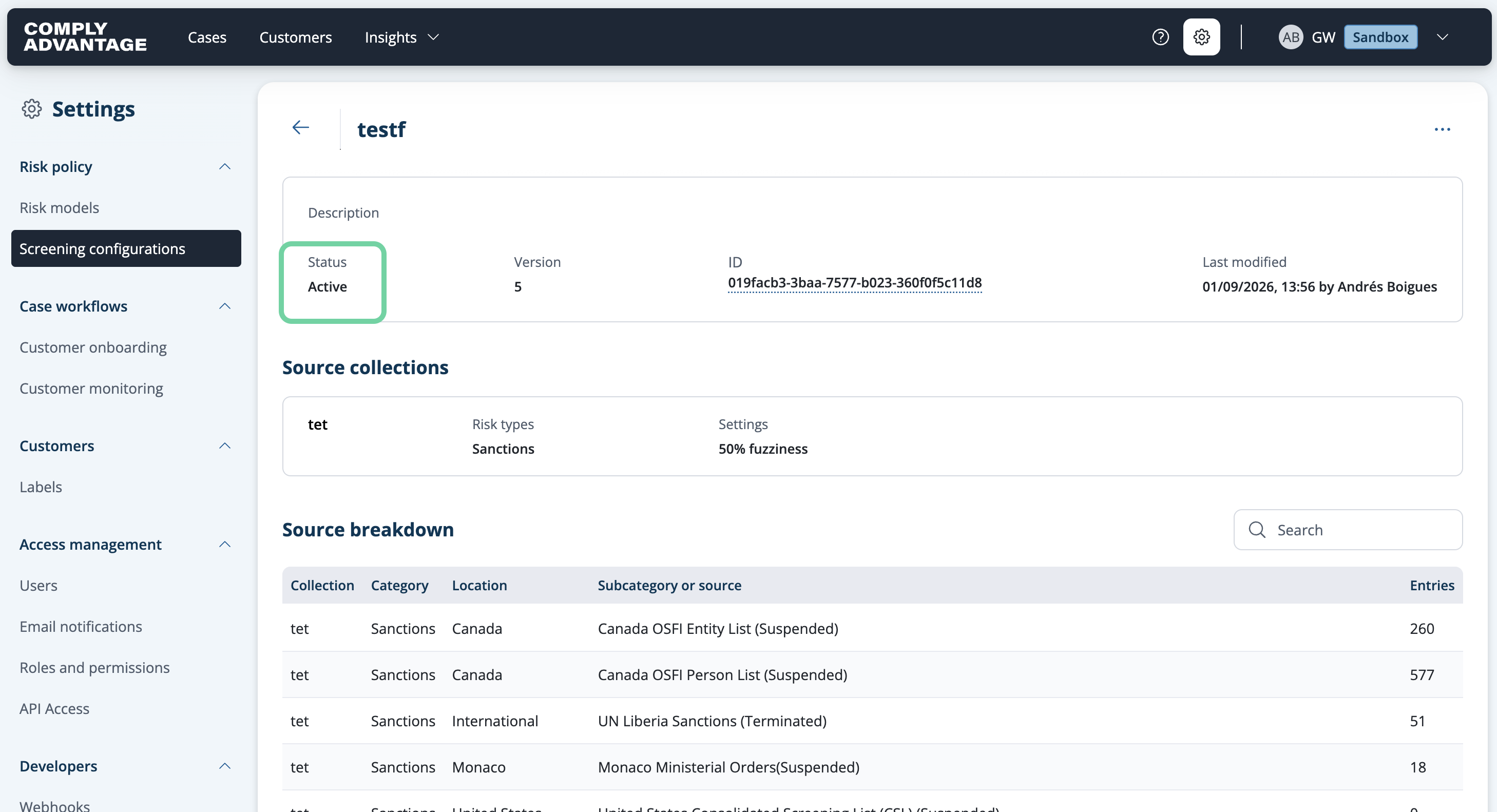
8. Status updated
You will see the status has been updated to Active.
Viewing Change history for Screening Configuration
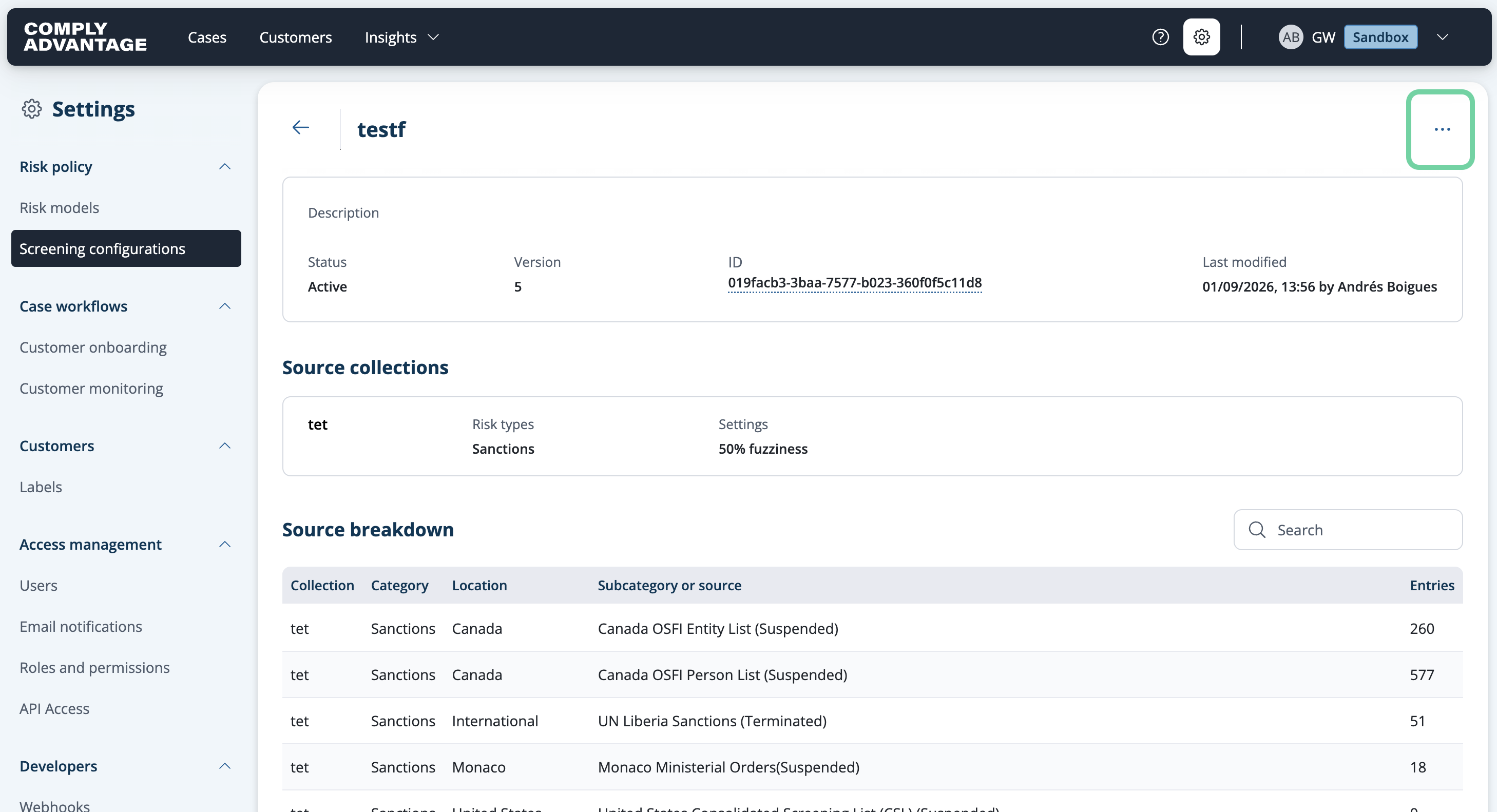
1. Click here
To view the change history of a screening configuration, click the three dots in the upper right corner of the desired screening configuration.
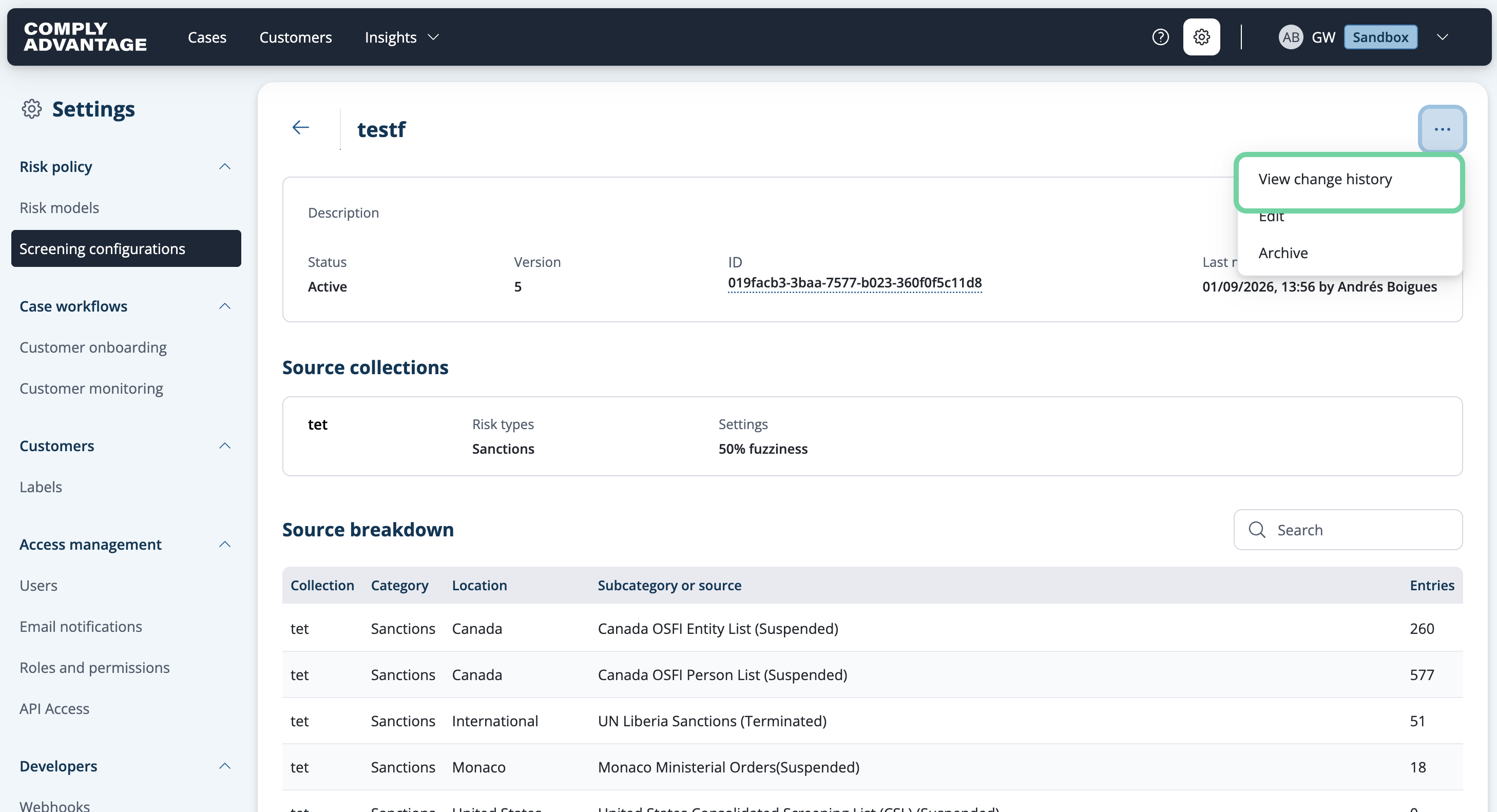
2. Click "View change history"
Select "View change history" from the dropdown.
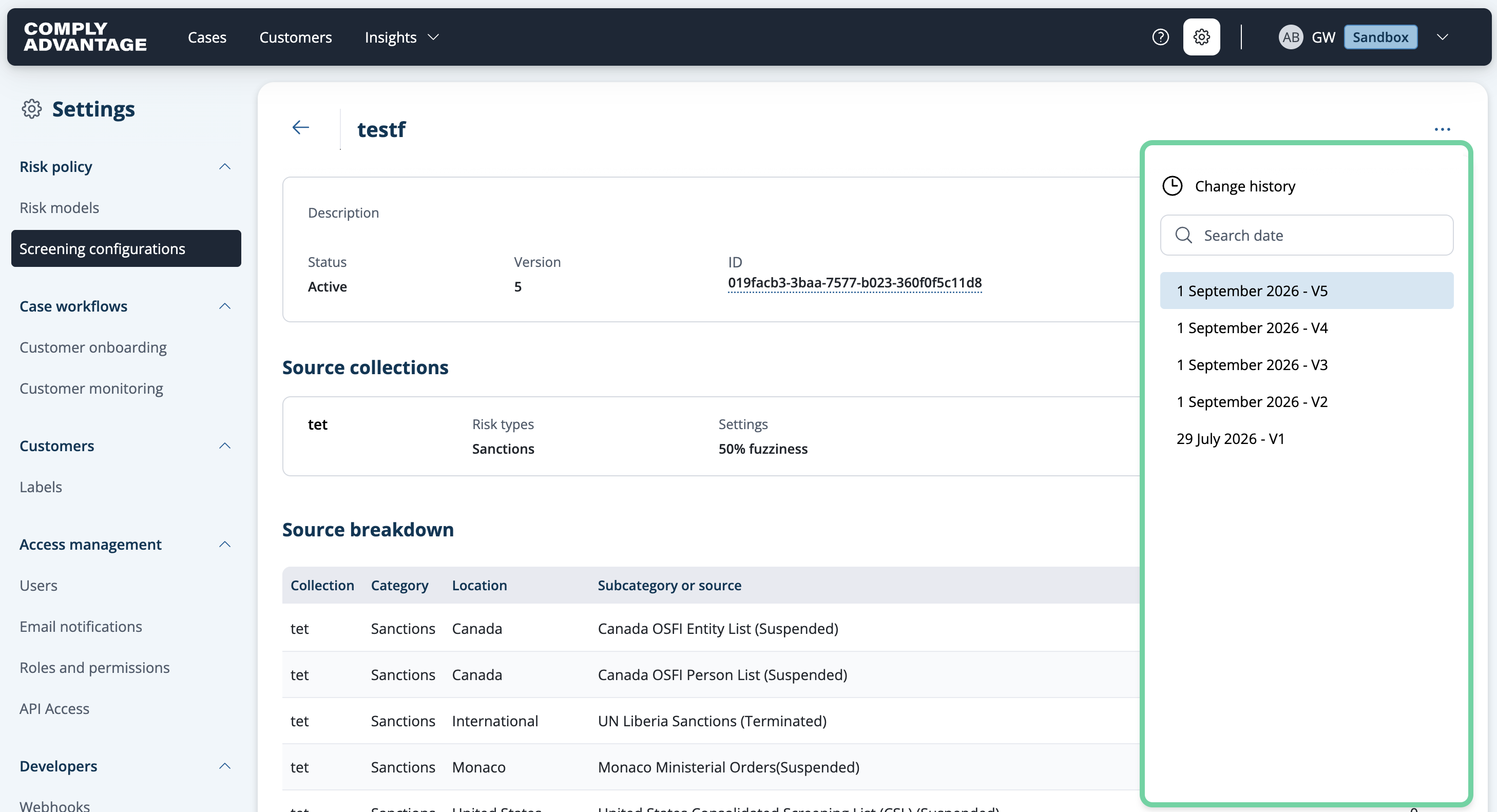
3. View change history
From here, a side menu will open that allows you to select different versions of the screening configuration with dates.
We hope this guide helped you learn how to archive and unarchive screening configurations and view your change history in Mesh.