Viewing and adding notes for a screening result
Last updated: August 21, 2026
Results in customer screening cases often require thorough review as part of the remediation process. To streamline this process and enhance communication, you can add notes directly to individual screening results. These notes are visible to all users reviewing the result, providing crucial context and facilitating seamless collaboration.
Key point: Notes added to a screening result differ from case notes. Screening result notes are specifically tied to the individual result and are only visible within that context.
Viewing notes for a screening result
Navigate to the screening result you wish to review.
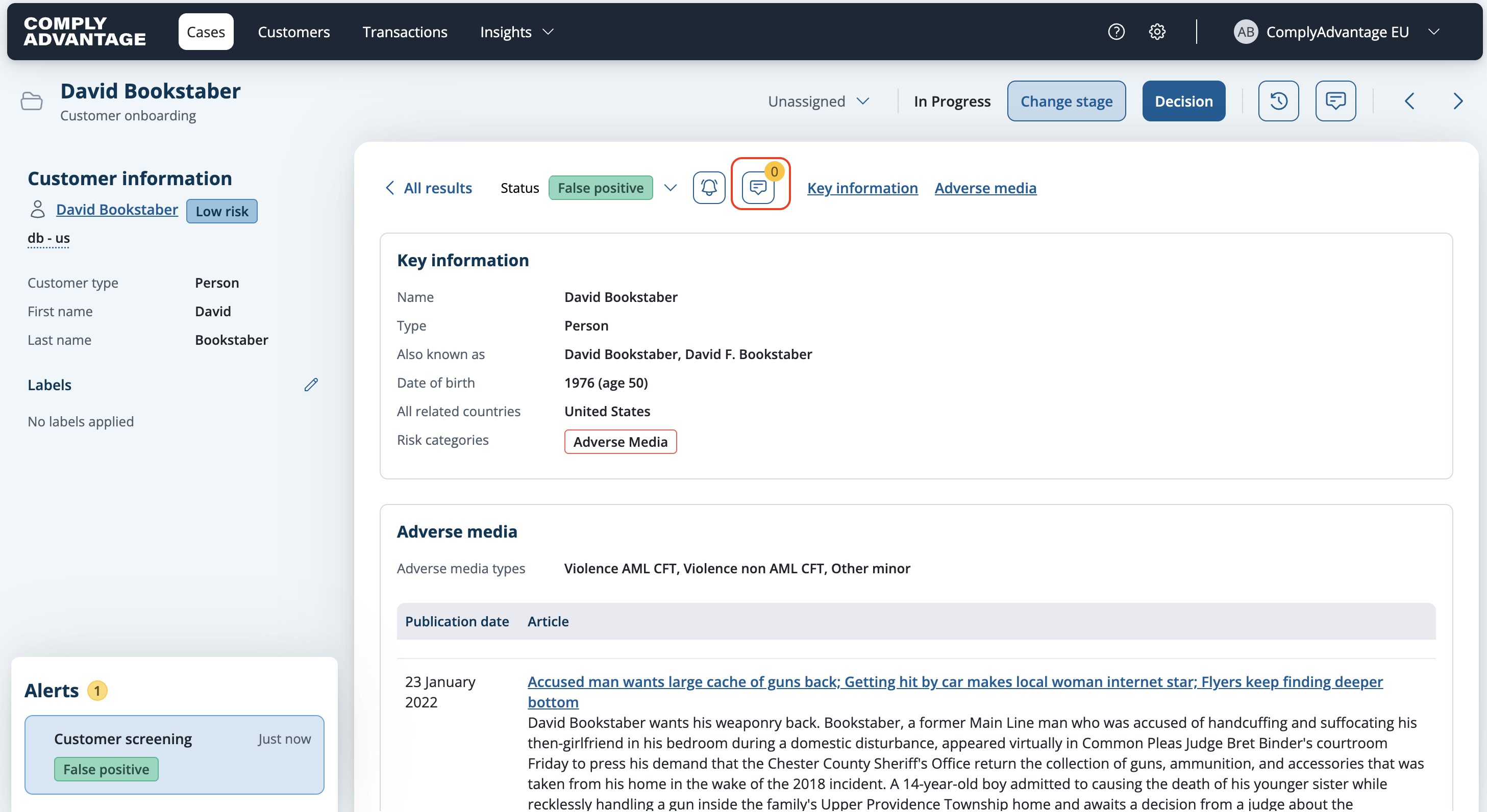
Click on this icon located next to the results status. A number beside the icon indicates the note count.

A pane titled "Profile notes" will appear on the right, displaying all notes for that result, along with the author and a timestamp.
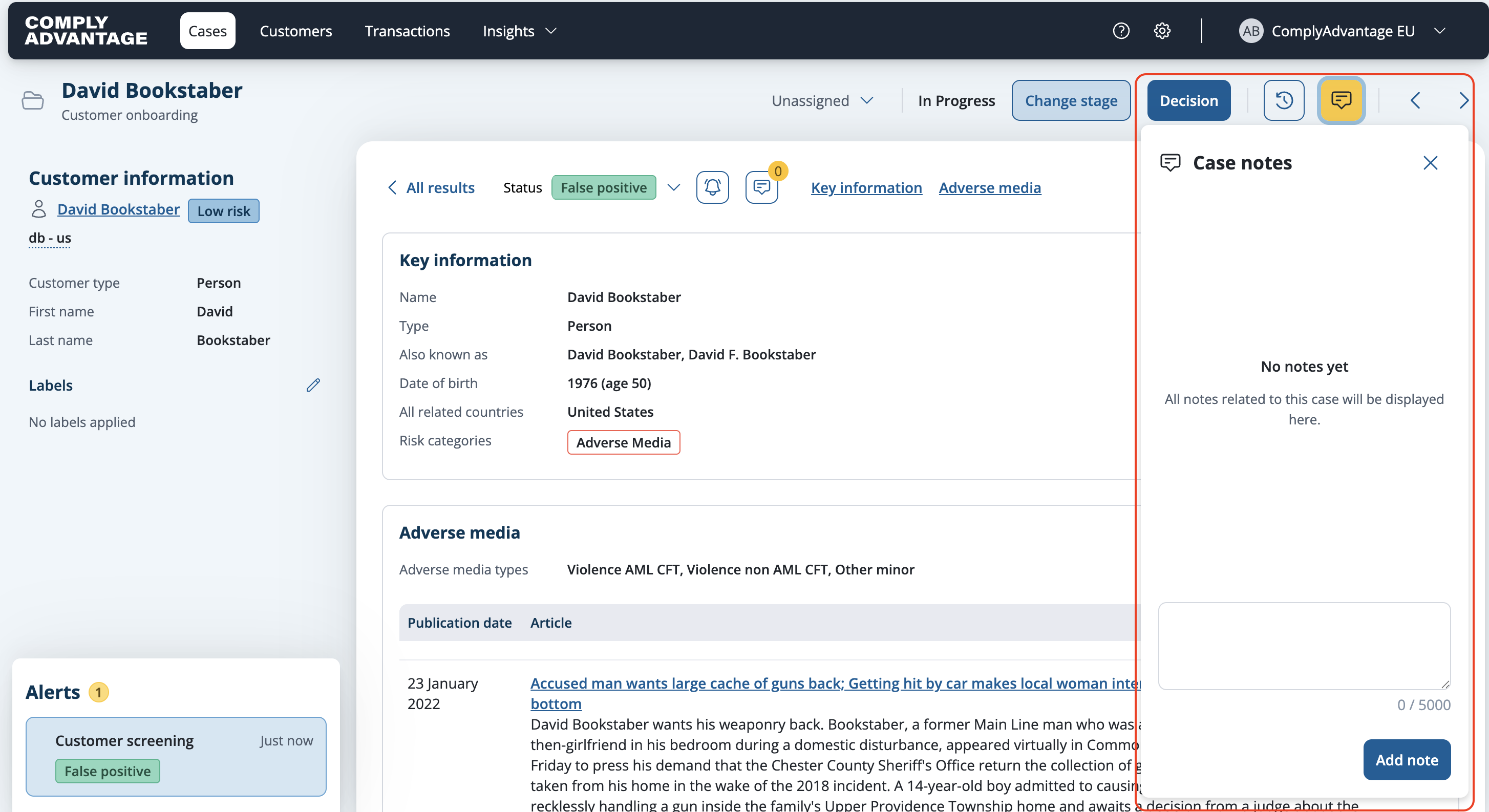
Adding notes for an individual screening result within the profile detail view
Access the desired screening result.
Click on this
icon next to the status of the screening result.
A pane titled "Profile notes" will appear on the right. The pane shows all notes added for that profile in relation to the customer the case belongs to.
Enter your note in the text box at the bottom of the panel (1,000 character limit).

Click the "Add profile note" button to save your entry.
The profile note will be visible in all subsequent cases for that customer where this profile is displayed.
Adding notes for an individual screening result within the screening results view
Navigate to the screening results page.
Select the 'Profile Note' icon next to the screening result you wish to leave a note against.

A side panel will show on the right hand side called 'Profile Notes'. Enter your note in the text box.
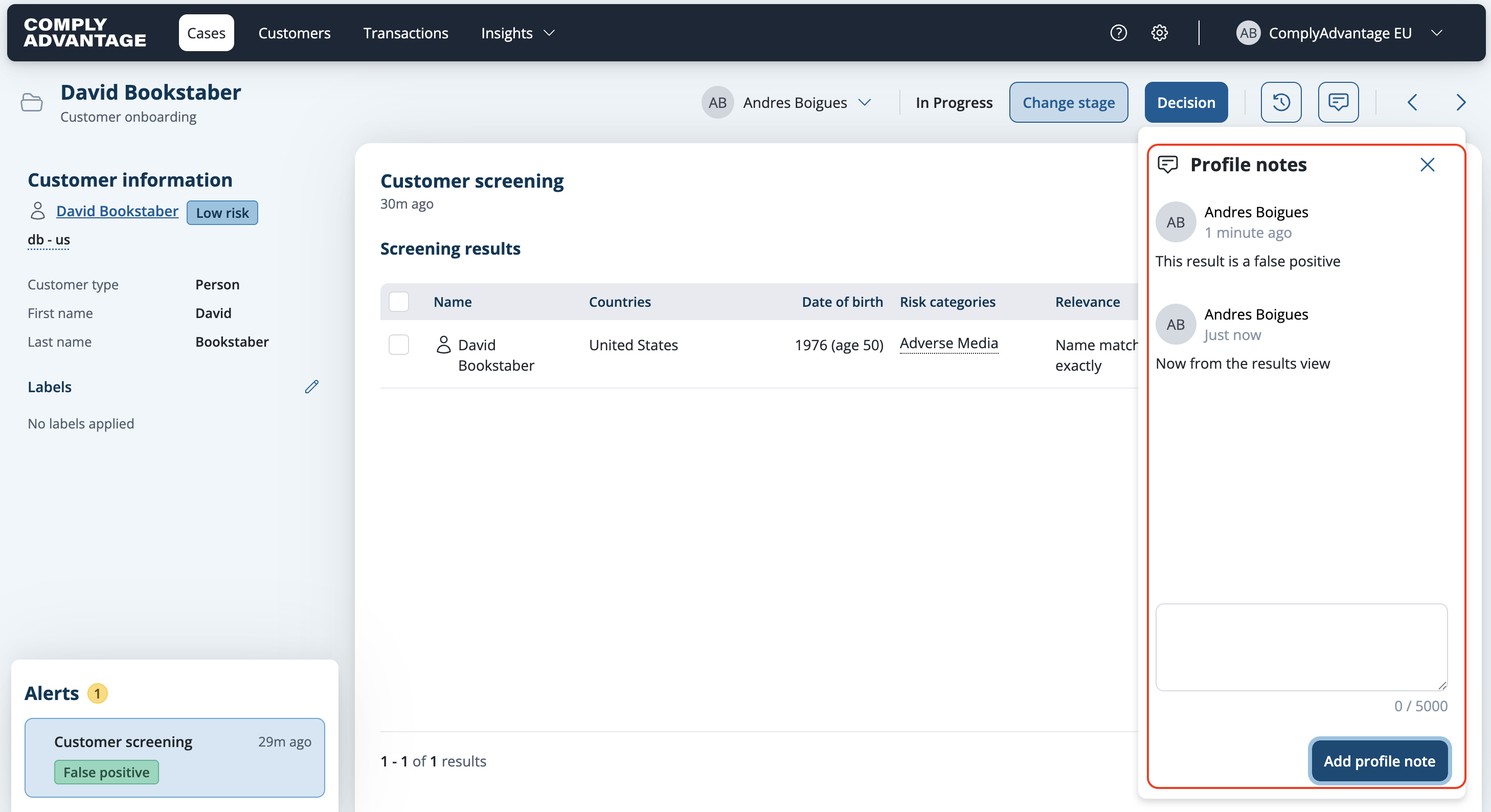
Select 'Add Profile Note' to save your entry
Adding notes in bulk for screening results
Navigate to the screening results page.
Select the screening results you wish to leave a note against.

Select the 'Update' button and select 'Add Note'
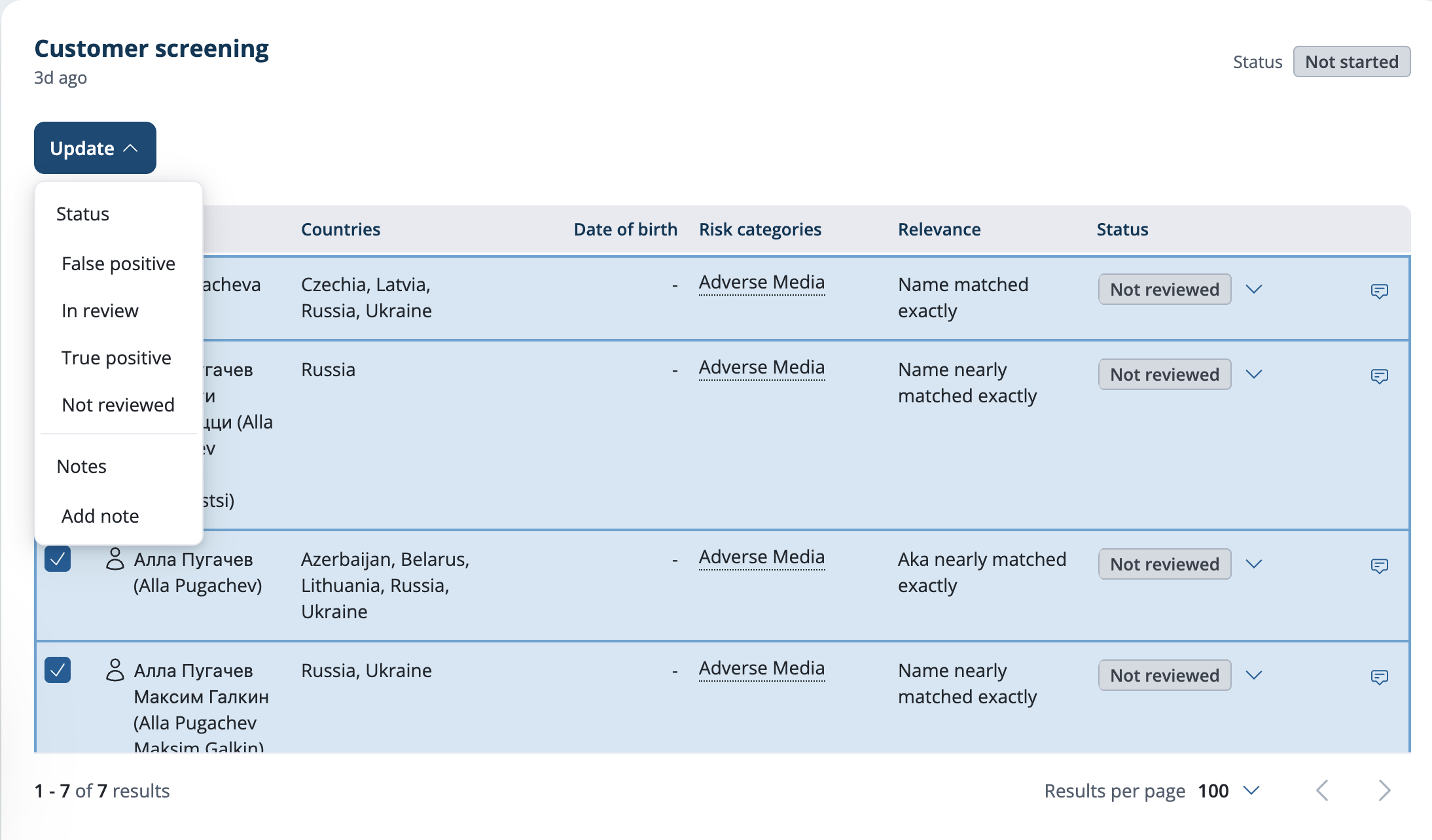
Enter your note in the text box
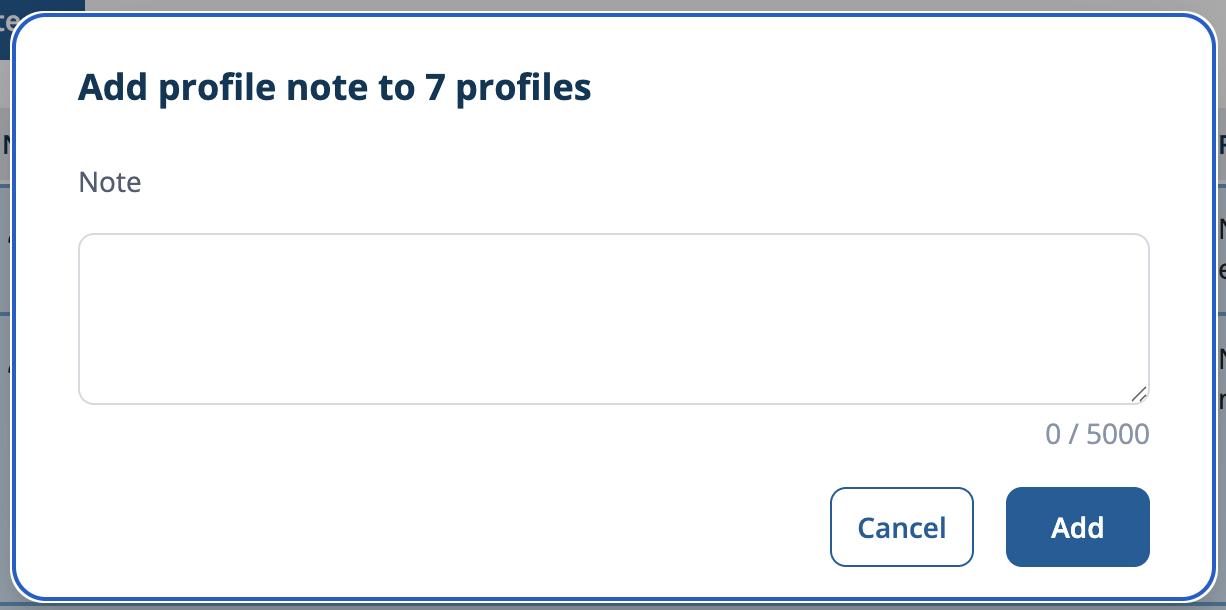
Select 'Add' to save your entry