Video: Editing or renaming a risk model
Last updated: October 13, 2026
In this guide, you will learn how to edit and rename a risk model within Mesh.
When logging in to your account, please ensure you select the correct region, which will be one of the following:
Australia: https://au.mesh.complyadvantage.com/
You can find the link to your region in the onboarding email you received (look for the "Welcome to ComplyAdvantage" email).
If you can’t find the email, don't worry! You can always contact our support team at [email protected].
1. Access the risk models page
First, access the Risk models page by clicking the Settings icon.
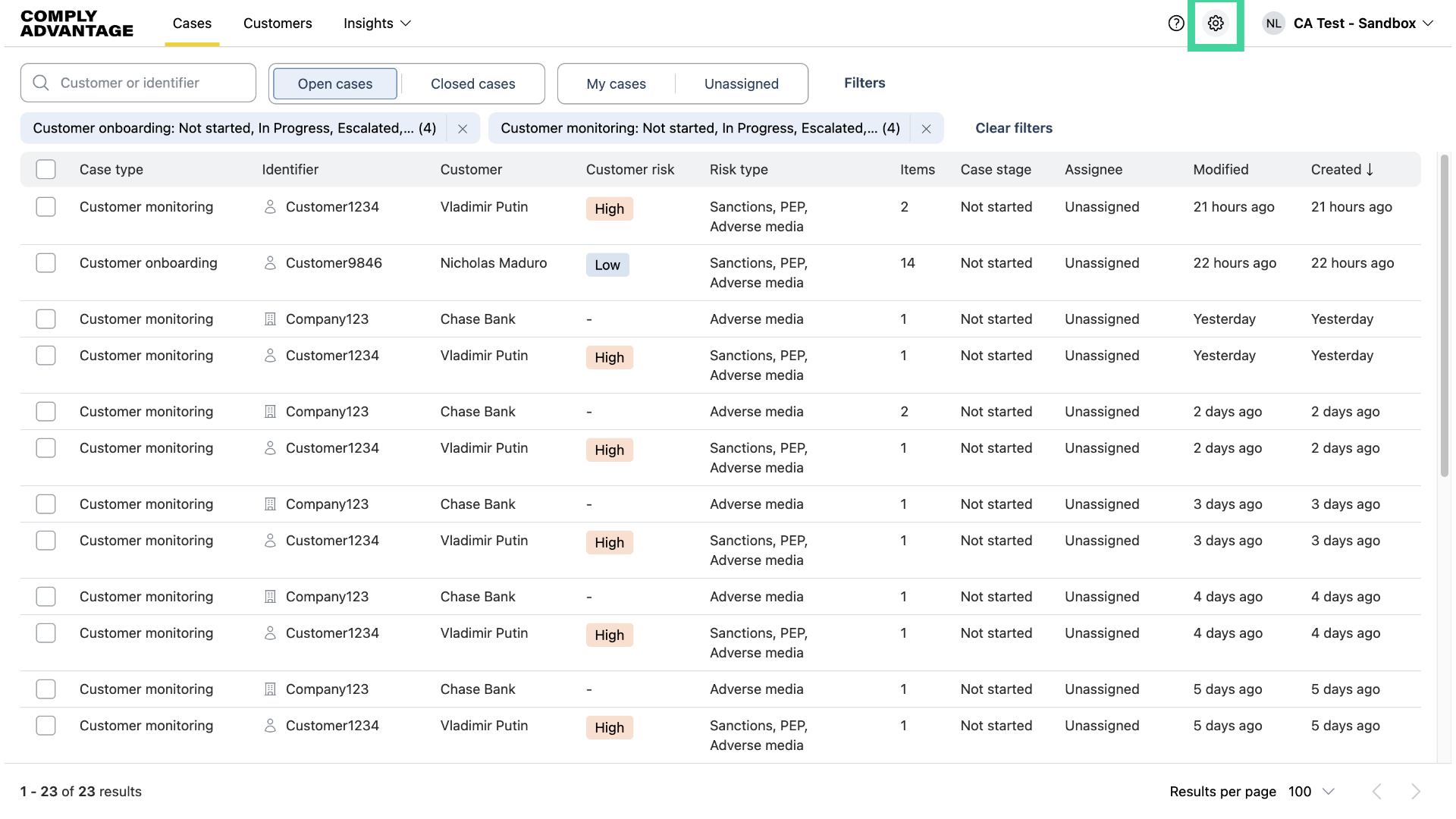
2. Click "Edit"
Select the three dots next to the risk model you wish to change and click "Edit."
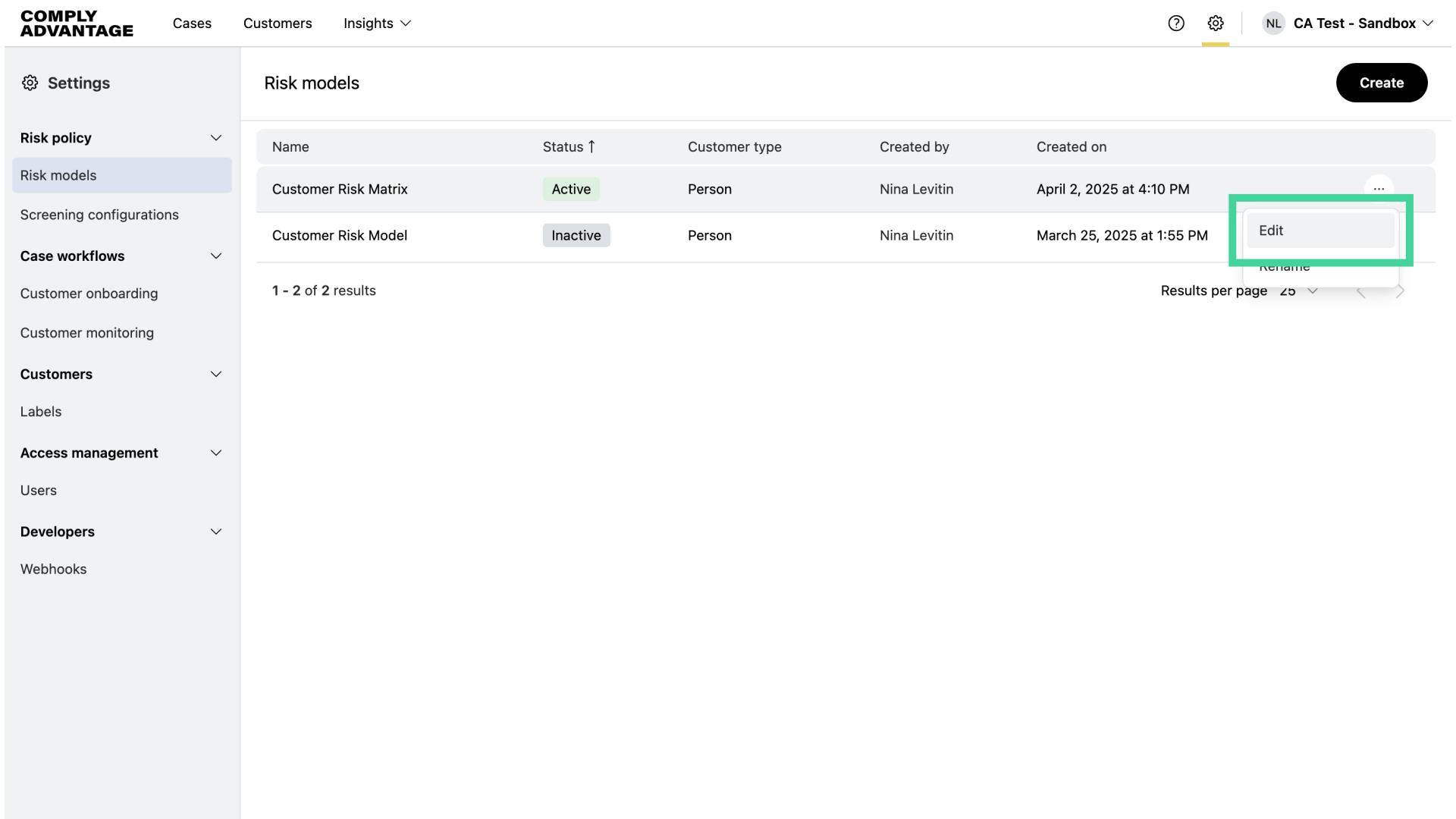
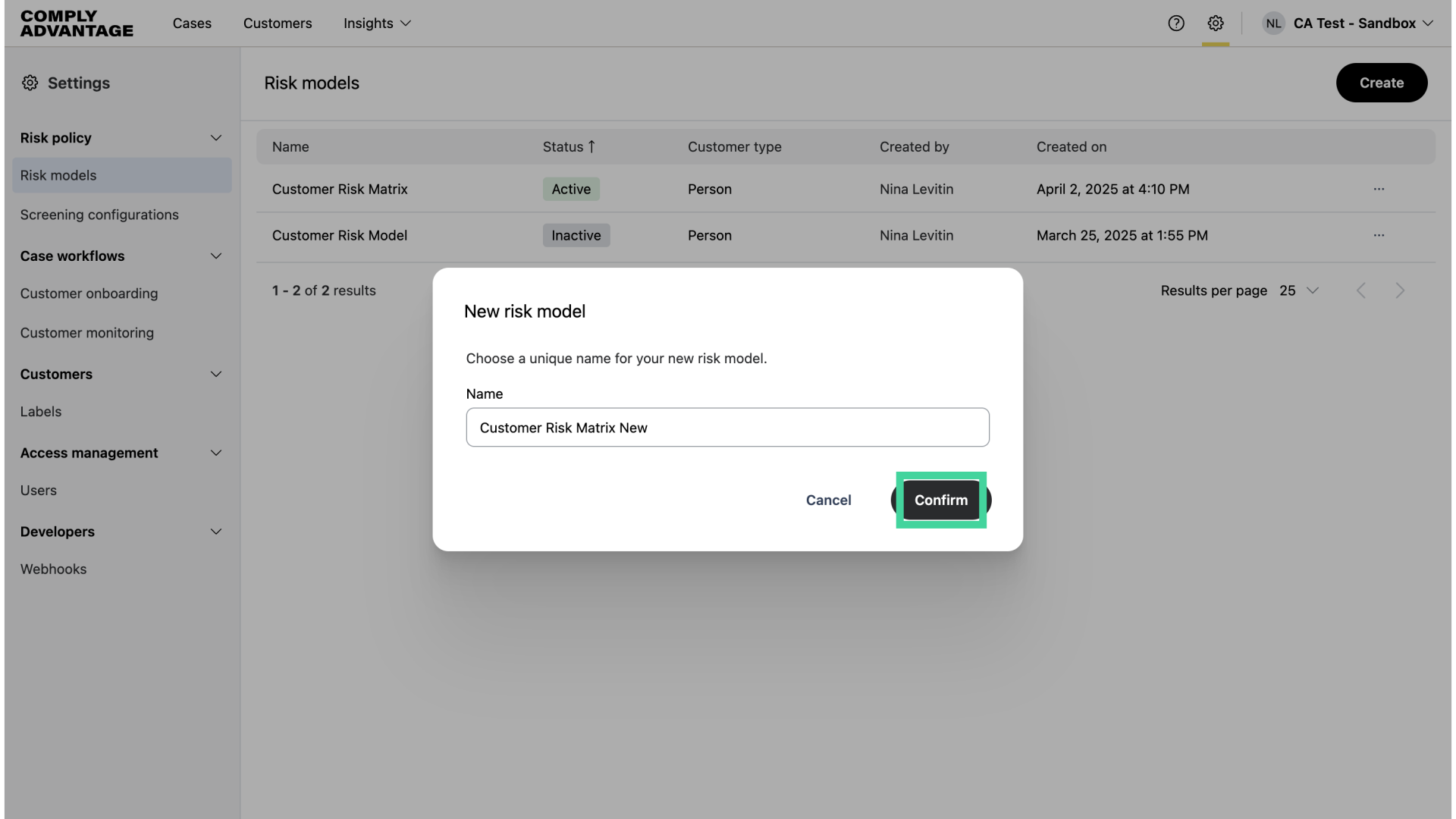
3. Click "Name"
You will notice that you're being prompted to create a new risk model. To edit an existing risk model, you’ll need to duplicate it, change the relevant features, and publish it with a new name.
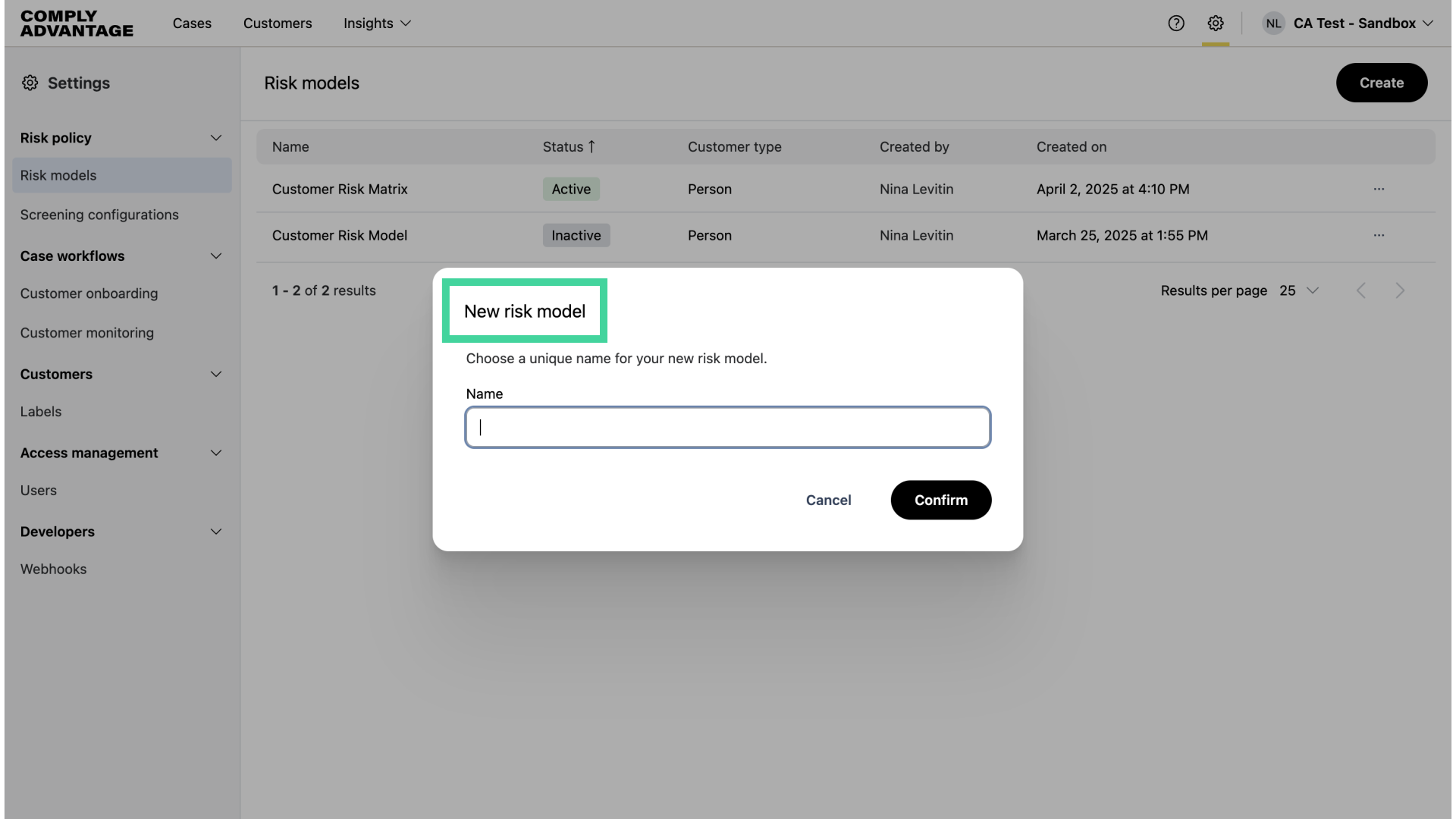
4. Enter unique name
Enter a unique name for your risk model.
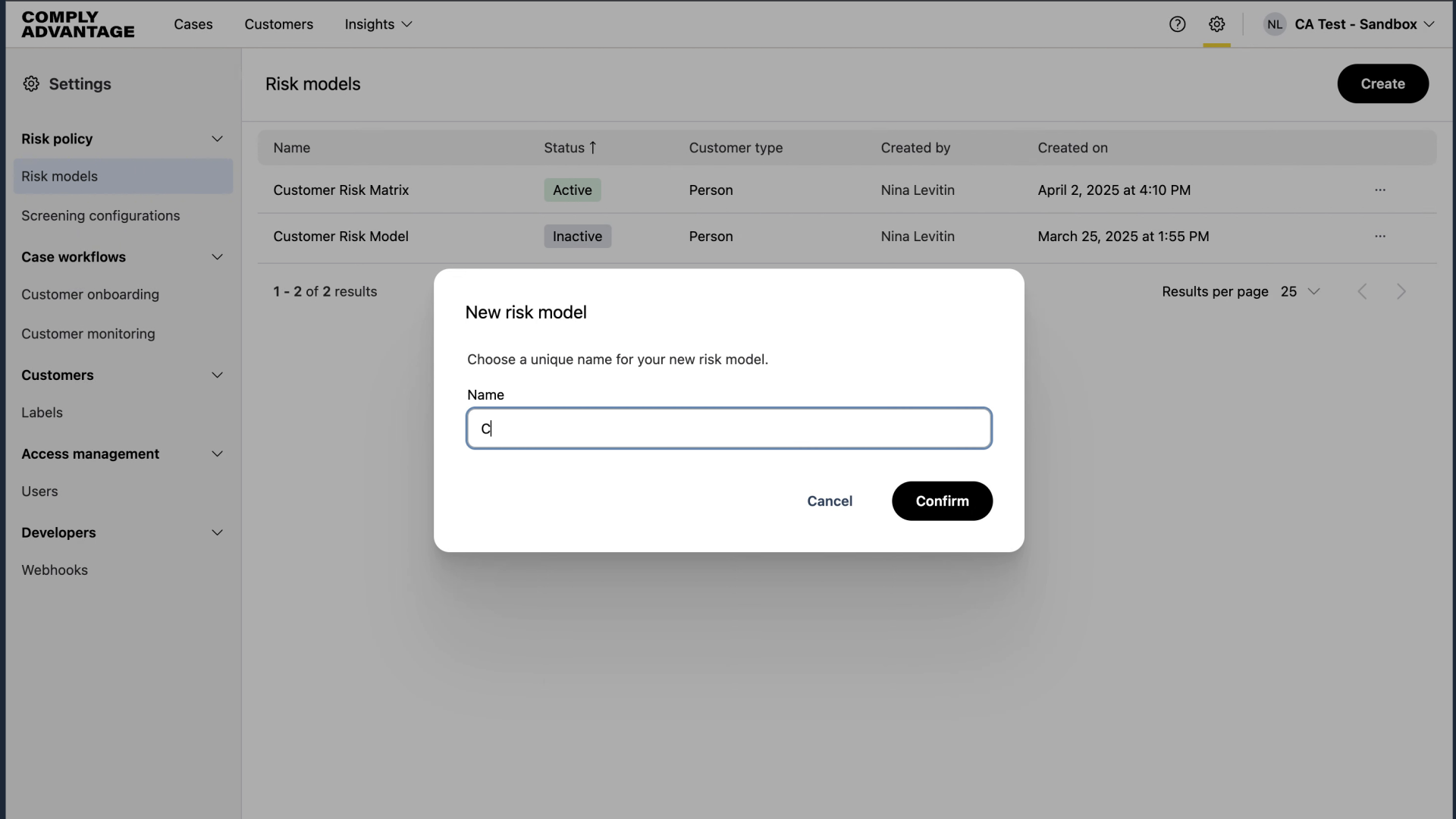
5. Click "Confirm"
Click "Confirm."
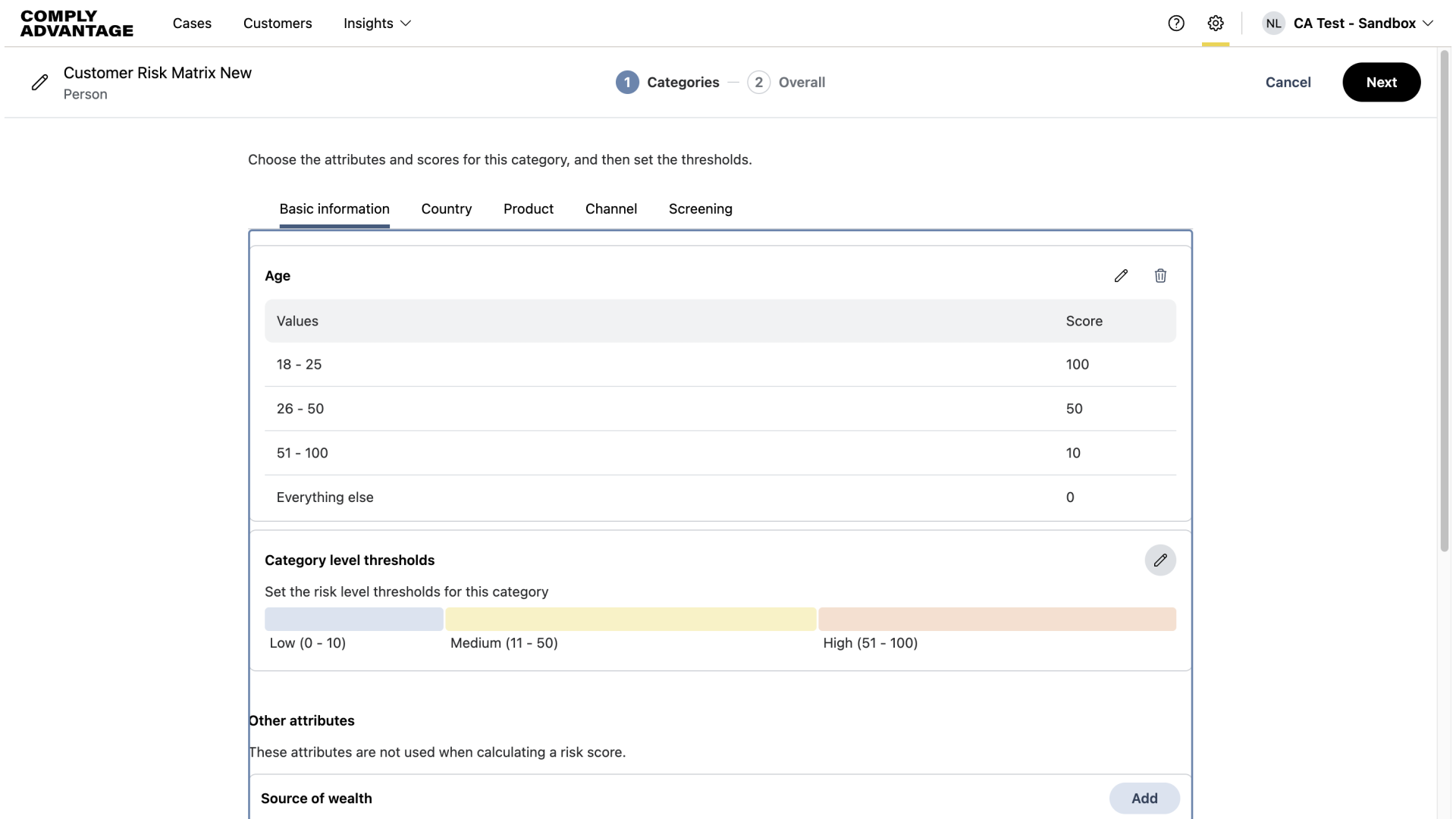
6. Click here
The Categories screen opens to display the categories and attributes taken from the previous risk model. You can edit these as required.
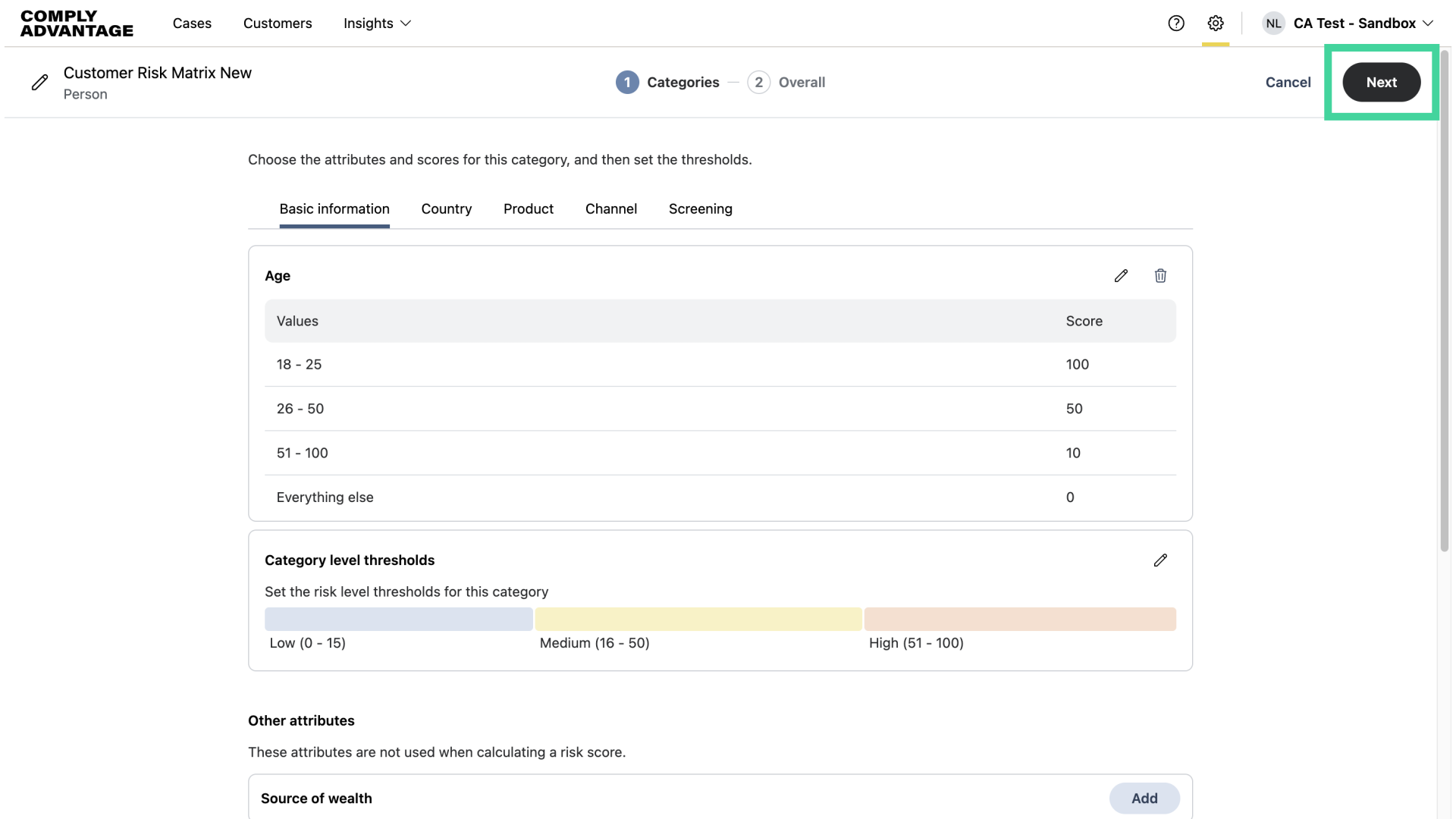
7. Click "Next"
When you're ready, click "Next" to move to the "Overall" screen for category weightings and overall risk level thresholds.
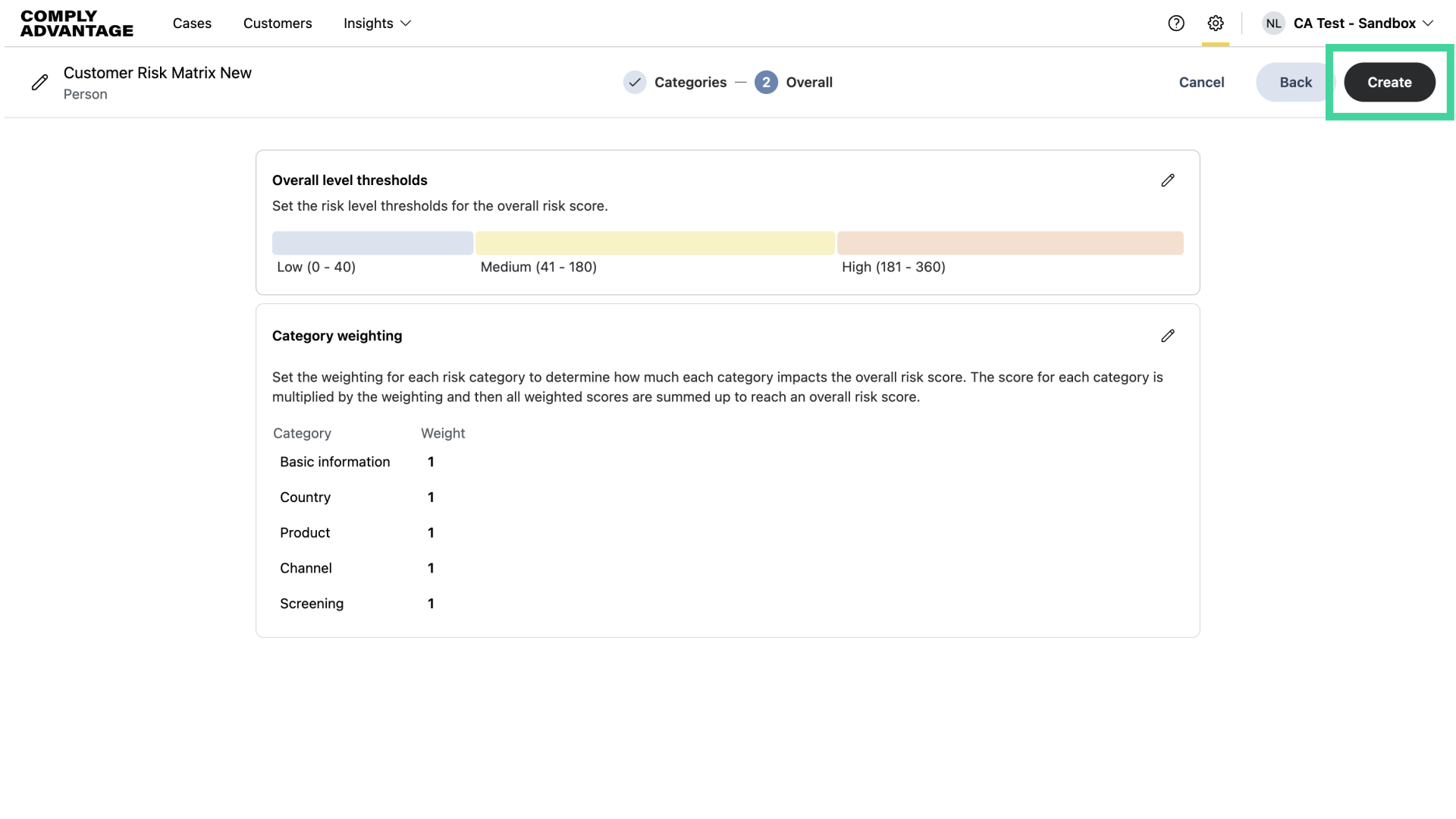
8. Click "Create"
When you've finished making changes, click "Create."
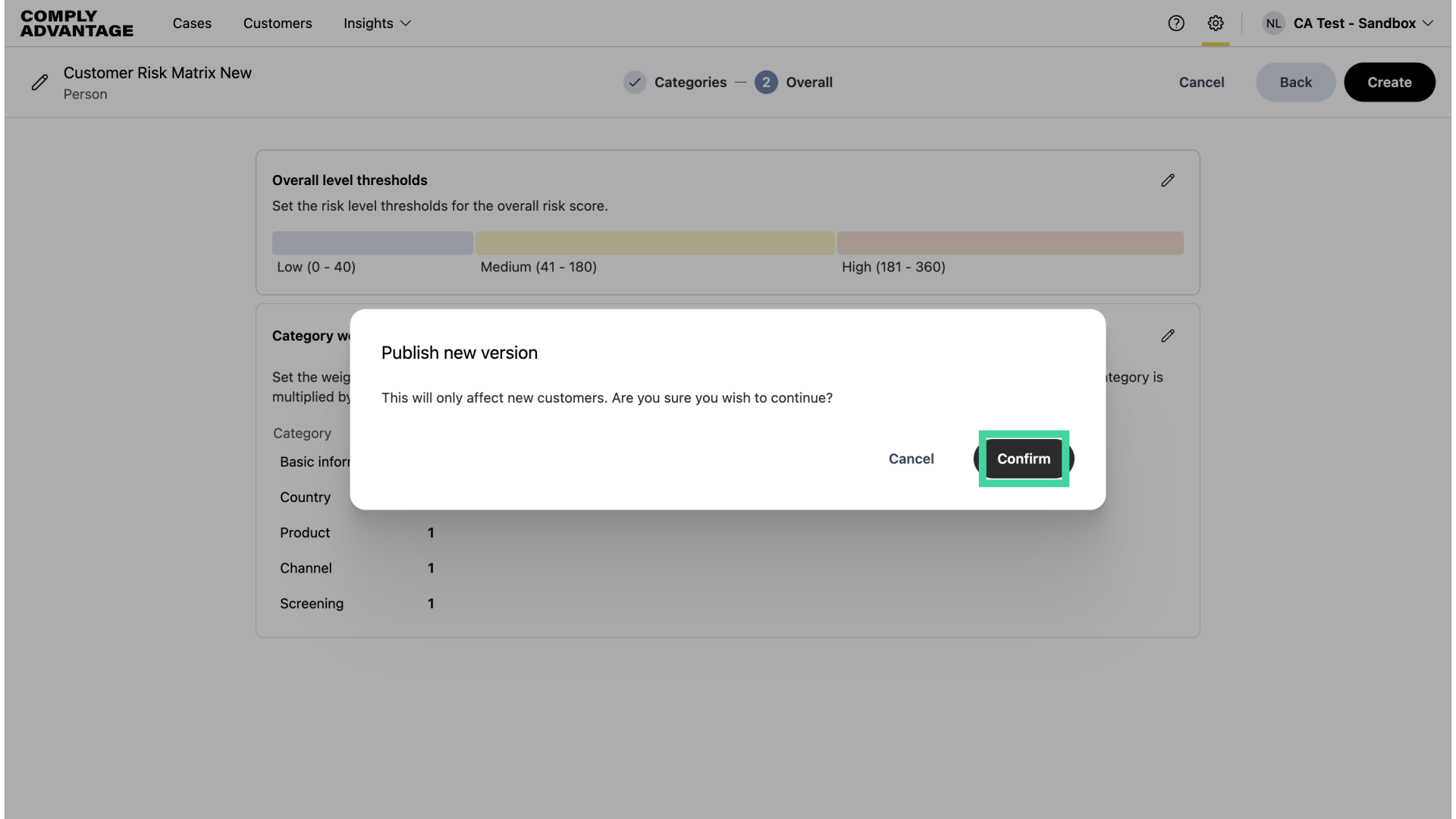
9. Click "Confirm"
To publish the new version of your risk model, click "Confirm."
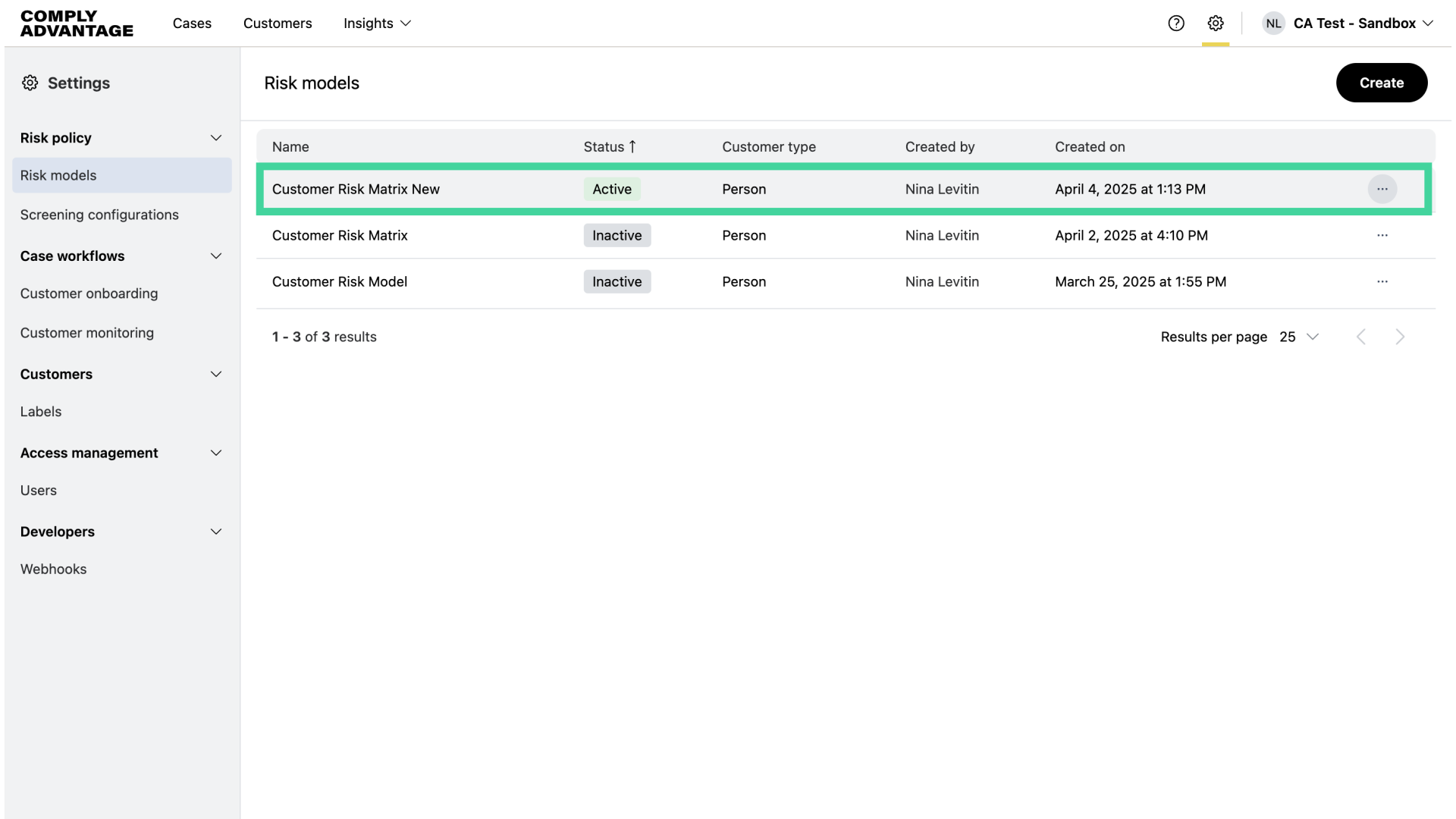
10. View new Risk model
Your new risk model is now published and becomes the active risk model. Only one risk model can be active at a time.
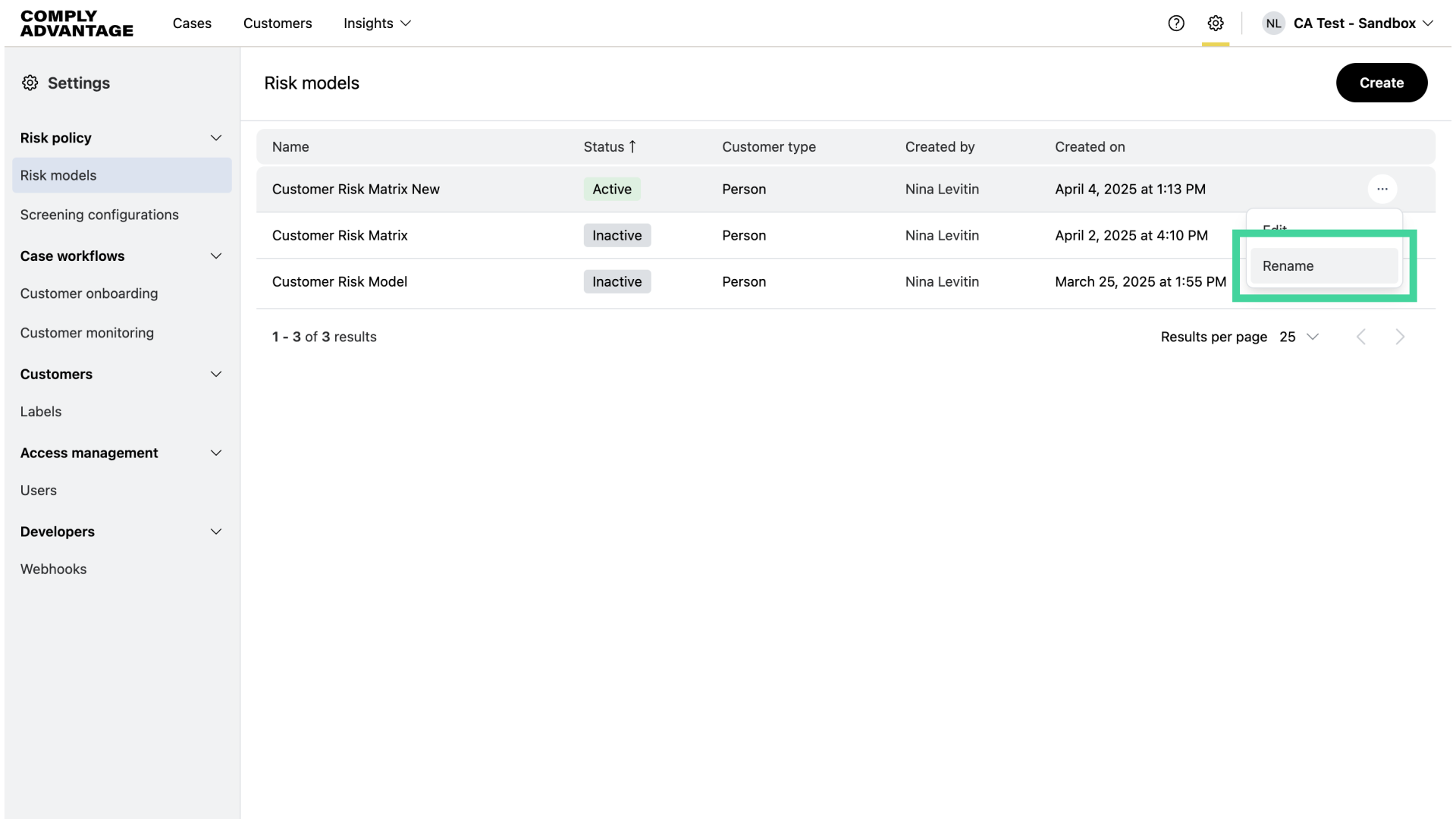
11. Click "Rename"
You can also give your risk model a new name. First, find the risk model you want to rename in the list, click the three dots to the right, and click "Rename."
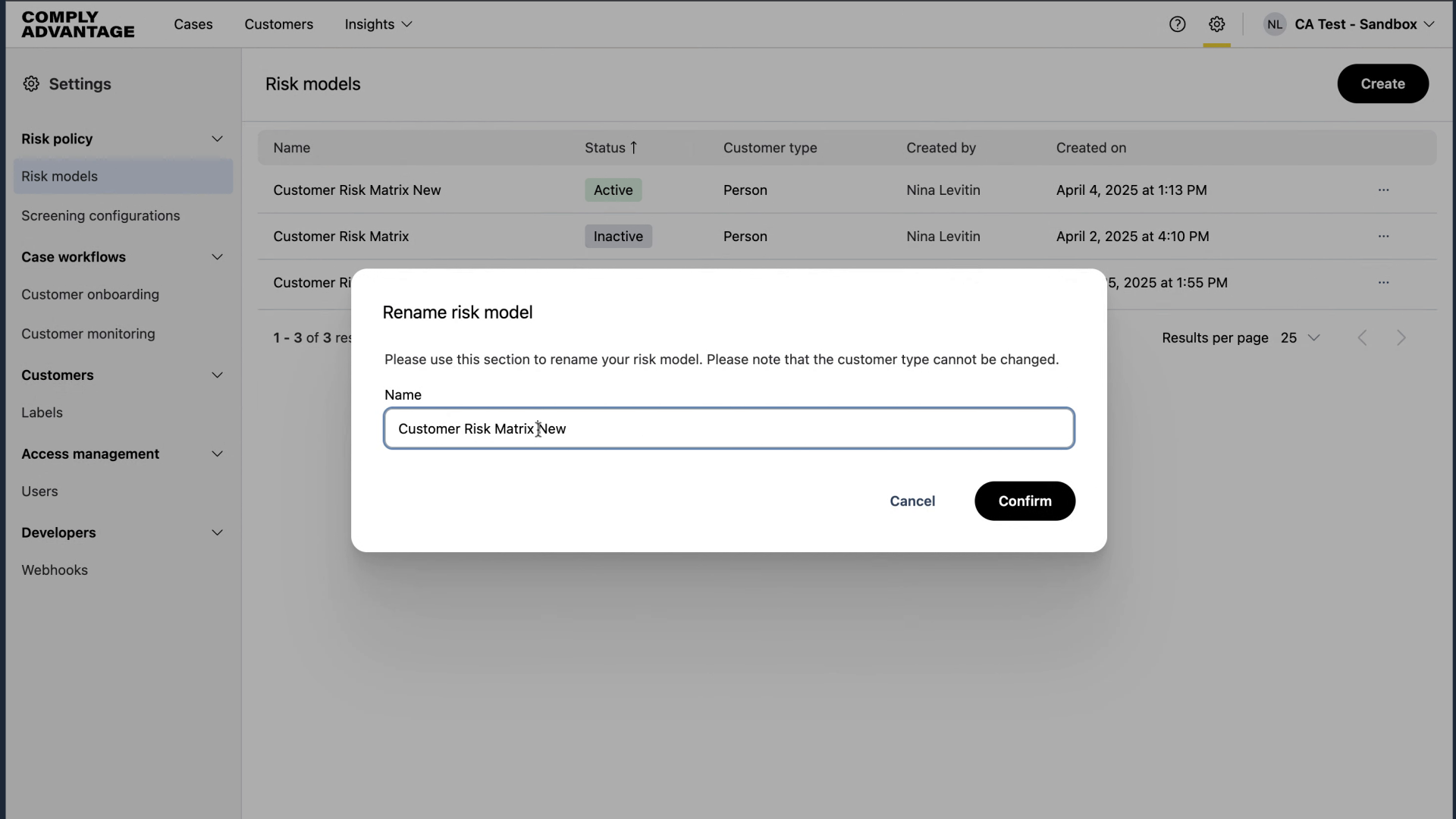
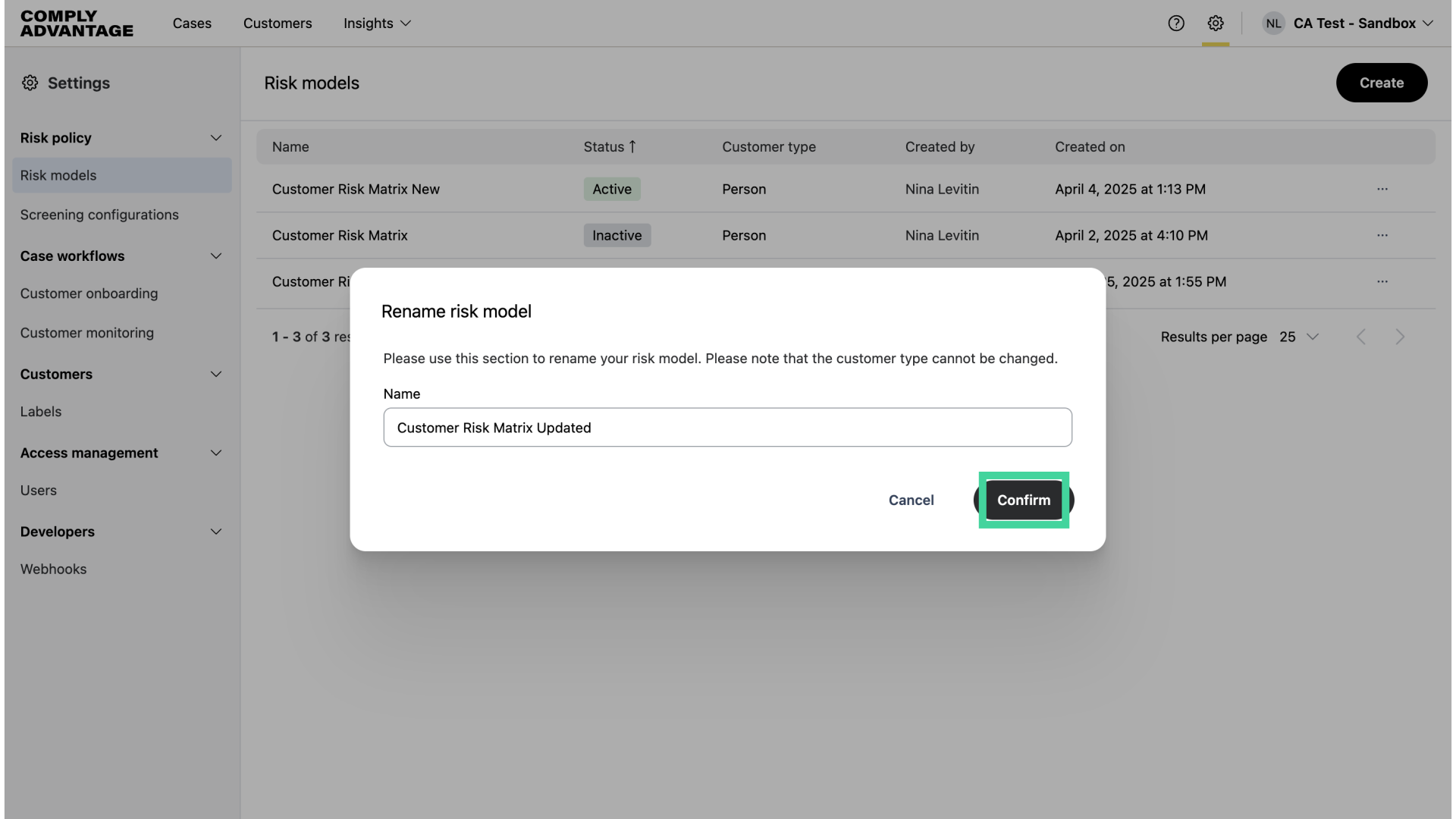
12. Enter new name
Enter the new name for the risk model.
13. Click "Confirm"
Click "Confirm."
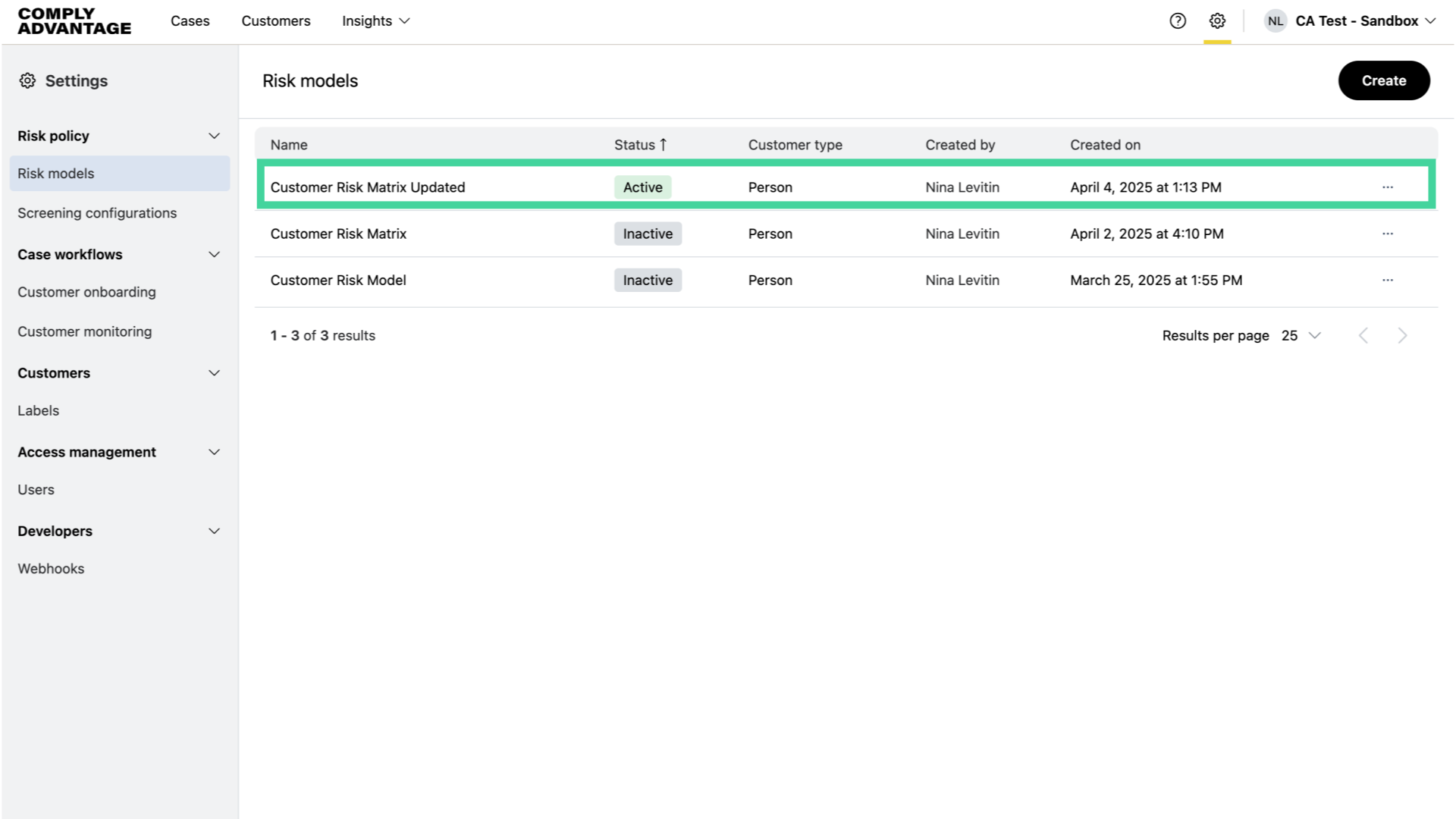
14. New active risk model
The new name is now shown in the risk models list. You'll note that when you edit or create a risk model, it becomes the active model. All new risk scores will be calculated using this model. An existing customer’s risk score will also be recalculated based on this risk model the next time a case for this customer is closed.
We hope this guide helped you learn how to edit and rename risk models in Mesh. For more information on risk modeling, visit our Mesh Knowledge Base.