Making a new risk model active
Last updated: August 20, 2026
Making a new risk model active is step 6 in the process of creating a new risk model. The previous steps you need to have completed are:
1. Creating a risk model
2. Adding category attributes
3. Setting category thresholds
4. Changing category weightings
5. Setting overall risk level thresholds
After you've set up your risk model categories and thresholds, you need to finish creating the risk model and make it active.
Once your risk model is active, any new risk scores will be calculated using this risk model. Existing customer risk scores will be recalculated based on this risk model the next time an open case for the customer is closed.
Click Create in the top right corner.
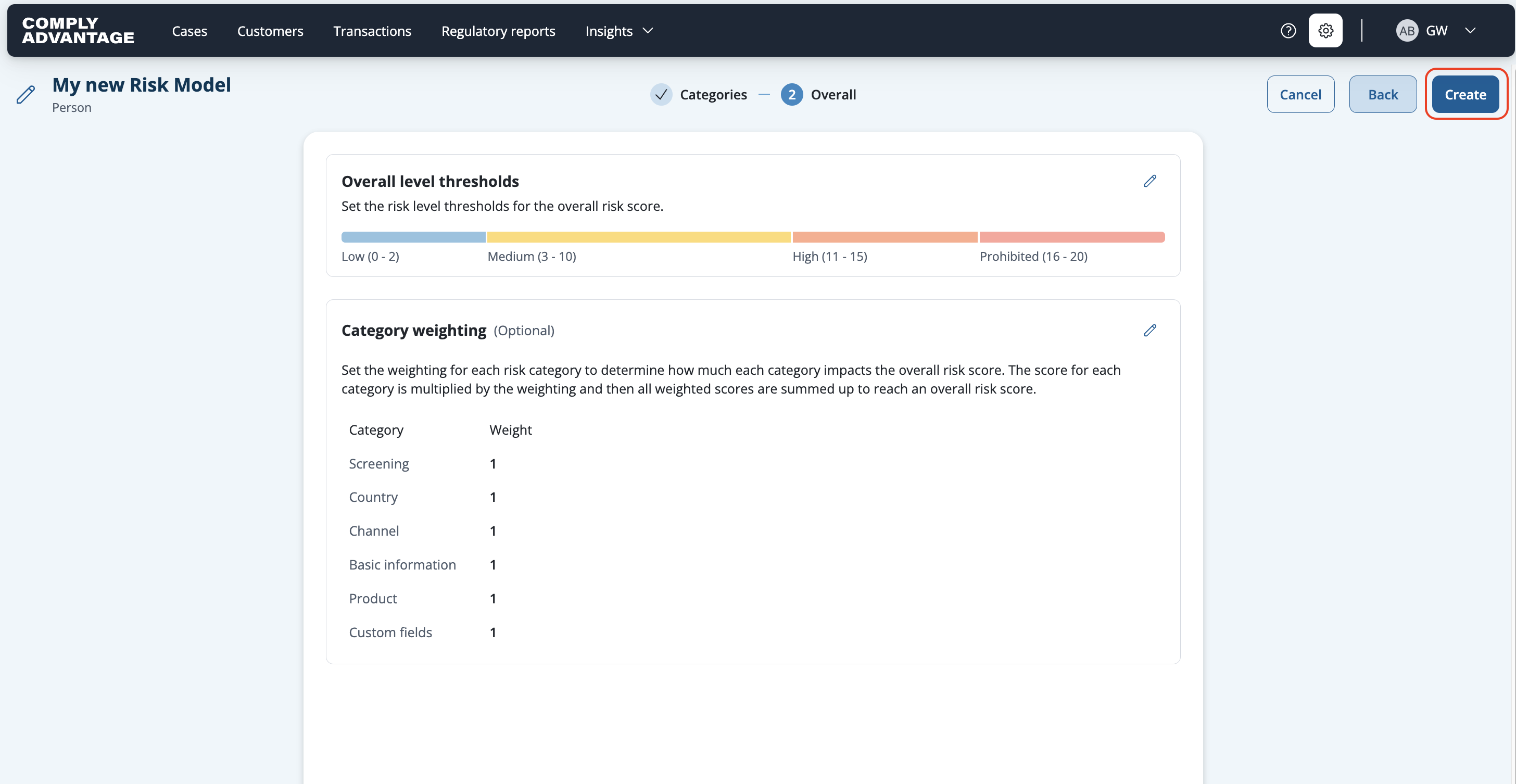
Click Create in the pop-up.

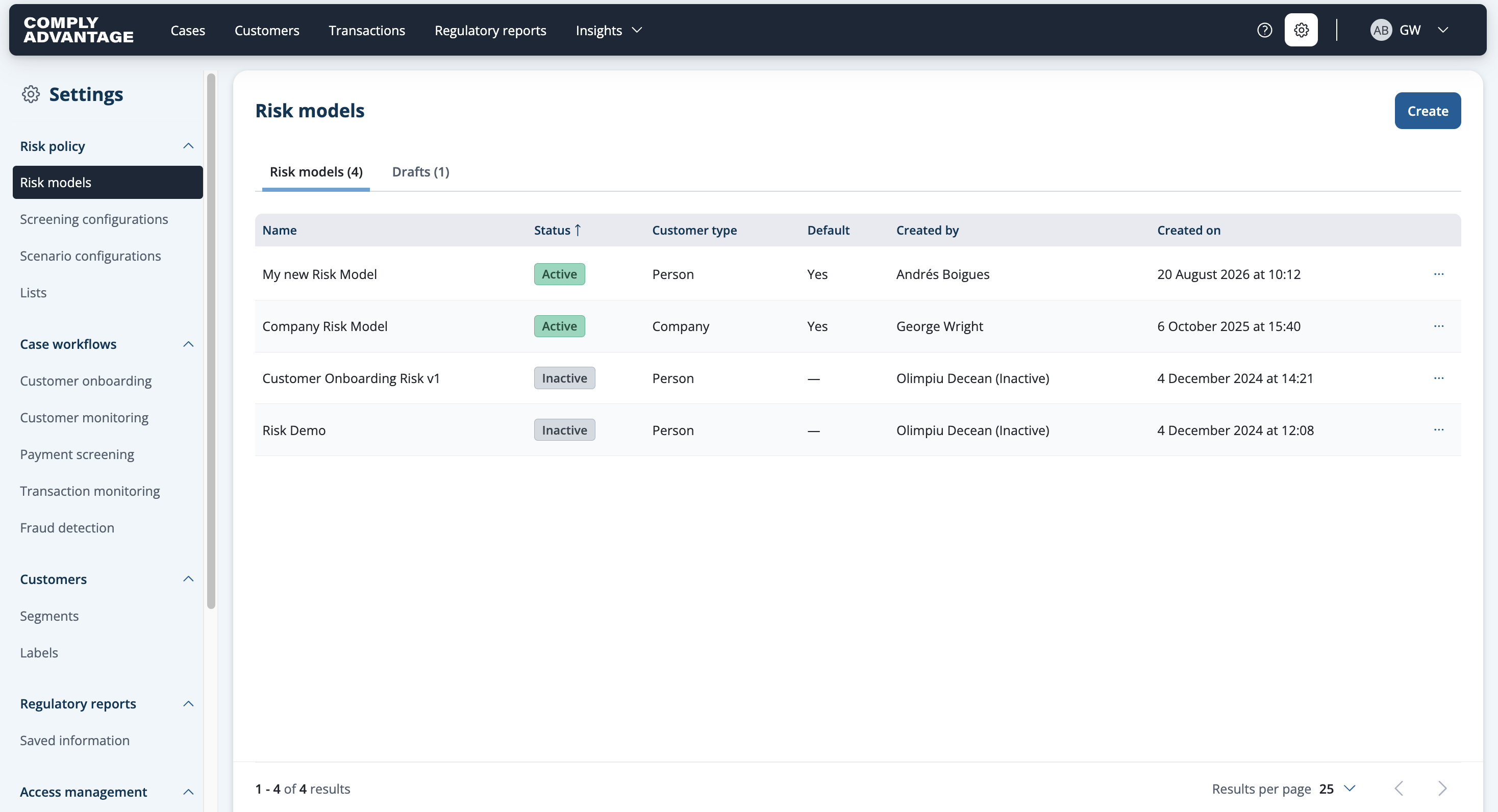
Find your new risk model on the risk models page. Click on the Settings cog and selecting Risk models on the left.
The status column shows which models are active. You can have two risk models active at any time, one per customer type: person and company.
Making changes to risk models
You can make changes to any of your risk models. See Editing or renaming a risk model.