Setting overall risk level thresholds
Last updated: November 3, 2026
Setting overall risk level thresholds is step 5 in the process of creating a new risk model. The previous steps you need to have completed are:
1. Creating a risk model
2. Adding category attributes
3. Setting category thresholds
4. Changing category weightings
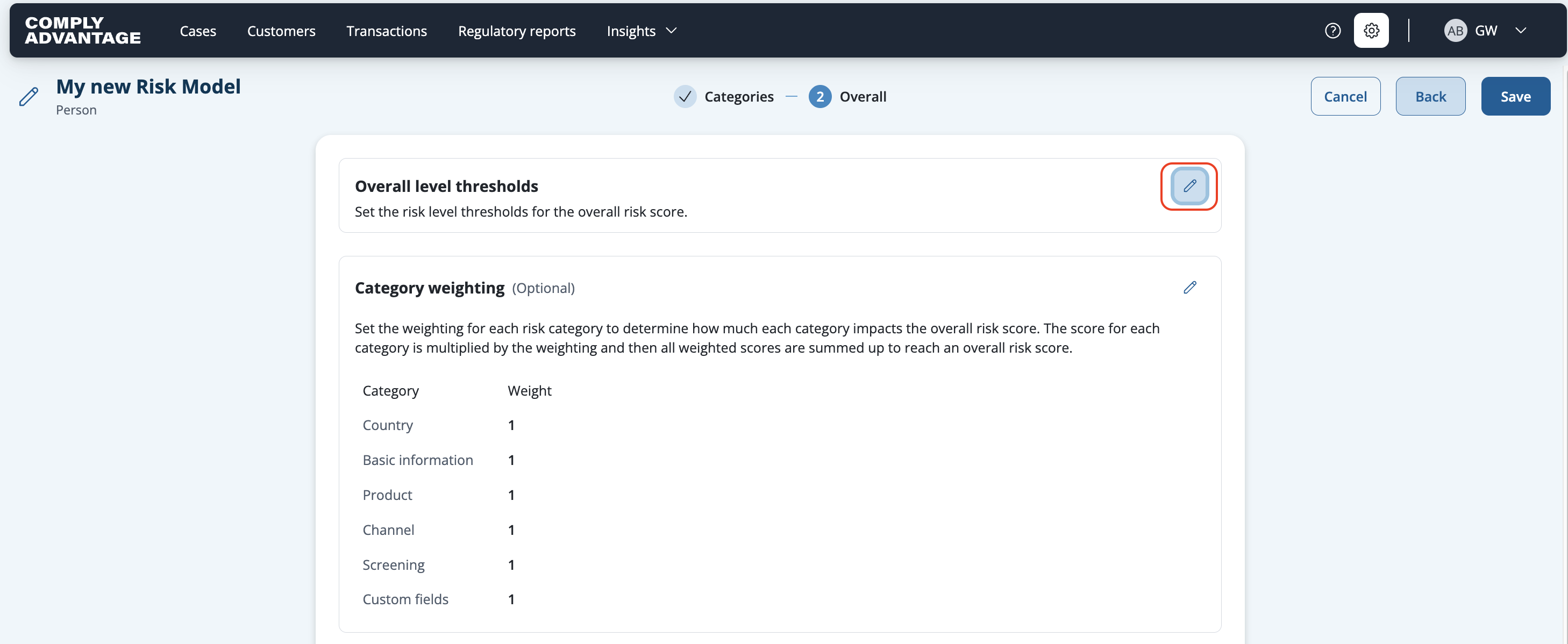
Click the pencil button, to the right of Overall level thresholds.
Click Add next to the overall risk levels you want to add a threshold for.

Enter the threshold number for each risk level. You need to set the upper and lower boundaries for each risk level yourself. Bear in mind the category weightings you previously set.

Click Confirm.
The overall risk level thresholds are displayed above the category weightings, as a line chart.

You're now ready to make your risk model active. See how in Making a new risk model active.