Setting category thresholds
Last updated: November 4, 2026
Setting category thresholds is step 3 in the process of creating a new risk model. The previous steps you need to have completed are:
1. Creating a risk model
2. Adding category attributes
Once you've added any attributes to a category, you'll need to set risk level thresholds for that category. In the previous step, we added the Source of wealth attribute to the Basic information category.
In the Basic information screen, click pencil icon next to Category level thresholds.

Click Add next to the risk levels you want to add a threshold for.
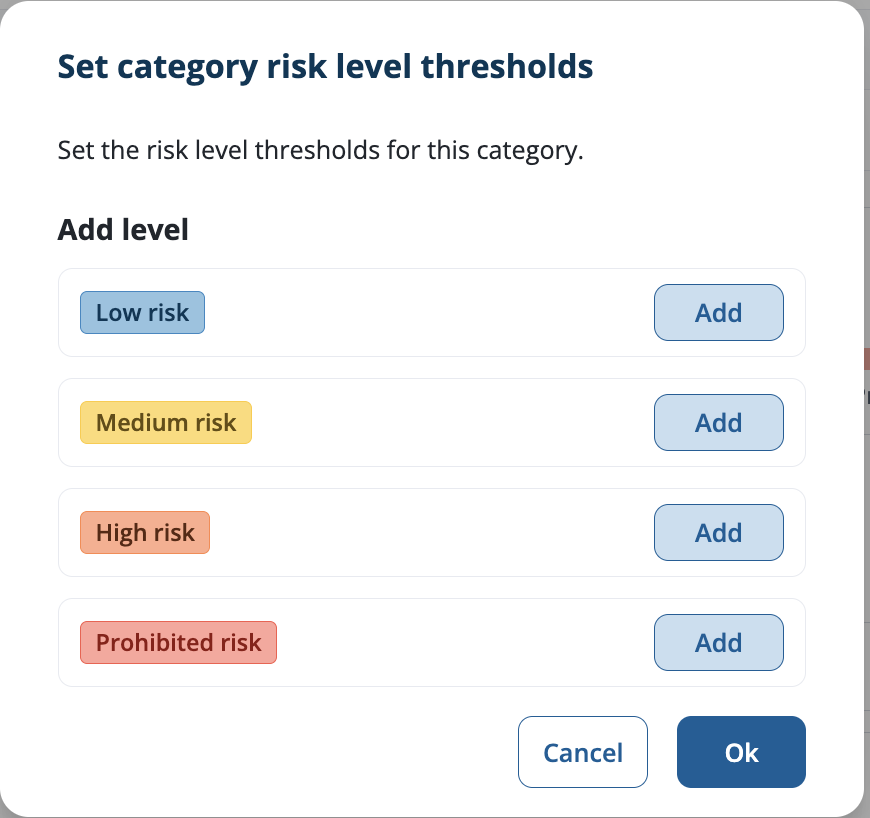
Enter the threshold number for each risk level.
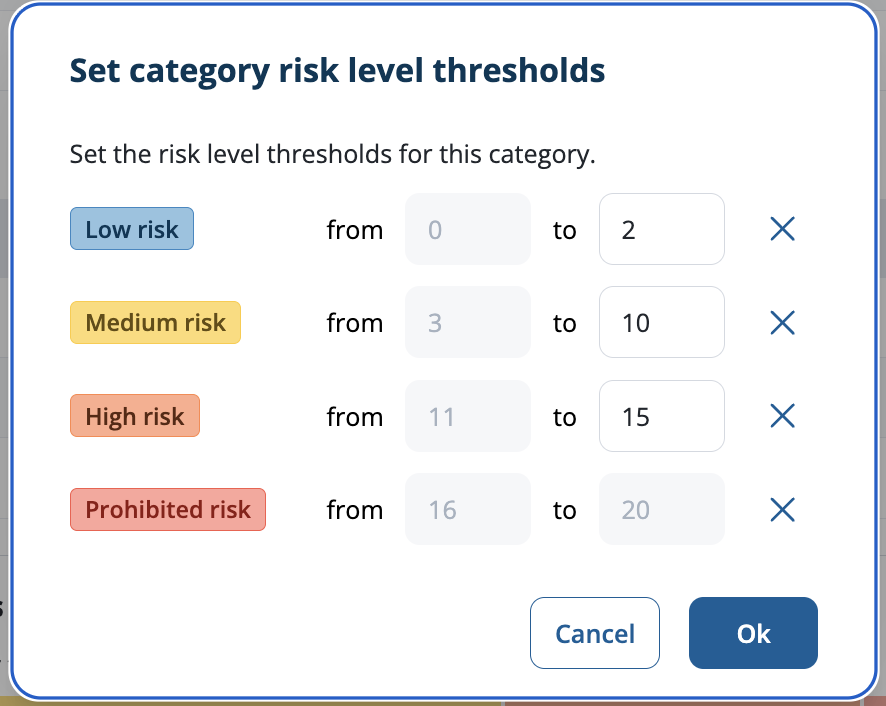
We will automatically calculate the absolute minimum and maximum values based on the scores you provided. We also calculate the lower limit per level when you enter the upper limit in the box on the right. You can see that the automatically calculated values are grayed out.
Click Confirm.
Your risk level thresholds show in the Basic information screen, underneath the values and scores of the attributes you added for this category.
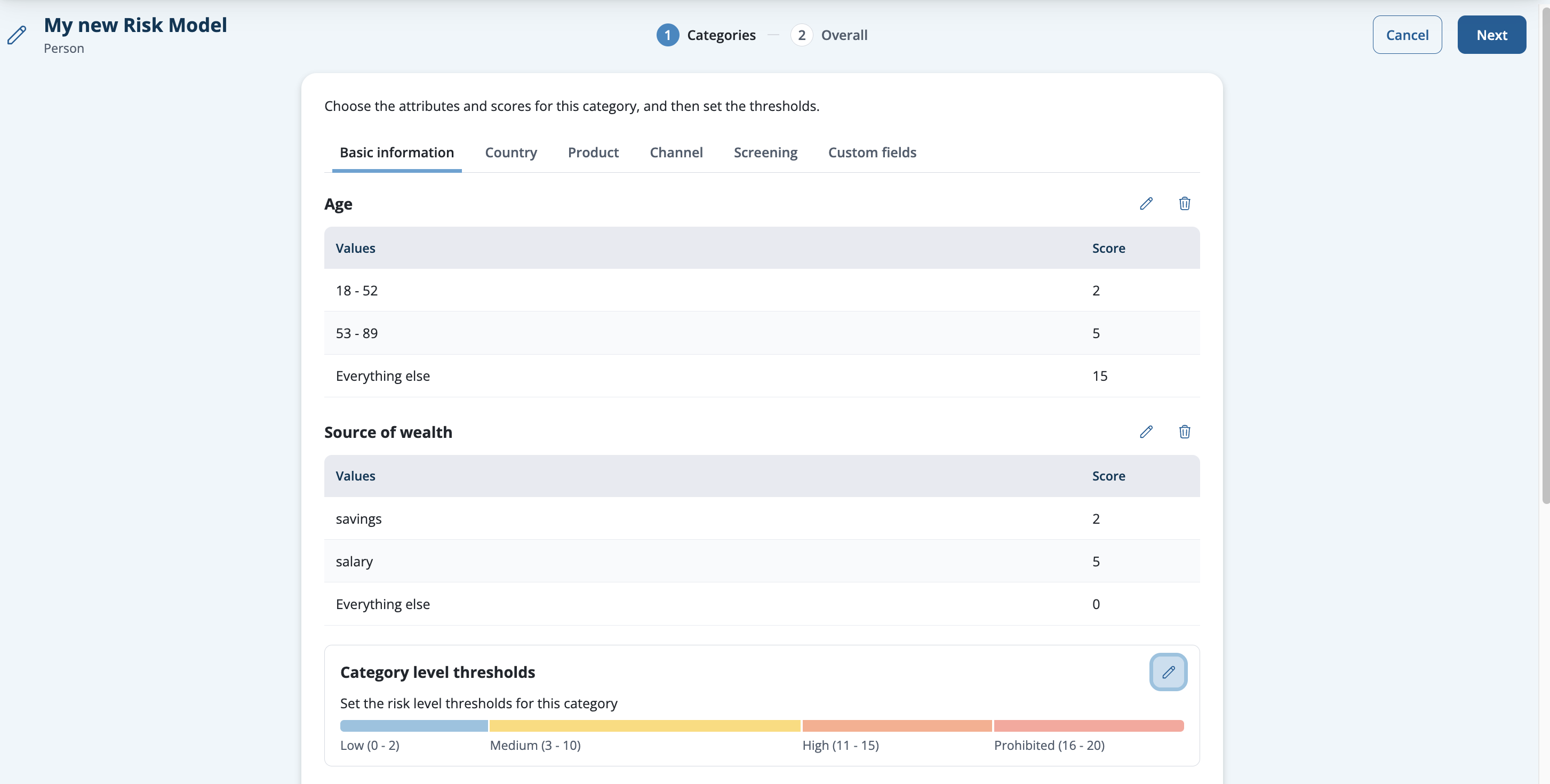
Repeat this process to create category thresholds for every category you've added attributes to. If you haven't added attributes to a category, it will be blank.
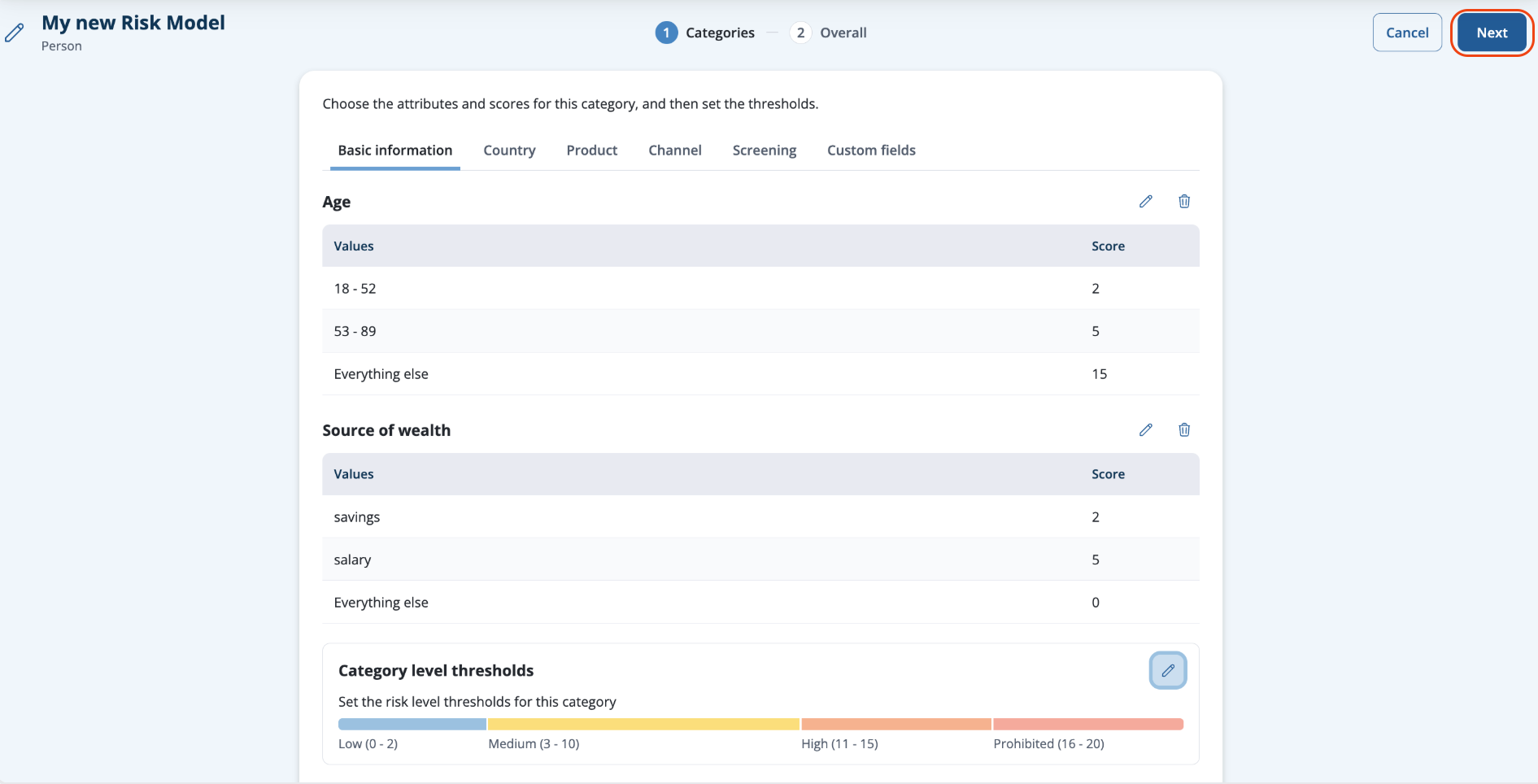
When you've finished created category thresholds, click Next in the top right to move to the next screen, which is (2) Overall.
See Changing category weightings for the next part of the process to create a risk model.