Applying filters to the insights dashboard
Last updated: November 27, 2026
You can filter an insights dashboard by date range, by frequency and by other fields. The dashboard updates when you change a filter. Each dashboard opens with its own default date range and frequency.
Filtering by date range
Select the Range field at the top of the dashboard. On the cases dashboard, it is called Date Range.
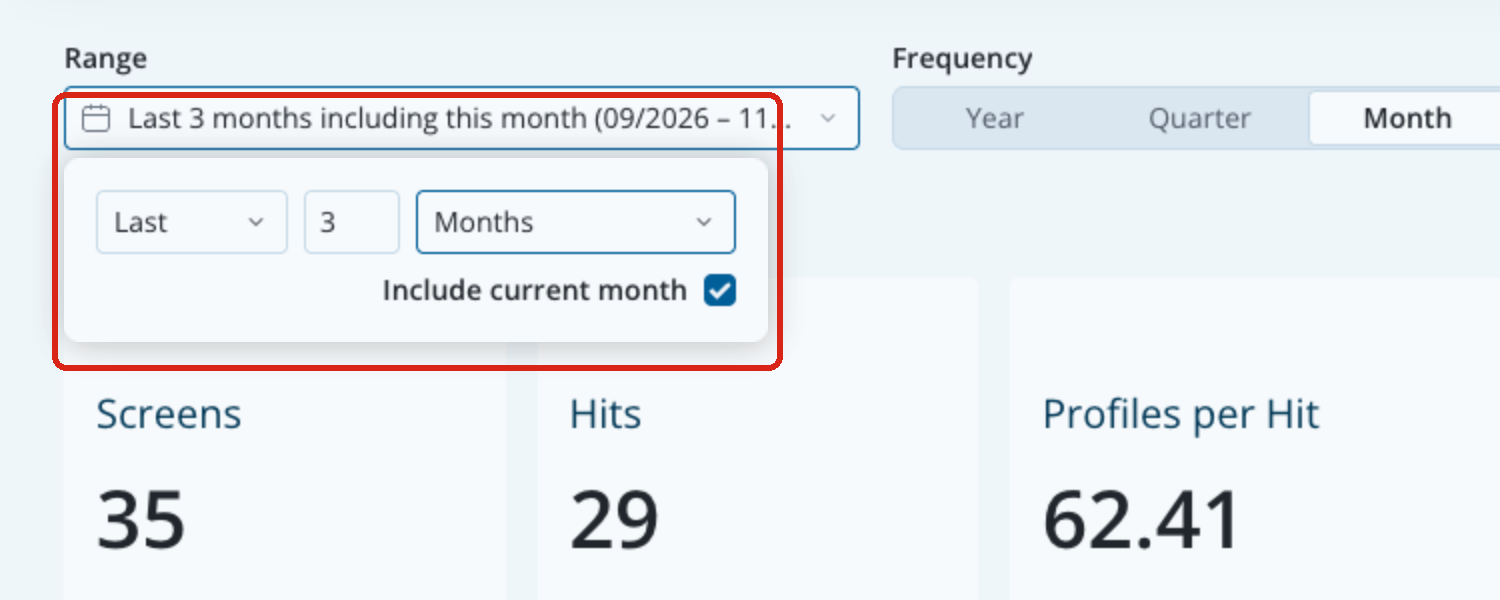
The Range field set to the last 3 months Choose a condition in the first list, then the dates or the period it requires. For example:
Last: a number and a unit, such as 3 months. The checkbox below it, such as Include current month or Include today, adds the current period.
Between: a start date and an end date, picked on two calendars.
On, Before or After: one date. Before and After include that date.
Current: the current period, such as today or the current month.
Custom: a start date and an end date, each fixed or relative.
Select anywhere outside the panel to close it.
Filtering by frequency
The frequency sets whether the charts show data by year, quarter, month, week or day. Select Year, Quarter, Month, Week or Day next to the date range. The executive dashboard has no frequency filter.

Filtering by other fields
Select Filters to filter a dashboard by other fields, then Confirm. On the customer screening dashboard, for example, these are risk type, label, customer country and acquisition source. Select Clear Filters to clear them.