Viewing audit logs for a customer
Last updated: November 27, 2026
The Customer audit log records the events listed below. It is ordered by time with the most recent events at the top, and includes:
The event that occurred or the actions taken:
Changes to the record: Customer created, Customer record updated, Customer status updated, Customer identifier updated, Labels updated, Product updated, Note added
Segment changes: Customer added to segment, Customer removed from segment
Screening and monitoring: Customer screened, Customer monitored, Monitoring turned on, Monitoring turned off
Risk level: Risk level calculated, Risk level recalculated, Risk level manually set
Cases: Case created, Case closed, Case stage updated
The user who took the action
The date and time of the event
A Risk level manually set entry shows the previous and the new risk level, and the note entered with the change. A Risk level calculated or Risk level recalculated entry names the risk model used. The model name appears only if your role has the View risk models permission.
Video walkthrough
This video shows how to open a Customer's audit log and read the record of actions taken on the Customer.
Opening the audit log
From Customers click on a Customer to open their details.
Select the Audit log button in the top right.
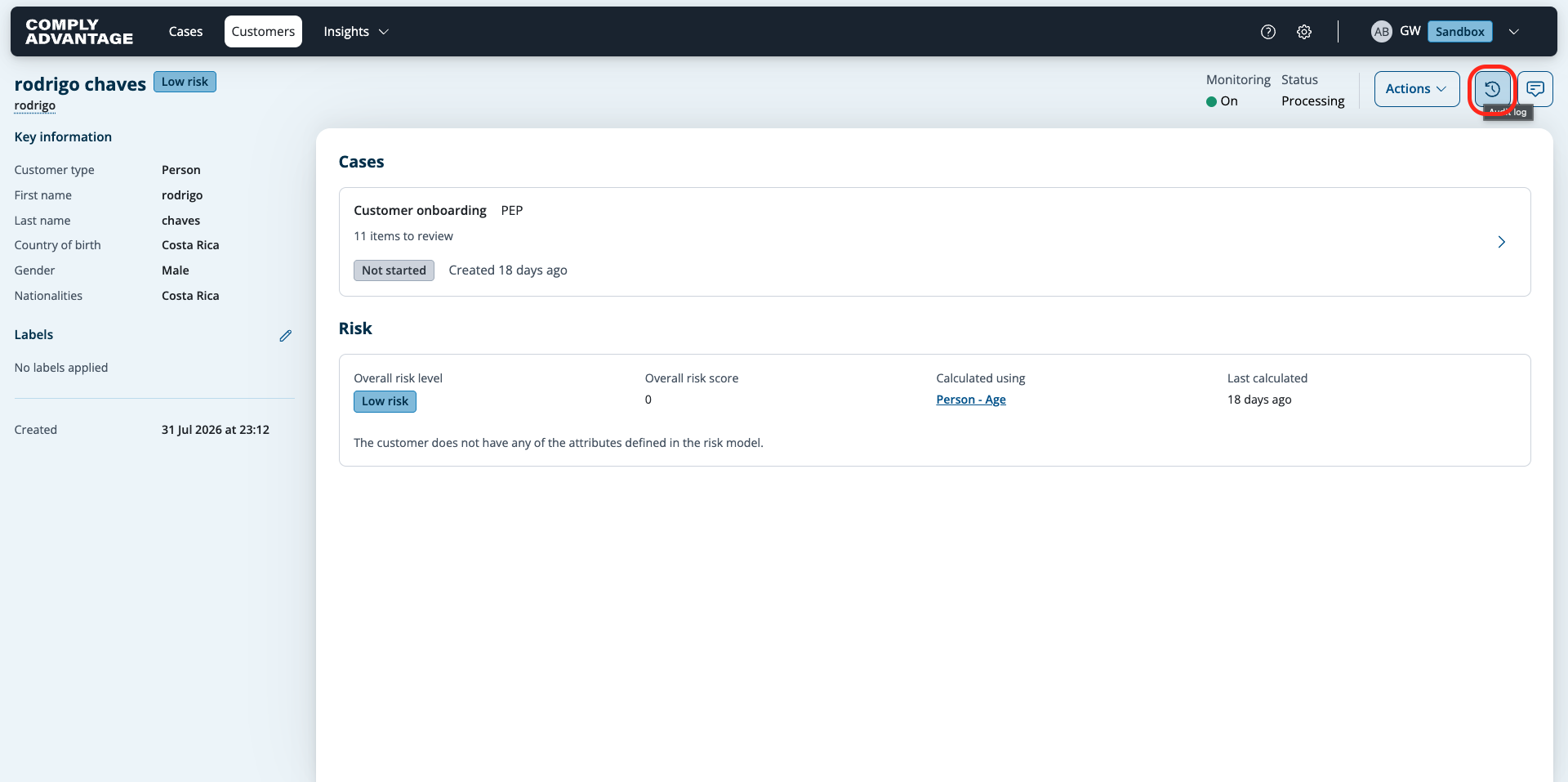
The Audit log panel will open on the right side of the Customer page.

To open the page an entry refers to, select its link, such as the case in a Case created entry.
To close the Audit log panel, click the X or click the Audit log button.
To resize the Audit log, click and drag from the left-hand side of the Audit log.