Video: Finding, sorting, and managing customer records
Last updated: October 13, 2026
In this guide, you will learn how to find, sort, and manage customer records in Mesh.
When logging in to your account, please ensure you select the correct region, which will be one of the following:
Australia: https://au.mesh.complyadvantage.com/
You can find the link to your region in the onboarding email you received (look for the "Welcome to ComplyAdvantage" email).
If you can’t find the email, don't worry! You can always contact our support team at [email protected].
1. Click "Customers"
First, let's click on the Customers page, which displays all uploaded customers in the account, both company and person types.

2. Enter "Customer name or ID"
To search for a customer, enter your search term, which could be the customer name or customer ID.

3. View search results
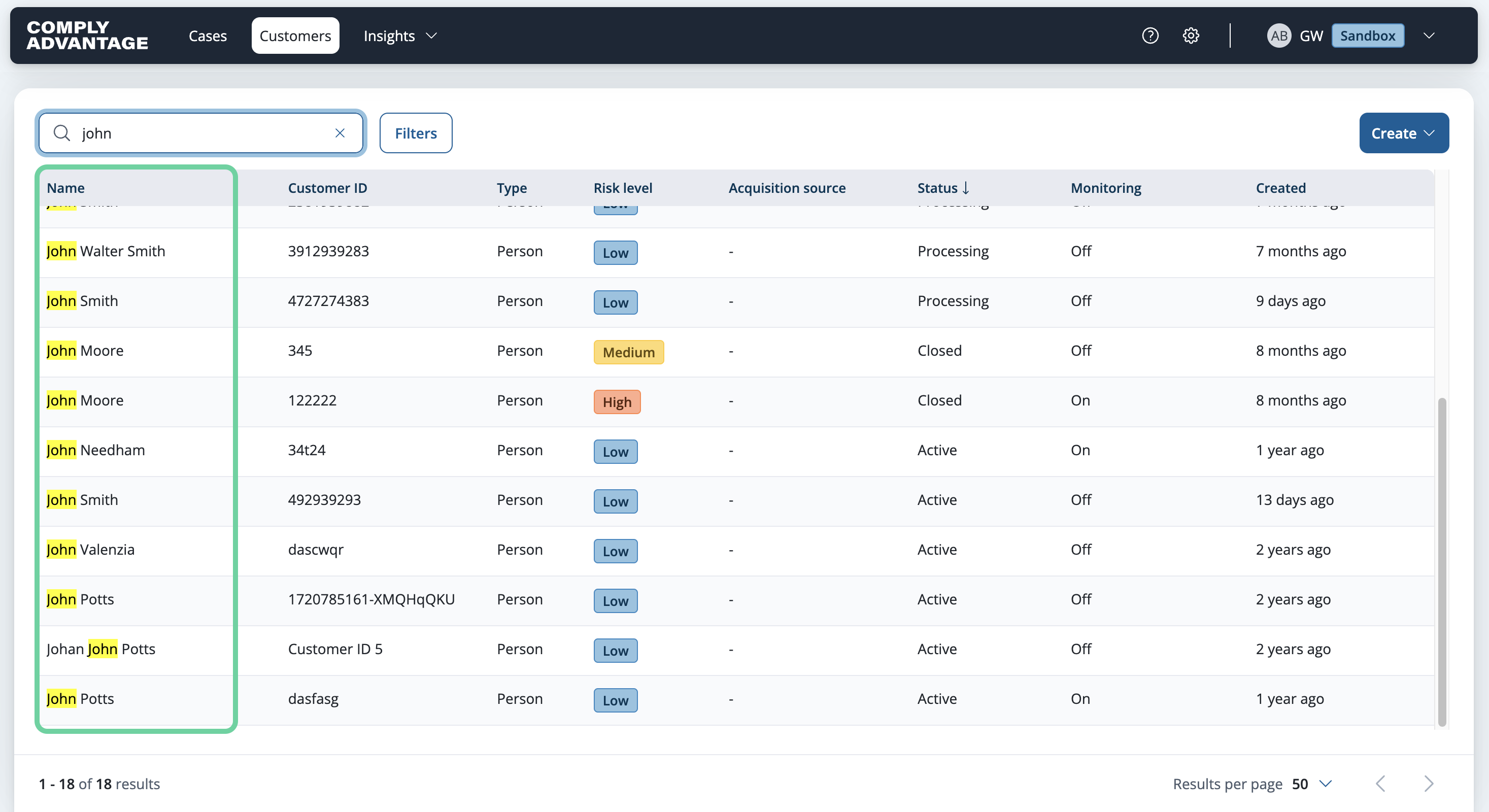
The Customers list will display the search results, with matching terms highlighted in yellow.
4. Click "Filters"
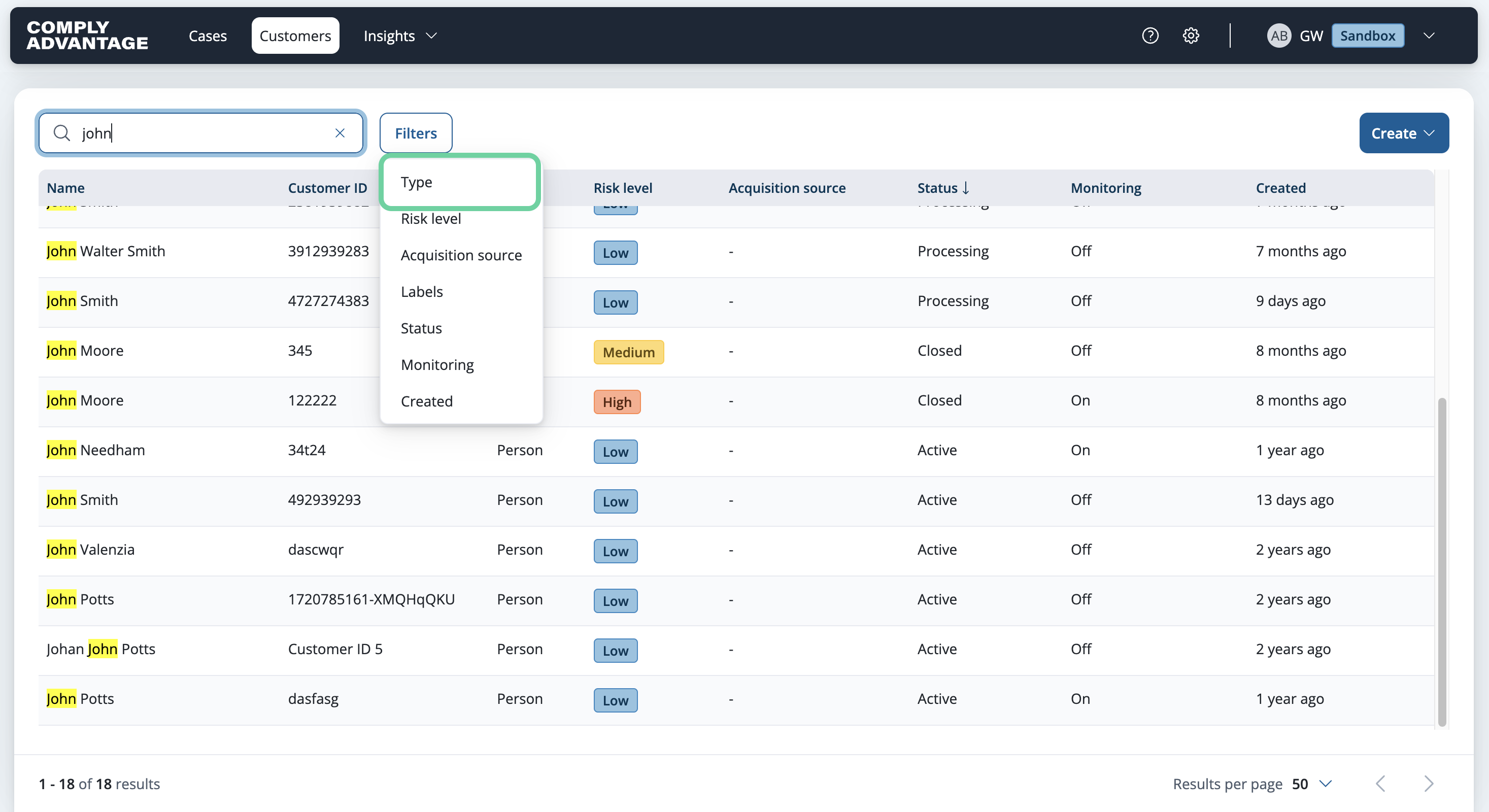
You can filter the Customers list to show only the customers who meet a certain criteria.

5. Filter by "Customer type"
You can filter by "Customer type."
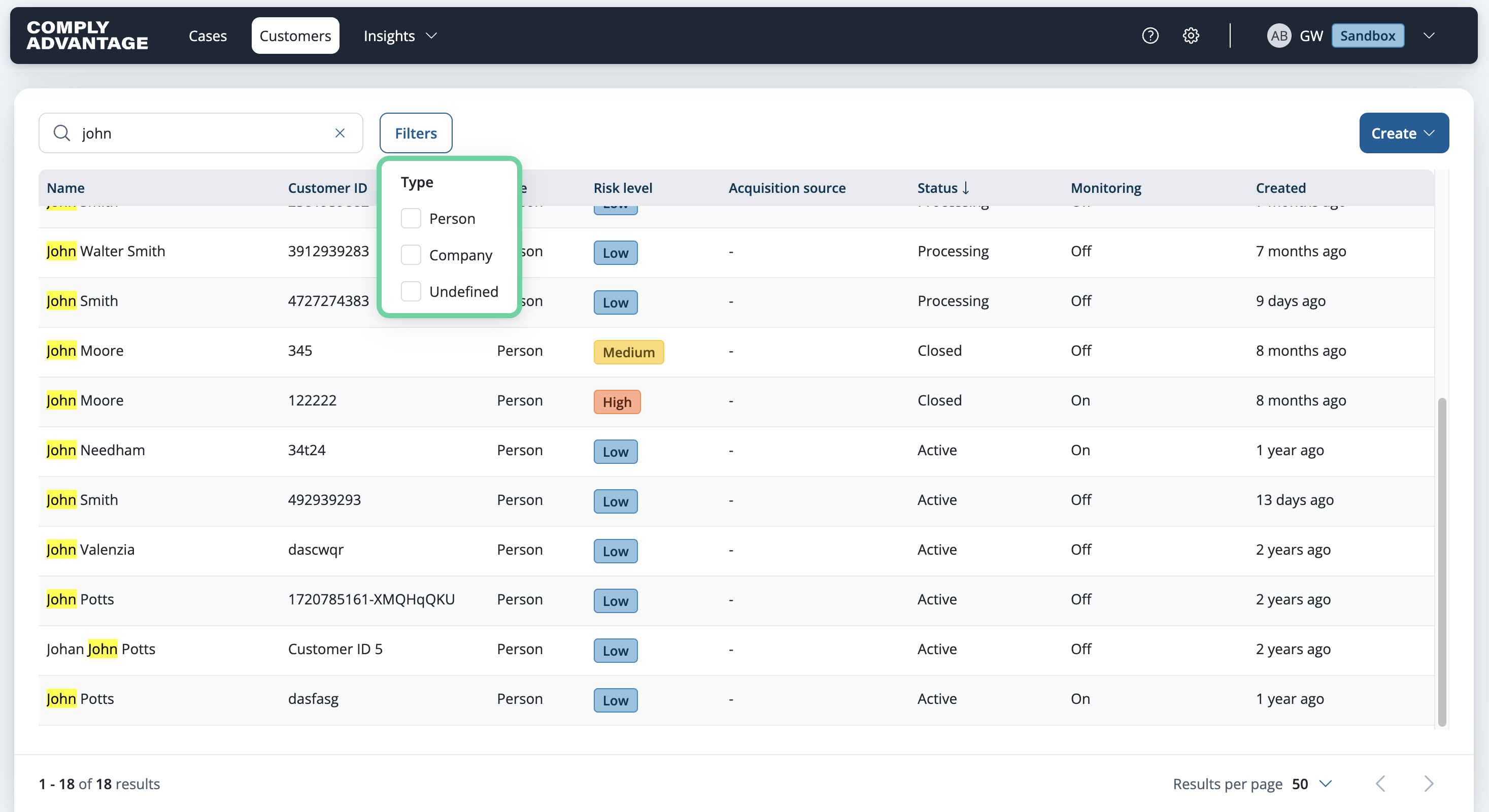
6. Select desired customer type
Here, you can select between Person, Company or Undefined.
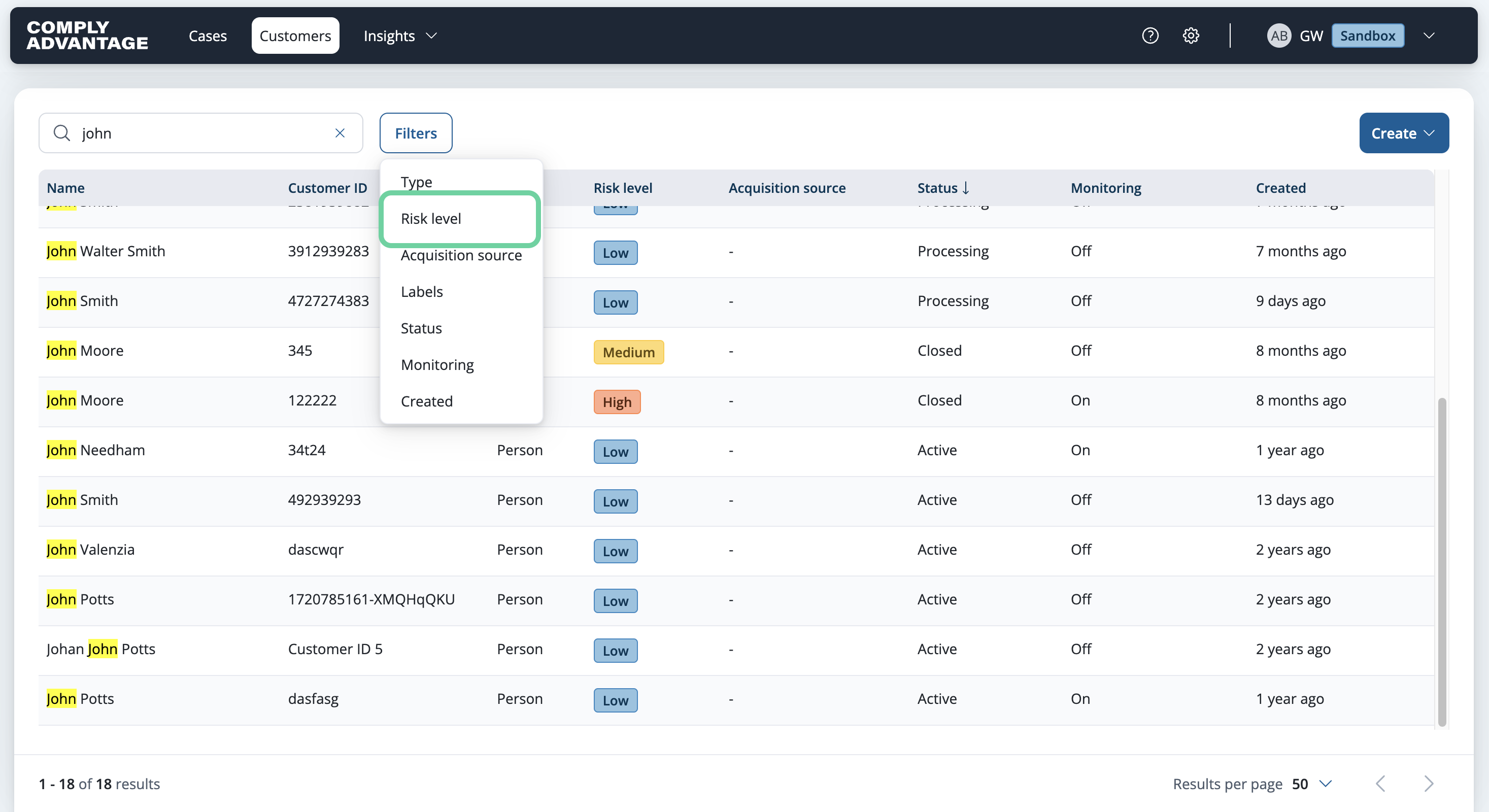
7. Filter by "Risk level"
You can also set a filter based on risk level. This is useful if you already built a risk model.
8. Click "Customer status"
Customer status is another helpful filter.
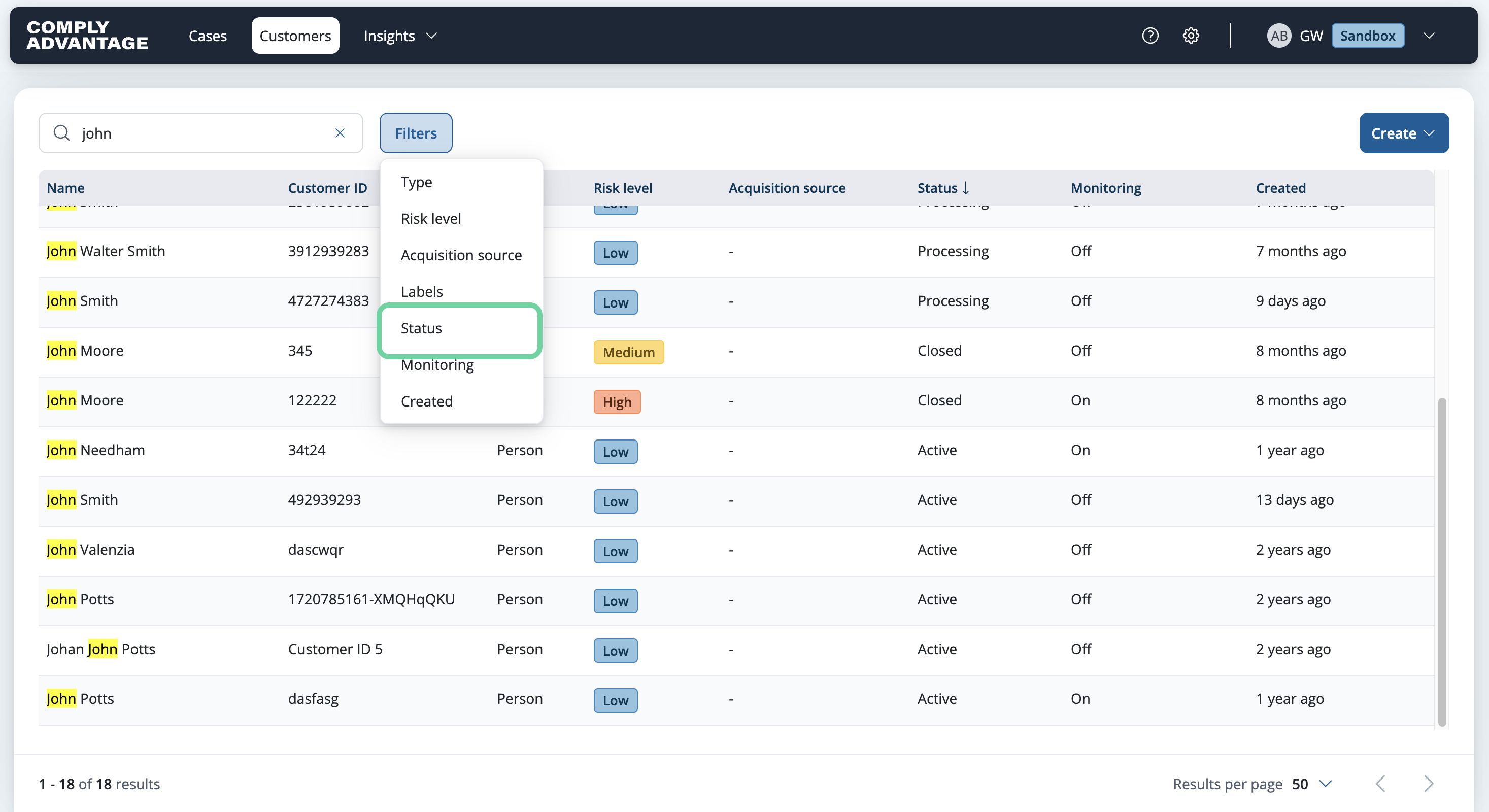
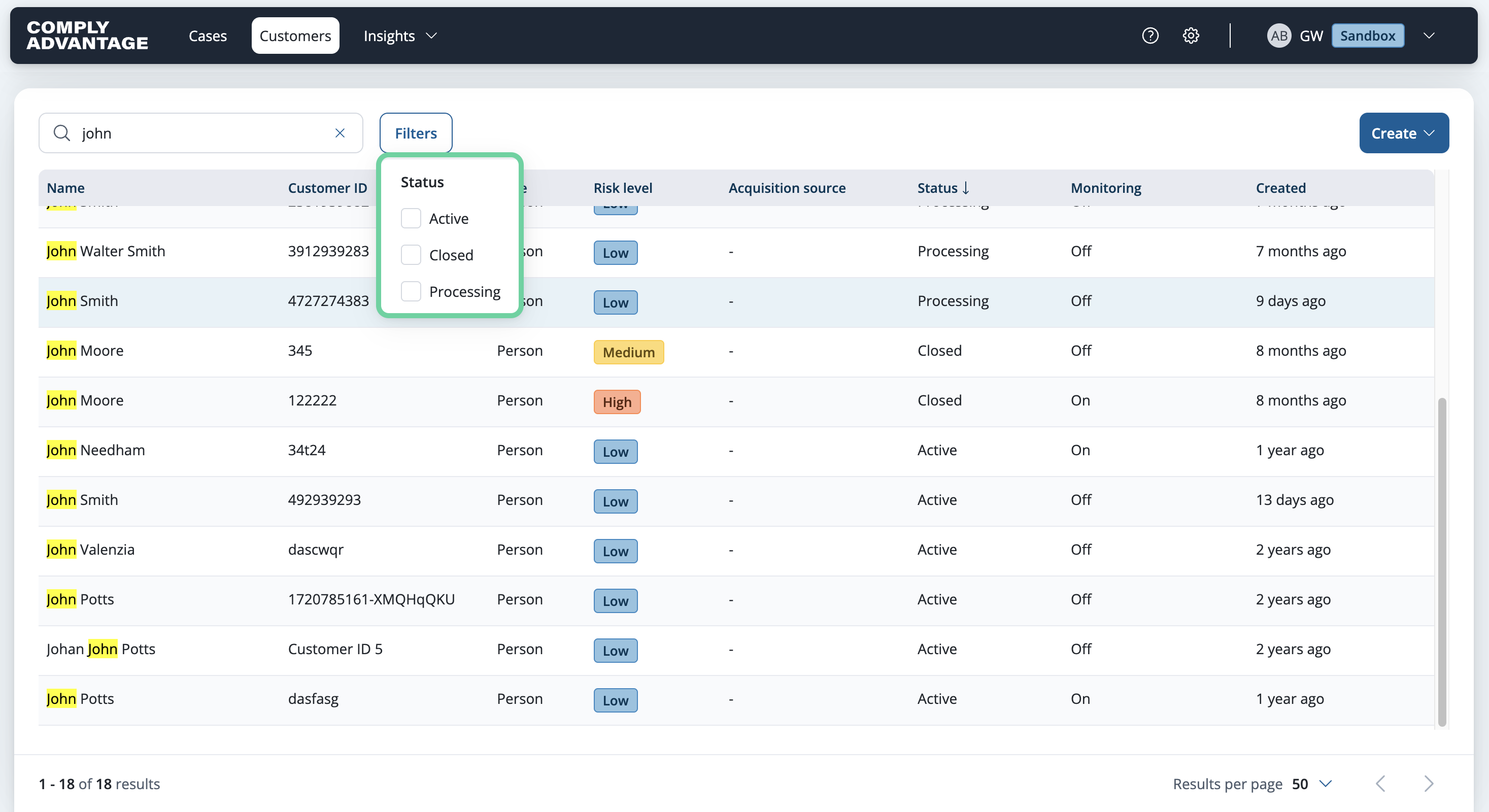
9. Select desired filter
Here, you can filter for a customer whose status is active, closed, processing or for customers where further action is required.
10. Click "Created"
The Created filter helps you narrow down customers screened at a certain period of time.

11. Select desired dates
Select the desired date range to filter accordingly.

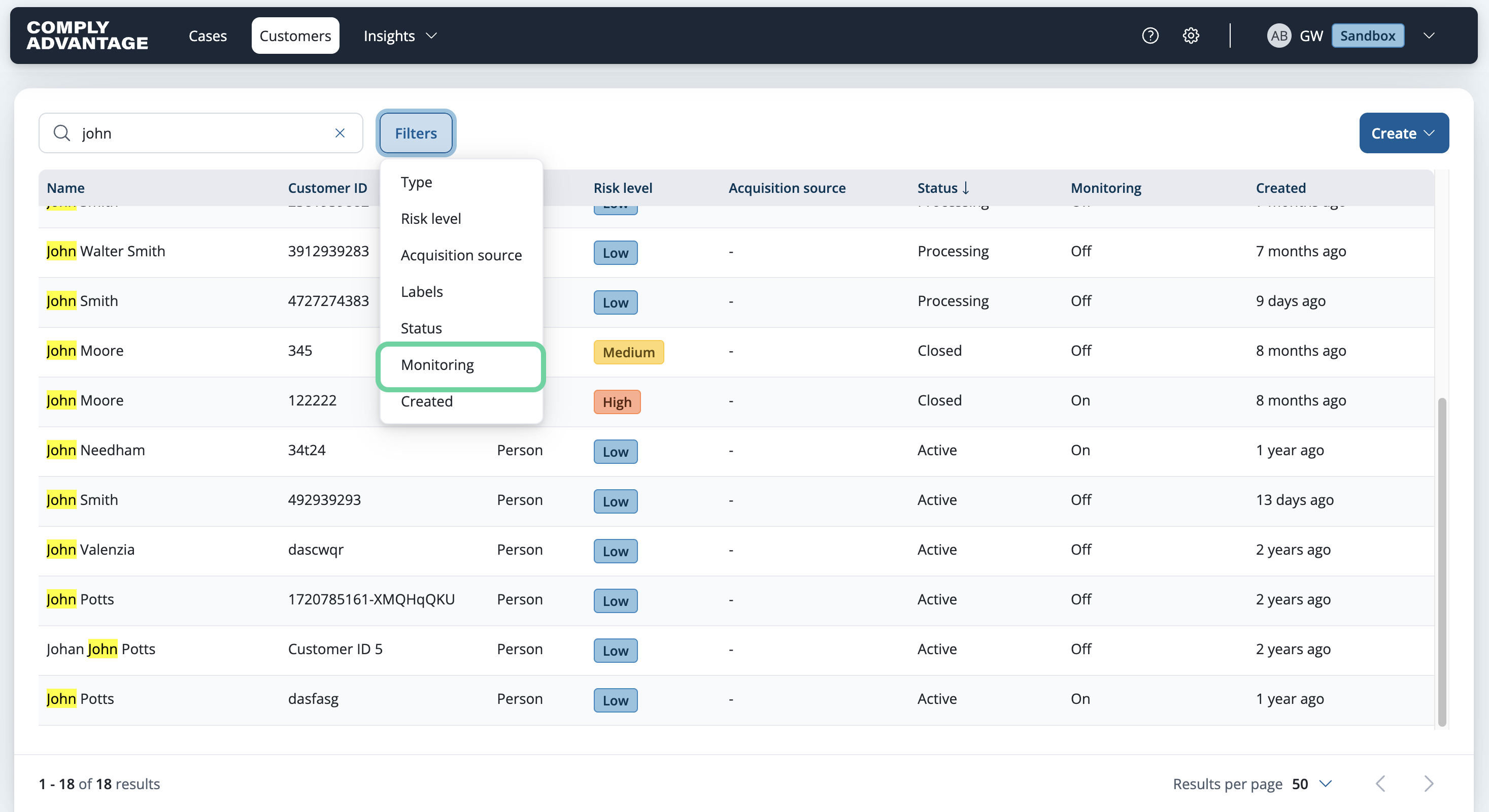
12. Click "Monitoring"
Finally, the monitoring filter allows you to narrow your customer list to show only those with ongoing monitoring enabled.
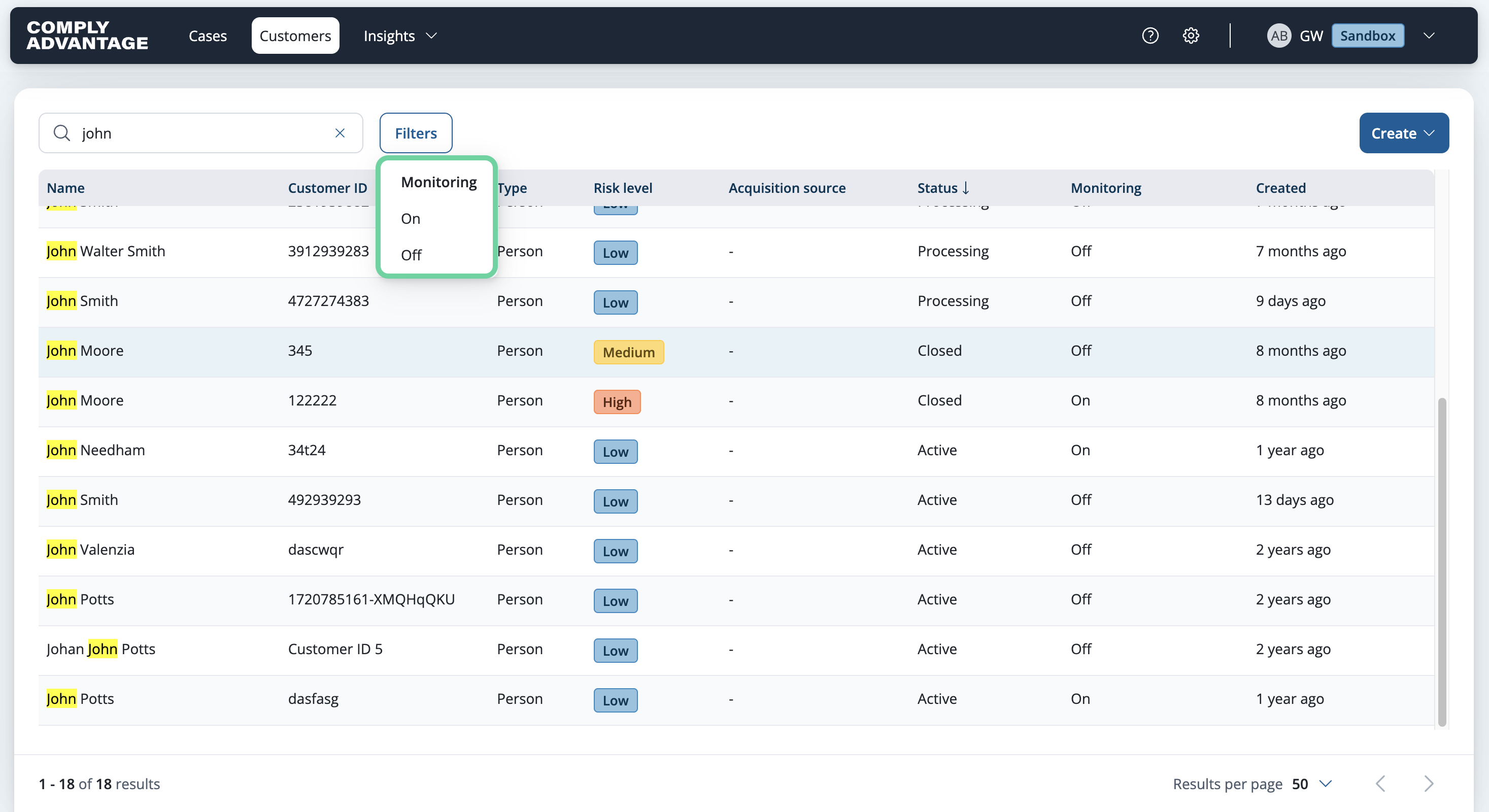
13. Select "On" or "Off"
You can switch monitoring on or off accordingly here.
14. See pills for set filters
You can see which filters have been applied by looking at these set pills.

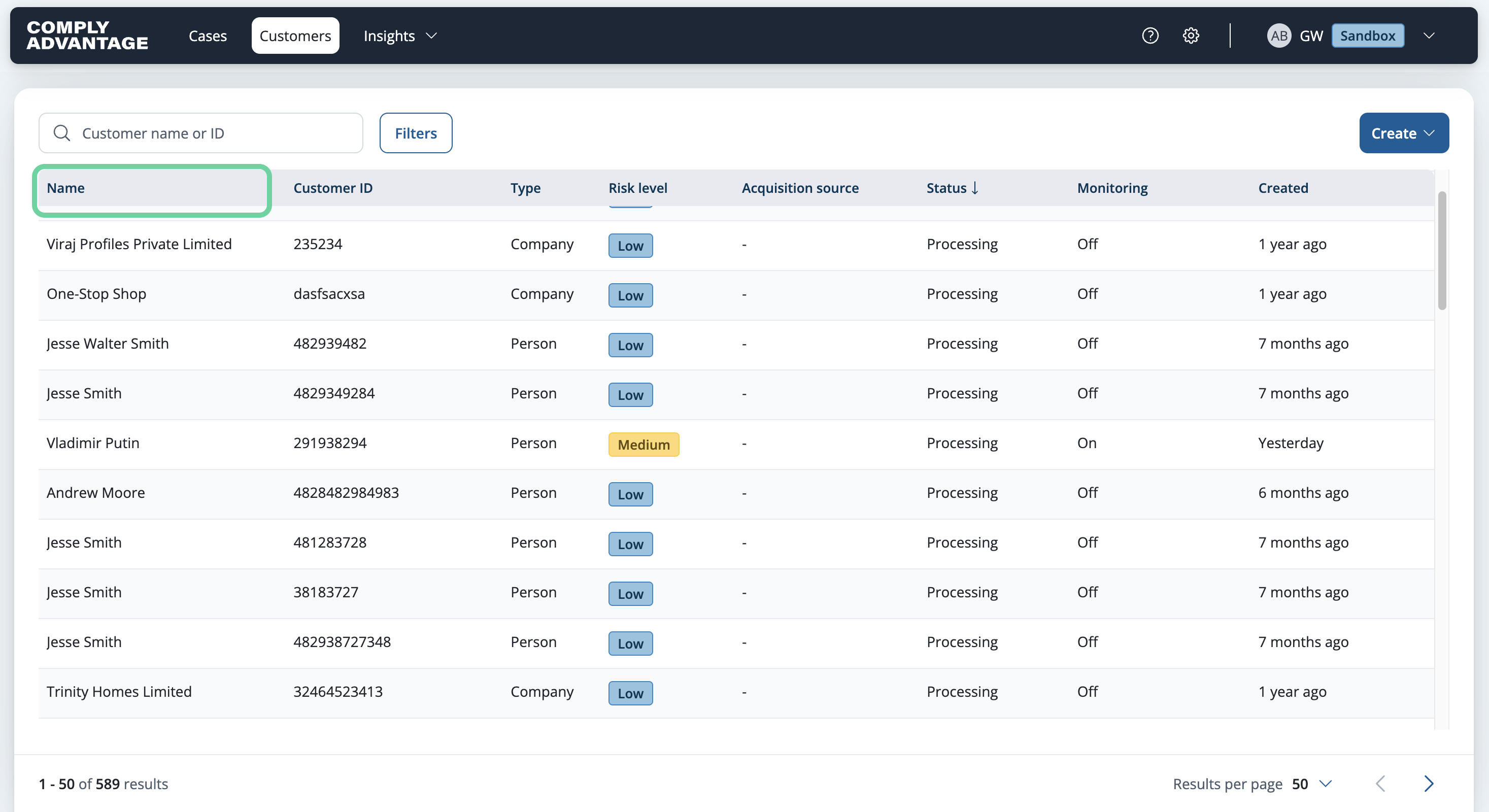
15. Sort by column header
You can also sort customers by clicking on any column headers.
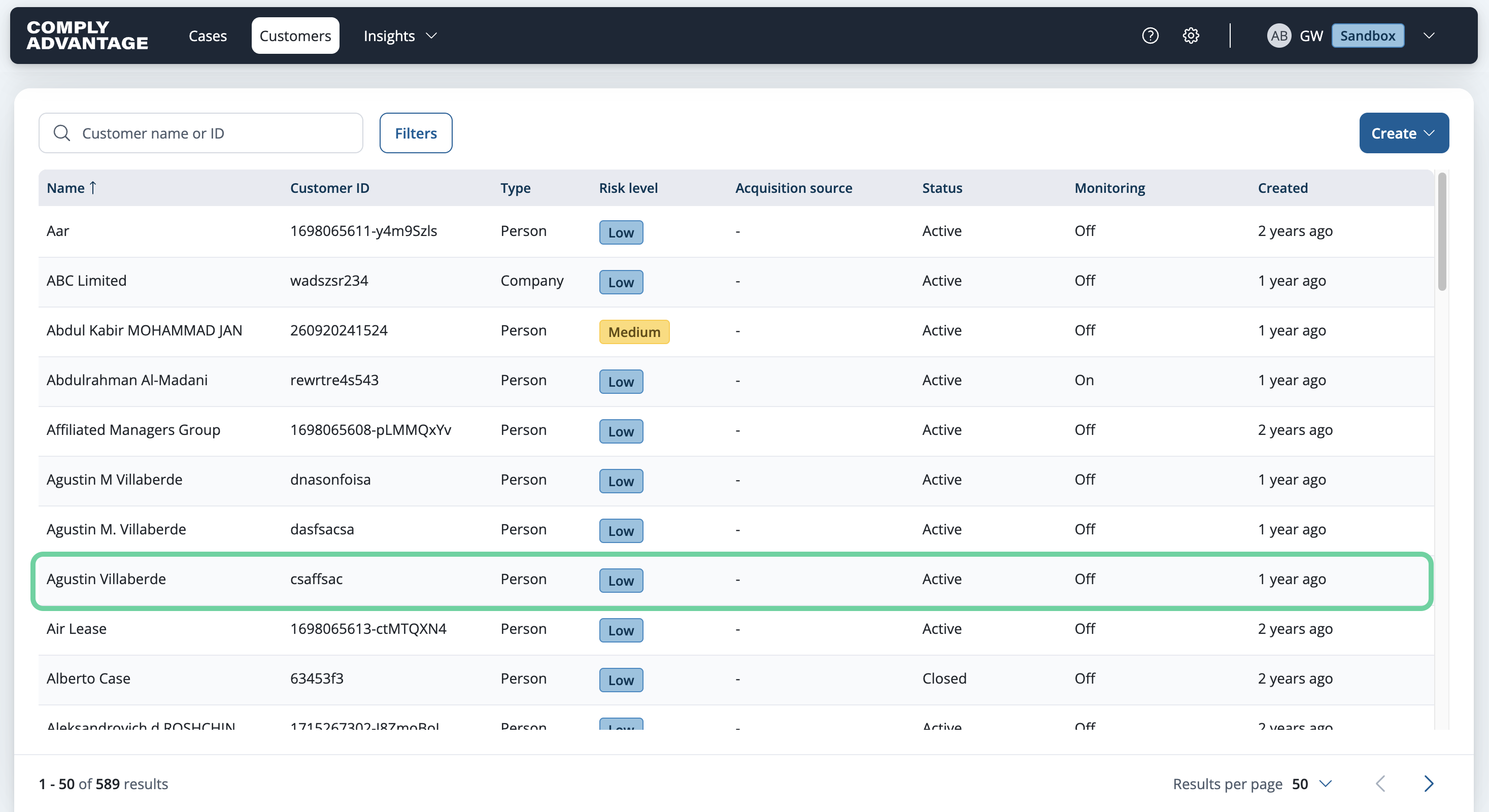
16. Select desired customer
When you have found the customer that you want to review, click their row to view their details.
17. View customer details
Here, you can view all customer details, including the key information and any case details associated with the customer record.

We hope this guide helped you find, sort, manage, and review your customer details in Mesh.