Video: Creating and screening a person
Last updated: October 13, 2026
In this guide, you will learn how to create and screen a single person using Mesh.
When logging in to your account, please ensure you select the correct region, which will be one of the following:
Australia: https://au.mesh.complyadvantage.com/
You can find the link to your region in the onboarding email you received (look for the "Welcome to ComplyAdvantage" email).
If you can’t find the email, don't worry! You can always contact our support team at [email protected].
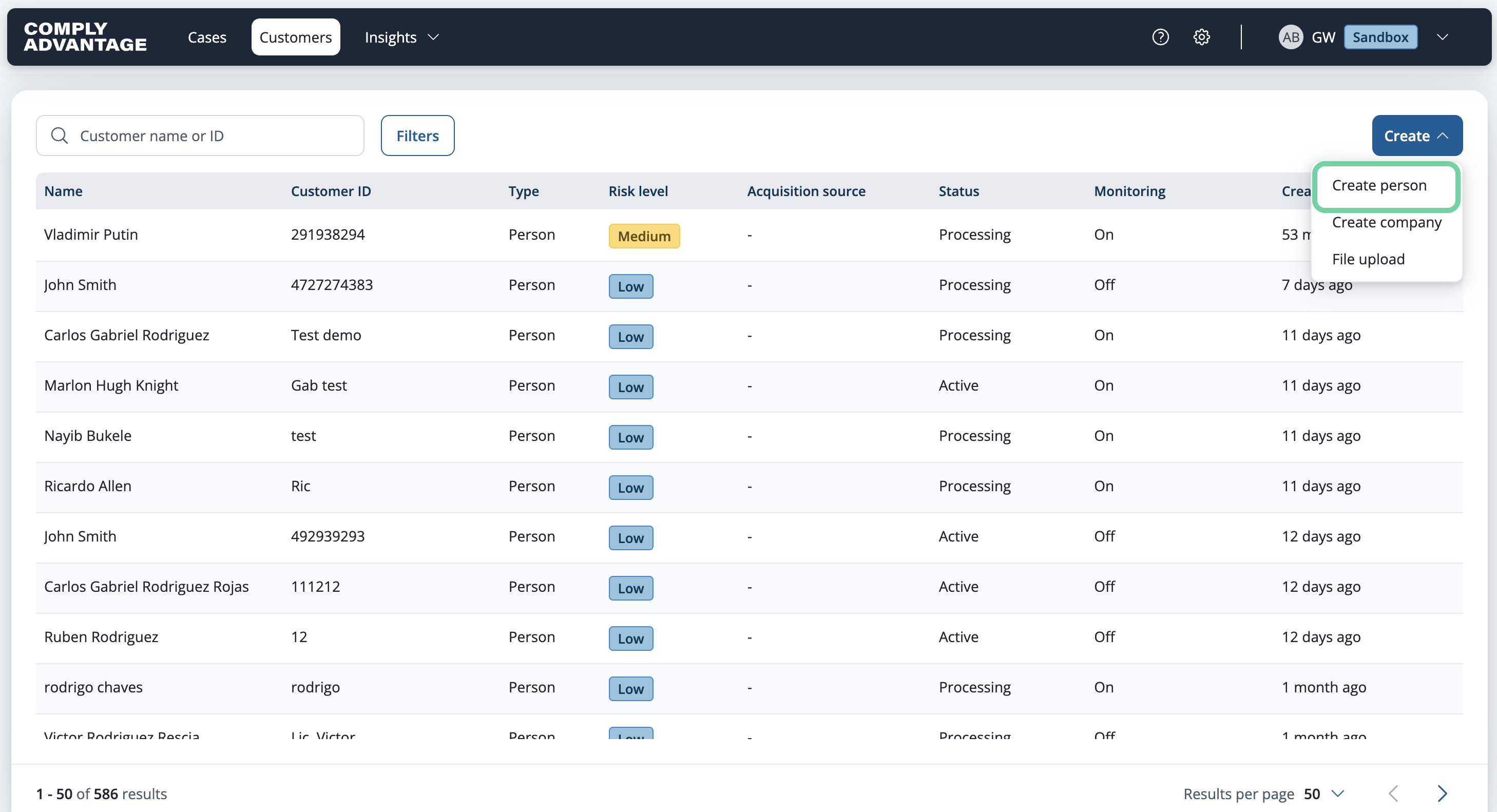
1. Click "Create"
First, click on the "Create" button from the "Customers" page.

2. Click "Create person"
Select "Create person" to specify the type of customer you are adding.
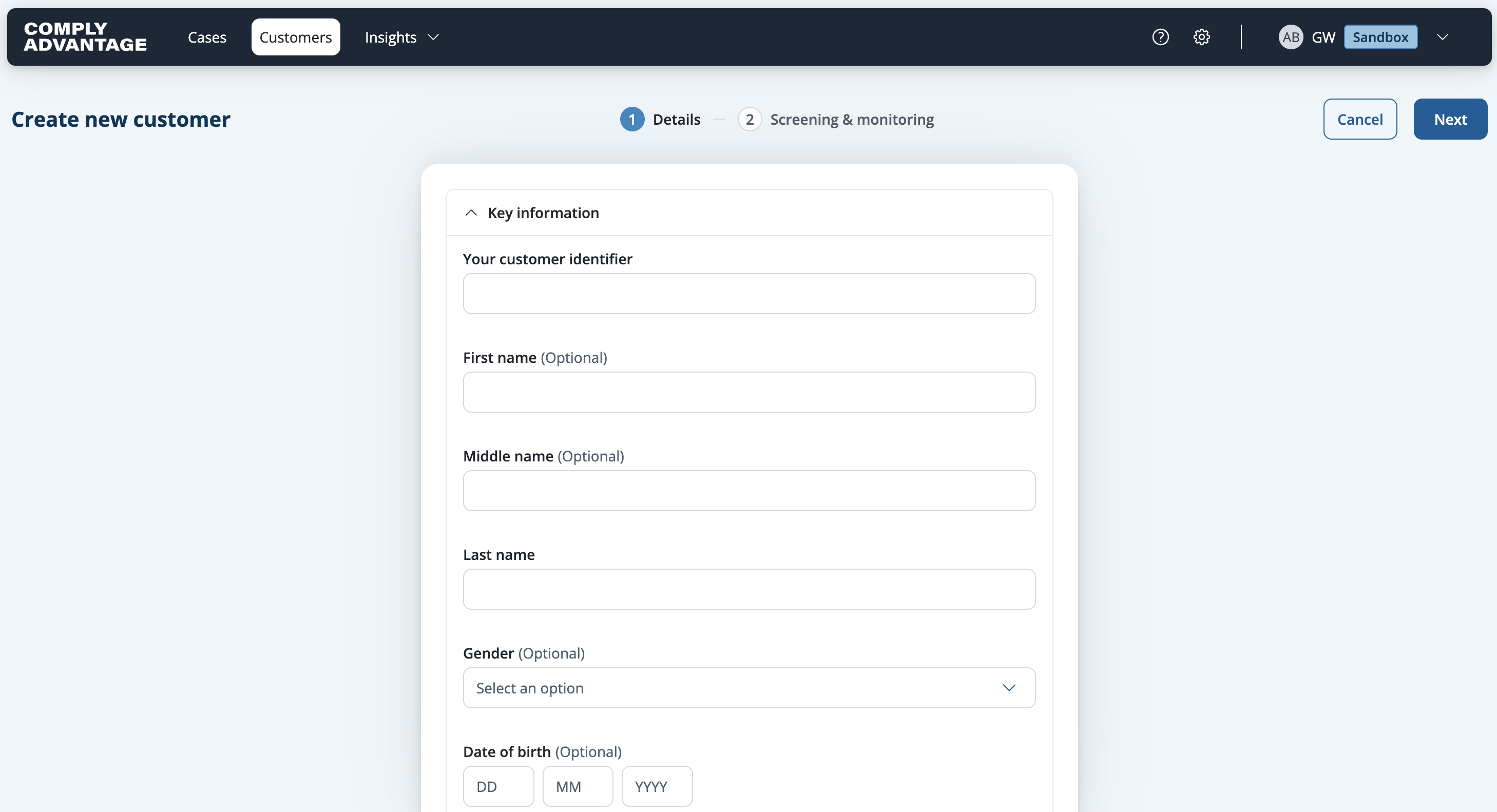
3. See example of form.
Here is an example of the "Create new person form," where you should complete as many customer information fields as possible.
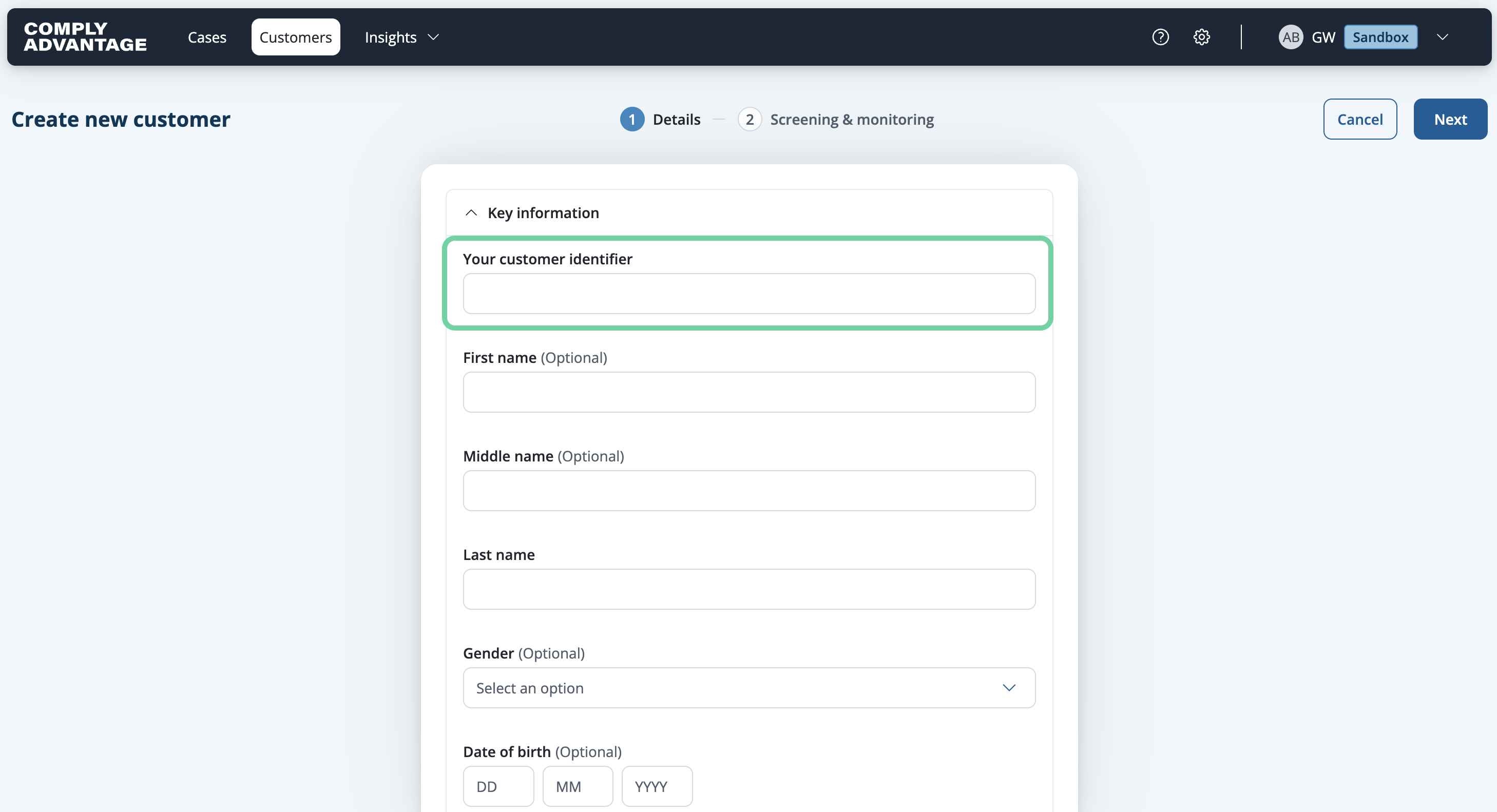
4. Fill in the customer identifier
First, you are required to add a unique identifier for each customer, so you can enter it here. We recommend you use the same customer identifier as you do in your internal systems.
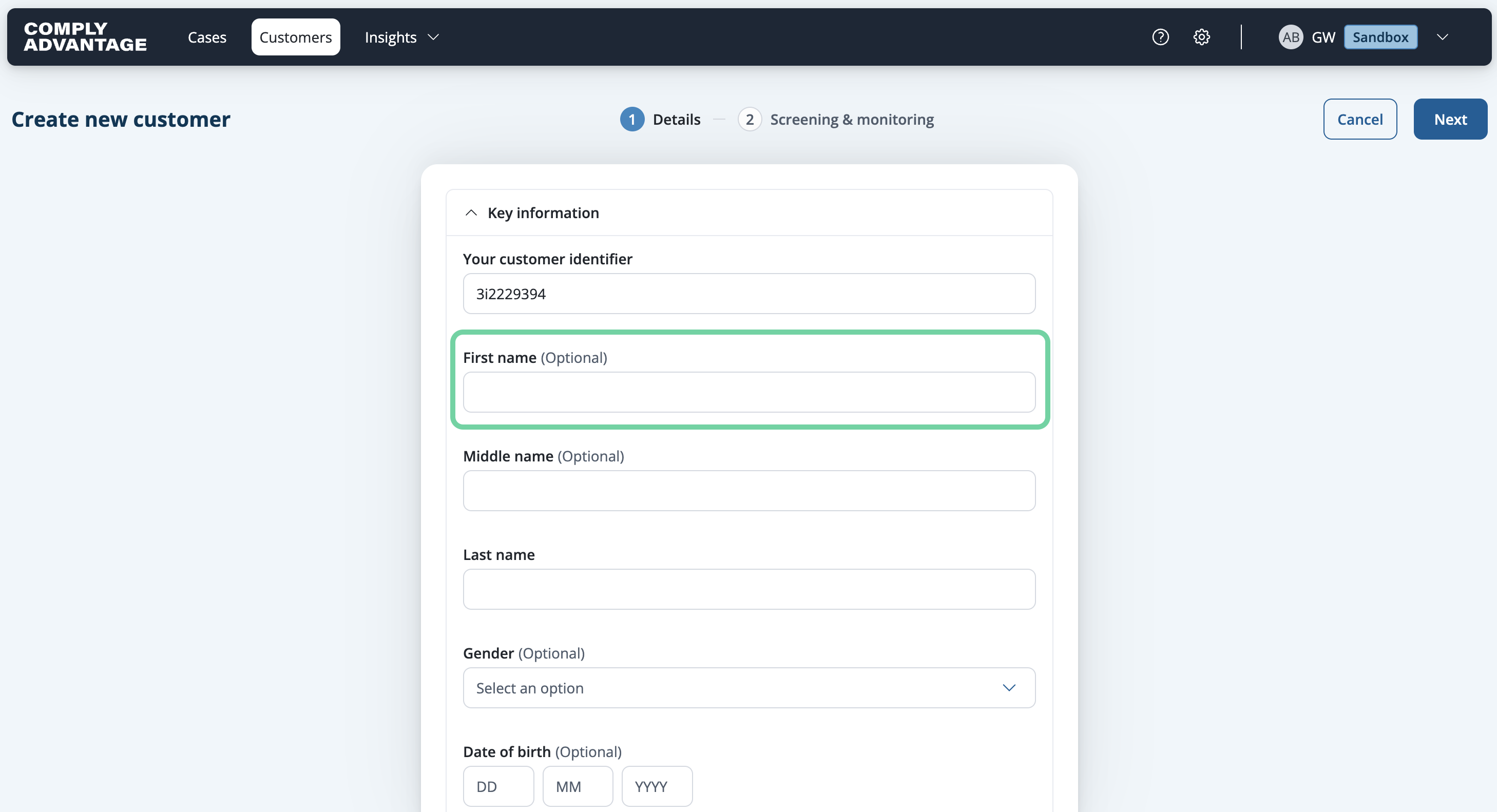
5. Enter the Customer's first name if known
Add the customer's first name, if available, in the designated field.
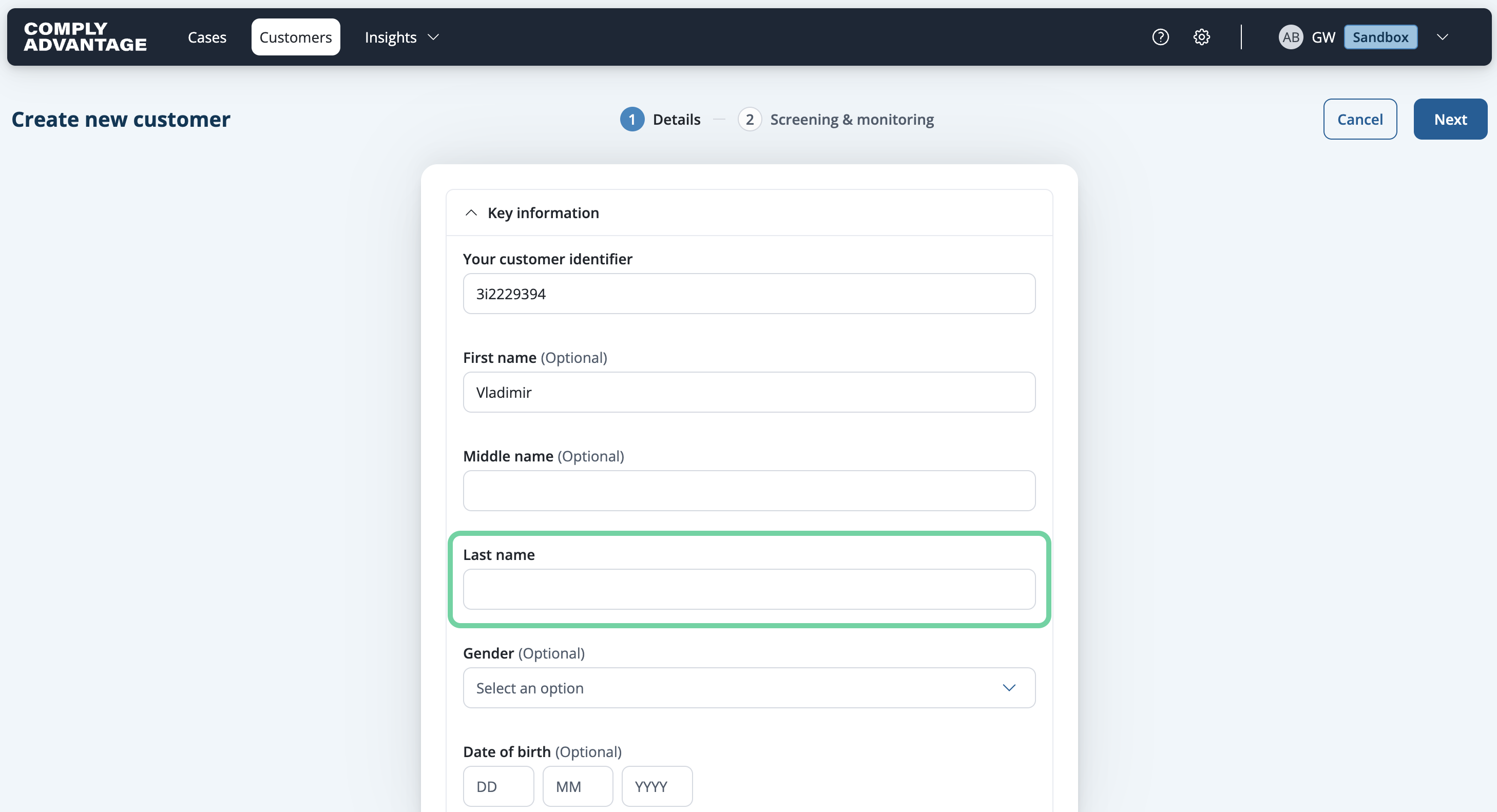
6. Enter the Customer's last name
Fill in the text box with the Customer's last name, which is also a required field.
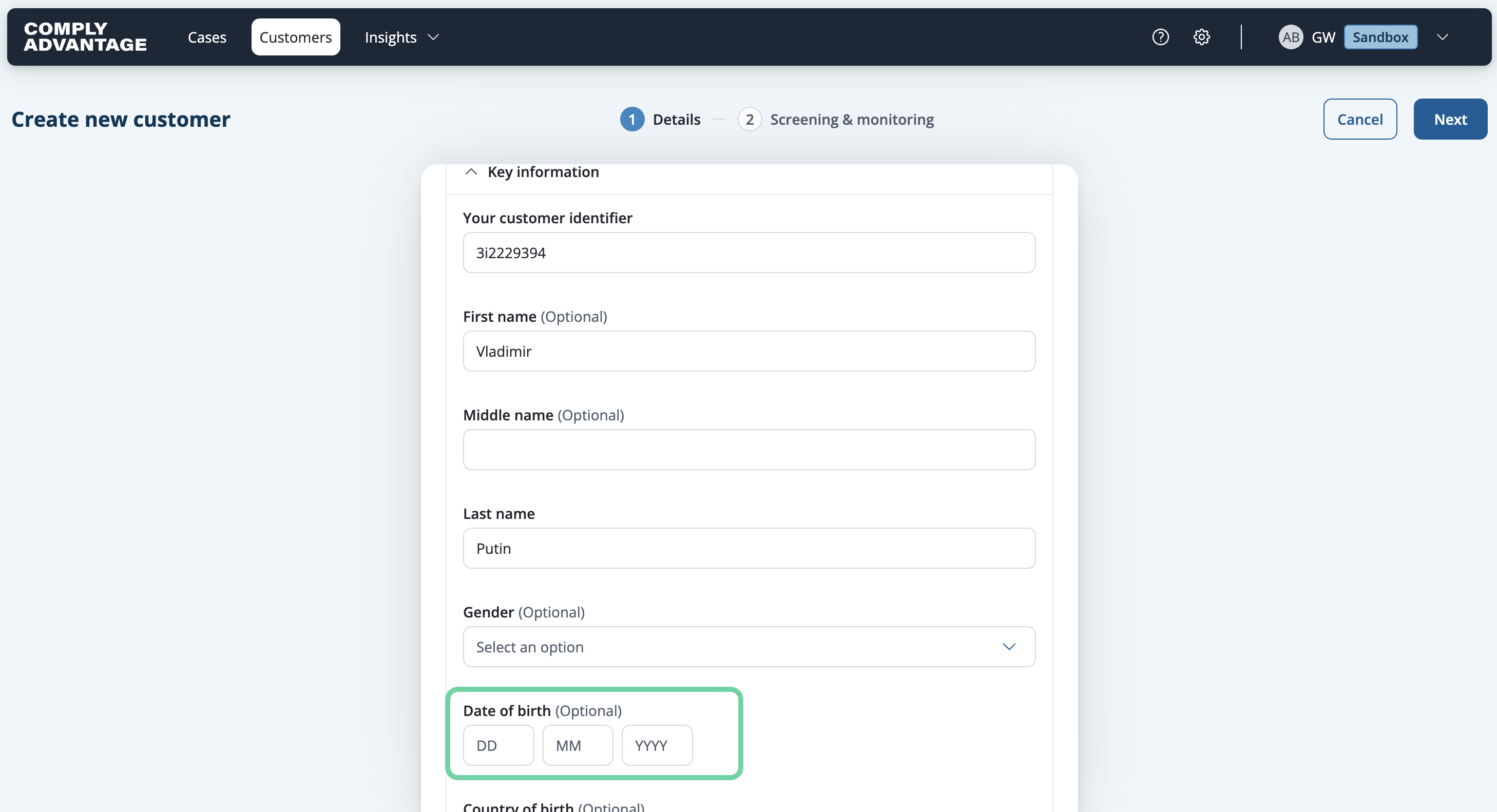
7. Enter the Customer's birthdate
Fill in the customer's birthdate if available.
8. Click "Next"
Once you've added all customer information you have available, click "Next."

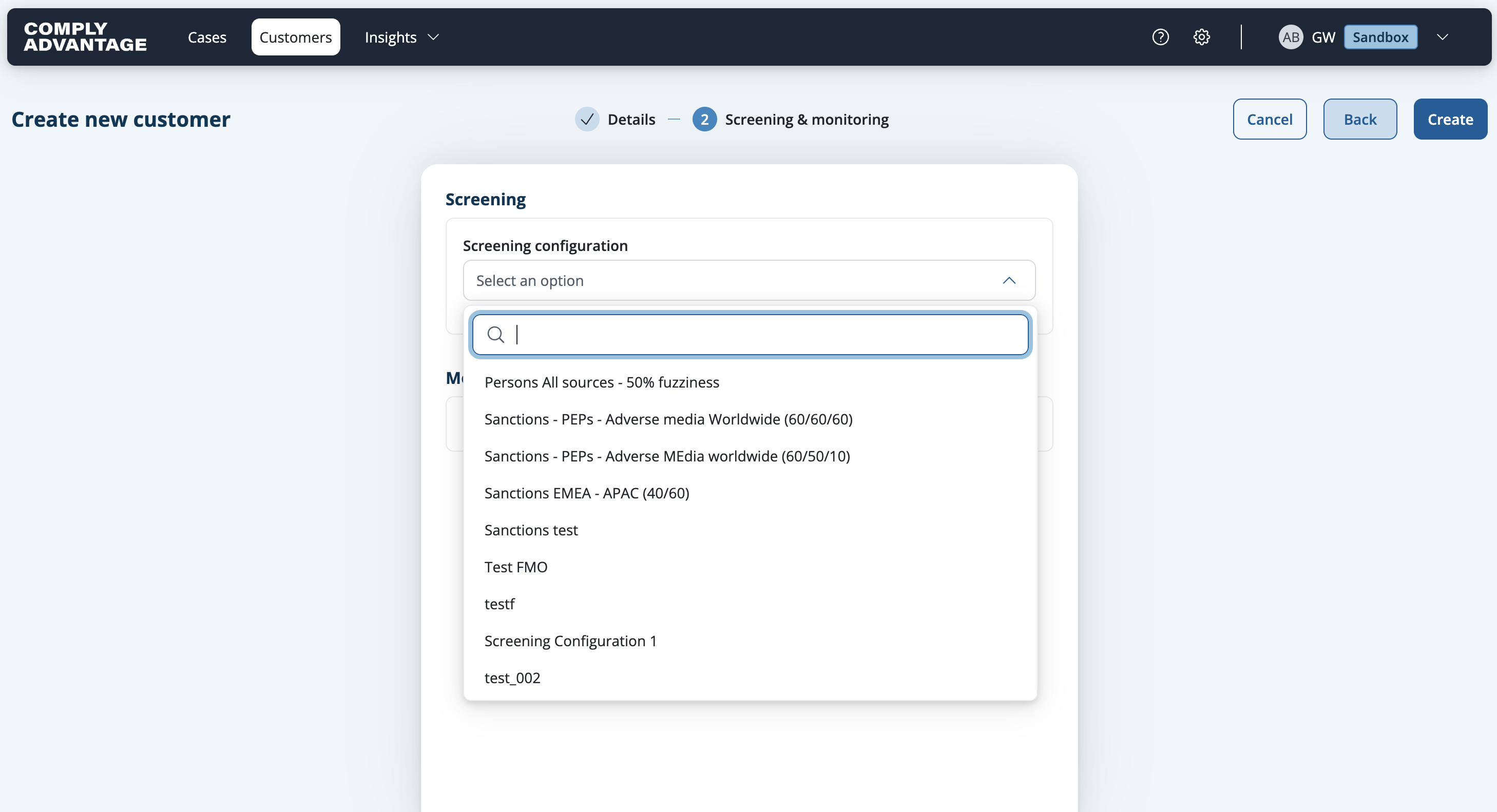
9. Select a Screening Configuration
Select the screening configuration you want to use to screen this customer.
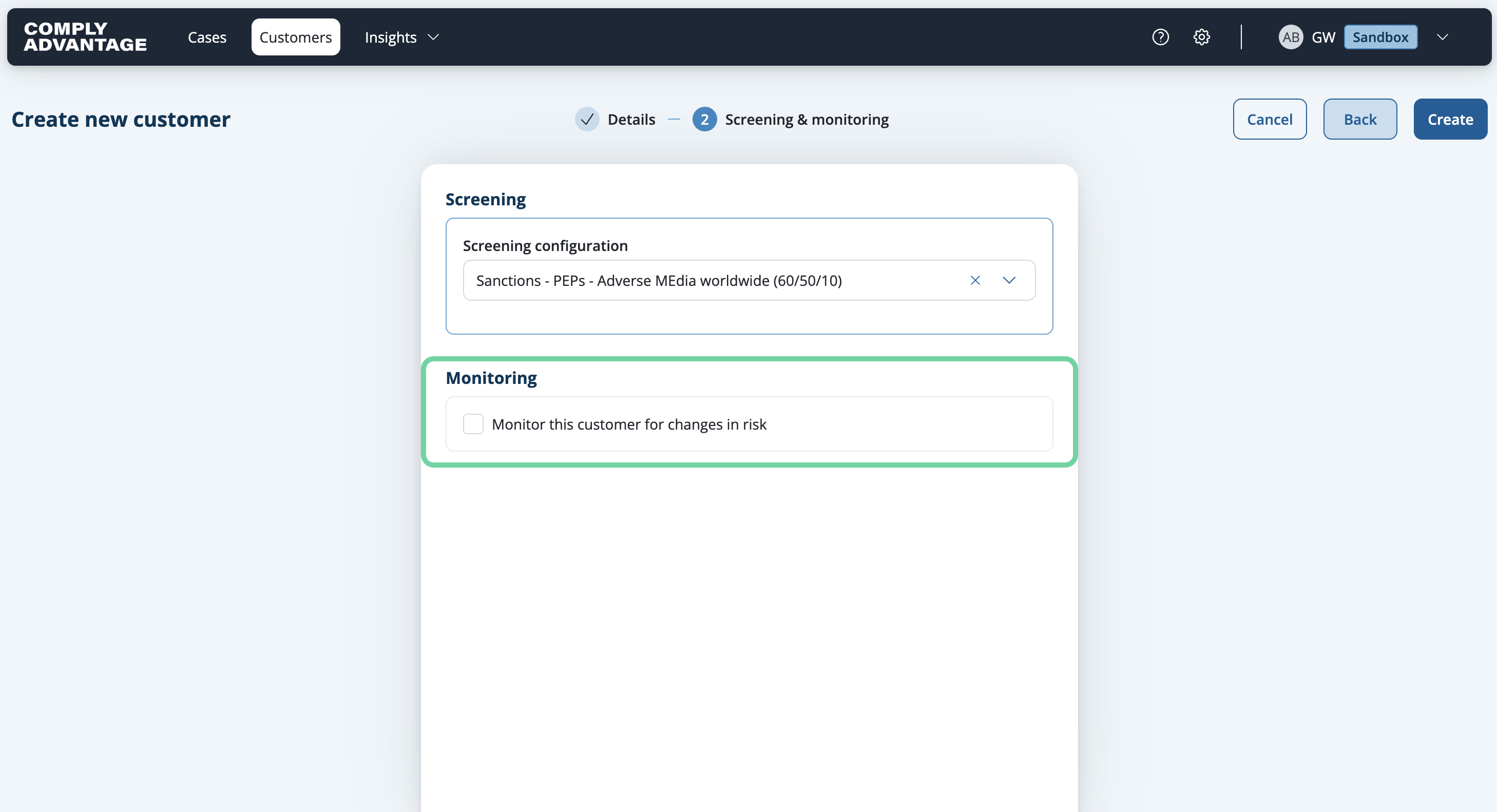
10. Select monitor status
If applicable, select "Monitor this customer for changes in risk" to activate ongoing monitoring for this customer.
11. Click "Create"
Lastly, click "Create."

12. Customer Onboarded
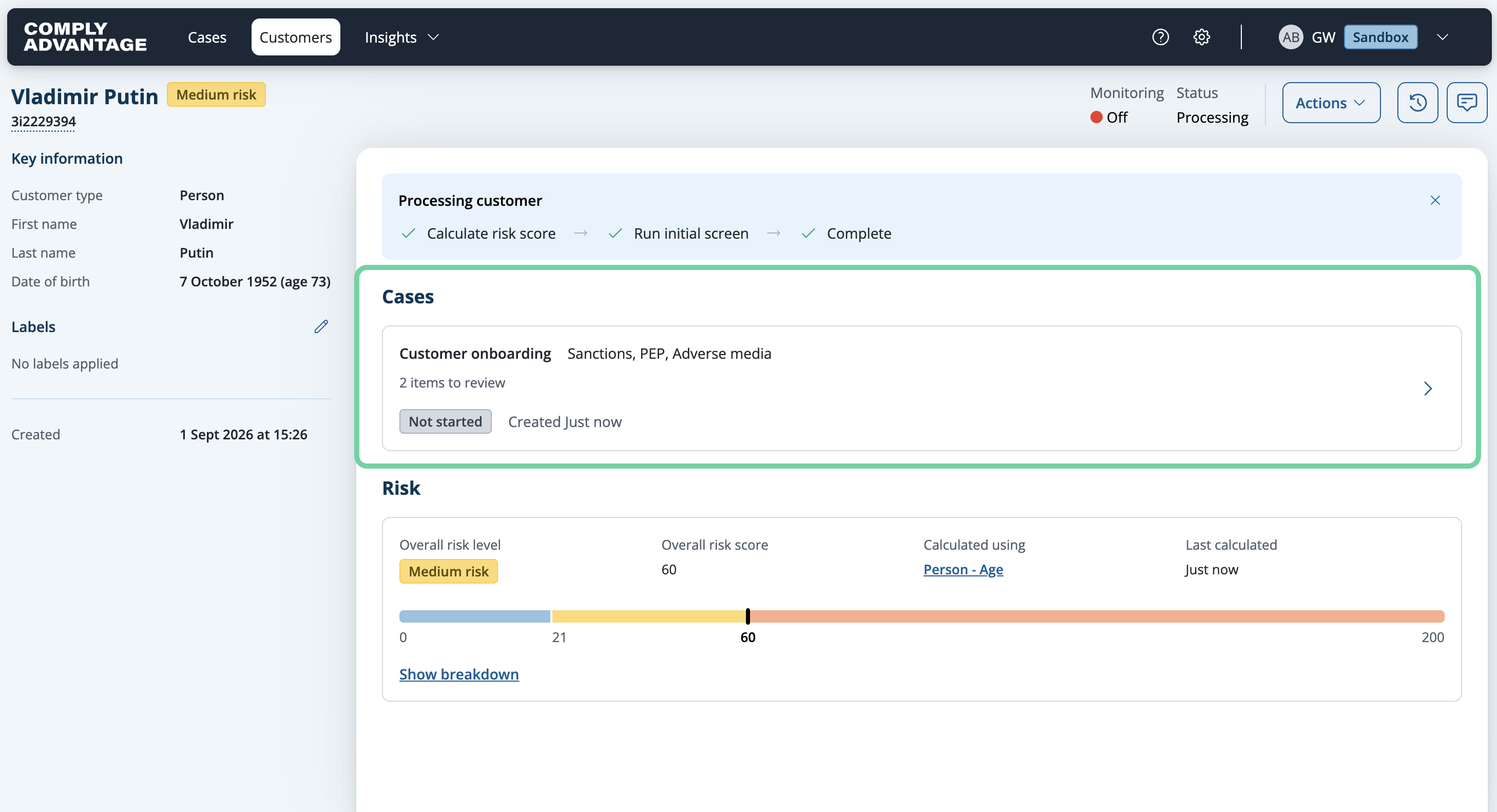
Your customer will now be created, screened, and risk-scored (if you've created a risk model). You can see progress of the screening process in the blue Processing customer box.

13. Start remediating
If hits are found during screening, these will be summarized in this outlined box under Cases. Click on the box to be taken to the Cases page, where you can remediate and close the cases.
We hope this guide helped you learn how to create and screen a person in Mesh.