Creating and Screening a Vessel
Last updated: September 9, 2026
We have introduced a distinct Vessel entity type to the Mesh customer schema. This allows you to screen vessel names against maritime-specific risks.
Note: Vessel screening is also available via the Mesh API for automated workflows.
1. Create a Vessel Customer
To add a new vessel for screening, follow the standard creation workflow:
Select Customers from the main header.
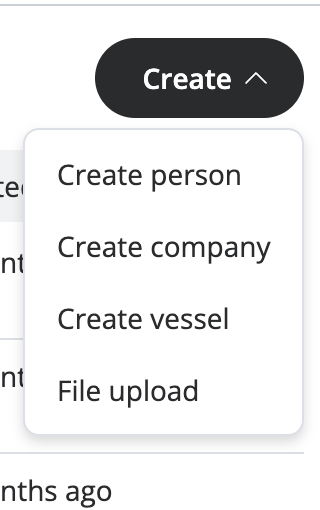
Select Create, then click Create vessel from the dropdown menu.
Complete the vessel schema fields:
Customer identifier and Name are mandatory.
Optional fields such as IMO, MMSI, and Call sign can be populated to improve profile completeness. While not currently used for matching, they will support future entity resolution.
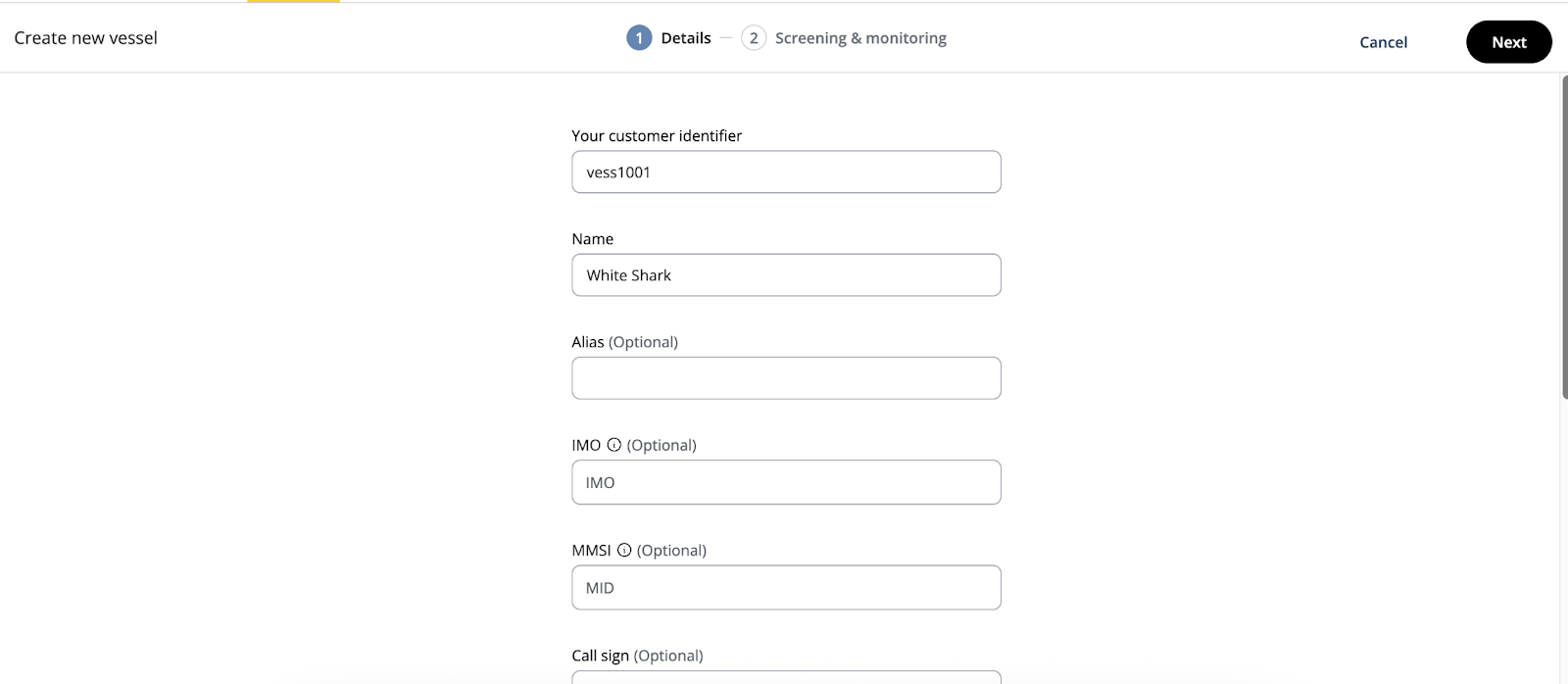
Click Next to proceed to configuration.
Select the Screening configuration you wish to use for this vessel and click Create.

2. Initial Screening and Monitoring
After clicking create, Mesh performs an initial screen.
Processing Status: You can track progress in the blue Processing customer box.
No Match: If no hits align with your configuration’s risk types, sources, or match threshold, the customer status will change to Active.
Monitoring: You may manually toggle Ongoing Monitoring on or off from the vessel's profile page once the initial screen completes.
3. Assess Vessel Screening Hits
If screening identifies potential matches, the vessel will appear in the Cases tab.
Open the Case view to see a list of profiles the vessel matched against.
This view displays the Case type, the customer ID, customer name, risk type(s), number of items to remediate and the case status

Click on a case to view more details .
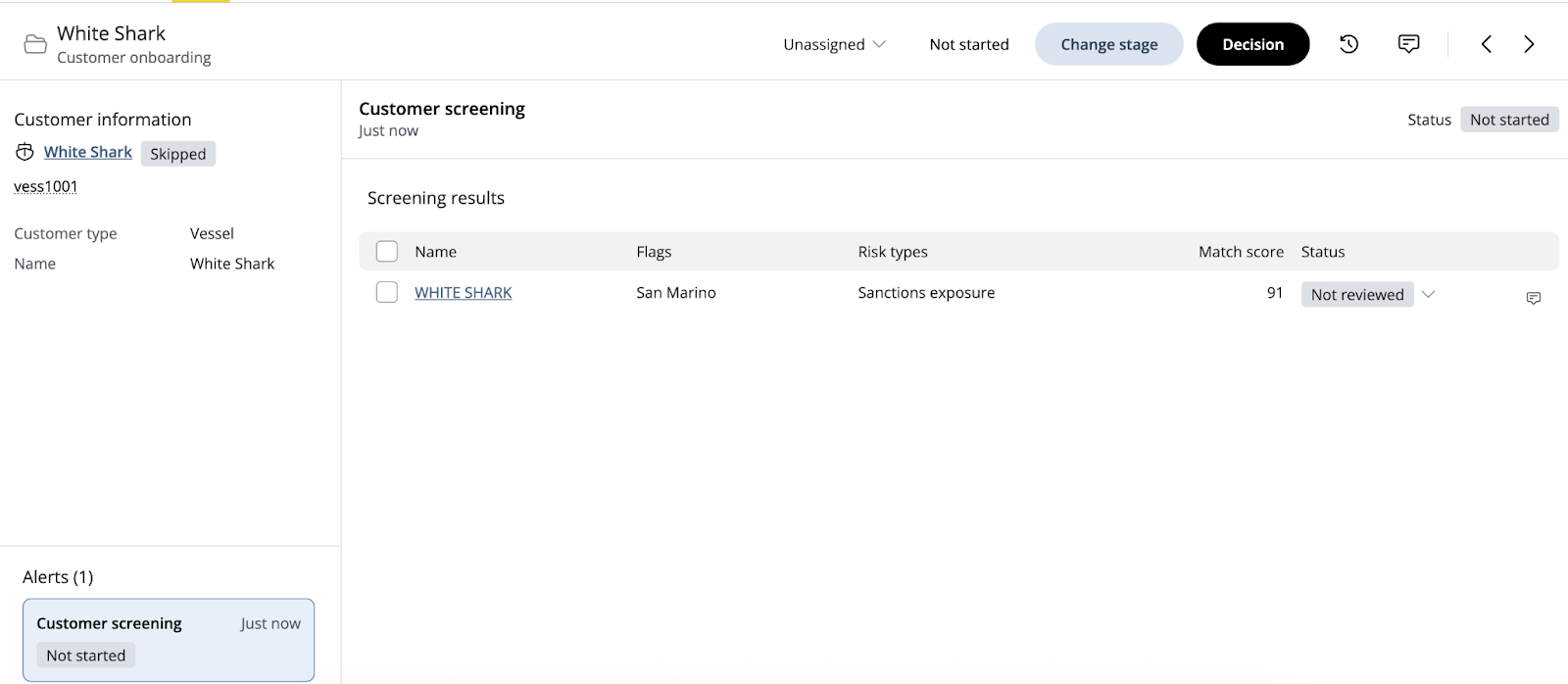
The results grid displays the profile name, associated country (flag), risk type, and match score.
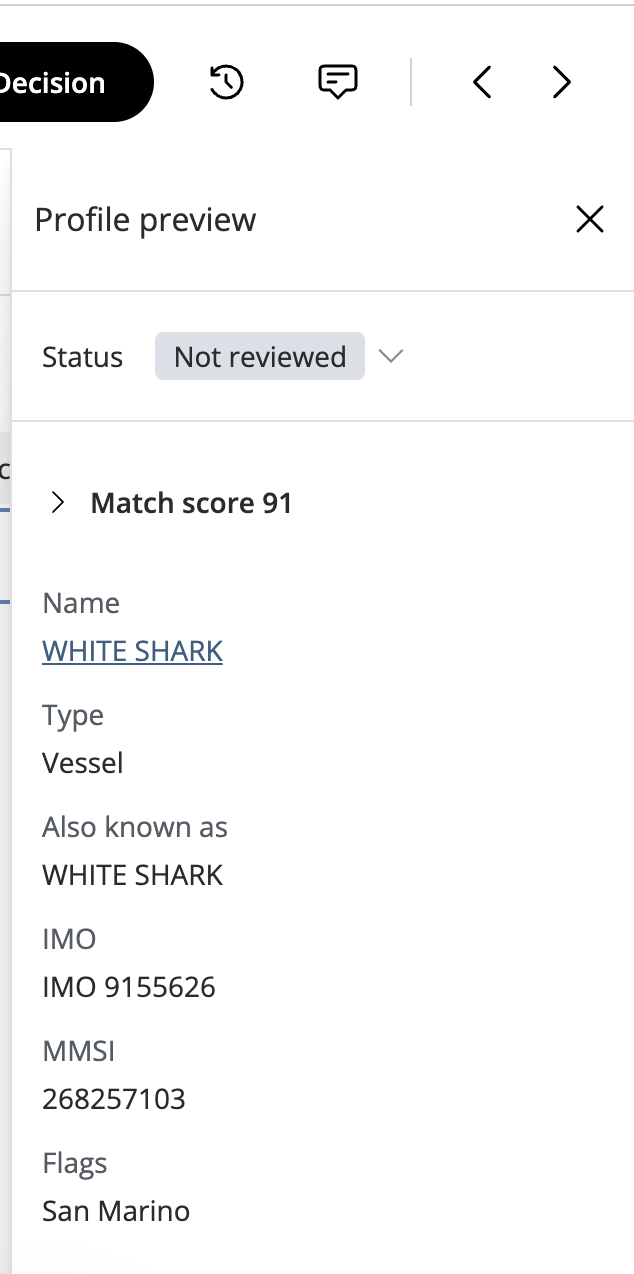
Analyze the Match Score: Click the row (avoiding the name) to open a Profile preview.
Click the chevron next to the Match score to view Influencing factors. Currently, these focus on:
Exact names
Name rarity
4. Remediate and Close Cases
To perform a deep dive into the risk, click the Profile name to open the full profile page.
Detailed Information: View specific sanction data, including the list name, designation dates, and legal basis.
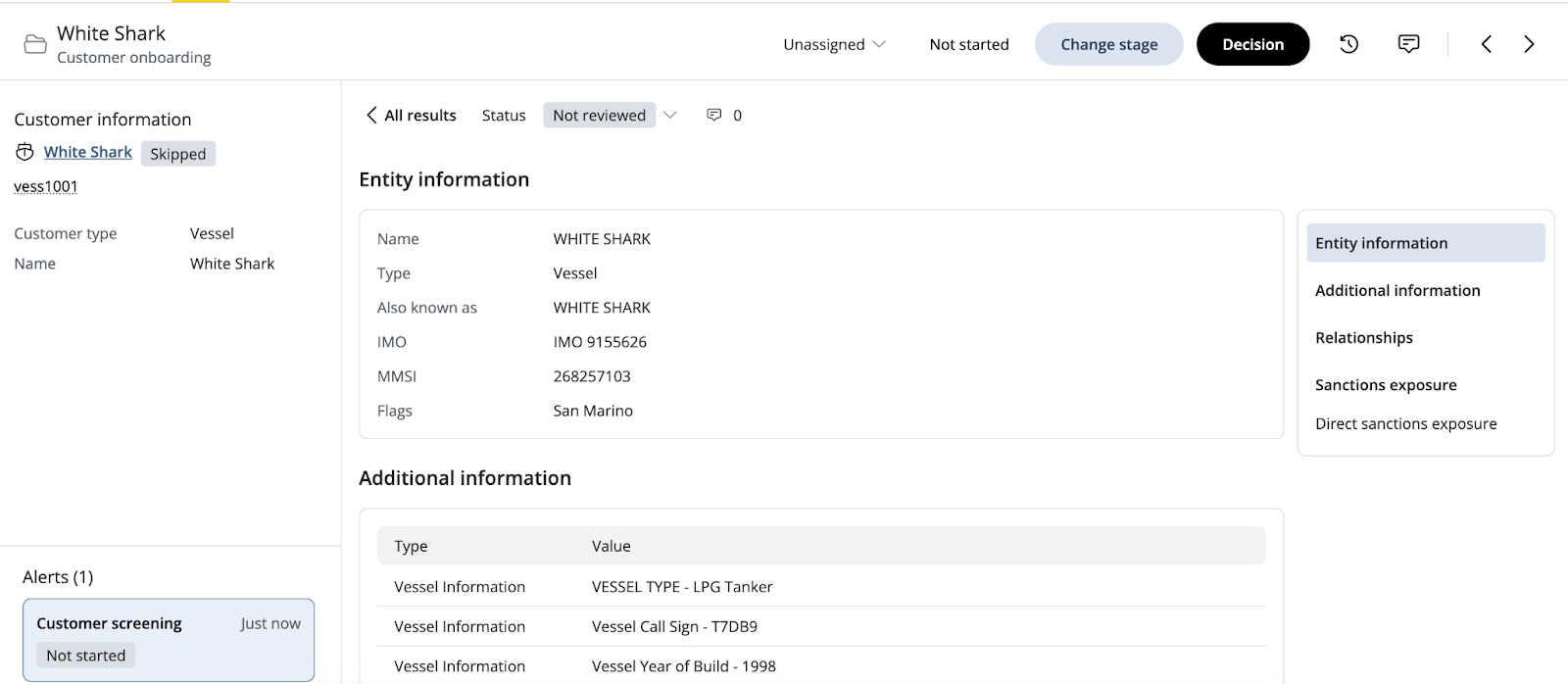
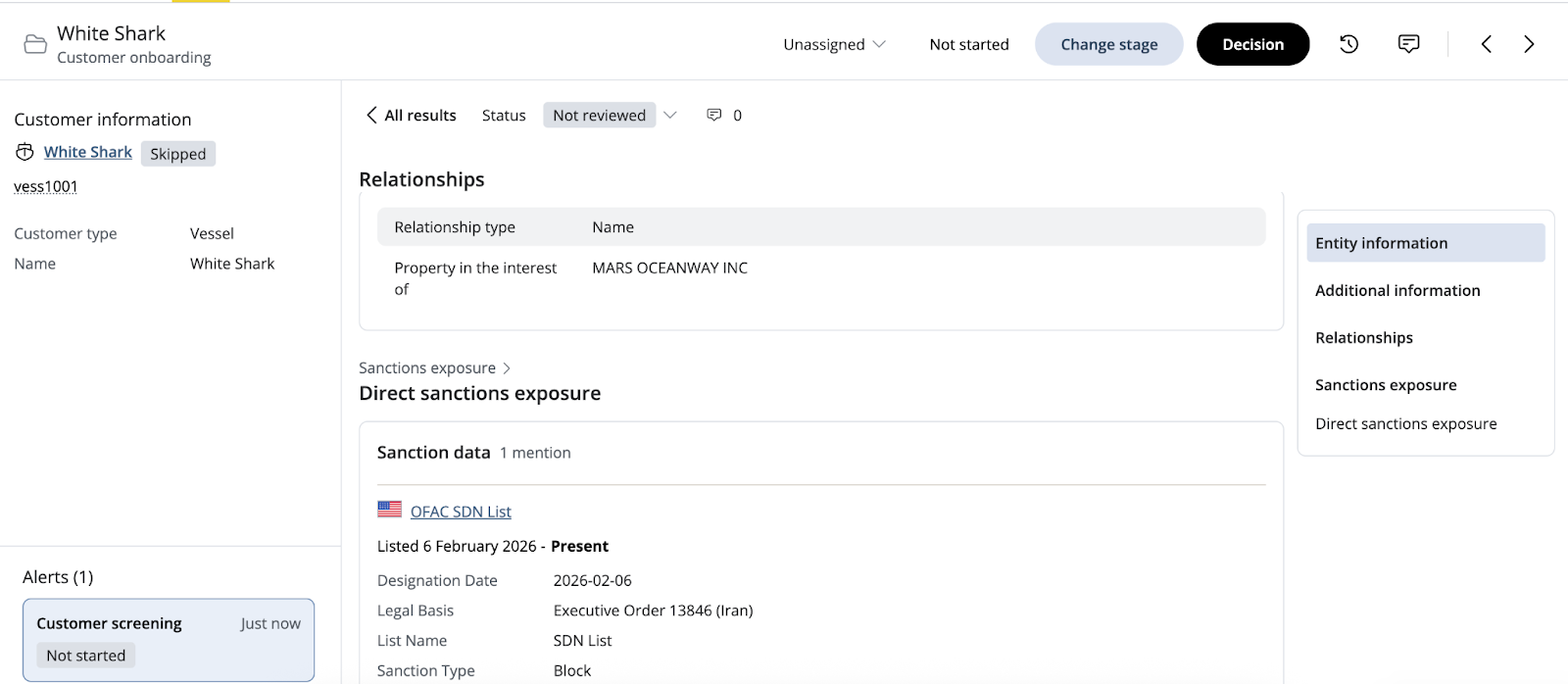
Assign Status: Use the Status dropdown to mark the result as a True positive or False positive.
Completion: Once all cases are resolved, the customer status will move from Processing to Active.