Video: Updating customer information
Last updated: October 13, 2026
In this guide, you will learn how to update customer information in Mesh.
When logging in to your account, please ensure you select the correct region, which will be one of the following:
Australia: https://au.mesh.complyadvantage.com/
You can find the link to your region in the onboarding email you received (look for the "Welcome to ComplyAdvantage" email).
If you can’t find the email, don't worry! You can always contact our support team at [email protected].
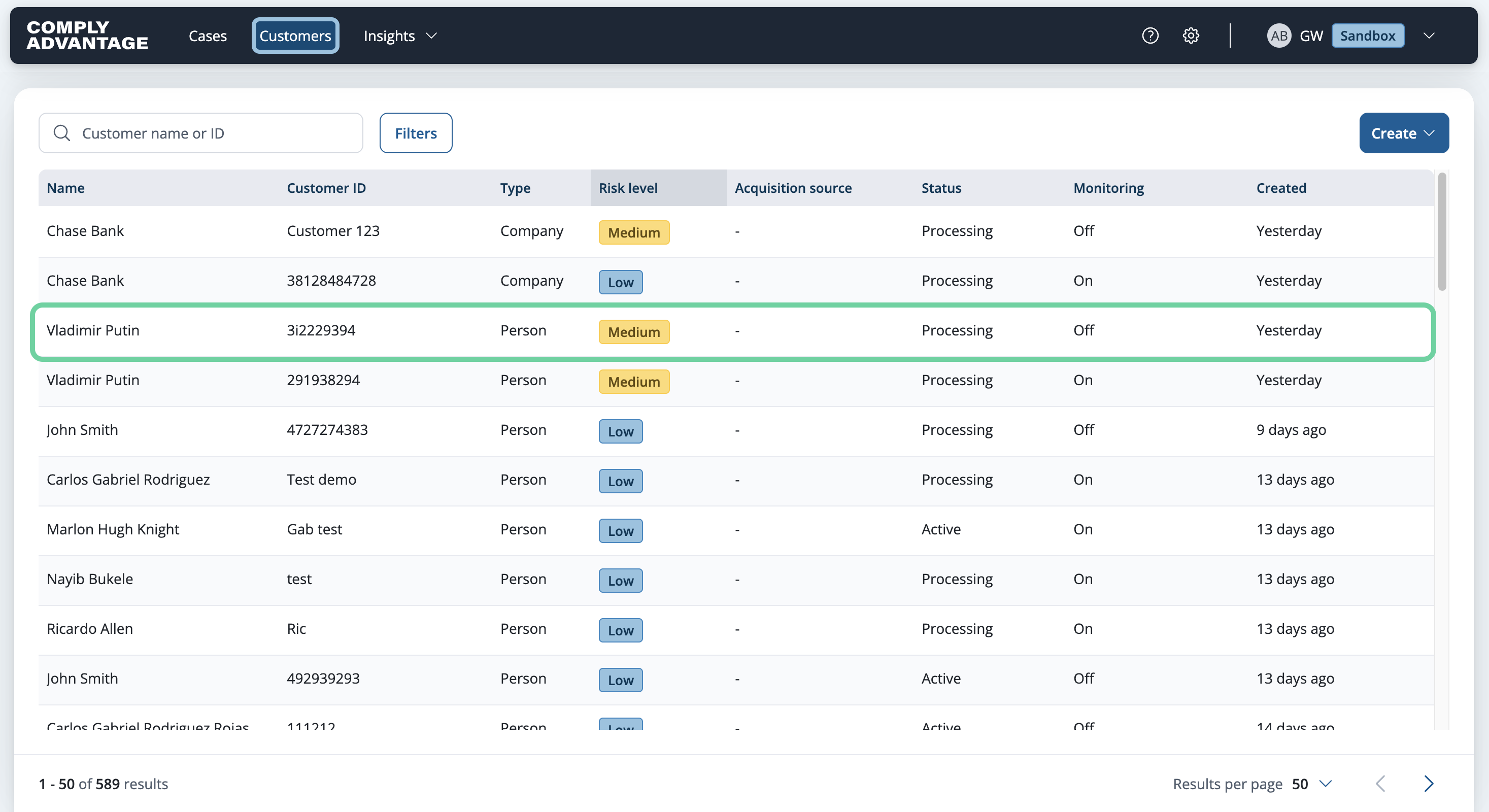
1. Select the customer
Select the customer you'd like to update.
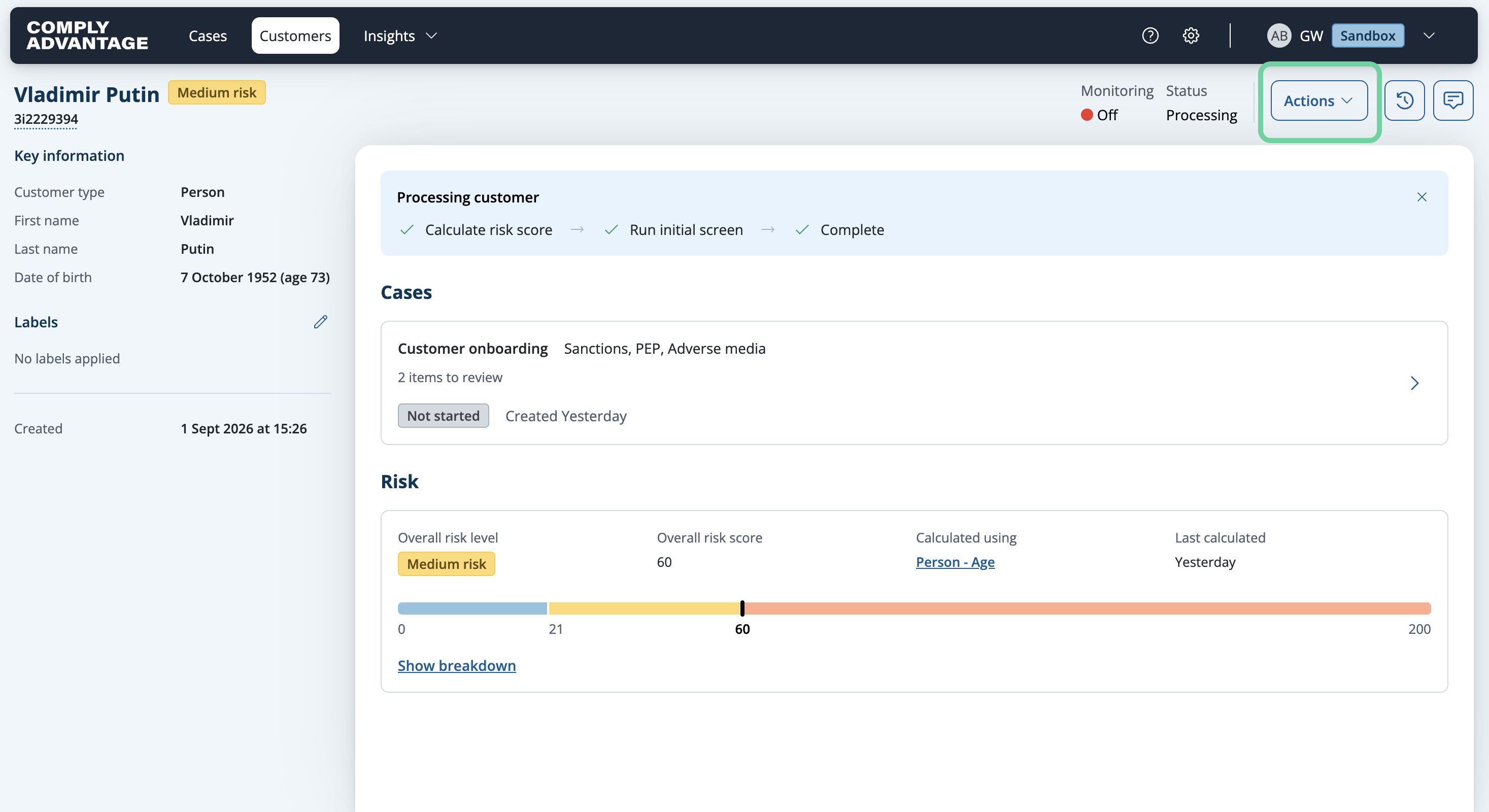
2. Click "Actions"
Navigate to the actions menu.
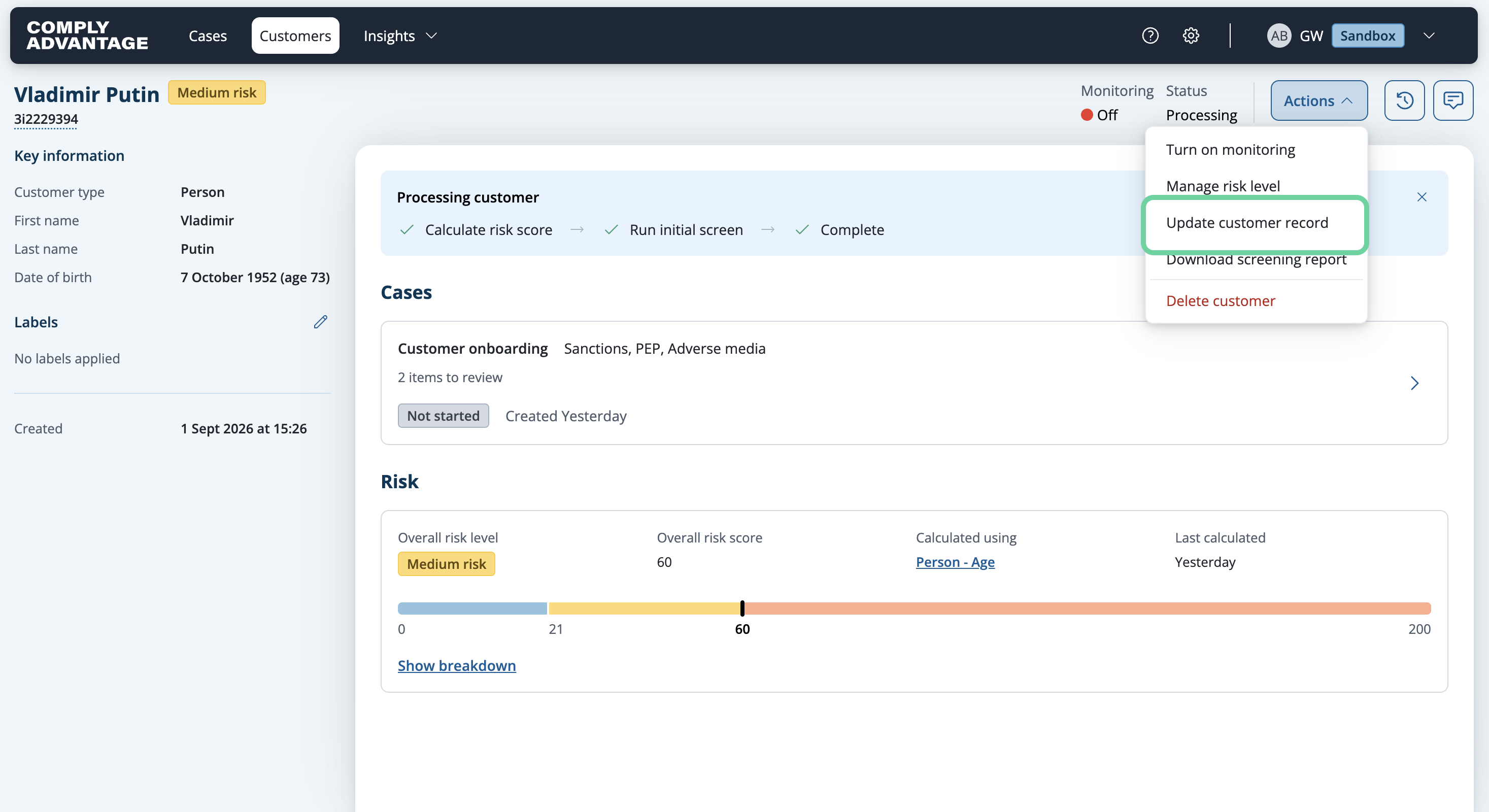
3. Click "Update customer record"
Select the option to update customer details.
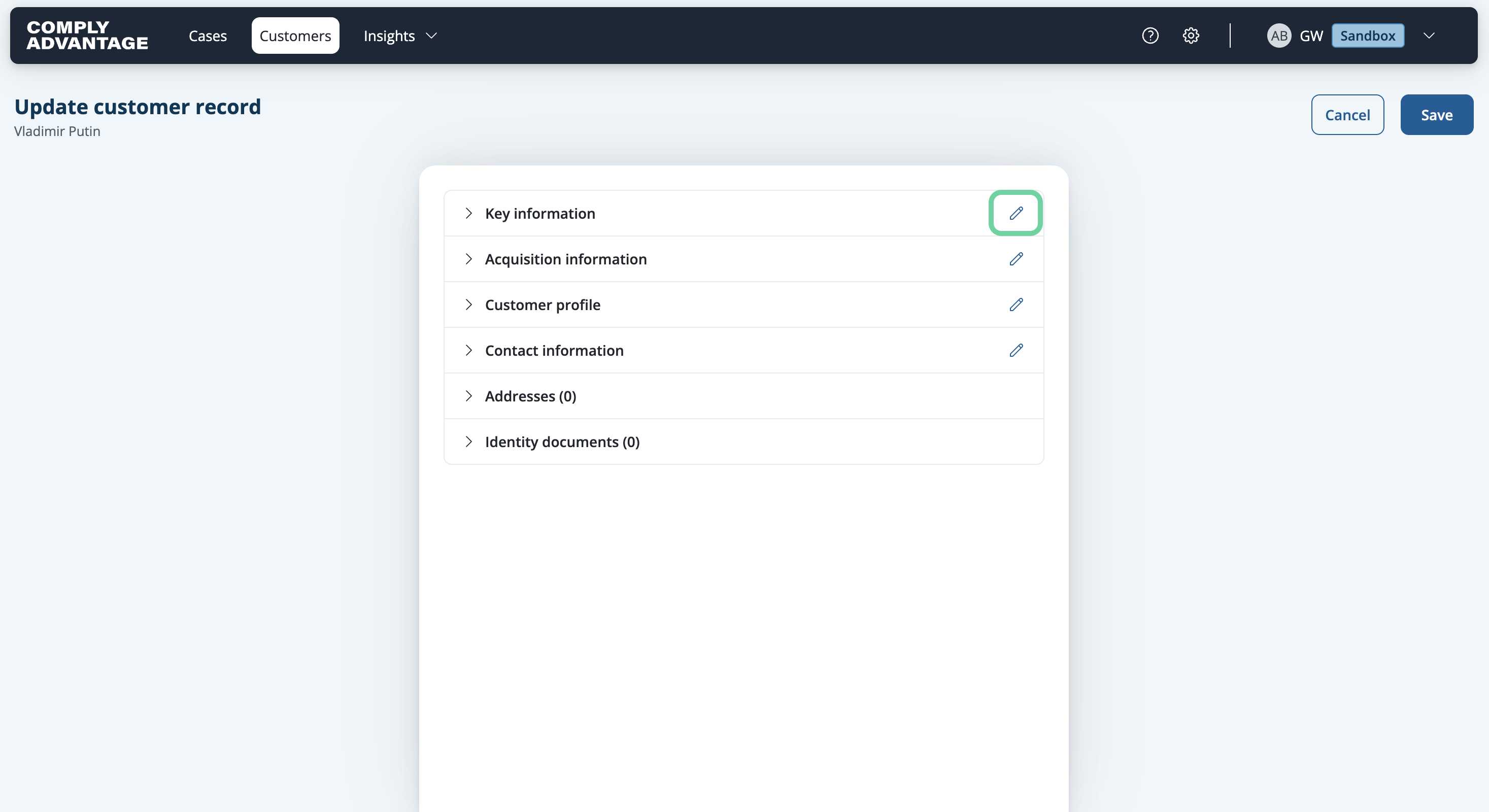
4. Click here
Click on the pencil next to the category you'd like to update.
5. Add updated information
Select the text box under the field you'd like to change and fill in the updated information.
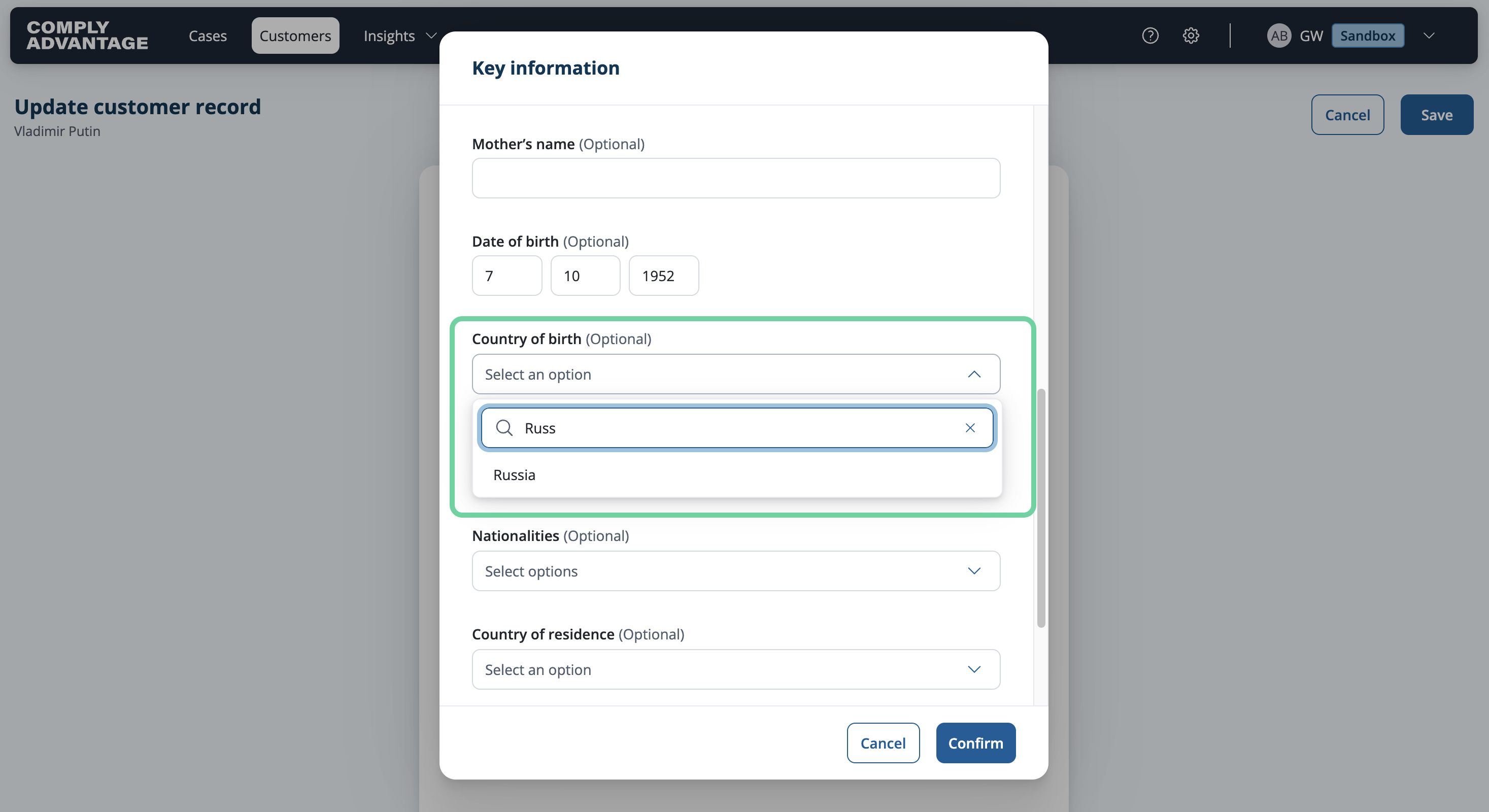
6. Select option
Select the desired option.

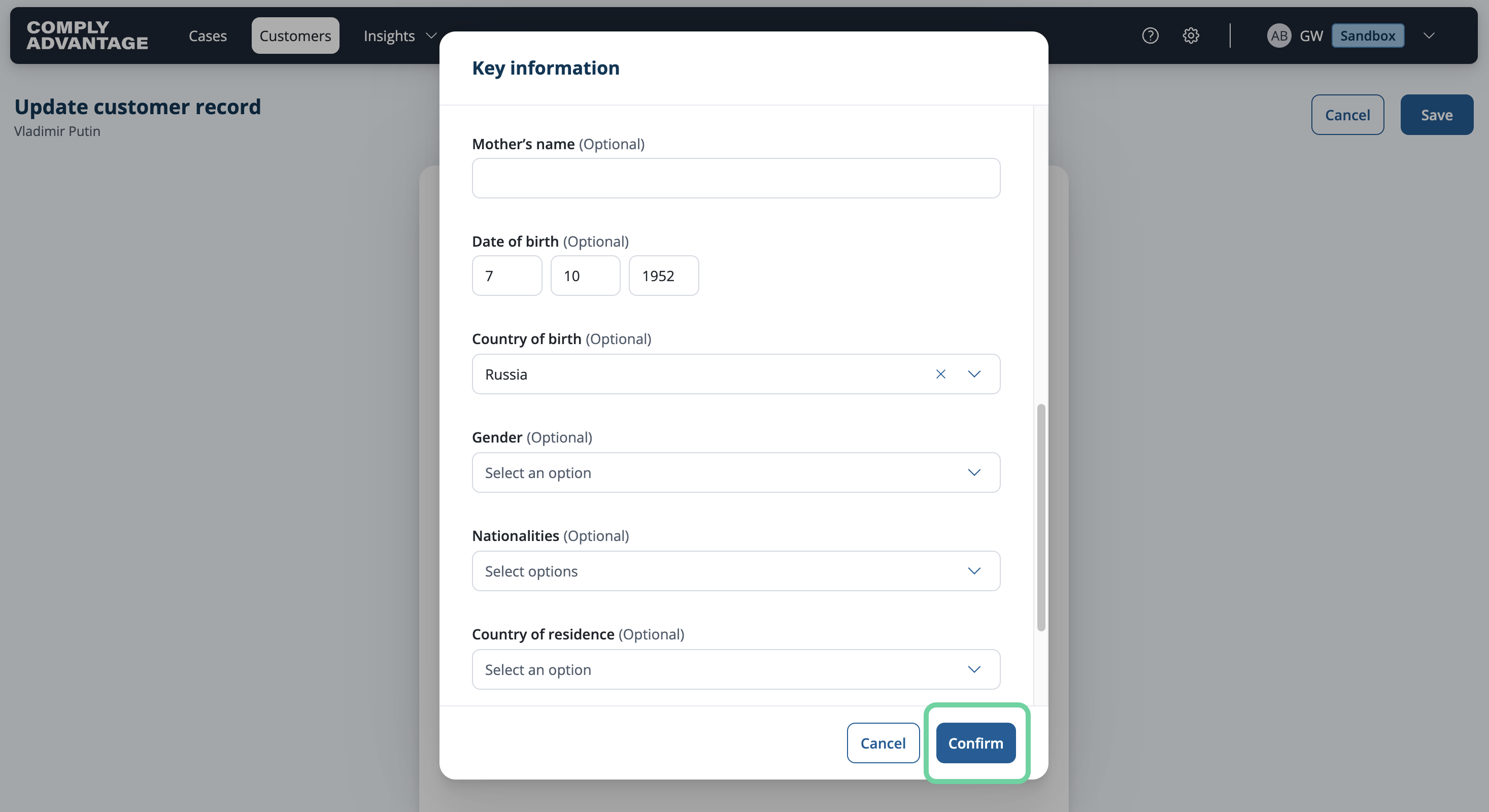
7. Click "Confirm"
Verify the changes.
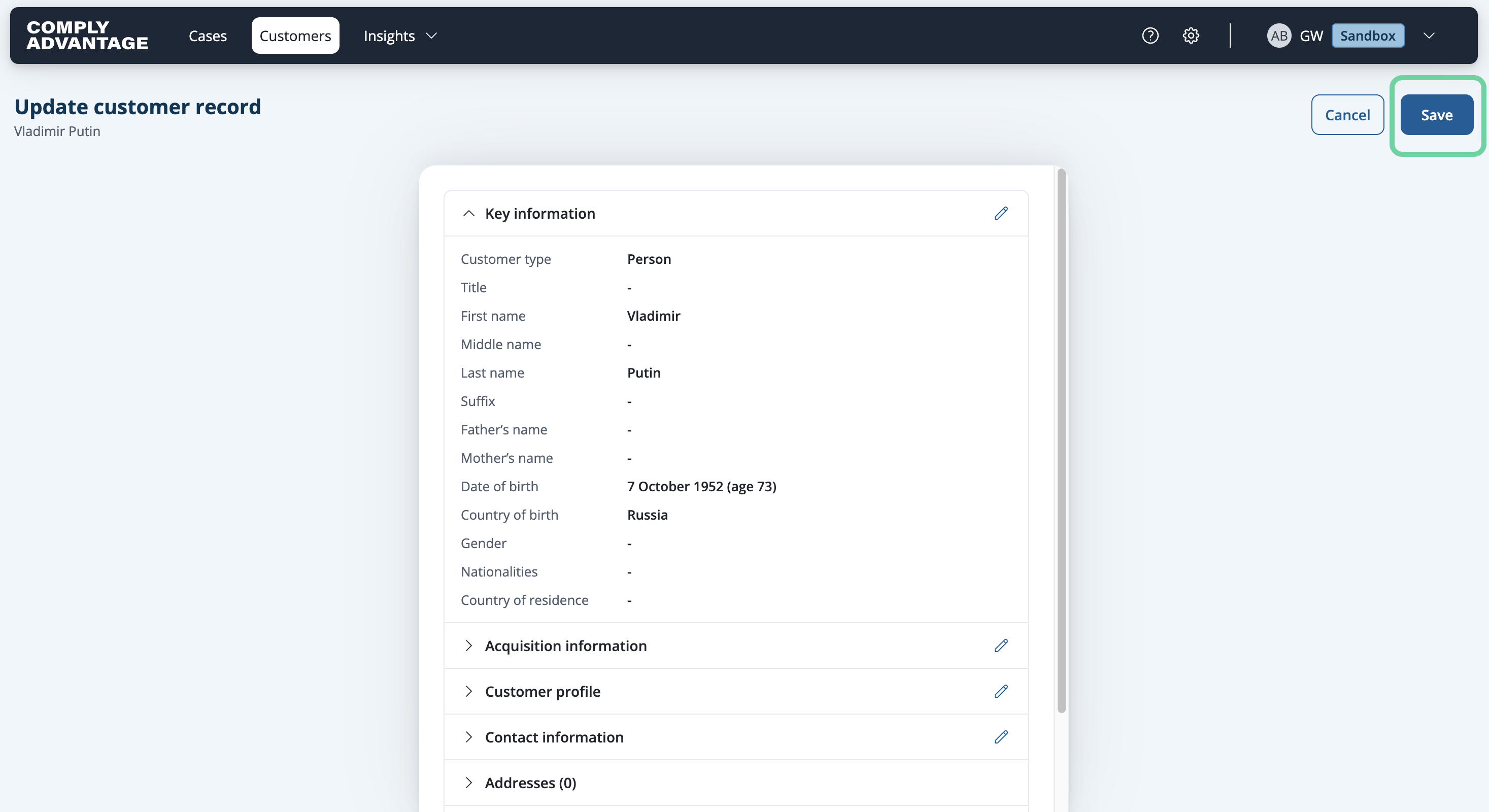
8. Click "Save"
You will now see the updated information on the customer record.

9. Click "Save"
Once complete, click "Save" to update the customer information.
We hope this guide helped you learn how to update customer information in Mesh.