Transitioning a case across stages in a workflow
Last updated: August 24, 2026
A case may need to transition through various stages during remediation. For example, some cases might need to be reviewed by an escalation team before a decision is made.
You will also be reminded at key points to move cases to the correct stage.
How to transition a single case through the workflow:
In the case view, select the Change stage from the case header.
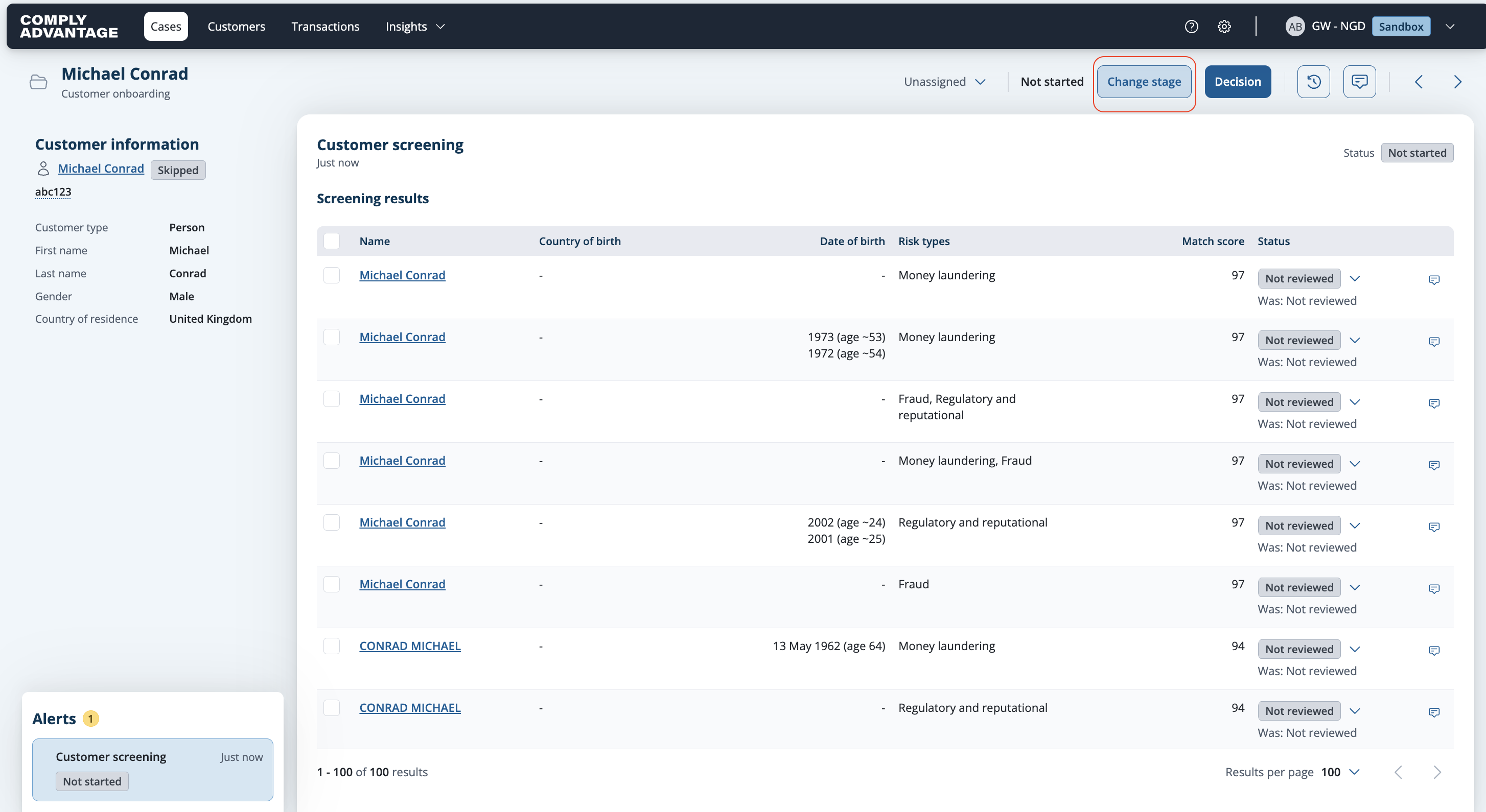
A modal will display possible stages to transition to (excluding the current stage).
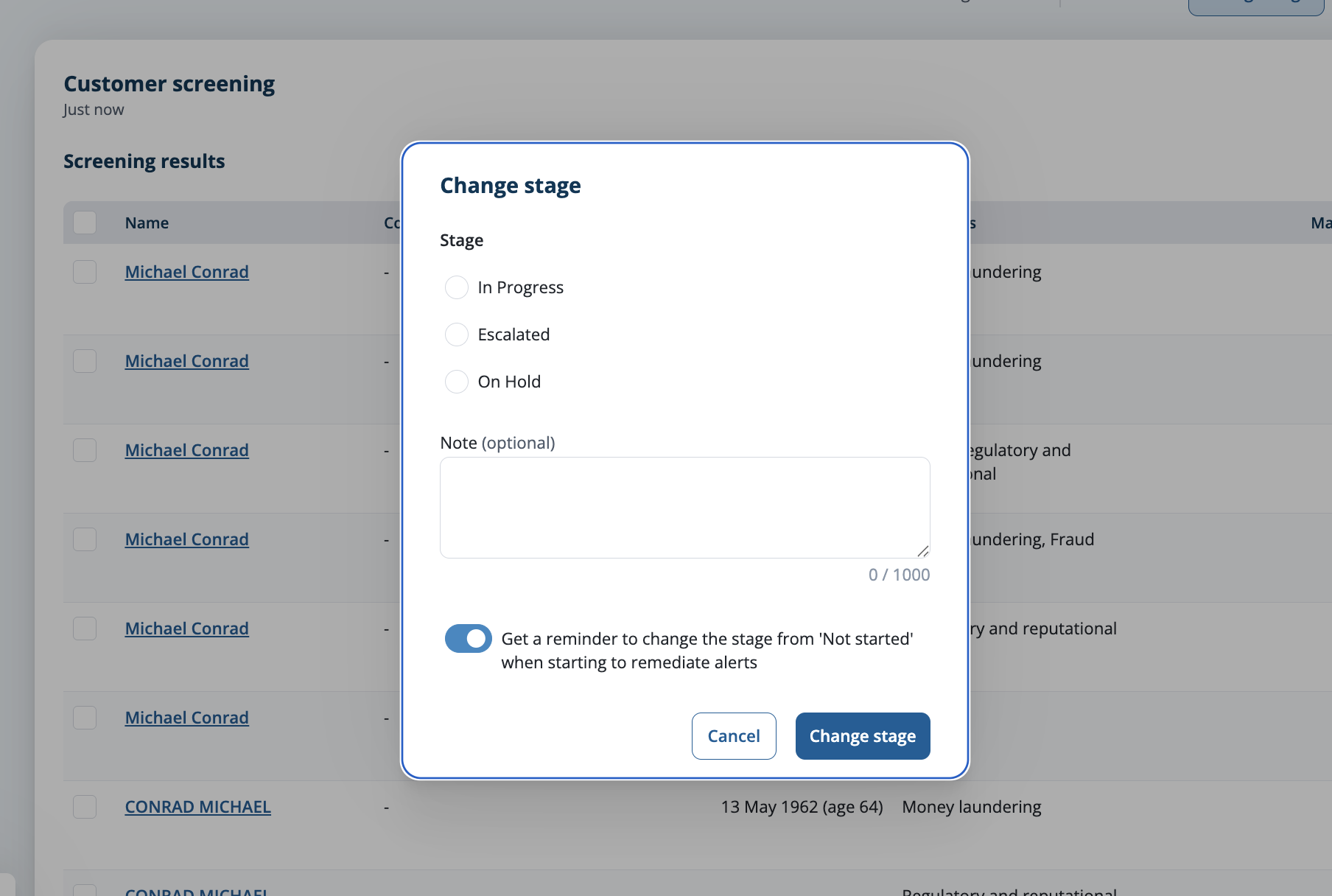
Select the new stage. Optionally, add a note and click Change stage button to complete the transition.
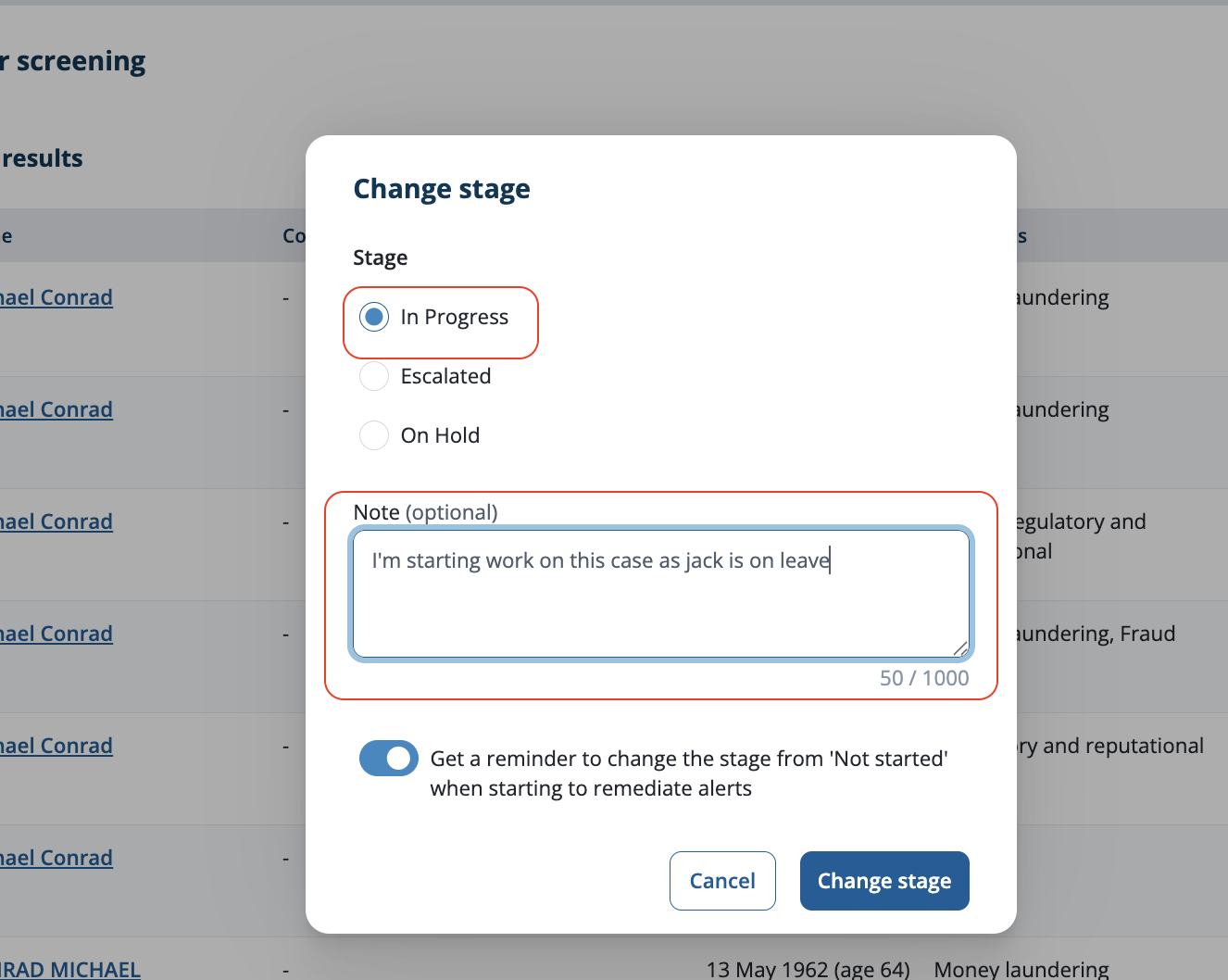
The case will now reflect the updated stage, and the audit log will also be updated.
How to transition multiple cases through the workflow:
From the case list, select all the cases you want to update.
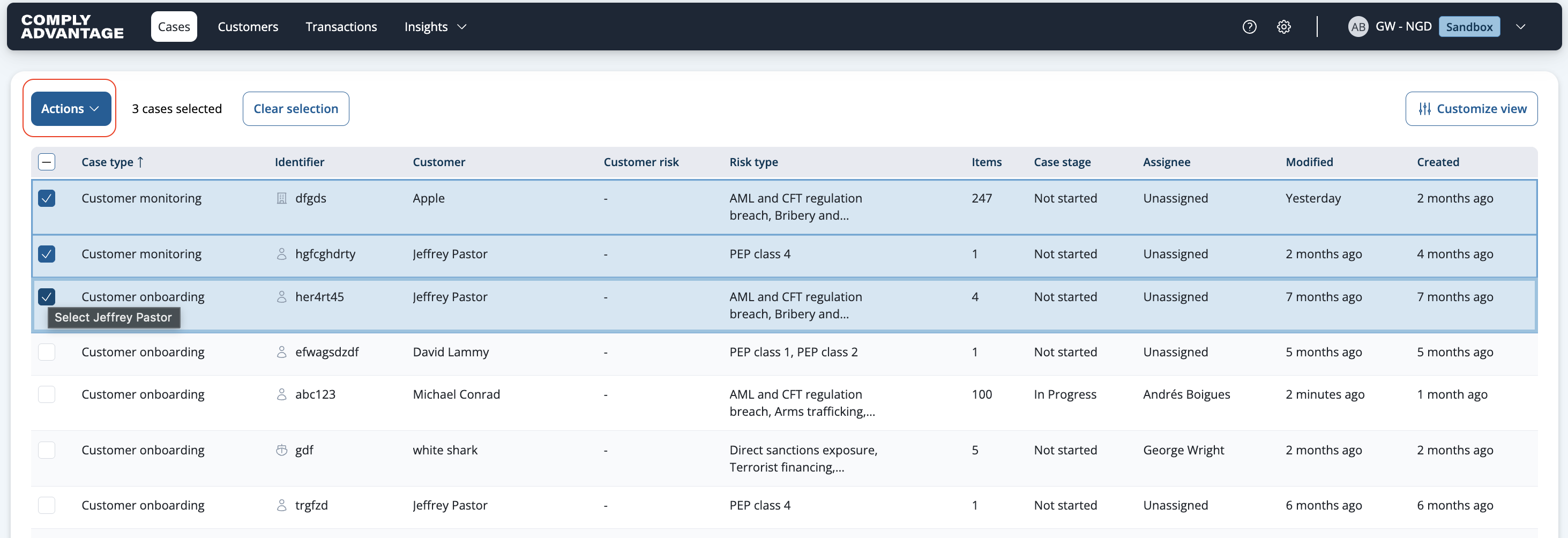
Click Actions and choose Change stage.

Select the new stage. Optionally, add a note.

The case will now reflect the updated stage, and the audit log will also be updated.
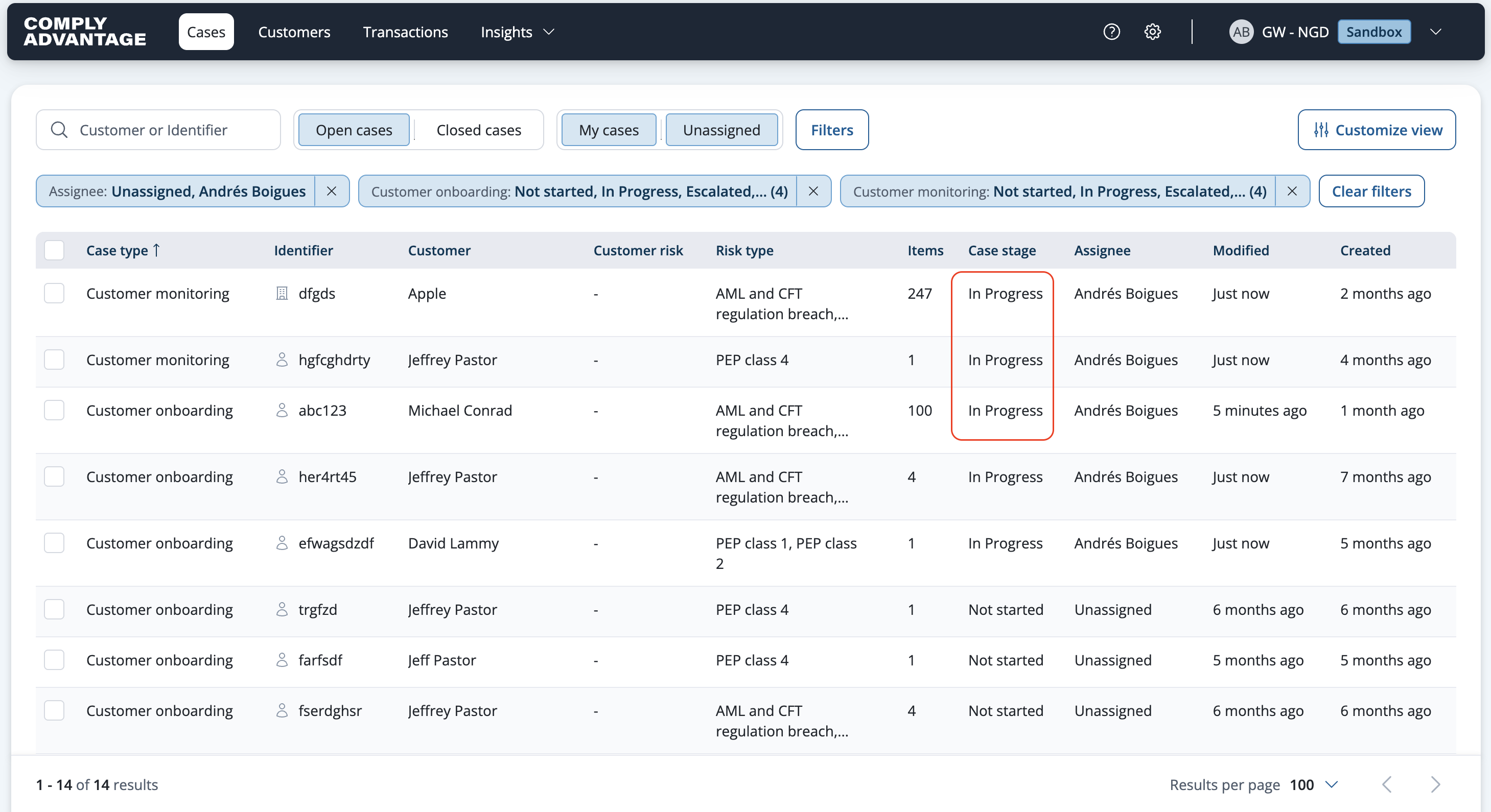
Transitioning from review stage to another review stage & changing assignee
When moving a case that is in a review stage to another review stage, the Change stage modal will give you the option to change the assignee on the case. By default, it will unassign the case.
Reminder when starting work on a case in the initial stage
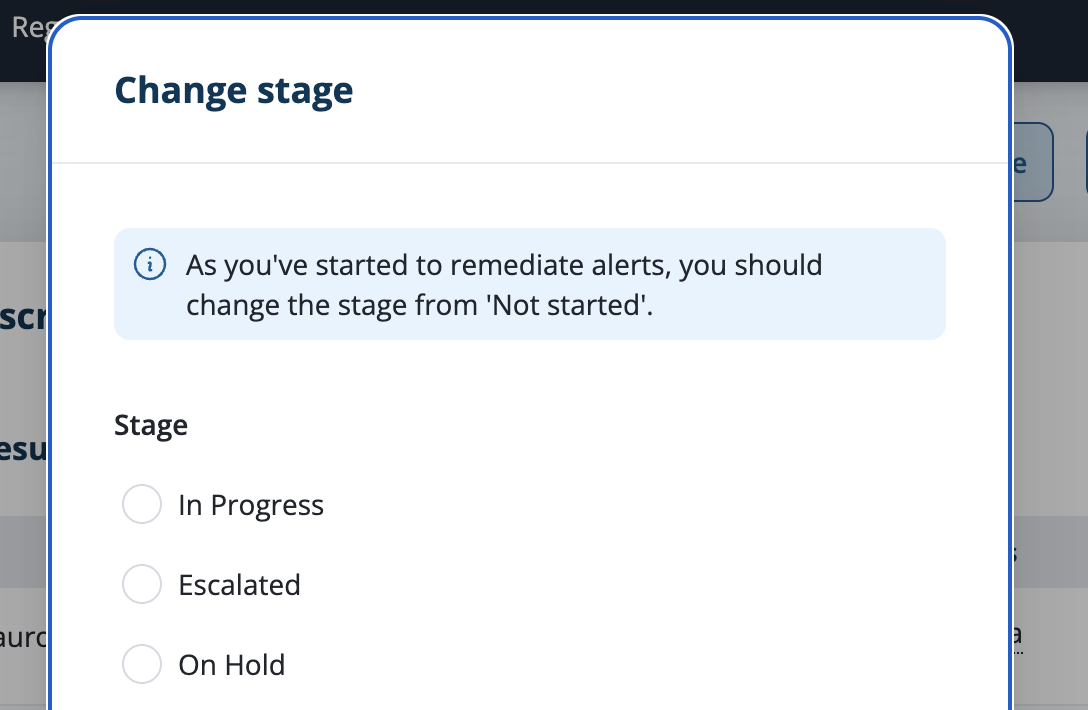
If you open a case that is in the initial stage, and you start to make a change to a profile status:
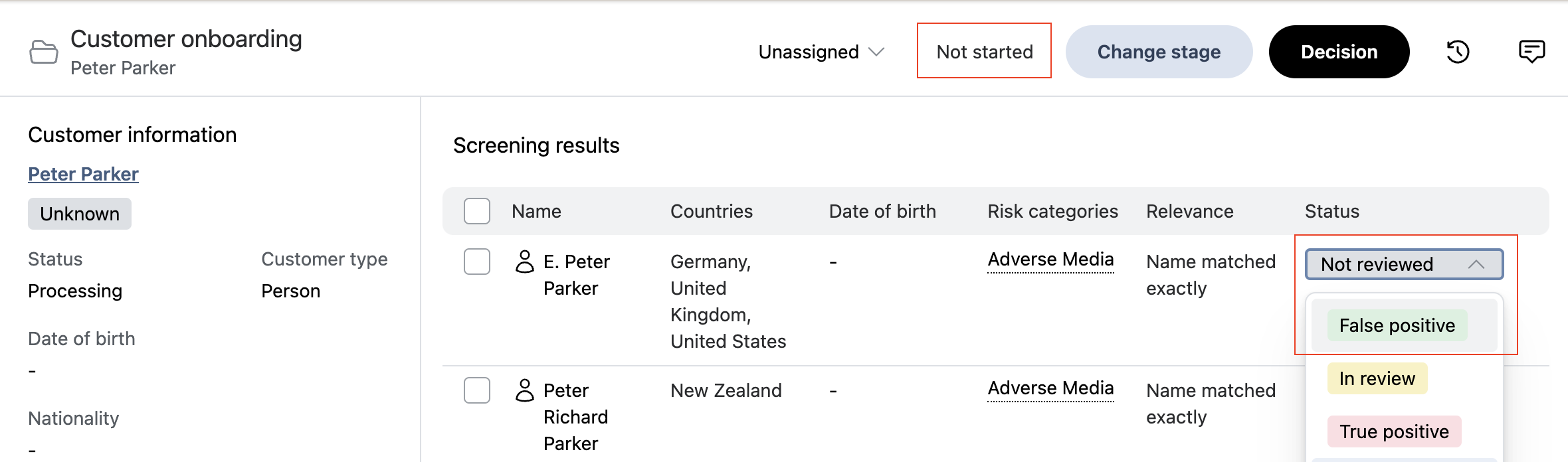
... a change stage modal will pop up reminding you to move the case to a review stage:
Reminder when all profile statuses are reset to 'Not reviewed'
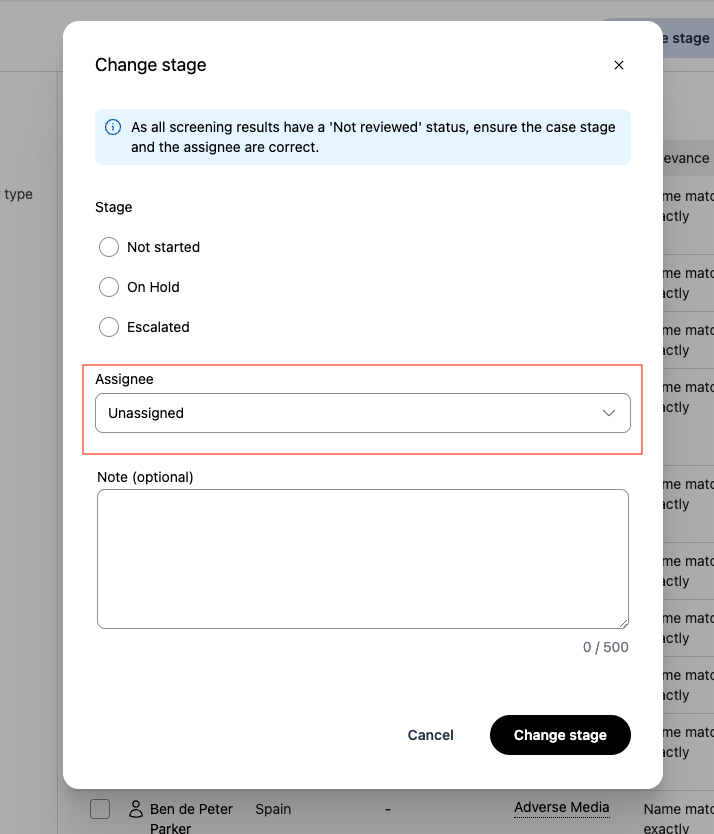
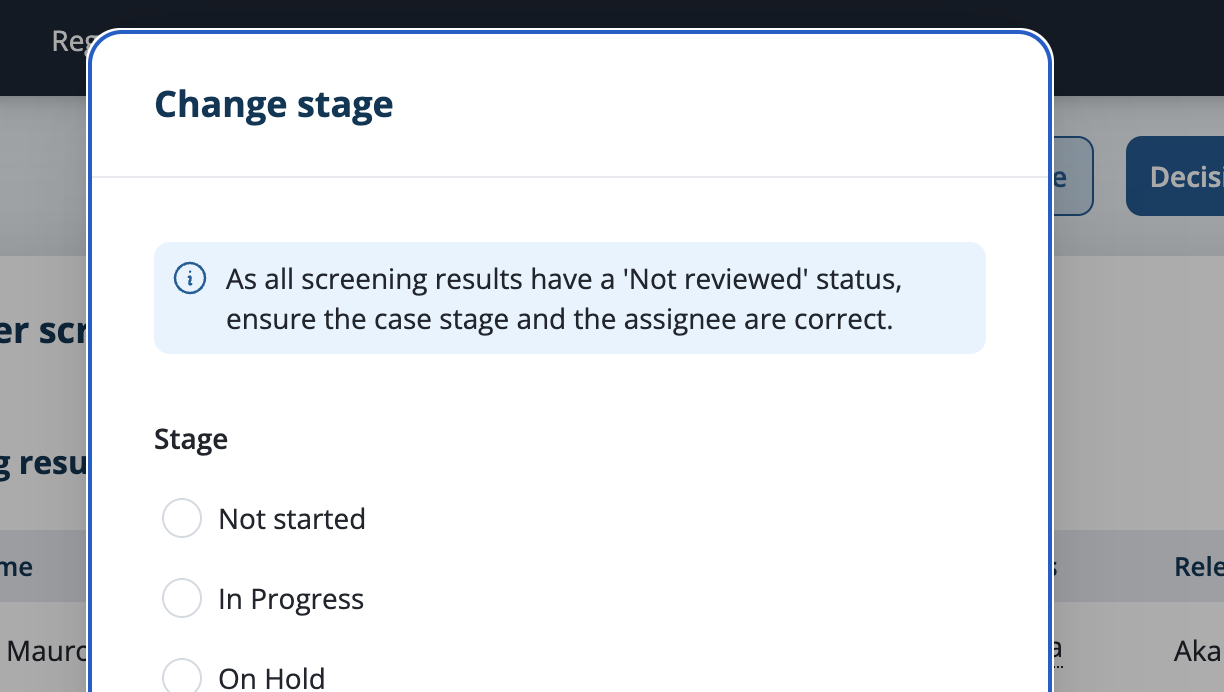
If you are working on a case that is in a review stage, and if you move all profile statuses to Not Reviewed:
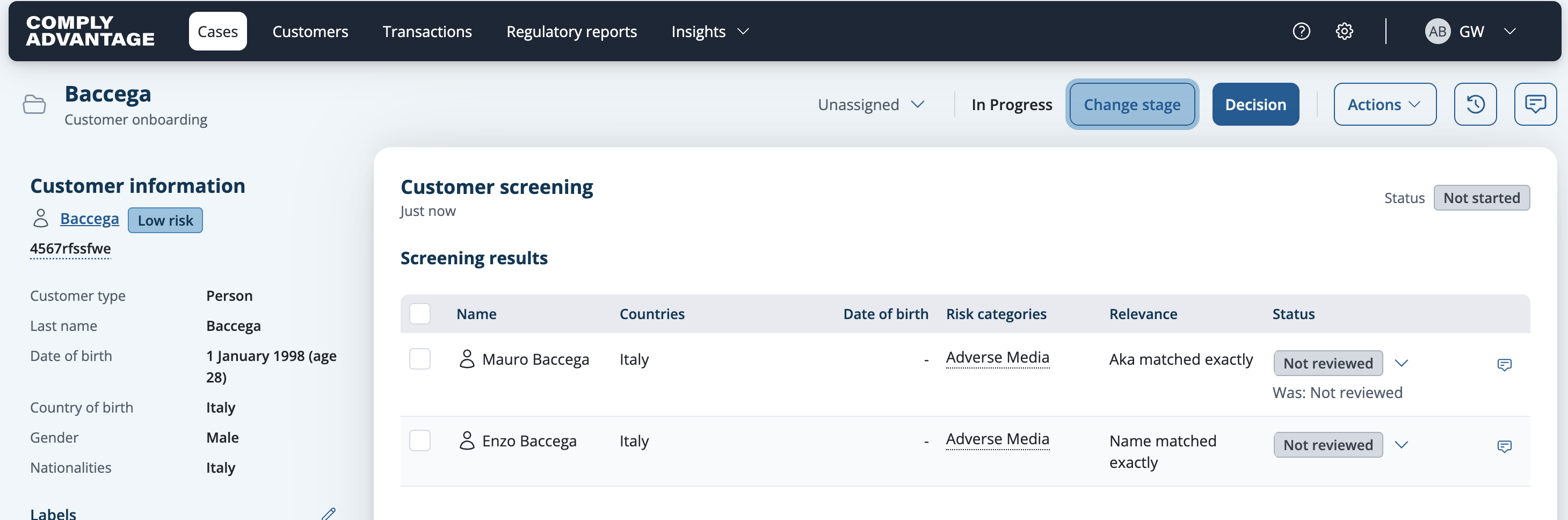
... the Change stage modal opens, prompting you to check that the case stage and the assignee are still correct:
Important to know - When the reminder does not appearThe reminder is suppressed in three situations, all of them intentional. If you expected it and did not see it, check these first:
|