Closing a case
Last updated: August 19, 2026
When you've finished reviewing a case, you close it by making a decision on it. You do this from the case view page or the case list.
Closing a case from the case view page
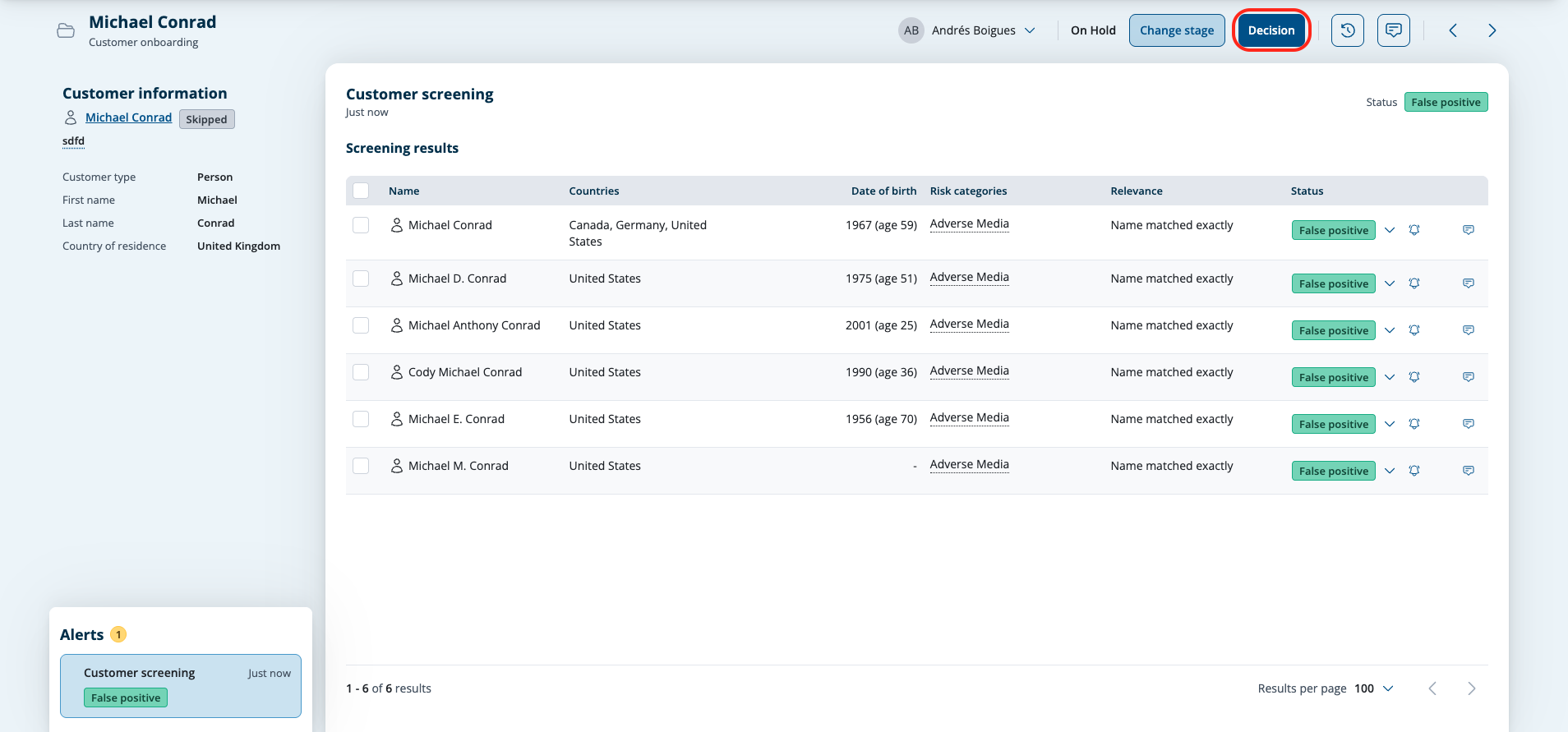
Click the Decision button in the top right of the case view page. This example shows a customer monitoringnboarding case.
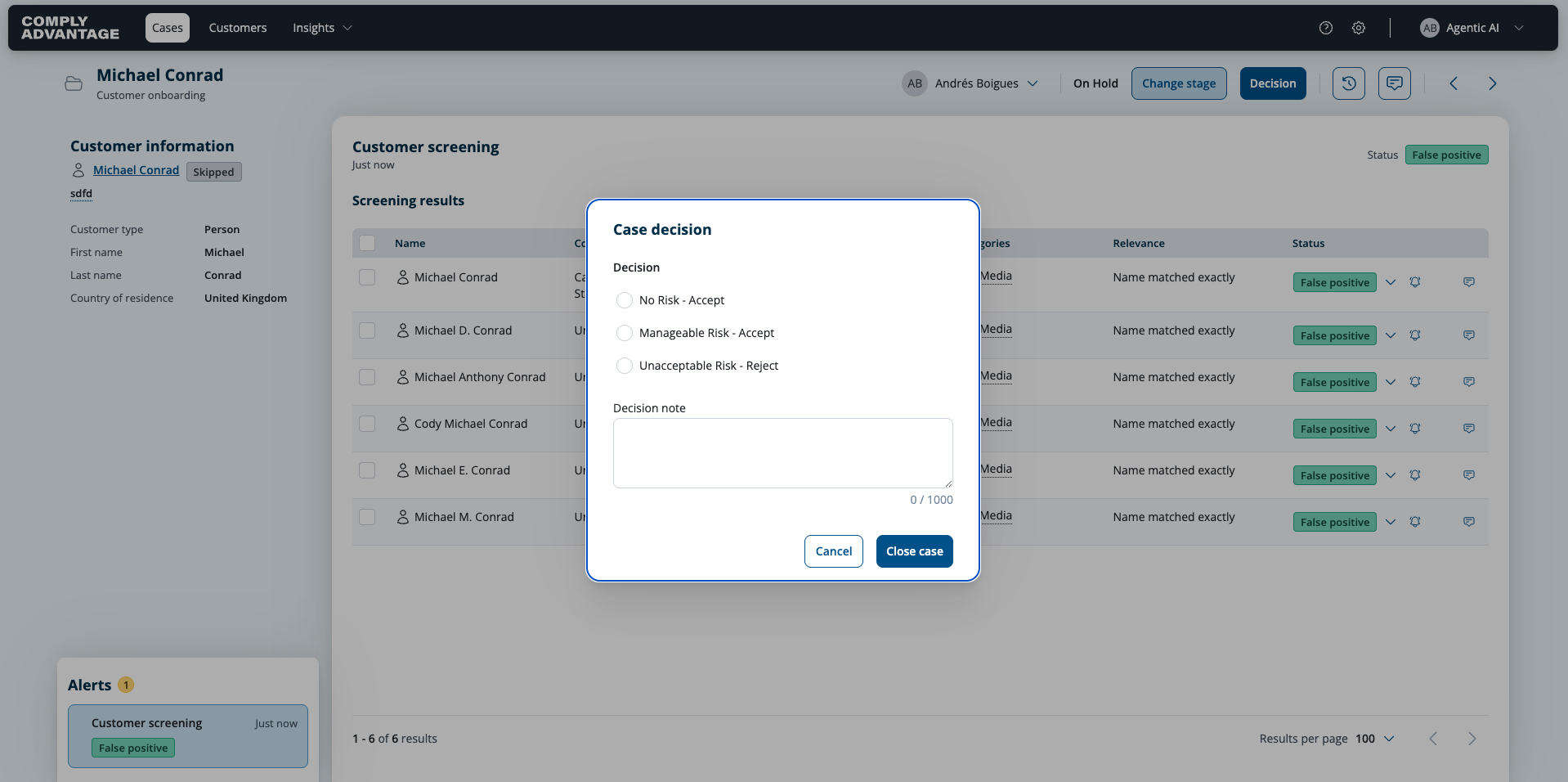
In the pop-up window select the case decision. The default options are:
No risk - Accept
Manageable risk - Accept
Unacceptable risk - Reject
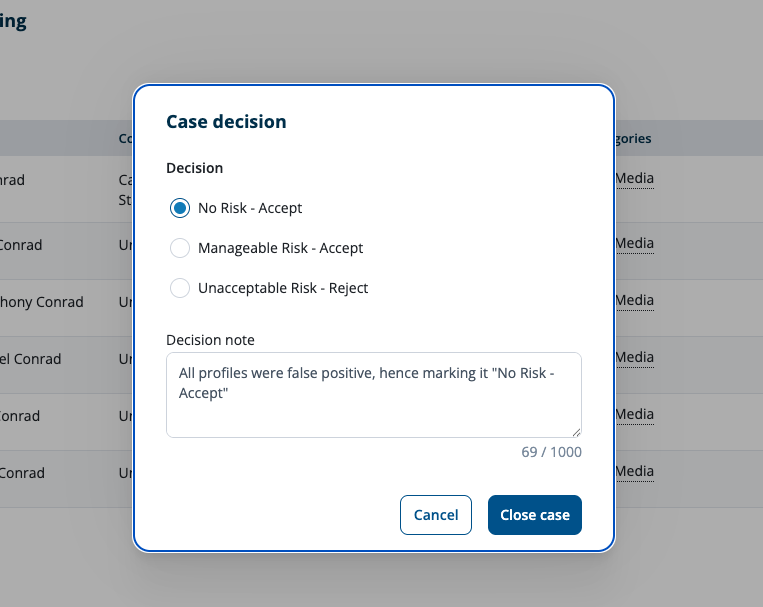
Enter a decision note and select Close case.
You'll see a success notification.

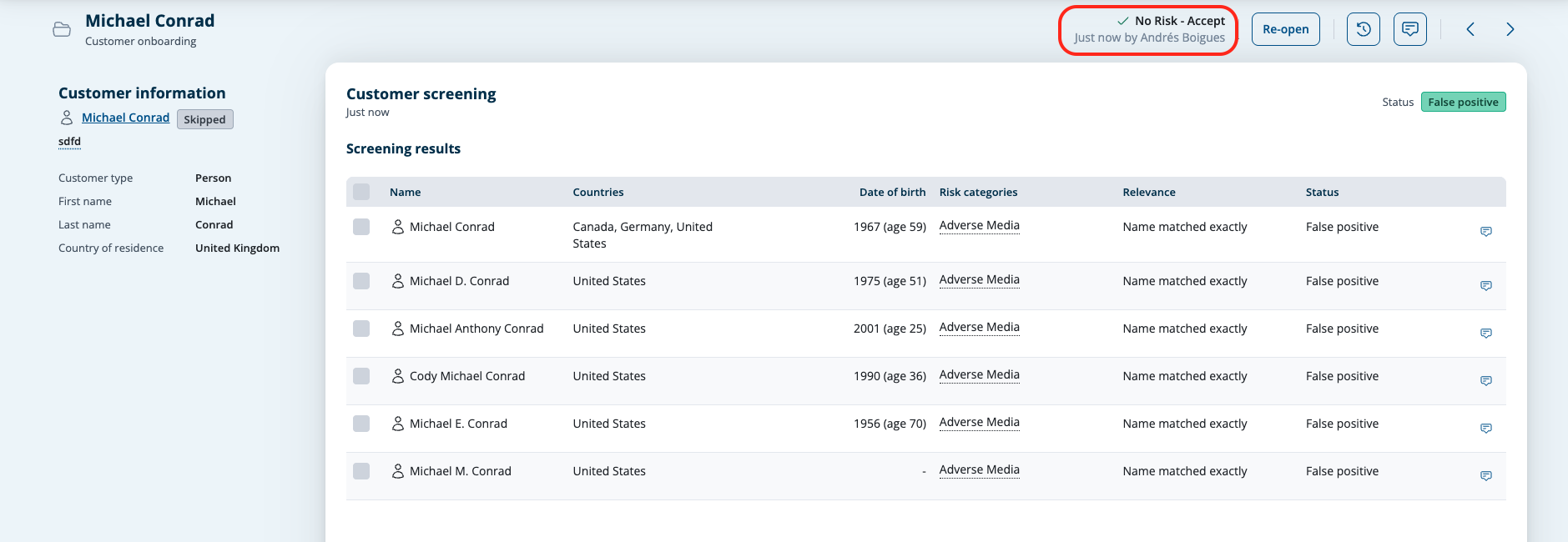
The case header is updated to show the case decision.
Closing a case from the case list
Go to the case list page by clicking Cases in the top left.
Find the case to be closed using the search or filters.
Select the checkbox beside the case you want to close.
When one or more cases are selected the Actions button appears in the top left.
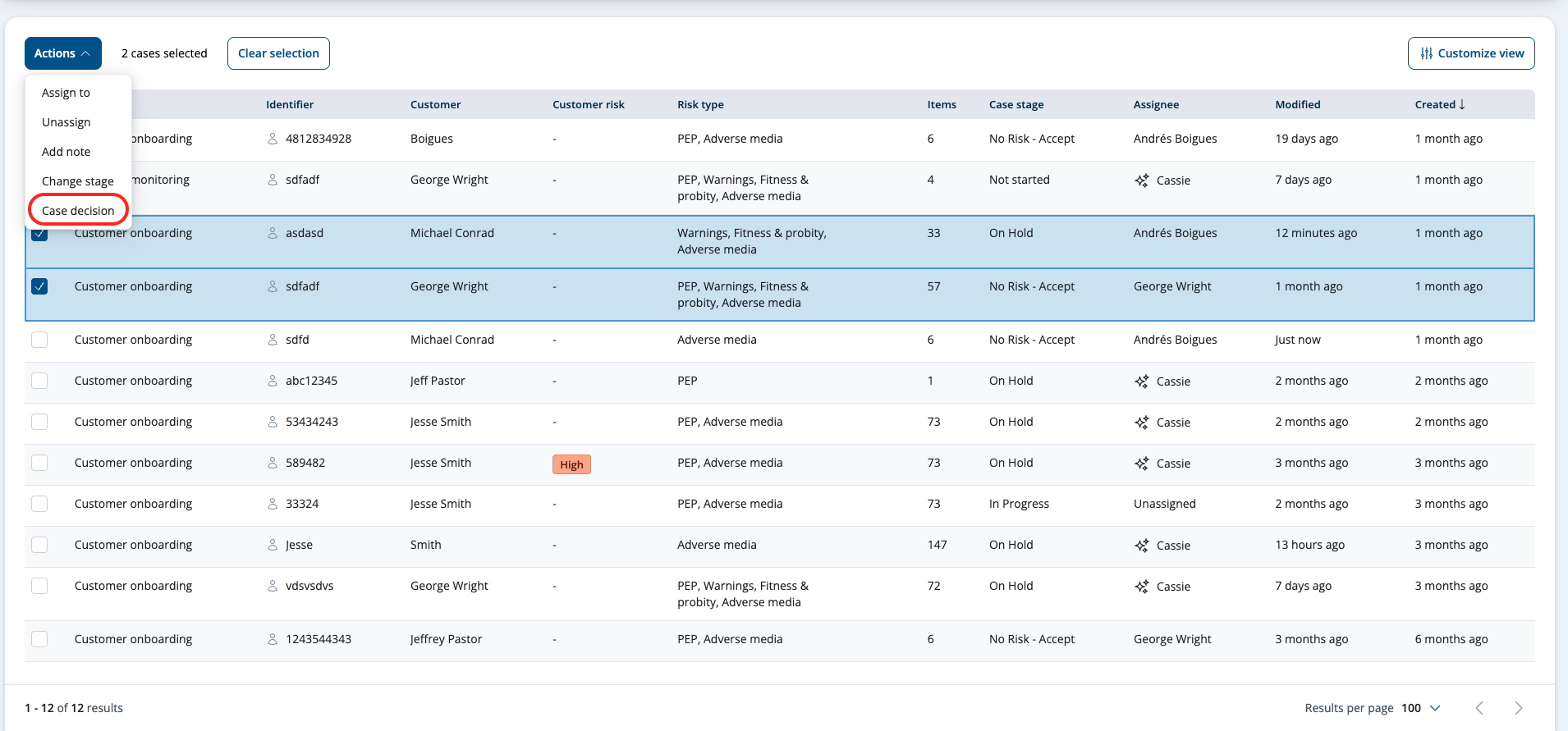
Open the Actions menu and select Case decision.
In the pop-up window select the case decision. The default options for a Customer monitoring case are:
No risk - Accept
Manageable risk - Accept
Unacceptable risk - reject
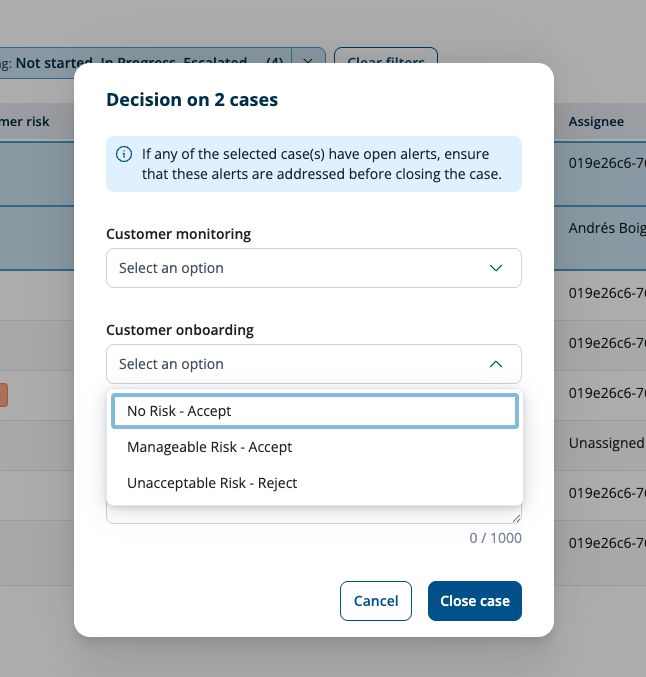
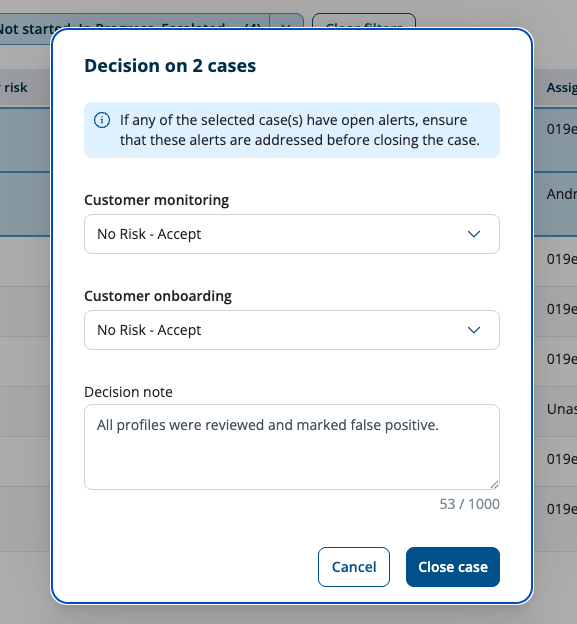
Type in a decision note and select Close case.
You'll see a success notification.

The case stage column in the case list is updated to show the case decision.
