Video: Managing, searching, and sorting cases
Last updated: October 13, 2026
In this guide, you will learn how to manage, search, and sort for cases in Mesh.
When logging in to your account, please ensure you select the correct region, which will be one of the following:
Australia: https://au.mesh.complyadvantage.com/
You can find the link to your region in the onboarding email you received (look for the "Welcome to ComplyAdvantage" email).
If you can’t find the email, don't worry! You can always contact our support team at [email protected].
1. Enter Unique Identifier
First, you can search for a customer by entering their unique identifier.
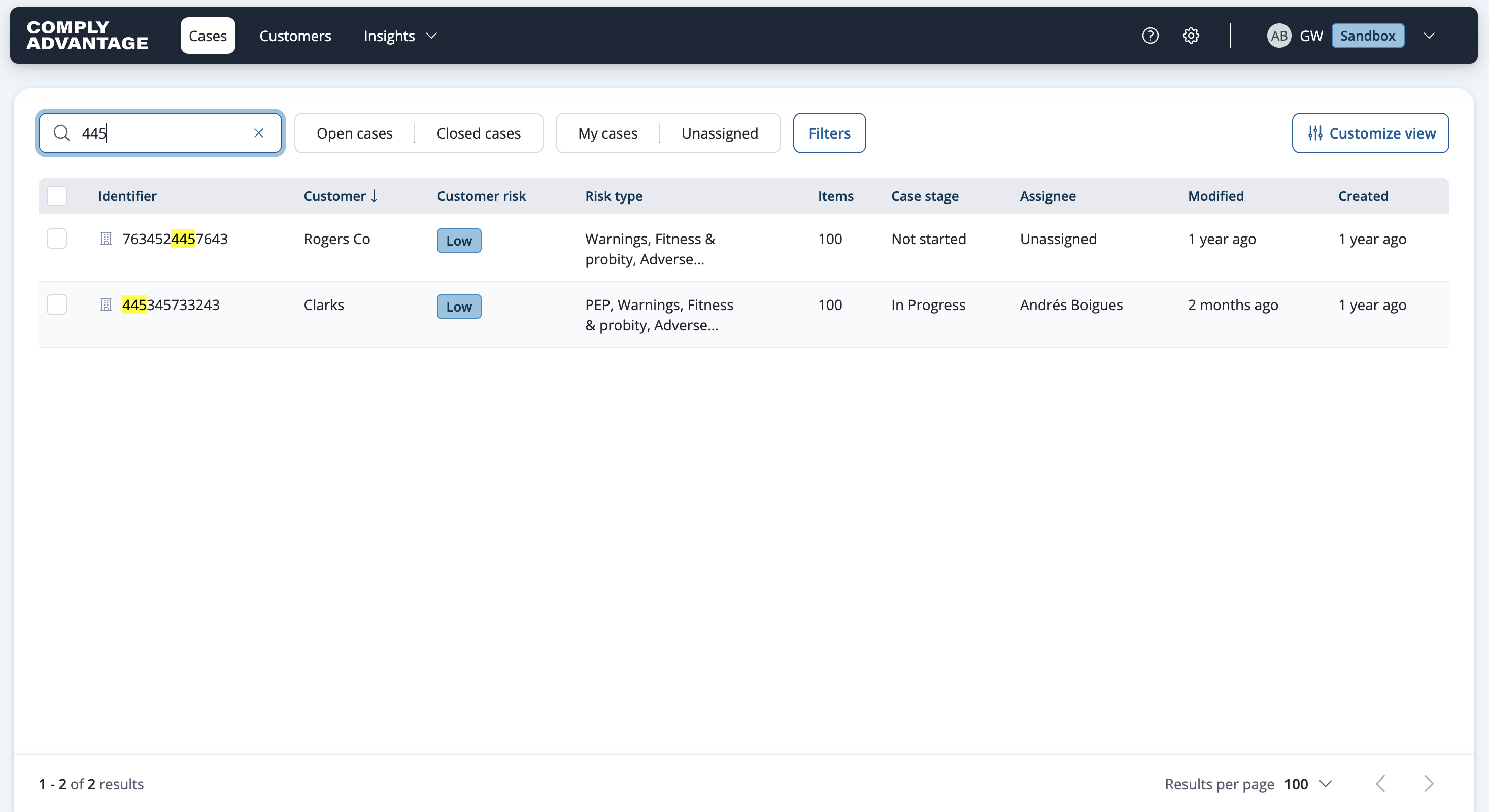
2. Enter a name
Or, the customer's name.
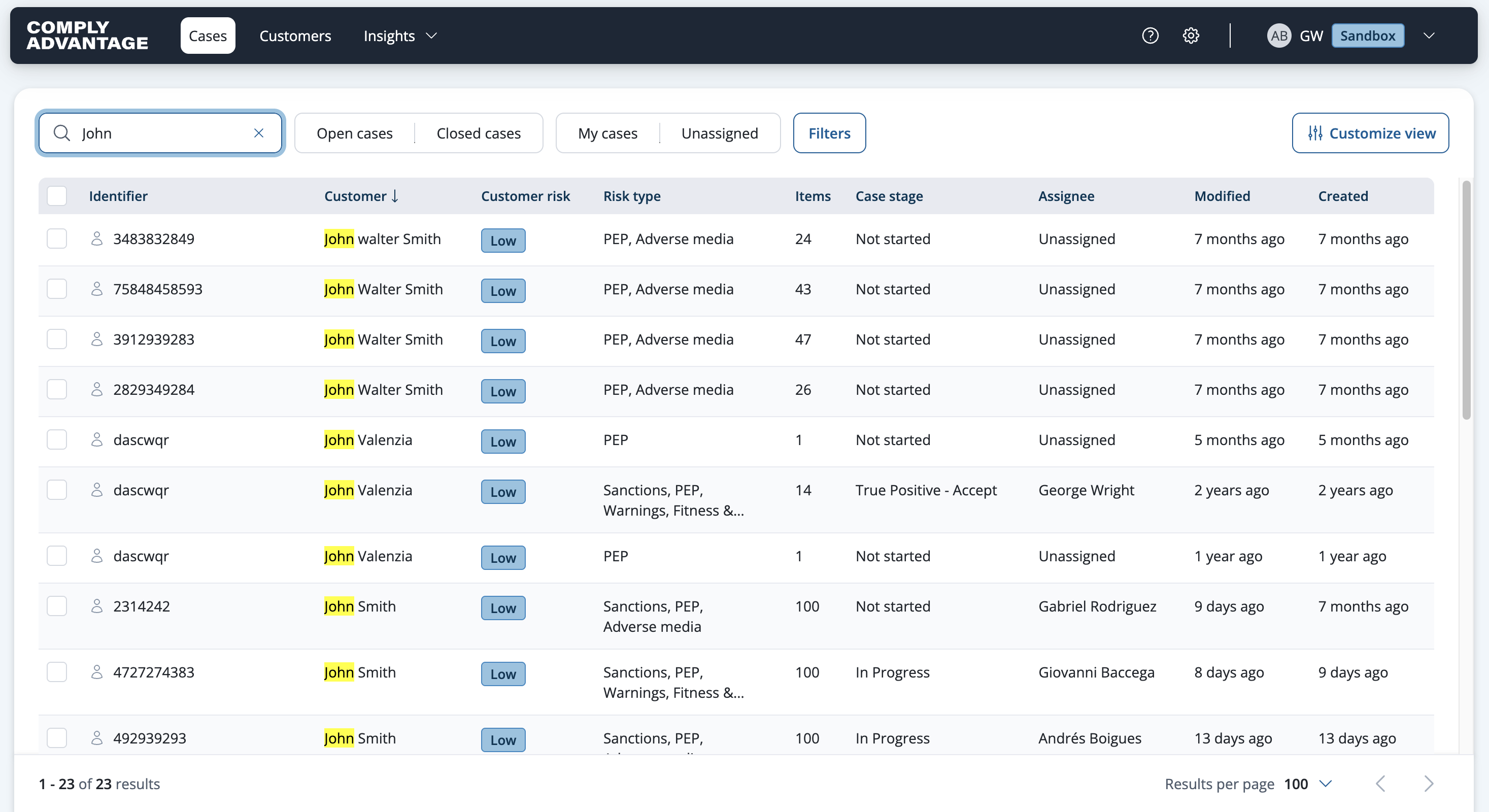
3. Adding case filter
By default, the filtering is set to populate only Open cases.
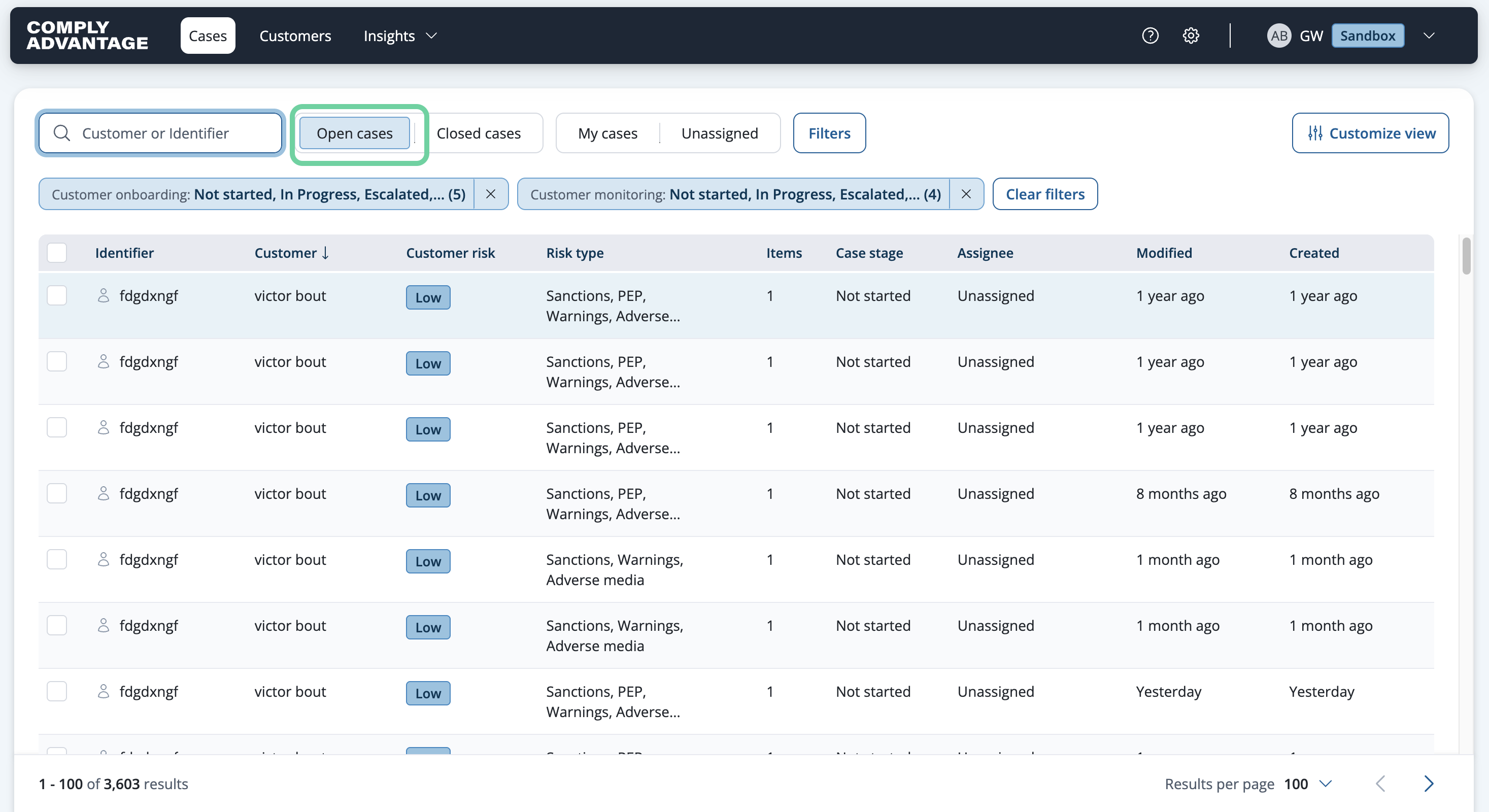
4. Adding case filter
However, you can also filter by both open and closed cases.
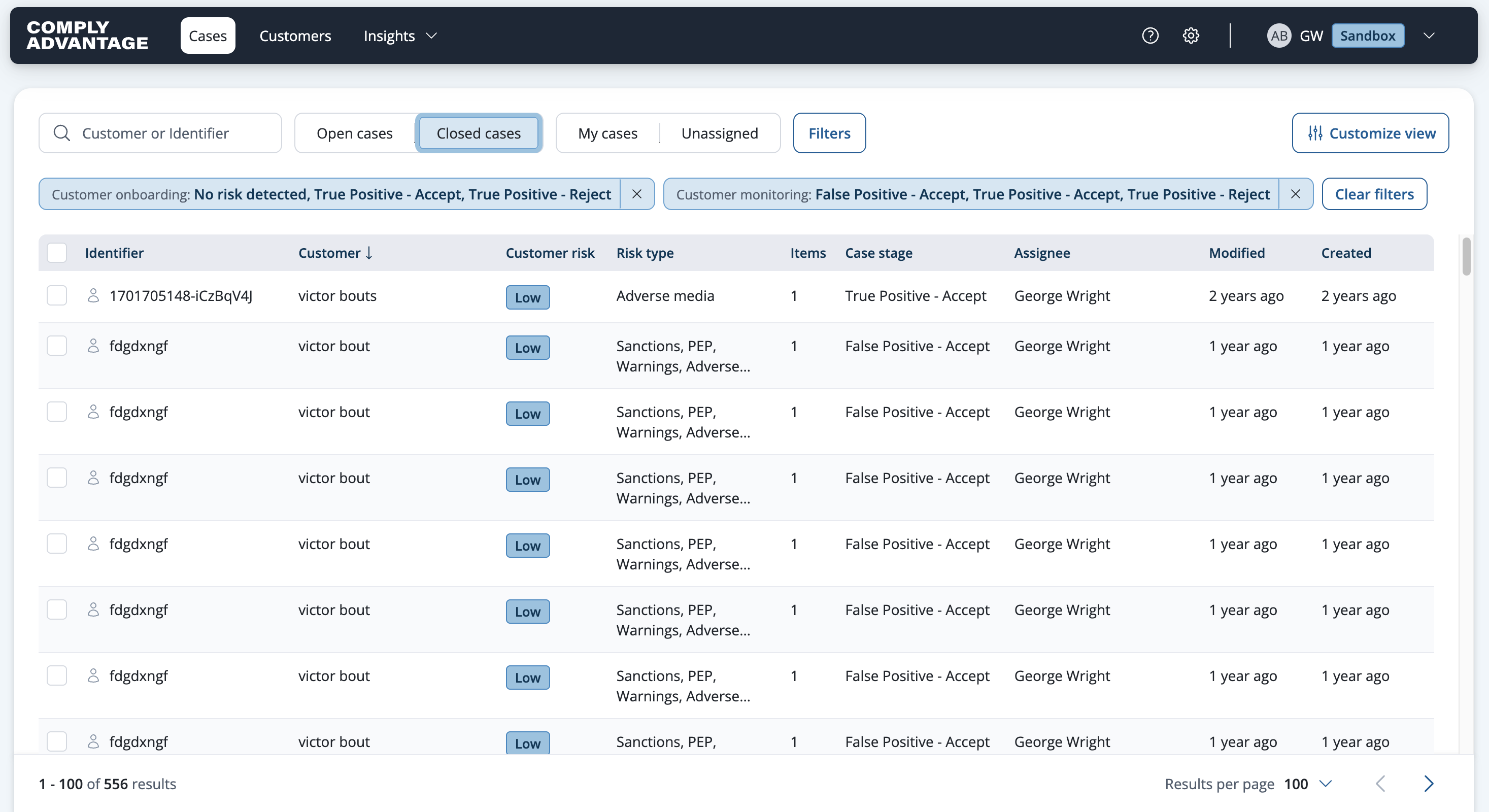
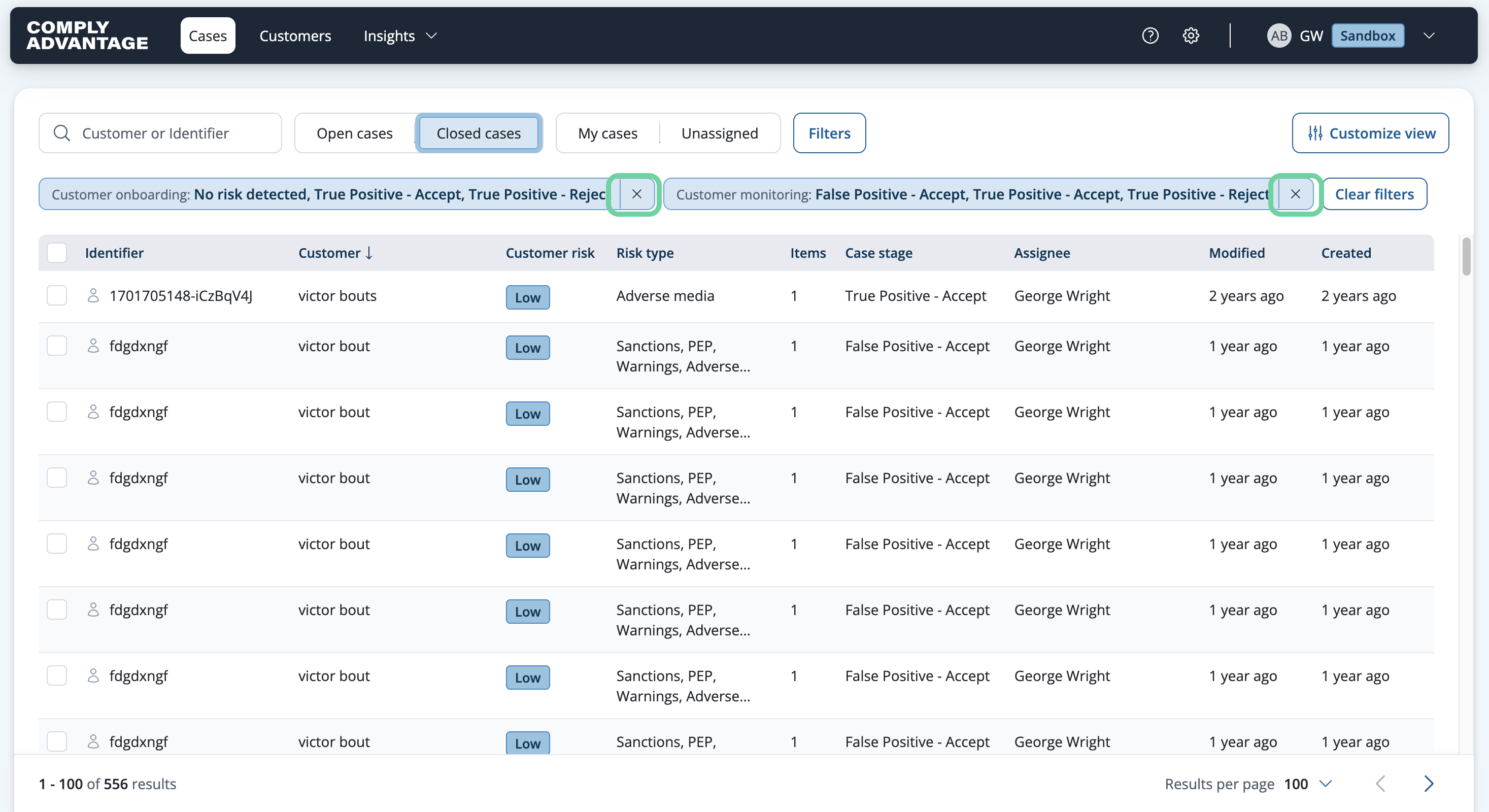
5. Clear filters
Click on the X button next to it to remove each filter.
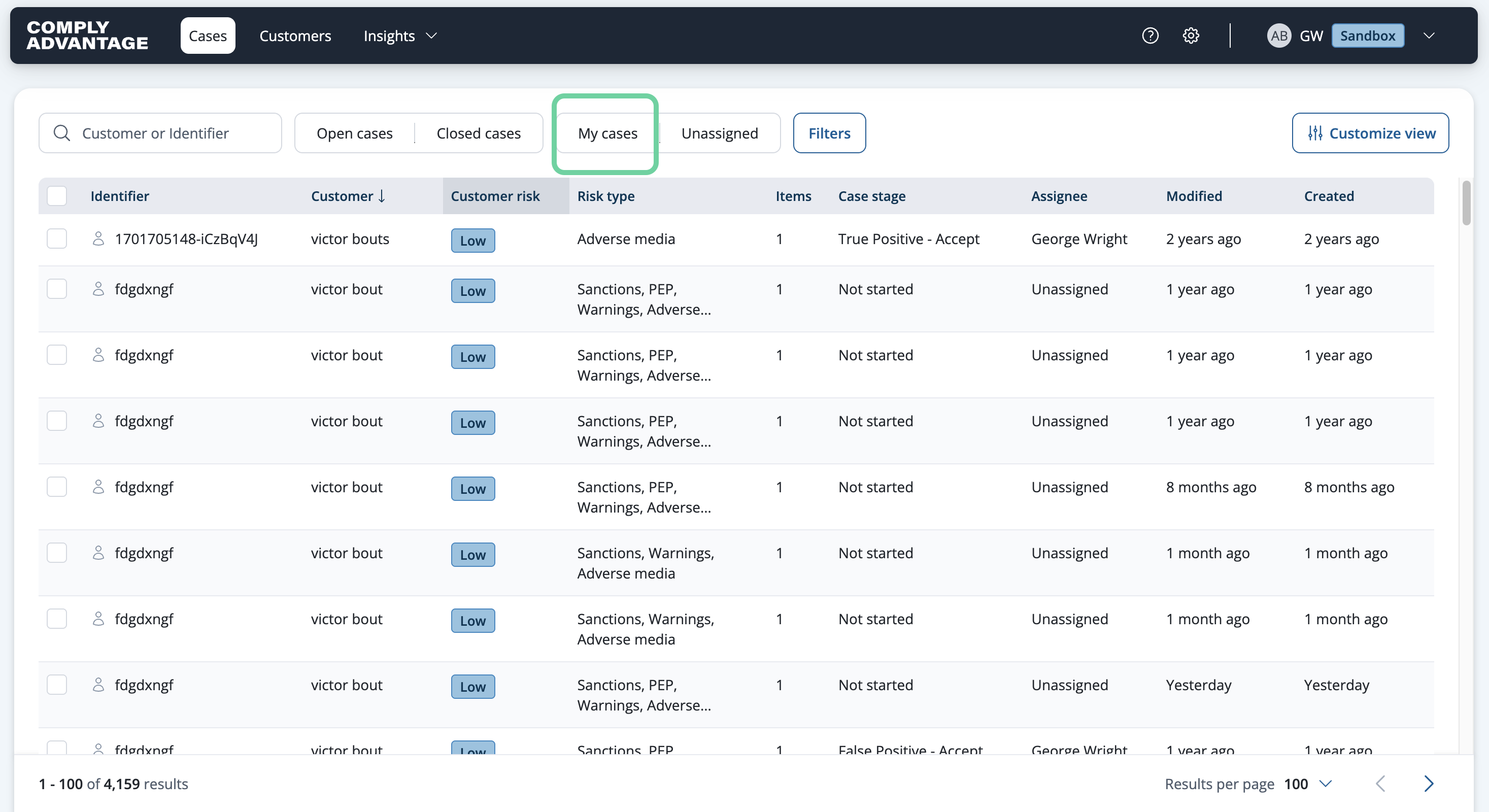
6. Click "My cases"
Next, click here to access the cases assigned to you.
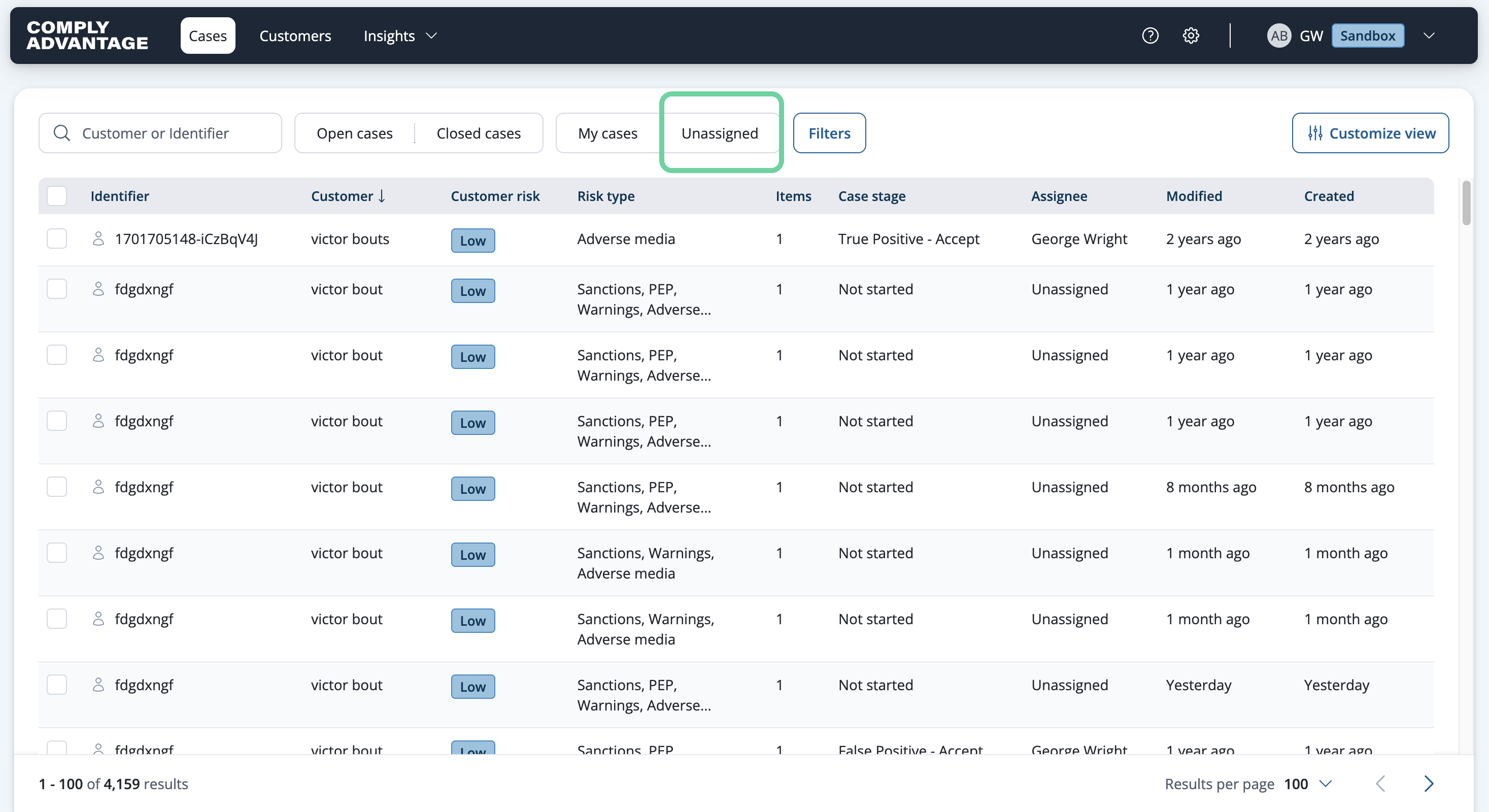
7. Click "Unassigned"
You can filter for unassigned cases. This is helpful for managers to assign cases to their teams.
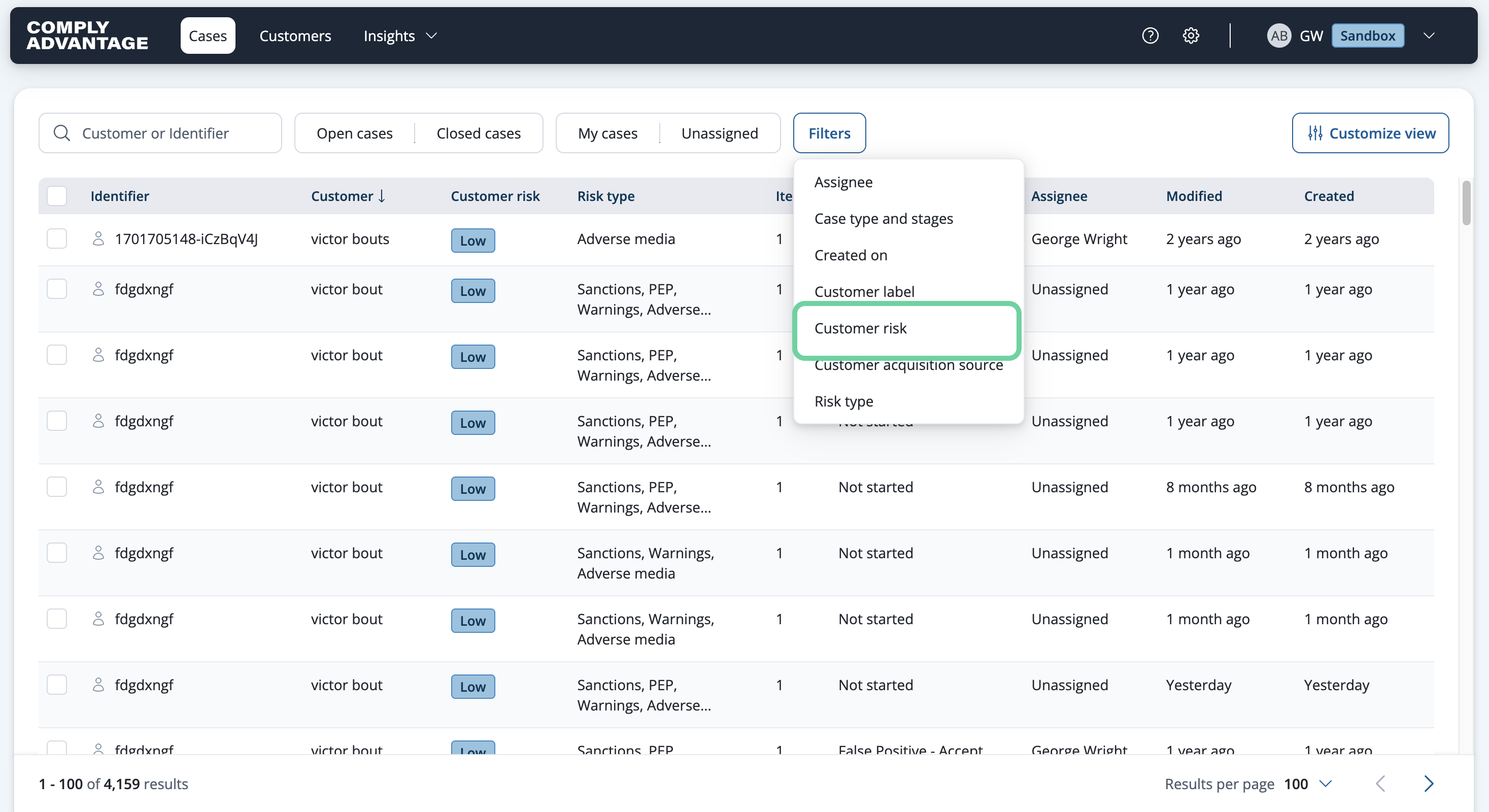
8. Click "Filters"
By clicking on filters, you can select various options.
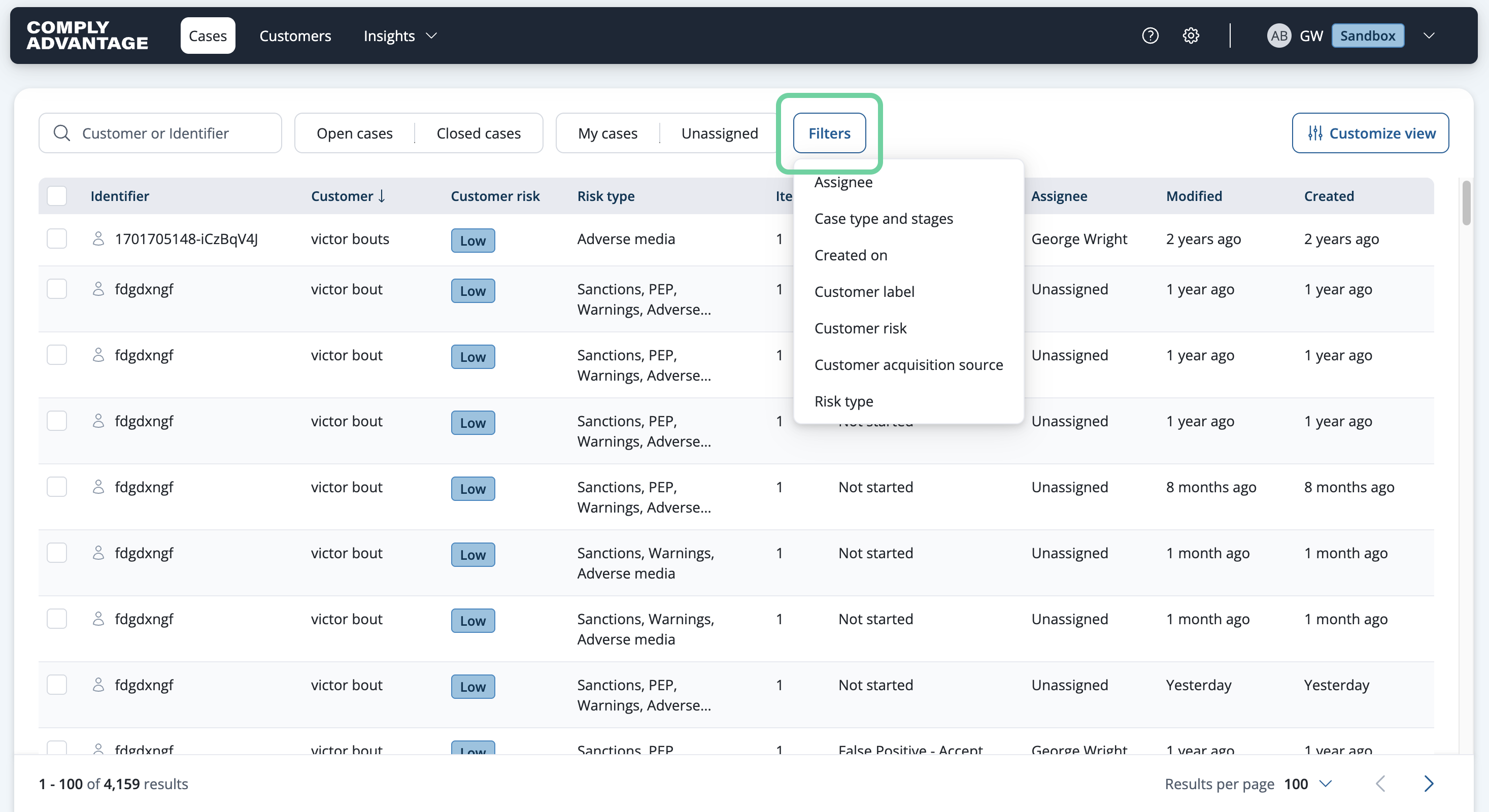
9. Click "Customer risk"
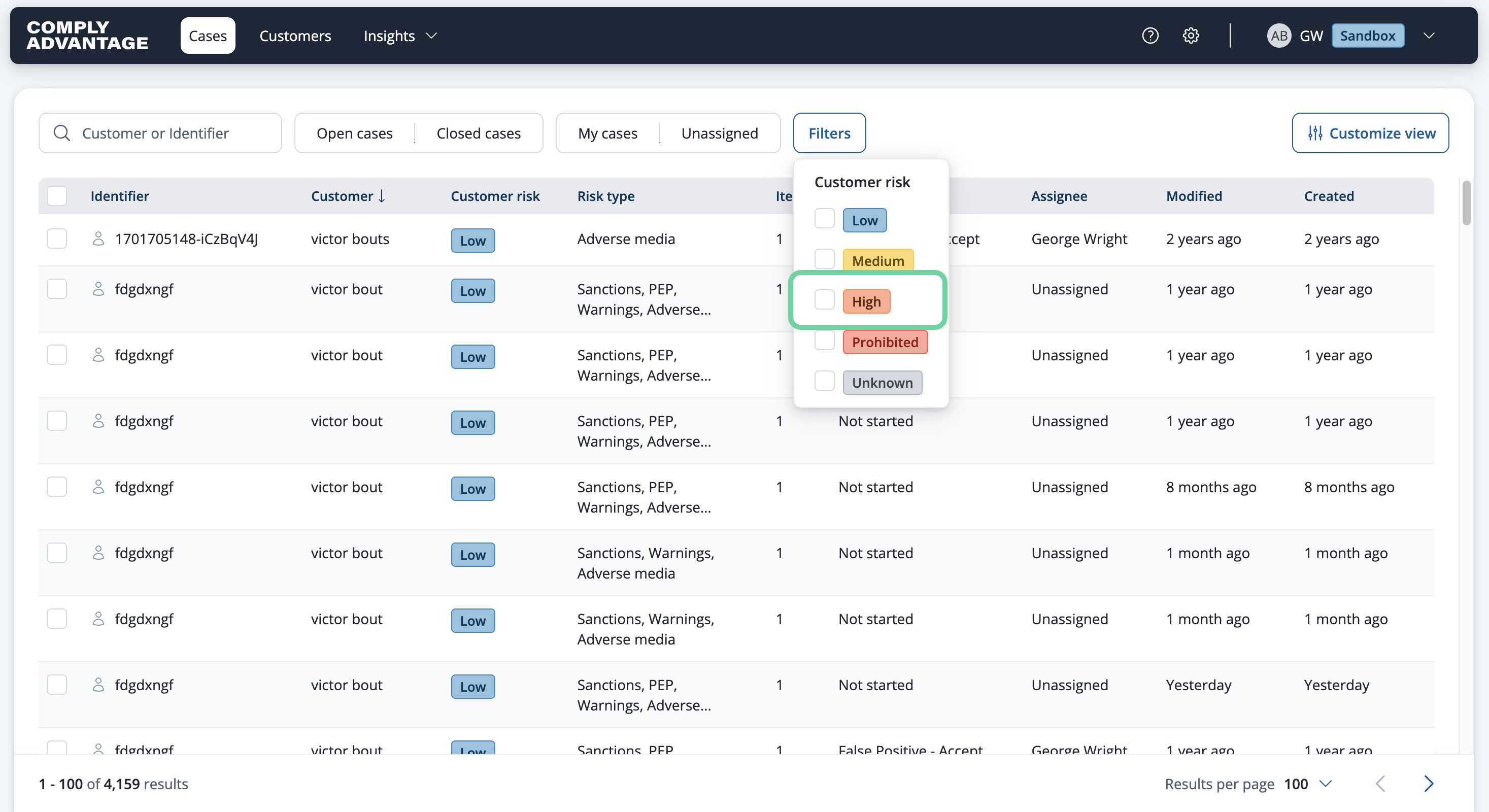
For example, we can filter by the Customer Risk.
10. Click here
To do so, select the hollow box next to the desired filter.
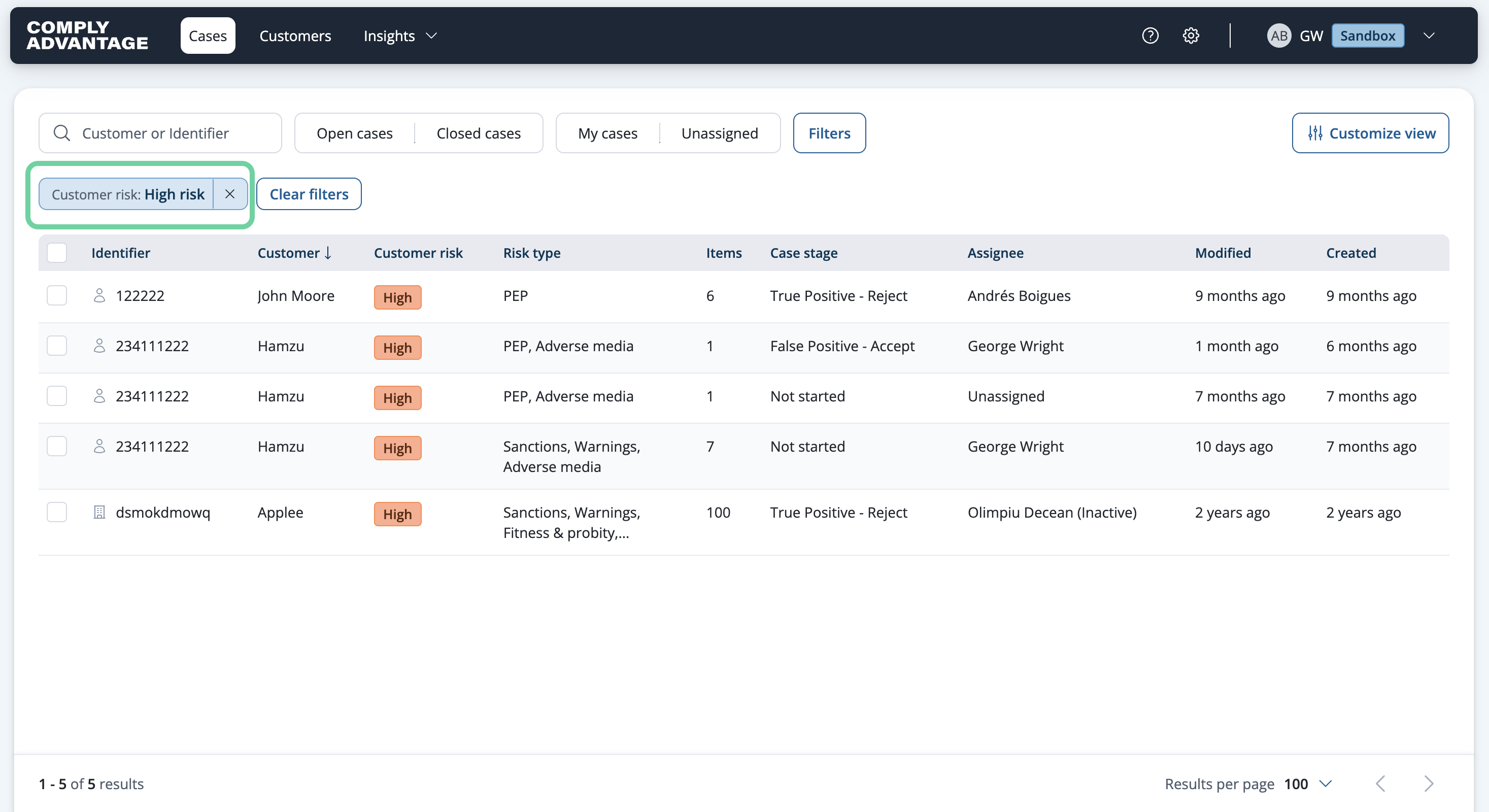
11. View pills for applied filters
You will then see pills for each filter you've applied.
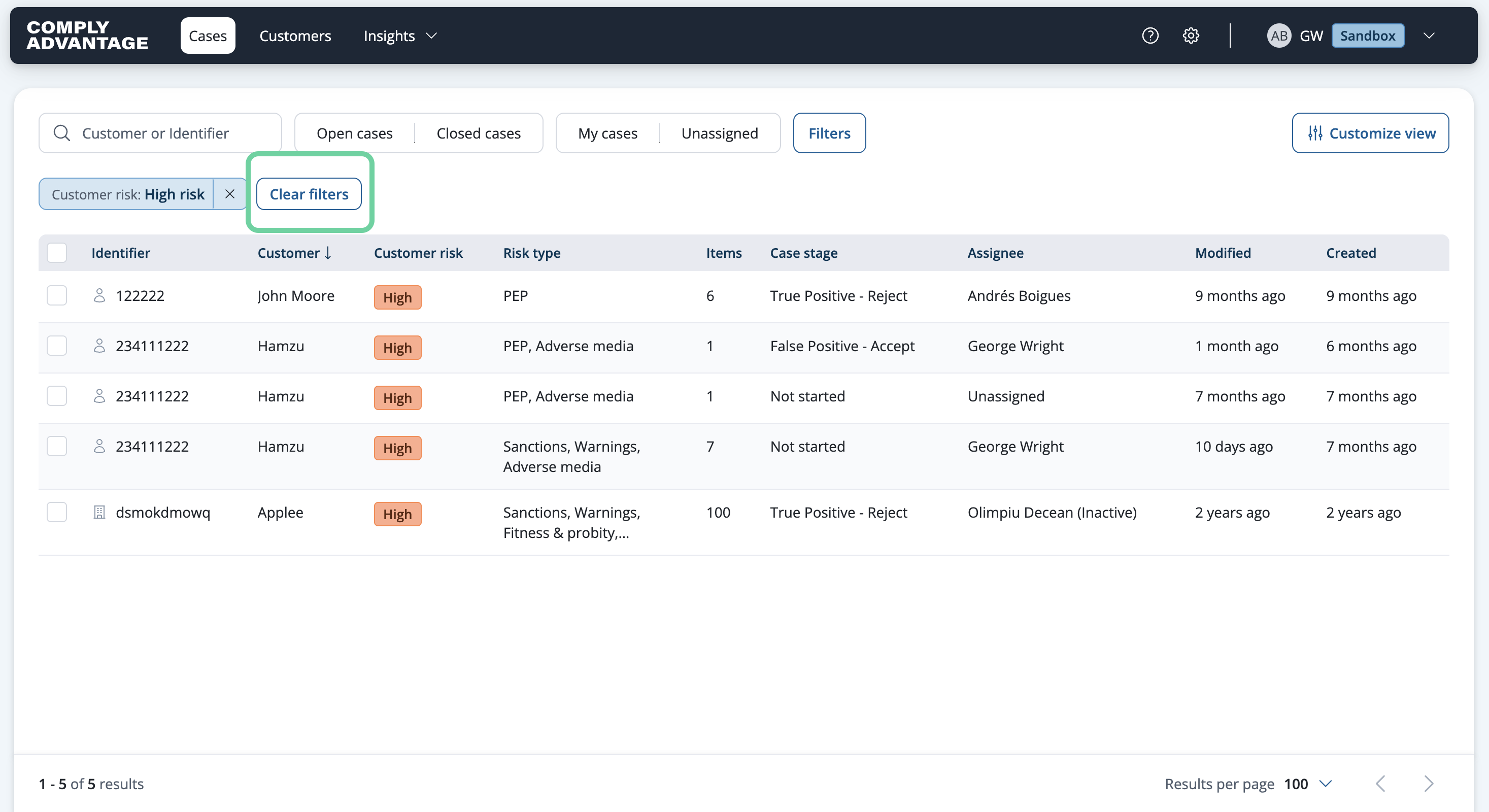
12. Click "Clear filters"
Remove applied filters for a clean view.
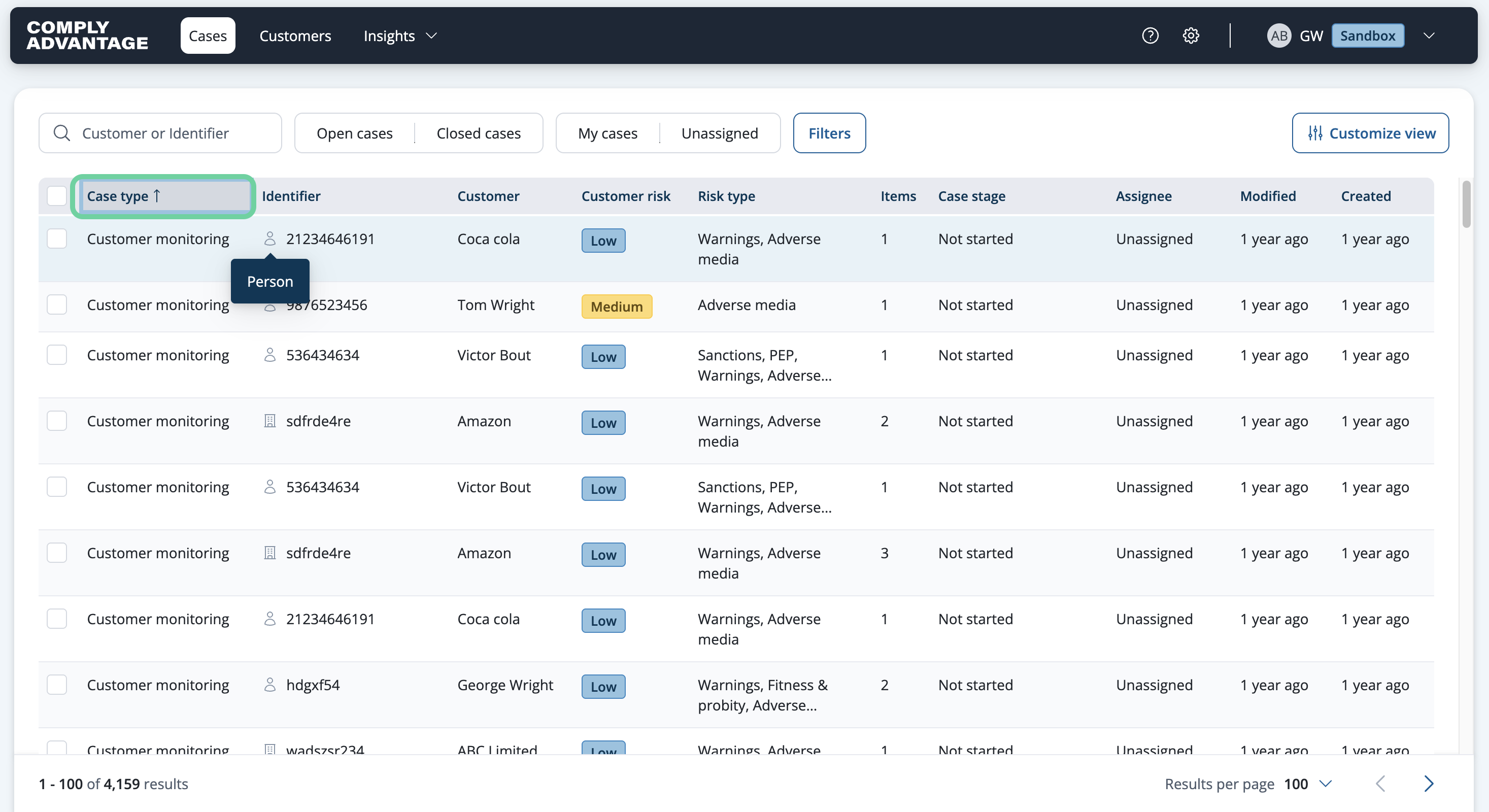
13. Sort by "Case type"
Additionally, you can choose the type of case you want to filter. This will organize customer onboarding cases separately from customer monitoring cases.
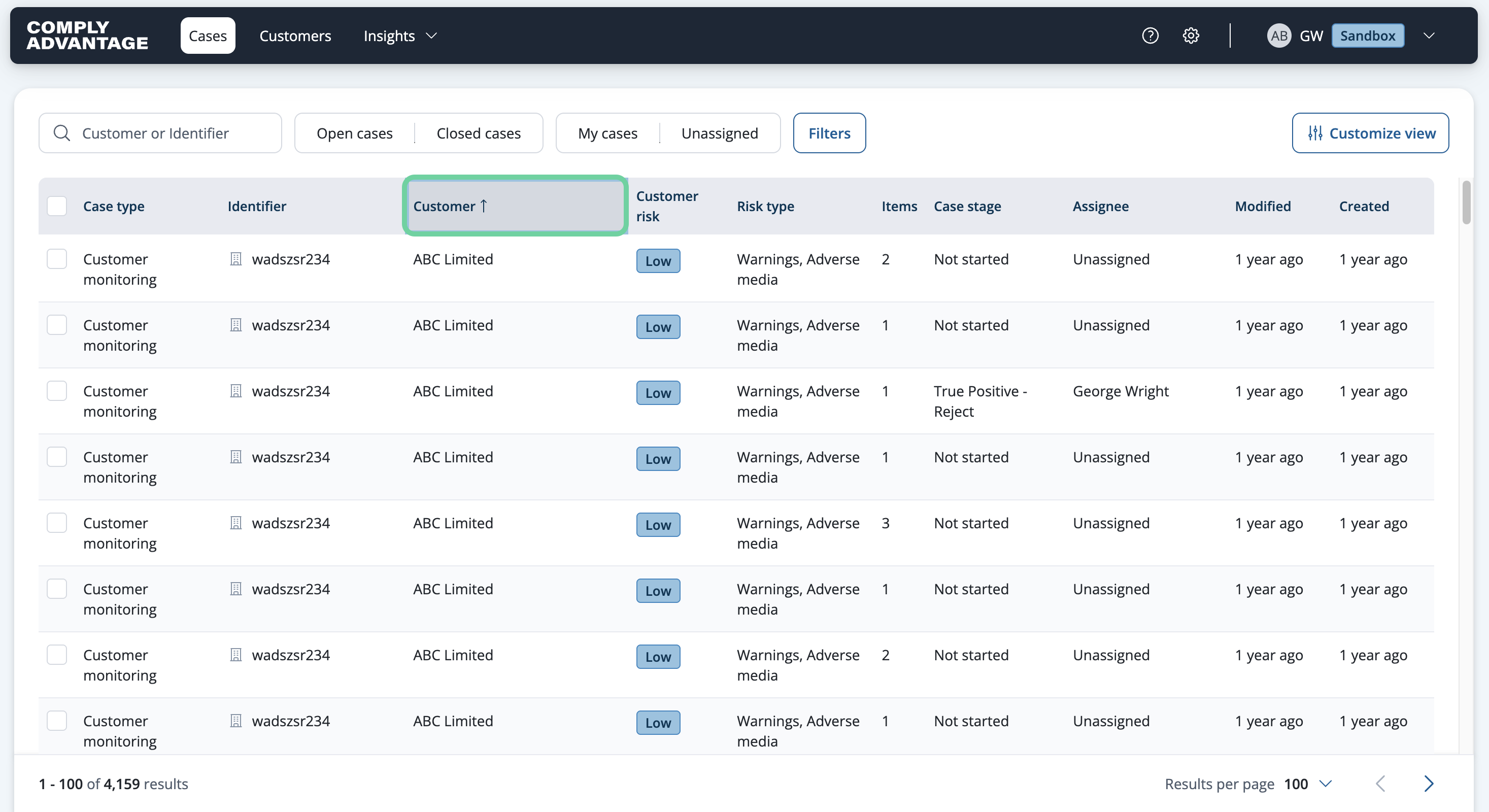
14. Sort alphabetically by "Customer"
Here, you can view Customers in alphabetical or nonalphabetical order.
15. Click "Items"
You can view items sorted by the number of profiles in a case.

16. Click "Created"
You can also view cases sorted by creation date.

17. Customize view
Finally, you can also customize the columns that appear in your case view by clicking "Cutomize view" and toggling each one on or off.

We hope this guide helped you learn how to manage cases in Mesh.