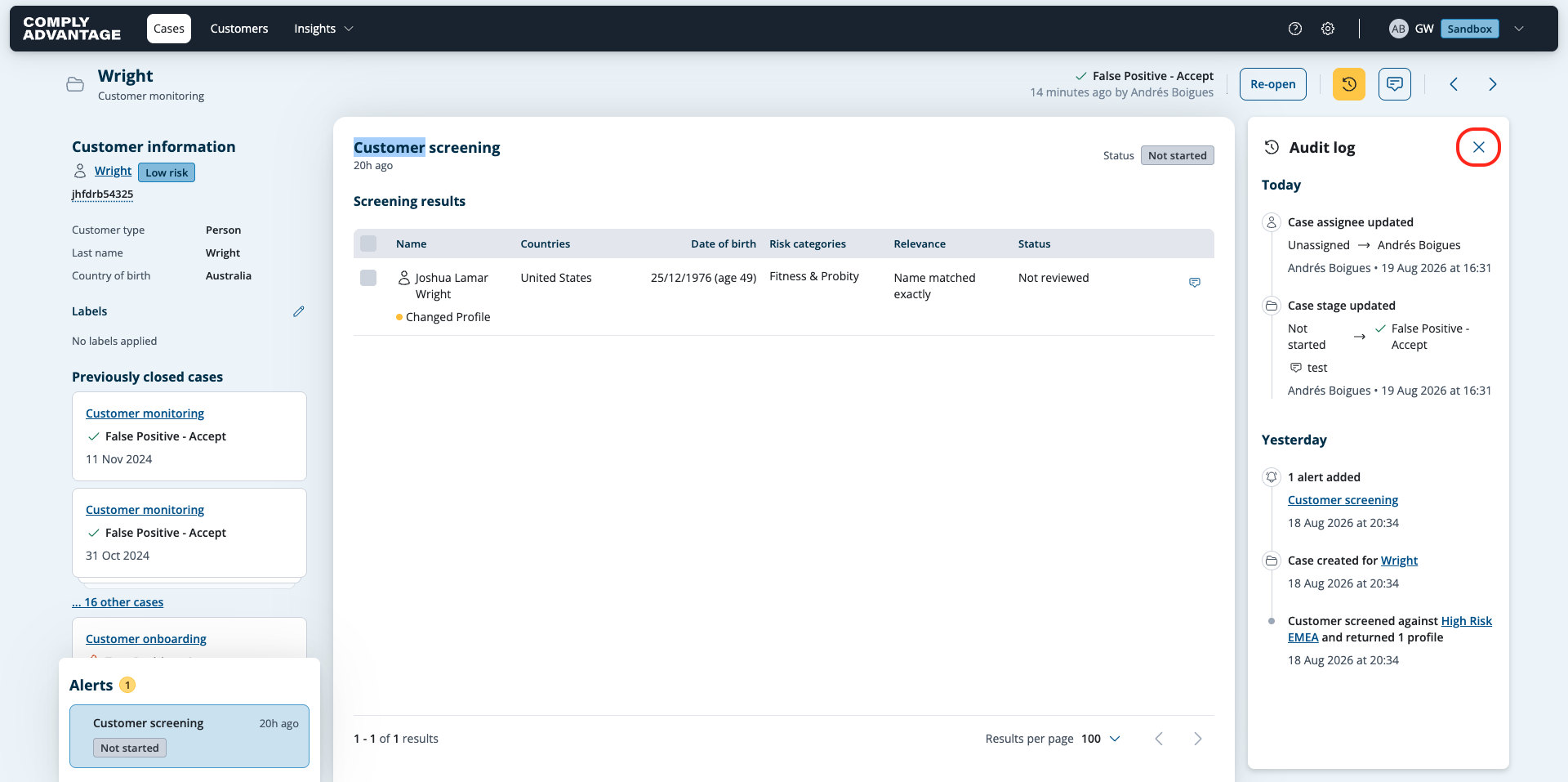
Viewing the audit trail for a case
Last updated: September 9, 2026
Audit logs record all actions taken and events occurring on cases. The logs note the date and time, and the user who took the action.
Events and actions that are recorded include:
Case creation
Case stage changes (including case decisions and reopens)
Profile decisions
Changes in search configuration settings
Case assignment
Notes added
Viewing an audit log
Go to the case list page by clicking Cases in the top left.
Find the case you want to view using the search box or filters.
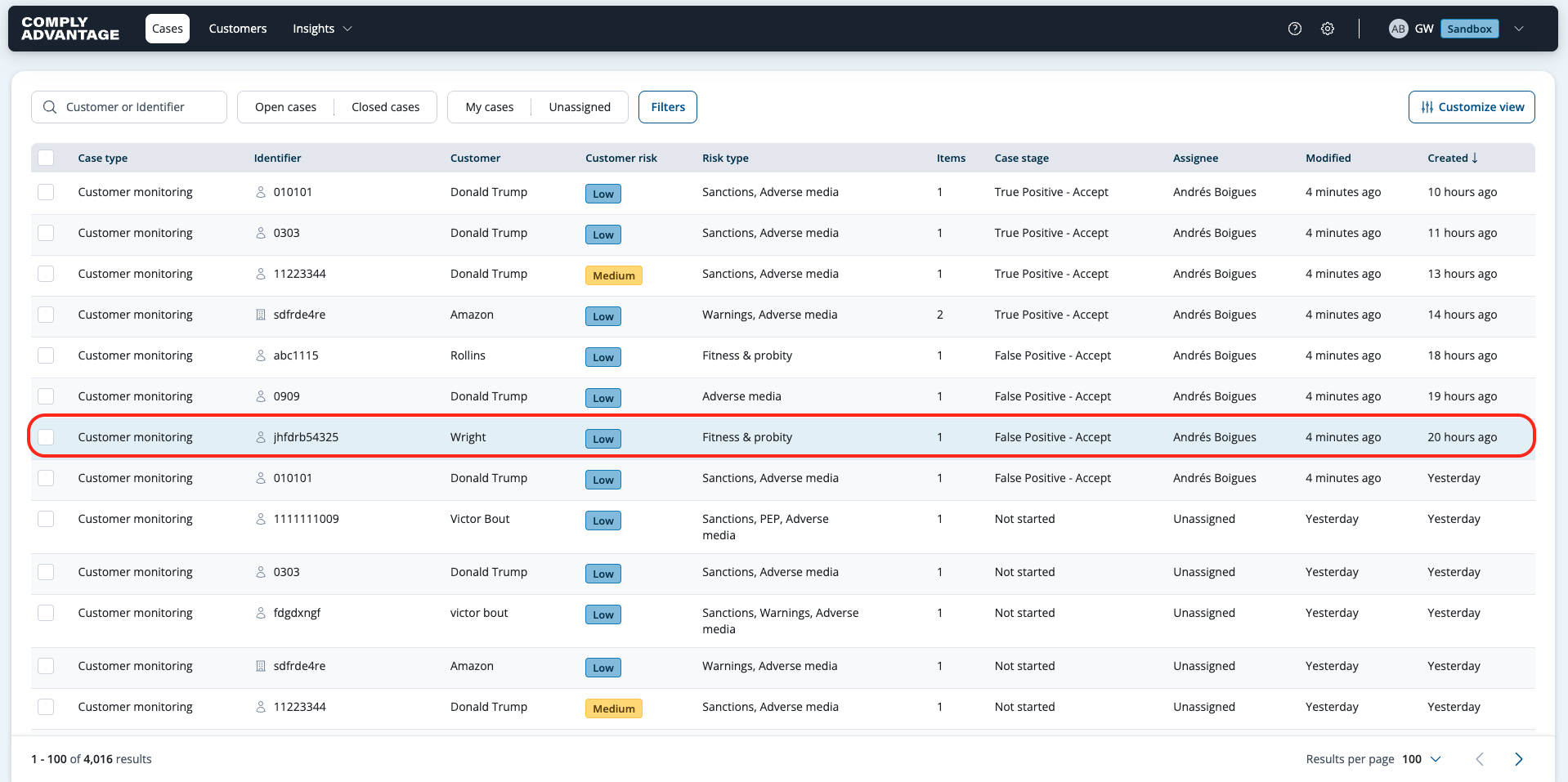
Click the case to view its case details page.
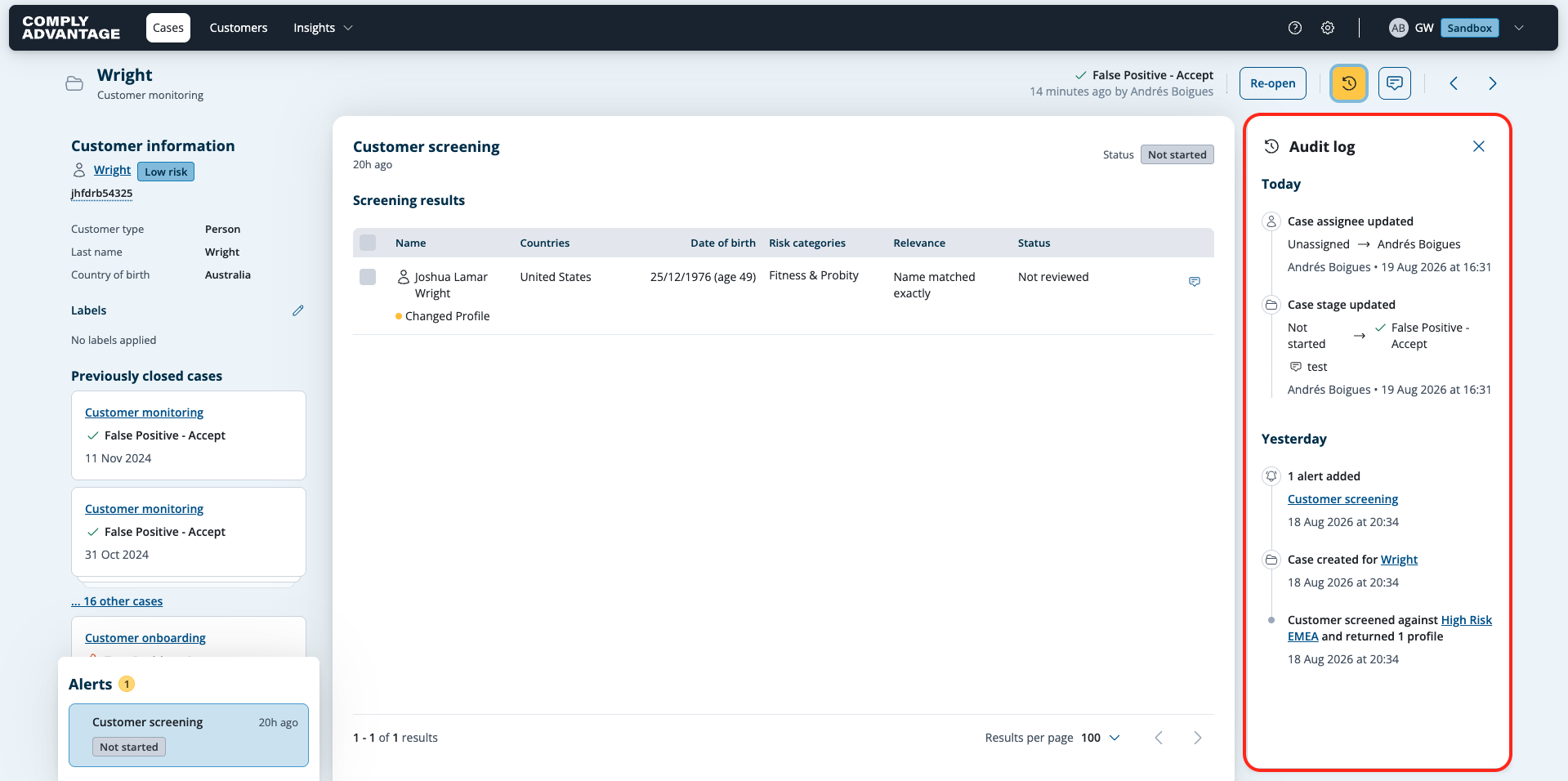
Select the Audit log button in the top right.

The Audit log panel opens on the right.
To close the Audit Log panel, use the X button or click the Audit log button again.