Muting a profile
Last updated: August 21, 2026
Profiles marked as false positives can be muted to prevent any updates to them triggering a monitoring alert. This reduces the alert rate by removing alerts that aren't an accurate match for your customer.
There are two pre-requisites for muting a profile:
The customer must be set to Monitored.
The profile must be marked as False positive.
Note: If the customer's status changes from 'False positive', the profile will be unmuted automatically.
Muting a single false positive screening result
Go to the case list page by clicking Cases in the top left.
Click the case you want to review.
You see the Screening results for your customer.
Find the profile you wish to mute and mark it as False Positive.
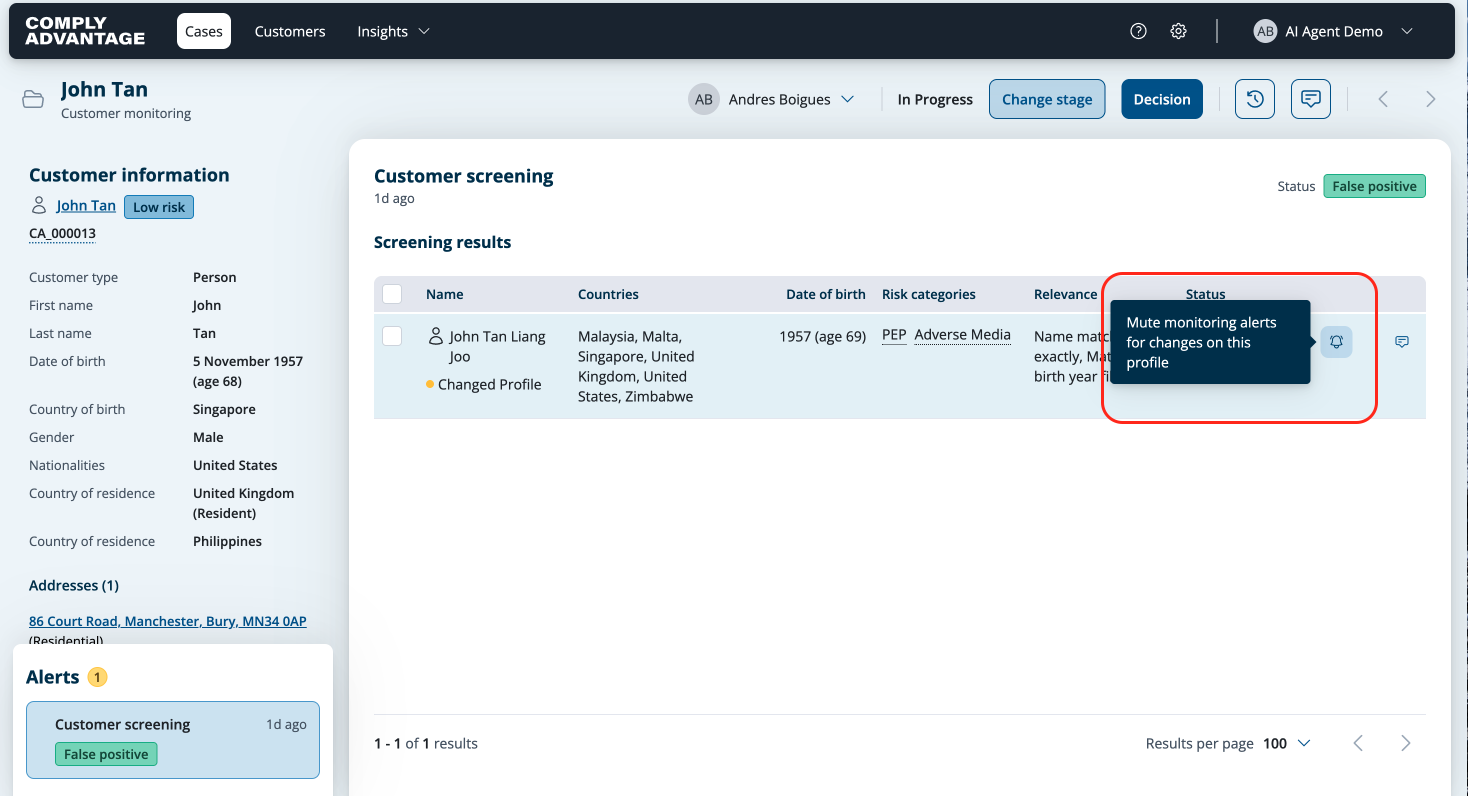
Click the Mute icon next to the Status field. It looks like a bell.
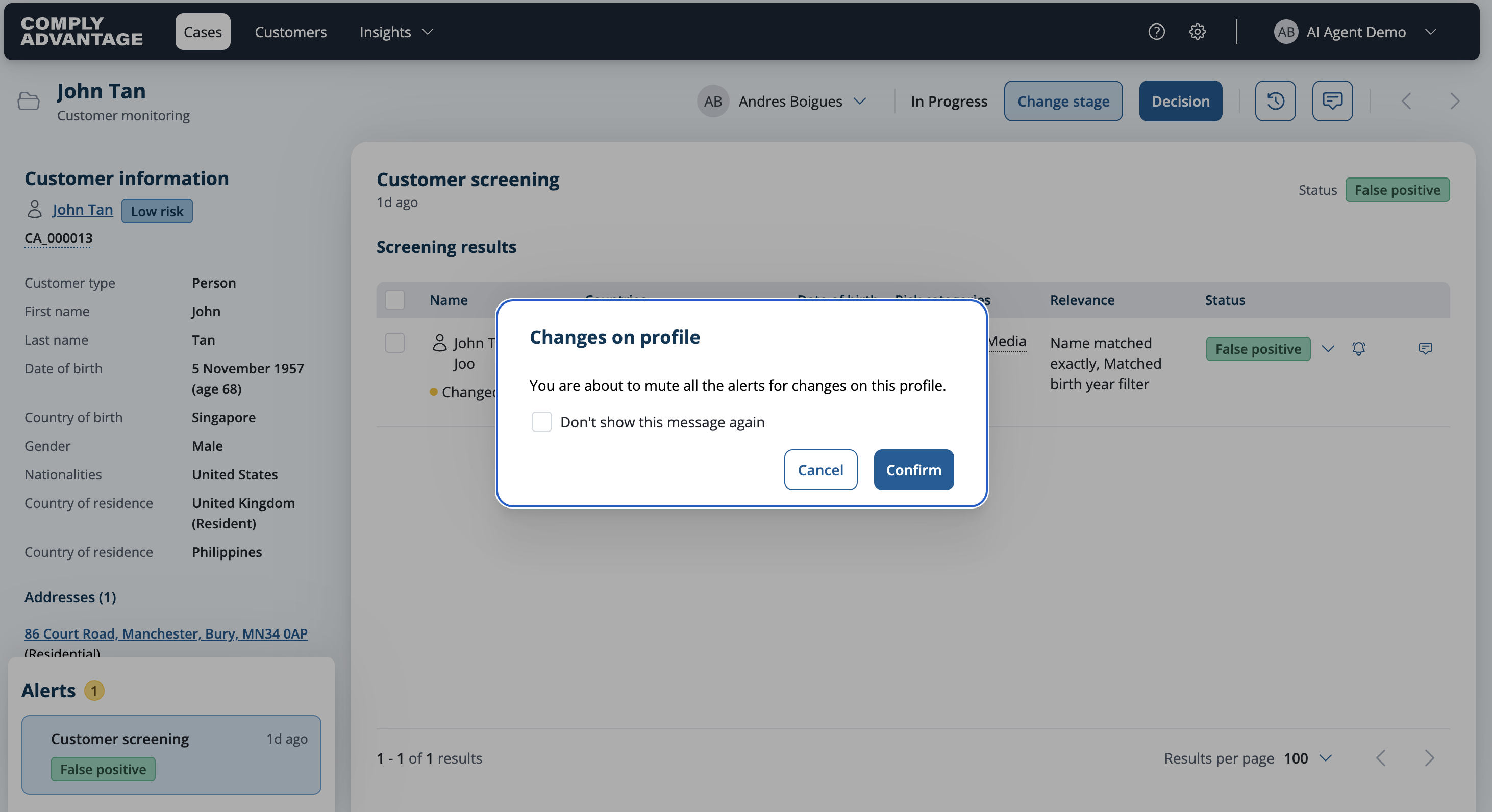
Confirm your choice in the dialog box. Check the box if you don't want to see this message again.
Muting false positive screening results in bulk
Go to the case list page by clicking Cases in the top left.
Click the case you want to review.
You see the screening results for your customer.
Select the profiles you want to mute, ensure they are set as False Positive.
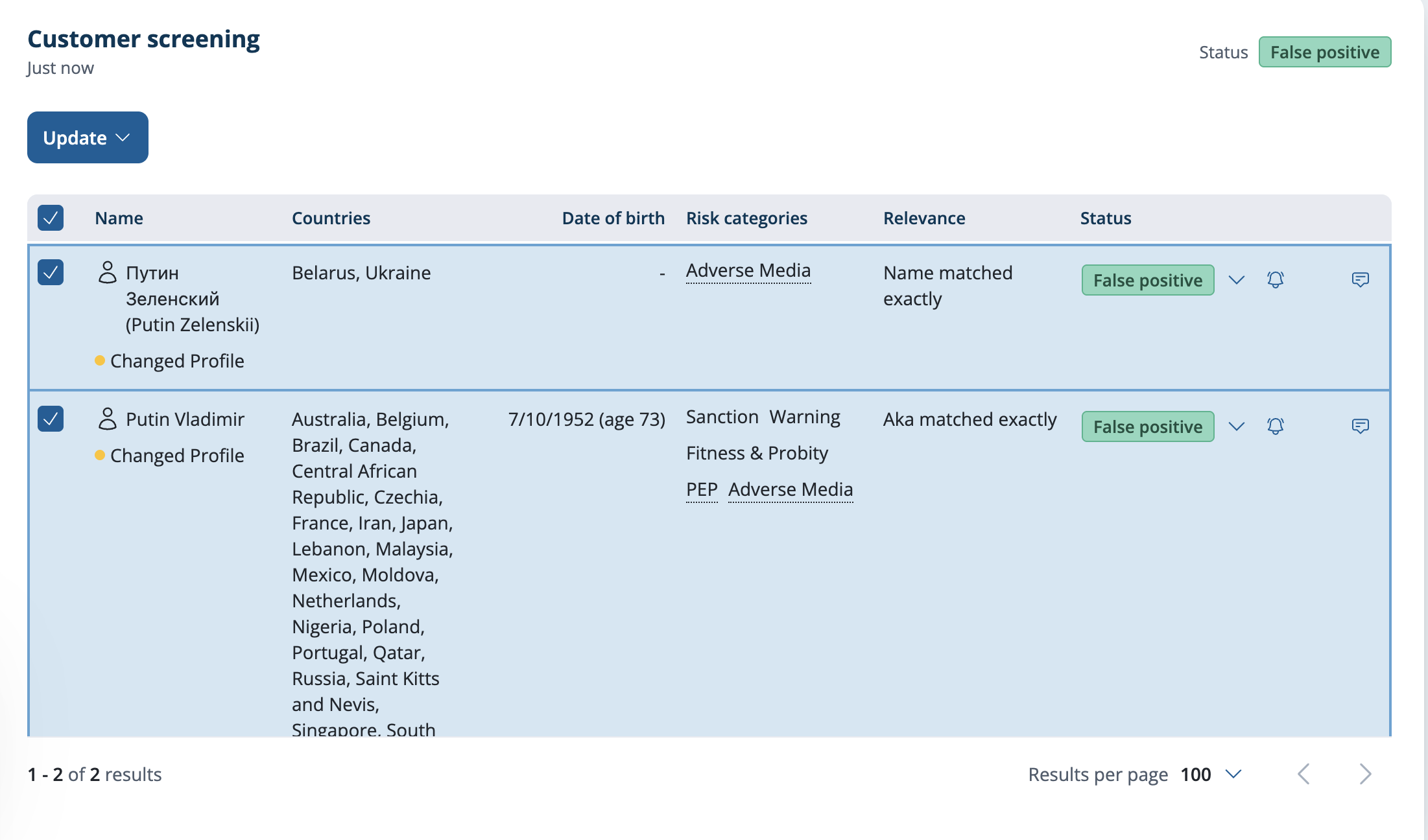
Select the Update button above the screening results.
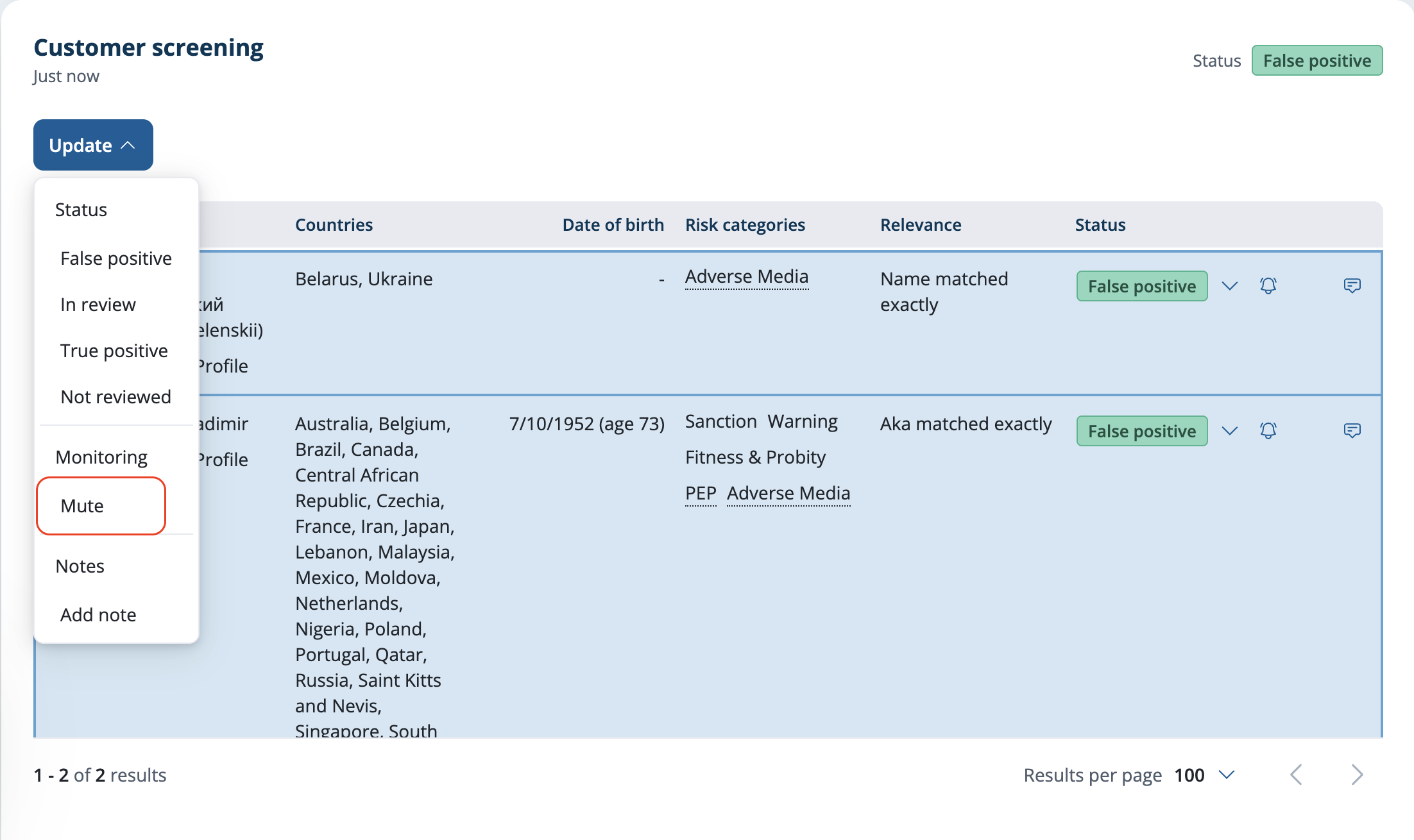
Select 'mute'. If any of the selected screening results do not have a status of False Positive. The mute option won't display.
Confirm your choice in the dialog box. Check the box if you don't want to see this message again.
This profile has now been muted. Any updates to it will not trigger a monitoring alert for this customer. For more information, see What is ongoing monitoring?