Video: Muting a profile
Last updated: October 13, 2026
In this guide, you will learn how to mute a profile in Mesh. Profiles marked as False Positive can be muted to prevent any monitor updates for the selected profile, which reduces the alert rate from monitored customers.
When logging in to your account, please ensure you select the correct region, which will be one of the following:
Australia: https://au.mesh.complyadvantage.com/
You can find the link to your region in the onboarding email you received (look for the "Welcome to ComplyAdvantage" email).
If you can’t find the email, don't worry! You can always contact our support team at [email protected].
1. Prerequisite #1
Profiles marked as False Positive can be muted to prevent any updates for the selected profile from triggering a monitoring alert. This reduces the alert rate from monitoring customers by removing alerts that aren't about your customer.
There are two pre-requisites for muting profiles. First, the customer must be set to "Monitored."
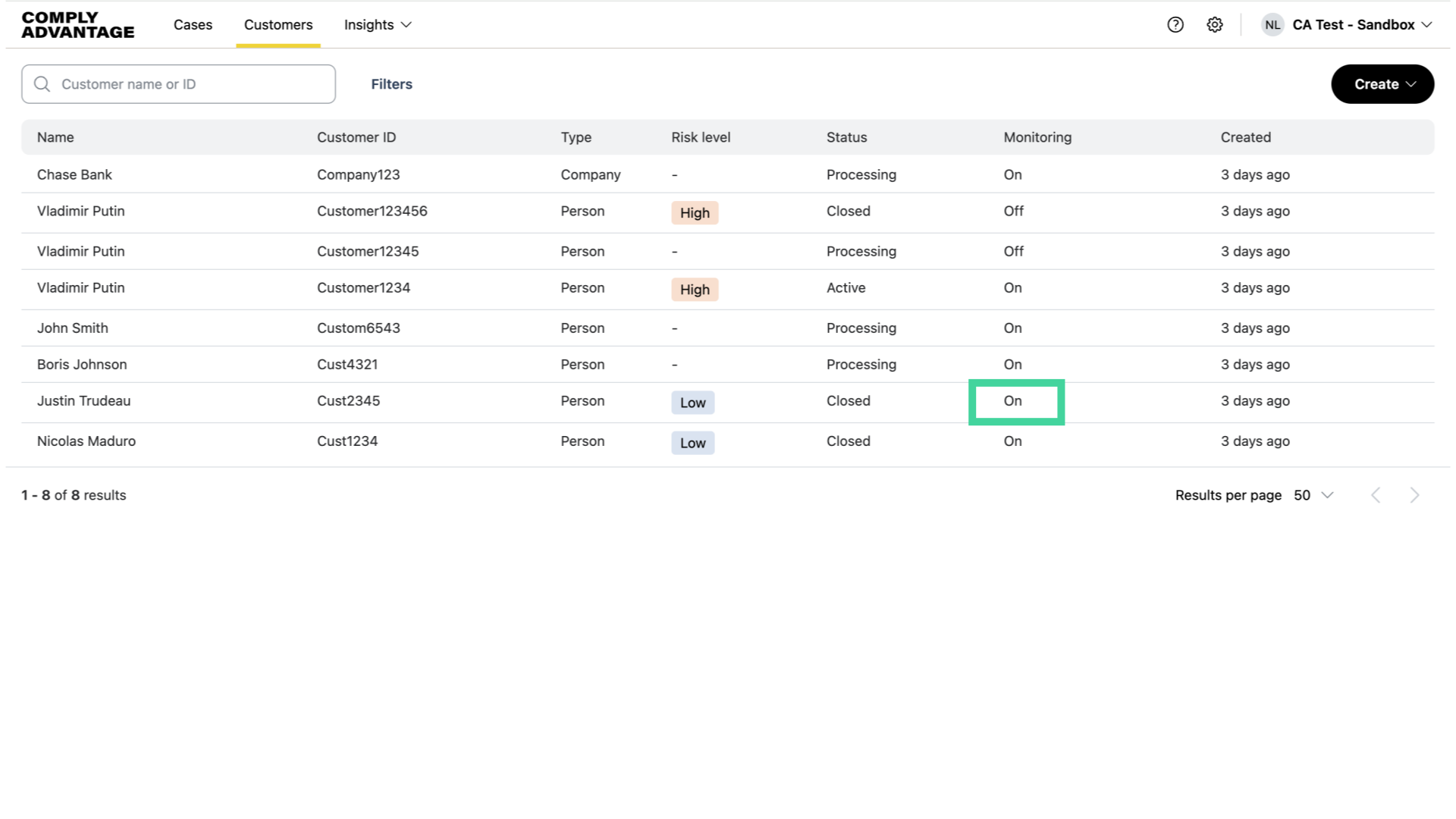
2. Prerequisite #2
Second, the profile must be marked as "False Positive."
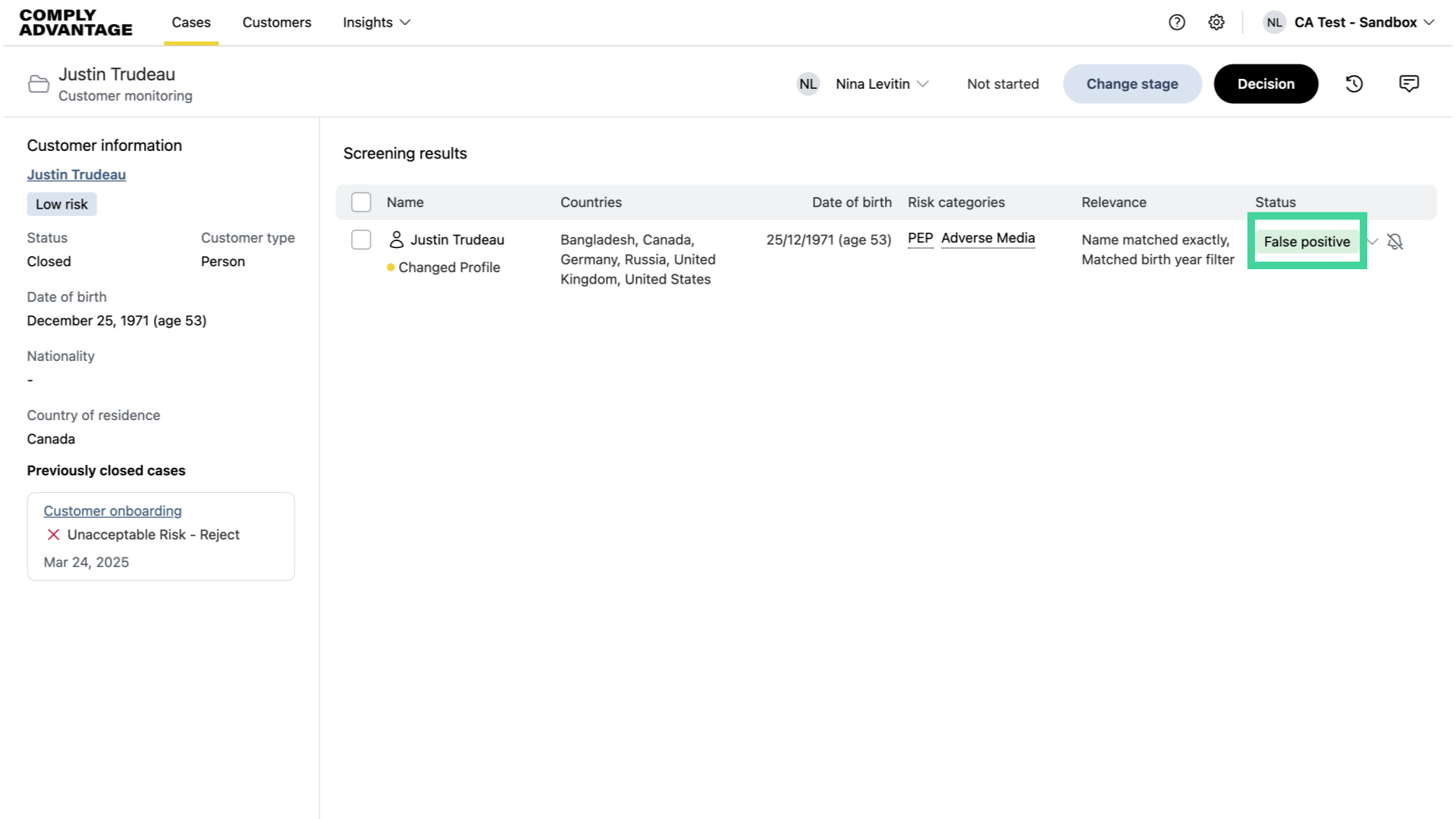
3. Select monitor case
To mute a profile, navigate to the profile of the monitored customer you wish to mute.
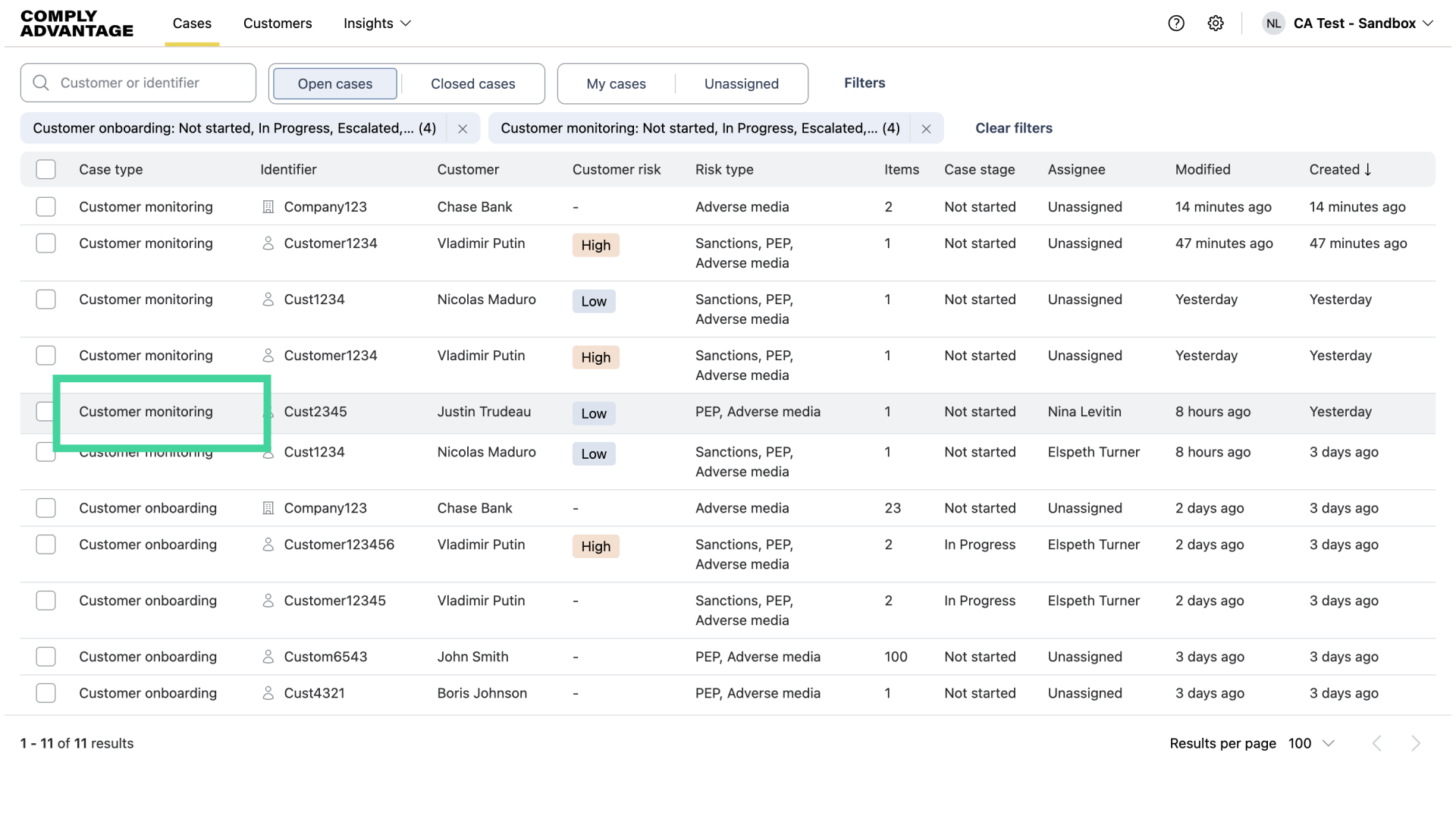
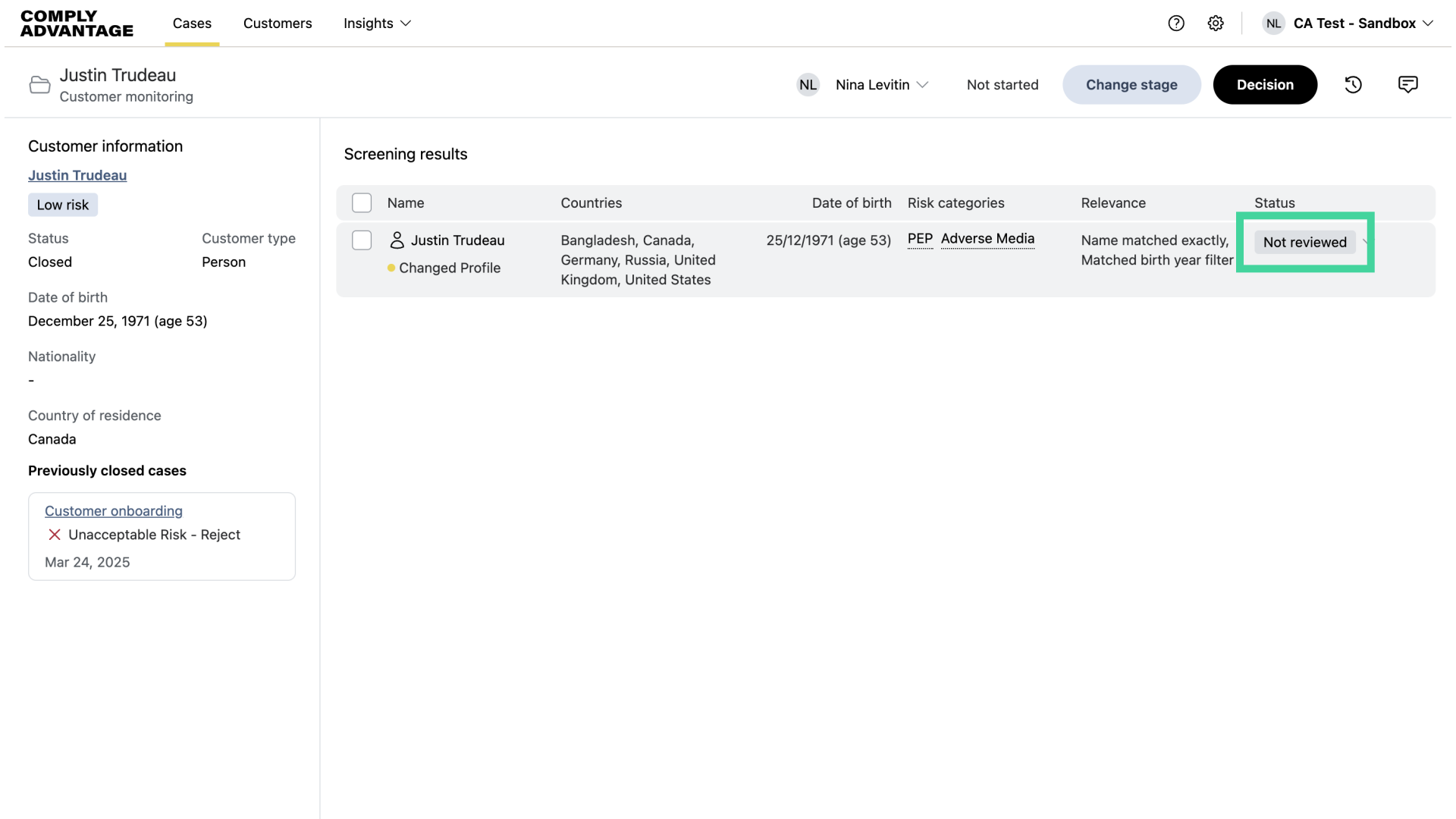
4. Click "Not reviewed"
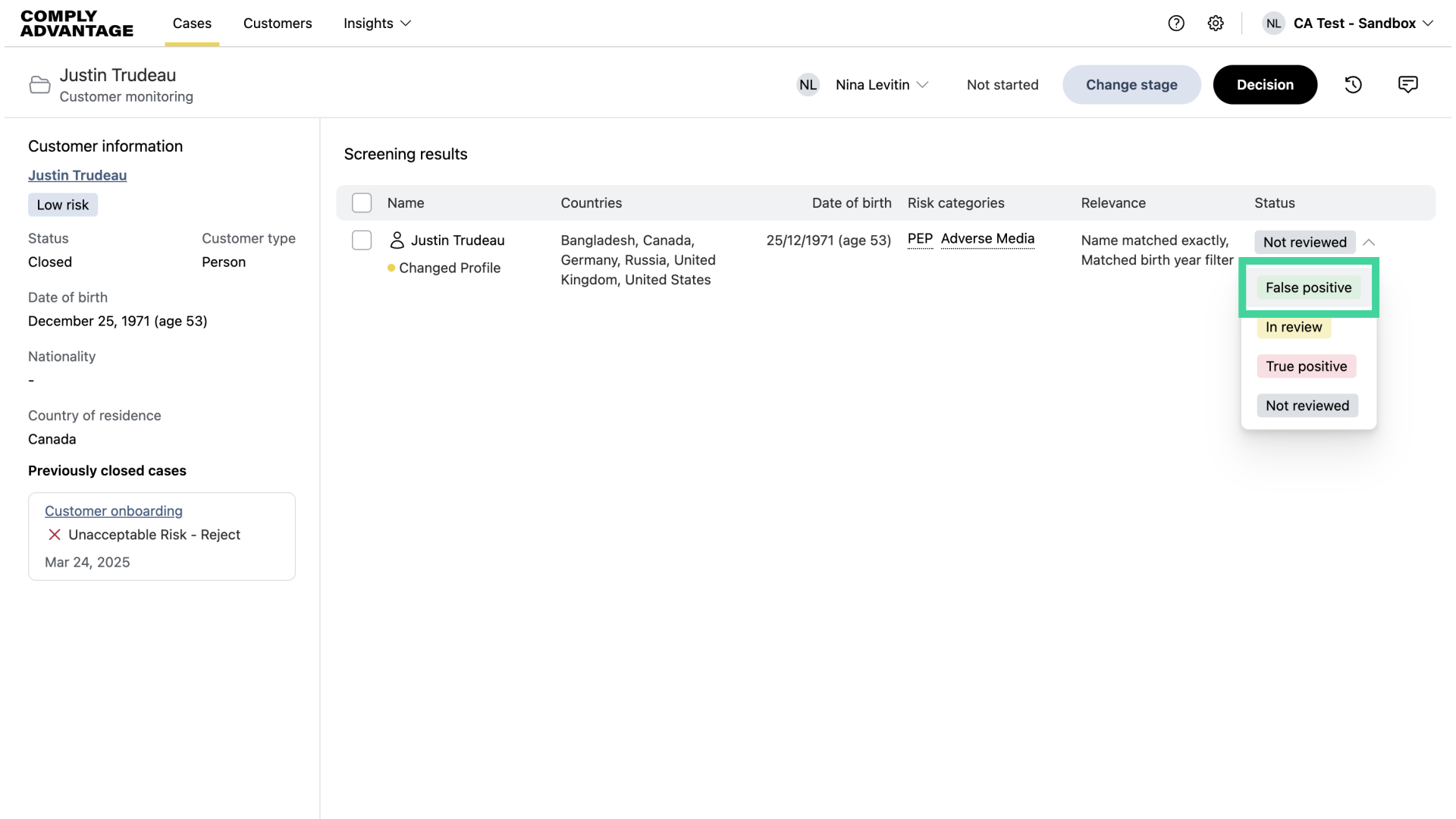
For this example, let's assume we've remediated this profile and we'd like to mark it as a false positive.
5. Click "False positive"
Select "false positive" from the dropdown menu.
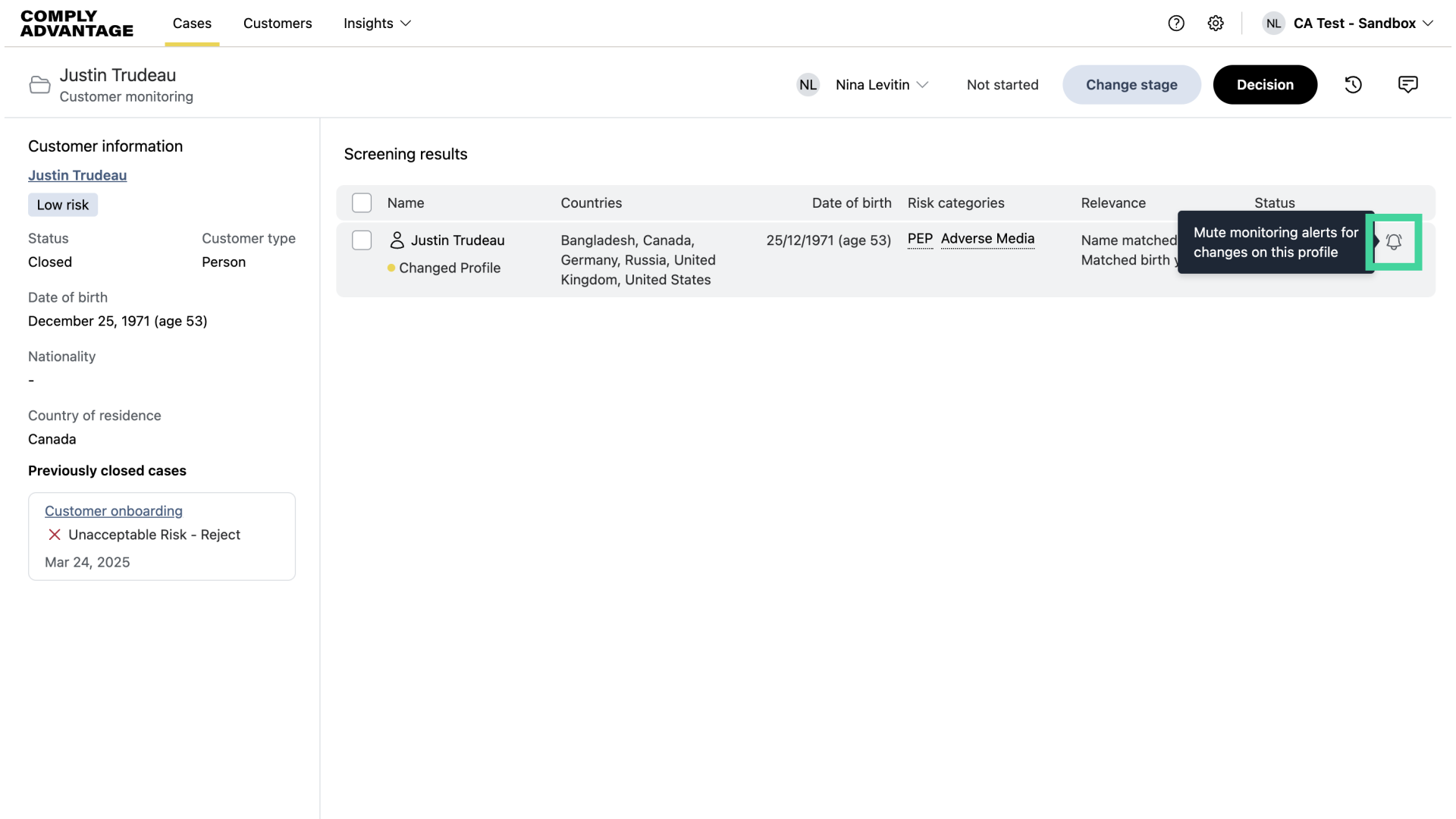
6. Click here
Click the bell icon next to the Status field.
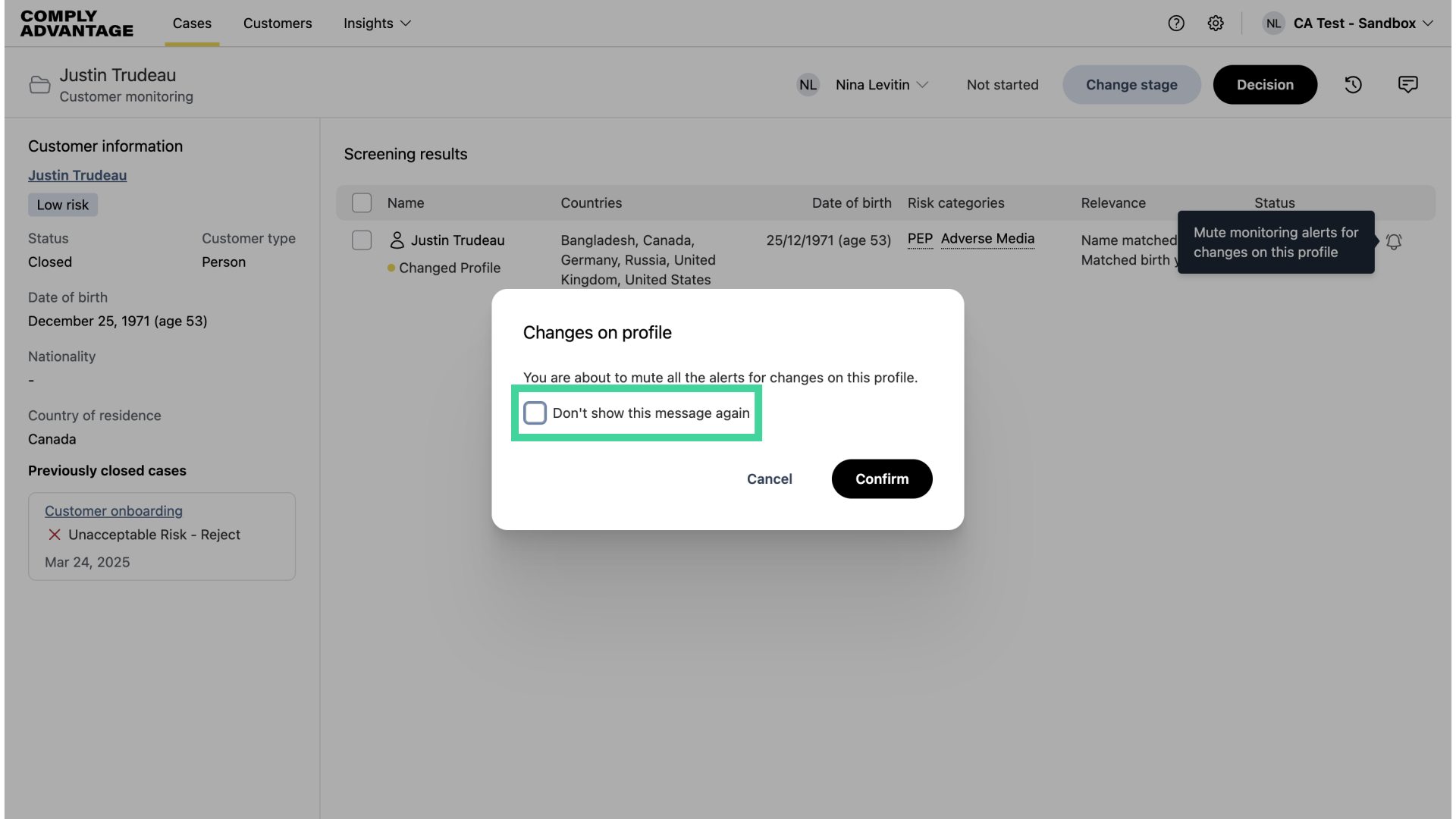
7. Optional: Opt out of future messages
Click the hollow box if you do not want to see future prompts.
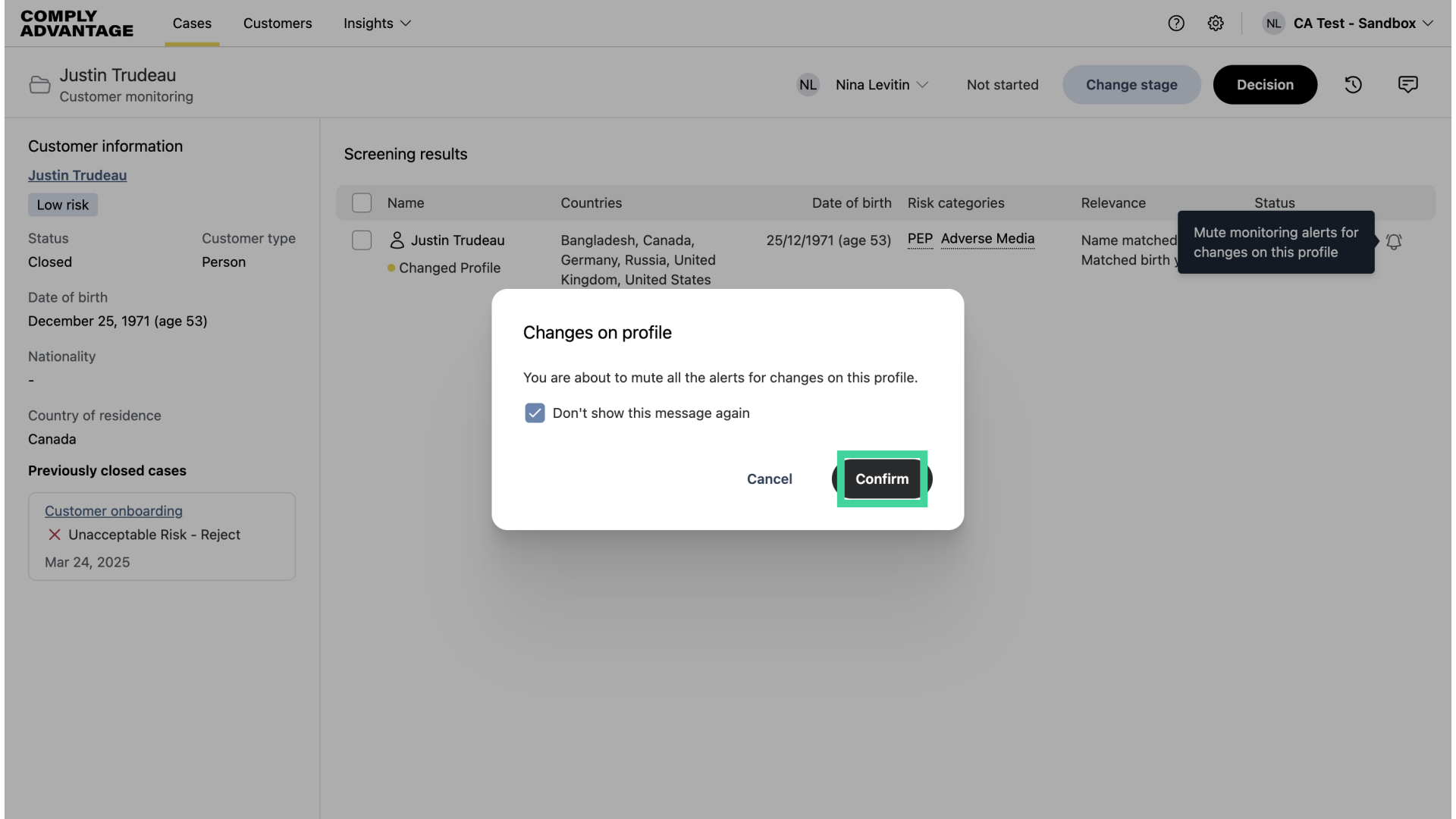
8. Click "Confirm"
Select "Confirm."
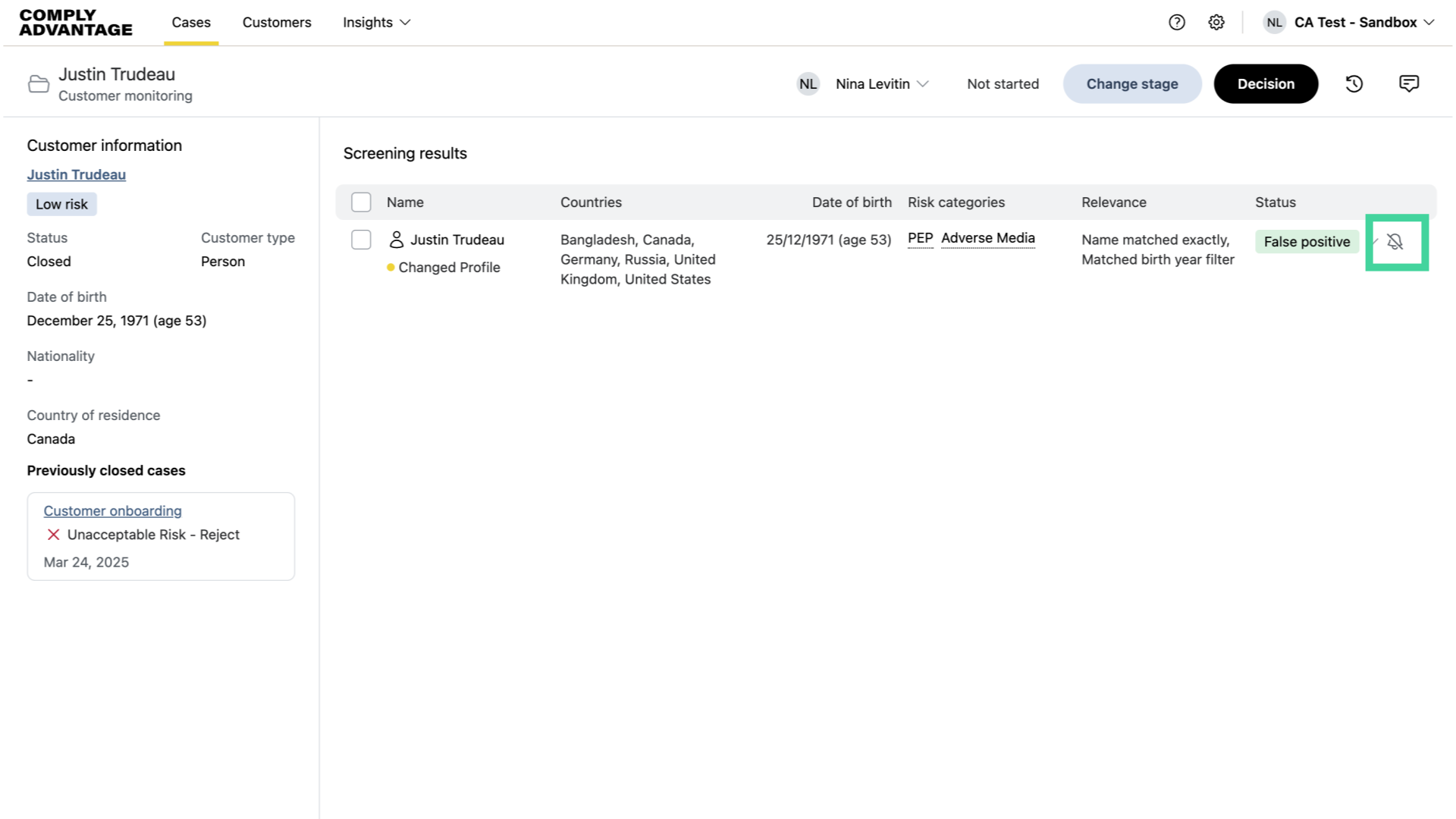
9. Profile has been muted
This profile has now been muted. You will note the bell icon now contains a slash to signify the action has been taken. Any updates to this profile will not trigger a monitoring alert for this customer.
We hope this guide helped you learn how to mute a profile in Mesh.