Adding notes to a case
Last updated: November 4, 2026
You can add notes to cases to record important or useful information. Notes are time-stamped with the name of the user who made the note and cannot be deleted. Notes can be added to open and closed cases.
There are three ways to add notes:
From the case view page: These notes can be up to 1,000 characters long.
From the case list page: In this way, the same note can be added to multiple cases at the same time. Notes added in this way can be up to 500 characters long.
When assigning a user (through the case list) or making a case decision: These are called contextual notes and can be up to 500 characters long. These notes are linked to the user assignment or case decision, providing additional contextual information for the note.
Adding a note from the case view page
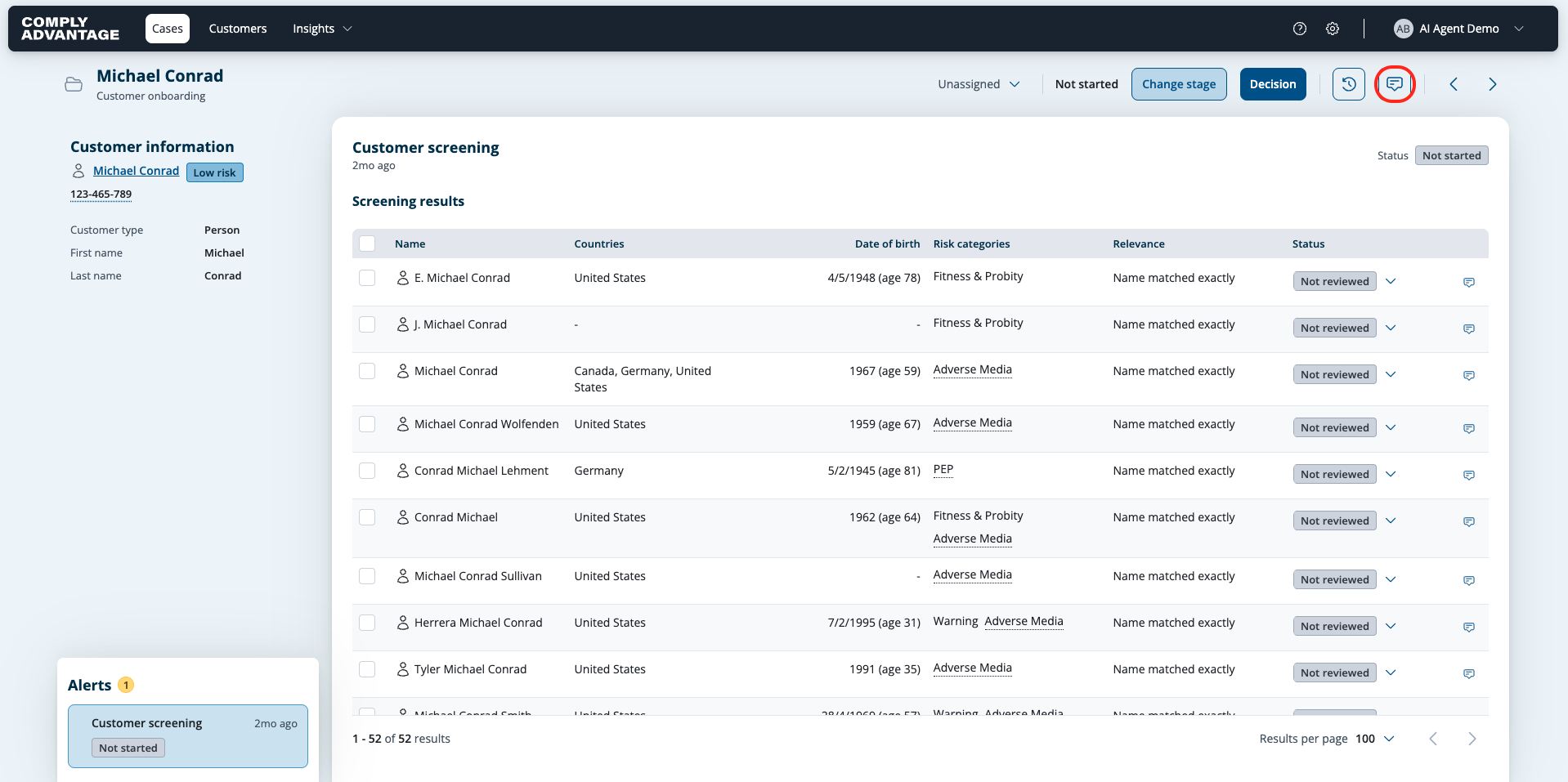
Click the notes icon at the top right of the case view page.
The case notes panel opens on the right.
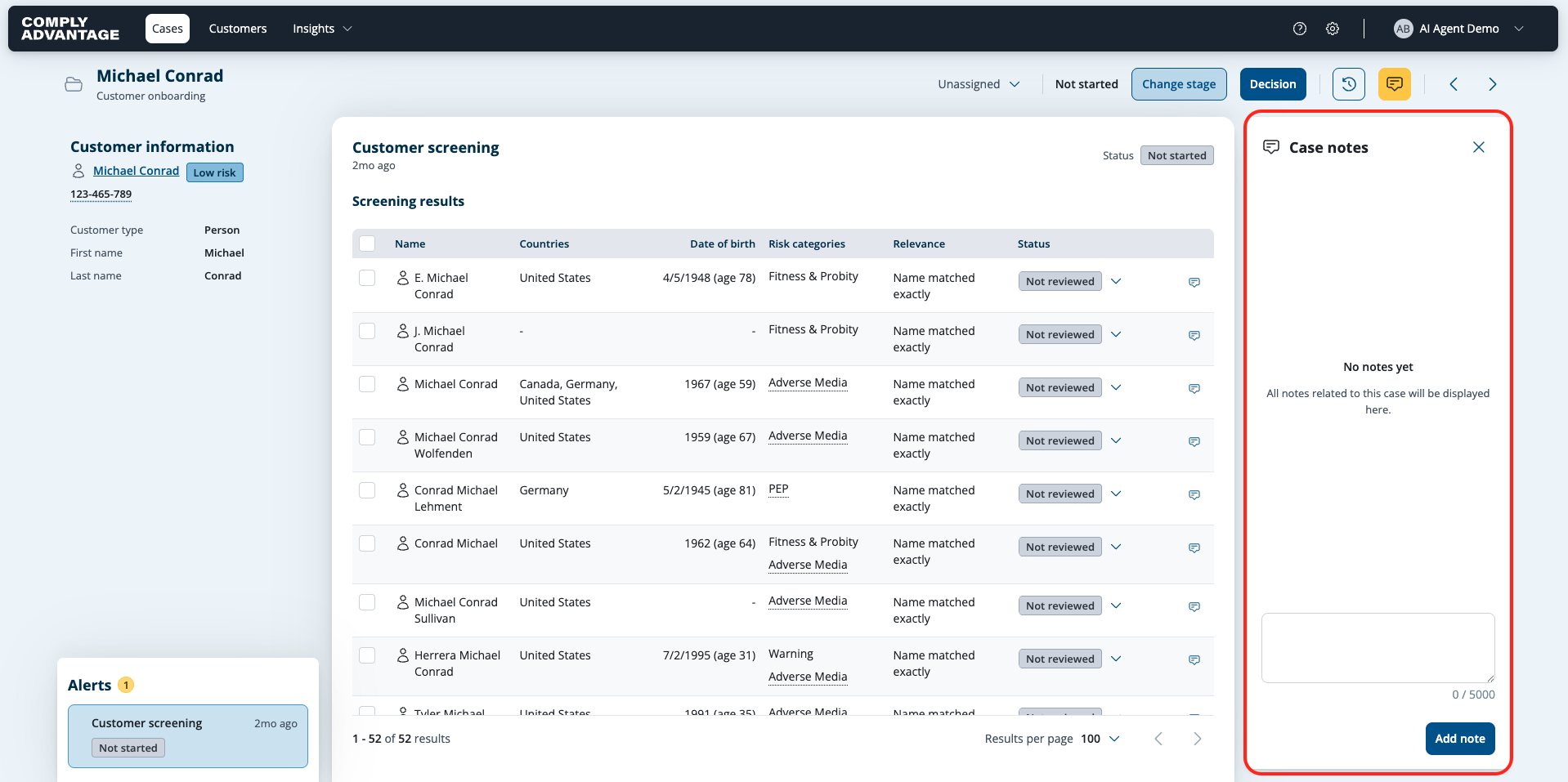
Enter your note text.
Click Add note at the bottom to save your note.
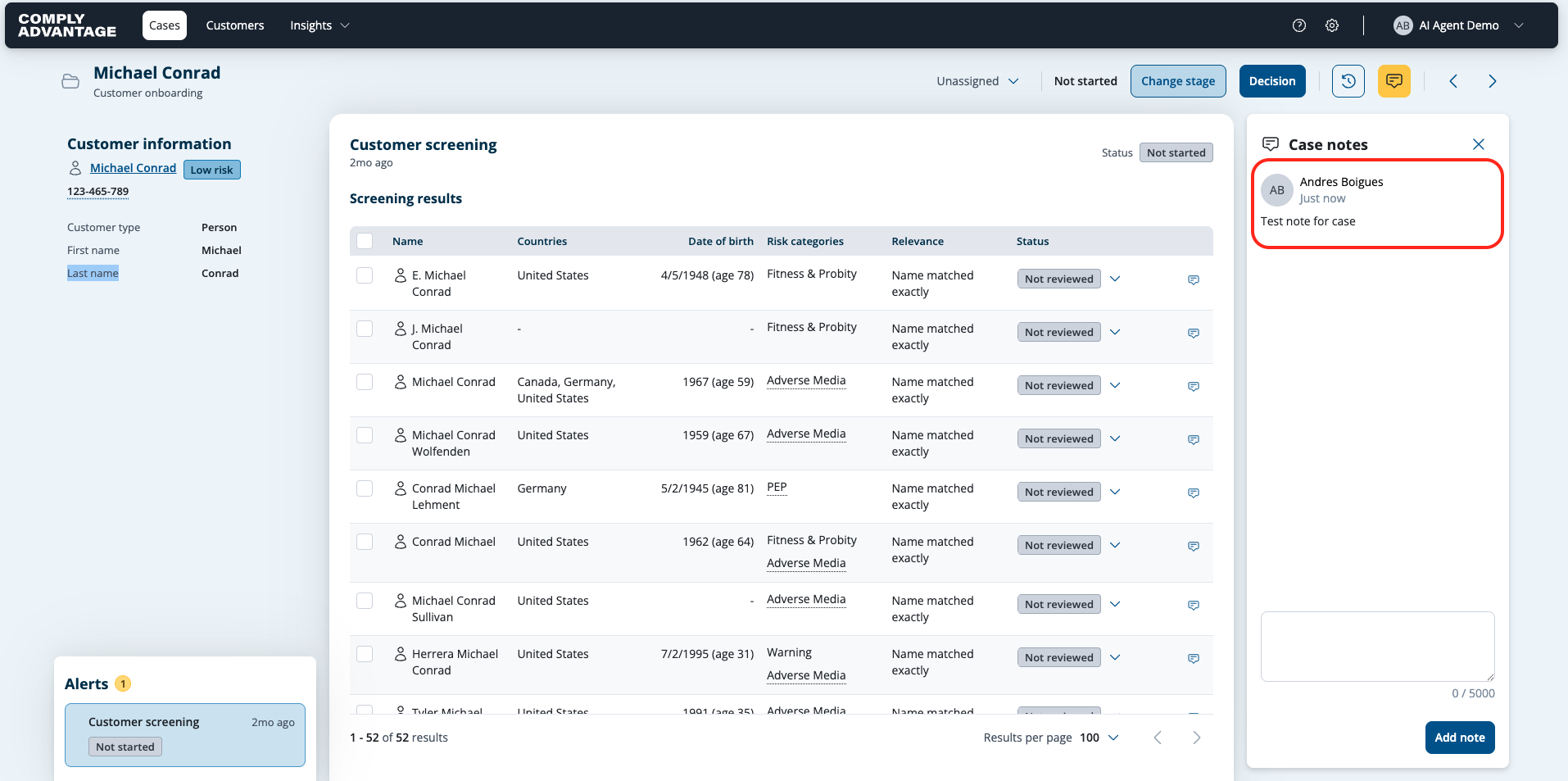
Close the case notes panel by clicking x.

Adding a note to multiple cases at the same time
Go to the case list page by clicking Cases in the top left.
Use the filters to view the cases you'd like to add a note to.
Select the checkboxes beside the cases you'd like to add a note to.
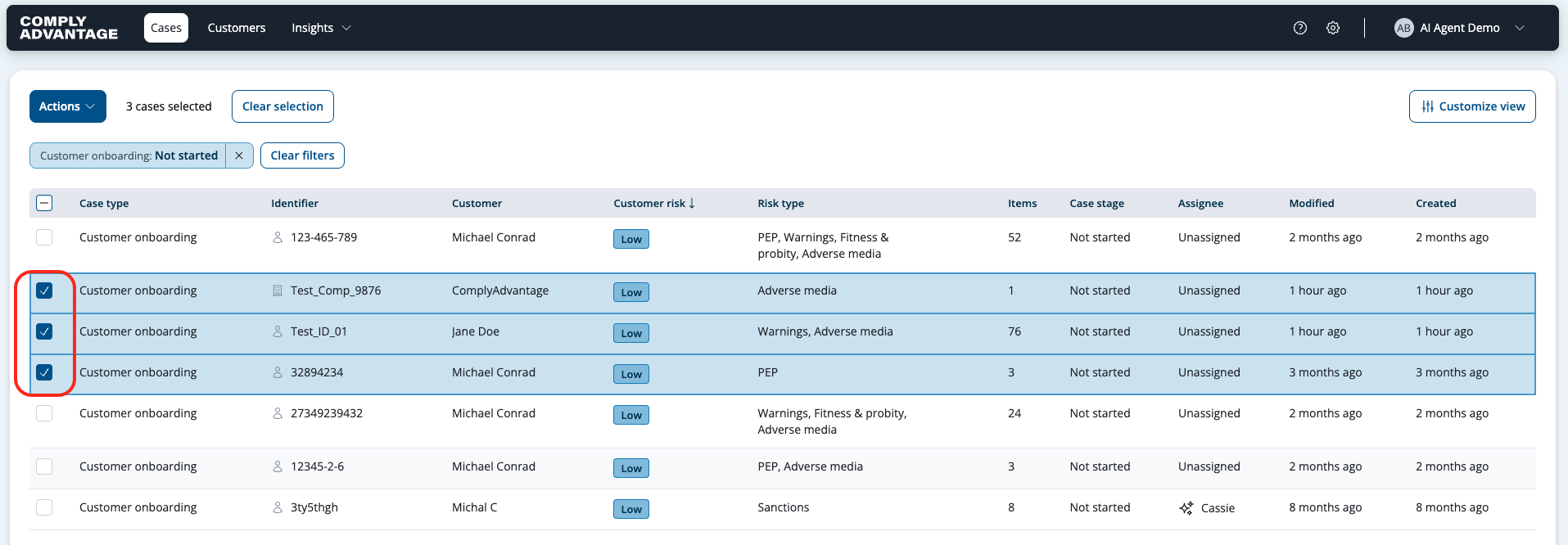
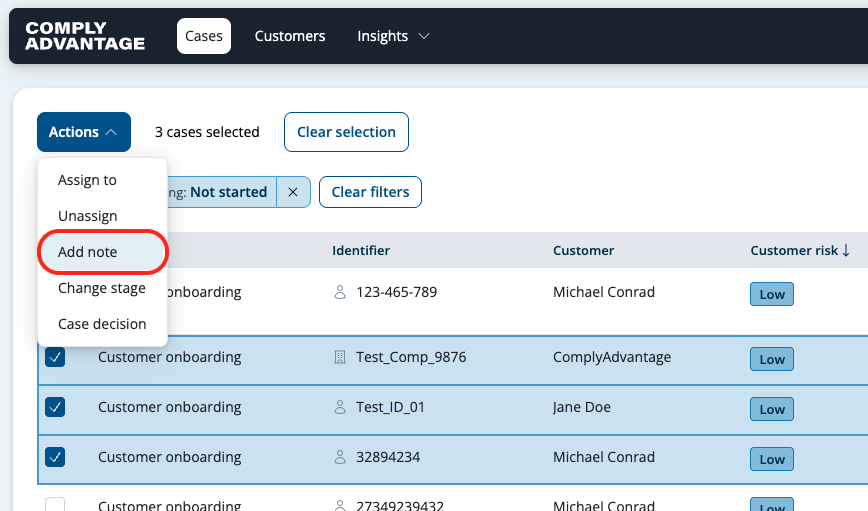
When one or more cases are selected the Actions button appears in the top left. Click it.
Select Add note from the menu.
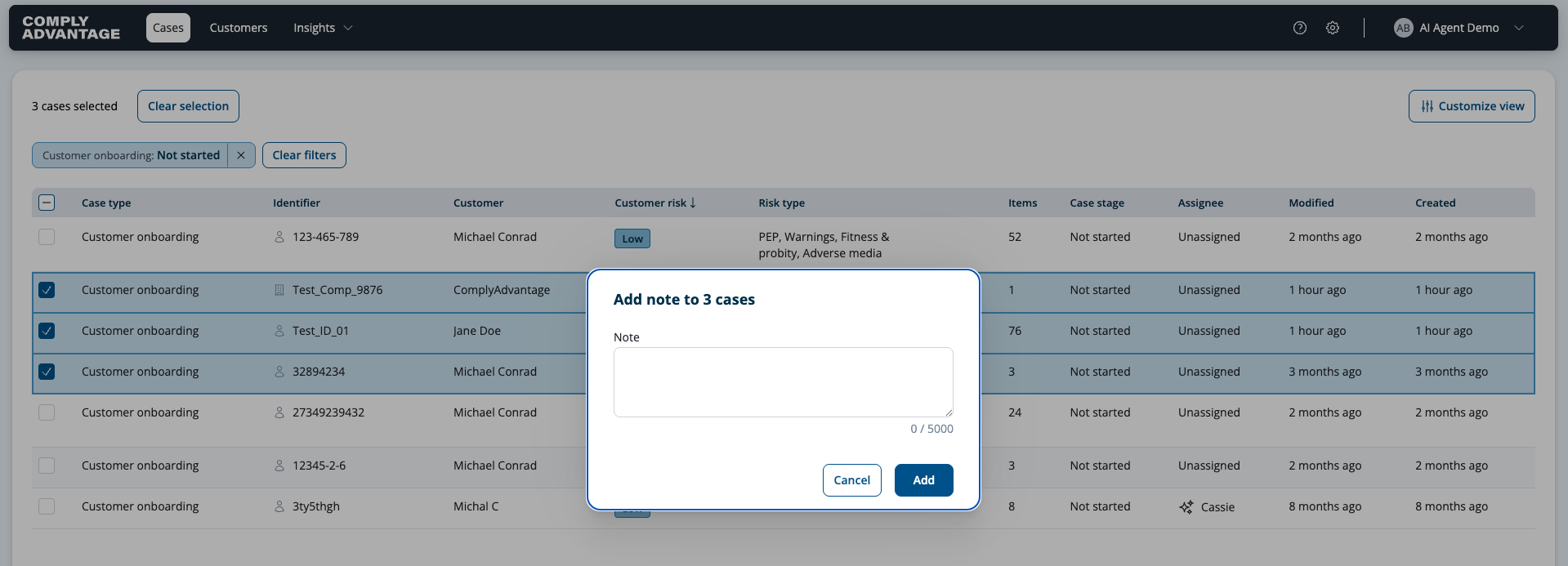
Type in the note and click Add. The same note is added to all your selected cases.
Adding a note while performing a case action
Go to the case list page by clicking Cases in the top left.
Select the checkboxes beside one or more cases.
When one or more cases are selected the Actions button appears in the top left.
Open the Actions menu and select Assign to, Unassign or Case decision.
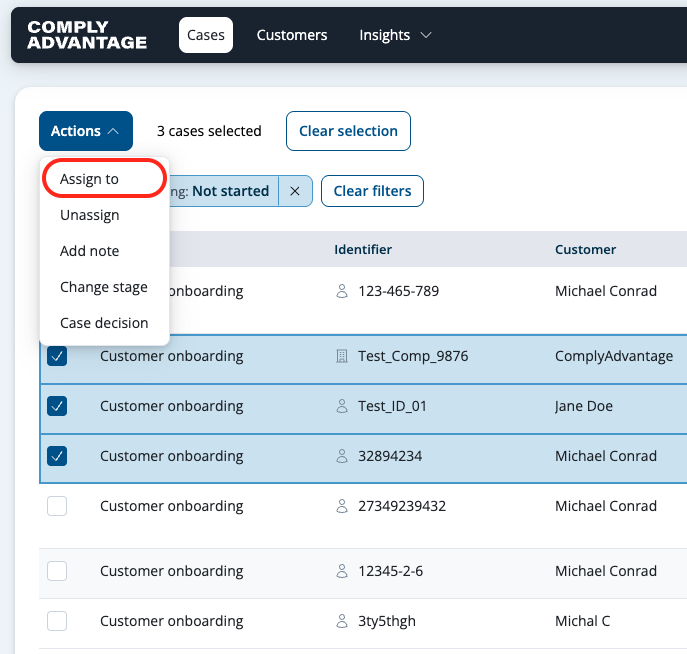
There is a form box where you can enter a note. Notes are mandatory for case decisions but optional for other actions.
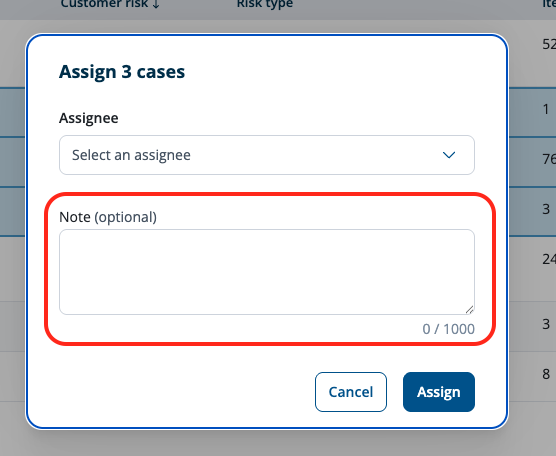
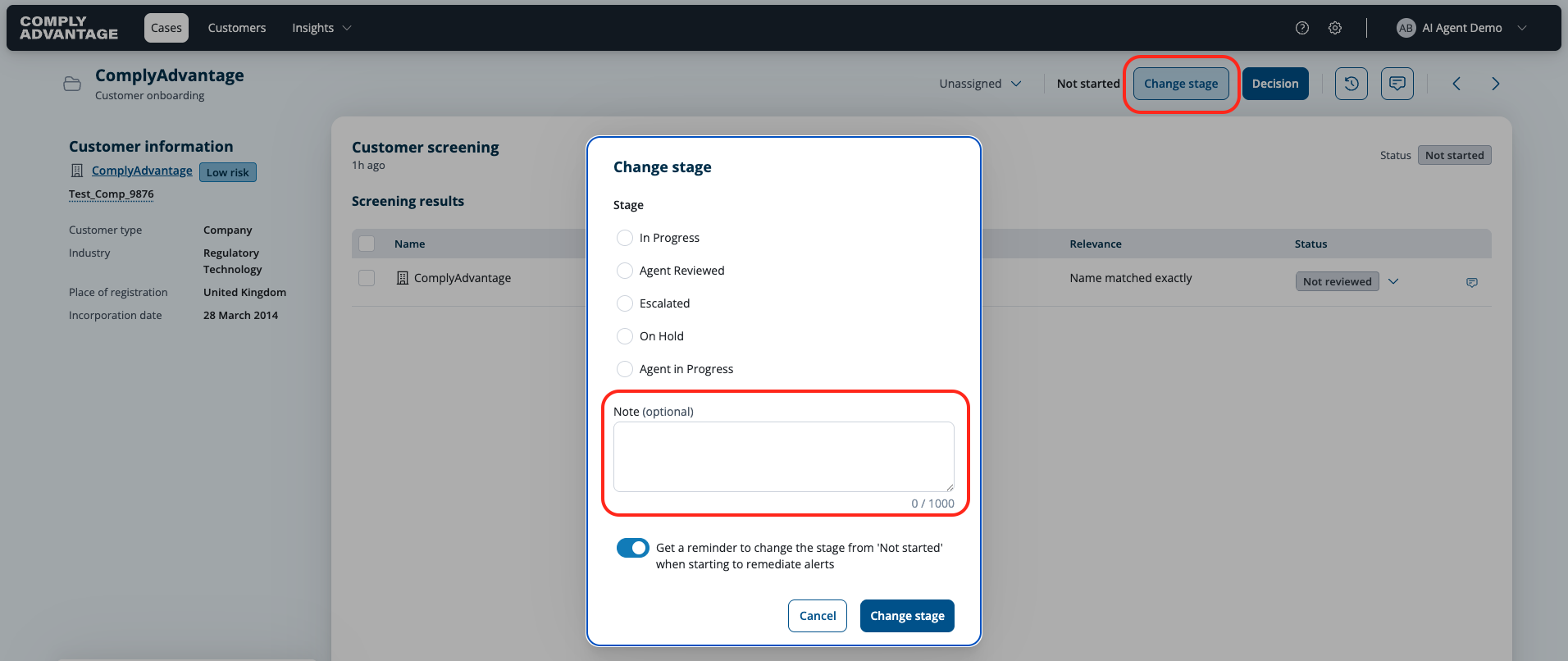
Adding a note when you change the stage of a case
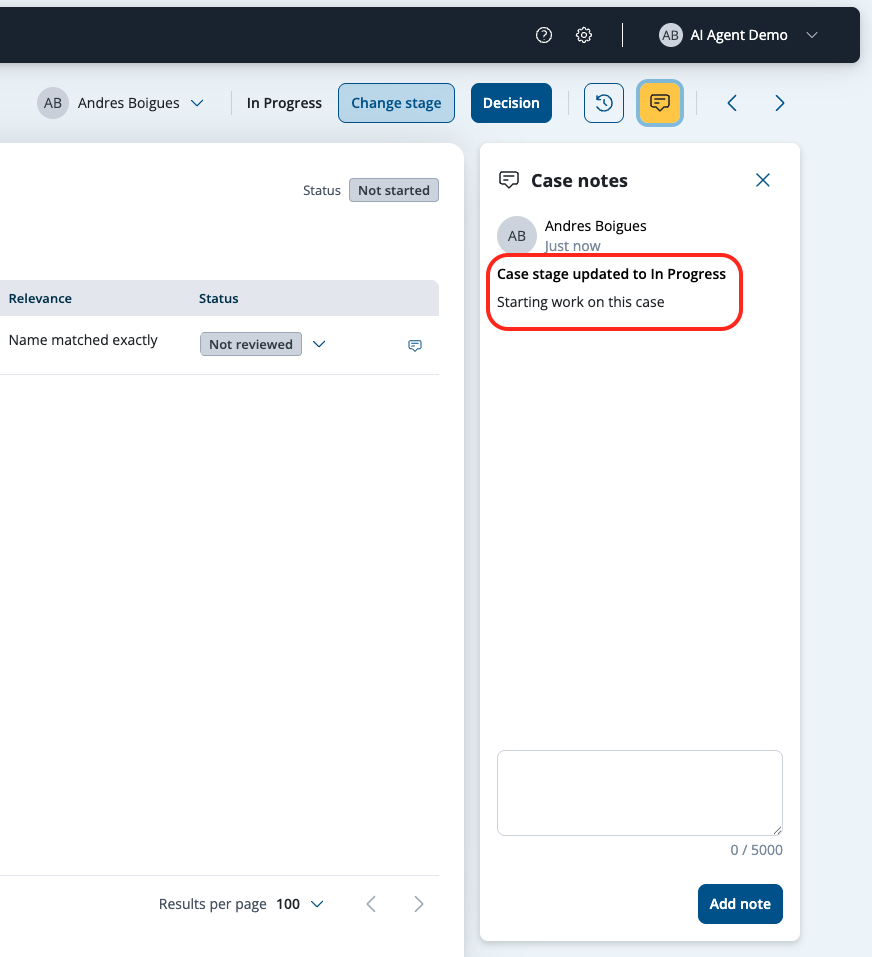
When you change a stage on a case, you have an option to add a note. This applies when you change a stage from the case list or the case view page.
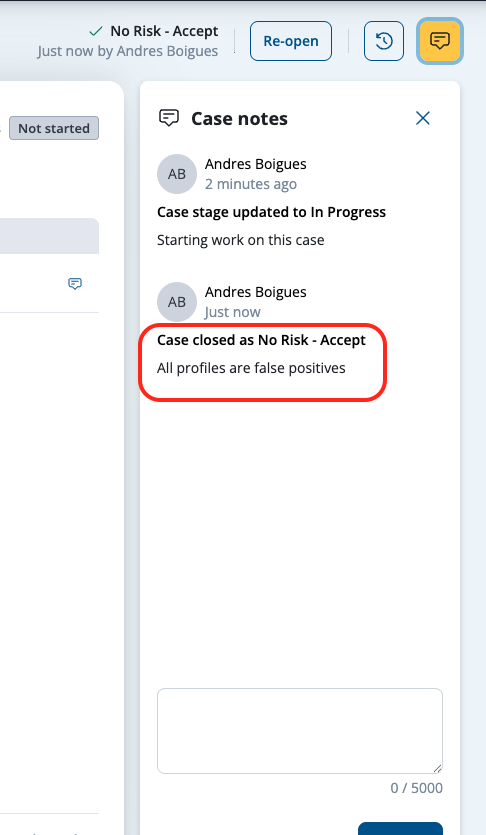
The note will reflect the action taken.
Adding a note when you make a case decision
When you make a case decision, you are required to add a note. This applies when you make the decision from the case list or the case view page.
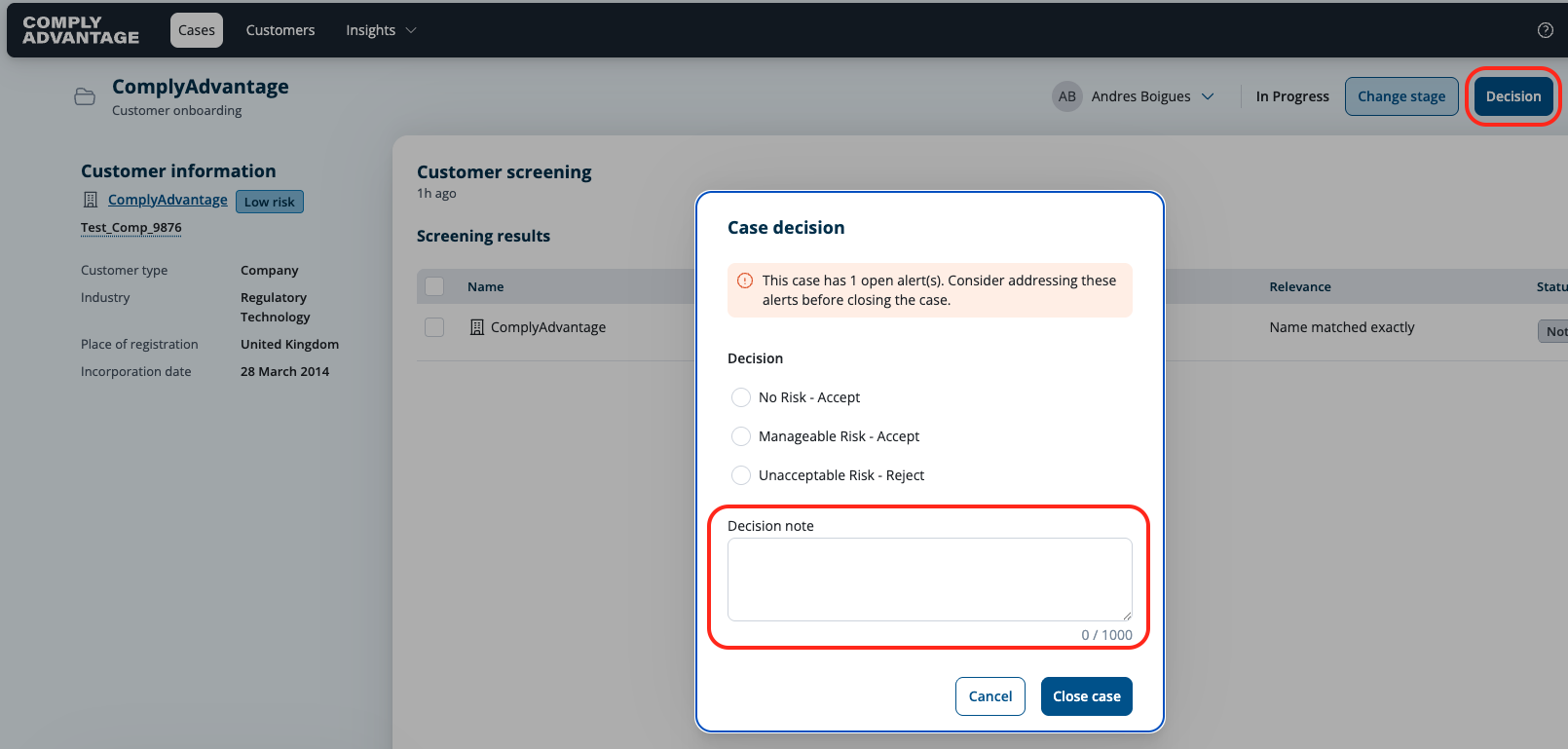
The note will reflect that it was left at the time of a case decision.