Closing multiple cases at the same time
Last updated: November 4, 2026
You can save time by closing multiple cases at the same time if you've made the same decision on them and want to add to same decision note.
Go to the case list page by clicking Cases in the top left.
Find the cases to be closed using the search or filters.
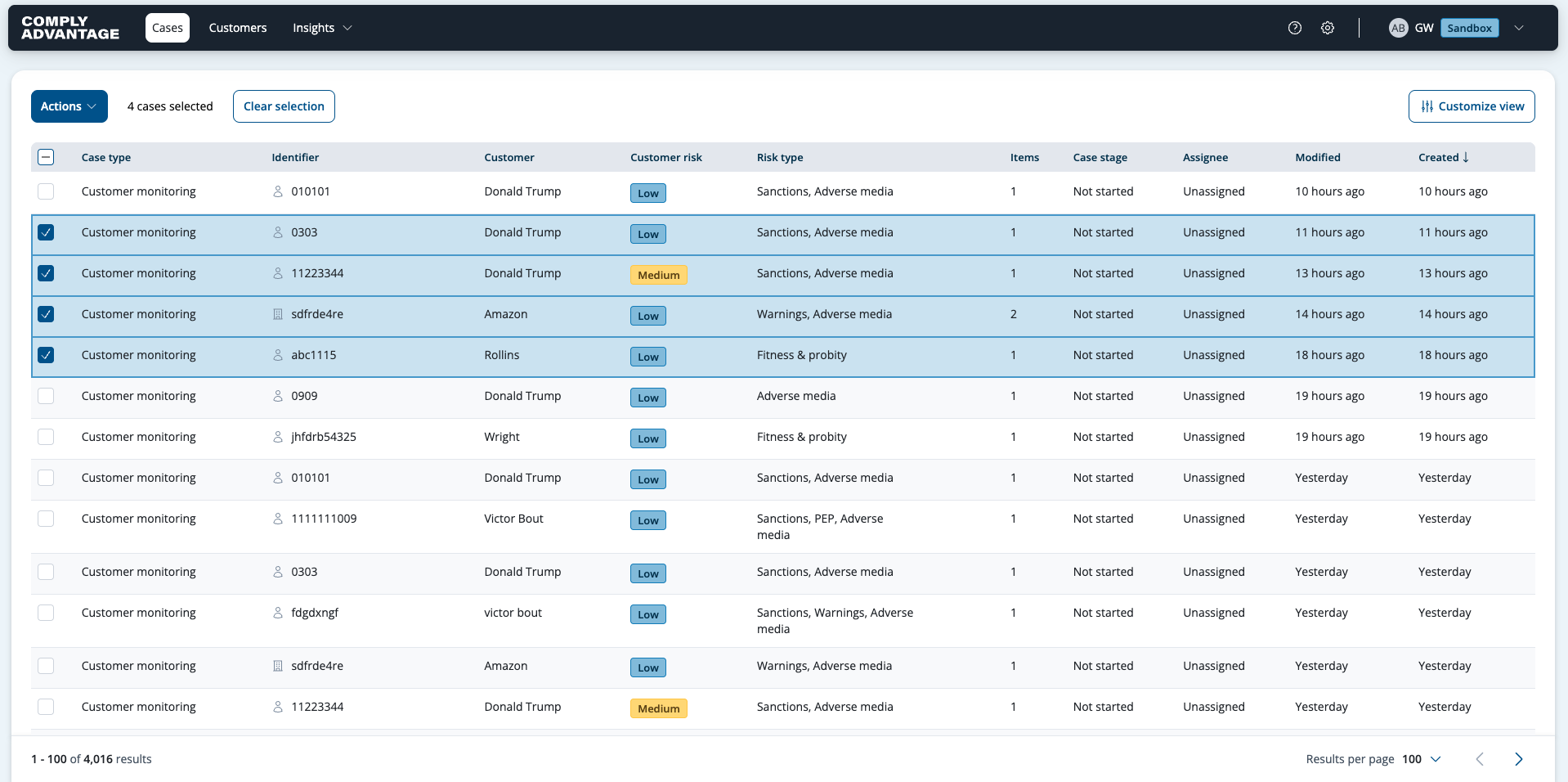
If you want to select all the cases in view, use the Select all option at the top of the table. This only selects the cases displayed on the first page, up to a maximum of 100 cases.
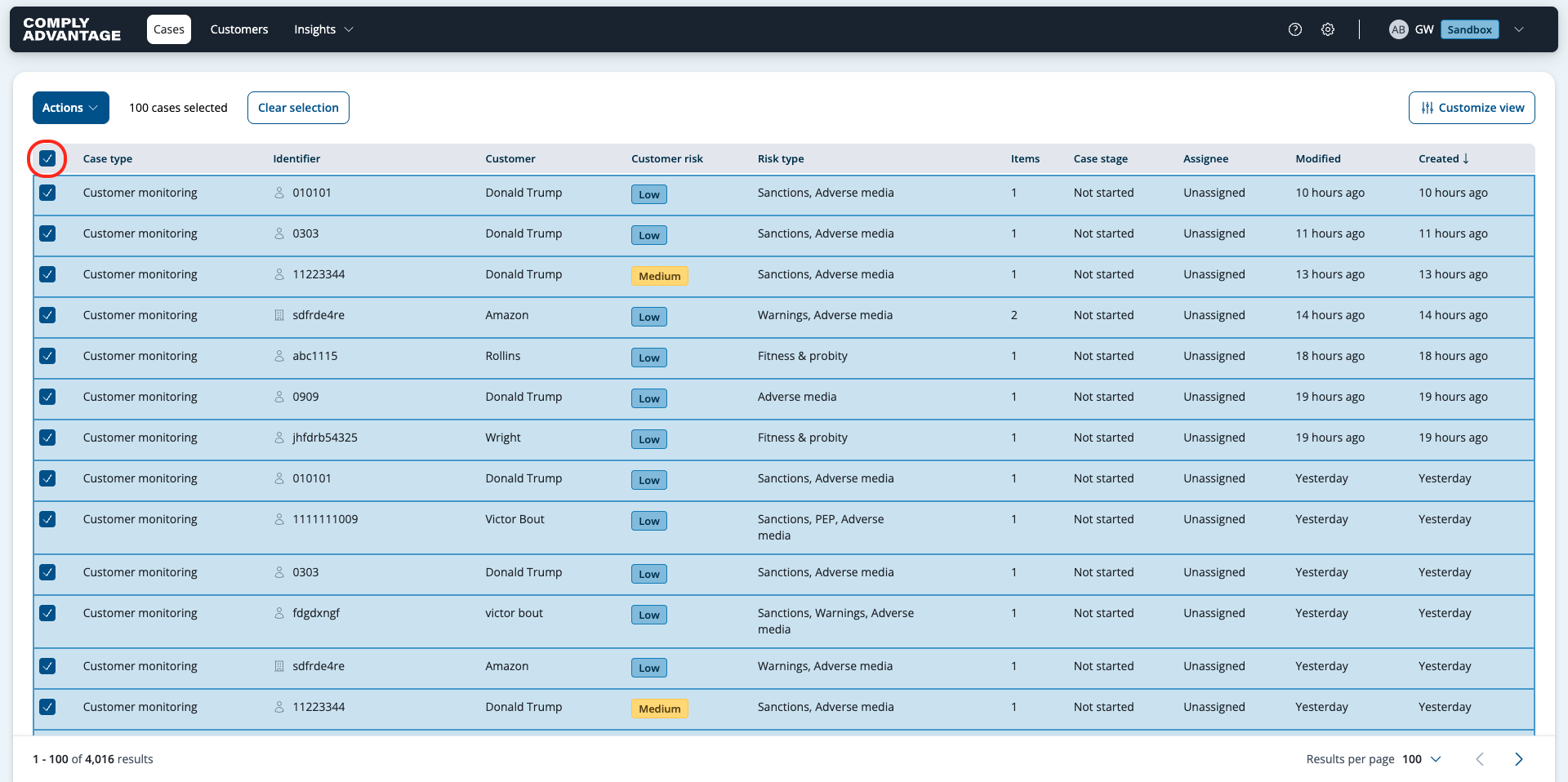
To choose specific cases, select those cases using the checkboxes.
When one or more cases are selected the Actions button appears in the top left.
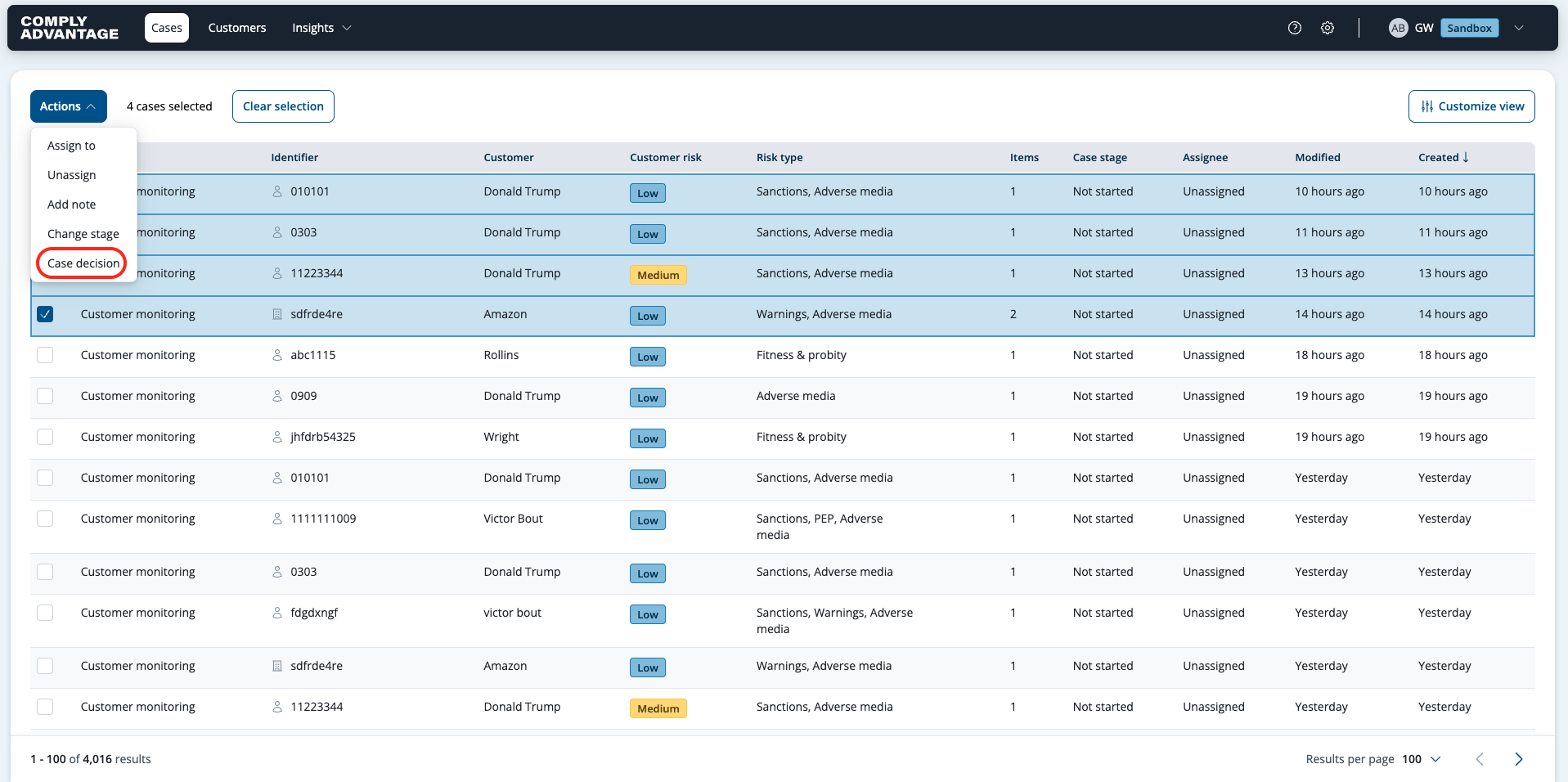
Open the Actions menu and select Case decision.
In the pop-up window select the case decision. The default options are:
No risk - Accept
Manageable risk - Accept
Unacceptable risk - Reject
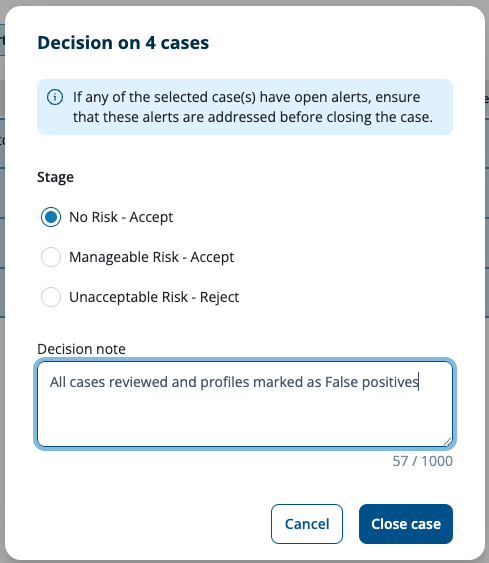
Type in a decision note and select Close case.
You'll see a success notification.

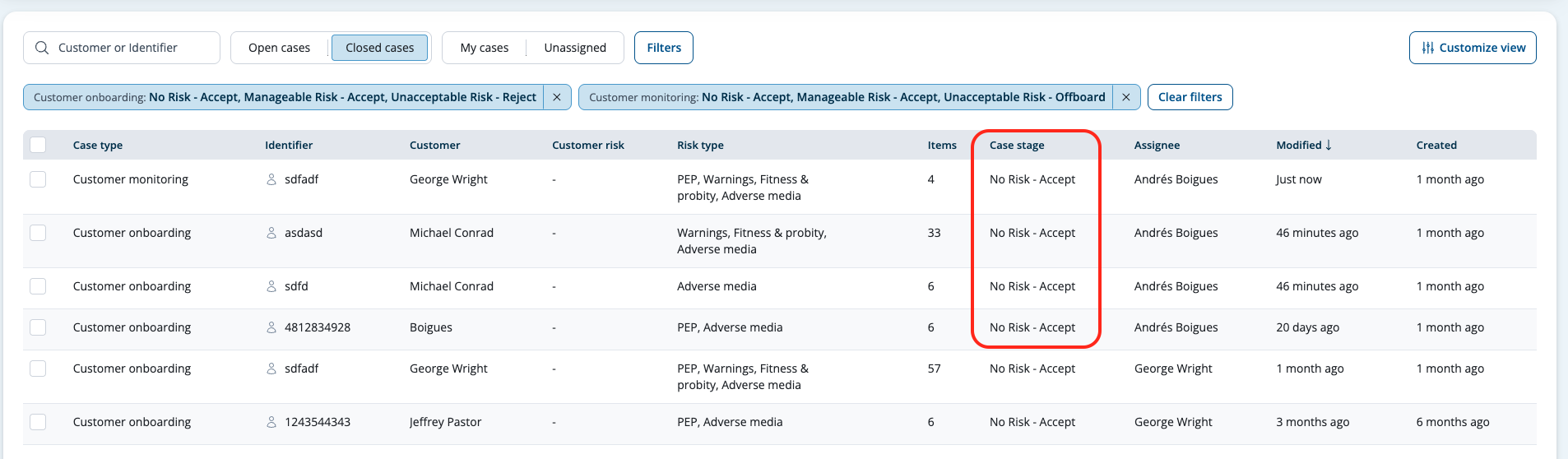
The Case stage column is updated to show the status. By default, the case list shows open cases only. If this filter is applied and you refresh the screen you will no longer see the cases you closed.