Viewing audit logs for a customer
Last updated: September 9, 2026
The customer audit log contains a log of all events that happened to your customer. It is ordered by time with the most recent events at the top, and includes:
The event that occurred or the actions taken:
Customer created
Customer updated
Risk score calculated
Customer screened
Customer re-screened
Case created
Case closed
The user who took the action
The date and time of the event
You can access the customer audit log directly from the customer page by clicking the clock icon on the right-hand side of the header.
From Customers click on a customer to open their details.
Select the Audit log button in the top right.
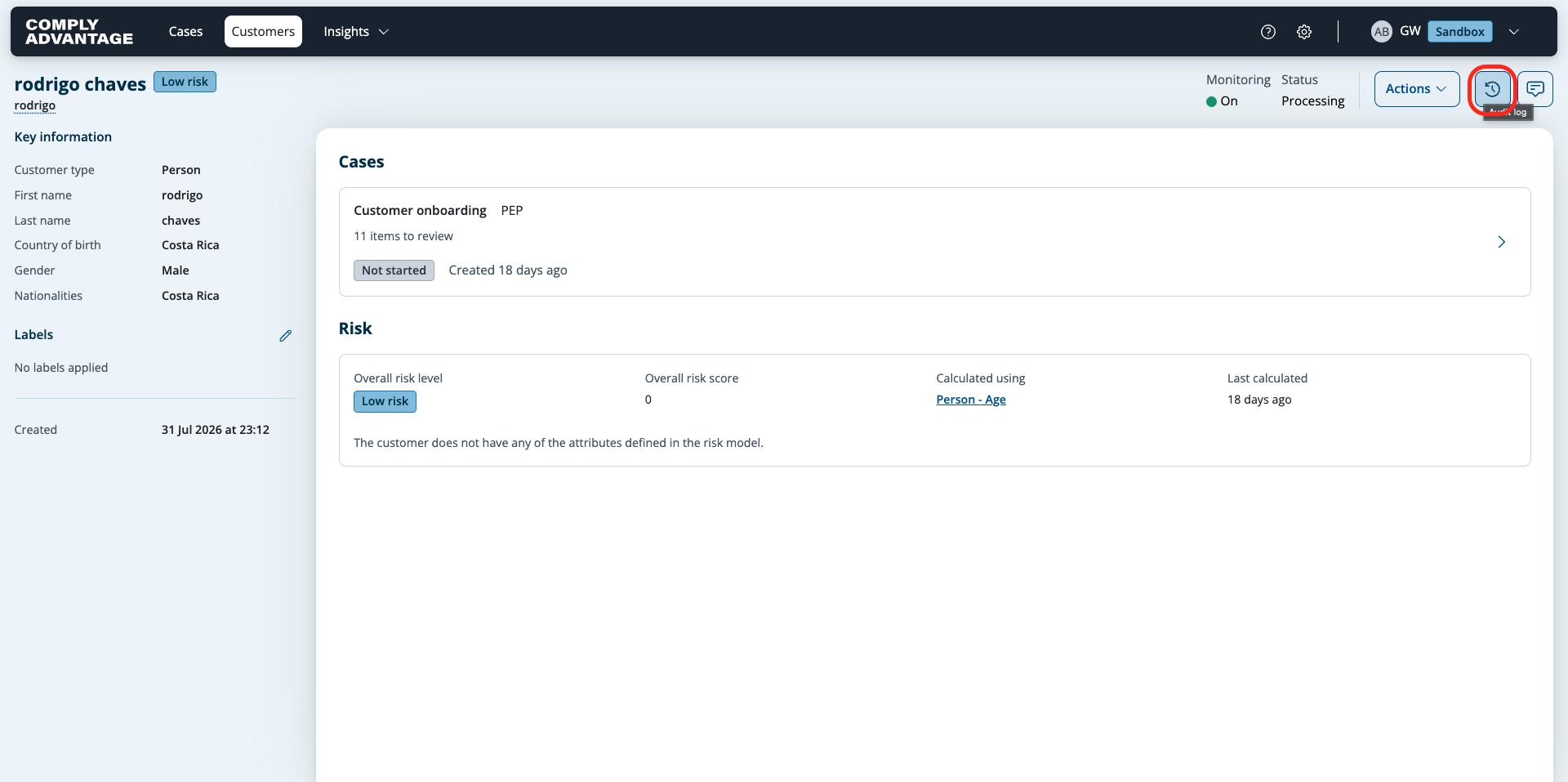
The Audit log panel will open on the right side of the case.

To close the Audit log panel, click the X or click the Audit log button.
To resize the Audit log, click and drag from the left-hand side of the Audit log.