Video: Viewing audit logs for a customer
Last updated: October 13, 2026
In this guide, you will learn how to view audit logs for a customer in Mesh.
When logging in to your account, please ensure you select the correct region, which will be one of the following:
Australia: https://au.mesh.complyadvantage.com/
You can find the link to your region in the onboarding email you received (look for the "Welcome to ComplyAdvantage" email).
If you can’t find the email, don't worry! You can always contact our support team at [email protected].
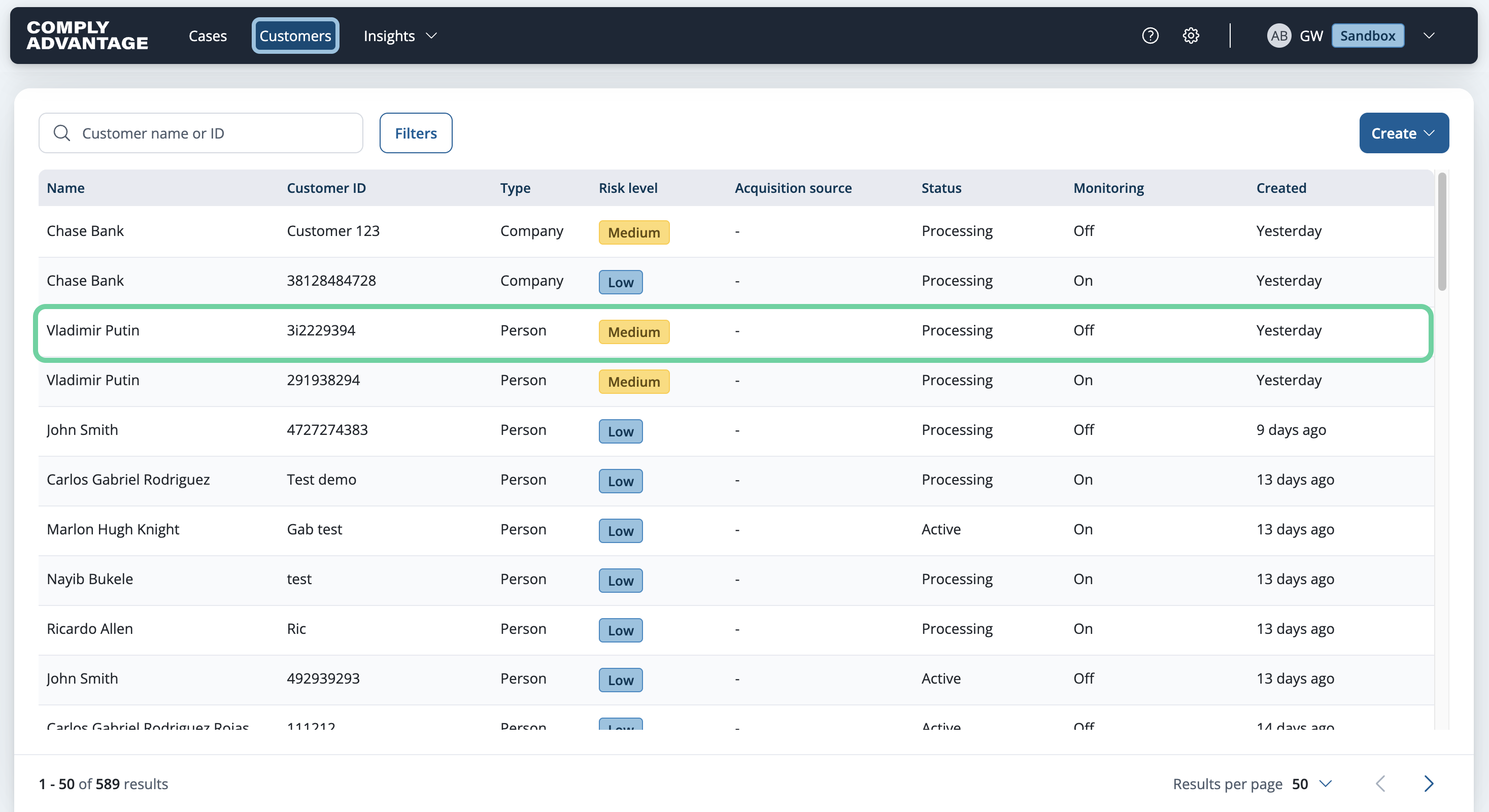
1. Click on customer
From the "Customers" page, click on a customer to open their details.
2. Click here
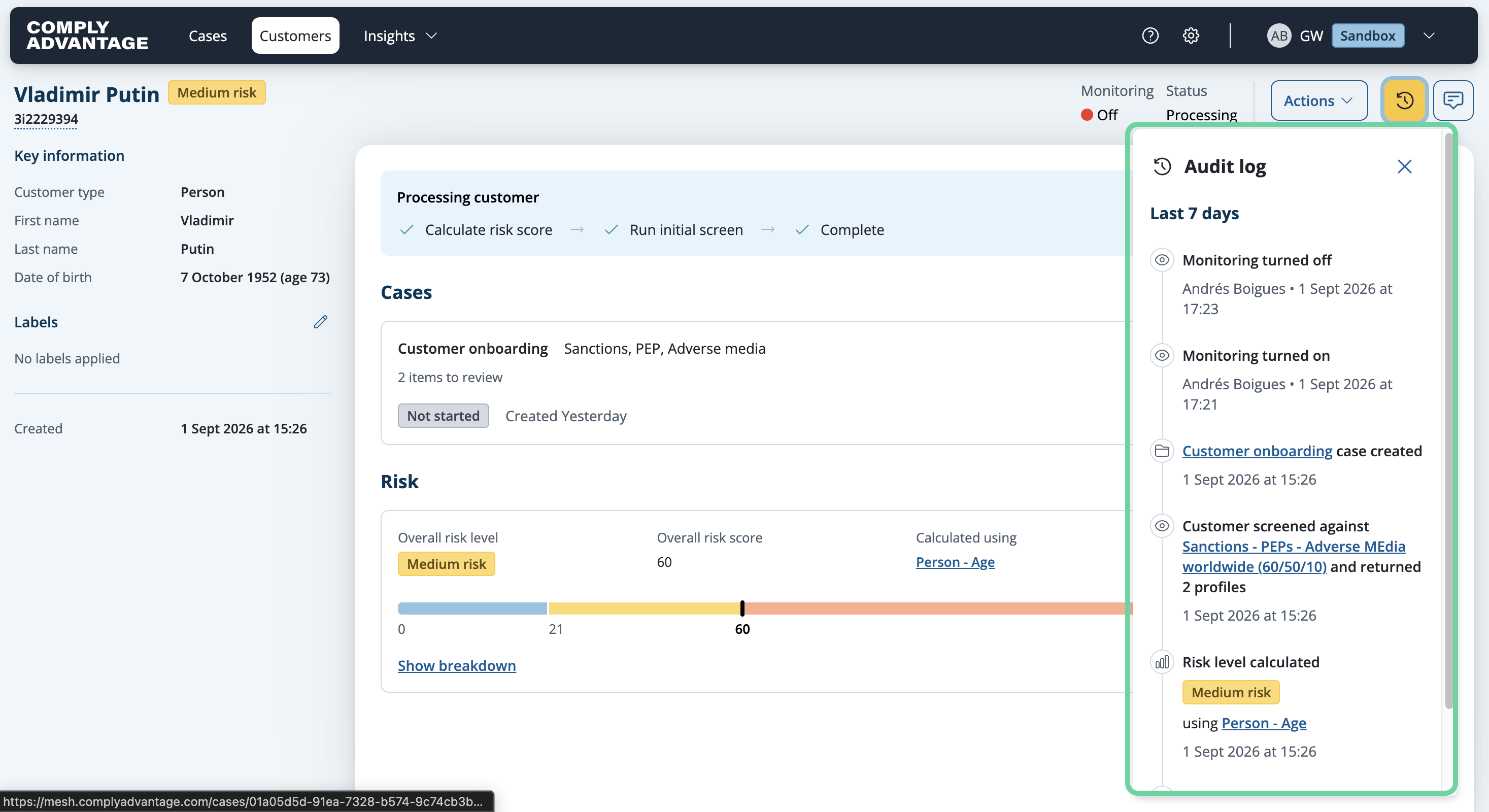
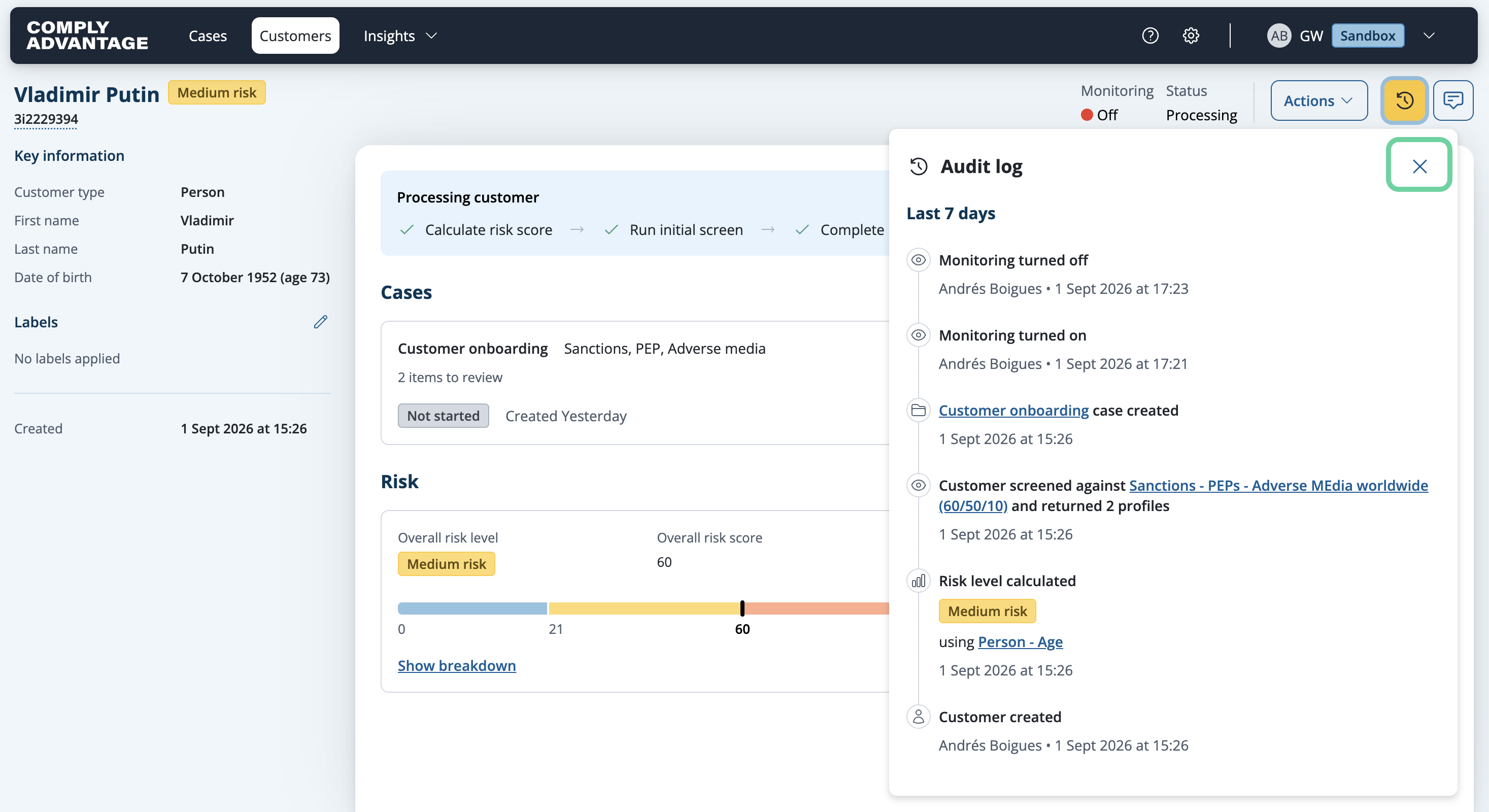
Then, click the clock icon here.

3. View audit log
Here, you'll find a detailed log of all actions taken for this customer. This includes when the customer was created, the screening configuration used, any adjustments made to monitor settings, and a record of all other actions throughout the customer's journey.
4. Select hyperlinks
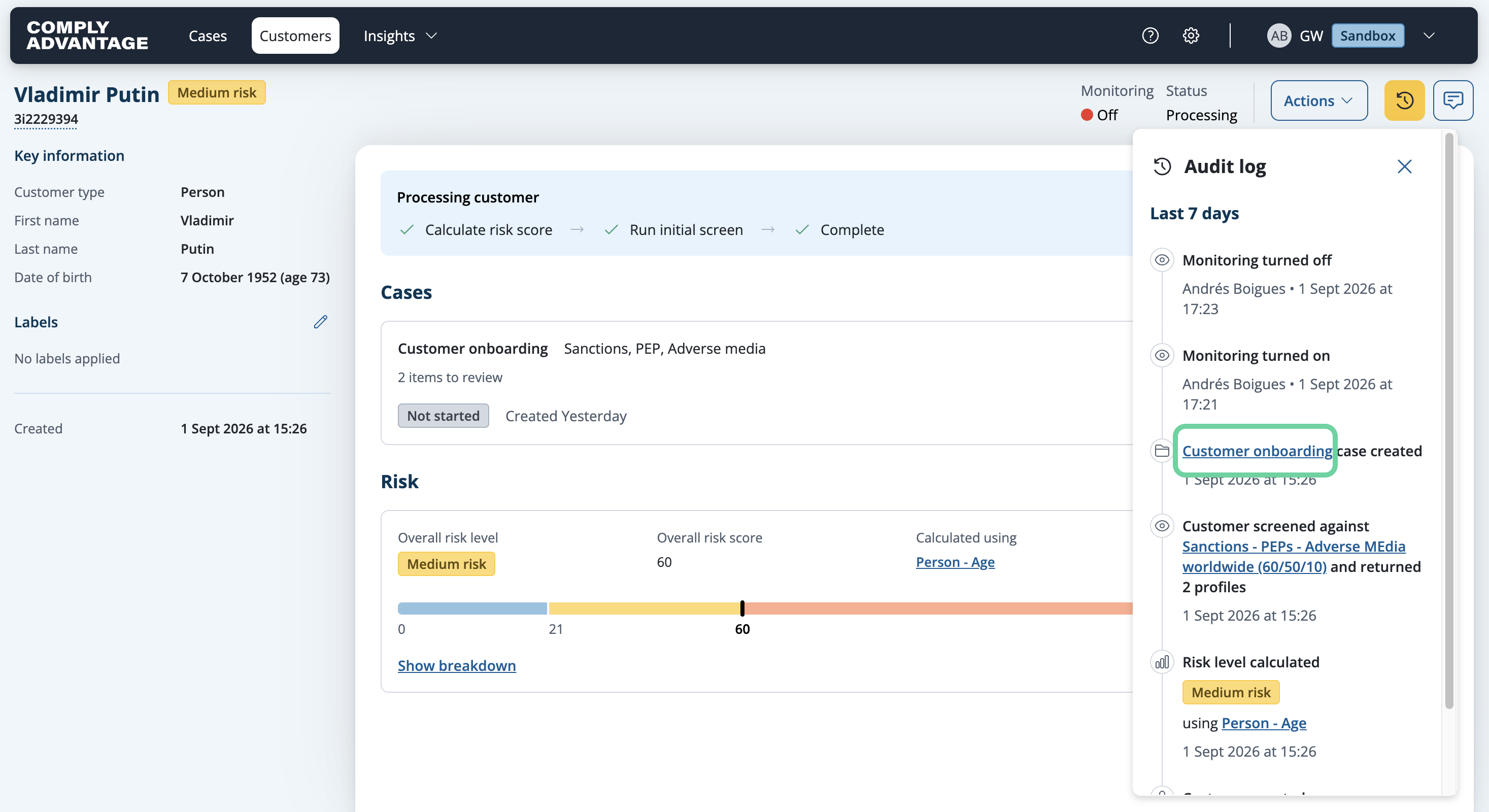
Additionally, you can select any hyperlink which will bring you to the corresponding page.
5. Drag to expand
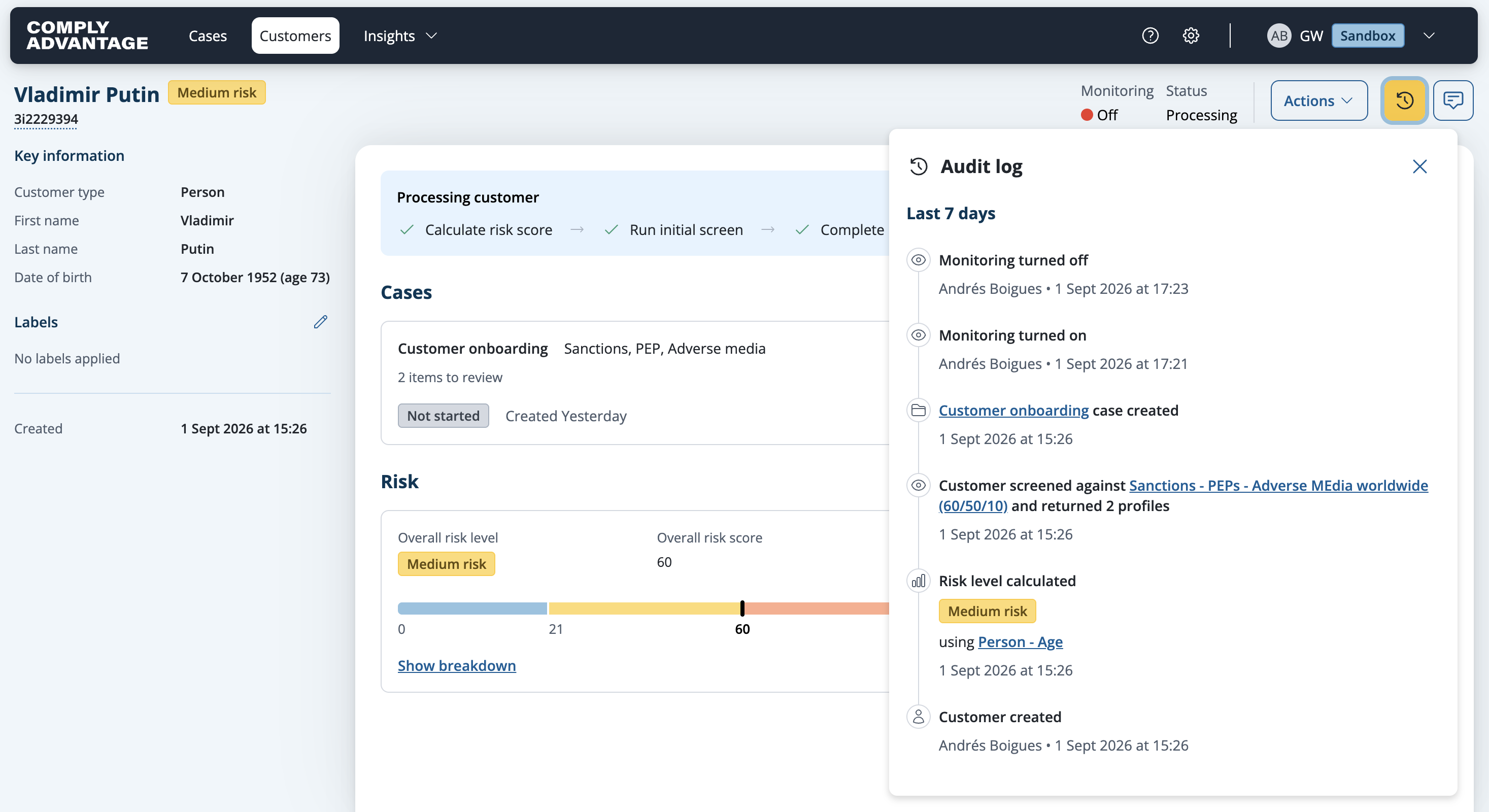
You can also drag the tab to expand the audit log page, making it easier to view and navigate.
6. Click here
To close the Audit log panel, click the X.
We hope this guide helped you learn how to access and review audit logs for a customer in Mesh.