Editing or renaming a risk model
Last updated: November 4, 2026
Once you have created a risk model, there are a number of changes you can make to it. You can:
Edit the categories, risk thresholds and category weightings applied to the model.
Change the model's name.
It’s not possible to directly edit a model’s attributes: you’ll need to duplicate an existing model, change the relevant features, and publish it with a new name.
A risk model you create becomes the default for its customer type when you publish it. Editing a risk model keeps its status and default setting, and activating a previous risk model does not make it the default. All new risk scores will be calculated using this model. An existing customer’s risk score will also be recalculated based on this risk model the next time a case for this customer is closed.
Editing a risk model
Editing a risk model creates a duplicate model, to which you can apply updated categories, thresholds, or weightings.
Go to the risk models page by clicking the Settings cog. The default page in Settings is Risk models. This page shows all the risk models in your account, ordered by the created date.
Find the risk model you want to edit in the list and click on the three dots.
Choose Edit.
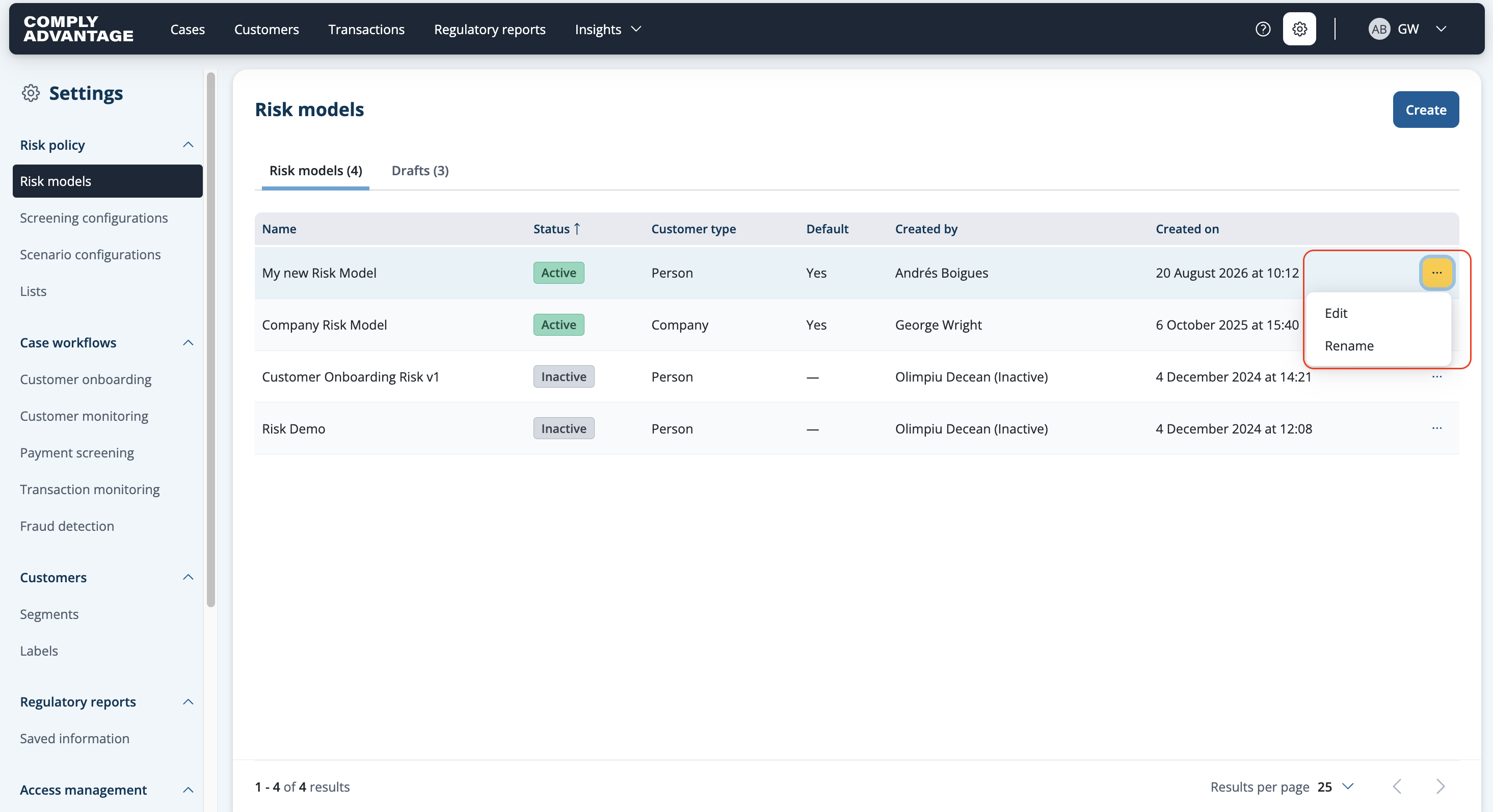
Click Edit in the pop-up.

The Categories screen opens to display the categories and attributes taken from the previous risk model. You can edit these as required. For more information on how to do this, see Adding category attributes and Setting category thresholds.
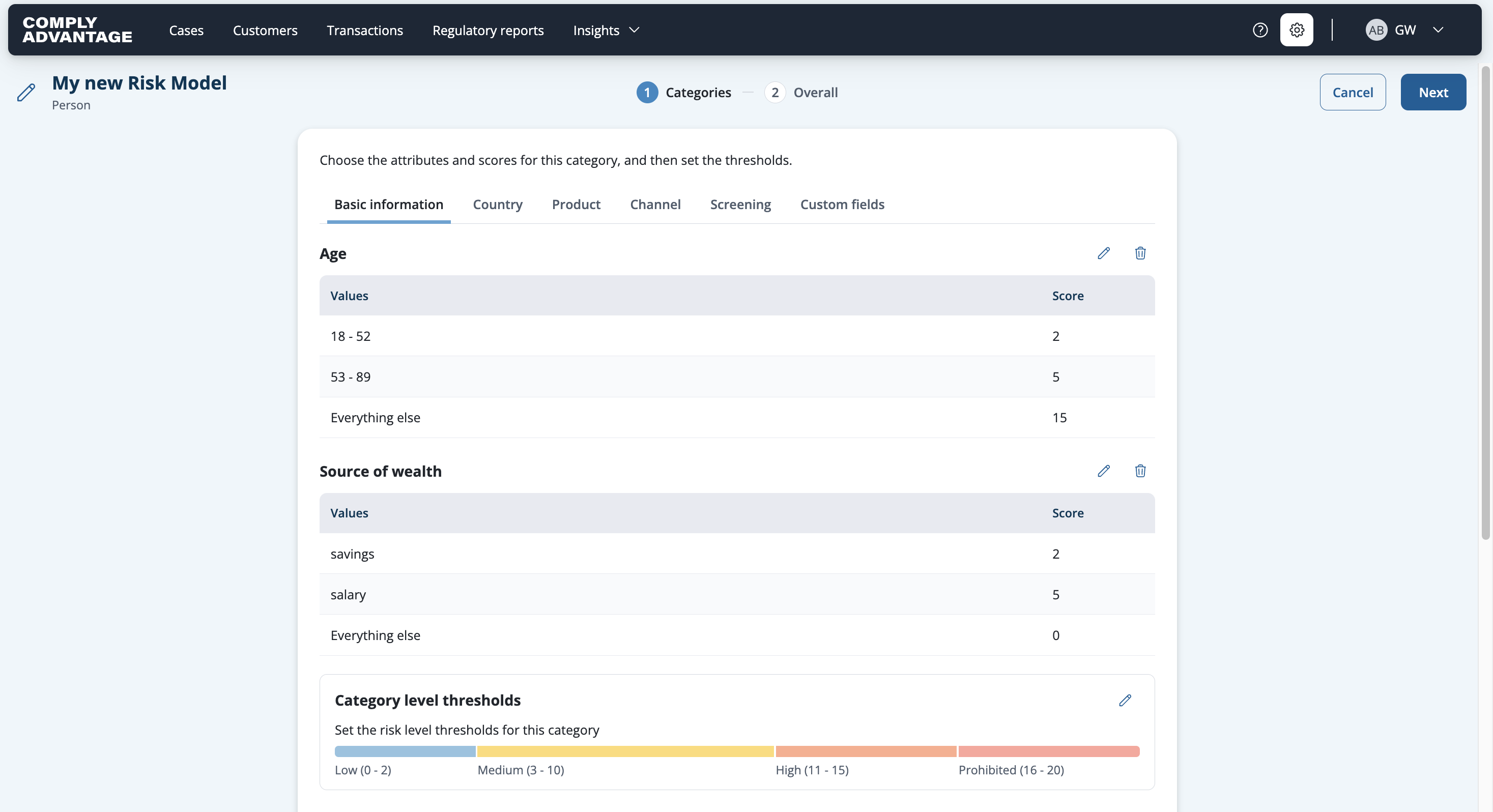
You can also rename the risk model if you want b y clicking the pencil button on the top left of the page.
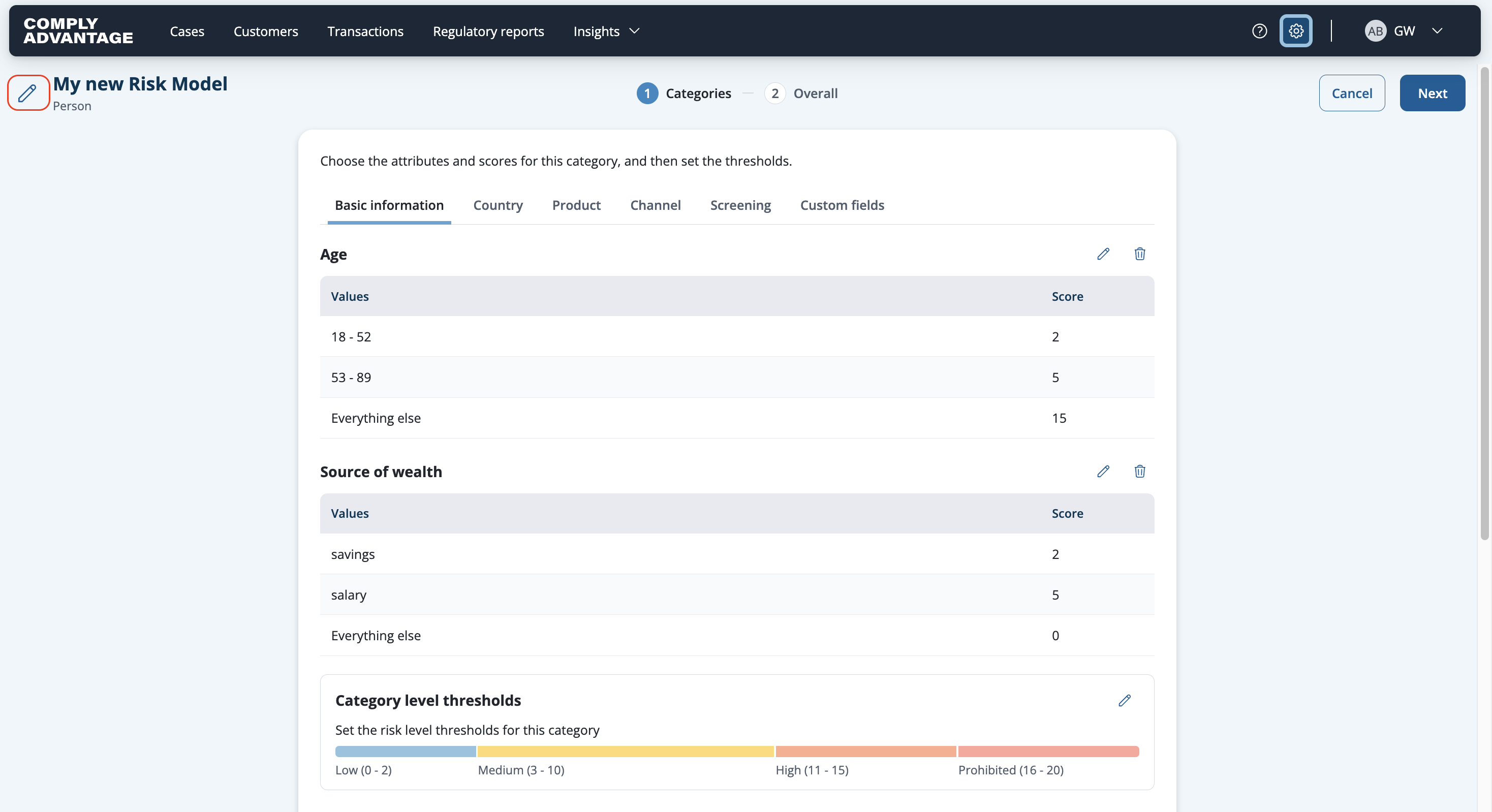

When you're ready, click Next to move to the Overall screen for Changing the category weightings, and Setting overall risk level thresholds.

When you've finished making changes, click save in the top right.
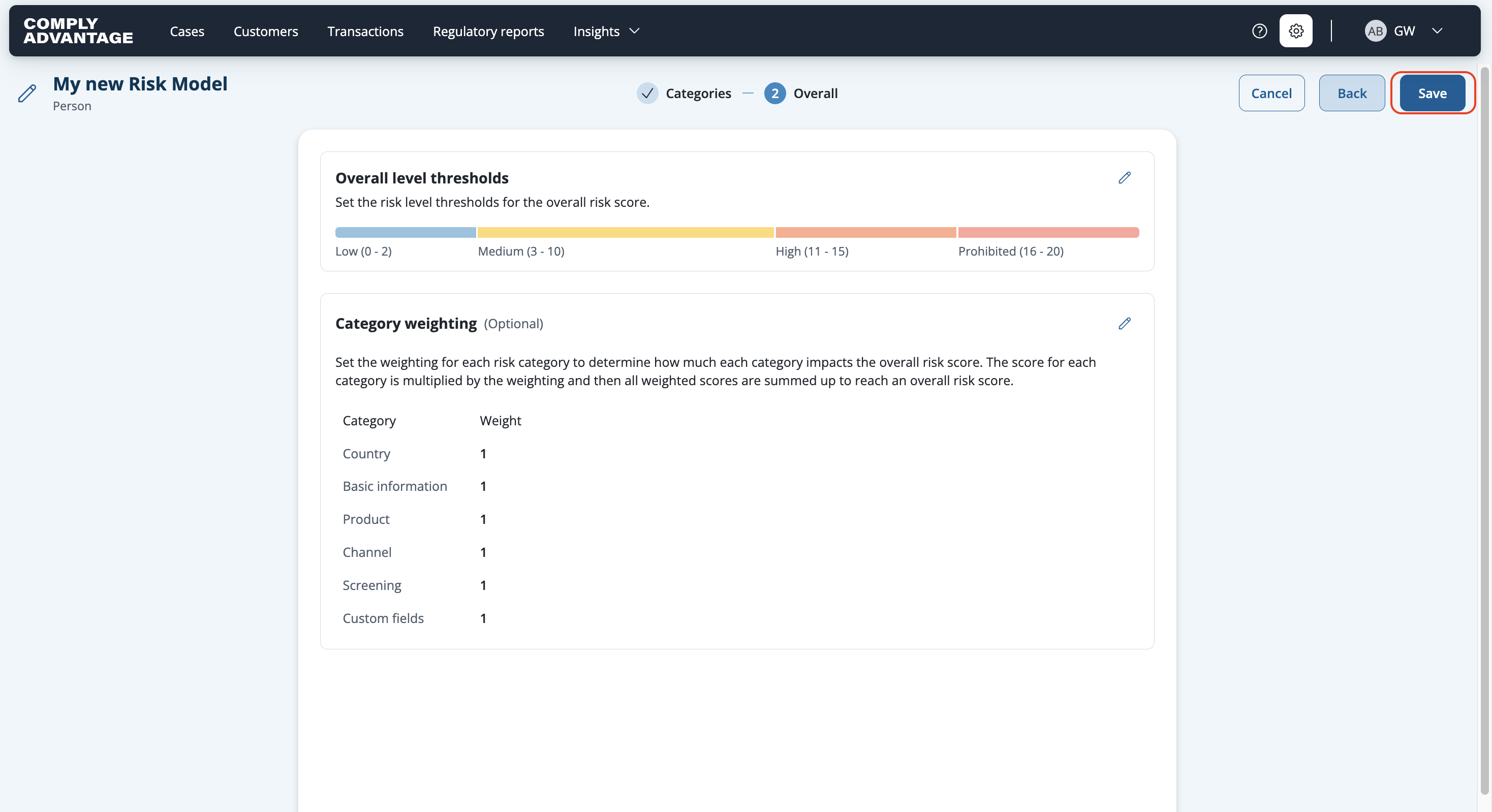
Click save.

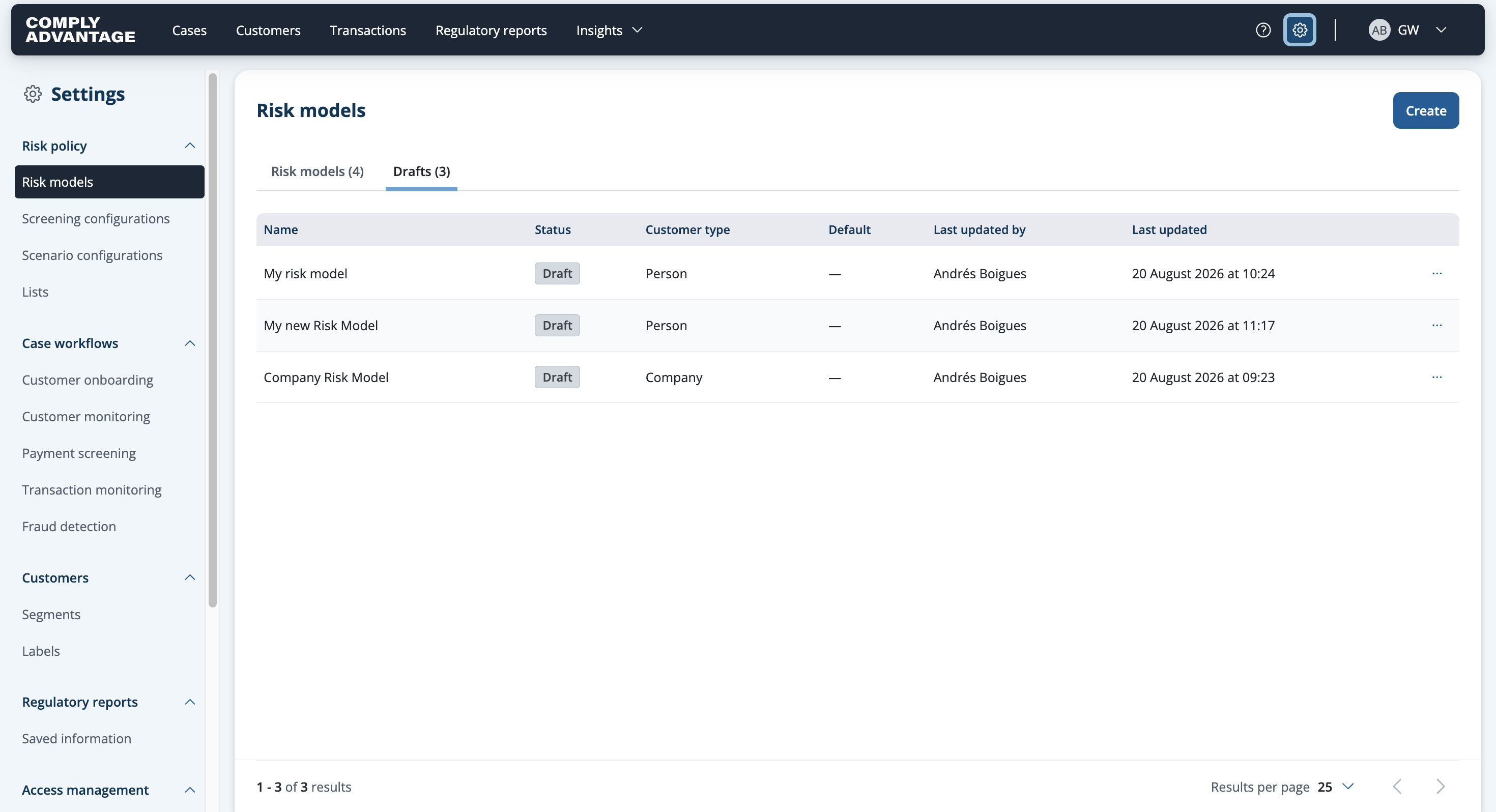
Your draft will now be saved and you can promote it anytime you want form the Risk Models drafts section.

Renaming a risk model
You can give your risk model a new name, for example to make it more descriptive or easier to understand.
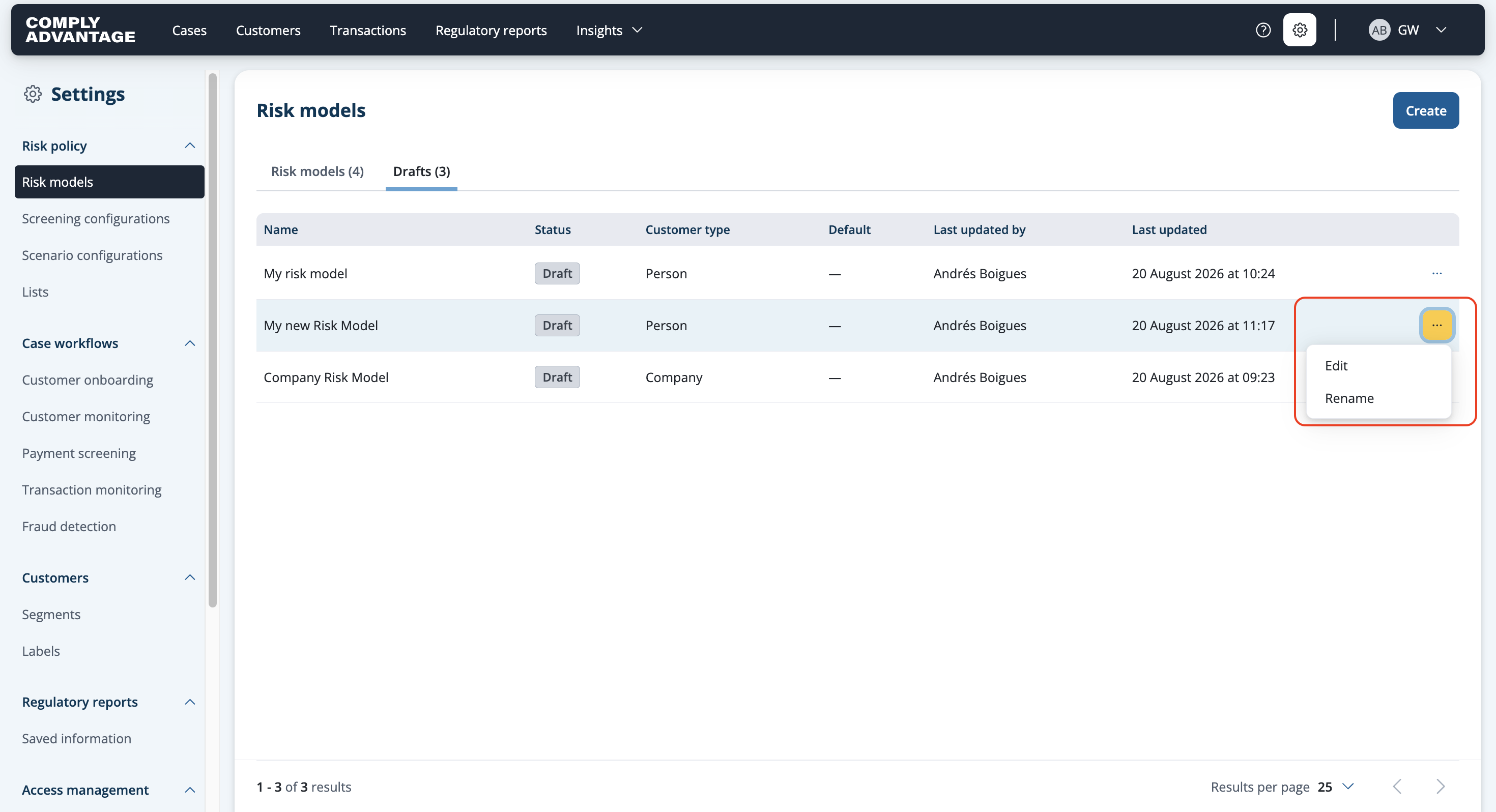
Find the risk model you want to rename in the list.
Click the three dots on the right.
Choose Rename.
Enter the new name for the model.
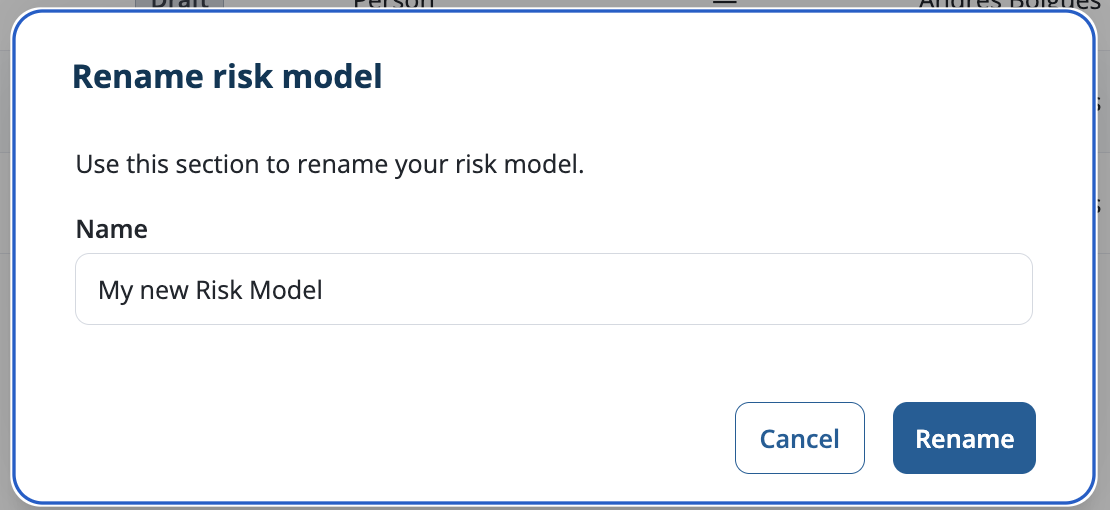
Click Rename.
The new name is shown in the risk models list.