Video: Remediating an onboarding case
Last updated: October 13, 2026
In this guide, you will learn how to remediate an onboarding case in Mesh.
When logging in to your account, please ensure you select the correct region, which will be one of the following:
Australia: https://au.mesh.complyadvantage.com/
You can find the link to your region in the onboarding email you received (look for the "Welcome to ComplyAdvantage" email).
If you can't find the email, don't worry! You can always contact our support team at [email protected].
1. Introduction
You are now in an onboarding case, opened from the case list. A case comprises one or more profiles, which are the line items in the Screening results table. On the left, you can see the customer's information.
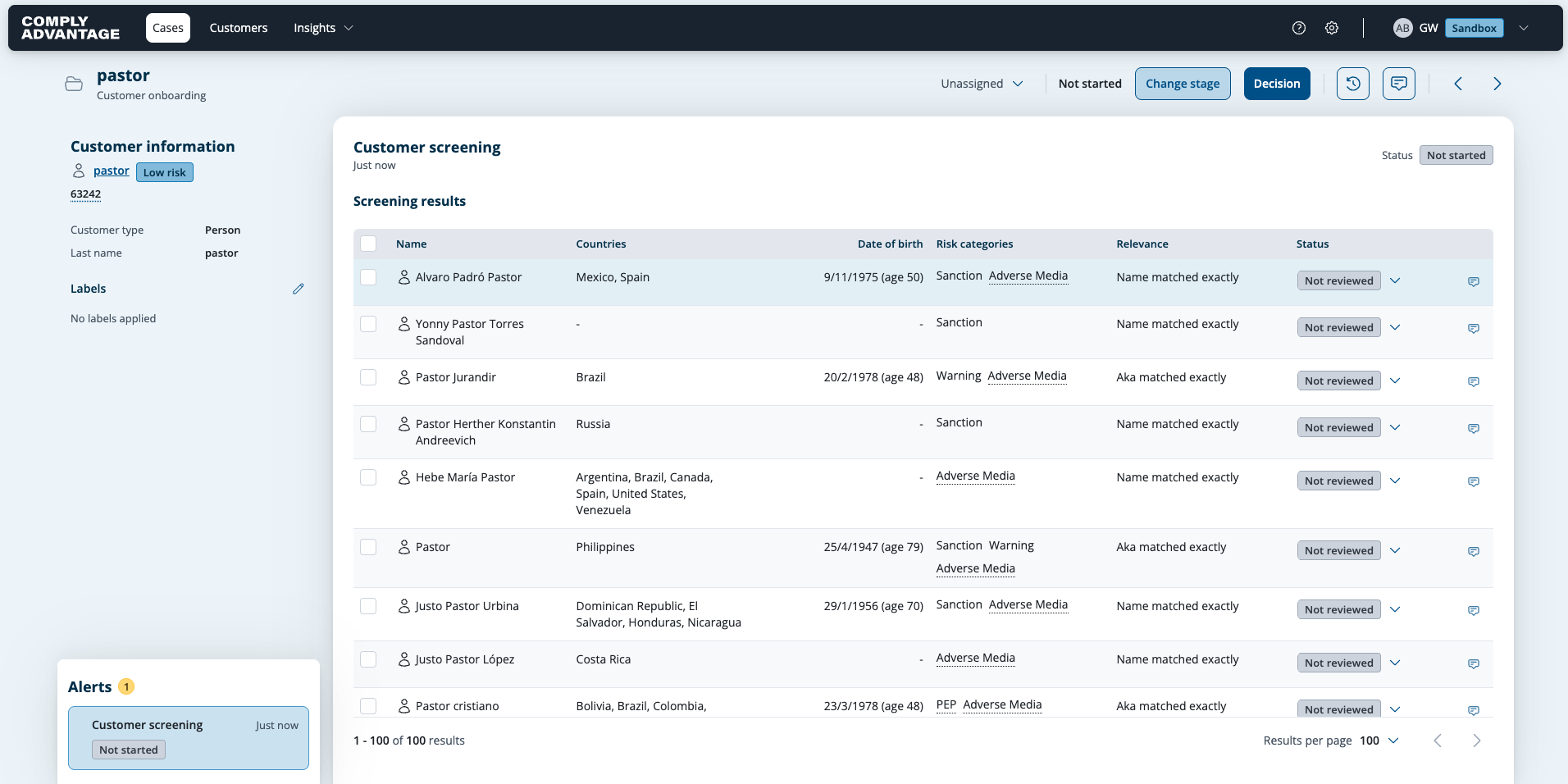
2. Click "Unassigned"
In the case header, click "Unassigned" to assign the case to a specific user. This tells the rest of the team that the case is already being addressed.
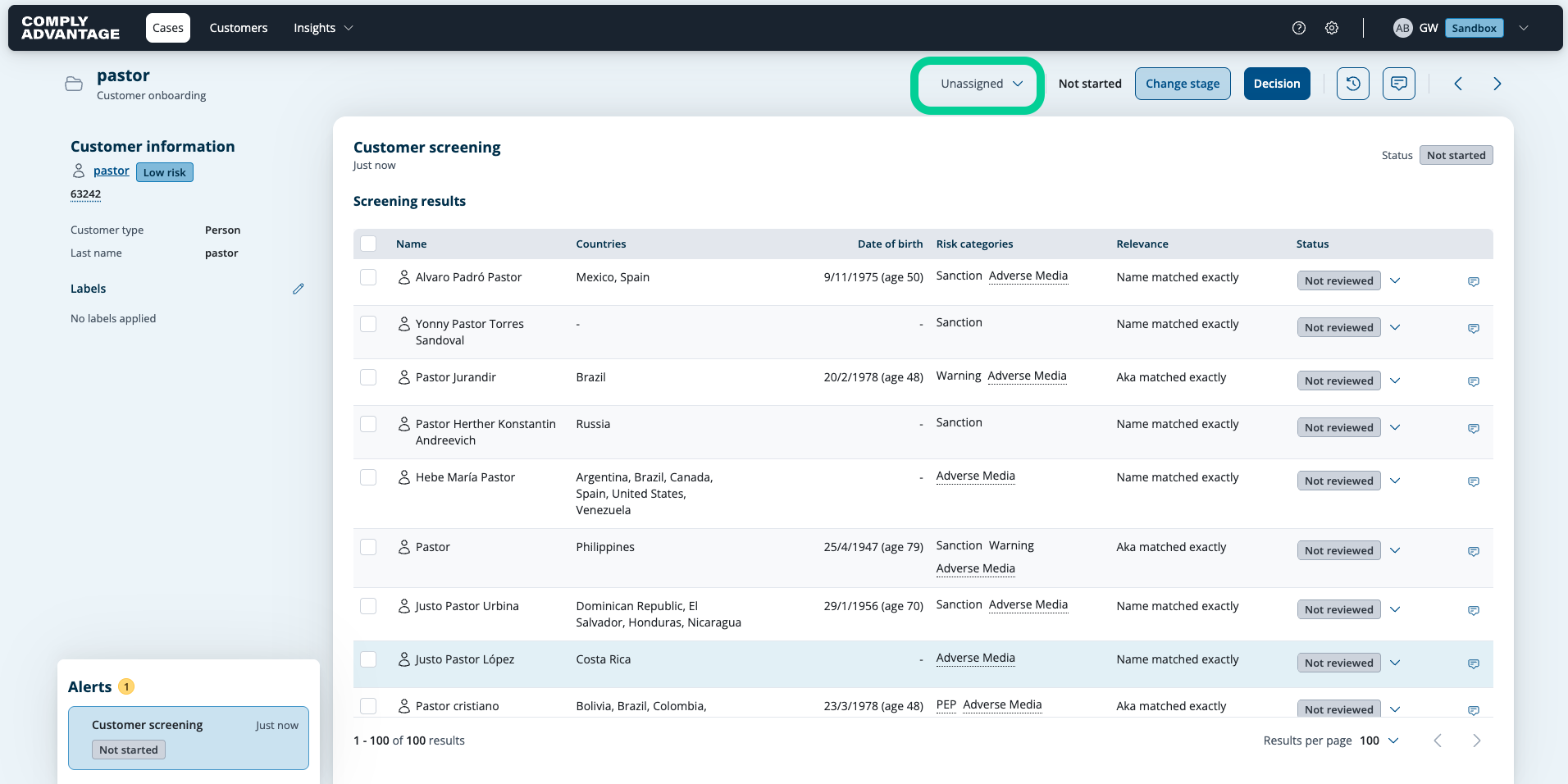
3. Select a user
Select the user you want to assign the case to from the list.
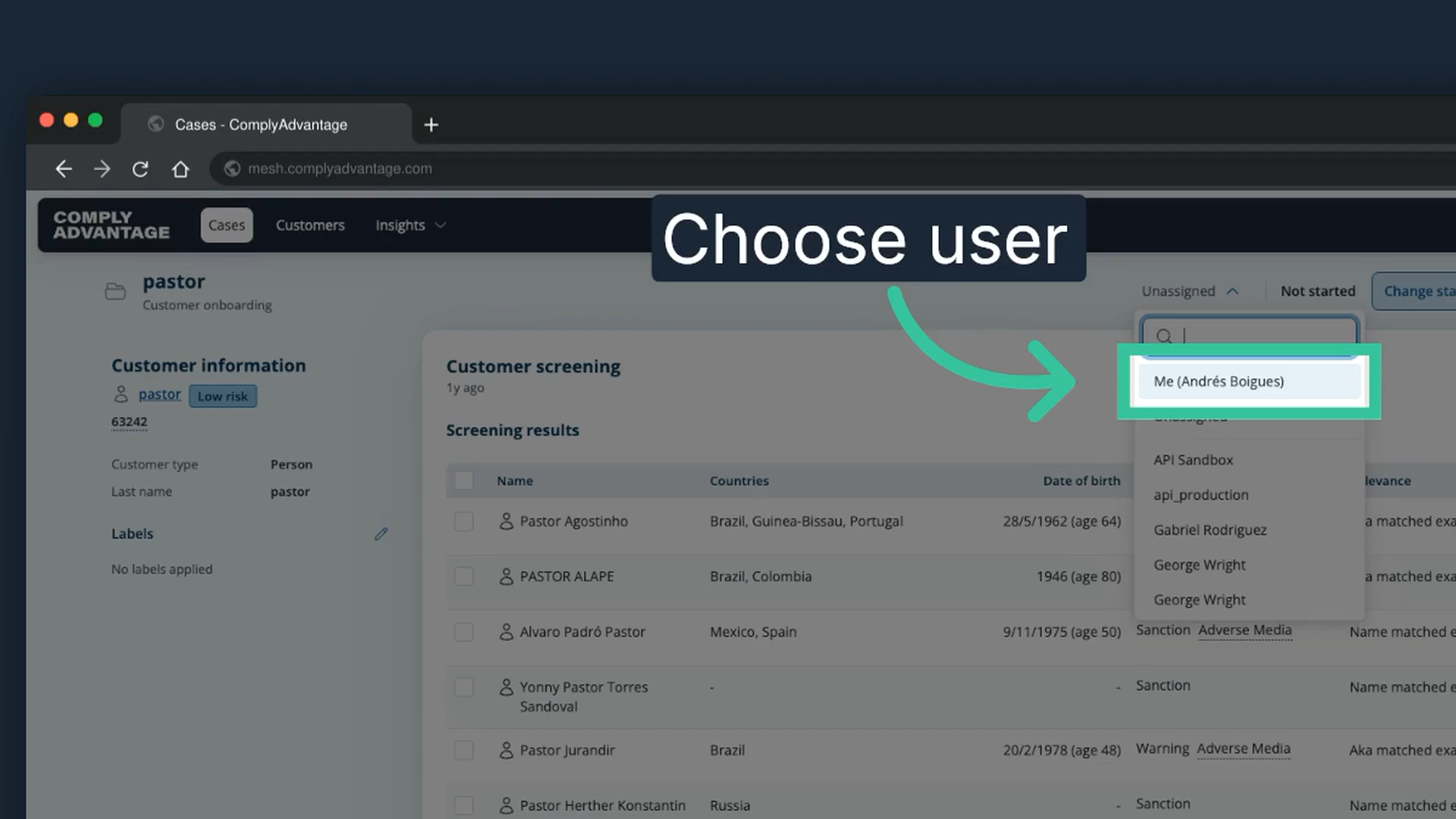
4. Click "Change stage"
Change the case's stage from "Not started" to one that shows you have begun working on it.
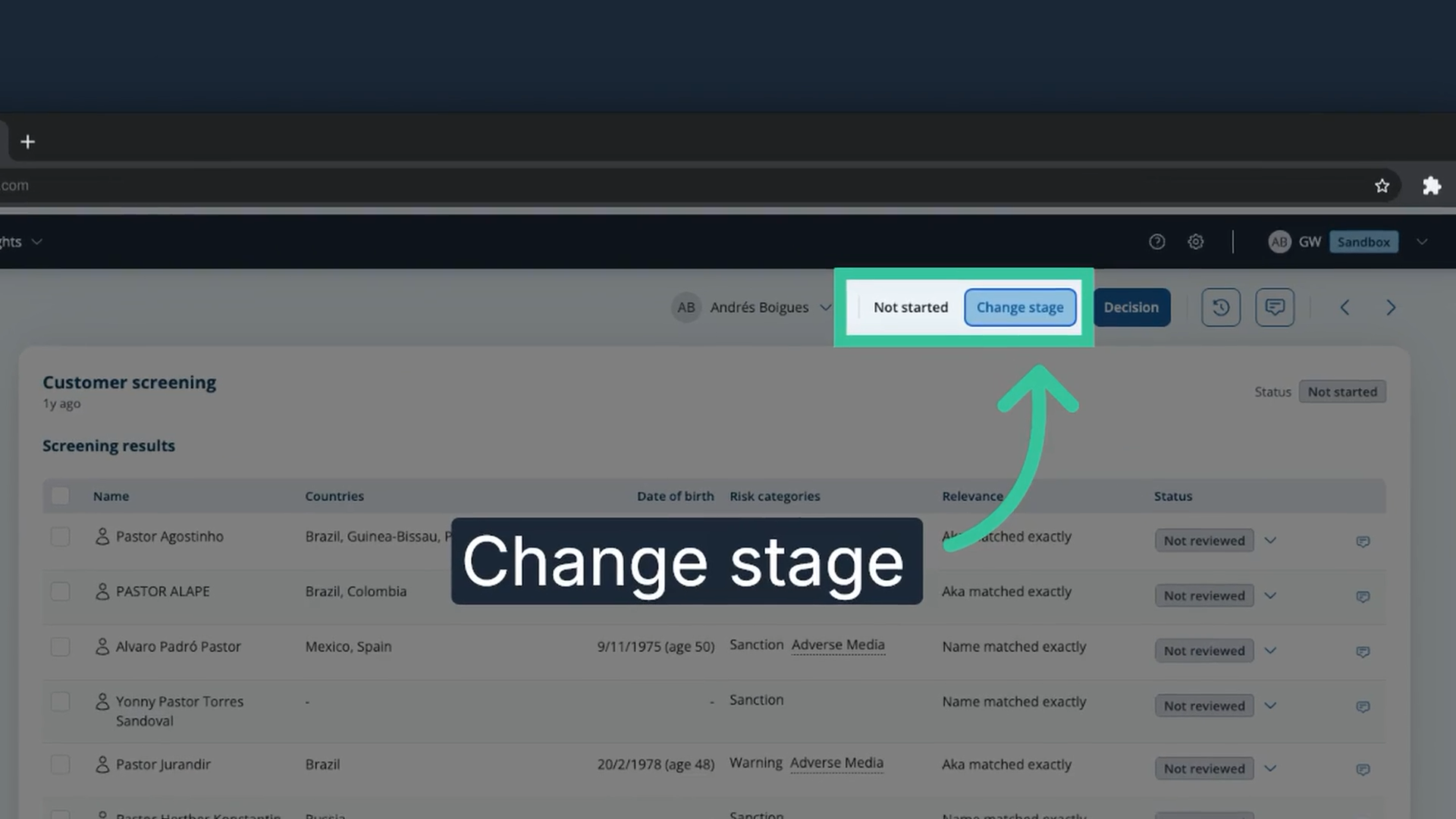
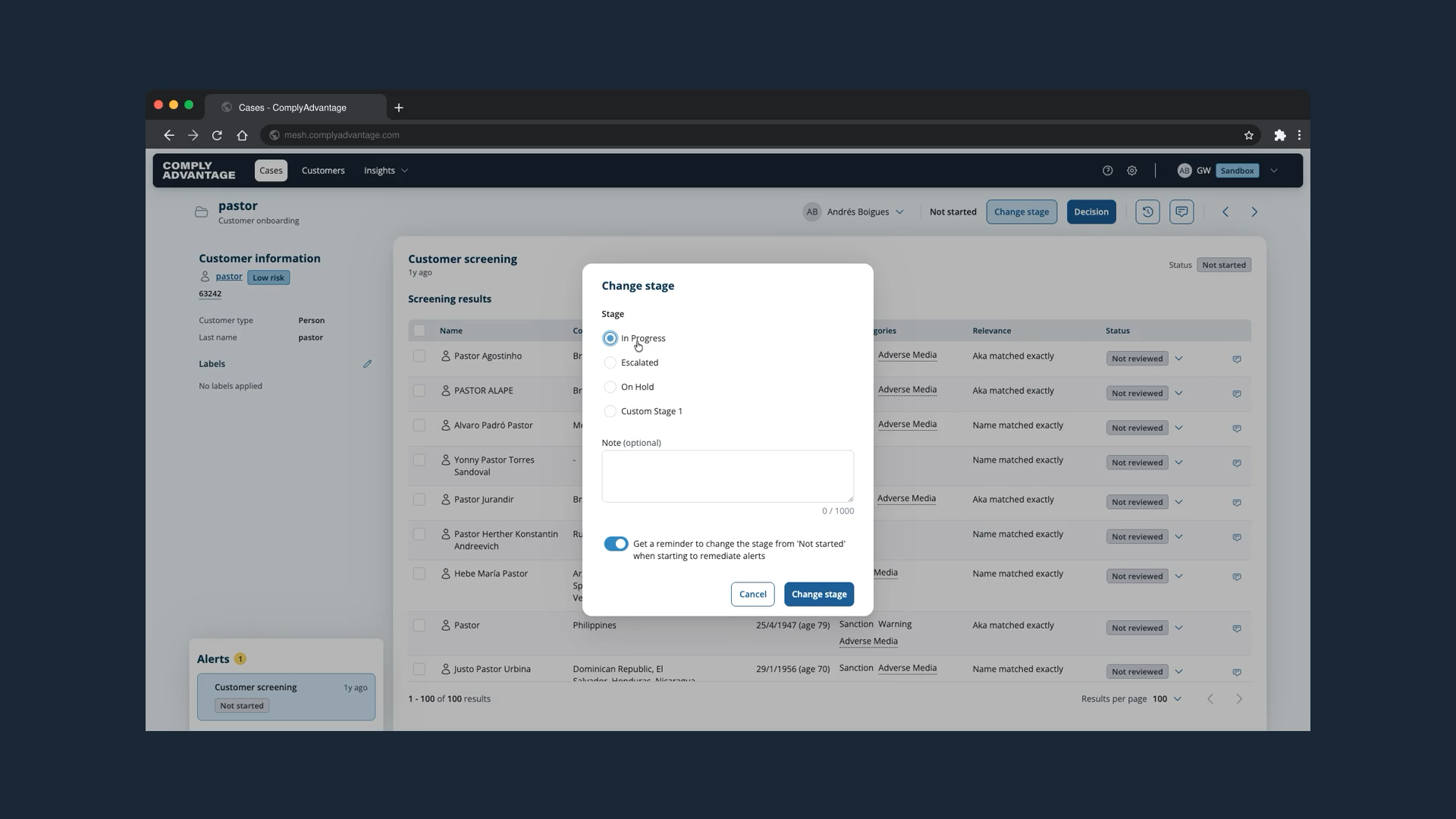
5. Select "In progress"
Select the stage for the case. In this example, we select "In progress".
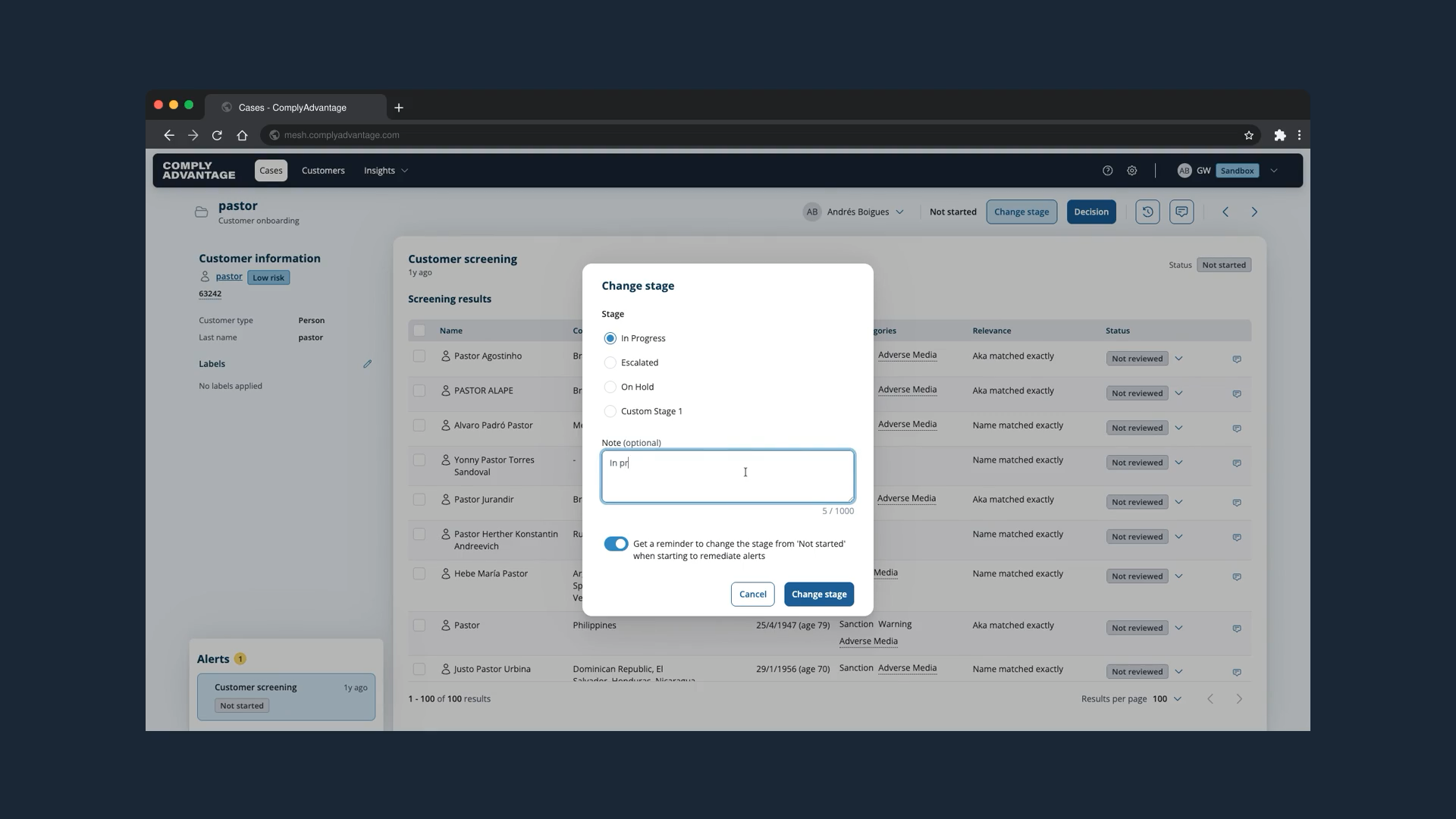
6. Add a note
You can add an optional note to the stage change.
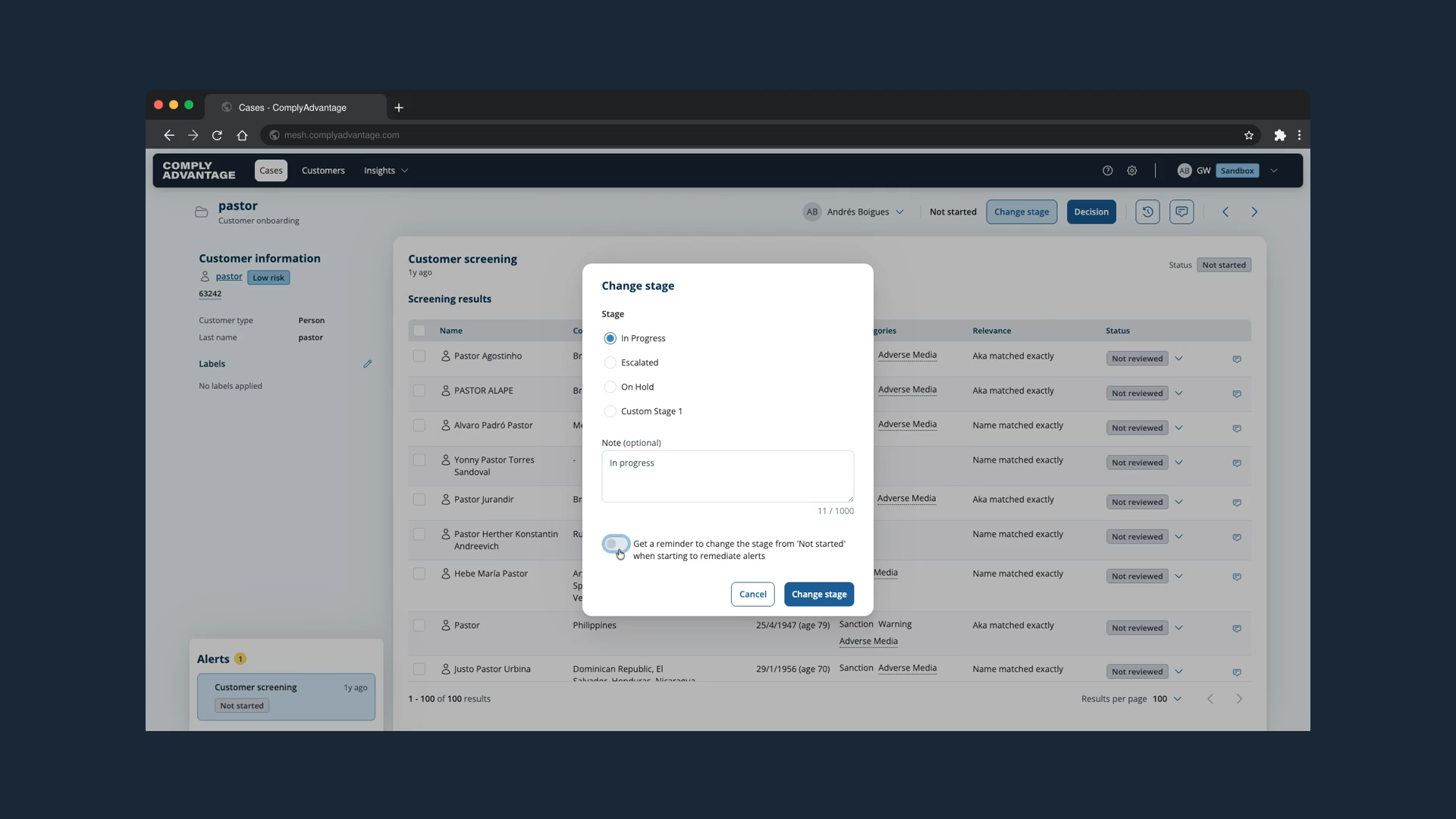
7. Toggle the reminder
This toggle turns Mesh's automatic pop-up reminder on or off. The reminder asks you to change the stage when you start remediating a case that is still in "Not started".
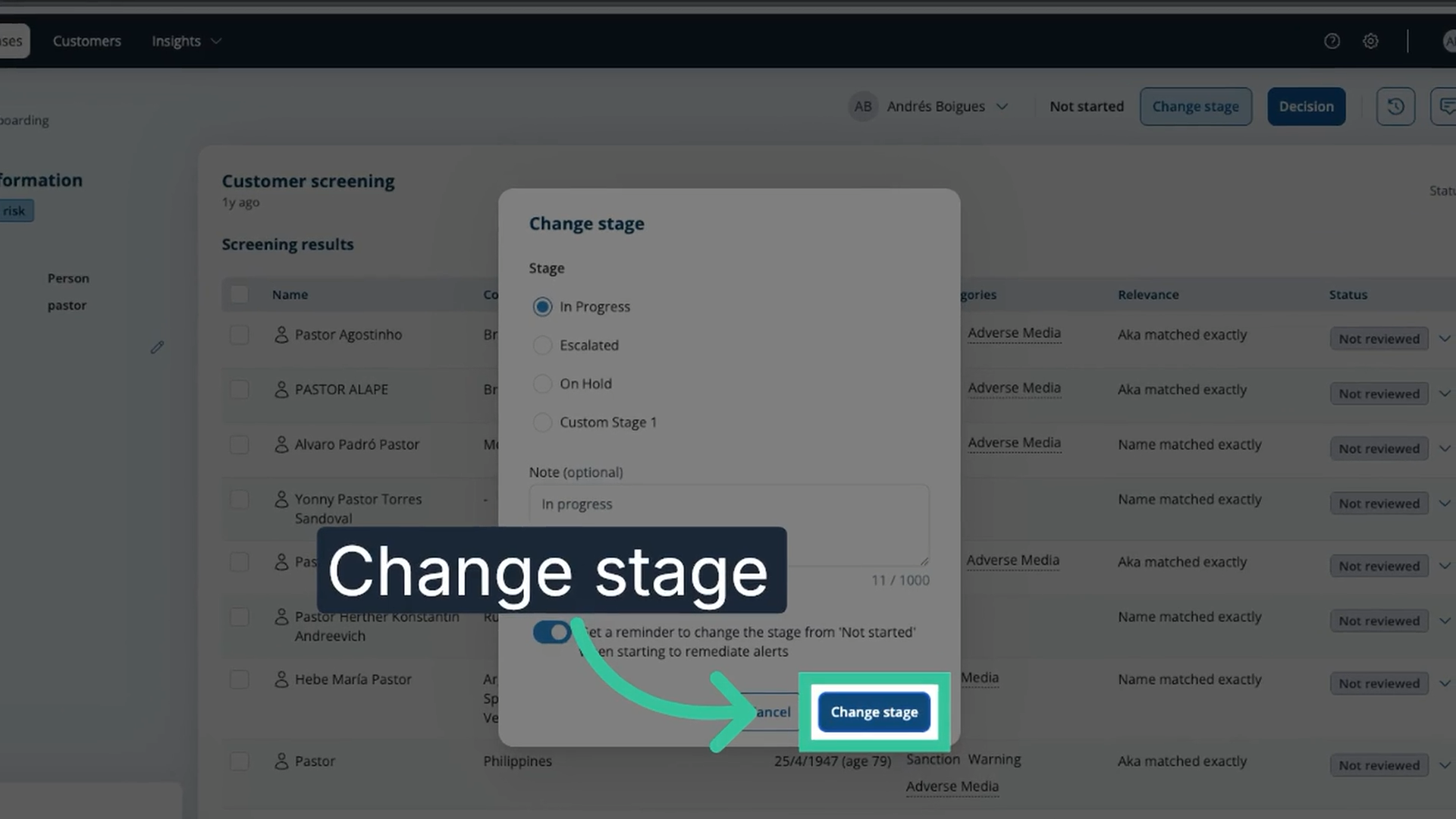
8. Confirm the stage change
Click "Change stage" to apply the change. The case stage is now "In progress".
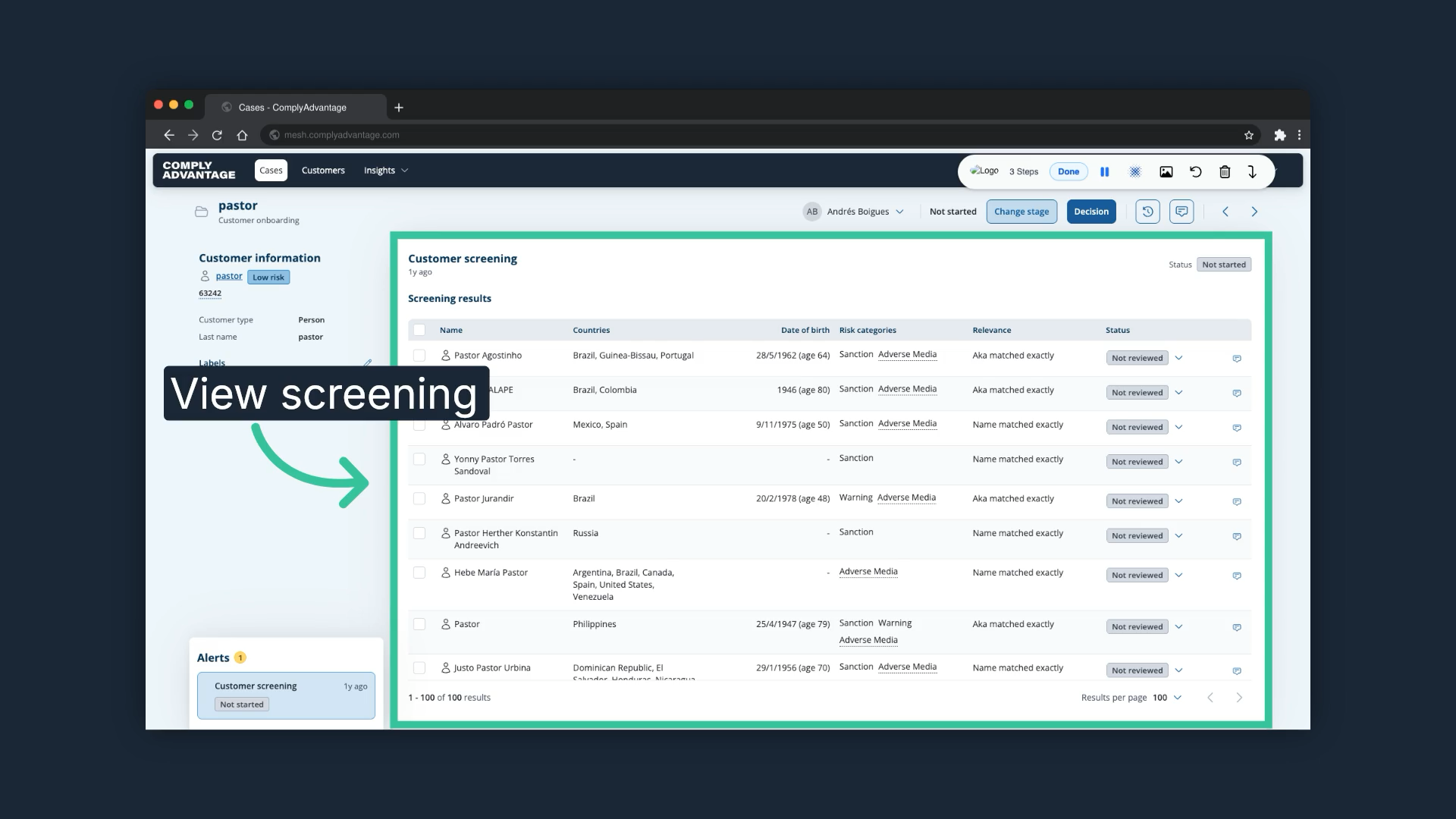
9. Review the Screening results table
The "Screening results" table shows every profile that matched the customer's information according to the screening configuration that was used. Screening configurations are set up by Admin users. If you have that role and want to see how, watch Video: How to create a Screening Configuration with Source Collections.
10. Click a profile
To choose the profile you want to review, click on it.
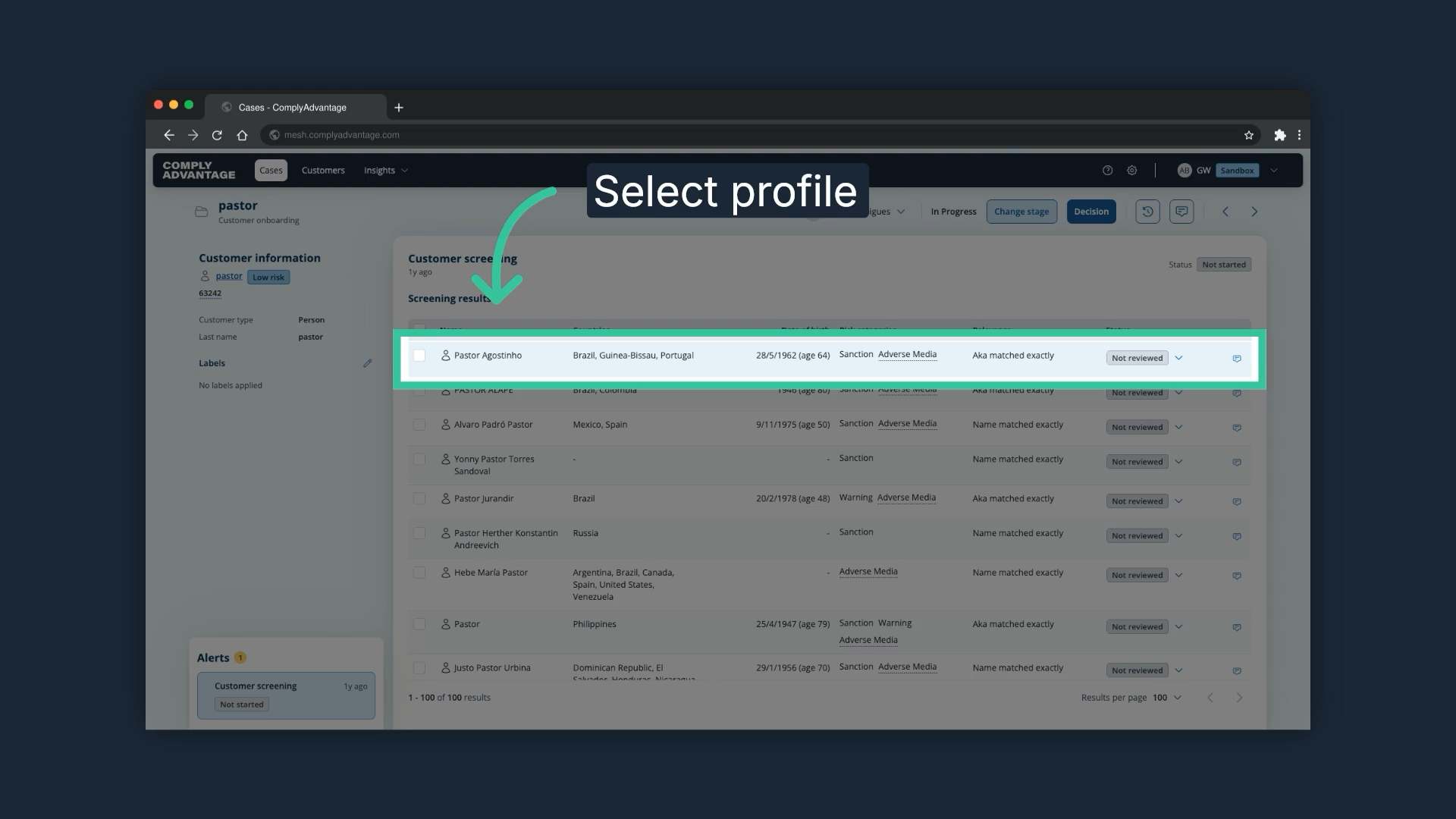
11. Review the profile details
Here you can see all the information associated with this profile. Through entity resolution, data for a single entity is consolidated into one profile.
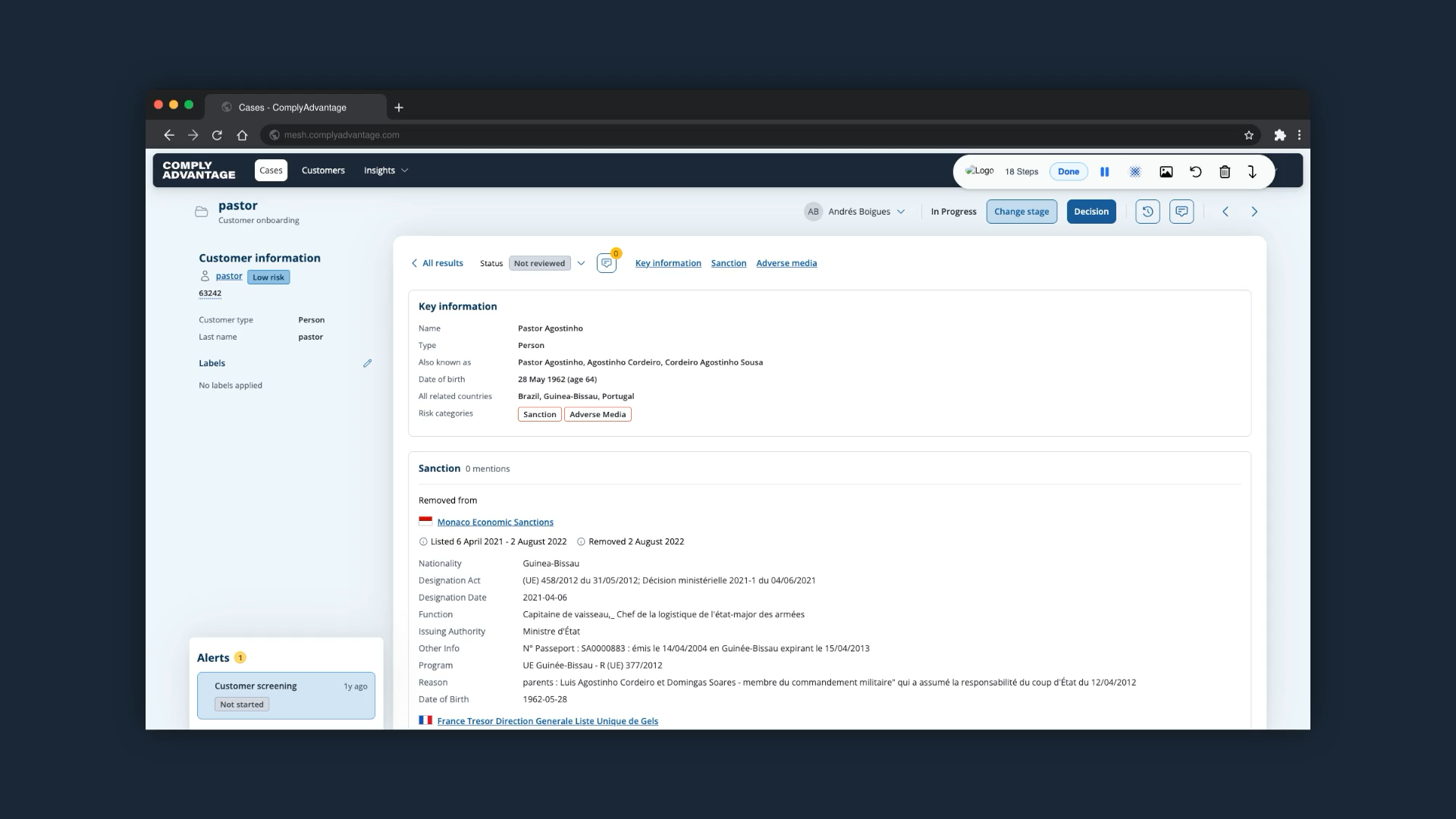
12. Use the source links
These hyperlinks take you to the relevant sources' sections, where detailed information about the sources that matched appears.
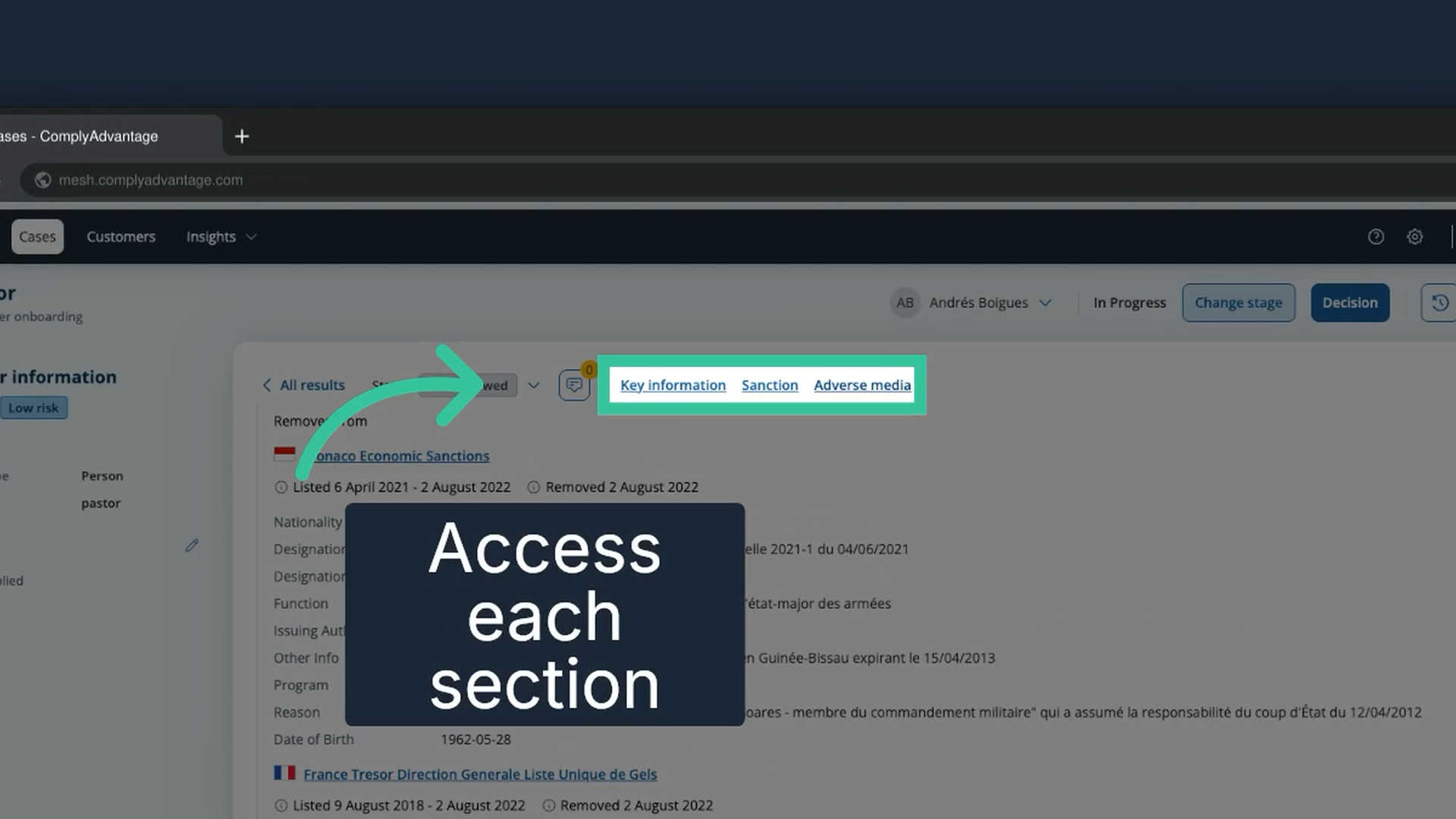
13. Add a note to the case
You can leave detailed notes on the case if necessary.
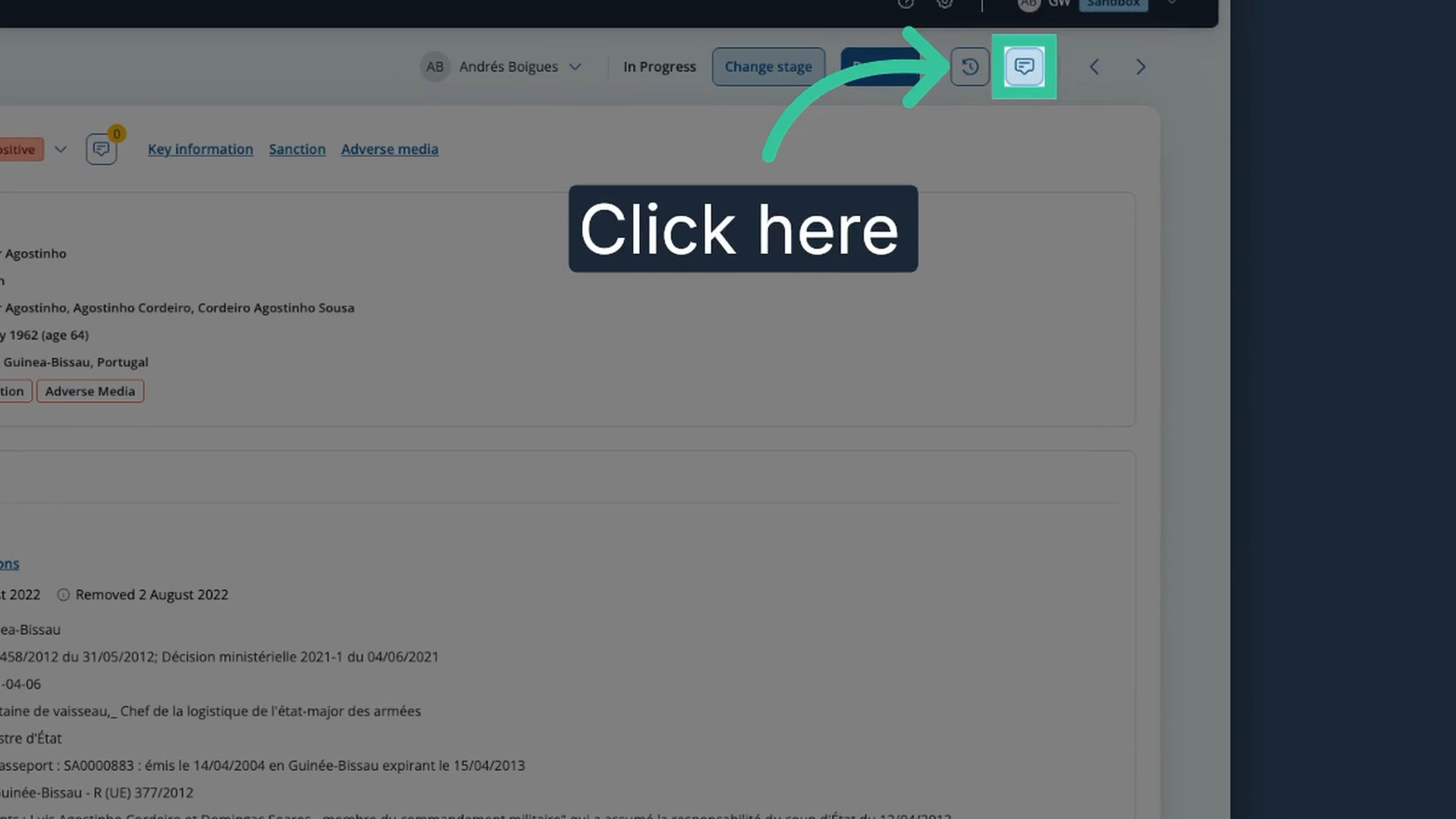
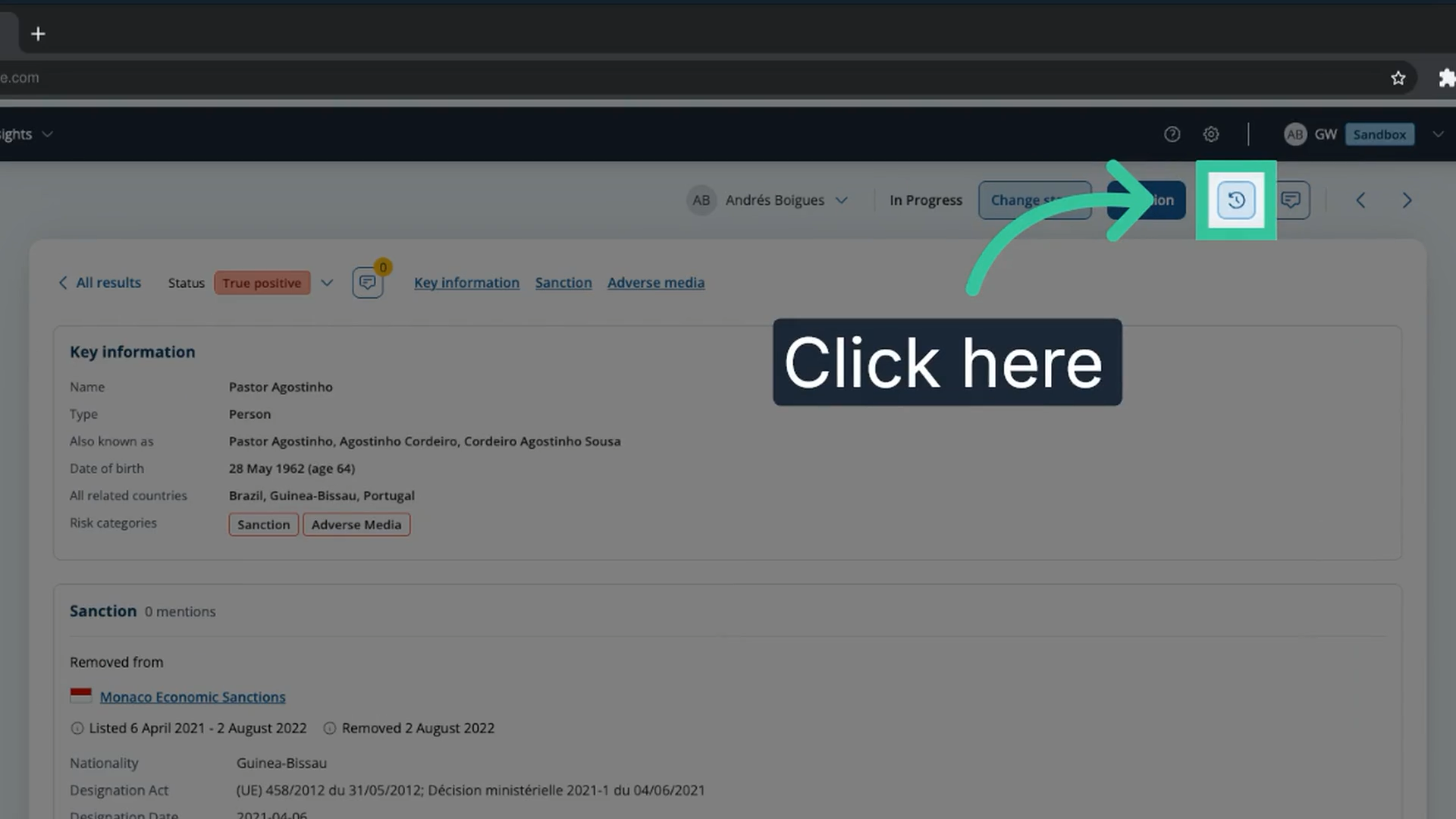
14. Open the audit log
The audit log records every action that has been taken on this case.
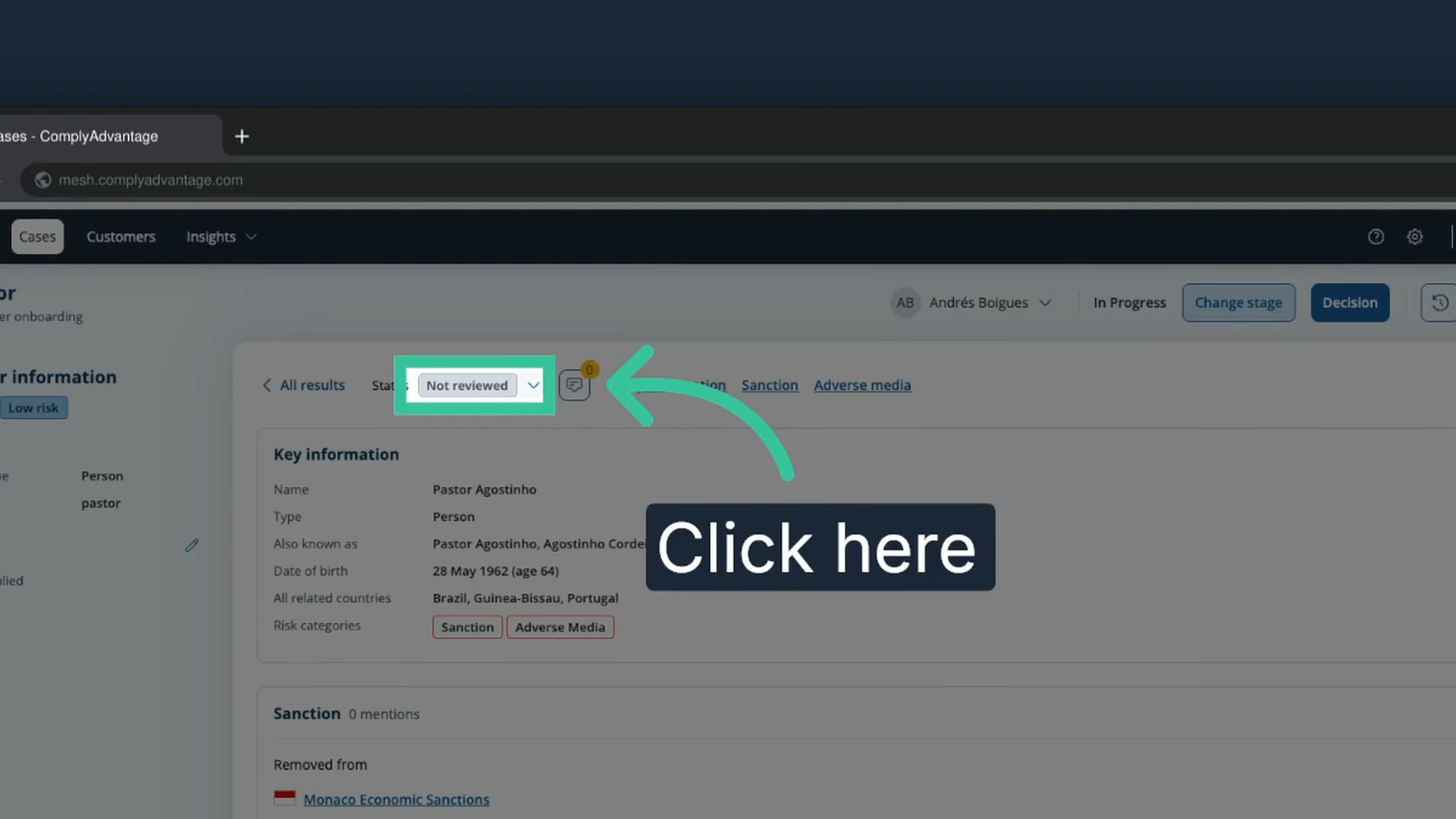
15. Change the status of the screening result
Once you have identified whether the profile is a true or false positive, change the status of the screening result accordingly.
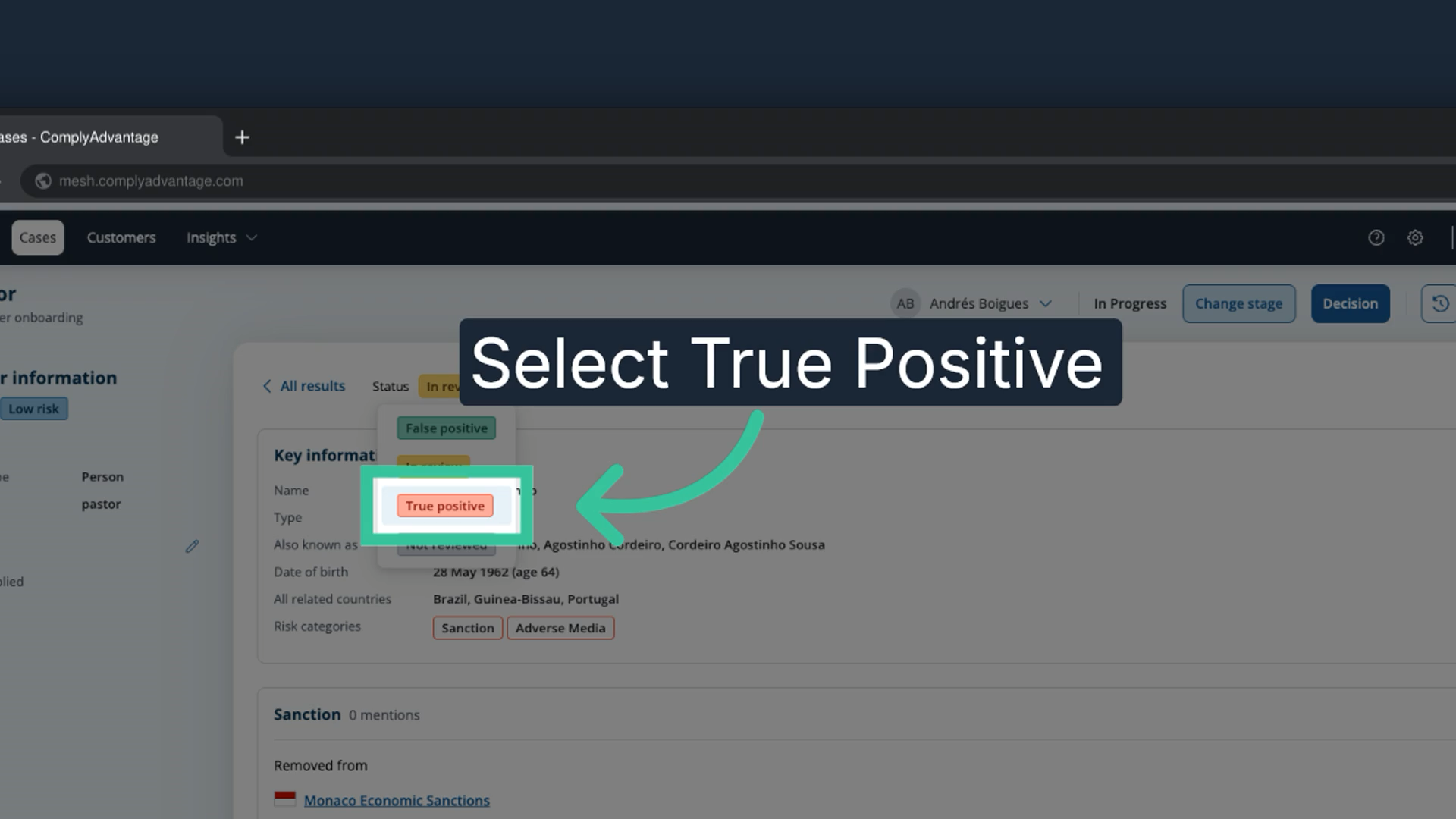
16. Select "True positive"
In this example, we have concluded that the profile is a true positive.
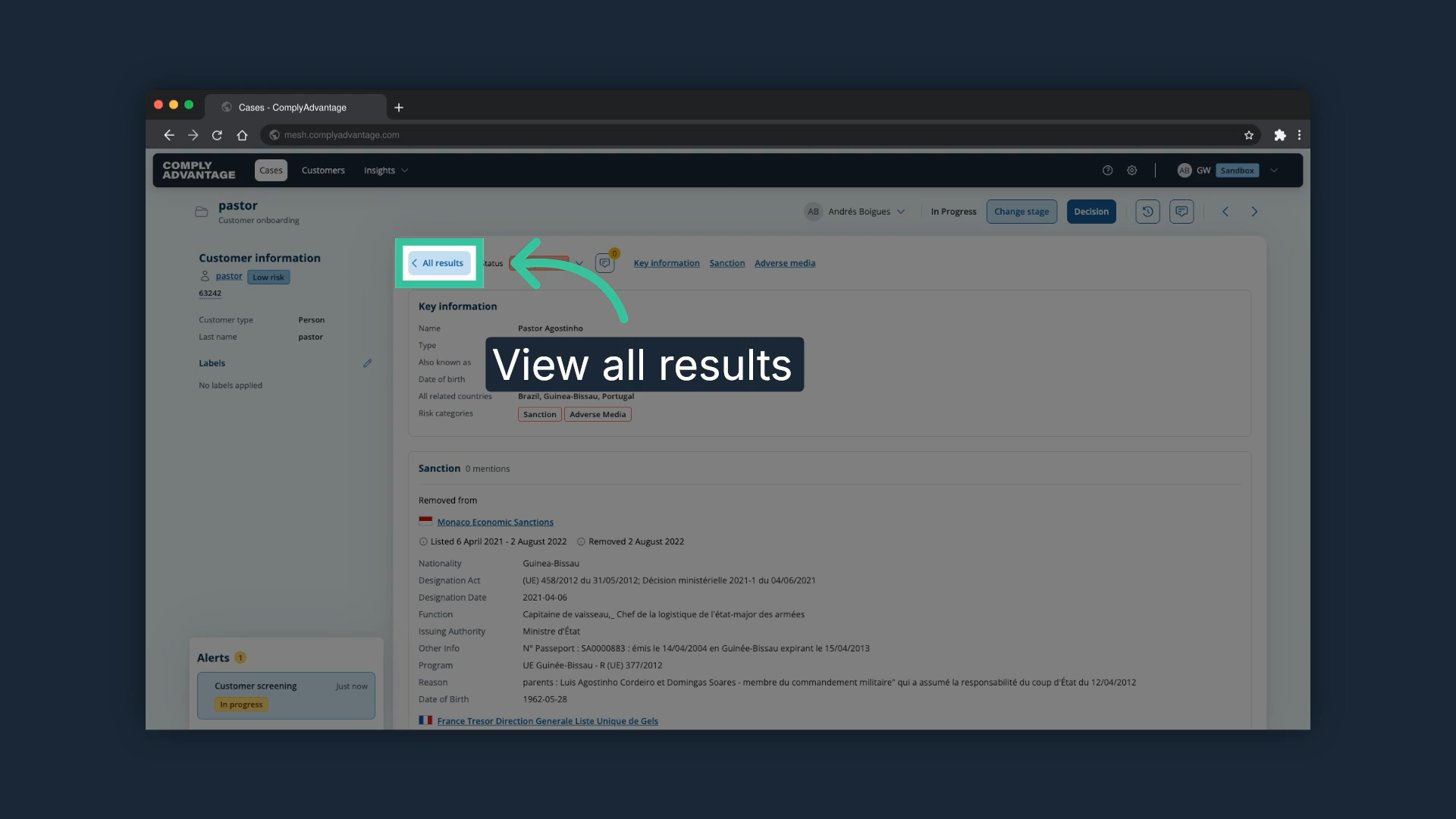
17. Click "All results"
Once you are done with the profile, click "All results" to go back to the case.
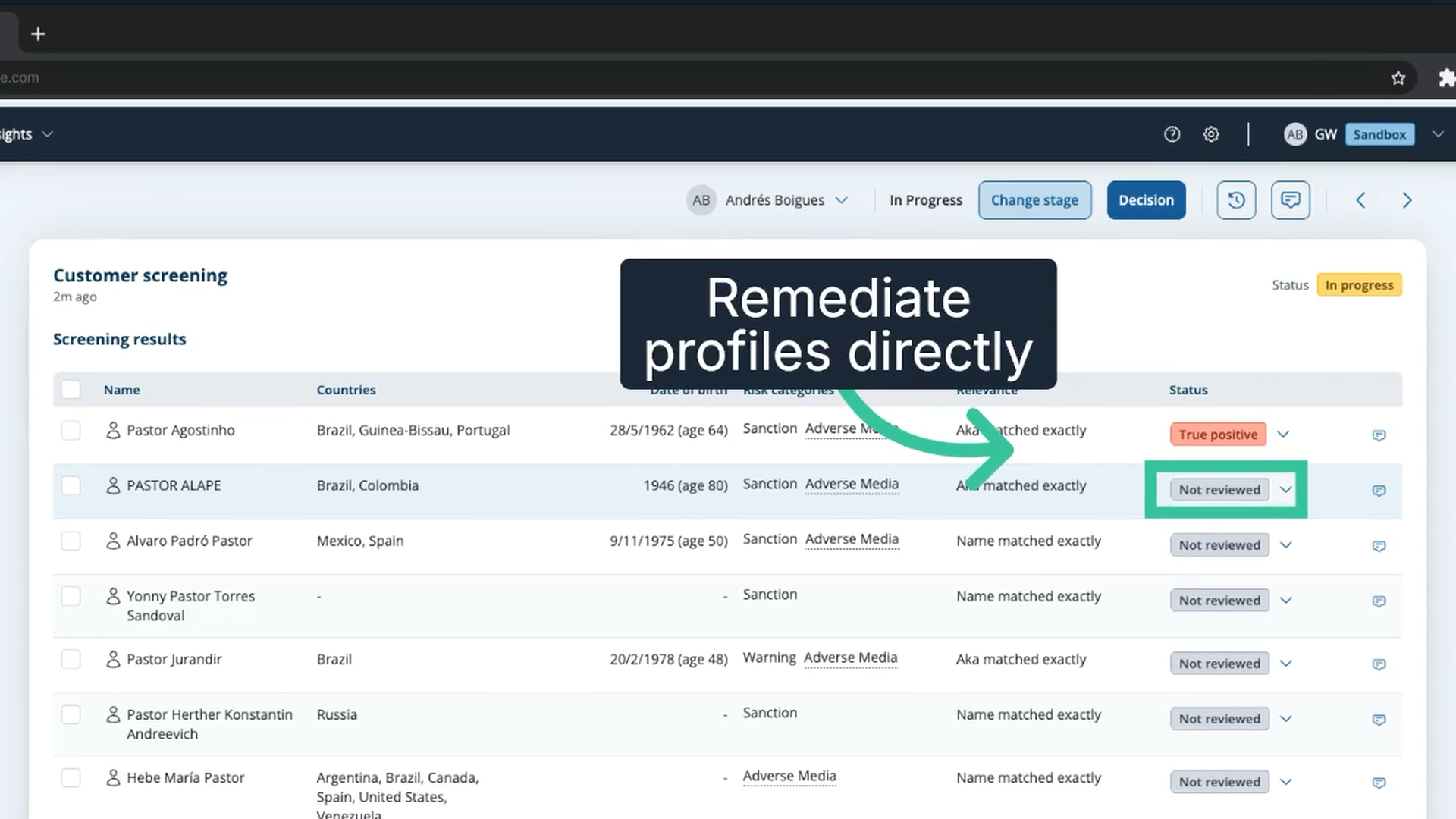
18. Remediate profiles from the case
From the case view, you can also change the status of the remaining profiles directly, instead of opening each one.
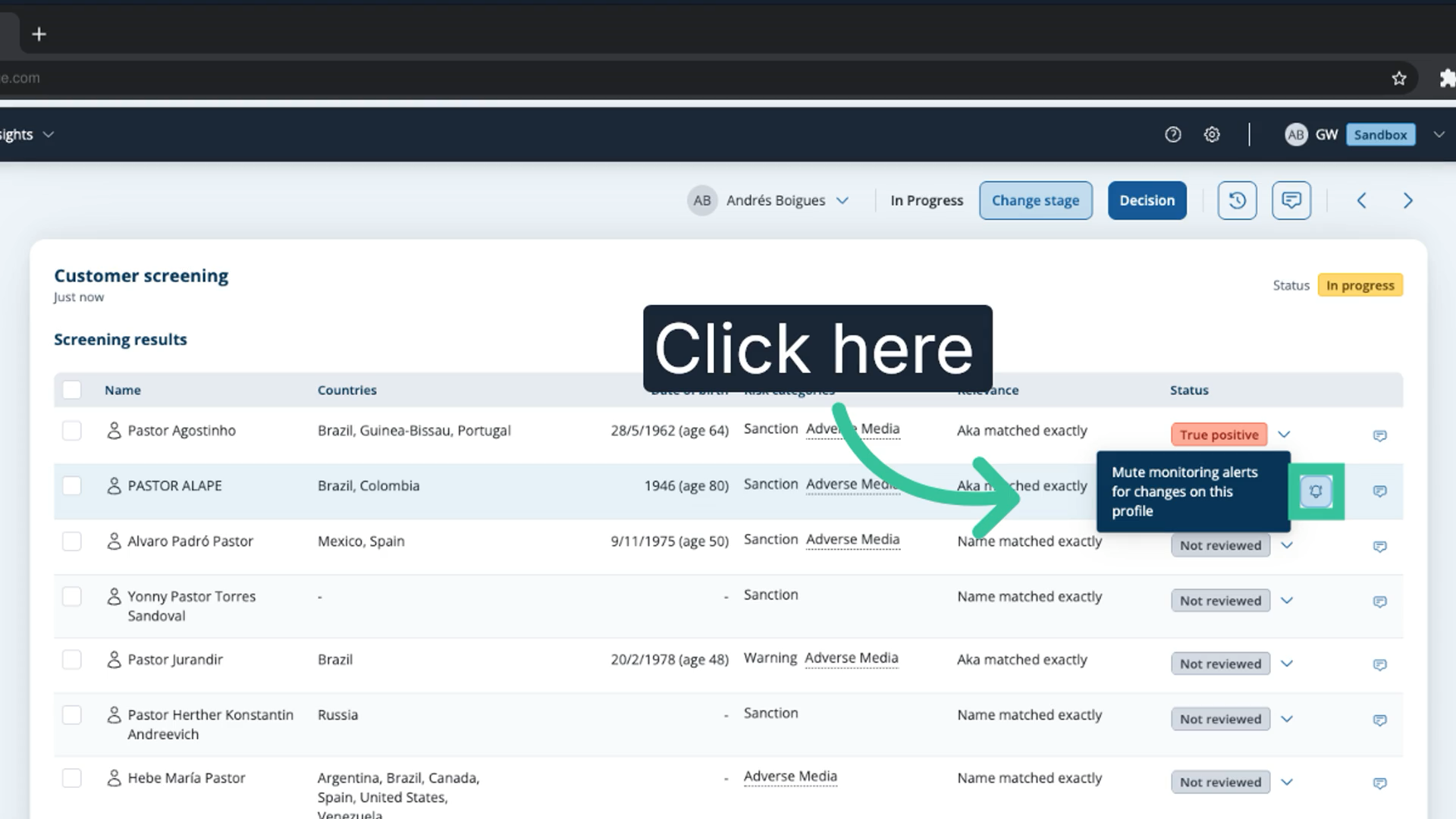
19. Mute a profile
Muting a profile suppresses that reviewed match so it does not raise new alerts. Muting has prerequisites, which the linked article explains.
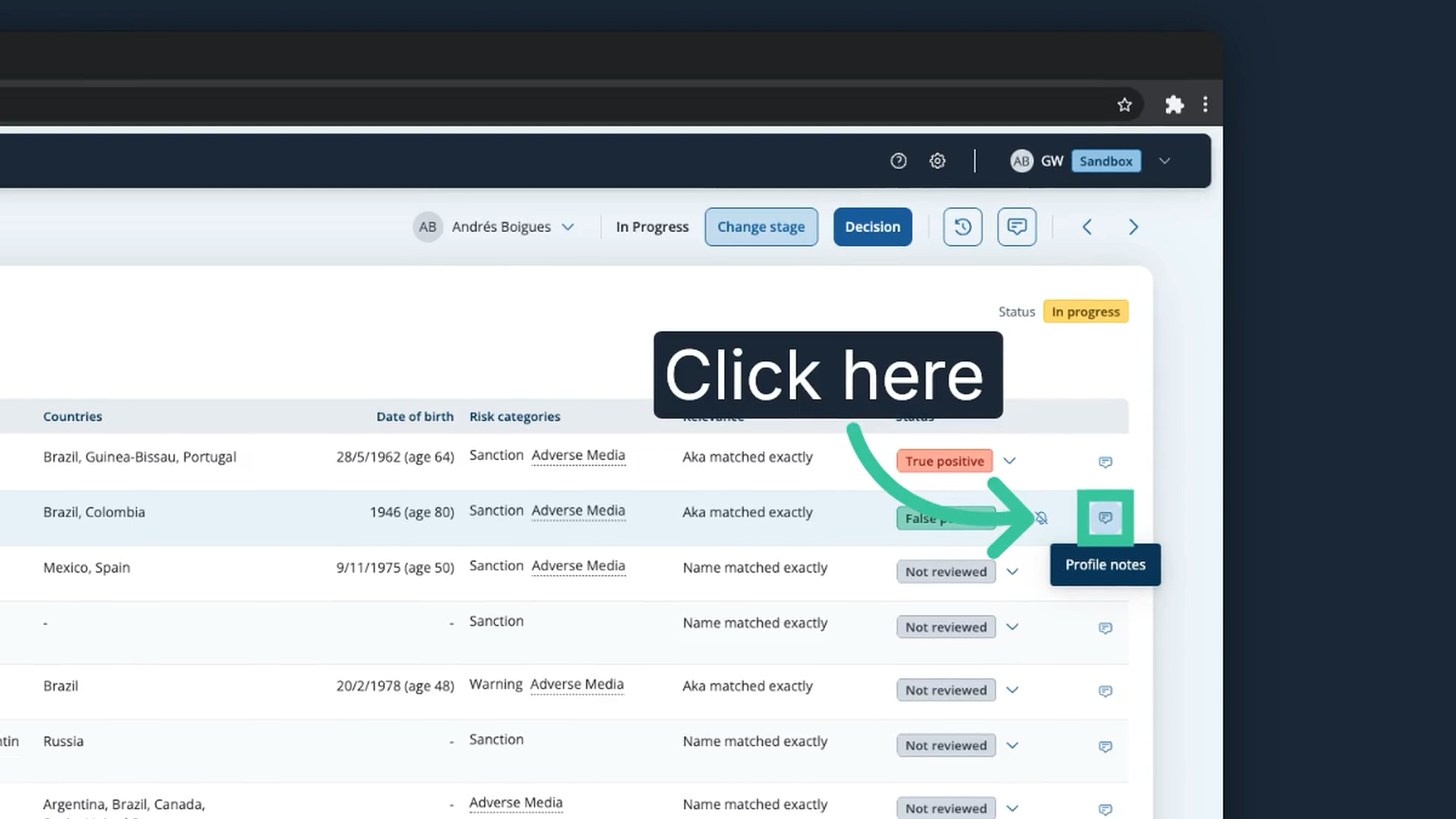
20. Add a note to a profile
You can also add detailed notes to a profile from here.
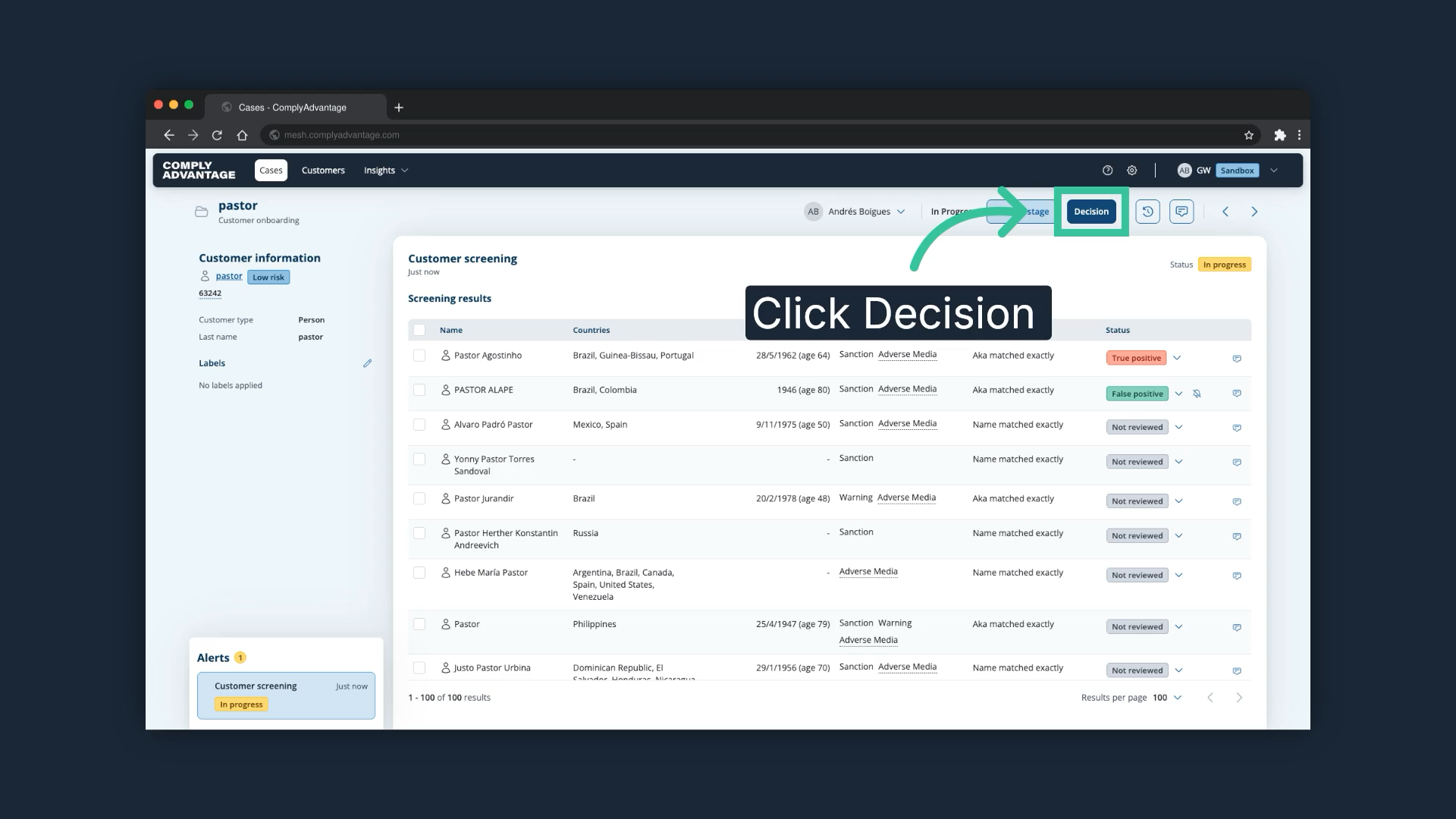
21. Click "Decision"
Once all profiles have been remediated, make a decision on the case. Decisions are different from stages: a decision closes the case and assigns a new status to the customer.
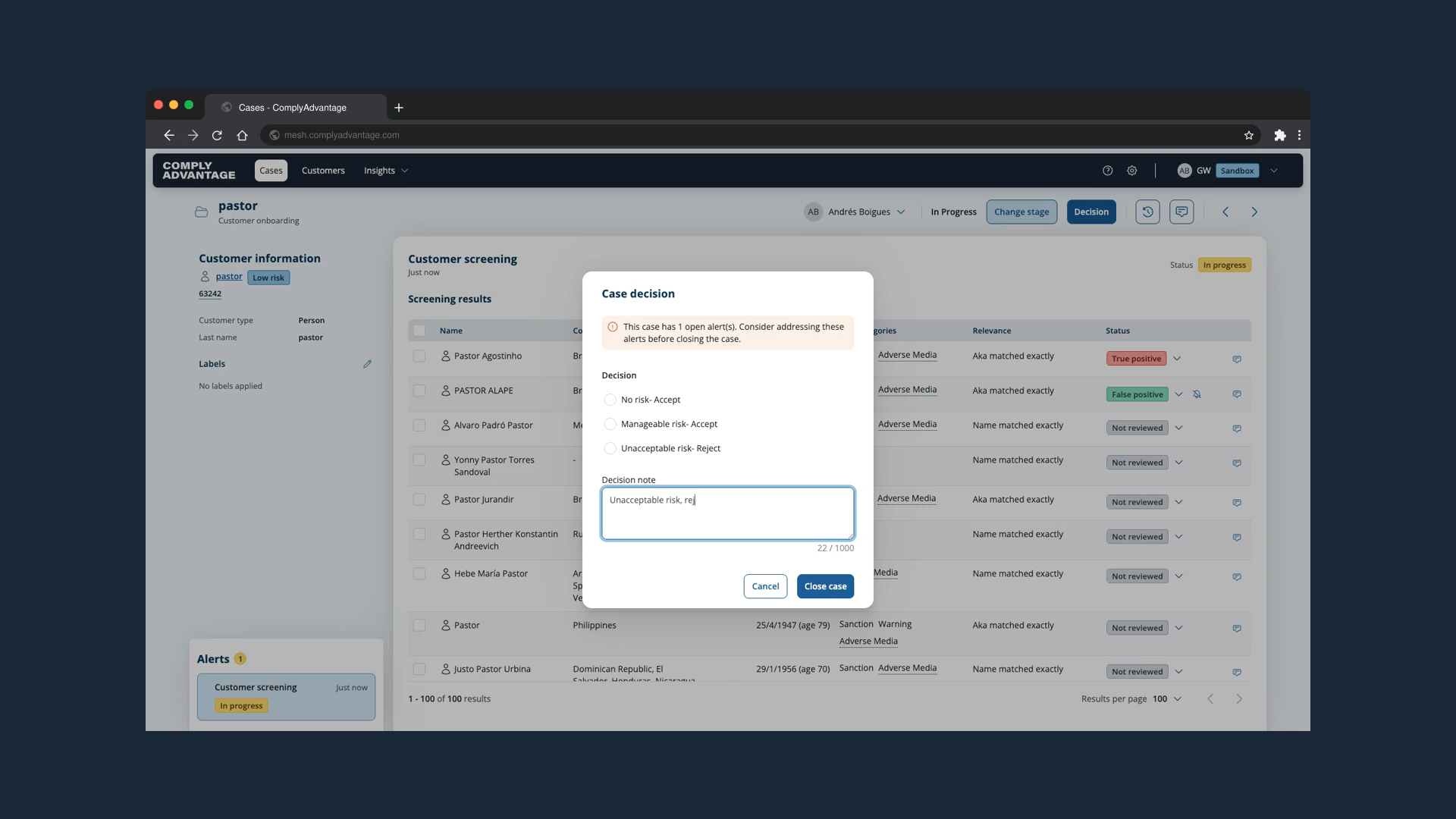
22. Add a decision note
Add a decision note to record your reasoning.
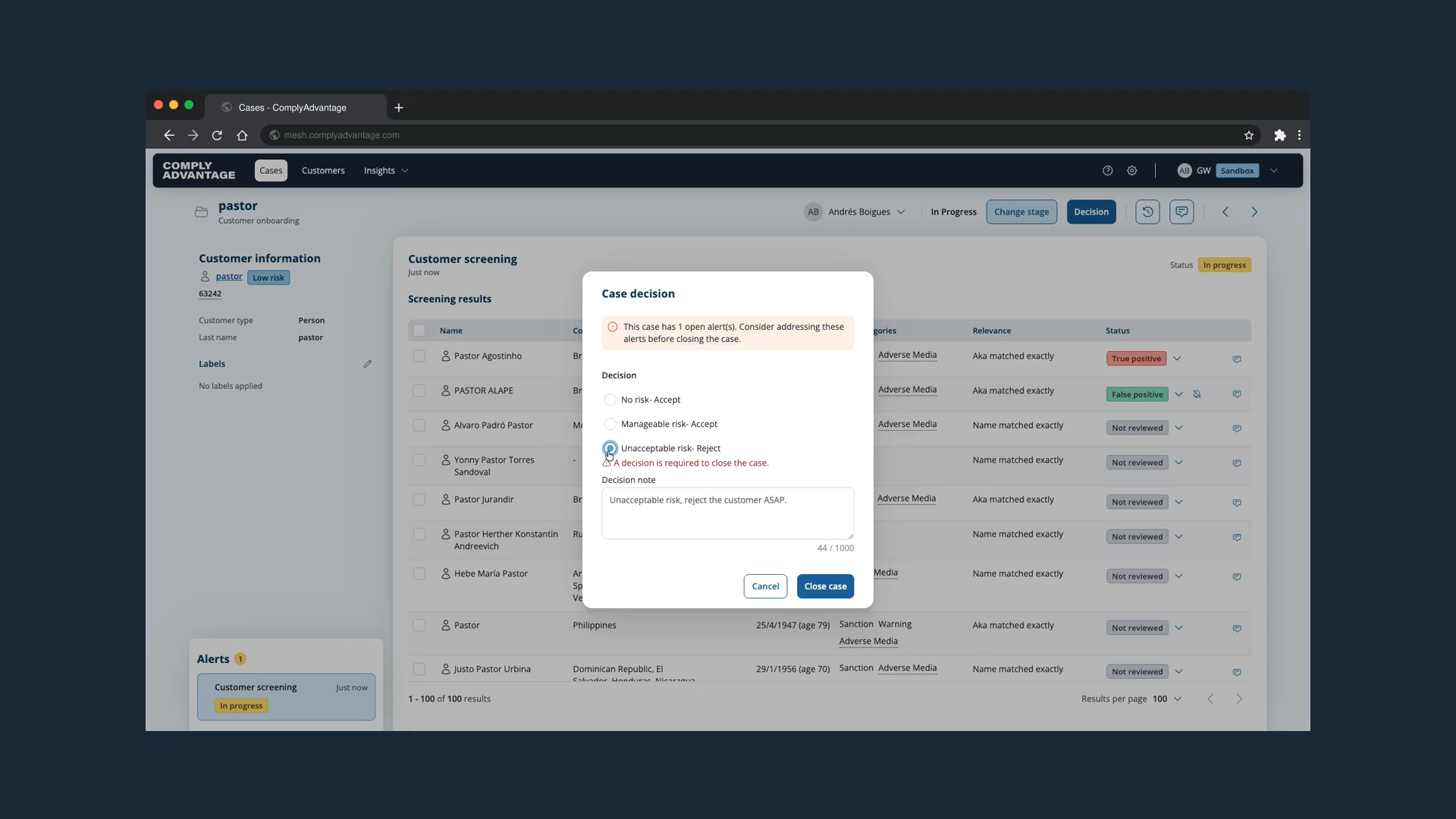
23. Select a decision
Select the decision you want to make on this case. Reviewing cases explains what each decision means.
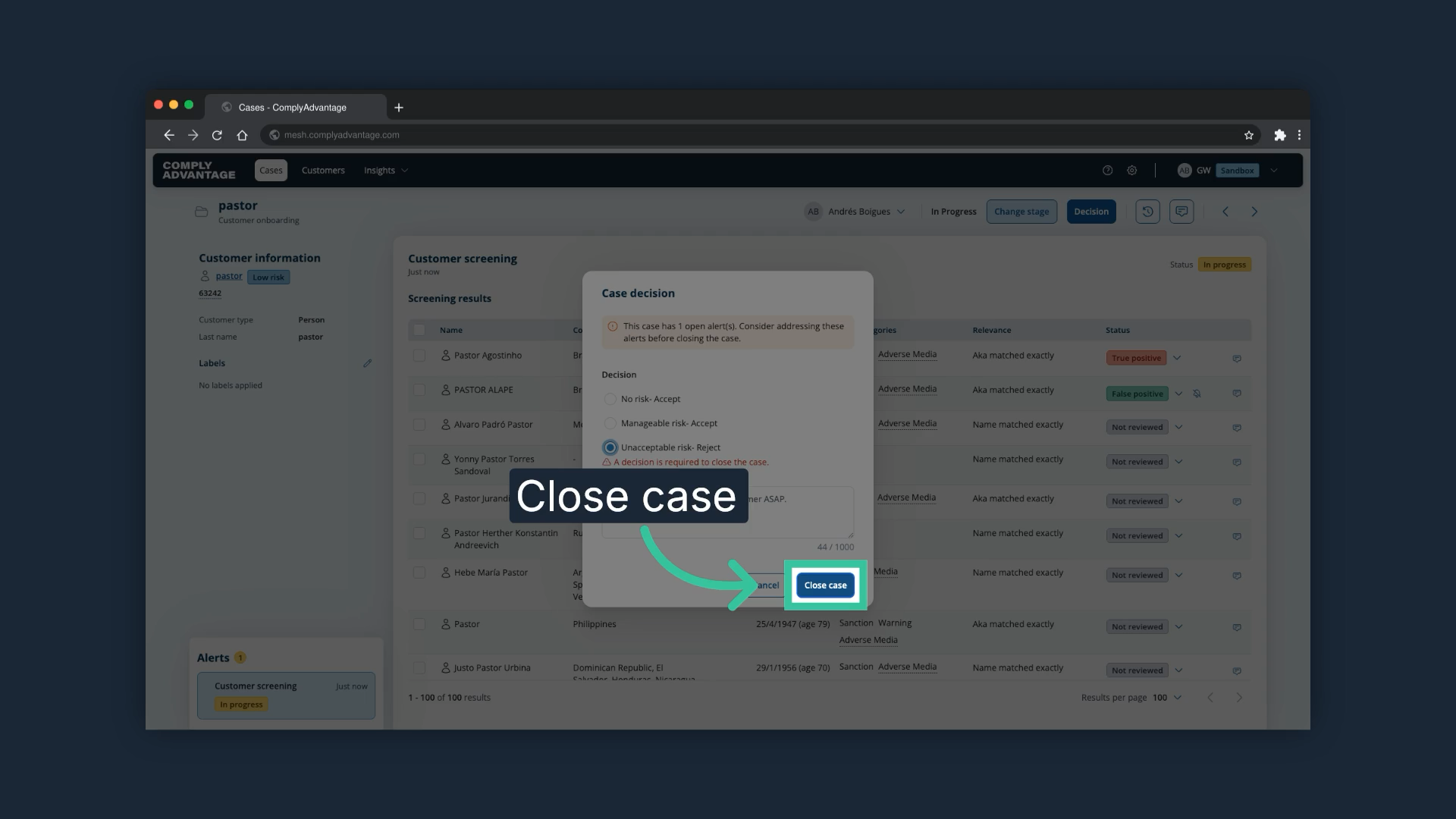
24. Click "Close case"
Click "Close case" to assign the decision.
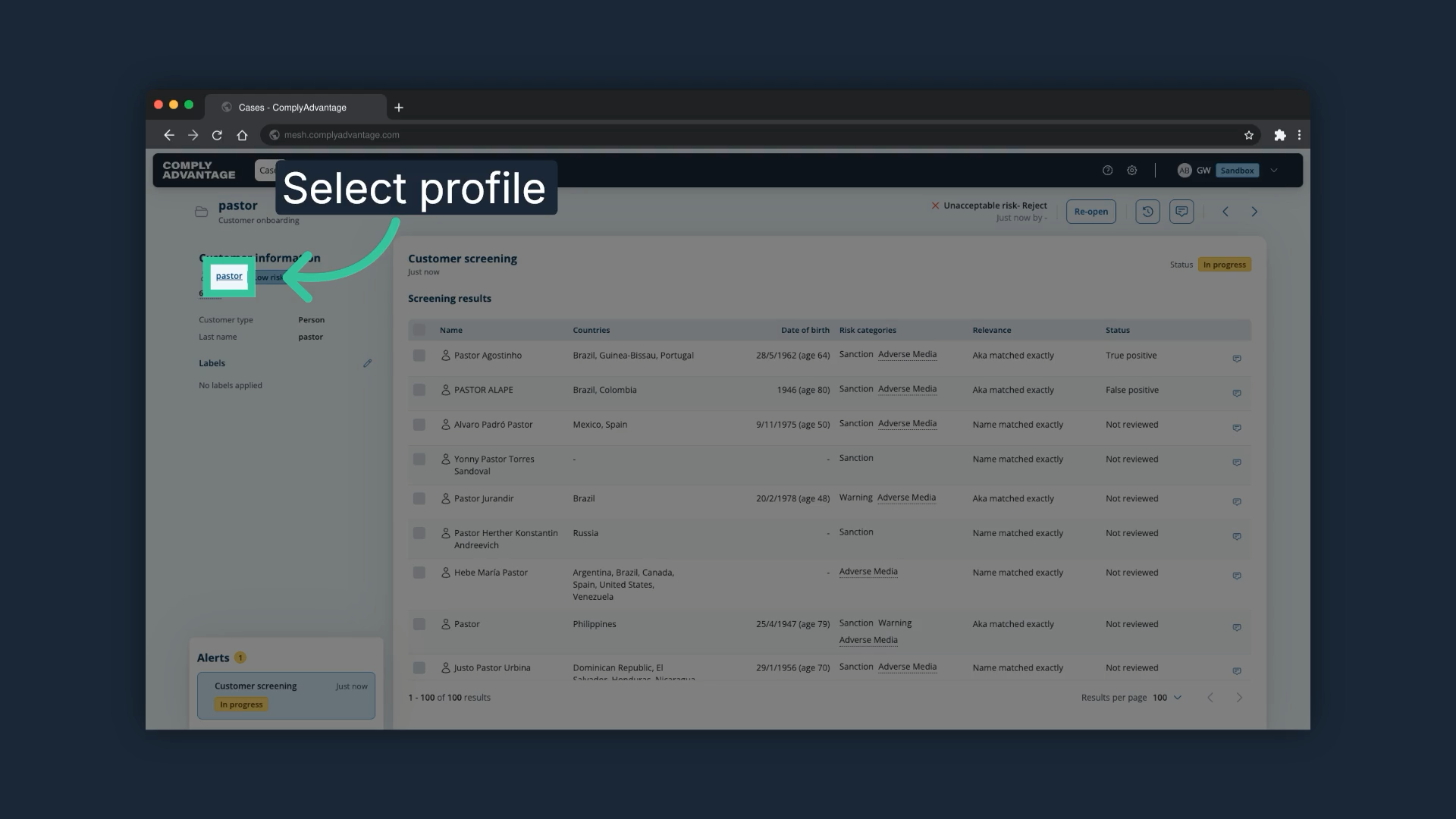
25. Go to the customer page
Finally, click on the customer you have just worked on.
26. Check the customer status
The customer status is now "Closed", because we decided not to onboard the customer in this onboarding case. If we had decided to accept the customer instead, the status would be "Active".
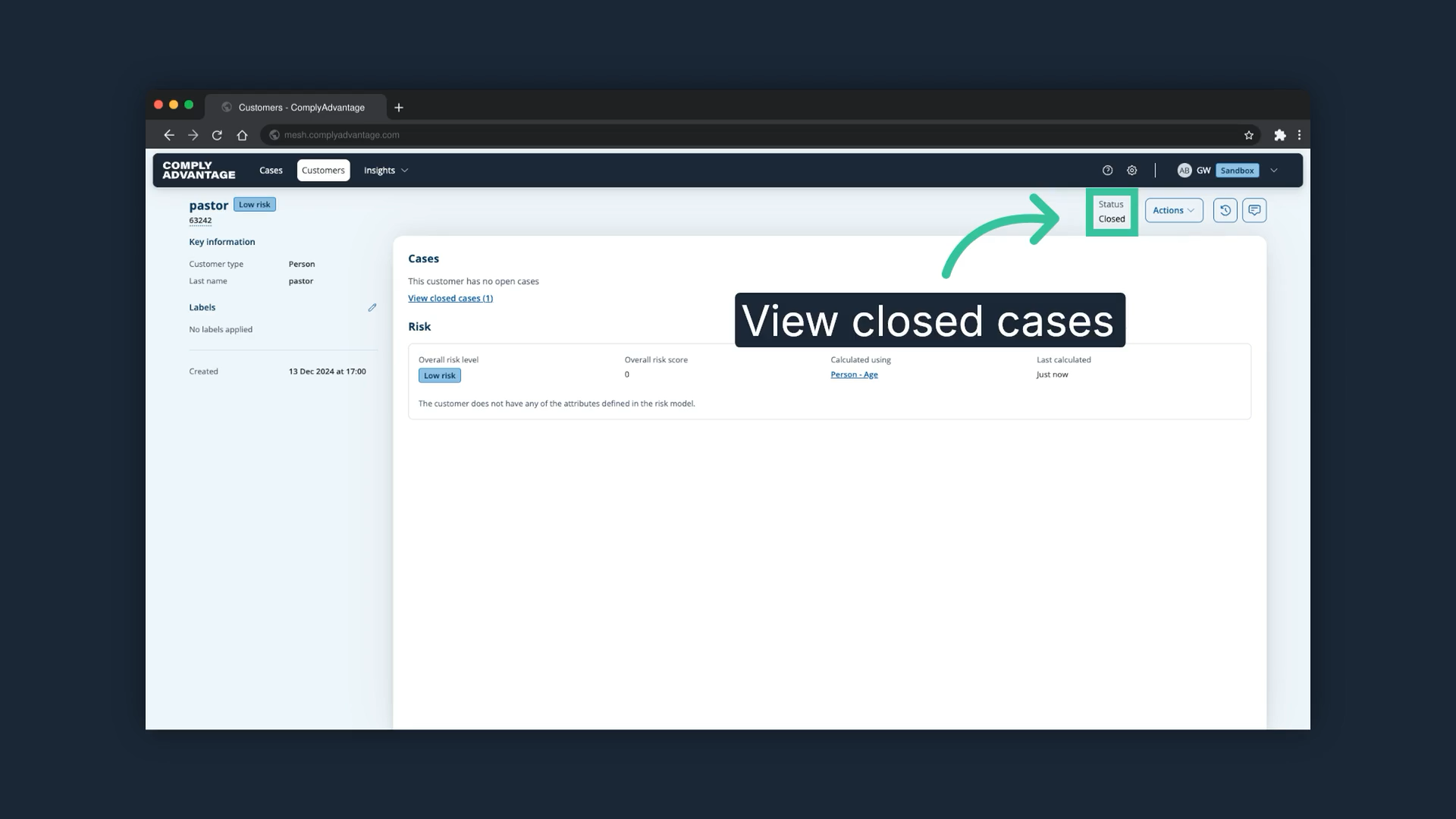
Keep in mind that you can always re-open the case if a change must be made.
We hope this guide helped provide an in-depth walkthrough of remediating a case in Mesh.