Creating a screening configuration
Last updated: August 26, 2026
Screening configurations enable you to fine-tune searches by defining risk parameters specific to your customer segments. This allows you to apply a risk-based approach to your customer screening. The outcome is a targeted screening process that effectively reduces false positives while maintaining robust oversight.
In this article you will learn:
How to create a new screening configuration with source collections
How to edit a screening configuration
How to archive and unarchive a screening configuration
How to view the change history of a screening configuration
Accessing the screening configurations page
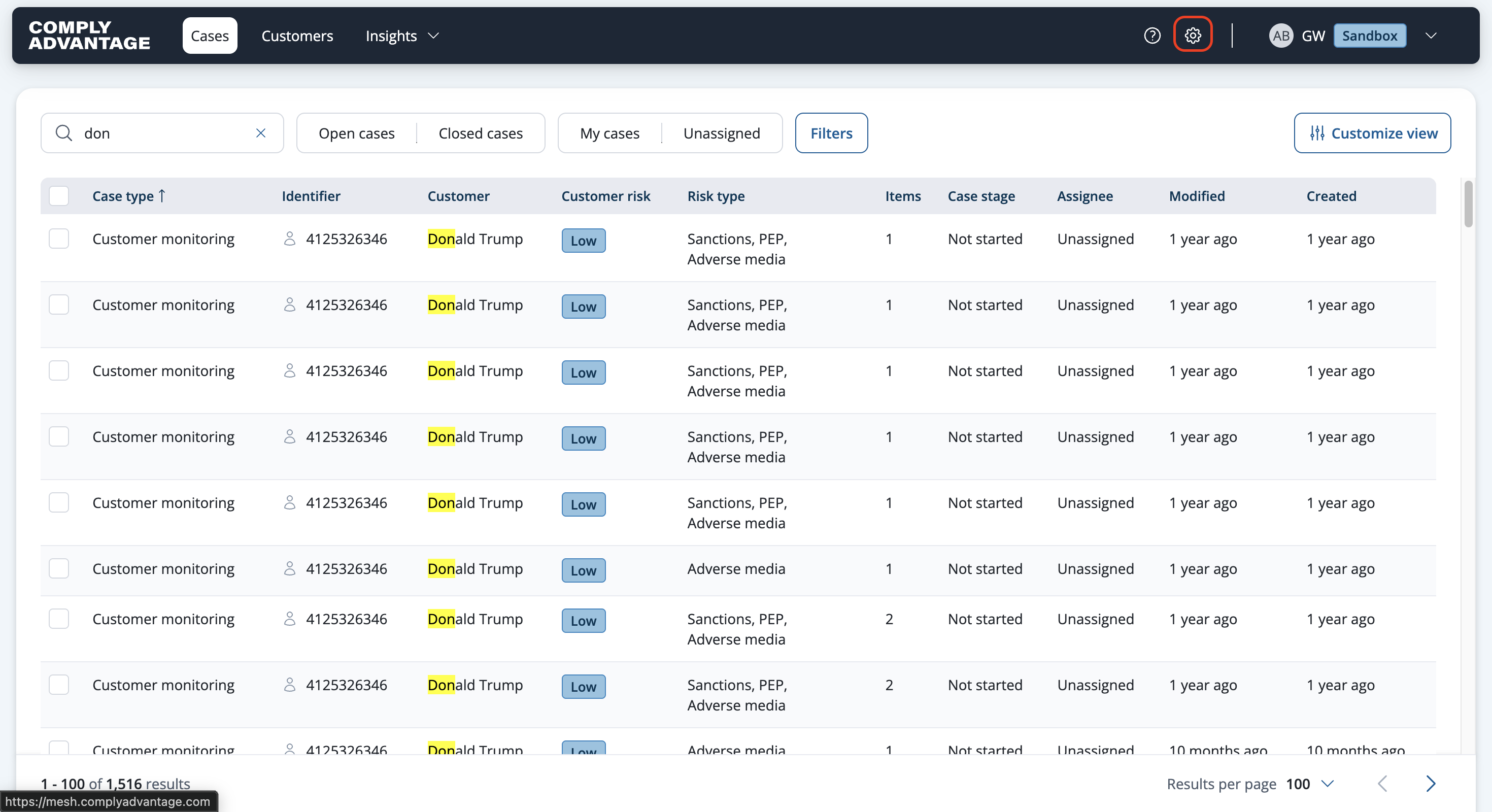
Click the Settings icon in the top-right corner.
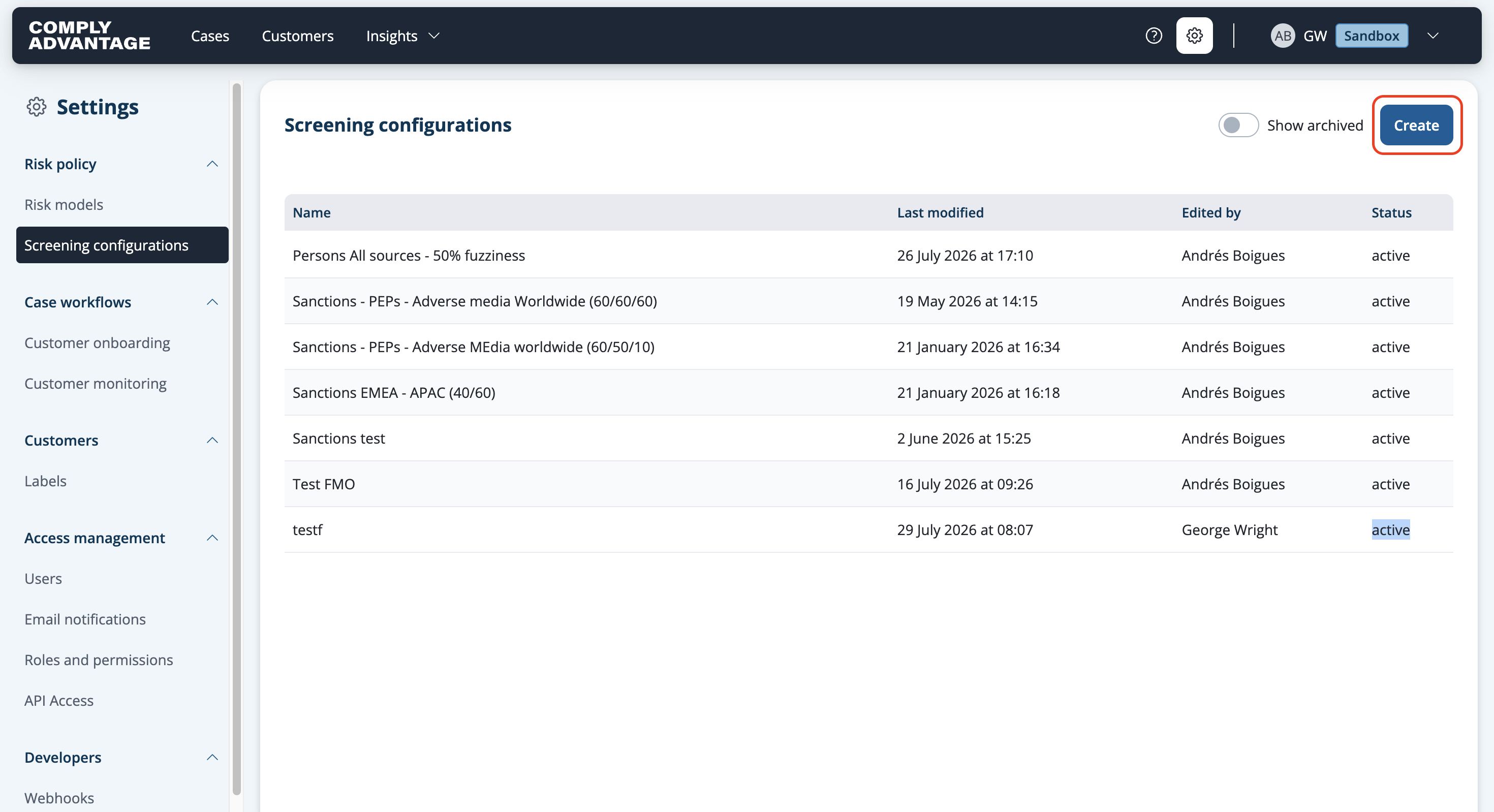
Select Screening configurations from the menu on the left.
You will see your existing screening configurations.
Creating a new screening configuration with source collections
Click Create in the top-right corner of the screening configuration page.
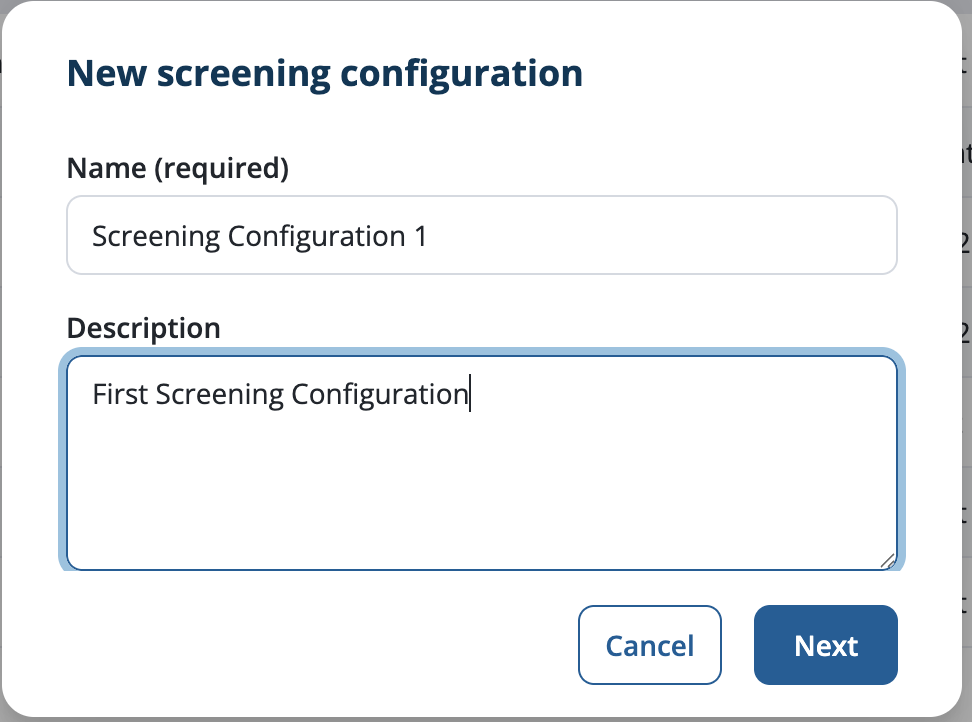
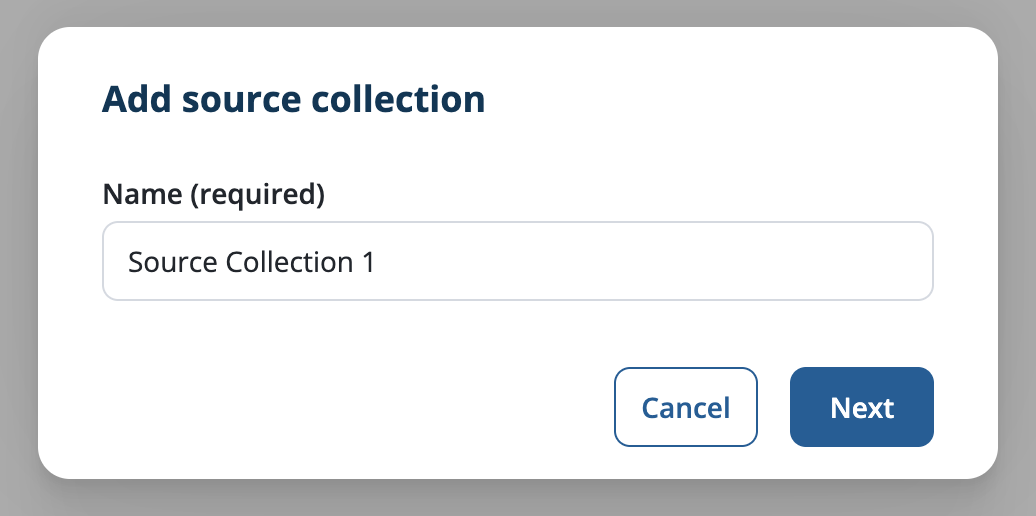
Enter a name and an optional description for your screening configuration, and click Next. The name has to be unique: reusing the name of an existing screening configuration is rejected.
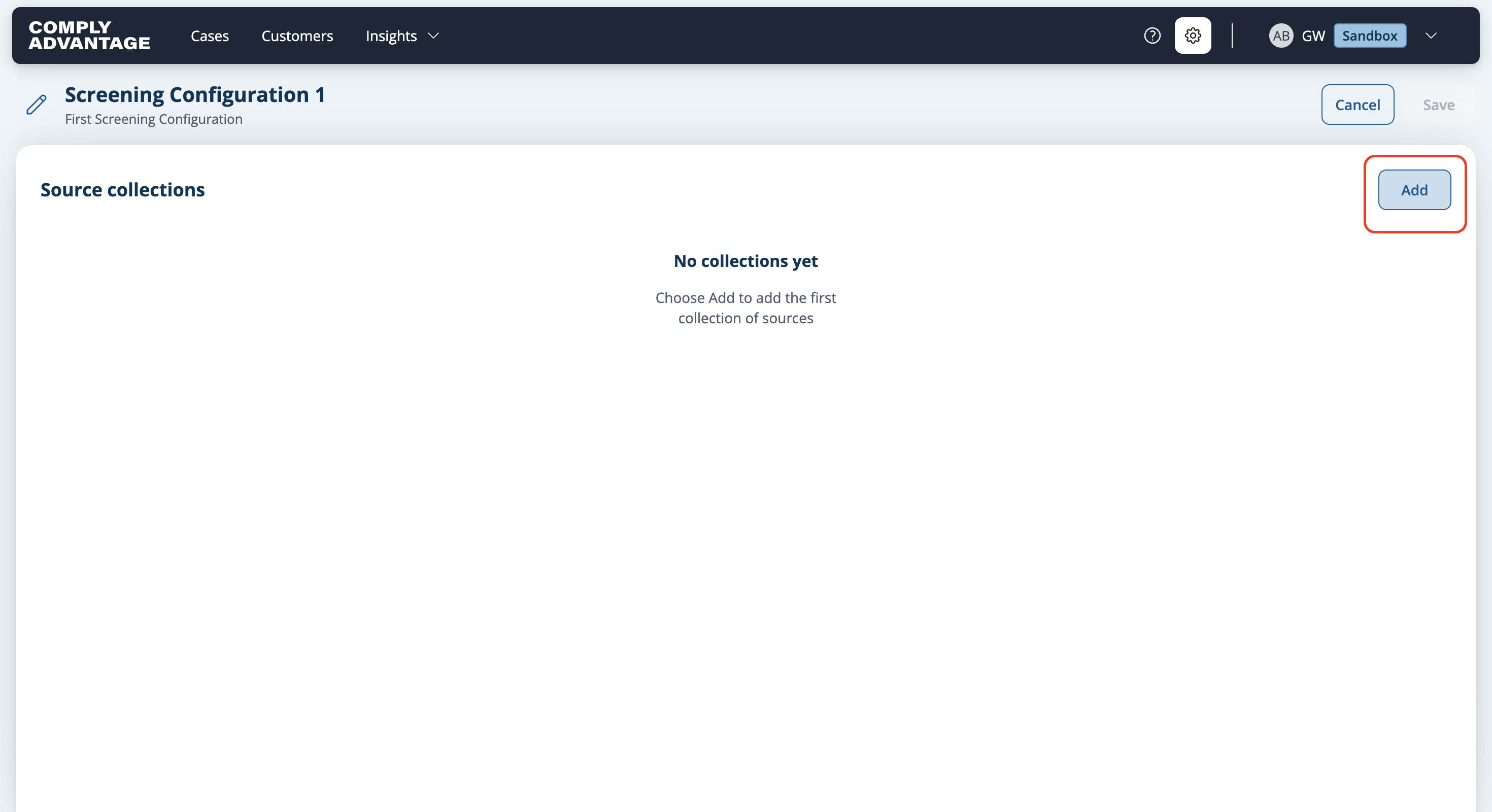
Now your screening configuration has been created, you need to choose which data sources to include by adding up to four source collections. You can include up to one thousand individual sources across your four collections. Click Add to configure a source collection.
Add sources from one or more categories to the source collection and select a fuzziness setting to apply to all sources in the collection. Fuzziness is a name-matching technique used to reduce the impact of misspellings and small variations in name spelling.
For more details, see: Creating a new screening configuration with source collections
Editing a screening configuration
You can update a screening configuration by changing its source collections.
Click the Settings icon in the top-right corner and select Screening configurations from the menu on the left.
Select the screening configuration you want to edit.
Click the three dots in the top-right corner.
Select Edit from the dropdown menu.
You can now edit or delete any of the collections within the configuration.
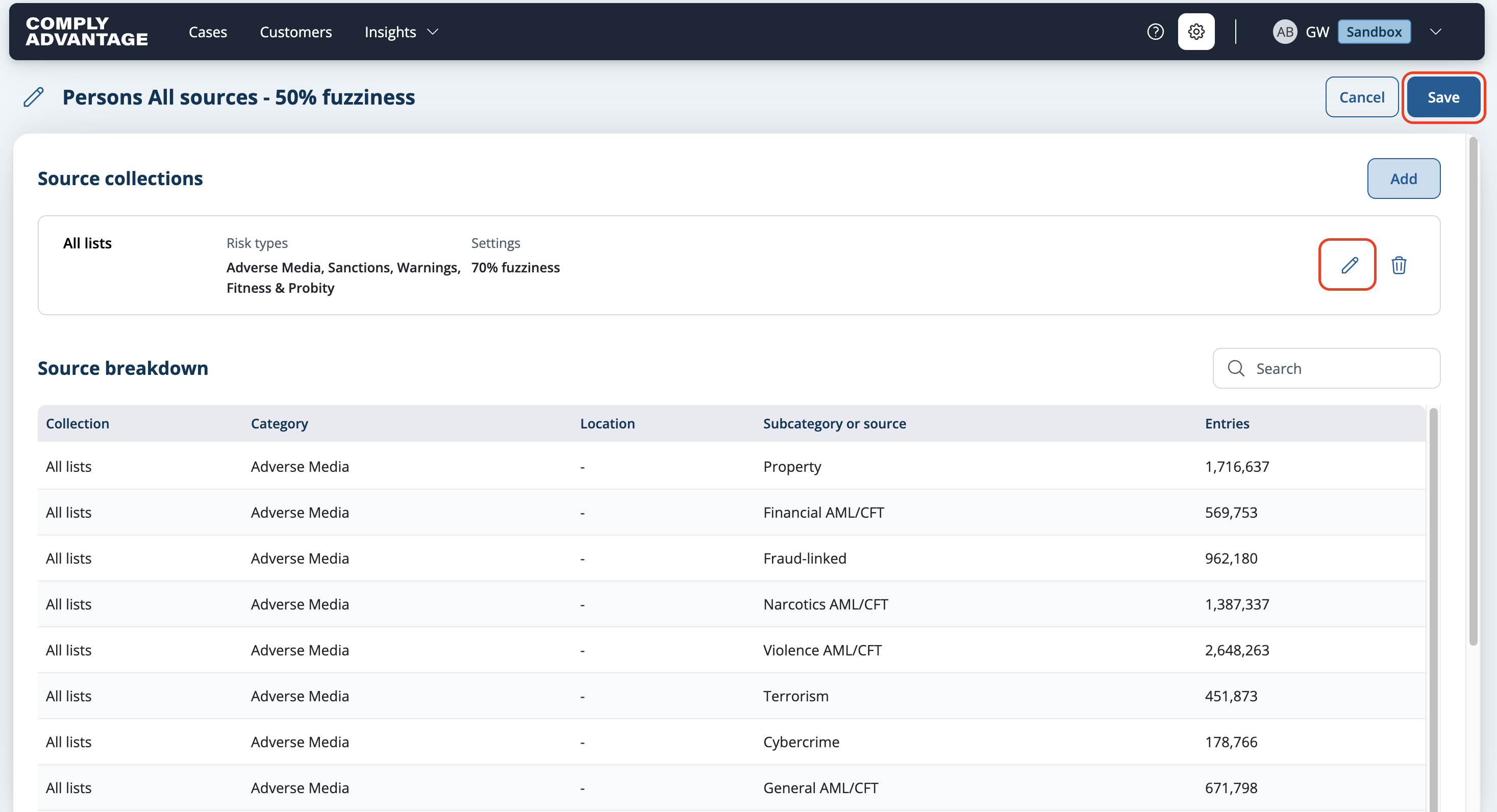
When you edit a collection, you can change the sources or fuzziness for that collection and select Add.
Click Save n the top-right to apply all your updates to the configuration.
For more details, see: Editing a screening configuration
Archiving a screening configuration
You can archive a screening configuration if you don’t want analysts to use it anymore when creating customers. Existing customers using the screening configuration will continue to do so.
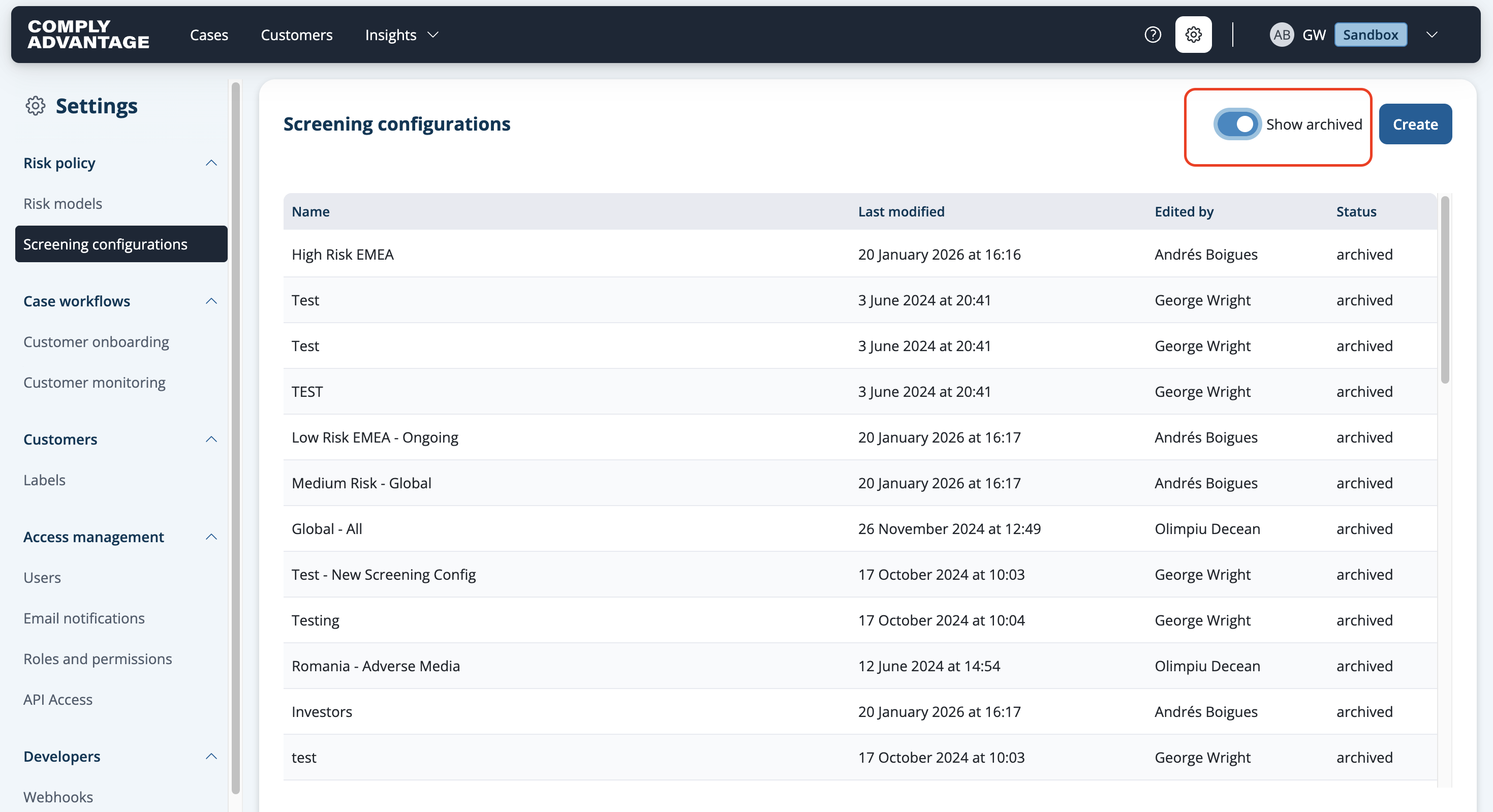
There is a toggle on the screening configurations page to show archived configurations.
For more details, see: Archiving and unarchiving screening configurations
Viewing the change history of a screening configuration
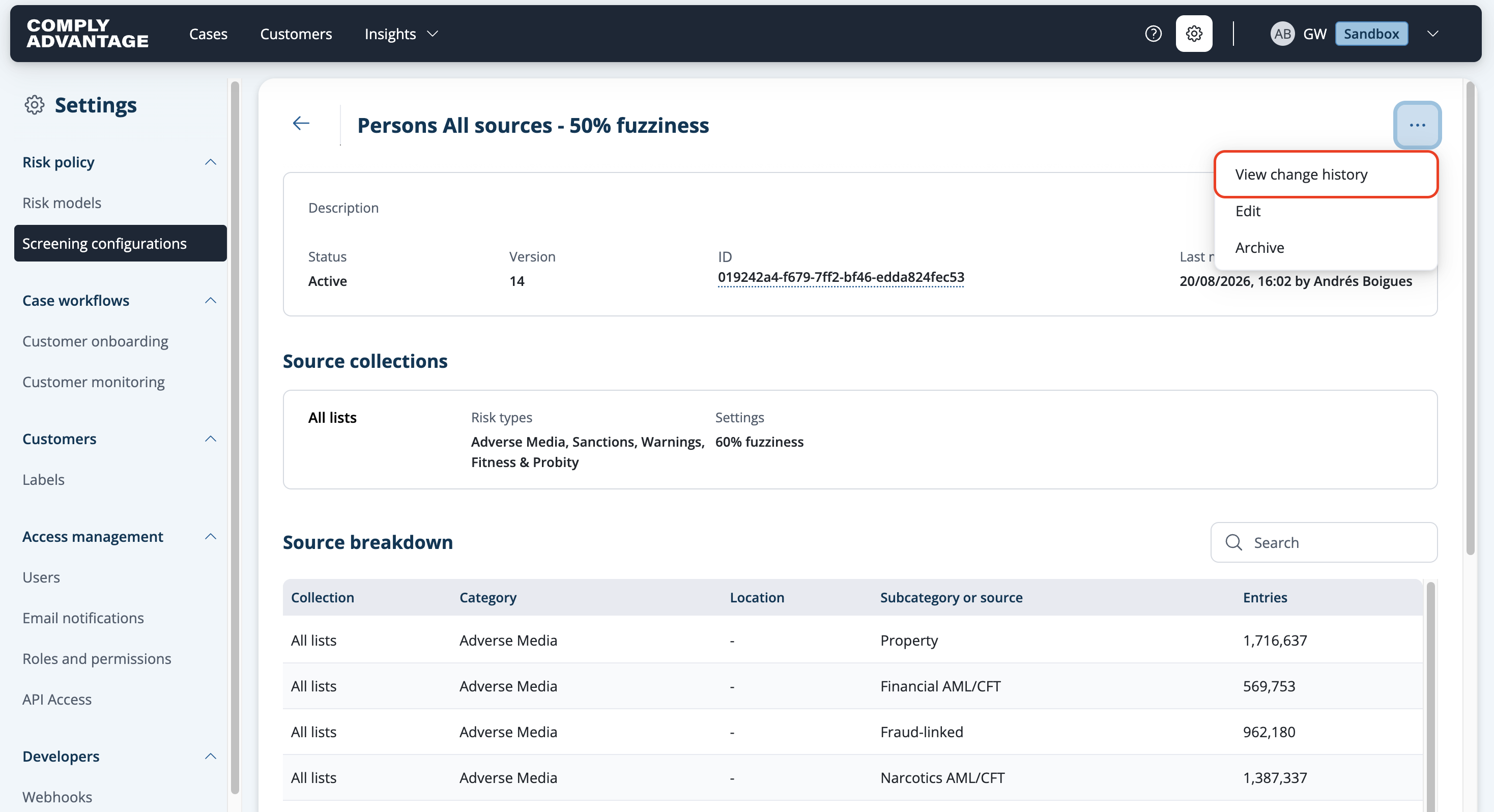
You can view the change history of screening configuration by selecting that screening configuration and clicking on the three dots on the top right.
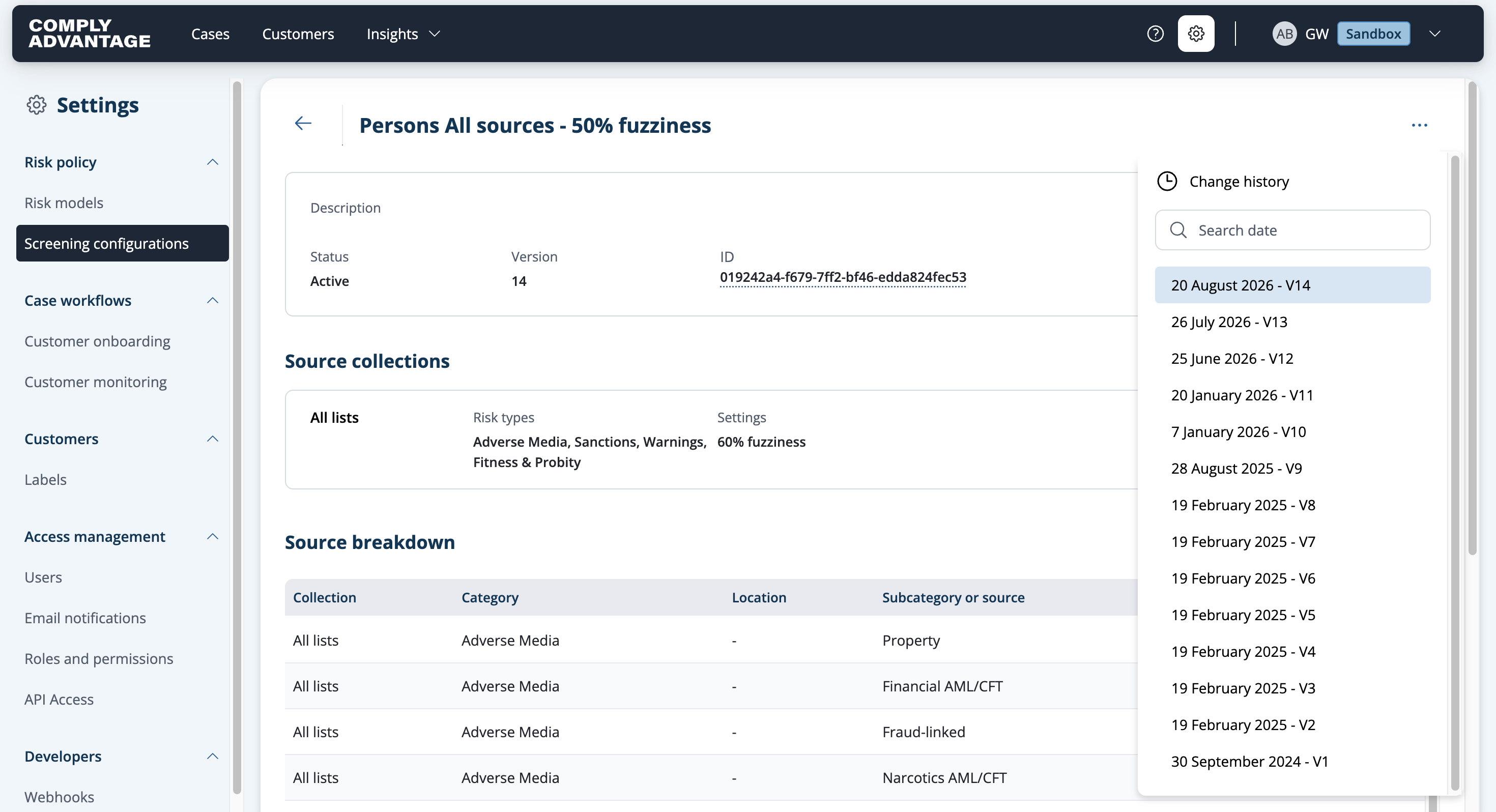
For more details, see: Viewing the change history of a screening configuration