Using dashboards
Last updated: August 25, 2026
The dashboards in ComplyAdvantage Mesh help you to understand the efficiency and effectiveness of your compliance program. There are dashboards for customer screening, customer monitoring and cases. All can be filtered by date range and frequency.
Access dashboards
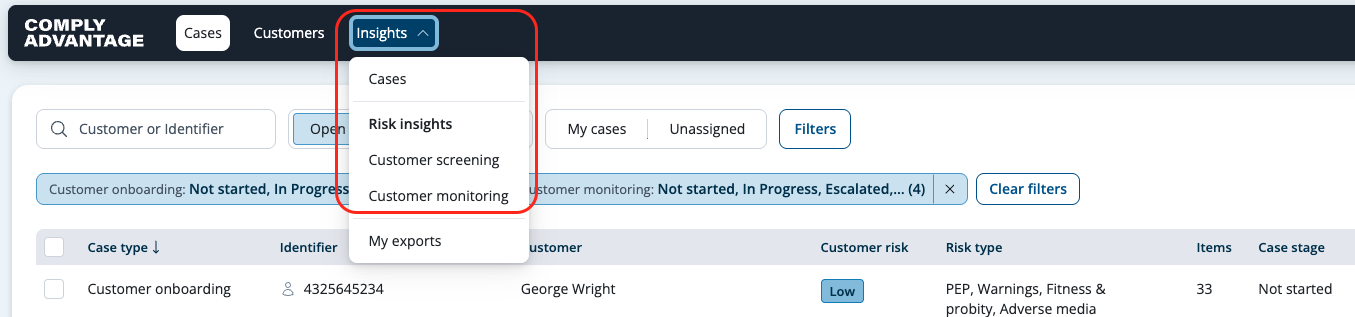
Select the Insights tab.

Select Customer Screening, Customer Monitoring or Cases, depending on the dashboard you want to view.
Filtering dashboards
Use the filters on the top of the page to filter dashboards by date range and frequency. Click the arrow button to open and close the Filters side panel.
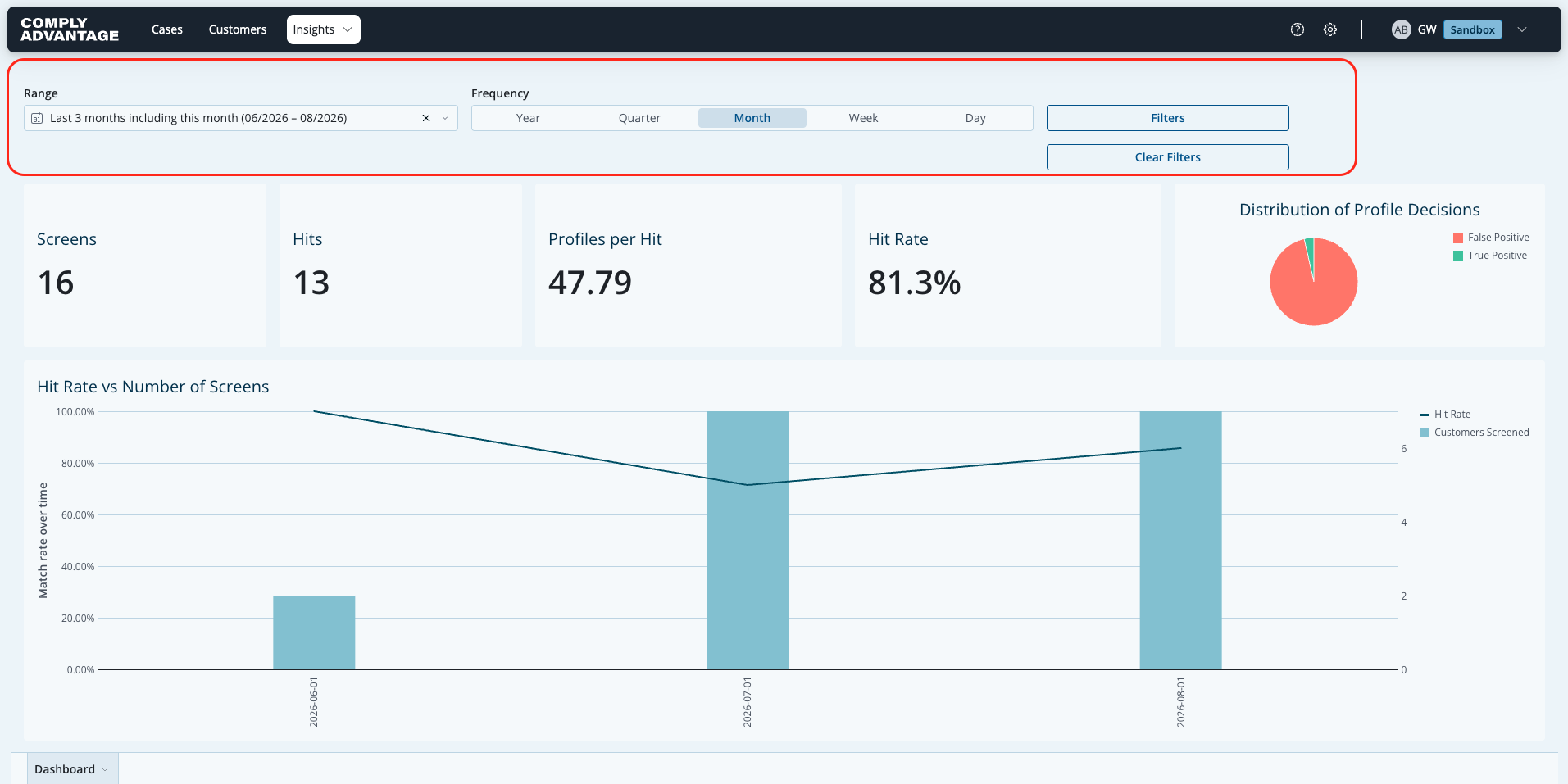
To change the date range or frequency, click in the field and choose the required options. To apply your selection and update the dashboard click Apply.

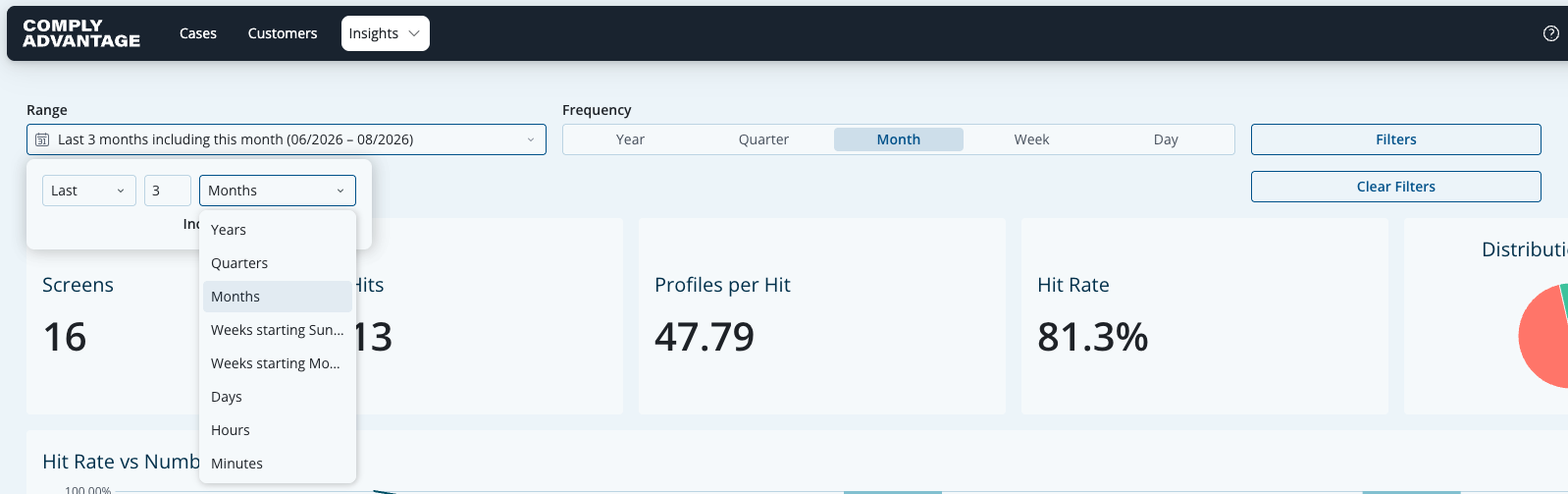
For more details, see: Applying filters to dashboards
Downloading data
Chart data can be downloaded as an image so you can use it outside of the Mesh web application.
To download a comma-separated value (CSV) or Excel (XLSX) file of Mesh information, please see our articles:
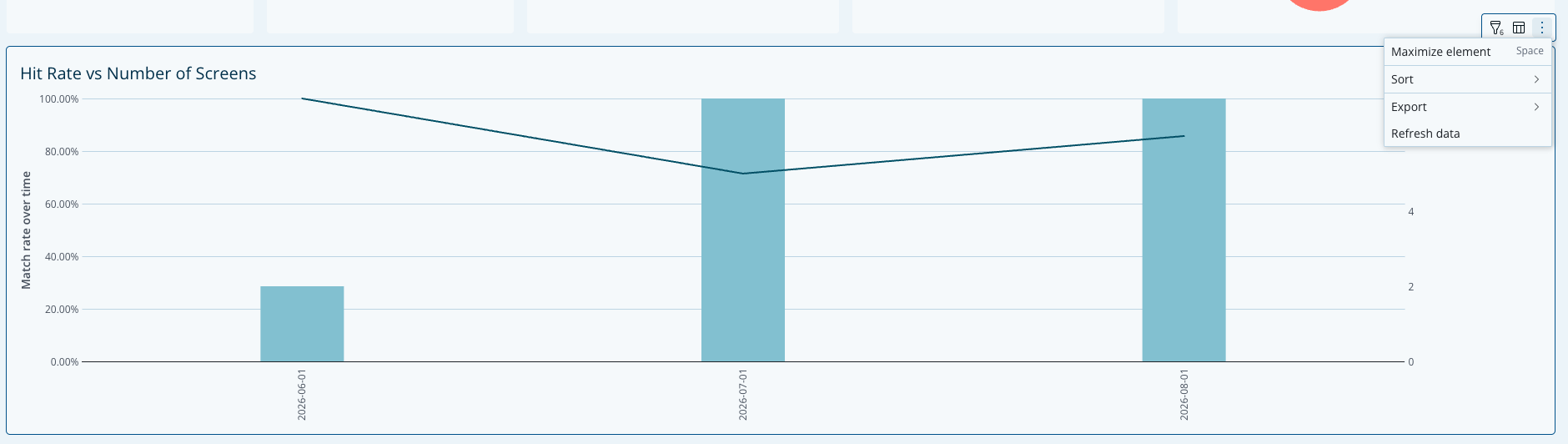
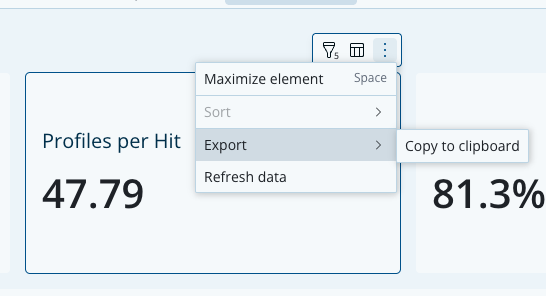
Viewing charts in fullscreen mode
To make it easier to see charts, you can view them in fullscreen mode.

For more details, see: Viewing charts in fullscreen mode