Video: Setting a language
Last updated: October 13, 2026
In this guide, you will learn how to set a language in Mesh.
When logging in to your account, please ensure you select the correct region, which will be one of the following:
Australia: https://au.mesh.complyadvantage.com/
You can find the link to your region in the onboarding email you received (look for the "Welcome to ComplyAdvantage" email).
If you can’t find the email, don't worry! You can always contact our support team at [email protected].
1. Introduction
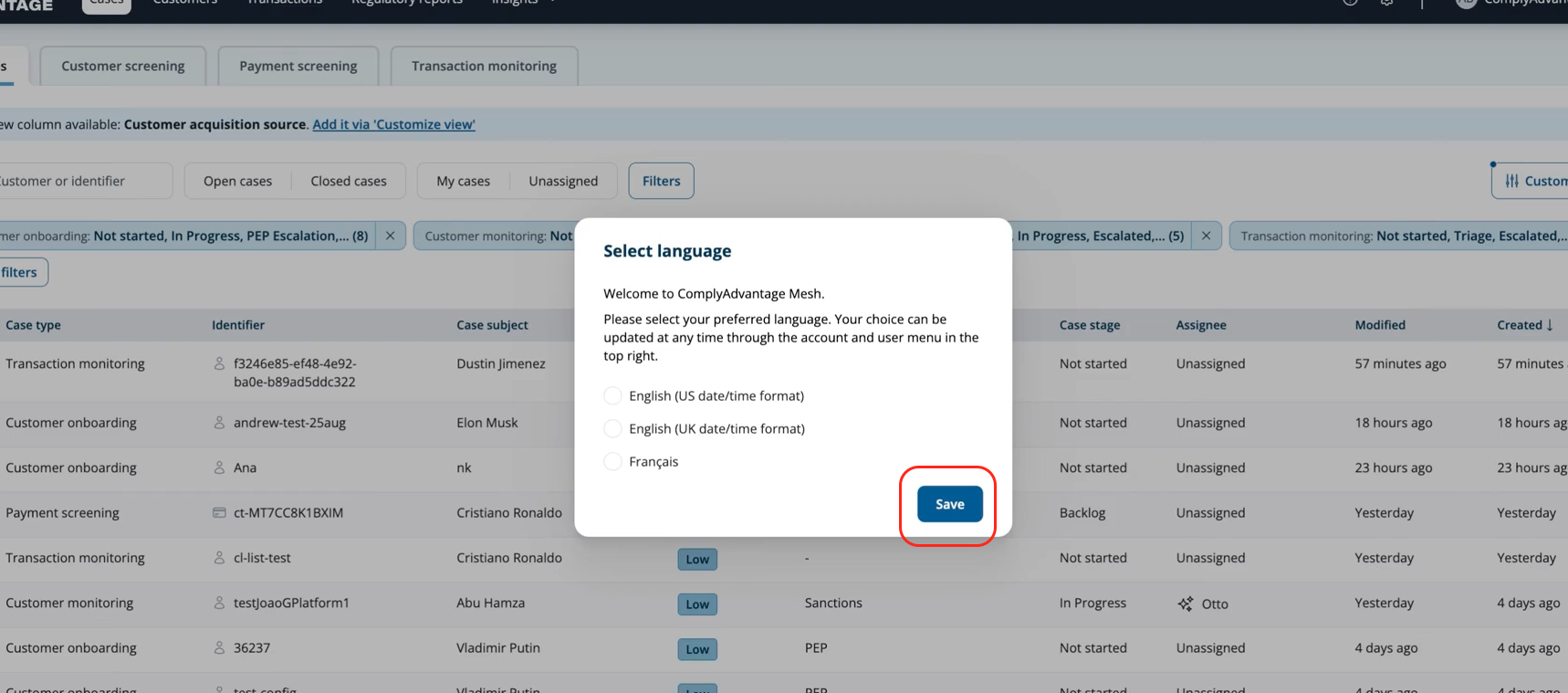
When first logging in, you will be prompted to select your desired language.

2. Select a language
Select the language most suitable for you.

3. Click "Save"
Save the language selection.
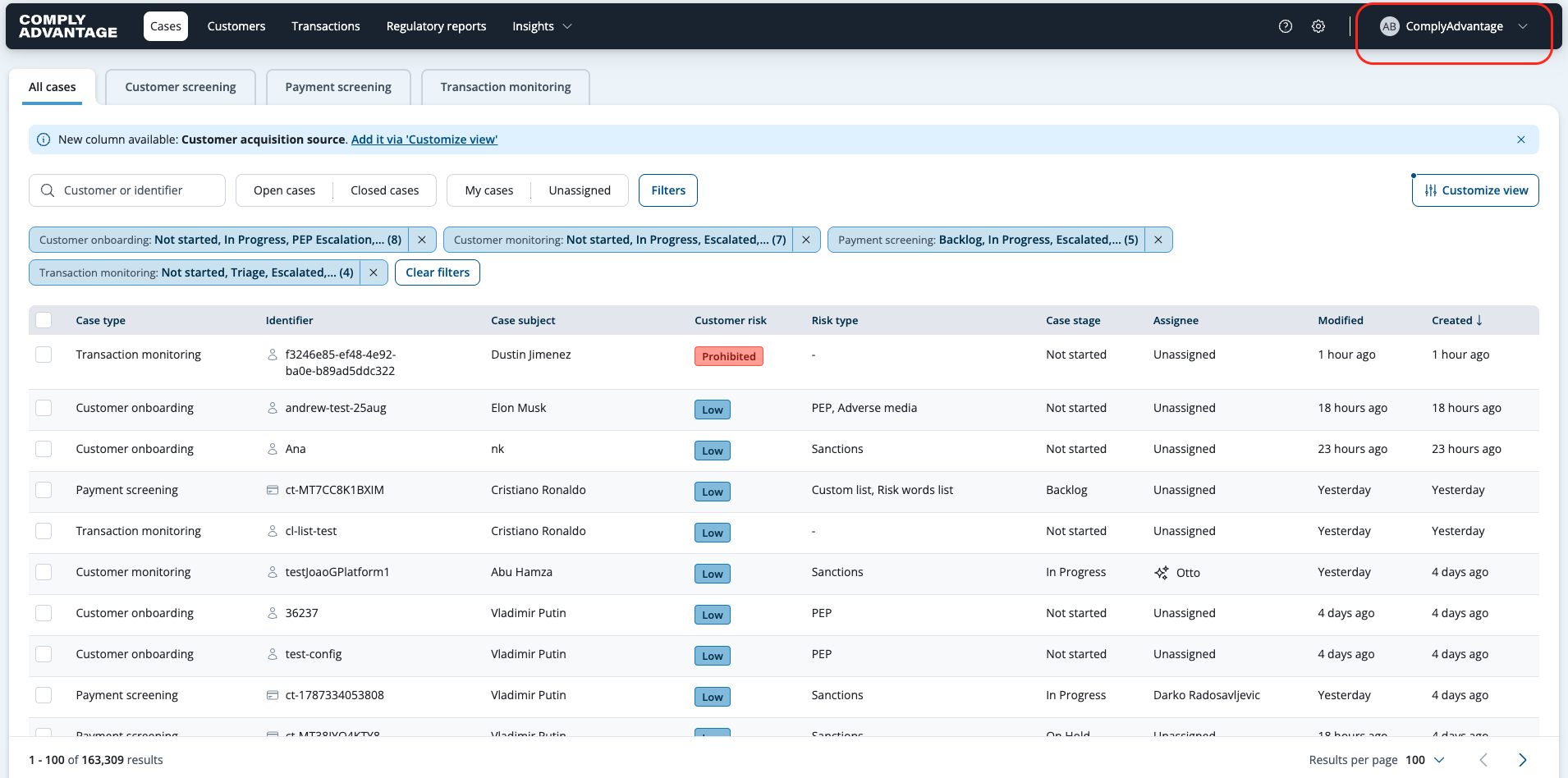
4. Click this dropdown menu
If needed, to edit the language, click the dropdown menu towards the top right of the screen, which will also be your environment name.
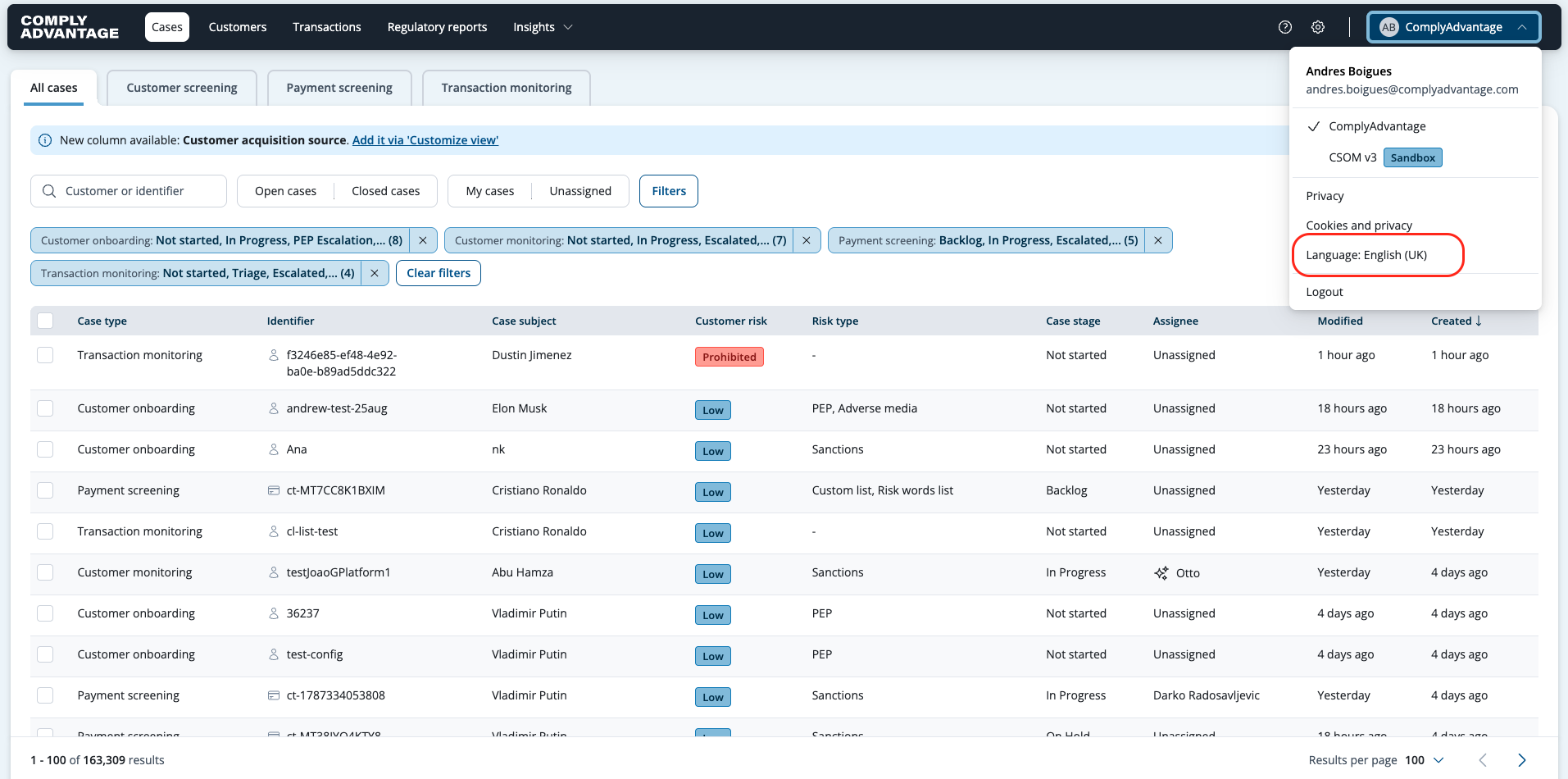
5. Click "Language"
Navigate to "Language."
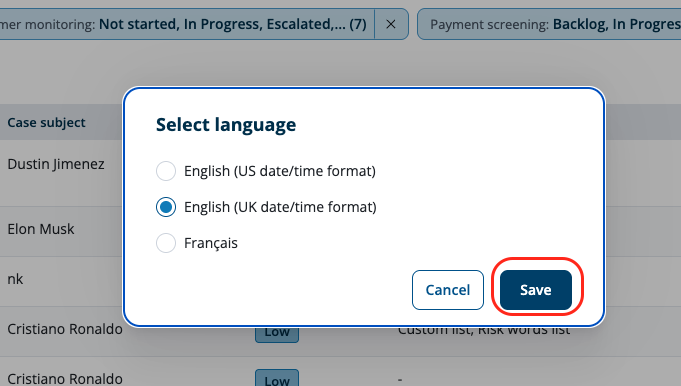
6. Click "Save"
Select your new language and save.
We hope this video helps ensure a seamless process for setting your language for the first time and changing your language in Mesh.