Review a monitoring case
Last updated: November 18, 2026
A monitoring case is created when there is new risk identified for any of the customers you are monitoring, e.g. they were added to or removed from a sanctions list.
To see the screening results that were returned, click into the monitoring case.
The below example shows a monitoring case with one screening result. The reason for alerting is a changed profile. You can see all previously closed cases on the left-hand side. Underneath the status dropdown you can see the previous decision.

For changed profiles where new data has been added, the new data will be highlighted with an Added tag within the detailed profile view.

Add and review notes for a screening result in a monitoring case
To document your investigation of a screening result, you can add notes to the result.
Click on the screening result that you want to review
Click the Profile notes

The Profile notes icon icon next to the status of the screening result.
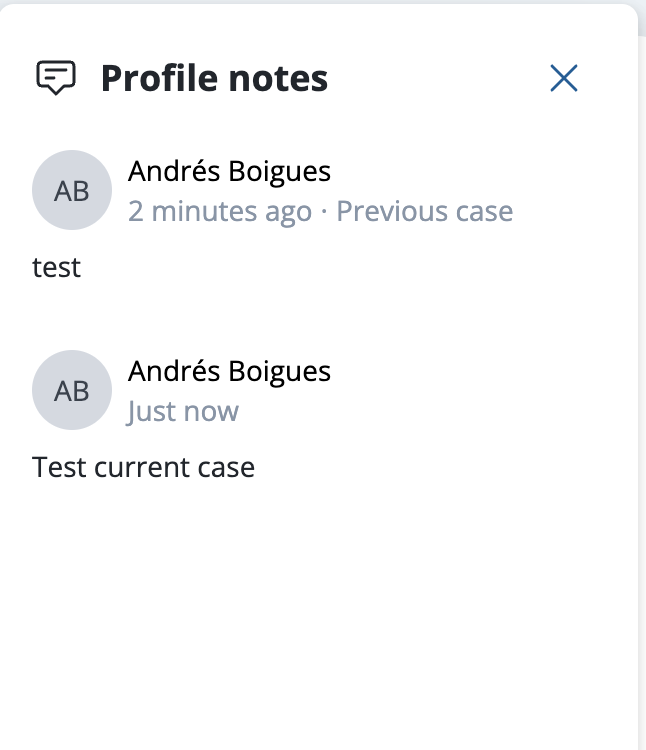
A pane with the title Profile notes appears on the right. This pane shows all notes added for that screening result, including the user who added the note, and when the note was added.

The Profile notes pane on a monitoring case Type your note in the text box at the bottom of the pane. Notes are limited to 5,000 characters.

The Add profile note button below the note box Press the Add profile note button at the bottom of the pane to save your note, after you finish typing it.
Note: The Profile notes pane will show notes added when investigating the same screening result, in other cases (onboarding or monitoring) for the same customer. These will be highlighted with the tag Previous case.
Assign a status to a screening result in a monitoring case
Before you can make a decision on the case, you have to review the screening results within it and assign a status.
There are two options to assign a status to a screening result in a monitoring case. They are the same as in a customer onboarding case.
From the screening result details
From the case details view
Please see Assign status to screening results for a step-by-step guide.
Close a monitoring case
Once all screening results are assigned, you can move on to the case decision.
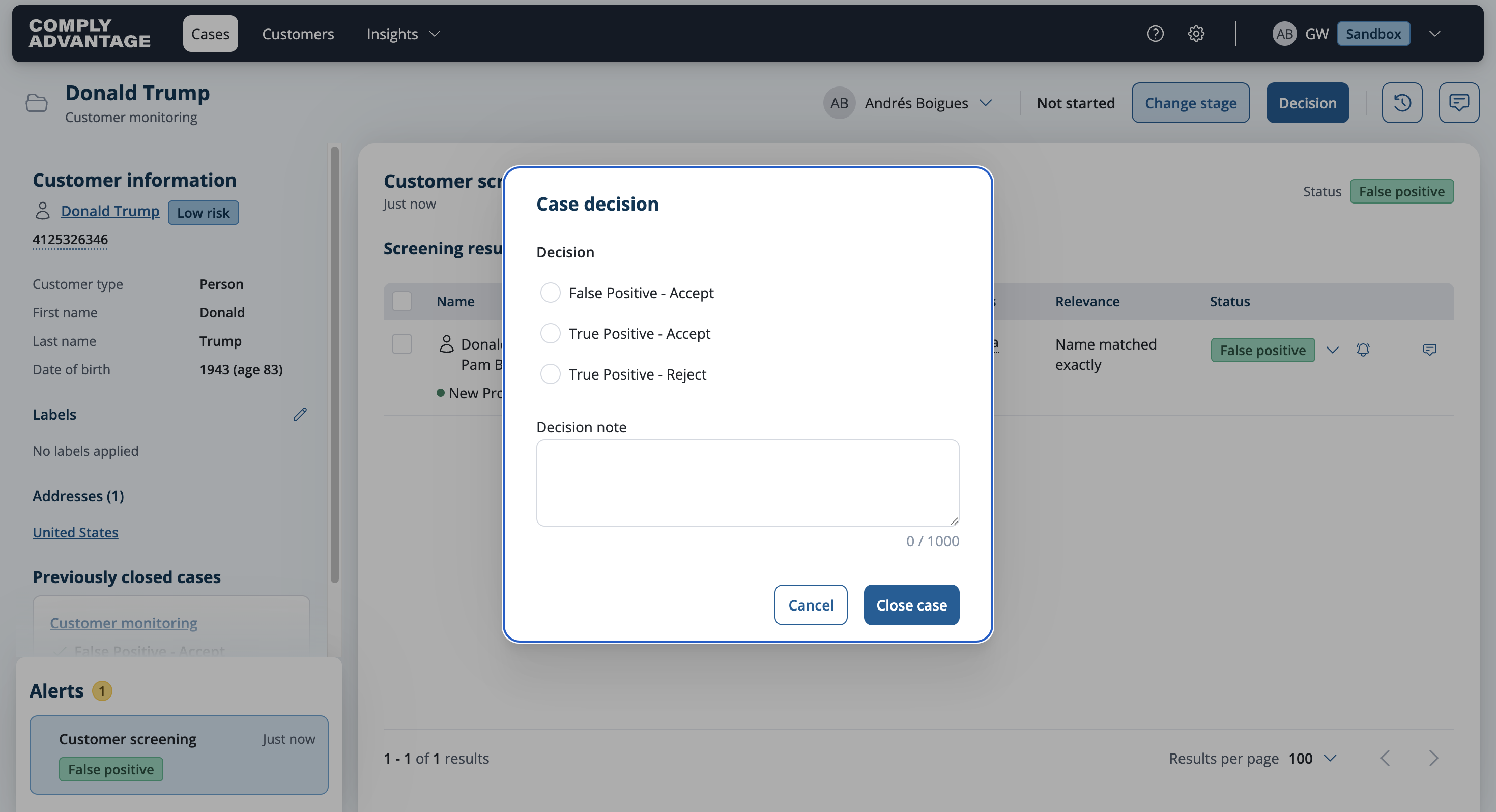
Please see Close a case for detailed steps on how to close a case.