Turn on/off ongoing monitoring
Last updated: November 18, 2026
Ongoing monitoring of a customer is switched on or off from the customer record, while the customer’s status is Active or Processing. A customer whose status is Closed is not monitored.
Monitoring is set on each customer. There is no account-wide default, so a customer is monitored only if monitoring was switched on when it was created or afterwards. What is Ongoing Monitoring? explains what monitoring does.
Changing a customer’s monitoring requires the Access to base customer monitoring functionality and Monitor and unmonitor customers permissions. Without both, the Actions menu does not offer Turn on monitoring or Turn off monitoring.
Navigate to the customer record by searching or using filters on the Find customer page.
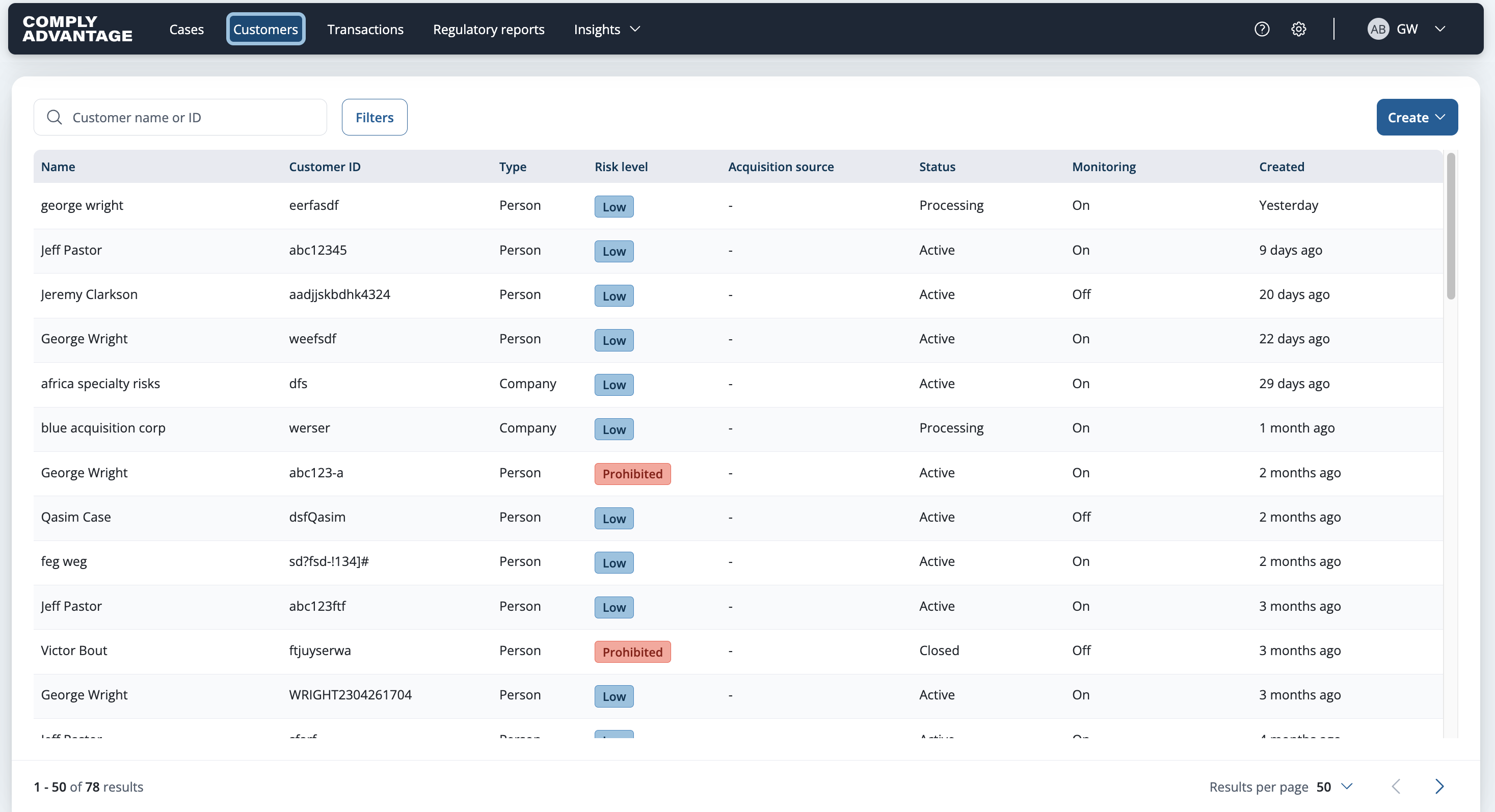
Customers page with the search box and Filters button Select the row of the customer you want to turn monitoring on or off for.

Select Actions in the upper right.
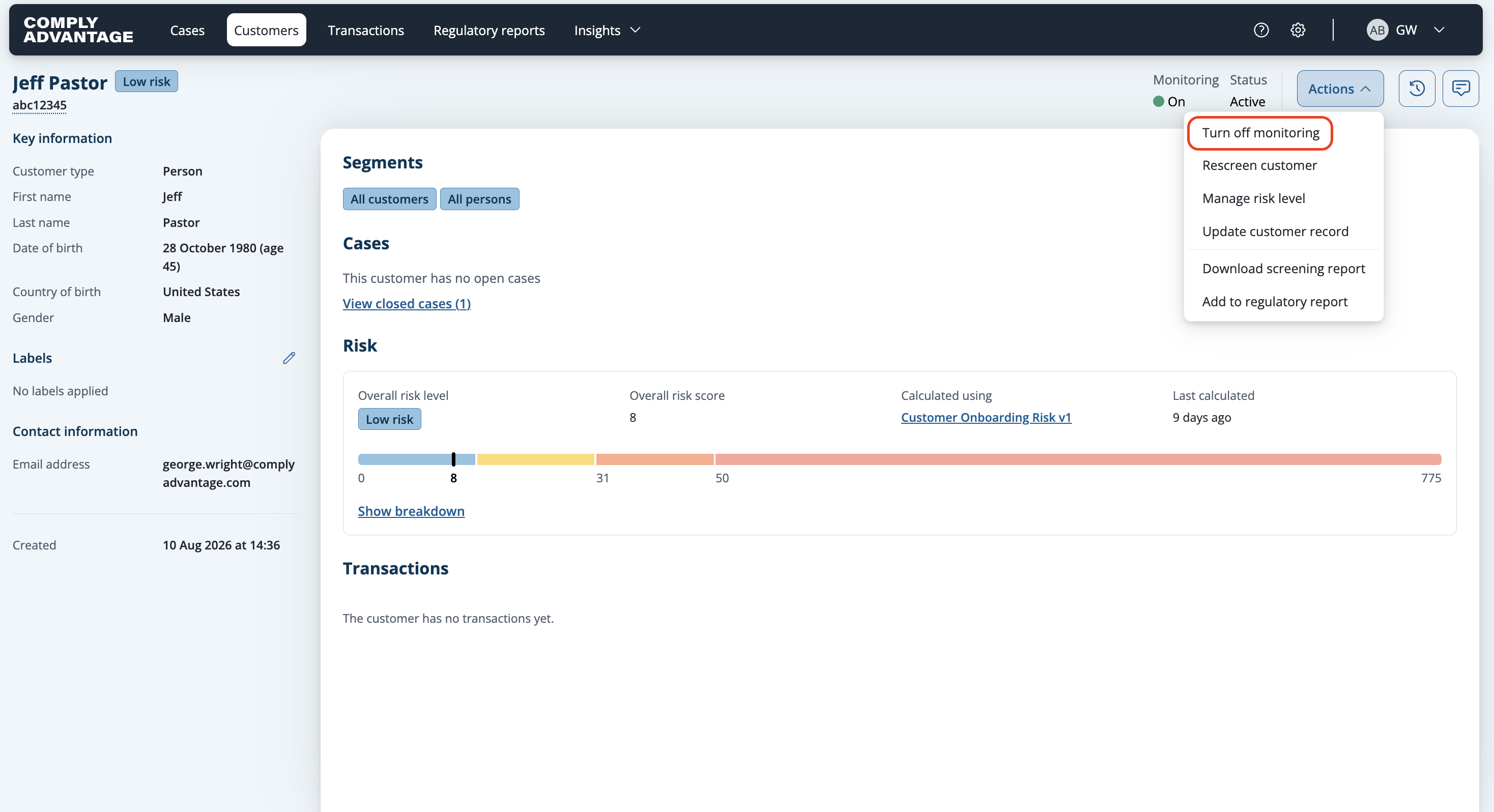
Click Turn off monitoring to disable ongoing monitoring.
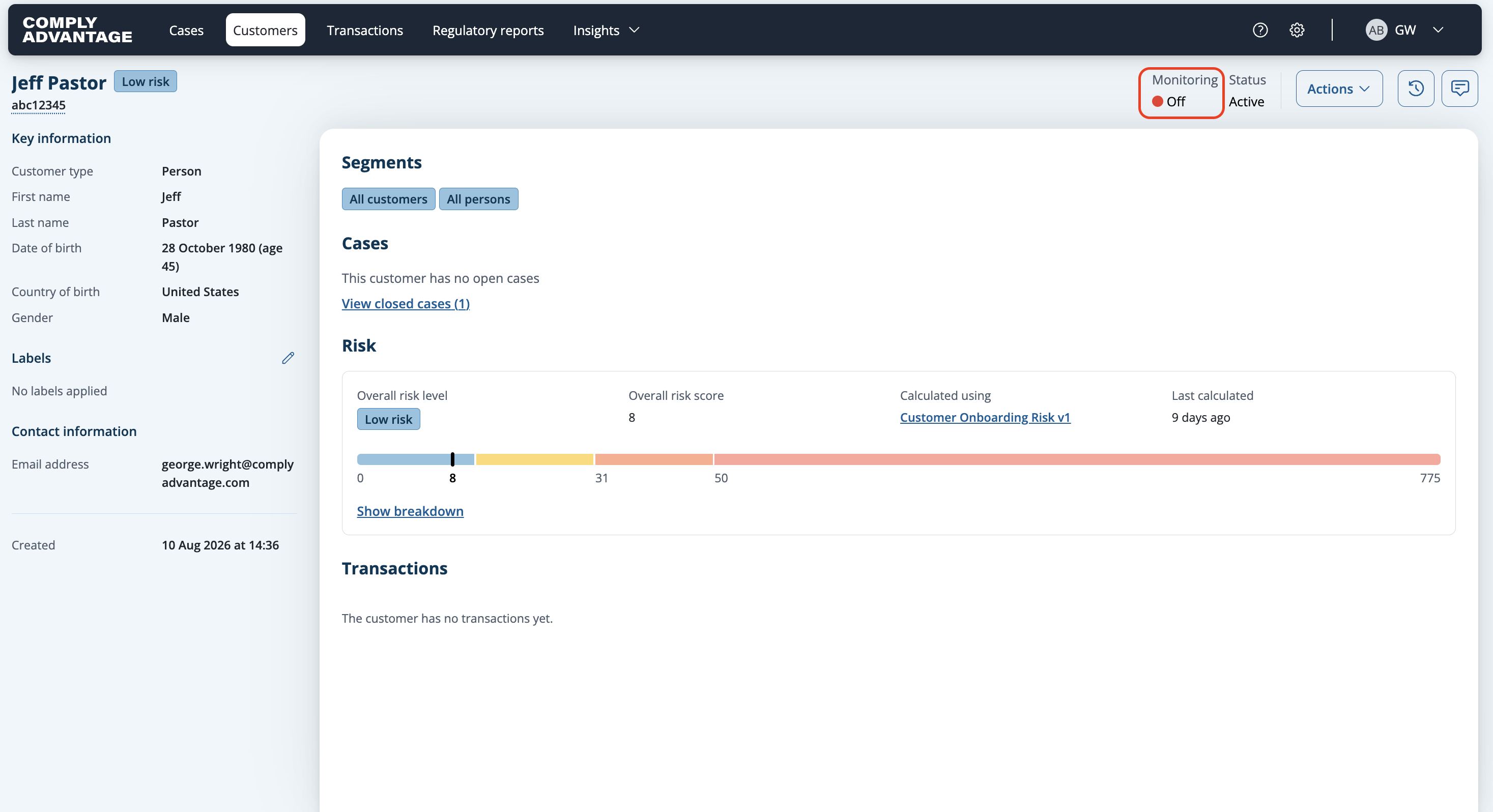
The monitoring status will be updated to Off.
Select Actions again.
Click Turn on monitoring to enable ongoing monitoring.

The monitoring status will be updated to On.
Turning monitoring off for many customers
In the web app, monitoring is switched on or off one customer at a time, with the steps above. The batch upload described in Creating and screening people or companies in batches cannot switch monitoring off for customers that already exist.
Through the API, PATCH /v2/customers/{customer_identifier}/monitor sets monitoring for one customer per request and requires the same two permissions. To switch monitoring off for a list of customers:
Find the
customer_identifierof each customer with GET /v2/customers, which requires the View customers permission. To list every monitored customer, setmonitoring_enabledtotrue. One query returns up to 10,000 customers.Send one request per customer to PATCH /v2/customers/{customer_identifier}/monitor, with
entity_screening.enabledset tofalse. These requests count against your account’s API rate limit, which Mesh API FAQs describes. Technical Support can also switch monitoring off for a list of customers on request.
What happens to open cases
Switching a customer’s monitoring off does not close its open cases. They stay open until you close them, as Review a monitoring case describes.
Closing a customer also stops its monitoring, so switching monitoring off first is not needed. A Closed customer keeps its monitoring setting, so its Monitoring column on the Find customer page can still read On.