Reviewing cases
Last updated: August 20, 2026
A case is created for a customer in ComplyAdvantage Mesh if they have a hit. The case contains information about the customer, including any alerts raised. An alert is a signal that something suspicious was found.
When you log in to Mesh, the default view is the case list page.
Managing cases
To narrow down cases or find a specific one, use the filters and the search option at the top of the case list page. You can also sort the table by clicking the column name headers.
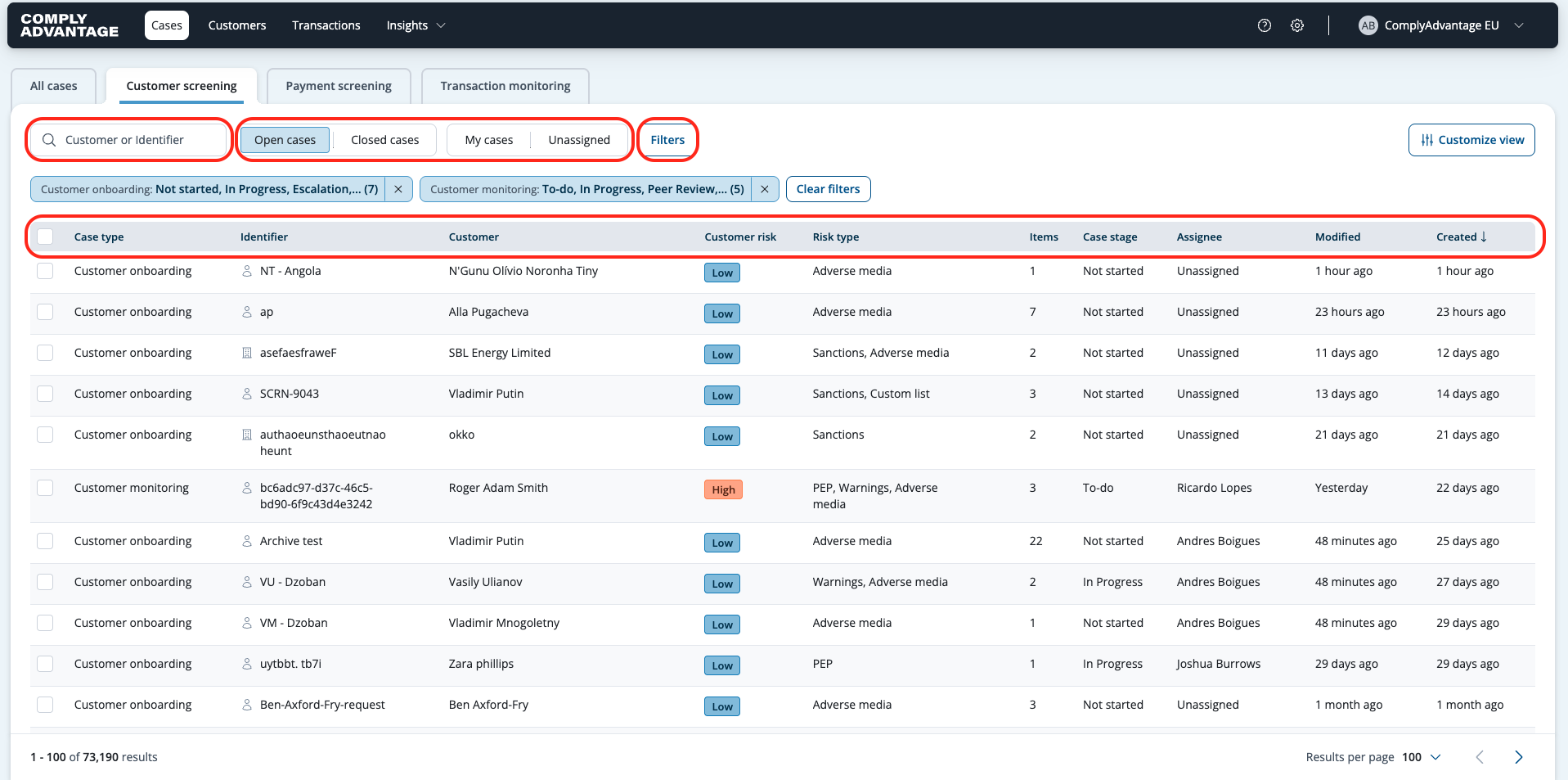
For more details, see:
Assigning a case
You can assign a case to yourself or another analyst to start the review. Select one or more cases to enable the Actions button and choose the Assign to option.
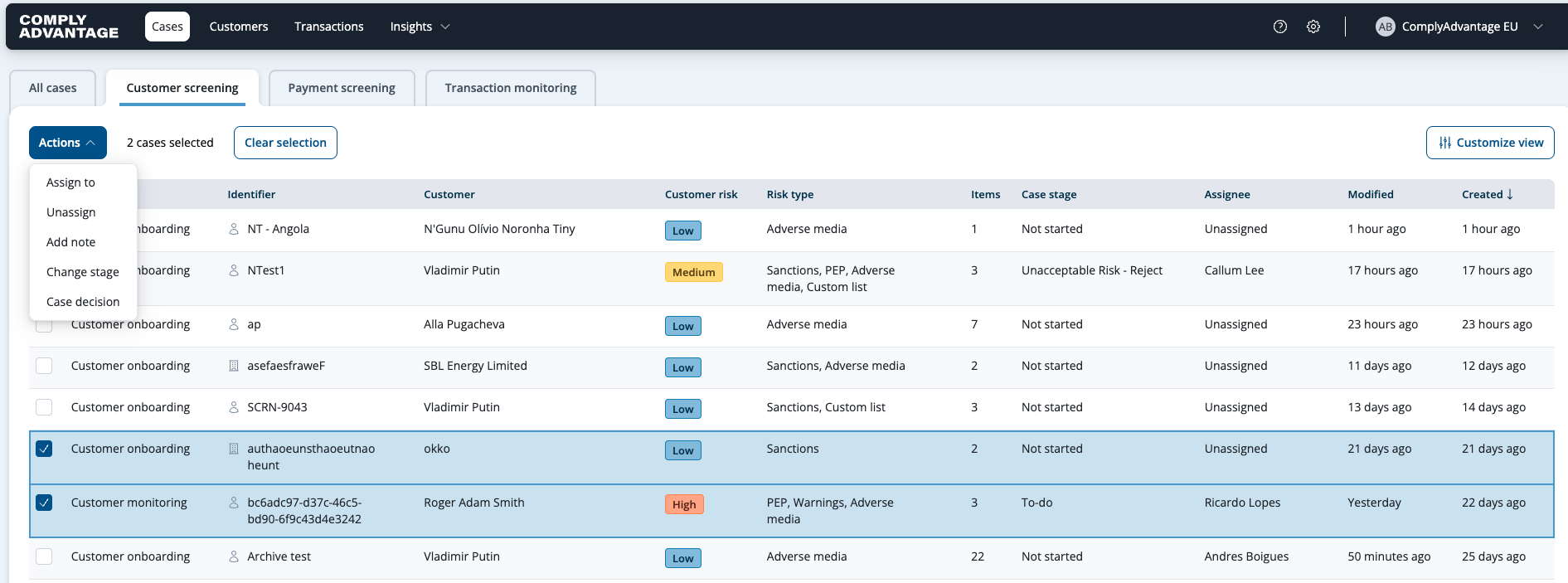
For more details see:
Reviewing screening results
A profile hit is when the customer appears to match somebody in a risk category such as politically exposed persons (PEPs), sanctions or adverse media. A profile hit may be a false positive (not an accurate match) or a true positive (an accurate match).
Once you have identified whether the profile hit is a true or false positive, you can change the status of the screening result accordingly.
The information displayed for a case depends on the case type. Below is an example of a customer onboarding case.
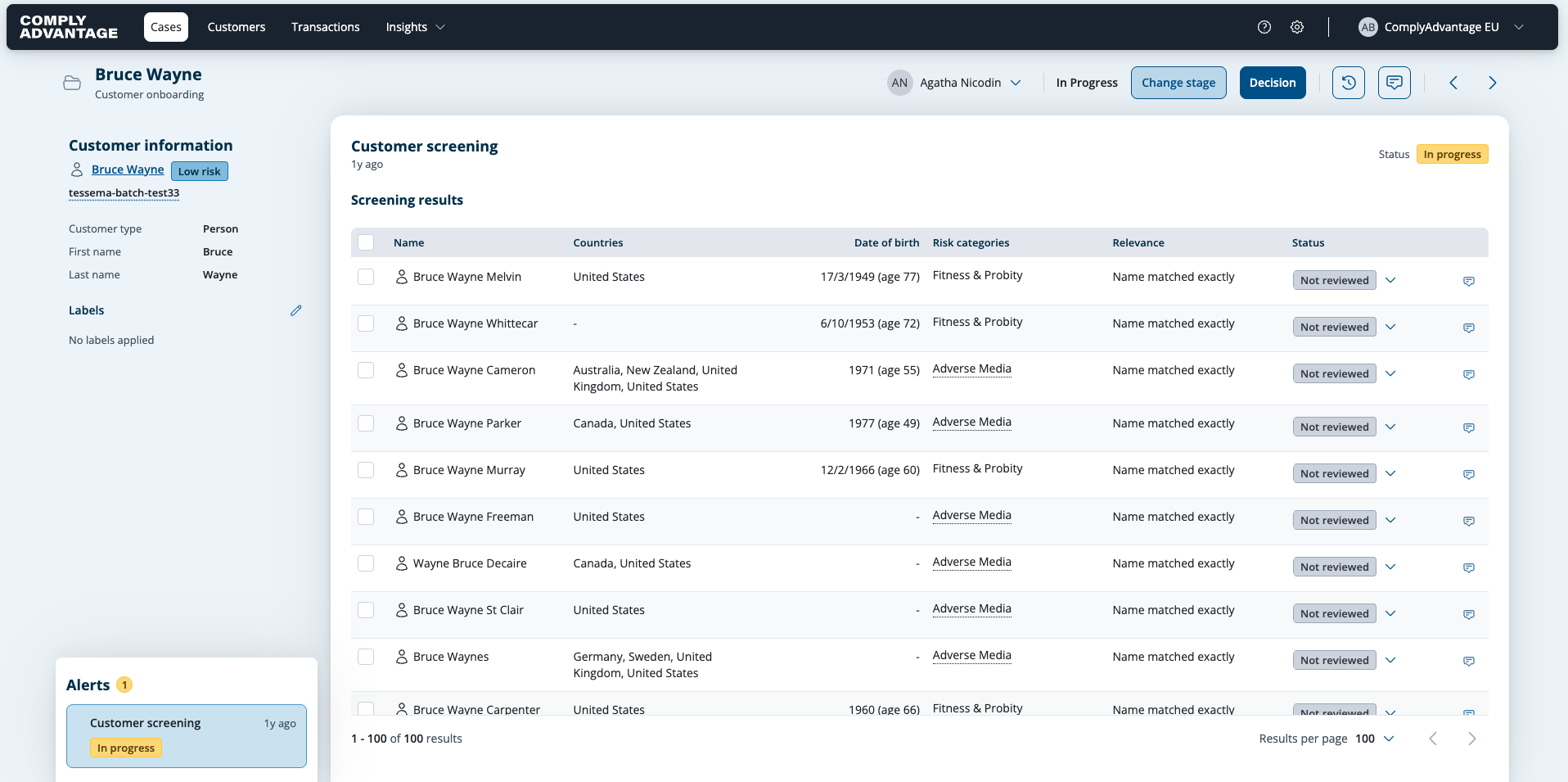
If you click a specific row, you can open a screening result's profile.

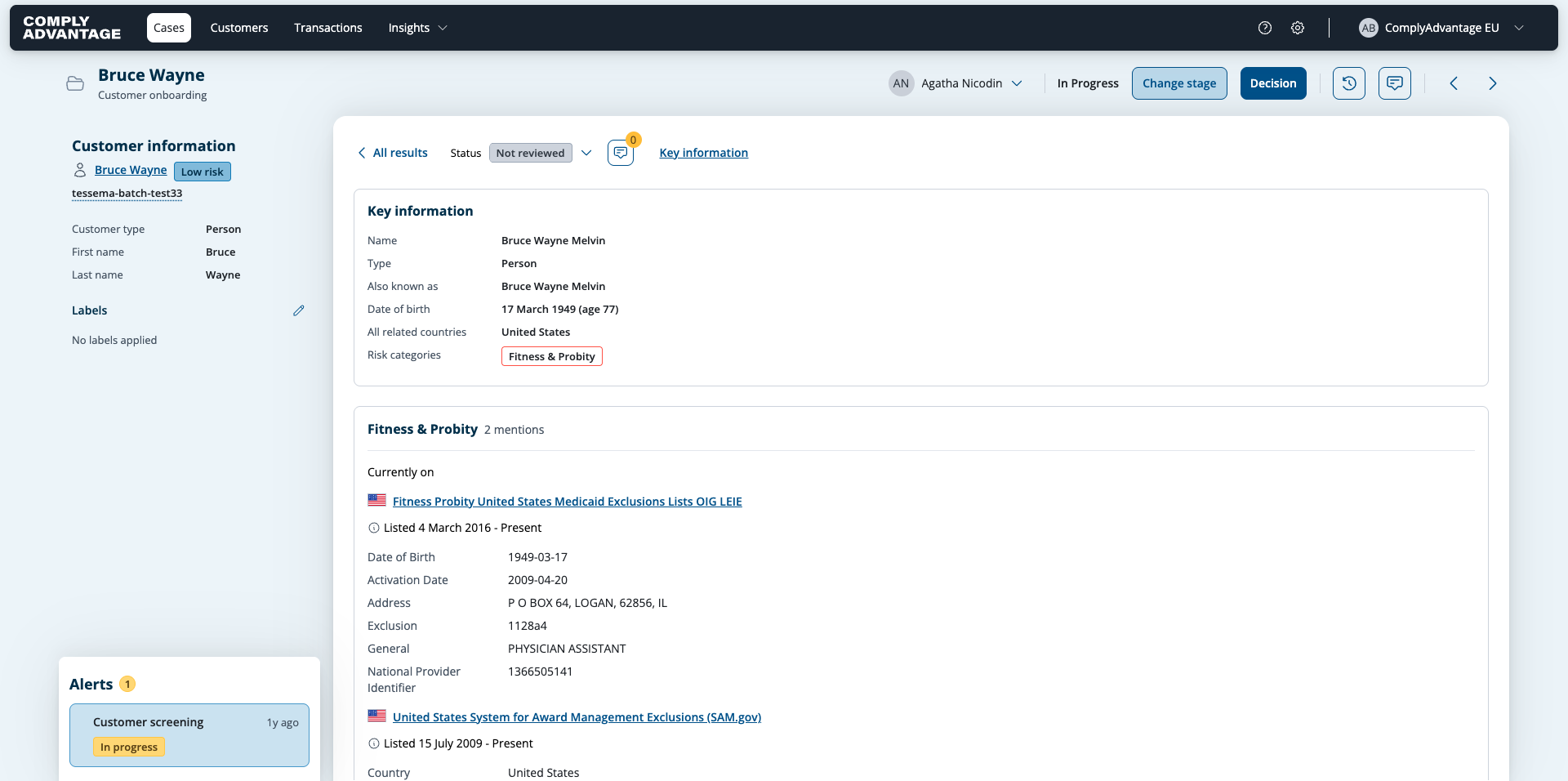
After reviewing the details you can assign a status to the screening result.
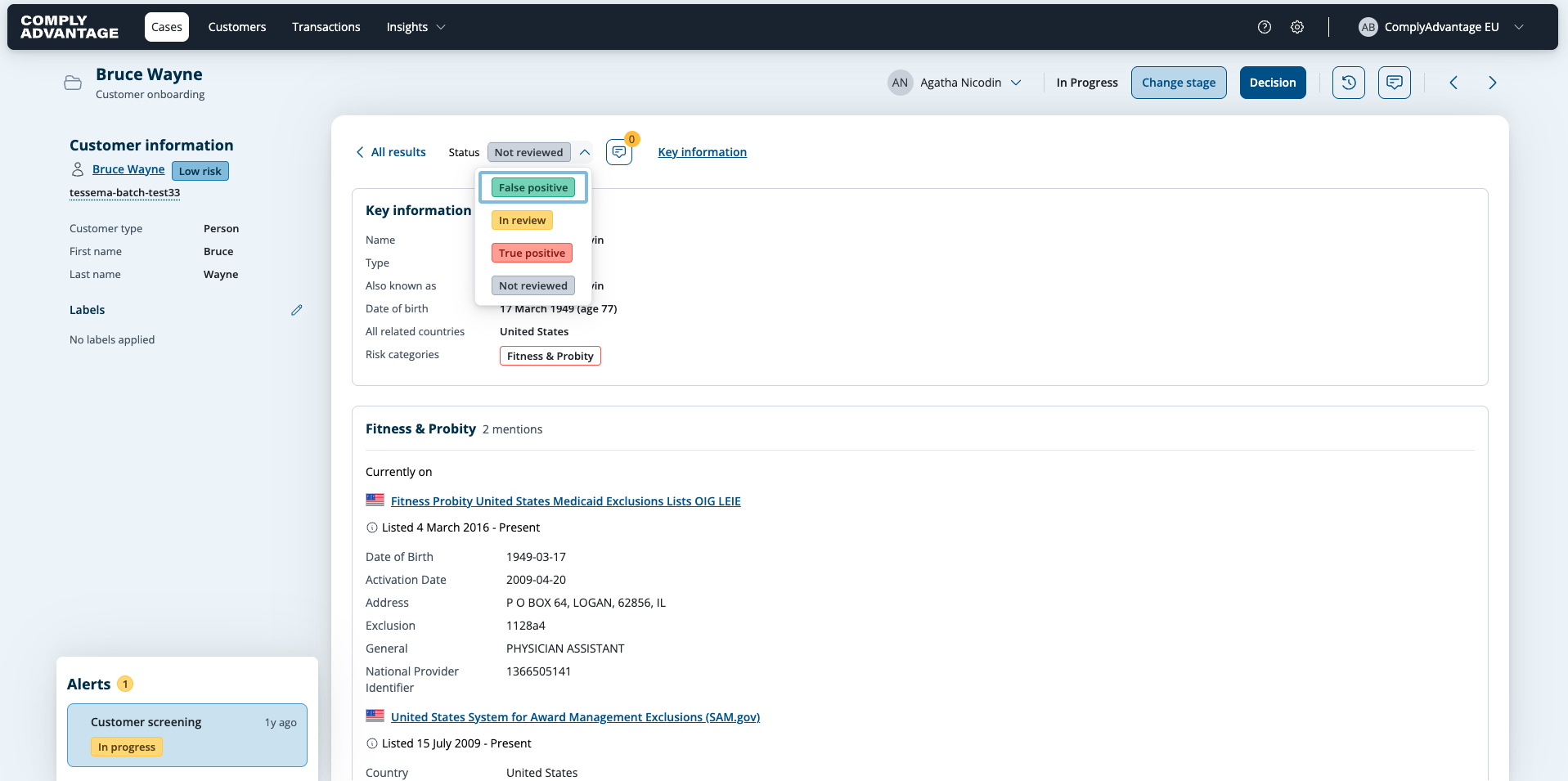
For more details, see: Assigning status to screening results
Adding a note to a case
You can capture your findings on the case as a note for future reference. Go to the case you want to leave a note on and click the notes icon in the top-right corner.

For more details, see: Adding notes to a case
Transitioning a case through the workflow
As part of case remediation, you may be required to move through various stages, depending on your business processes. For example, certain cases may need to be reviewed by an escalation team before making a decision.
You can change the stages for an individual case from the case view page, or change the stages for multiple cases using the bulk action option on the case list page. When changing the stage, you can leave a linked note. When moving from one review stage to another, you can also change the assignee.
You are reminded at key points to change the stage to ensure the case is always in the correct stage. These key points are when transitioning from an initial stage to a review stage, when transitioning from a review stage to another review stage, and when resetting the profile statuses to 'not reviewed'.
For more details, see: Transition a case across stages in a workflow
Closing a case
When you have made a decision about the risk of a case, you can close the case by assigning a decision to it.
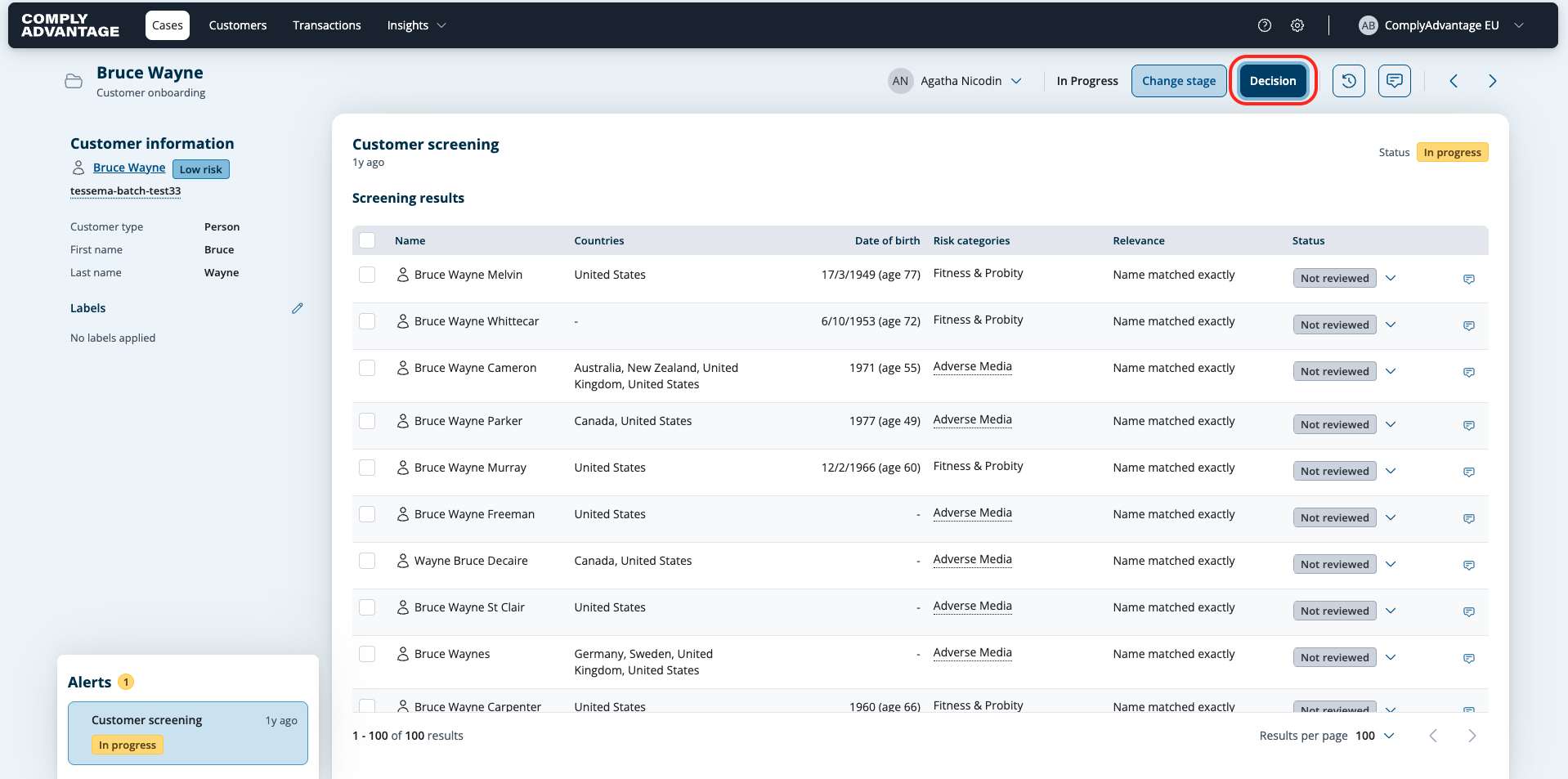

What the decisions mean:
No Risk - Accept.
The reviewer found nothing that stands in the way of onboarding the customer, either because every screening result was discounted or because none carried real risk. It records a Positive decision.
Manageable Risk - Accept.
Risk was identified, but it sits within your risk appetite and can be handled through the controls you already have in place, so the customer is accepted. It records a Partial Positive decision, which is a distinct type from No Risk - Accept, so the difference is preserved on the case and in the audit trail even though both are an accept.
Unacceptable Risk - Reject.
The risk identified falls outside your risk appetite and the customer is not onboarded. It records a Negative decision.
In this example two specific messages also appear above the decision list.
The first is a warning that the case still has one open alert. On customer screening cases it is a prompt rather than a block: the case can be closed with the alert unresolved, and that alert stays open afterward rather than closing along with the case, so it has to be picked up separately.
The second is an information message about ownership. Whoever closes the case becomes its assignee, regardless of who the case was assigned to beforehand, which keeps the closed case attached to the person who made the decision.
For more details see: